


Retail performance begins at the store entrance. Every customer who walks into a store represents a potential sale, a brand interaction, and a growth opportunity. However, many retail businesses still track foot traffic using basic counters or disconnected spreadsheets. As a result, understanding peak hours, seasonal trends, campaign impact, and store performance becomes slow, unclear, and unreliable.
That is exactly why the Retail Foot Traffic KPI Dashboard in Google Sheets becomes a game-changing solution.
This ready-to-use dashboard transforms raw footfall data into structured KPIs, clear comparisons, and visual insights. It allows retail managers, store owners, and operations teams to monitor customer visits, track performance against targets, analyze trends, and make smarter staffing and marketing decisions—all from a single Google Sheets file.Retail Foot Traffic KPI Dashboard in Google Sheets
Because the dashboard runs entirely in Google Sheets, it remains cost-effective, collaborative, and easy to update without technical complexity or expensive BI tools.Retail Foot Traffic KPI Dashboard in Google Sheets

📊 Key Features of the Retail Foot Traffic KPI Dashboard
🚶 Centralized Foot Traffic Tracking
Track daily, monthly, and yearly store visits in one structured dashboard.
🎯 Target vs Actual Monitoring
Compare actual foot traffic against planned targets to measure store performance.
📅 MTD & YTD Performance View
Monitor Month-to-Date and Year-to-Date trends effortlessly.
📈 Trend & Seasonality Analysis
Identify peak periods, slow days, and seasonal traffic patterns.
⚡ Real-Time Updates
All KPIs and visuals refresh automatically when data changes.
📂 What’s Inside the Retail Foot Traffic KPI Dashboard
The dashboard includes 6 well-structured worksheet tabs, each designed for clarity and performance tracking.Retail Foot Traffic KPI Dashboard in Google Sheets
📌 Dashboard Sheet Tab – Main Dashboard
This is the executive overview page where decision-makers start.
How it works:
Select the month from the dropdown in cell D3
All KPIs update automatically
Metrics Displayed:
MTD (Month-to-Date):
Actual
Target
Previous Year
Target vs Actual
Previous Year vs Actual
YTD (Year-to-Date):
Actual
Target
Previous Year
Target vs Actual
Previous Year vs Actual
Conditional formatting with green and red arrows instantly highlights performance improvement or decline, allowing managers to take action without deep analysis.
📉 KPI Trend Sheet Tab – Deep KPI Analysis
This sheet focuses on individual KPI behavior.
How it works:
Select a KPI from the dropdown in cell C3
Details displayed:
KPI Group
Unit of Measurement
KPI Type (Upper the Better / Lower the Better)
KPI Formula
KPI Definition
The month-wise trend chart helps retail teams understand growth patterns, sudden drops, and long-term traffic behavior.
🧾 Actual Number Sheet Tab – Data Entry Sheet
This sheet stores actual foot traffic values.
Key functionality:
Select the first month of the year in cell E1
Enter MTD and YTD actual values
All dashboards and charts update automatically
This sheet becomes the single source of truth for store visit data.
🎯 Target Sheet Tab – Foot Traffic Goals
This sheet captures planned targets.
Includes:
Monthly (MTD) targets
Annual (YTD) targets
Targets help retail teams align store traffic goals with marketing campaigns, promotions, and growth plans.
📊 Previous Year Number Sheet Tab – YoY Comparison
This sheet stores last year’s foot traffic numbers.
Benefits:
Year-over-year comparison
Seasonal performance analysis
Benchmarking store growth
It helps retailers understand whether performance is improving or declining compared to past years.
📘 KPI Definition Sheet Tab – KPI Reference Guide
This control sheet ensures KPI consistency.
Includes:
KPI Name
KPI Group
Unit
Formula
KPI Definition
KPI Type (UTB / LTB)
It ensures everyone interprets KPIs the same way.
👥 Who Can Benefit from This Retail Foot Traffic KPI Dashboard
Retail Store Managers
Retail Operations Teams
Regional & Area Managers
Franchise Owners
Business Owners & Executives
Marketing & Campaign Teams
🧠 Best Practices for Using the Dashboard
Update foot traffic data daily
Set realistic monthly targets
Review trends weekly
Compare YoY data consistently
Share insights with store managers
Maintain consistent KPI definitions
### Click here to read the Detailed blog post
Watch the step-by-step video tutorial:
Visit our YouTube channel to learn step-by-step video tutorials
👉 https://youtube.com/@NeotechNavigators
Compatibility and Requirements
- Works in Google Sheets. You need a free Google account and a web browser.
- You pick the month and the KPI from dropdown lists. Google explains dropdowns in Create an in-cell dropdown list.
Frequently Asked Questions
Which sheets are included?
Six sheets: Dashboard, KPI Trend, Actual Number, Target, Previous Year Number and KPI Definition.
How do I update the dashboard?
Enter your MTD and YTD actual foot traffic values in the Actual Number sheet and your goals in the Target sheet. Then select a month in cell D3 of the Dashboard sheet and the KPIs and charts refresh.
Can I compare this year with last year?
Yes. Add last year’s figures to the Previous Year Number sheet. The Dashboard then shows Previous Year vs Actual for both MTD and YTD, with green and red arrows for improvement or decline.
How do I see the trend for one KPI?
Open the KPI Trend sheet and choose a KPI from the dropdown in cell C3. It shows the KPI group, unit, type (Upper the Better or Lower the Better), formula and definition, plus a month-wise trend chart.
Is there an Excel version?
Yes. See the Retail Foot Traffic KPI Dashboard in Excel.
Related Retail Templates
- Retail Foot Traffic KPI Dashboard in Excel: the same foot traffic KPIs in Excel
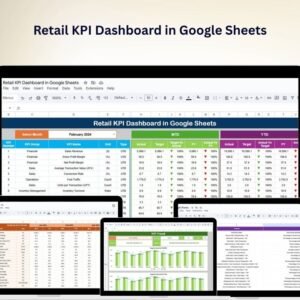
- Retail KPI Dashboard in Google Sheets: a wider set of retail KPIs
- Retail Dashboard in Google Sheets: a retail overview dashboard
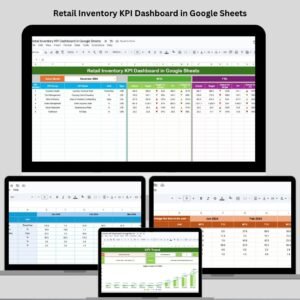
- Retail Inventory KPI Dashboard in Google Sheets: stock KPIs for the same stores
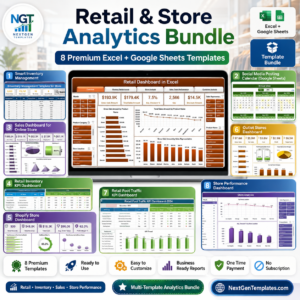
- Retail & Store Analytics Bundle: 8 retail templates in one download
Browse all Google Sheets KPI dashboards.














Reviews
There are no reviews yet.