



NFT marketplaces have reshaped the digital economy by enabling artists, creators, collectors, and investors to trade digital assets globally. NFT Marketplaces KPI Dashboard in Excel However, as marketplace activity increases, tracking performance becomes more complex. Metrics such as transactions, active users, revenue, and growth trends often remain scattered across multiple reports.
NFT Marketplaces KPI Dashboard in Excel That is exactly why the NFT Marketplaces KPI Dashboard in Excel becomes a must-have performance monitoring solution 🚀.
This ready-to-use Excel dashboard provides a centralized, visual, and data-driven system to track marketplace KPIs efficiently. Instead of switching between tools and spreadsheets, marketplace owners and analysts gain instant clarity on actuals, targets, trends, and historical comparisons—all in one structured Excel file.
Whether you manage an NFT trading platform, creator marketplace, or digital asset ecosystem, this dashboard empowers you to make faster, smarter, and more confident decisions.
🔑 Key Features of NFT Marketplaces KPI Dashboard in Excel
📊 Centralized KPI Tracking
Monitor all NFT marketplace KPIs in one Excel dashboard.
🎯 Target vs Actual Comparison
Identify performance gaps instantly.
📅 MTD & YTD Performance Monitoring
Track both short-term and long-term marketplace growth.
📈 Trend Analysis
Understand transaction and revenue patterns over time.
🚦 Visual Performance Indicators
Green ▲ and Red ▼ arrows highlight KPI status clearly.
🧠 Clear KPI Definitions
Eliminate confusion with standardized KPI logic.
⚙️ Excel-Based & Customizable
No advanced analytics tools required.
📦 What’s Inside the NFT Marketplaces KPI Dashboard in Excel
🏠 Home Sheet – Easy Navigation

The Home Sheet acts as a central index for the entire dashboard.
✔ Six navigation buttons
✔ One-click access to all sheets
✔ Clean and user-friendly layout
This design ensures smooth navigation for both technical and non-technical users.
📊 Dashboard Sheet – Complete KPI Overview
The Dashboard Sheet is the core analytical page.
🎛 Month Selection
Users select the reporting month from cell D3. Once selected, the entire dashboard updates automatically.
📋 KPI Performance Table
MTD Metrics
Actual MTD
Target MTD
Previous Year MTD
Target vs Actual (%)
Previous Year vs Actual (%)
▲ / ▼ performance indicator
YTD Metrics
Actual YTD
Target YTD
Previous Year YTD
Target vs Actual (%)
Previous Year vs Actual (%)
▲ / ▼ performance indicator
With visual indicators, users instantly identify underperforming and high-performing KPIs.
📈 KPI Trend Sheet – Deep Performance Analysis
The KPI Trend Sheet enables detailed KPI-level insights.
🎯 KPI Selection
Users select a KPI name from cell C3.
📌 KPI Details Displayed
KPI Group
Unit of Measurement
KPI Type (UTB / LTB)
KPI Formula
KPI Definition
📊 Trend Charts
MTD Trend Chart – Actual vs Target vs PY
YTD Trend Chart – Actual vs Target vs PY
These visuals help detect growth trends, seasonal behavior, and performance volatility.
🧾 Input Sheets – Simple & Structured
📥 Actual Numbers Input Sheet
Users enter:
KPI Name
MTD Actual Value
YTD Actual Value
🎯 Target Sheet
Stores KPI-wise:
MTD Targets
YTD Targets
📆 Previous Year Number Sheet
Captures last year’s MTD and YTD values for year-over-year comparison.
📘 KPI Definition Sheet
Defines:
KPI Name
KPI Group
Unit
Formula
KPI Definition
This ensures consistent KPI interpretation across teams.
👥 Who Can Benefit from This Dashboard
🎨 NFT marketplace owners
📊 Data & business analysts
🚀 Web3 startups
💼 Founders & product managers
🖼️ Digital asset platforms
📈 Strategy & growth teams
🔍 Click here to read the Detailed blog post
📺 Visit our YouTube channel to learn step-by-step video tutorials
👉 Youtube.com/@PKAnExcelExpert
Watch the step-by-step video tutorial:
Compatibility and Requirements
- Works in Microsoft Excel desktop (Excel 2016 or later, or Microsoft 365).
- You pick the reporting month on the Dashboard sheet and the KPI on the KPI Trend sheet. The two trend charts show MTD and YTD figures. Microsoft explains how charts work in Create a chart from start to finish.
Frequently Asked Questions
Which sheets are included?
A Home sheet with six navigation buttons, a Dashboard sheet, a KPI Trend sheet, an Actual Numbers input sheet, a Target sheet, a Previous Year Number sheet and a KPI Definition sheet.
How do I change the month shown on the dashboard?
Select the month in cell D3 of the Dashboard sheet. The whole dashboard updates for that month.
What does the KPI Trend sheet show?
Choose a KPI name in cell C3. The sheet shows its group, unit, type (UTB or LTB), formula and definition, plus MTD and YTD trend charts comparing Actual, Target and Previous Year.
Where do I enter my own numbers?
Enter MTD and YTD actuals in the Actual Numbers sheet, targets in the Target sheet and last year’s values in the Previous Year Number sheet.
Is there another marketplace dashboard in Excel?
Yes. See the NFT Art Marketplaces Dashboard in Excel and the Online Marketplaces KPI Dashboard in Excel.
Related Marketplace Templates
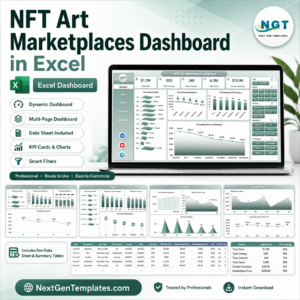
- NFT Art Marketplaces Dashboard in Excel: a dashboard for NFT art marketplaces
- NFT Art Marketplaces Dashboard in Power BI: the same topic in Power BI
- Online Marketplaces KPI Dashboard in Excel: marketplace KPIs in Excel
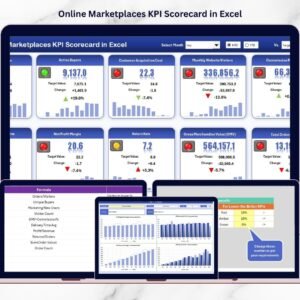
- Online Marketplaces KPI Scorecard in Excel: a scorecard view of marketplace KPIs
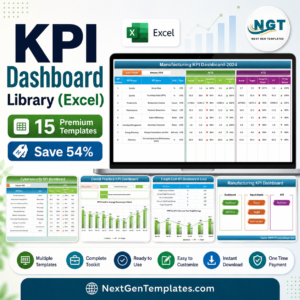
- KPI Dashboard Library (Excel): 15 KPI dashboard templates in one download
Browse all Excel KPI dashboards.






Reviews
There are no reviews yet.