

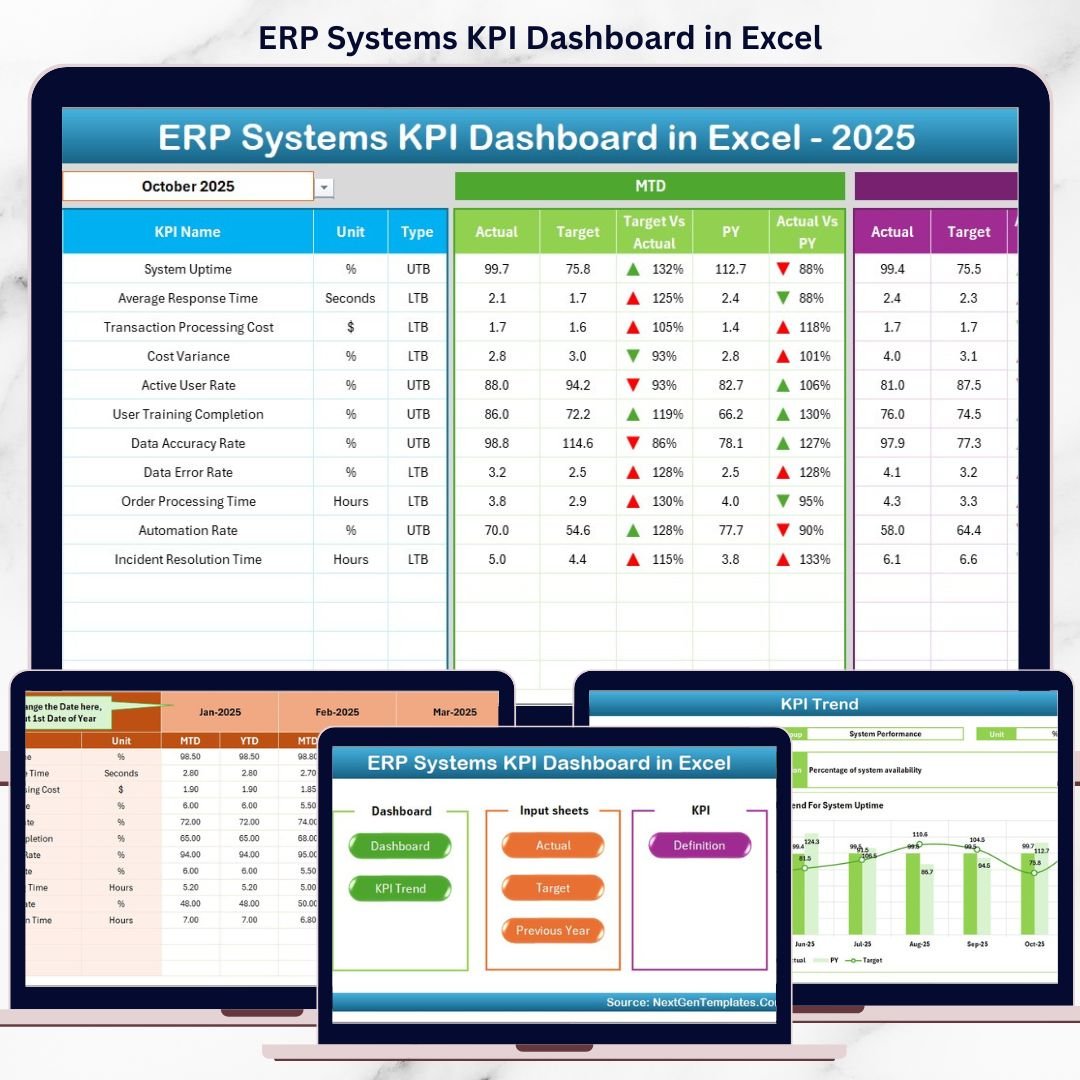

Implementing an ERP system is a major milestone for any organization. However, implementation alone does not guarantee success. The real value of an ERP system depends on how well it performs, how widely it is adopted, and how effectively it supports business decisions. That is exactly where the ERP Systems KPI Dashboard in Excel becomes a must-have performance management tool.
This ready-to-use Excel dashboard converts complex ERP data into clear KPIs, visual indicators, and actionable insights. Instead of struggling with multiple ERP reports or raw system exports, decision-makers get one centralized dashboard that shows ERP performance at a glance.
Designed for ERP managers, IT teams, finance leaders, and operations heads, this dashboard helps organizations track ERP efficiency, monitor adoption, compare targets vs actuals, and analyze trends over time—all within Microsoft Excel.
Because it is built entirely in Excel, the dashboard remains simple, flexible, transparent, and cost-effective, without requiring any additional BI tools or technical expertise.
🔑 Key Features of ERP Systems KPI Dashboard in Excel
📊 7 structured worksheets for complete ERP performance tracking
📅 Month selector to dynamically change reporting period
🎯 MTD & YTD analysis for short-term and long-term visibility
📈 Target vs Actual comparison with clear variance indicators
📉 Previous Year comparison for maturity and improvement tracking
🔼🔽 Conditional formatting arrows for instant performance signals
🧭 Navigation buttons for smooth user experience
⚙️ Fully customizable KPIs based on ERP modules and business needs
This dashboard transforms Excel into a powerful ERP performance cockpit.
📂 What’s Inside the ERP Systems KPI Dashboard
🏠 Home Sheet – Navigation Center
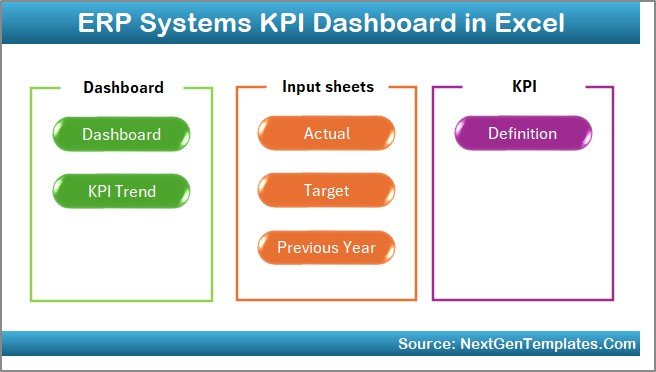
The Home Sheet acts as the index page of the dashboard.
Key Highlights:
6 clickable navigation buttons
Instant access to all worksheets
Eliminates scrolling and confusion
This sheet ensures smooth navigation for all users, including non-technical stakeholders.
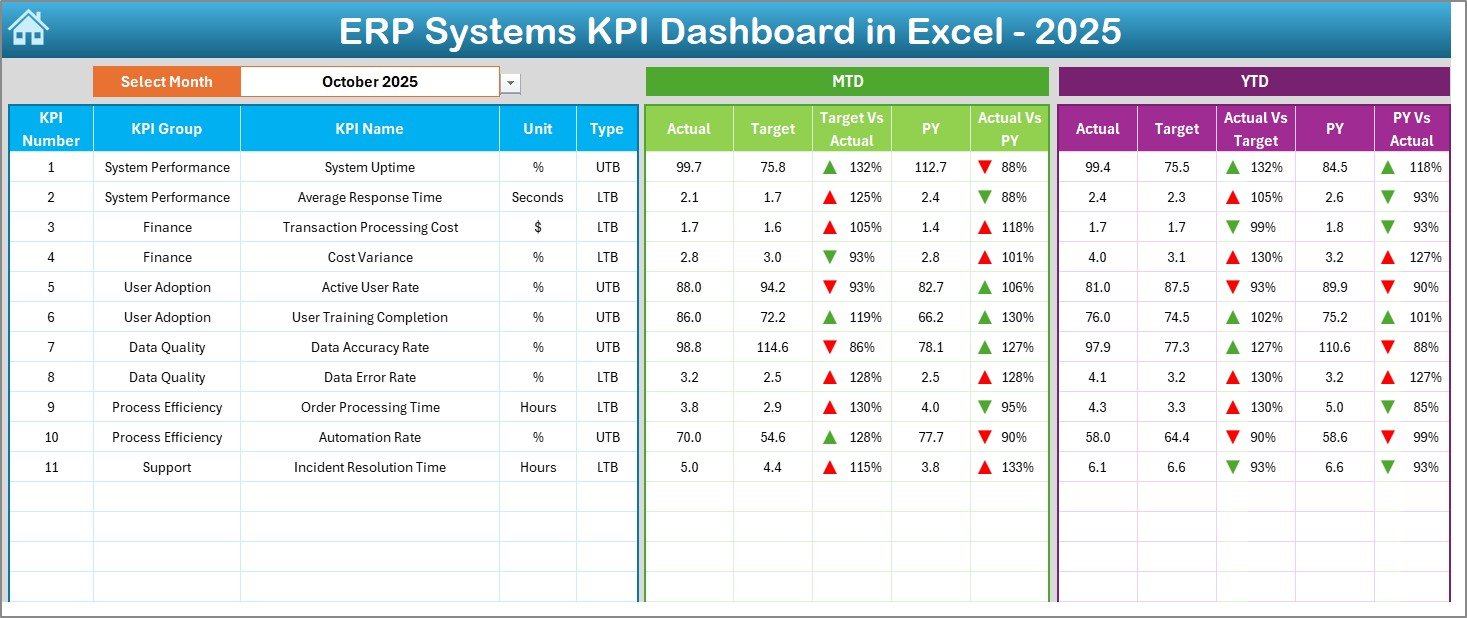
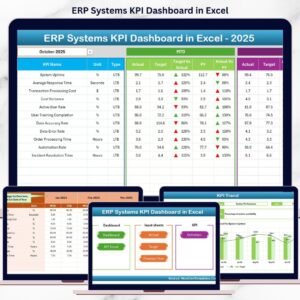
📊 Dashboard Sheet – ERP Performance Overview
The Dashboard Sheet is the heart of the ERP KPI Dashboard.
Key Capabilities:
Month selection dropdown at cell D3
Automatic update of all KPIs
Displays:
MTD Actual, Target & Previous Year
YTD Actual, Target & Previous Year
Shows:
Target vs Actual variance
Previous Year vs Actual variance
Uses green/red up-down arrows for instant interpretation
With one glance, leadership teams can identify performance gaps, improvements, and risks.
📈 KPI Trend Sheet – Deep KPI Analysis
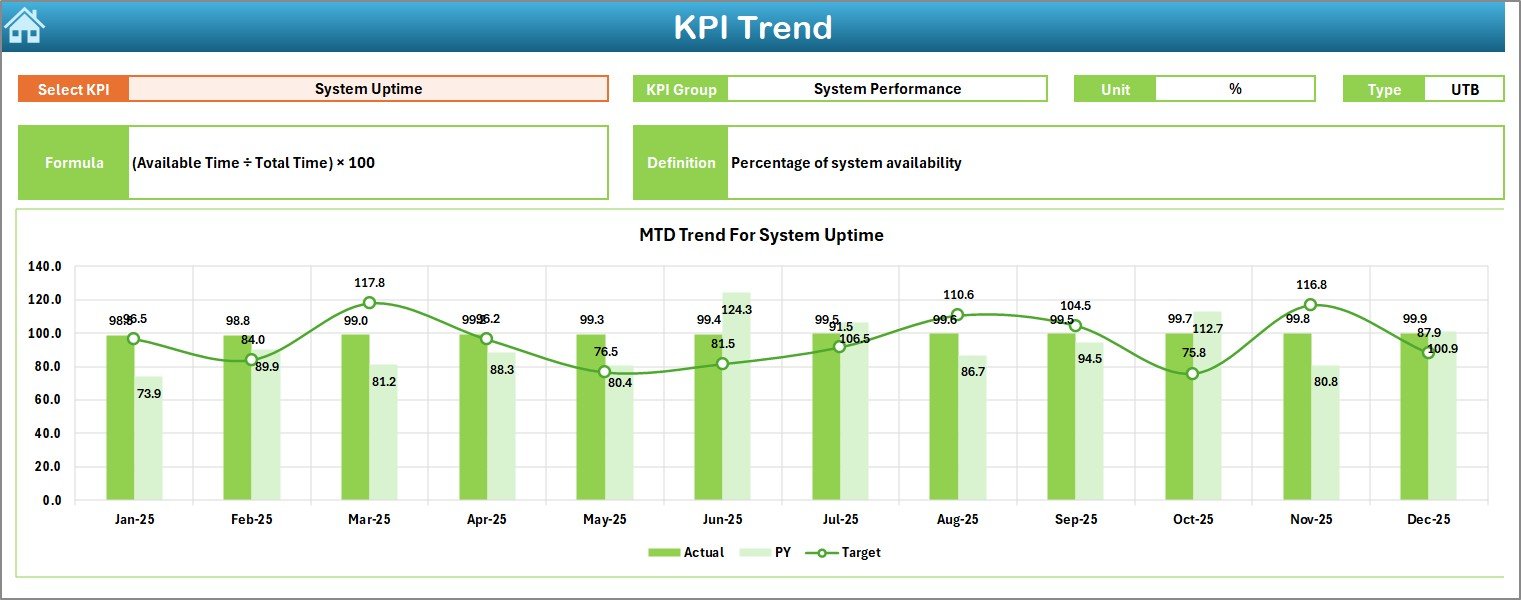
The KPI Trend Sheet enables detailed KPI-level exploration.
How It Works:
Select KPI Name from dropdown at cell C3
View:
KPI Group
Unit
KPI Type (UTB / LTB)
Formula & Definition
Trend Analysis Includes:
MTD trend (Actual vs Target vs Previous Year)
YTD trend (Actual vs Target vs Previous Year)
This sheet supports root-cause analysis and strategic planning.
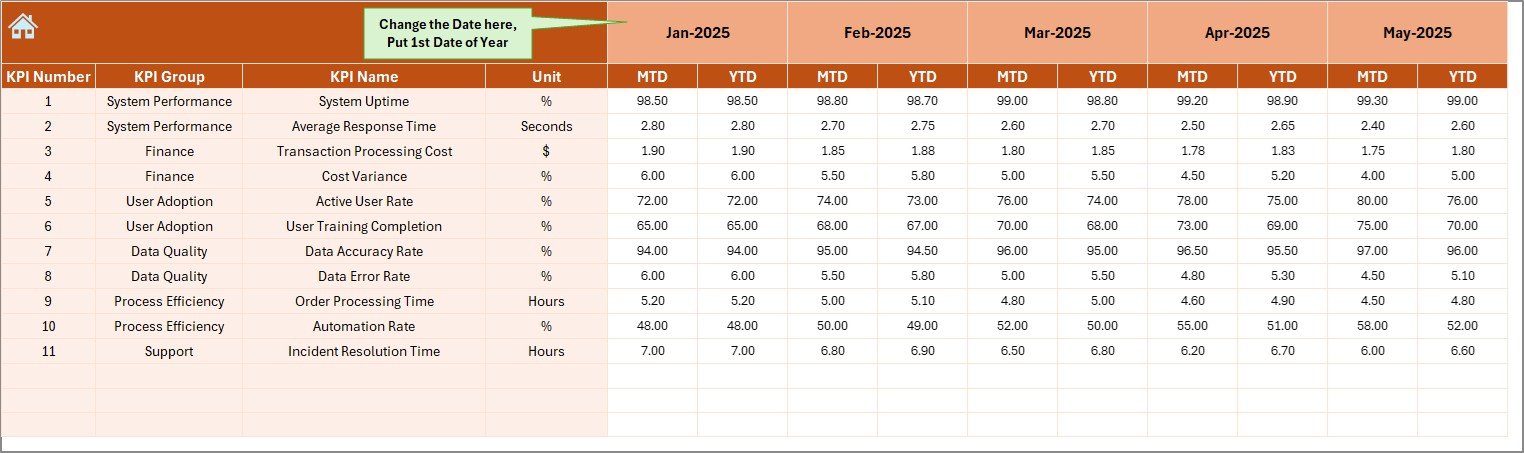
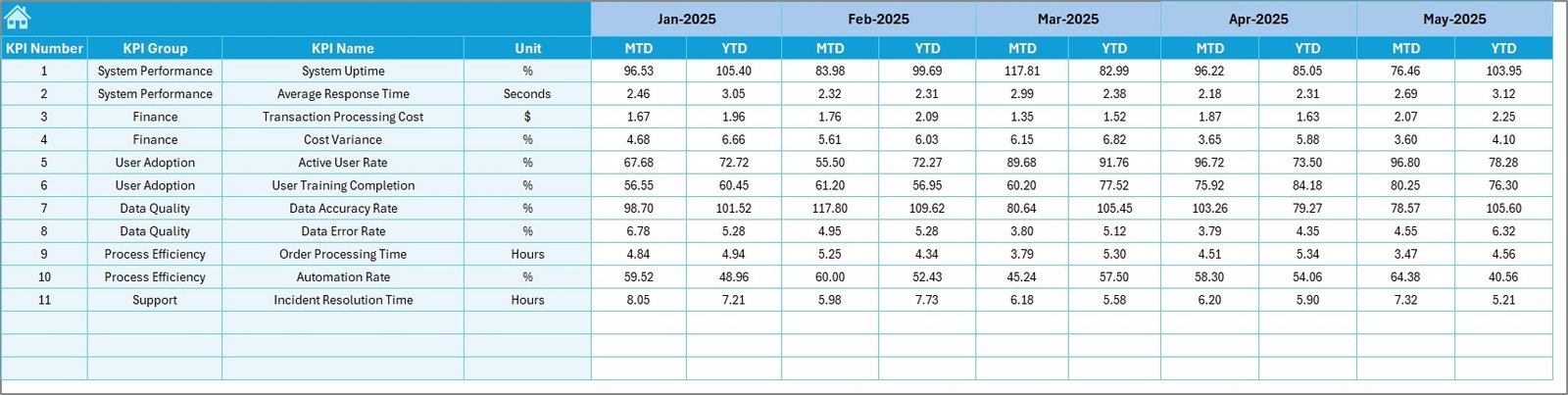
✍️ Actual Numbers Input Sheet – Data Entry Area
This sheet is where actual ERP performance data is entered.
Key Features:
Enter MTD and YTD actual values
Control reporting month using cell E1
Clean, structured, and formula-safe layout
Because data entry stays simple, accuracy and consistency improve significantly.
🎯 Target Sheet – Performance Expectations
The Target Sheet defines success benchmarks.
You Can:
Enter MTD and YTD targets
Align ERP performance with business goals
Ensure meaningful variance analysis
Targets turn ERP metrics into actionable performance indicators.
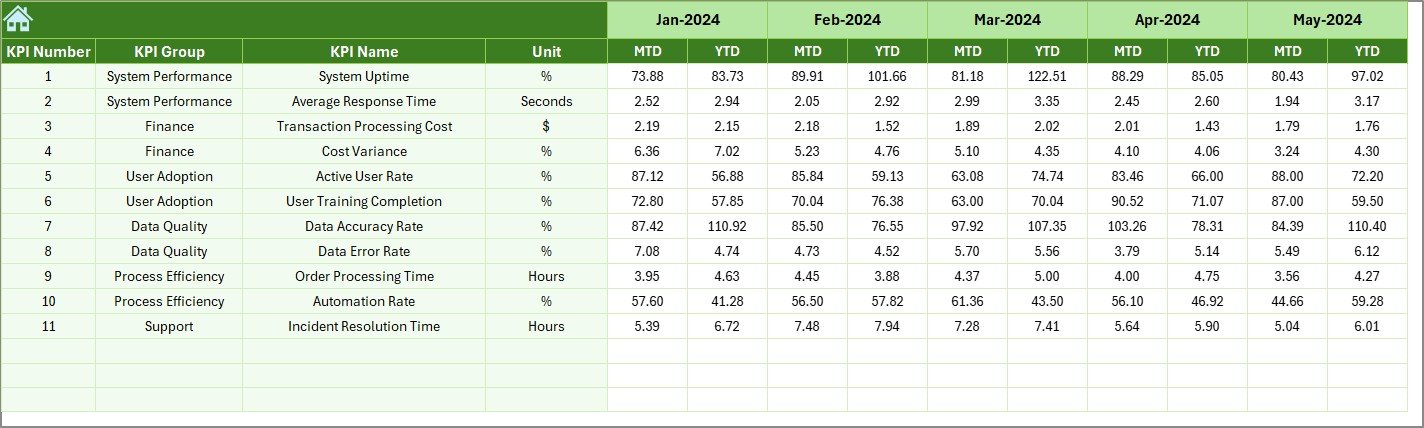
⏮️ Previous Year Number Sheet – Historical Comparison
This sheet stores last year’s KPI values.
Why It Matters:
Enables year-over-year comparison
Highlights ERP improvement or decline
Supports maturity assessment
Historical context strengthens data-driven leadership decisions.
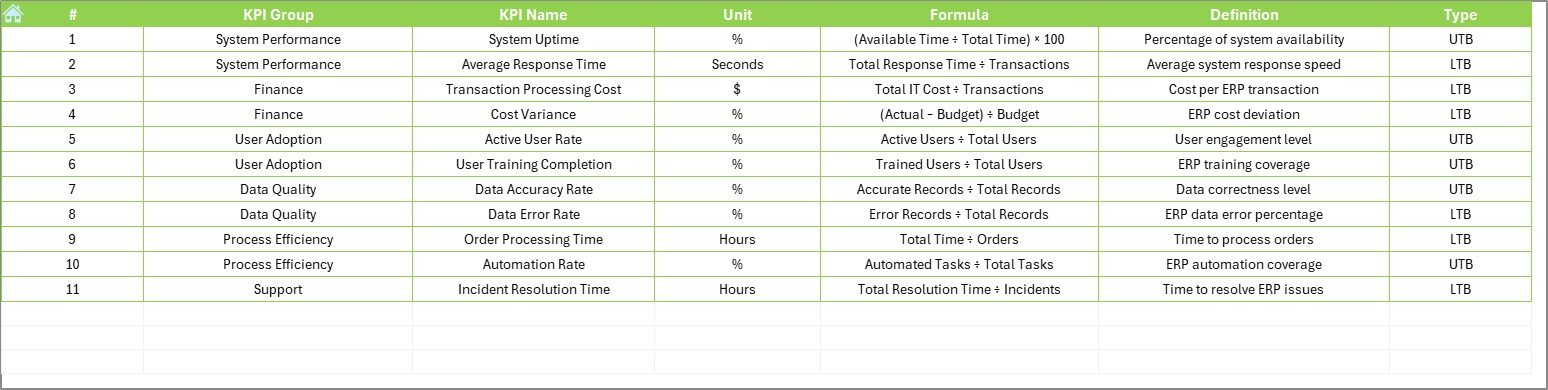
📘 KPI Definition Sheet – Standardization & Clarity
The KPI Definition Sheet acts as a reference guide.
Contains:
KPI Name
KPI Group
Unit
Formula
Definition
This sheet ensures everyone interprets KPIs the same way, reducing confusion across departments.
🛠️ How to Use the ERP Systems KPI Dashboard
✅ Enter actual data, targets, and previous year values
✅ Select reporting month from dropdown
✅ Review MTD & YTD performance instantly
✅ Analyze trends and variances
✅ Take corrective or strategic actions
No advanced Excel skills required.
👥 Who Can Benefit from This ERP Dashboard?
🏢 ERP Managers
💻 IT Leadership Teams
📊 Operations Managers
💰 Finance Controllers
📈 Business Analysts
🔄 Process Improvement Teams
Perfect for any organization using an ERP system, regardless of industry.
👉 Click here to read the Detailed blog post
▶️ Visit our YouTube channel to learn step-by-step video tutorials
https://youtube.com/@PKAnExcelExpert
Watch the step-by-step video tutorial:
Compatibility and Requirements
- Works in Microsoft Excel desktop (Excel 2016 or later, or Microsoft 365).
- You pick the month and the KPI from dropdown lists. Microsoft explains dropdowns in Create a drop-down list.
Frequently Asked Questions
Which sheets are included?
Seven sheets: Home, Dashboard, KPI Trend, Actual Numbers, Target, Previous Year Number and KPI Definition.
How do I change the reporting month?
Select the month from the dropdown in cell D3 of the Dashboard sheet. All KPIs update to that month. The month for data entry is set in cell E1 of the Actual Numbers sheet.
Can I compare this year with last year?
Yes. Enter last year’s values in the Previous Year Number sheet. The Dashboard shows MTD and YTD actuals next to targets and previous year, with green and red arrows for the variance.
How do I see the trend for one KPI?
Open the KPI Trend sheet and choose the KPI name from the dropdown in cell C3. It shows the KPI group, unit, type (UTB or LTB), formula and definition, plus MTD and YTD trends for actual, target and previous year.
Is there a Power BI version?
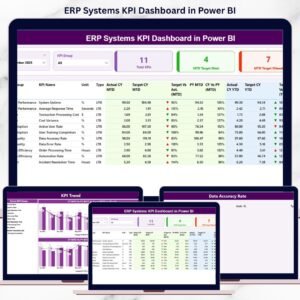
Yes. See the ERP Systems KPI Dashboard in Power BI.
Related ERP and Management Templates
- ERP Systems KPI Dashboard in Power BI: the same ERP KPIs in Power BI
- System Security KPI Dashboard in Excel: a KPI dashboard for system security
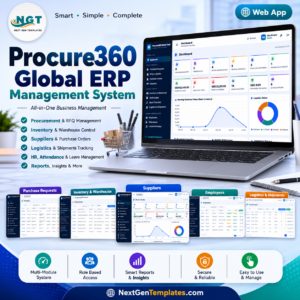
- Procure360 Global ERP Management System Web App: an ERP management system as a web app
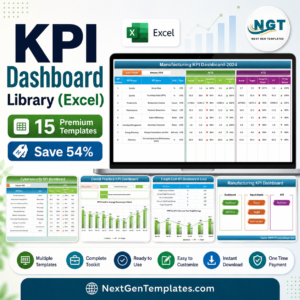
- KPI Dashboard Library (Excel): 15 KPI dashboard templates in one download
Browse all Excel KPI dashboards.






Reviews
There are no reviews yet.