

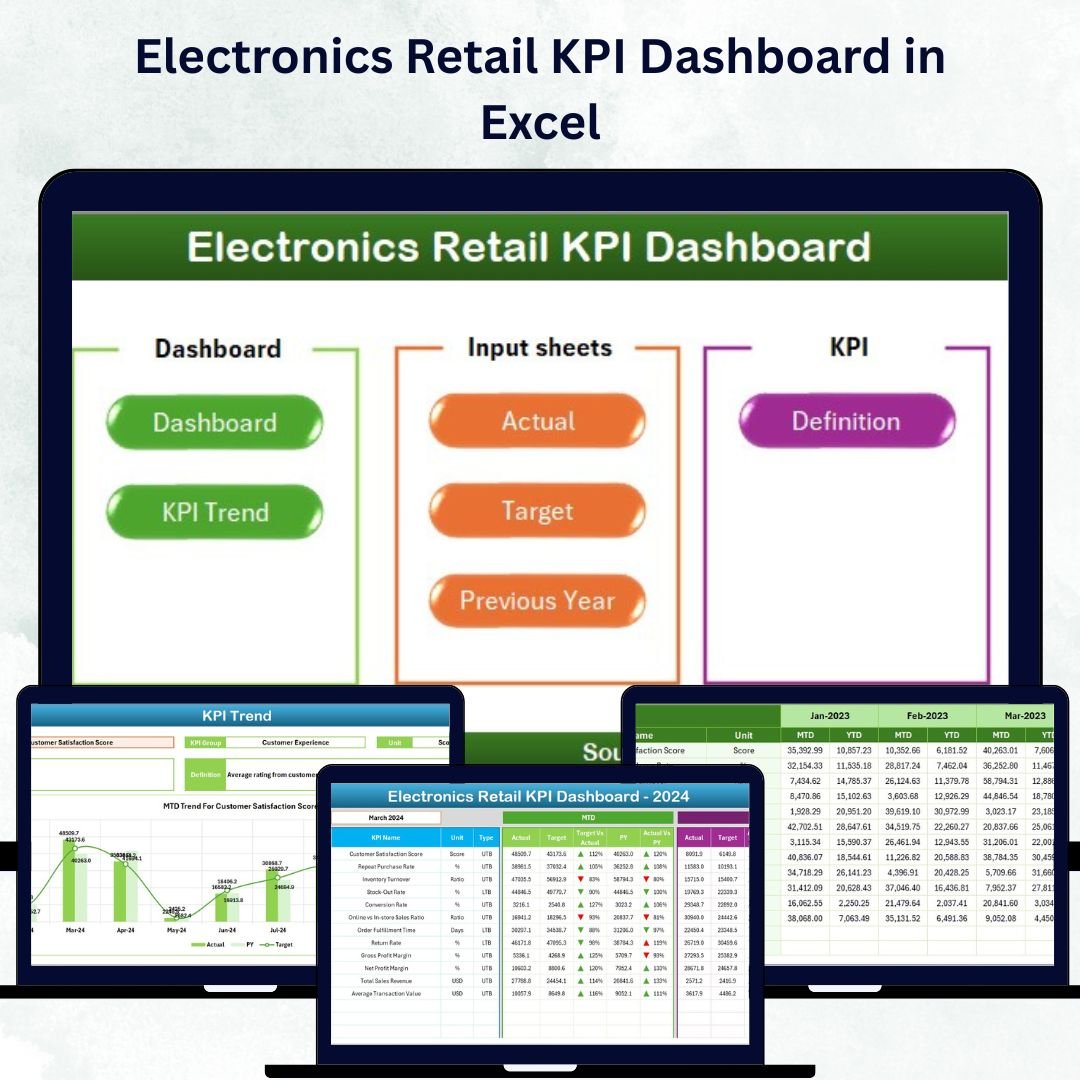


In today’s fast-changing world of electronics retail, success depends on how well you track sales, manage inventory, and analyze performance. The Electronics Retail KPI Dashboard in Excel 📊 is your all-in-one solution to monitor, measure, and visualize business performance effortlessly — built entirely in Microsoft Excel!
This interactive, ready-to-use Excel dashboard consolidates your sales, customer, and inventory data into one visual interface. Whether you manage a single store or multiple outlets, this tool empowers you to make smarter, faster, and more profitable decisions.
⚡ Key Features of Electronics Retail KPI Dashboard in Excel
✅ Interactive Dashboard View: Switch between Month-to-Date (MTD) and Year-to-Date (YTD) results instantly.
✅ Dynamic Month Selector: Select any month from the dropdown in cell D3 — all visuals and numbers update automatically!
✅ Actual vs Target Comparison: See how your KPIs perform against goals and previous year benchmarks.
✅ Conditional Formatting Indicators: Up 🔼 or down 🔽 arrows highlight performance trends visually.
✅ Clean & Compact Layout: Get a complete view of sales, customers, and inventory KPIs in one sheet.
✅ Automated Calculations: Formulas handle everything — no manual updates or VBA required.
✅ Customizable & Scalable: Add new KPIs or modify visuals to suit your retail business model.
✅ Budget-Friendly Tool: Get business intelligence–level insights using Excel — no extra software cost.
From store managers to senior executives, everyone can understand and act on data using this intuitive dashboard.
🧩 What’s Inside the Electronics Retail KPI Dashboard in Excel

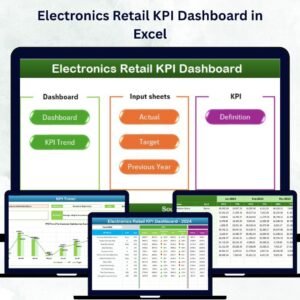
The template is structured across seven smart worksheet tabs, each serving a unique analytical purpose:
1️⃣ Home Sheet: Acts as a navigation hub with six clickable buttons for quick access to each worksheet.
2️⃣ Dashboard Sheet: The main control center displaying MTD and YTD metrics, actual vs target comparisons, and visual KPI trends.
3️⃣ KPI Trend Sheet: Choose any KPI (Cell C3) to explore historical data and visualize trends through dynamic charts.
4️⃣ Actual Numbers Input Sheet: Record your monthly actual performance data — the foundation of your analysis.
5️⃣ Target Sheet: Define clear MTD and YTD targets for each KPI to measure progress effectively.
6️⃣ Previous Year Number Sheet: Store last year’s performance data for side-by-side comparisons.
7️⃣ KPI Definition Sheet: A reference library listing all KPI Names, Groups, Units, Formulas, and Definitions to ensure clarity and consistency.
Each worksheet is seamlessly interconnected to give you a fully automated reporting experience — all in Excel.
🧠 How to Use the Electronics Retail KPI Dashboard in Excel
⚙️ Step 1: Open the Excel file and go to the Actual Numbers Input Sheet to enter your MTD and YTD values.
🎯 Step 2: Define performance goals in the Target Sheet and update PY data in the Previous Year Sheet.
📊 Step 3: Select a month from the dropdown (Cell D3) on the Dashboard Sheet to view real-time KPI performance.
📈 Step 4: Analyze detailed trends in the KPI Trend Sheet to identify seasonal or category-level changes.
📘 Step 5: Update or edit definitions in the KPI Definition Sheet whenever new KPIs are added.
That’s it — your dashboard is now ready to give real-time, actionable insights!
👥 Who Can Benefit from This Electronics Retail KPI Dashboard
🛍️ Retail Business Owners: Track revenue, profitability, and category-level performance.
📦 Inventory Managers: Monitor stock levels, inventory turnover, and wastage rates.
📈 Sales Teams: Evaluate product performance and identify top-selling brands.
💼 Finance Professionals: Compare actual vs target profits and control costs.
🧑💻 Marketing Teams: Measure campaign effectiveness and customer conversion rates.
🏪 Store Managers: Get instant visibility on store-wise and monthly trends.
📊 Analysts: Build reports using consistent KPI data and definitions.
This Excel dashboard works perfectly for both single-store and multi-outlet retailers, ensuring transparency and growth-driven performance tracking.
🔗 Click here to read the Detailed Blog Post
🎥 Visit our YouTube channel to learn step-by-step video tutorials
👉 YouTube.com/@PKAnExcelExpert
Watch the step-by-step video tutorial:
Compatibility and Requirements
- Works in Microsoft Excel desktop (Excel 2016 or later, or Microsoft 365).
- The workbook uses formulas and does not need VBA. You choose the month from a dropdown in cell D3 on the Dashboard sheet. Microsoft explains dropdowns in Create a drop-down list.
Frequently Asked Questions
Which sheets are included?
Seven sheets: Home, Dashboard, KPI Trend, Actual Numbers Input, Target, Previous Year Number and KPI Definition.
How do I update the dashboard?
Enter your MTD and YTD values in the Actual Numbers Input sheet, your goals in the Target sheet and last year’s figures in the Previous Year Number sheet. Then pick a month in cell D3 on the Dashboard sheet and the numbers and visuals update.
Can I compare actual results with targets and last year?
Yes. The Dashboard shows actual, target and previous year values side by side, with up and down arrows from conditional formatting.
How do I see the trend for one KPI?
Open the KPI Trend sheet and select a KPI in cell C3. The charts show its history.
Can I add my own KPIs?
Yes. The template is customizable, and the KPI Definition sheet lists each KPI name, group, unit, formula and definition so you can keep new KPIs documented.
Is there a Power BI or Google Sheets version?
There is an Electronics Retail KPI Dashboard in Power BI, and a related Electronics Retail Dashboard in Google Sheets.
Related Electronics and Retail Templates
- Electronics Retail KPI Dashboard in Power BI: the same KPI dashboard for Power BI
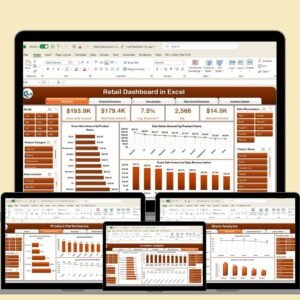
- Electronics Retail Dashboard in Excel: a dashboard view of electronics retail data in Excel
- Electronics Retail Dashboard in Google Sheets: the Google Sheets option for electronics retail
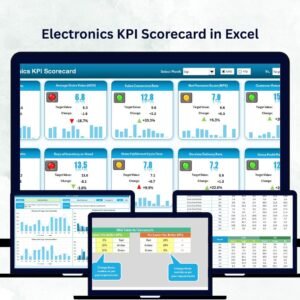
- Retail KPI Scorecard in Excel: a scorecard view of retail metrics
- Retail Inventory KPI Dashboard in Excel: stock-focused KPIs for retail
Browse all Excel KPI dashboards.














Reviews
There are no reviews yet.