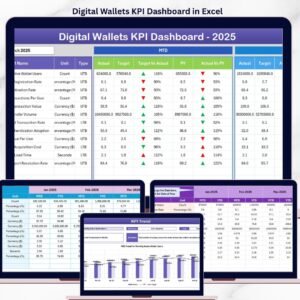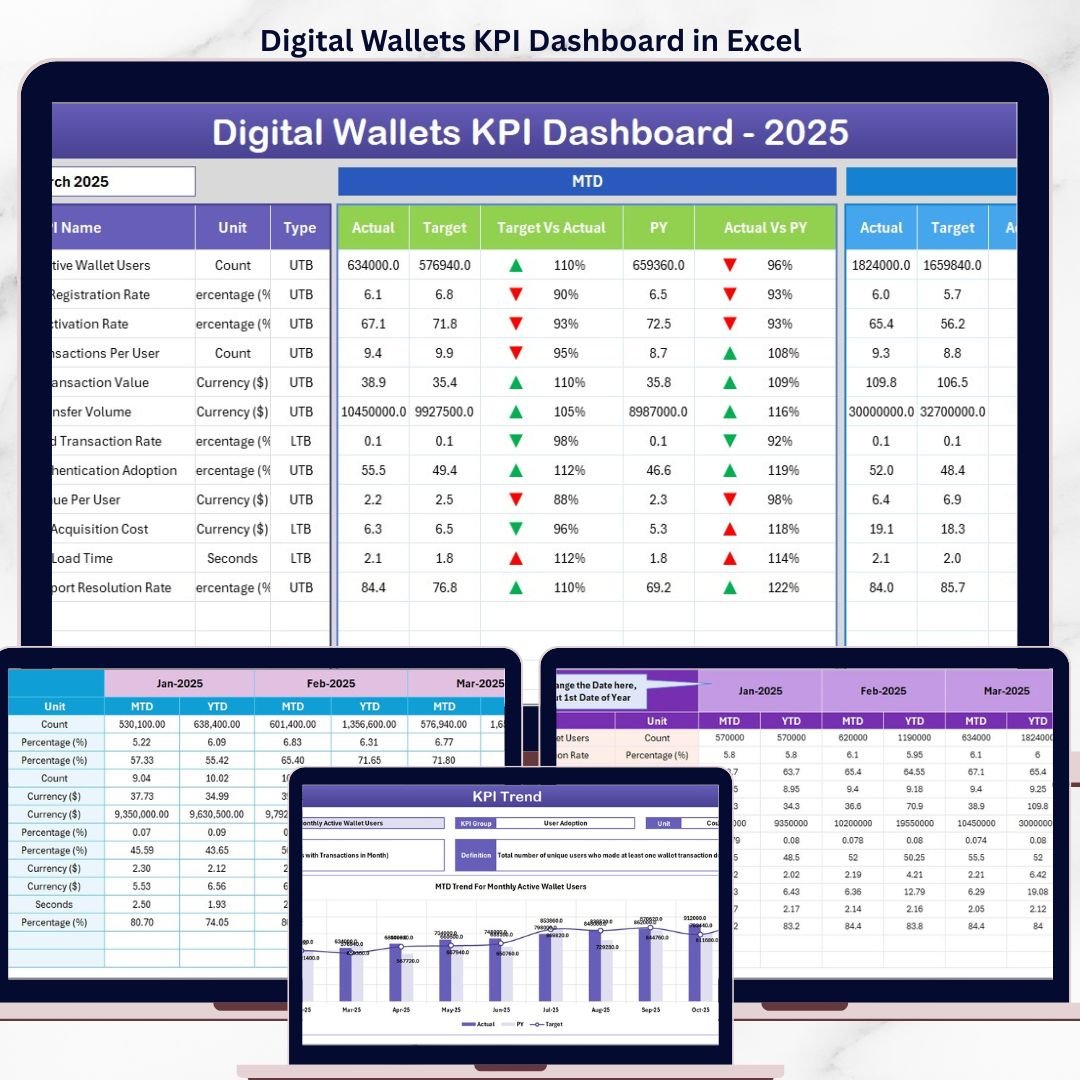

Digital Wallets KPI Dashboard in Excel monitors 15+ key performance indicators across 7 interactive worksheets, with MTD and YTD comparisons, conditional formatting arrows, and trend charts — all auto-updating from 3 simple input sheets. Setup takes under 10 minutes: replace sample data and every metric recalculates instantly.
🌍 Join 8,400+ teams in 40+ countries using NextGenTemplates to replace paid SaaS tools with one-time-purchase Excel, Google Sheets, Power BI, and HTML templates.
✅ Instant download · One-time payment · No subscription · No per-user fees · Lifetime access
🔑 Key Features of Digital Wallets KPI Dashboard in Excel
📌 7 Purpose-Built Worksheets — Home, Dashboard, KPI Trend, Actual Numbers Input, Target Number Input, Previous Year Numbers, and KPI Definition sheets give you end-to-end control of digital wallet performance tracking in a single Excel file.
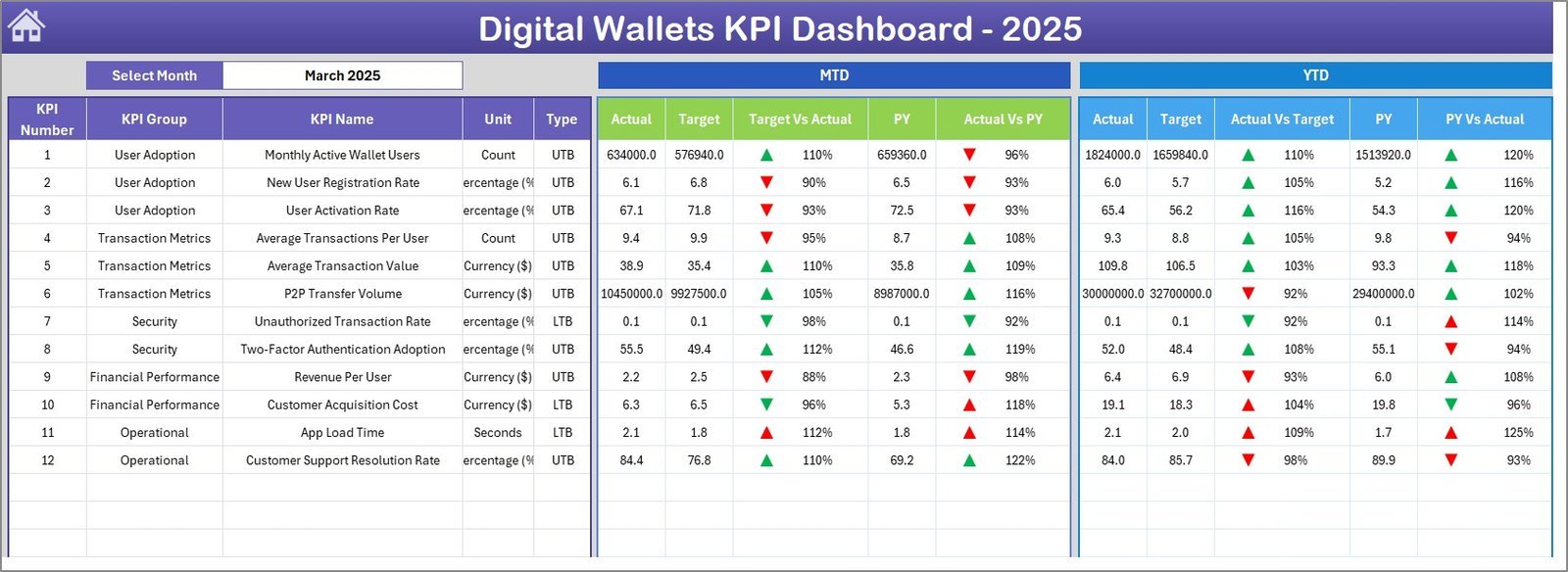
📌 MTD and YTD Comparisons with Conditional Formatting — The Dashboard sheet displays MTD Actual, Target, and Previous Year data alongside YTD equivalents. Up/down arrow indicators instantly flag whether each KPI is beating or missing its target, eliminating manual number-crunching.
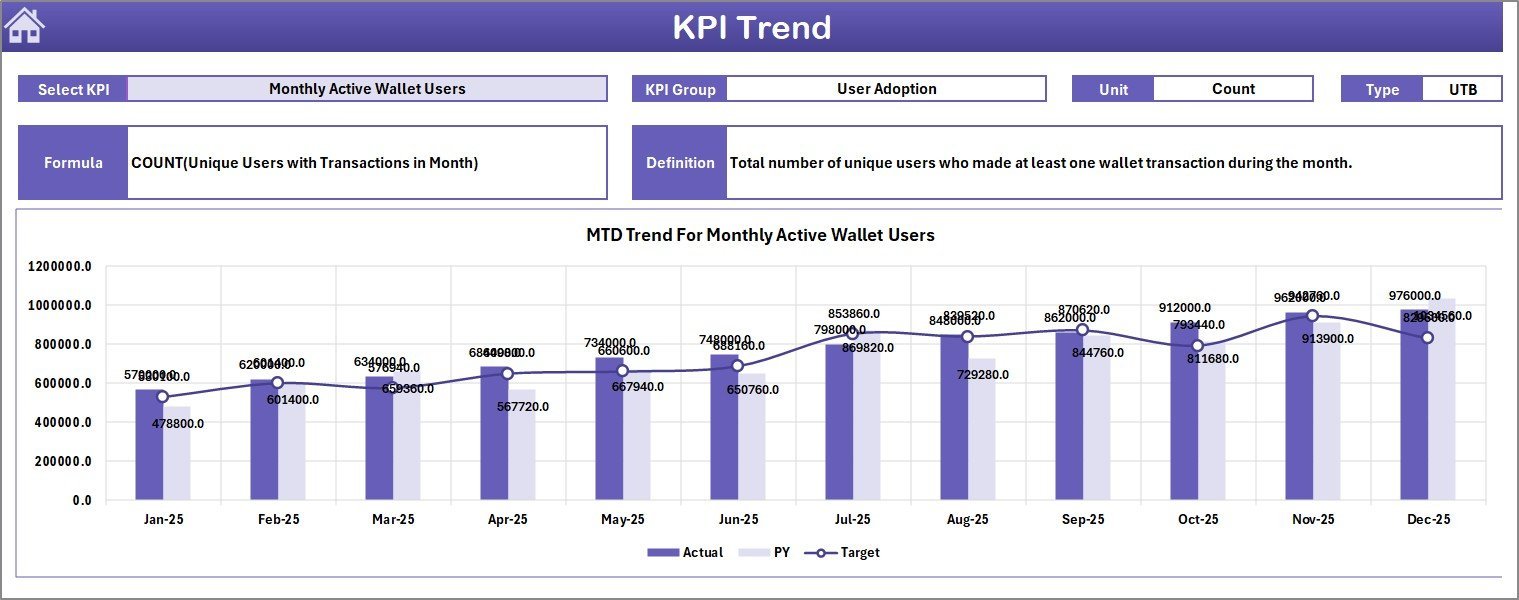
📌 Interactive KPI Trend Analysis — Select any KPI from the dropdown on the KPI Trend sheet to view its definition, formula, unit type (LTB or UTB), and monthly trend charts comparing Actual vs Target vs Previous Year for both MTD and YTD.
📌 Month Selector for Instant Filtering — A single dropdown on cell D3 of the Dashboard sheet changes every number on the page to reflect the selected month — no pivot tables, no slicers, no VBA required.
📌 Structured KPI Definition Sheet — Enter each KPI’s name, group, unit, formula, definition, and type (LTB/UTB) in one place. The KPI Trend sheet pulls this metadata automatically for on-screen reference.
📌 Separate Input Sheets for Actual, Target, and Previous Year — Three clean input sheets keep data organized. Update monthly numbers and the Dashboard reflects changes immediately. The first-month cell on the Actual sheet lets you set your fiscal year start.
📌 One-Click Navigation — The Home sheet includes 6 navigation buttons that jump directly to any worksheet — no scrolling through tabs. Built for teams managing digital wallet operations including transaction volume, success rates, average transaction value, customer acquisition cost, and churn rate.
📌 No Macros, No VBA — Works on Excel 2016, 2019, 2021, Microsoft 365, and Excel for Mac. Pure formula-driven — open and use immediately.
📦 What’s Inside the Digital Wallets KPI Dashboard in Excel
This template includes 7 worksheets designed for fintech and digital payment teams:
📂 Home Sheet — An index page with 6 navigation buttons linking to each worksheet for quick access.
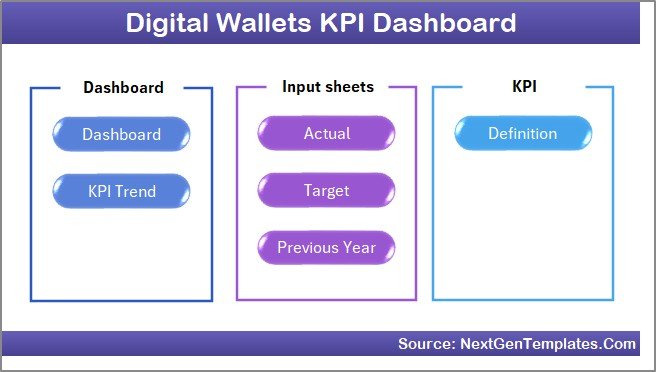
Home Page
📂 Dashboard Sheet — The main analytics view. Select a month from the dropdown on D3 and view all KPIs with MTD Actual, Target, Previous Year, and YTD equivalents. Conditional formatting arrows (▲▼) highlight Target vs Actual and PY vs Actual variances at a glance.
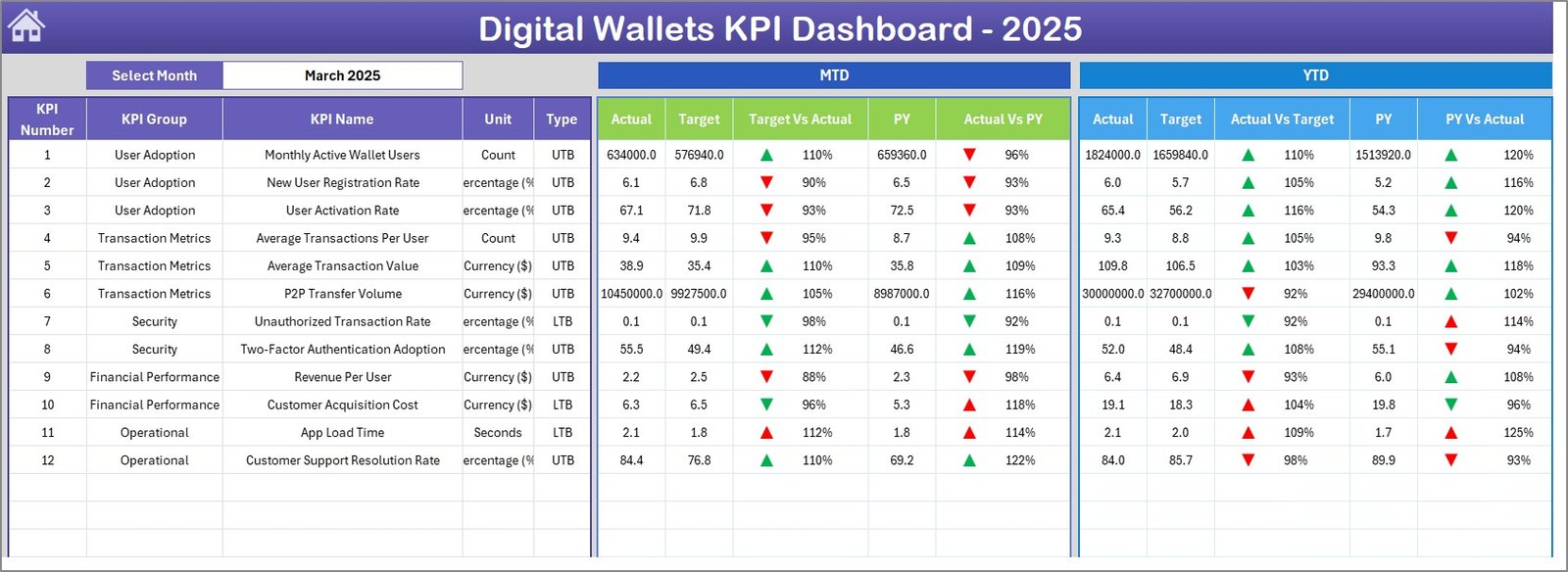
Digital Wallets KPI Dashboard
📂 KPI Trend Sheet — Select any KPI from the dropdown on C3. View the KPI Group, Unit, Type (LTB/UTB), Formula, and Definition. Below, MTD and YTD trend charts plot Actual, Target, and Previous Year lines across 12 months.
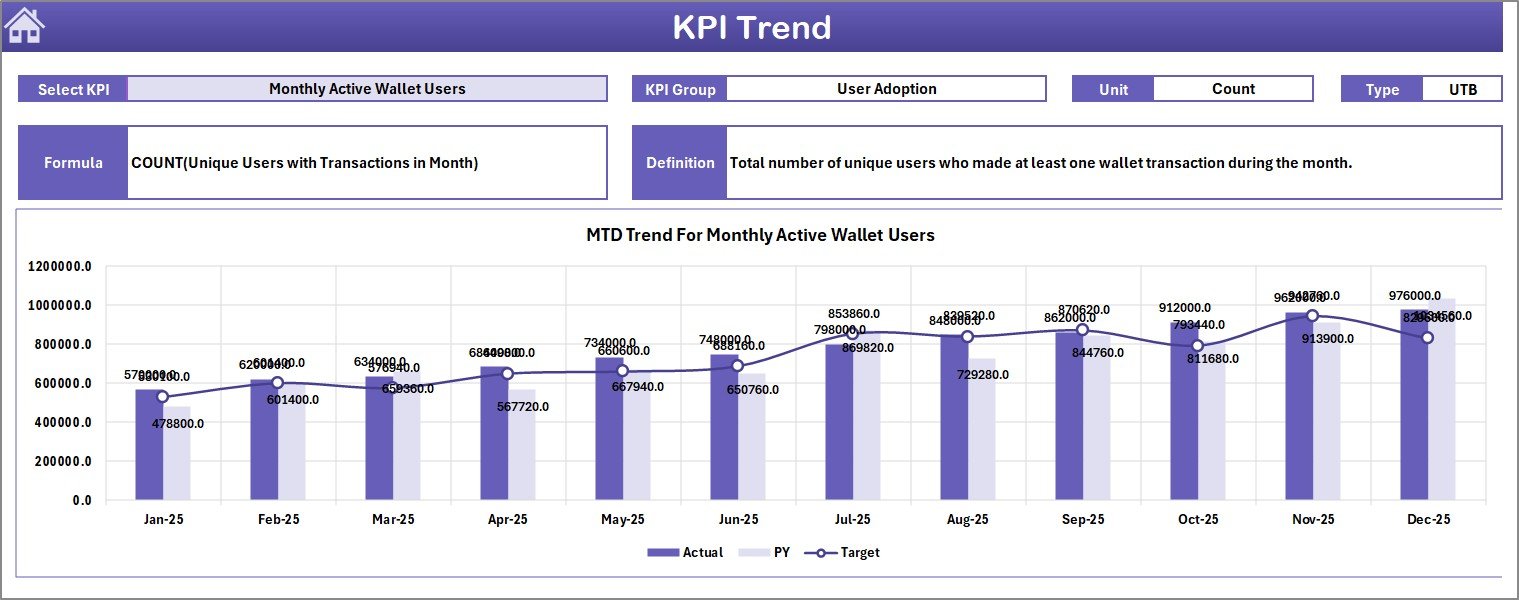
KPI Trend Sheet
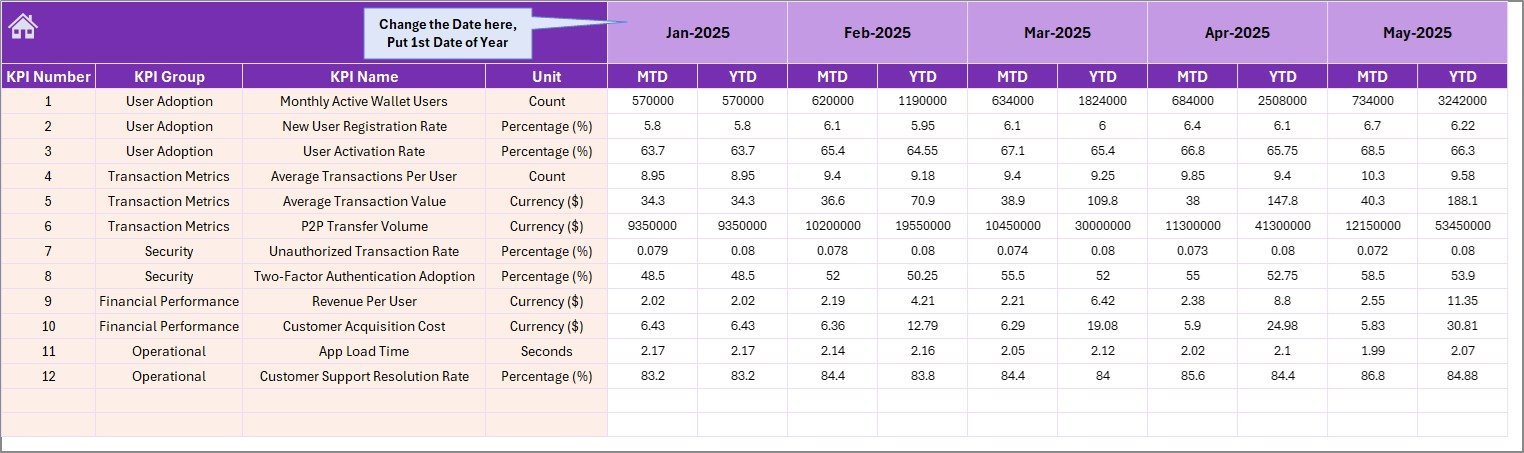
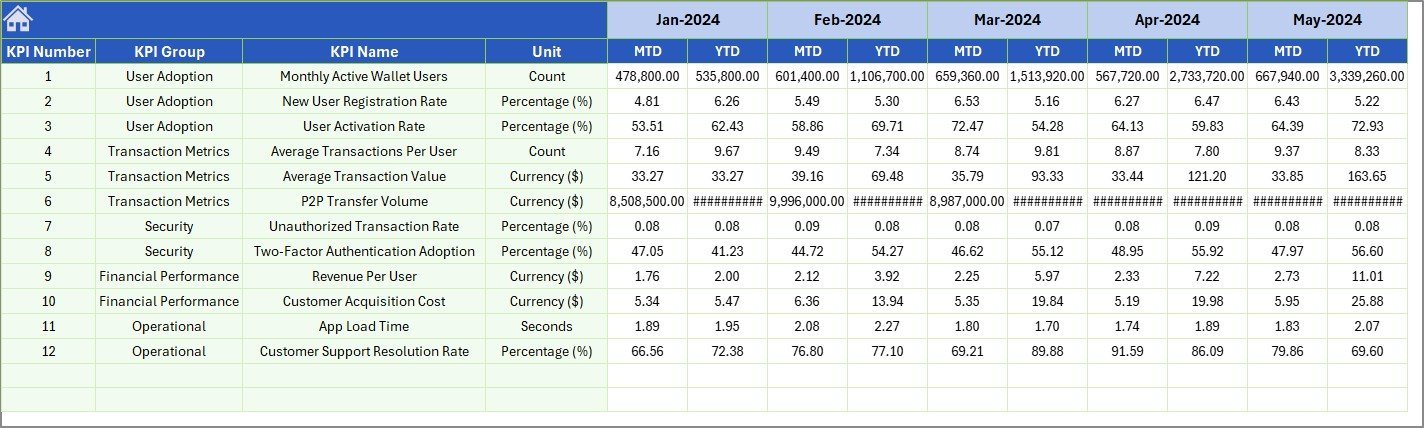
📂 Actual Numbers Input Sheet — Enter actual MTD and YTD numbers for each KPI per month. Set the first month of your fiscal year on cell E1.
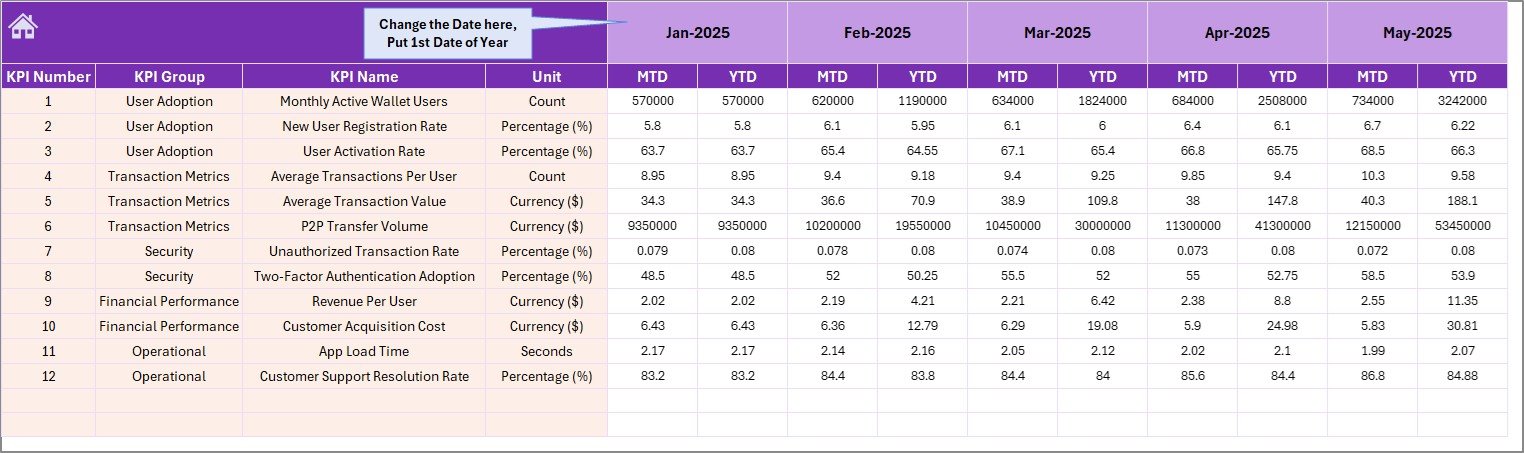
Actual Numbers Input Sheet
📂 Target Number Input Sheet — Enter target numbers for each KPI as MTD and YTD values for every month.
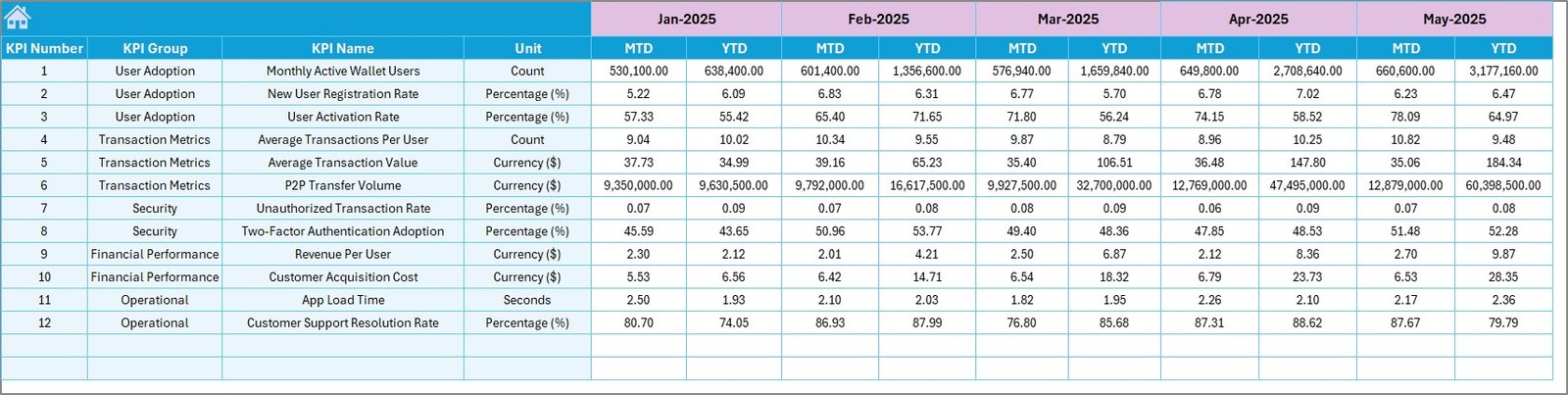
Target Number Input Sheet
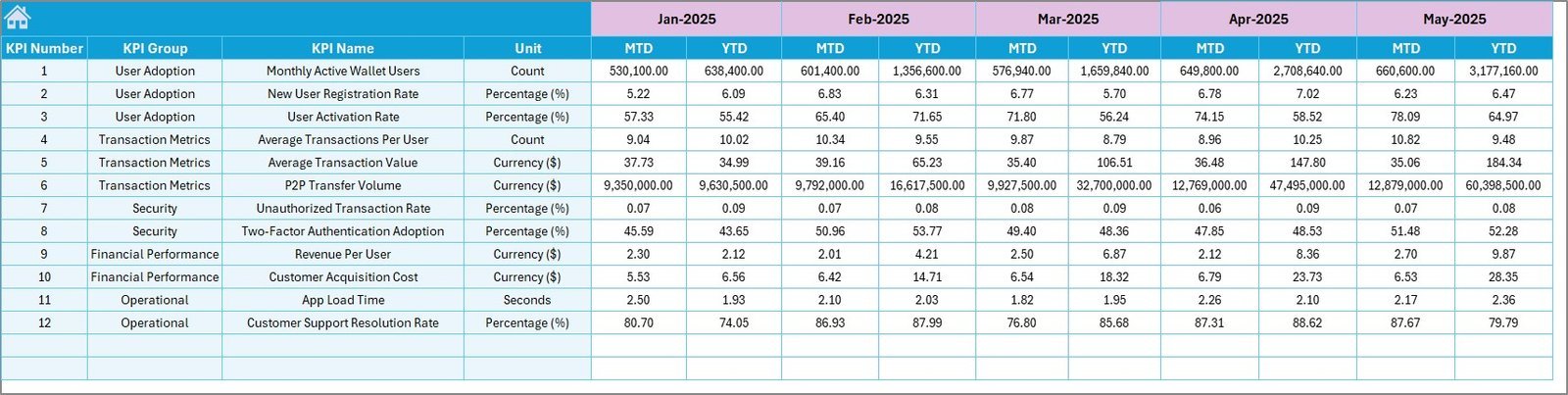
📂 Previous Year Number Sheet — Enter previous year data in the same format as the current year for year-over-year comparison.
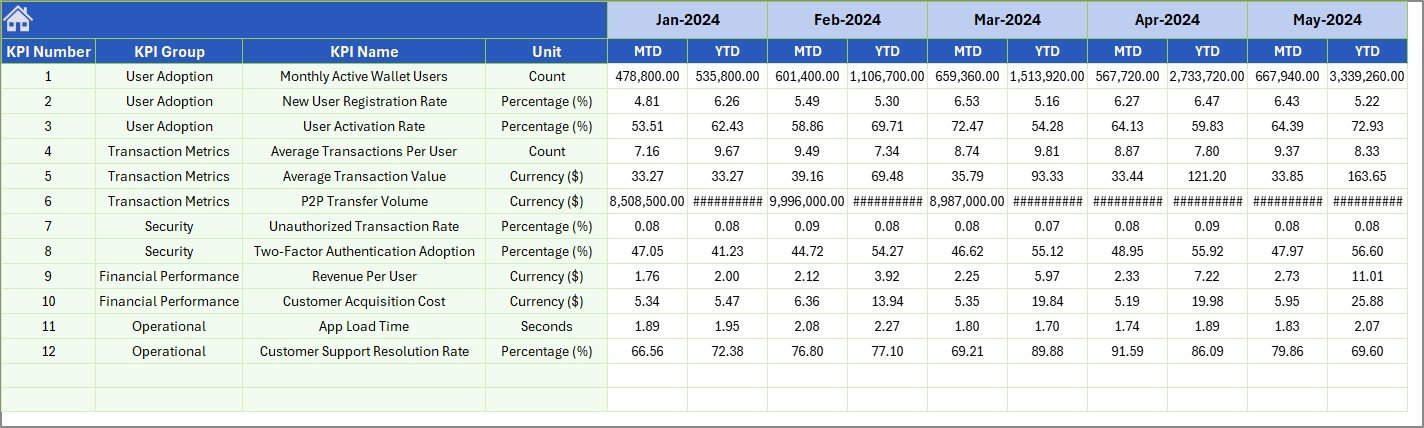
Previous Year Number Input Sheet
📂 KPI Definition Sheet — Define each KPI’s Name, Group, Unit, Formula, Definition, and Type (LTB or UTB). The KPI Trend sheet references this data automatically.

KPI Definition Sheet
📊 Digital Wallets KPI Dashboard in Excel vs. Google Sheets vs. Paid SaaS — Where This Fits
| Feature | Digital Wallets KPI Dashboard in Excel | Google Sheets Equivalent | Stripe Dashboard / Plaid |
|---|---|---|---|
| Cost | $14.99 one-time | Free (DIY build) | $25–$300/month |
| Platform | Microsoft Excel | Google Sheets | Web-based SaaS |
| Setup Time | Under 10 minutes ✅ | Hours (manual build) | Days (API integration) |
| Real-time Collaboration | Via OneDrive/SharePoint | Built-in | Built-in |
| Customizable KPIs | Unlimited ✅ | Manual setup | Limited to plan |
| Offline Access | Full offline ✅ | Limited | No |
| Year-1 Cost (5 users) | $14.99 total ✅ | $0 (but hours of work) | $1,500–$18,000 |
| MTD/YTD Trend Charts | Built-in ✅ | Manual | Varies by plan |
For fintech teams that want structured KPI tracking without paying $300/month for Stripe’s premium analytics or spending days on API integrations, the Digital Wallets KPI Dashboard in Excel sits in the sweet spot.
👥 Who This Template Is For — and Who It’s Not For
✅ This template is built for:
- Fintech operations managers tracking wallet transaction volume, success rates, and revenue per user
- Digital payment startups needing structured KPI reporting for investor meetings and board decks
- Finance teams at mobile money companies comparing monthly targets against actuals and prior year
- Analysts at e-wallet providers monitoring customer acquisition cost, churn, and average transaction value
❌ This template is NOT for:
- Enterprise payment processors needing real-time API-connected dashboards with SOC 2 compliance
- Teams requiring automated data feeds from Stripe, PayPal, or banking APIs without manual entry
⚙️ How to Use the Digital Wallets KPI Dashboard in Excel
1️⃣ Download the Excel file and open it in Microsoft Excel.
2️⃣ Go to the KPI Definition sheet and enter your digital wallet KPIs — name, group, unit, formula, definition, and type (LTB/UTB).
3️⃣ Fill in the Actual Numbers Input sheet with your monthly MTD and YTD data.
4️⃣ Enter corresponding targets on the Target Number Input sheet.
5️⃣ Add previous year data on the Previous Year Number sheet for YoY comparison.
6️⃣ Navigate to the Dashboard sheet, select a month from the dropdown, and review all KPIs instantly.
7️⃣ Use the KPI Trend sheet to drill into individual metric performance over 12 months.
💼 Real-World Use Cases
Ravi manages operations at a 50-person mobile wallet startup in Southeast Asia. He uses the Digital Wallets KPI Dashboard in Excel to track 18 KPIs including daily active users, transaction success rate, average wallet load, and customer acquisition cost. Before board meetings, he selects the relevant month and exports the dashboard as a PDF — replacing a 3-hour manual reporting process with a 10-minute refresh.
Priya leads finance at a digital lending fintech in India. She enters monthly targets for disbursement volume, NPA percentage, and collection efficiency. The conditional formatting arrows instantly show her which KPIs missed target and by how much — helping her prepare variance reports for the CFO without building pivot tables from scratch.
Carlos runs analytics at a Latin American neobank. He tracks wallet-to-wallet transfer volume, merchant payment adoption, and fraud detection rate using the KPI Trend sheet. Comparing Actual vs Target vs Previous Year across 12 months helps his team spot seasonal dips and plan marketing campaigns accordingly.
❓ Frequently Asked Questions
What KPIs does the Digital Wallets KPI Dashboard in Excel track?
The Digital Wallets KPI Dashboard in Excel tracks any KPI you define — transaction volume, success rate, average transaction value, customer acquisition cost, churn rate, wallet load amount, revenue per user, and more. You enter KPI names and definitions on the KPI Definition sheet, making the dashboard fully customizable.
How long does it take to set up this digital wallet dashboard?
Setup takes under 10 minutes. Enter your KPI definitions, fill in actual and target numbers for the current month, and the Dashboard sheet auto-populates with MTD and YTD comparisons, conditional formatting arrows, and trend charts.
Can I use this dashboard for other industries besides digital wallets?
Yes. The KPI Definition sheet is completely flexible — you can rename KPIs for banking, insurance, lending, payments, or any industry that tracks monthly performance against targets. The structure works for any MTD/YTD KPI tracking use case.
Does the Digital Wallets KPI Dashboard work on Mac?
Yes. The Digital Wallets KPI Dashboard in Excel uses only standard formulas — no macros, no VBA. It works on Excel for Mac, Excel 2016, 2019, 2021, and Microsoft 365 without any compatibility issues.
How does this compare to Stripe Dashboard or other paid fintech analytics?
Stripe Dashboard and similar SaaS tools cost $25–$300/month and require API integration. The Digital Wallets KPI Dashboard in Excel costs $14.99 one-time with no subscription, no per-user fees, and full offline access. For teams that enter data monthly, this template delivers 90% of the reporting value at less than 1% of the annual cost.
Can I add more KPIs beyond what’s pre-filled?
Yes. Simply add new rows on the KPI Definition sheet and corresponding rows on the Actual, Target, and Previous Year input sheets. The Dashboard and KPI Trend sheets reference these dynamically — no formula edits needed.
Is there a Power BI version of this dashboard?
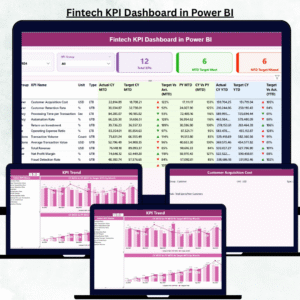
Yes. Check out the Fintech KPI Dashboard in Power BI for advanced filtering, drill-through pages, and DAX-powered calculations. Also explore the Blockchain & Cryptocurrency Dashboard in Excel for crypto-specific analytics.
👤 About the Author
Built by PK — Microsoft Certified Professional with 15+ years of Excel, Google Sheets, and Power BI experience. Founder of NextGenTemplates, reaching 300K+ subscribers across YouTube channels (@PK-AnExcelExpert, @NextGenTemplates, @NeoTechNavigators). Every template is hand-built and tested before release.
🔗 Explore Related Templates
🔹 Fintech KPI Dashboard in Power BI — Advanced Power BI analytics with slicers, combo charts, and drill-through KPI definitions for fintech teams.
🔹 Blockchain & Cryptocurrency Dashboard in Excel — Track wallet balances, transaction types, blockchain networks, and profit/loss in Excel.
🔹 Crypto Portfolio Dashboard in HTML — Browser-based crypto analytics with 5 interactive pages and CSV export.
🔹 Browse All KPI Dashboard Templates — Explore our full library of KPI dashboards across Excel, Power BI, Google Sheets, and HTML.
📖 Click here to read the Detailed Blog Post
🎥 Visit our YouTube channel for step-by-step video tutorials
👉 YouTube.com/@NextGenTemplates