

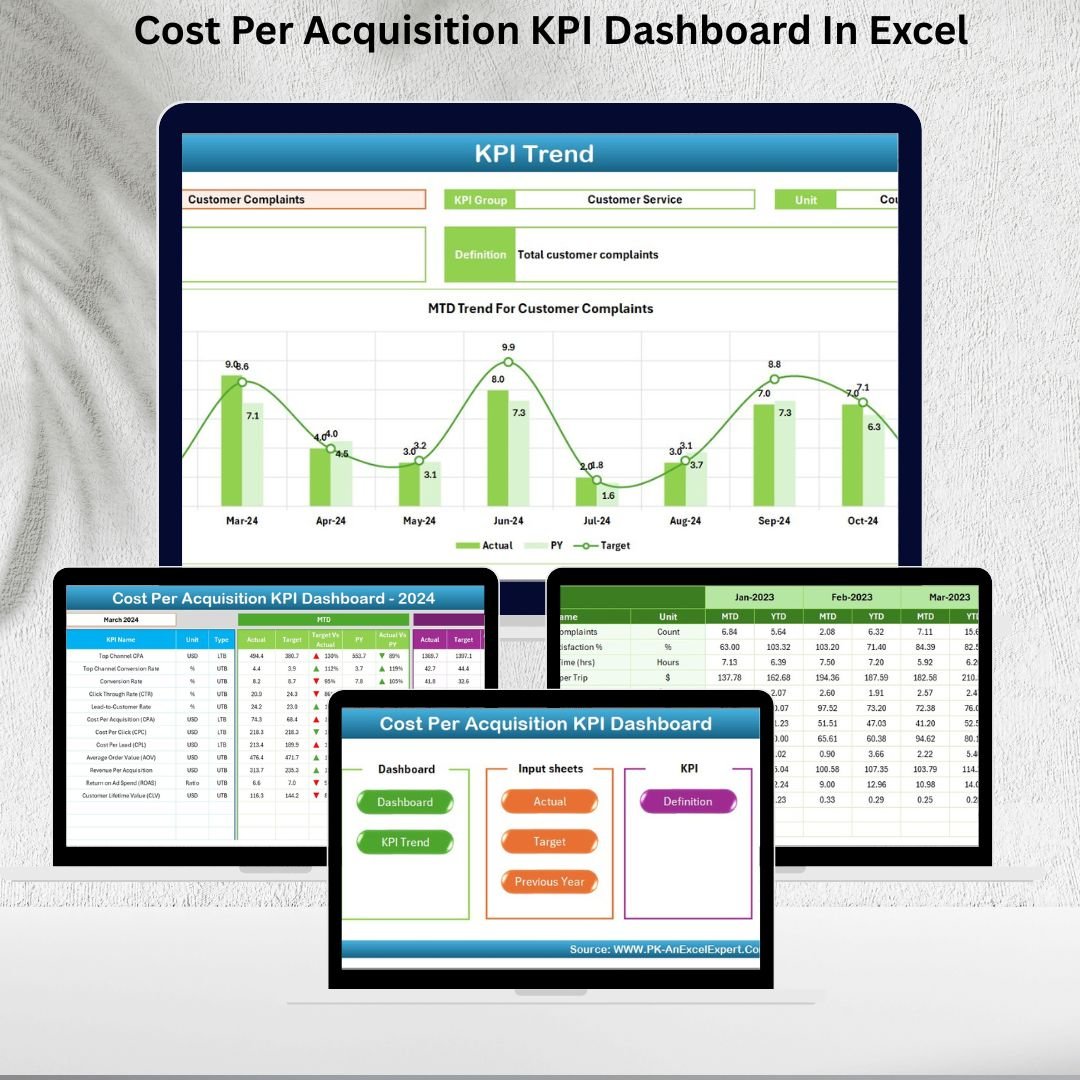
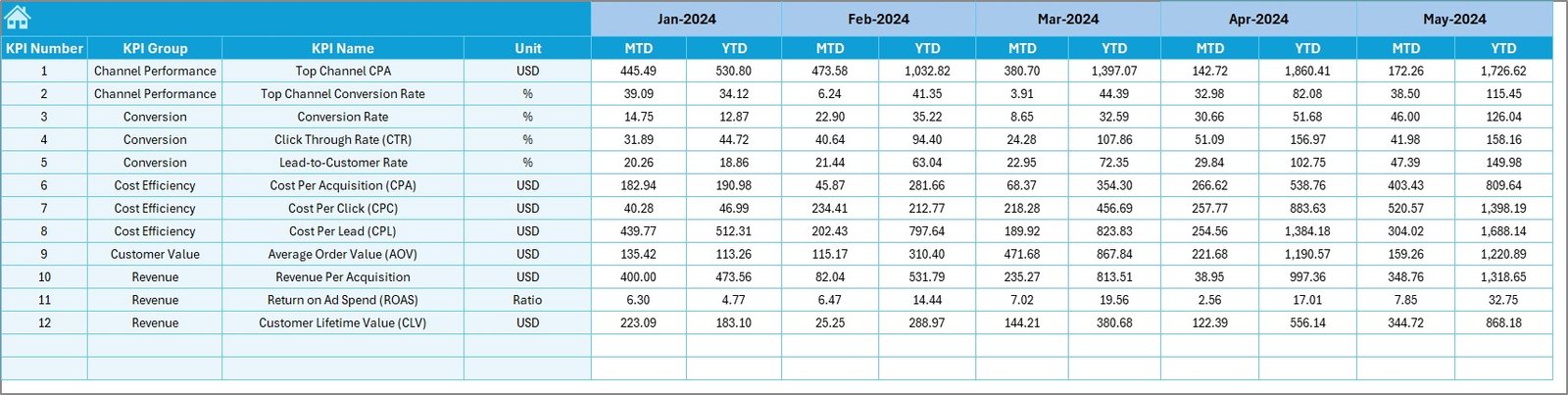
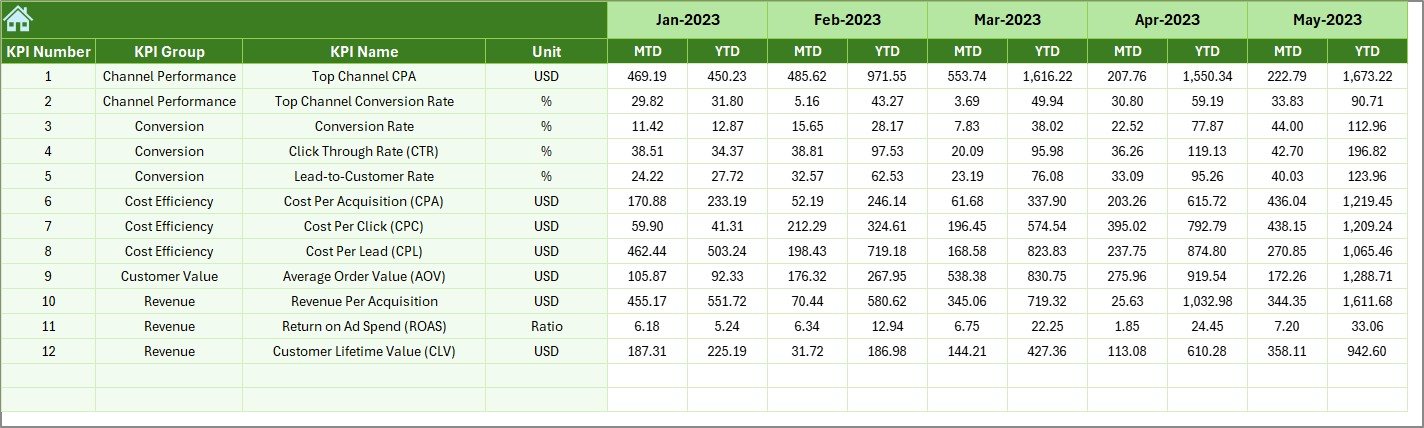

Every business invests money in acquiring new customers, but the real question is: Are you spending wisely? 💡 In today’s competitive world, knowing your Cost Per Acquisition (CPA) is not optional—it’s a necessity. That’s why we’ve designed a ready-to-use Cost Per Acquisition KPI Dashboard in Excel—a powerful, user-friendly, and customizable tool that helps you track, analyze, and reduce your CPA effortlessly.Cost Per Acquisition KPI Dashboard In Excel
With this dashboard, you can measure the effectiveness of your marketing campaigns, compare actual performance with targets, and make data-driven decisions—all in one place.Cost Per Acquisition KPI Dashboard In Excel spreadsheets or wasting hours building complex reports.
✨ Key Features of Cost Per Acquisition KPI Dashboard in Excel
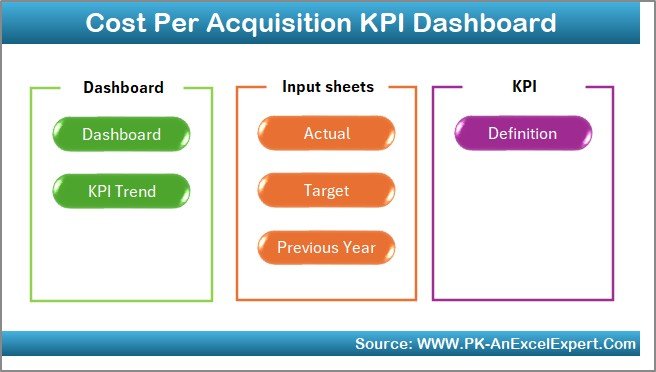
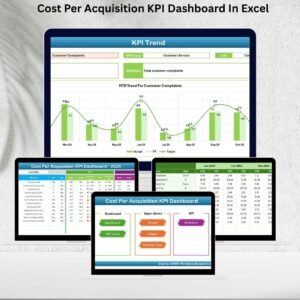
7 Well-Structured Worksheets – Includes Home, Dashboard, KPI Trend, Actual Numbers Input, Target, Previous Year Data, and KPI Definition sheets.Cost Per Acquisition KPI Dashboard In Excel
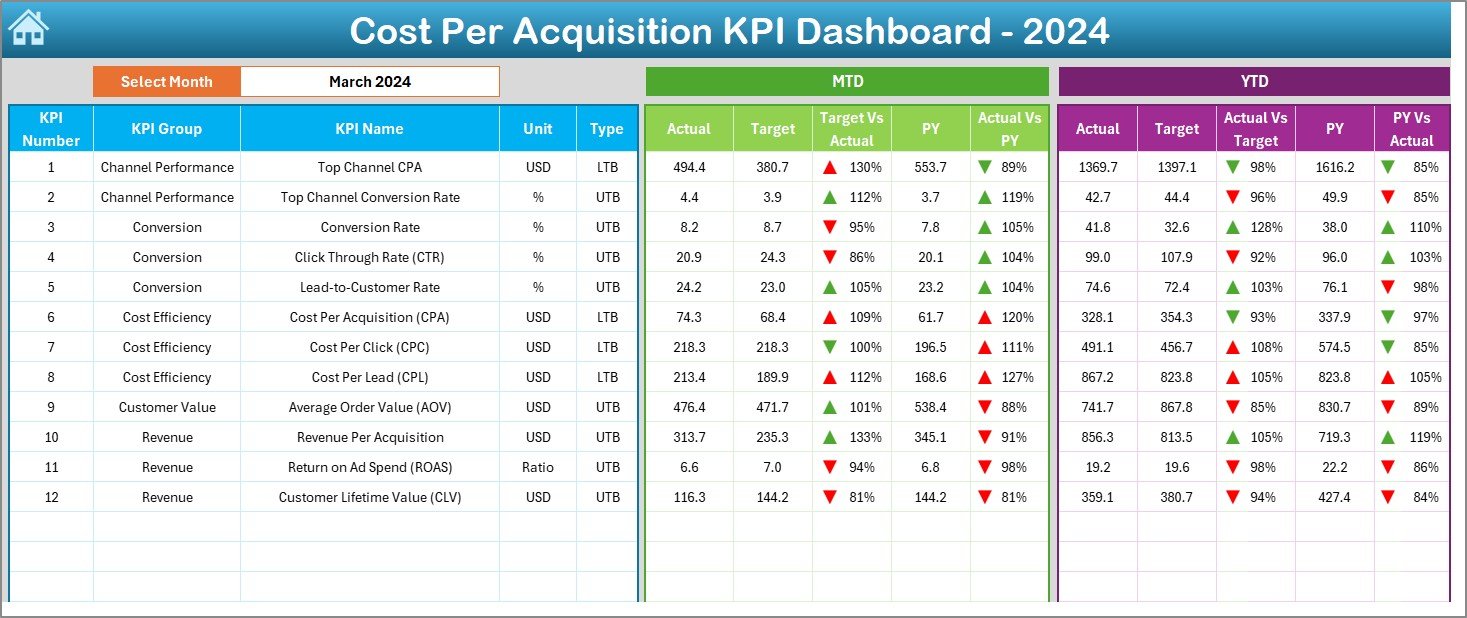
Interactive Dashboard – Select any month from a dropdown, and watch the KPIs update instantly.
Smart Performance Indicators – Track Month-to-Date (MTD) and Year-to-Date (YTD) performance with conditional formatting arrows.Cost Per Acquisition KPI Dashboard In Excel
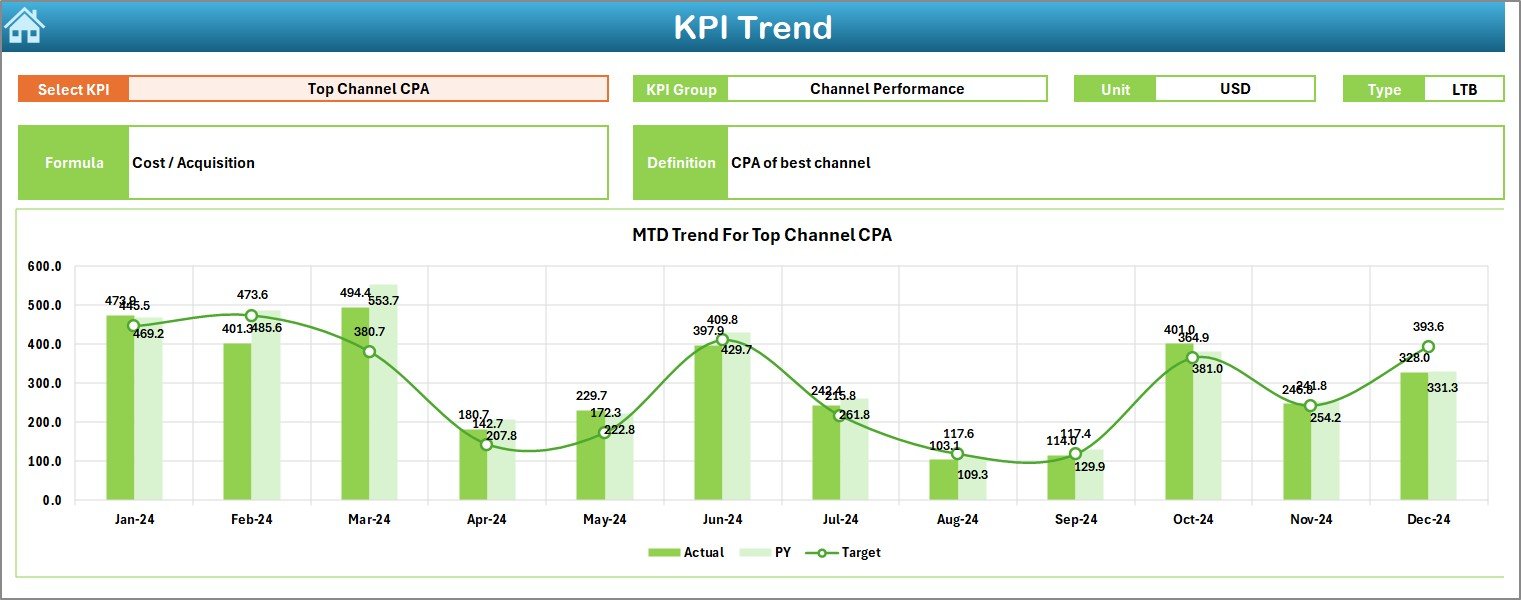
KPI Trend Analysis – Dive deeper into individual KPIs with trend charts for Actual, Target, and Previous Year values.
Comprehensive KPI Definition Sheet – Understand each KPI’s unit, type, and formula in a clear, structured format.
Seamless Comparisons – Instantly compare current results with last year’s data to evaluate growth.
Completely Customizable – Add, edit, or remove KPIs to suit your business needs.
📊 What’s Inside the Cost Per Acquisition KPI Dashboard
When you download this template, you’ll receive:
Home Page 🏠 – A central hub with easy navigation buttons.
Dashboard Page 📈 – A one-stop overview of all key CPA metrics.
KPI Trend Page 🔄 – Select any KPI to view detailed historical trends.
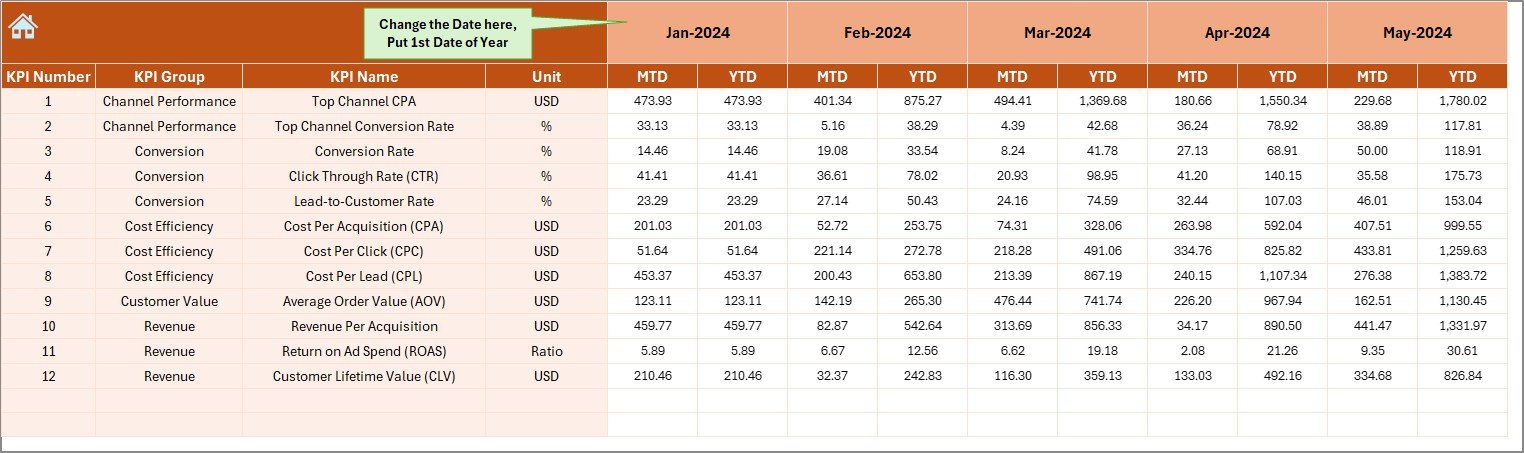
Actual Numbers Input Sheet 📝 – Log your monthly data with ease.
Target Sheet 🎯 – Define your MTD and YTD targets.
Previous Year Sheet ⏳ – Compare today’s performance with last year’s numbers.
KPI Definition Sheet 📖 – A handy reference guide explaining each KPI.
🛠️ How to Use the Cost Per Acquisition KPI Dashboard
Enter Your Data – Input monthly acquisition costs and results in the Actual Numbers Input sheet.
Set Your Goals – Define your targets in the Target Sheet.
View Your Dashboard – Instantly see performance indicators, trends, and variances.
Analyze Trends – Use the KPI Trend page to identify where costs are rising or improving.
Benchmark Performance – Compare results with the Previous Year Sheet for long-term insights.
Within minutes, you’ll have a professional-grade dashboard at your fingertips—no technical expertise required!
Who Can Benefit from This Dashboard?
Marketing Managers – Optimize ad spend across campaigns and channels.
Financial Analysts – Gain accurate insights into acquisition costs.
Startups & Small Businesses – Stretch limited budgets effectively.
E-commerce Companies – Track CPA from ads, influencers, and referral programs.
Consulting Firms & Agencies – Showcase ROI to clients with clear visuals.
Whether you run paid campaigns, email marketing, or offline promotions, this dashboard adapts to your workflow and ensures you’re always on top of your acquisition costs.










Reviews
There are no reviews yet.