

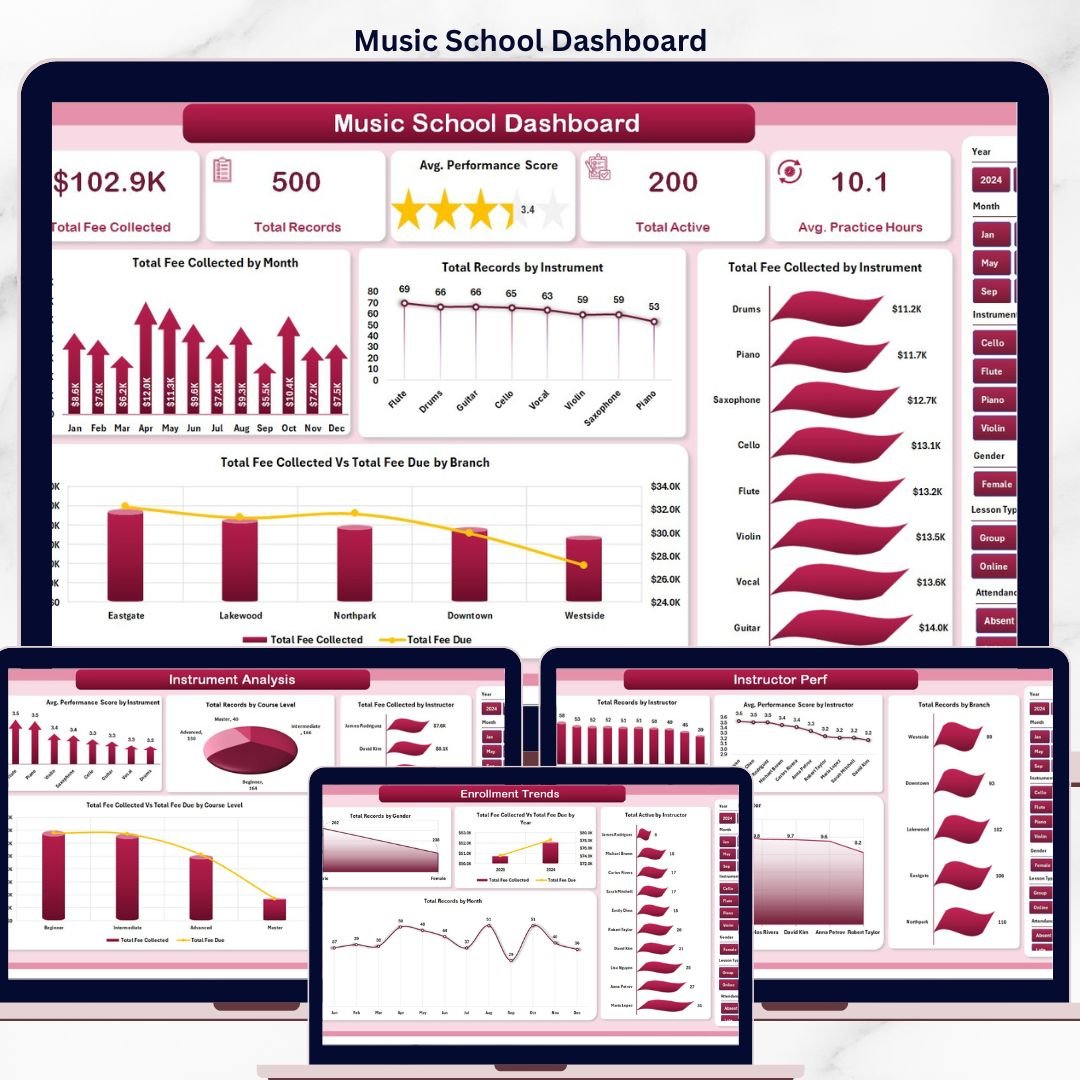



The Music School Dashboard in Excel tracks 5 KPIs and 20 interactive charts across 5 dashboard pages, all driven by pivot tables that auto-refresh when you update the Data sheet. Setup takes under 10 minutes — replace the sample student records with your own, click Refresh All, and every metric, chart, and slicer recalculates instantly. No formulas to rebuild, no monthly subscriptions to renew.
🌍 Join 8,400+ teams across 40+ countries using NextGenTemplates to run their music academies, conservatories, and private studios without paying $19–$59 per month for SaaS tools like MyMusicStaff, Fons, or Music Teacher’s Helper. This Music School Dashboard in Excel is a one-time purchase — instant download, no recurring fees, no per-student pricing, and it works offline on any device running Microsoft Excel 2016 or later.
✅ Instant download · One-time payment · No subscription · No per-user fees · Lifetime access
🔑 Key Features of Music School Dashboard in Excel
📌 5 Pre-Built Analytical Pages – Overview, Instrument Analysis, Instructor Performance, Branch Analysis, and Enrollment Trends. Each page is filterable by Instrument, Instructor, Branch, Course Level, and Year through slicers placed at the top — so a school director can answer any reporting question without rebuilding pivots.
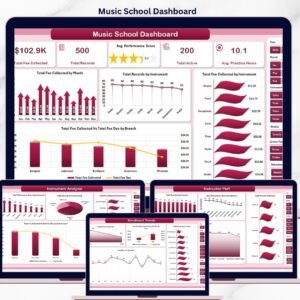
📌 5 KPI Cards on the Overview – Total Fee Collected, Total Records, Avg. Performance Score, Total Active, and Avg. Practice Hours sit at the top of the Overview page and refresh the moment you click any slicer. This Excel Dashboard delivers real-time music academy analytics without macros or VBA.
📌 Fee Collection vs. Fee Due Tracking – Compare Total Fee Collected against Total Fee Due across Branches, Course Levels, and Years. The dashboard exposes which branches are running fee-collection gaps and which course levels carry the most outstanding dues — so finance leads can act before quarter-end.
📌 Pivot-Driven Architecture – Every chart and KPI is sourced from pivots living on a hidden Support sheet. After updating the Data sheet, click Refresh All on the Excel Data ribbon and the entire dashboard rebuilds in 2–3 seconds, no formula edits required.
📌 Performance Score & Practice Hours Analytics – Track Avg. Performance Score by Instrument, Instructor, and Branch, plus Avg. Practice Hours by Instructor. Spot which instructors lift student outcomes and which need coaching support.
📌 Slicer-Based Filtering – Multi-select slicers across all 5 pages let directors and branch managers slice the same dataset by instrument, instructor, course level, lesson type, branch, or year — all without writing a single formula.
📌 Enrollment Trend Visibility – Total Records by Month, Total Records by Gender, Total Active by Instructor, and Total Fee Collected vs. Total Fee Due by Year give academy owners the longitudinal view needed for hiring, marketing, and capacity planning decisions.
📦 Dashboard Pages Explanation
The Music School Dashboard contains five analytical pages plus a Data sheet and a hidden Support sheet that powers every chart through pivot tables. Each page is filterable via slicers for Instrument, Instructor, Branch, Course Level, and Year.
1. Overview Page
The Overview page gives music school owners and branch managers a single-screen snapshot of the entire academy. Five KPI cards show high-level numbers, and four charts drill into fee trends, instrument popularity, and branch fee-collection health — all filterable by the slicer panel at the top.
KPI cards on this page: Total Fee Collected 🔹 Total Records 🔹 Avg. Performance Score 🔹 Total Active 🔹 Avg. Practice Hours
Charts included:
- Total Fee Collected by Month — Tracks monthly fee inflow so you can spot seasonality, billing-cycle gaps, and the impact of enrollment drives.
- Total Records by Instrument — Shows enrollment volume across guitar, piano, violin, drums, and other instruments to expose where demand is concentrated.
- Total Fee Collected by Instrument — Reveals which instrument programs generate the most revenue, useful for pricing and instructor allocation decisions.
- Total Fee Collected Vs Total Fee Due by Branch — Compares paid fees against outstanding dues branch-by-branch to flag locations with collection gaps.
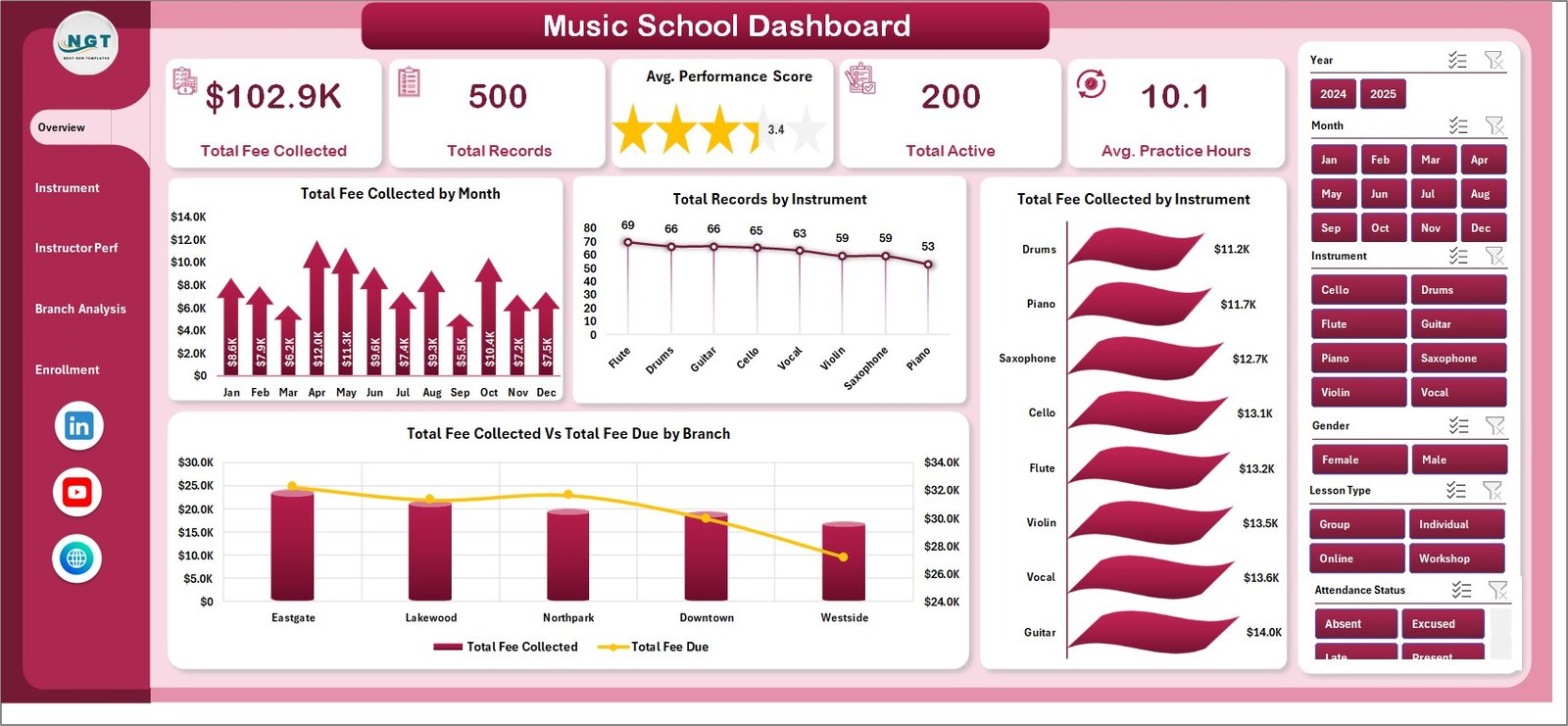
Music School Dashboard
2. Instrument Analysis
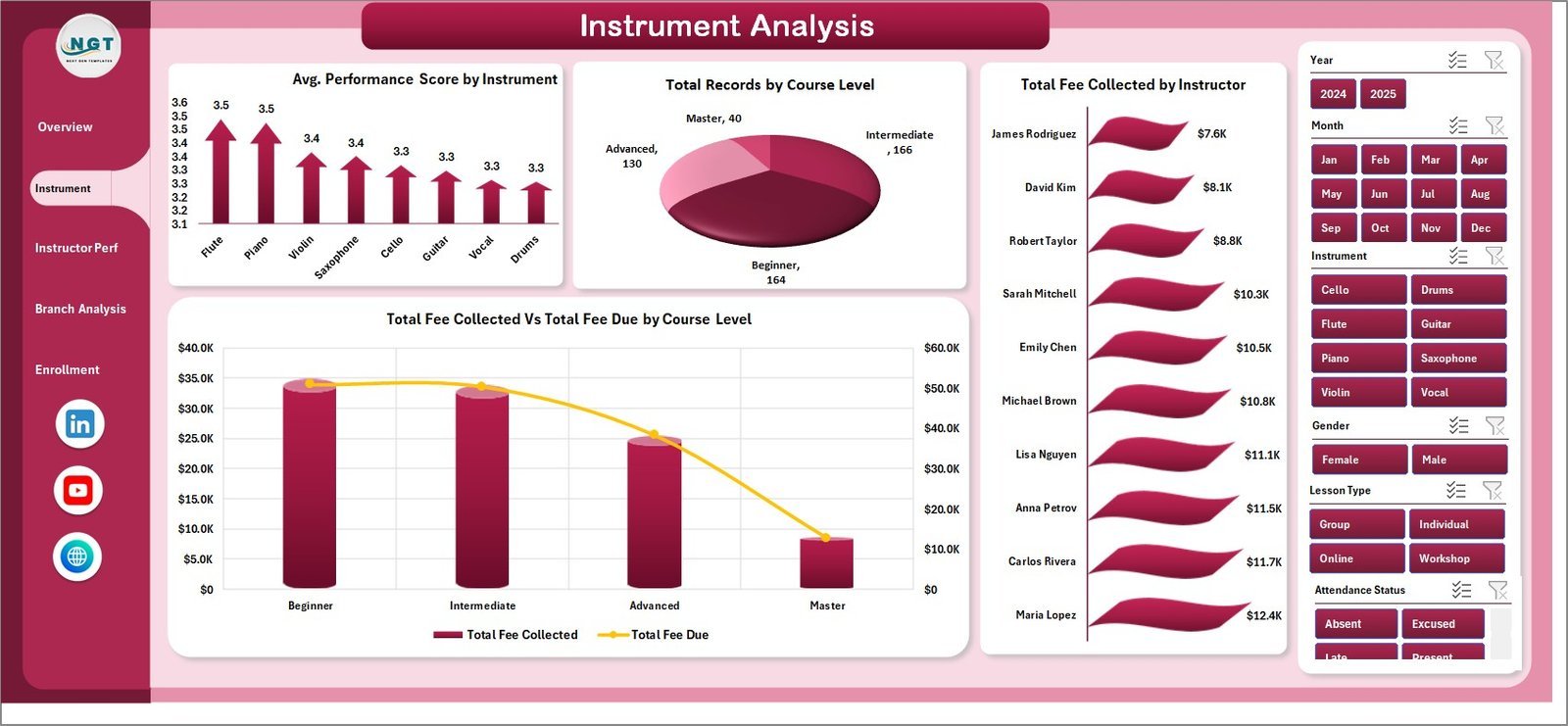
This page helps you understand which instruments and course levels drive the academy, who the top-revenue instructors are, and where fee-due gaps emerge by course level. Useful when pricing courses and allocating instructor bandwidth.
Charts included:
- Avg. Performance Score by Instrument — Ranks instruments by student outcomes so you can spot programs with weak progression.
- Total Records by Course Level — Splits enrollment across Beginner, Intermediate, and Advanced to map the student funnel.
- Total Fee Collected by Instructor — Identifies instructors generating the most revenue, guiding bonus and retention conversations.
- Total Fee Collected Vs Total Fee Due by Course Level — Highlights course levels where dues are slipping (typically Beginner with high churn).
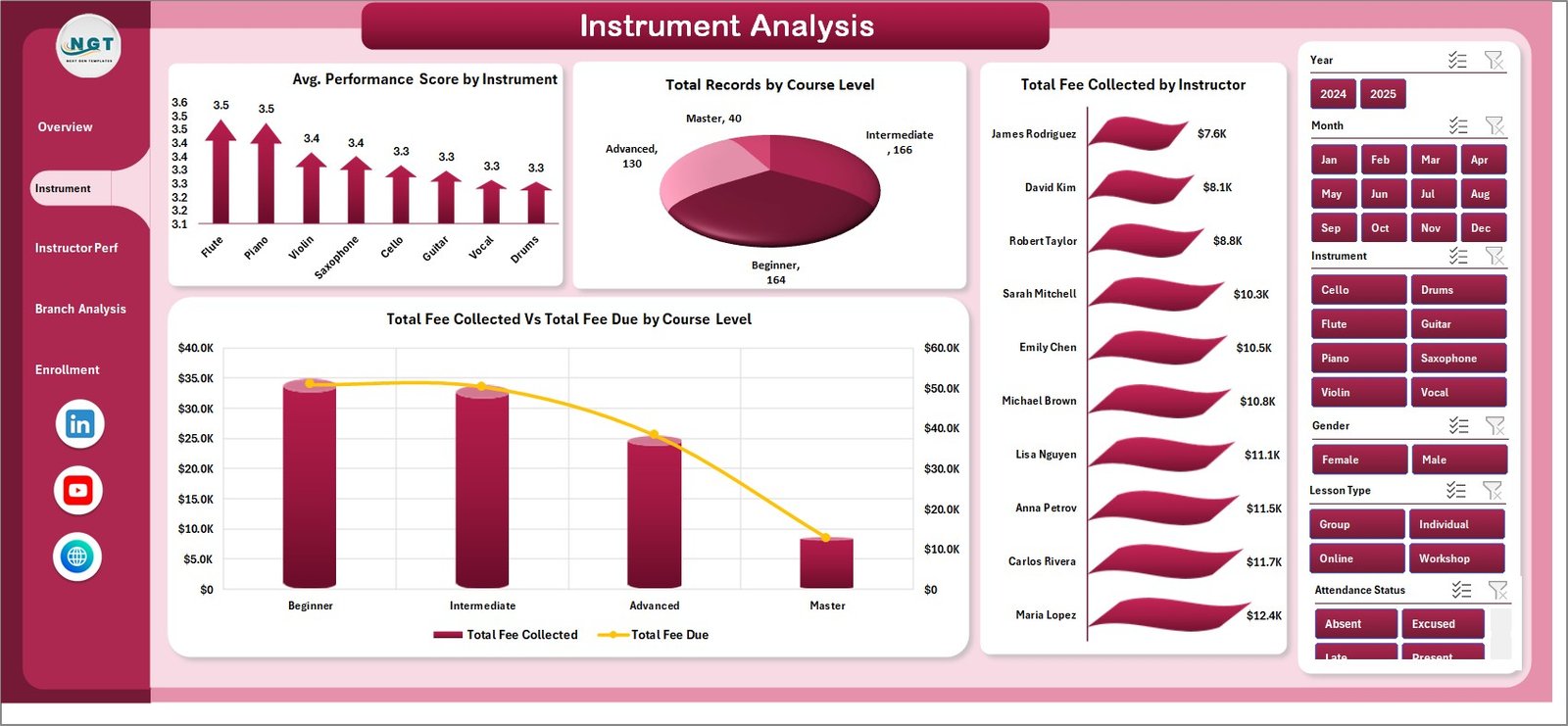
Instrument Analysis
3. Instructor Performance
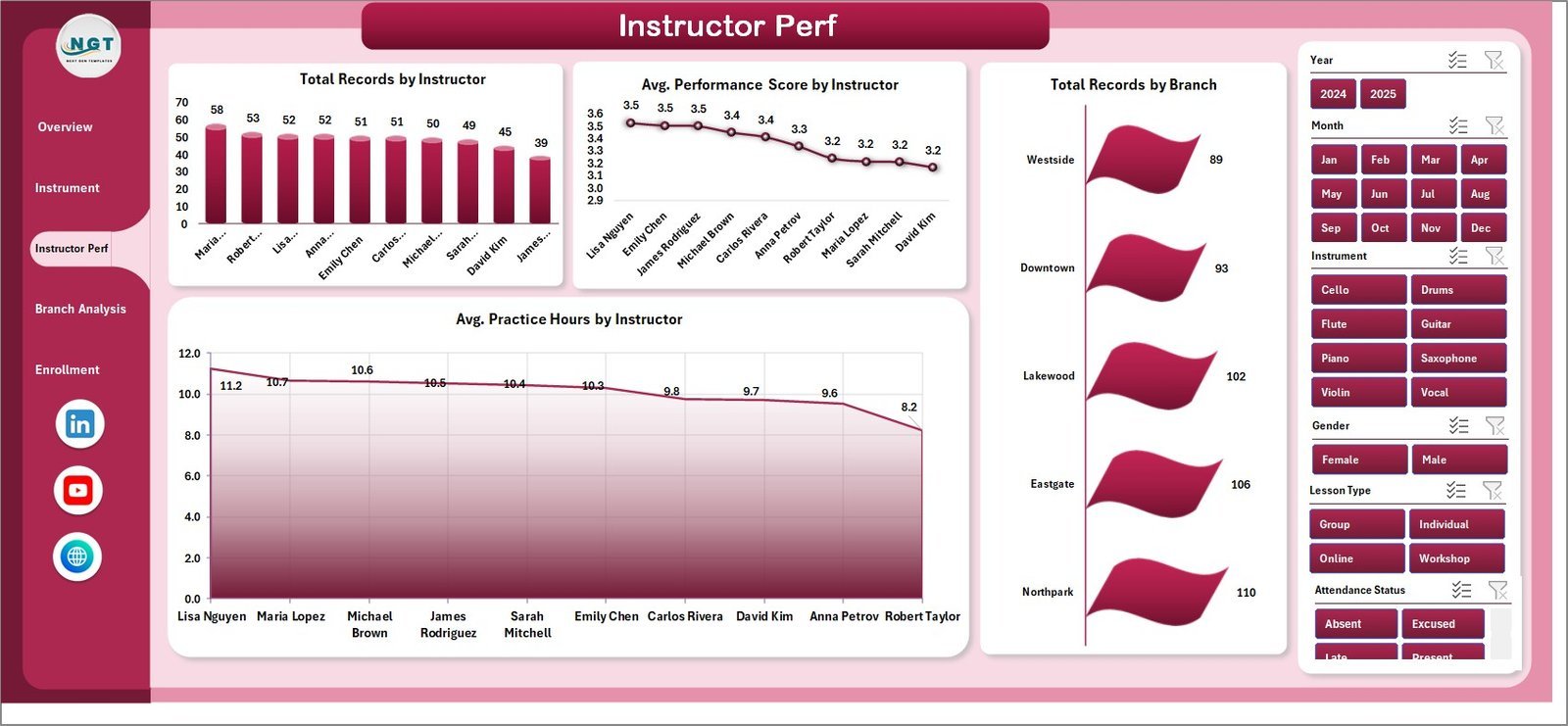
A manager-focused page for reviewing individual instructor contributions. Use it for monthly 1:1s, quarterly bonus decisions, and retention conversations with high-rated instructors.
Charts included:
- Total Records by Instructor — Ranks instructors by student volume so you can see who is carrying the load.
- Avg. Performance Score by Instructor — Surfaces which instructors lift student outcomes the most.
- Total Records by Branch — Branch-level enrollment view to support capacity planning.
- Avg. Practice Hours by Instructor — Tracks how much practice each instructor’s students log, a leading indicator of progression.
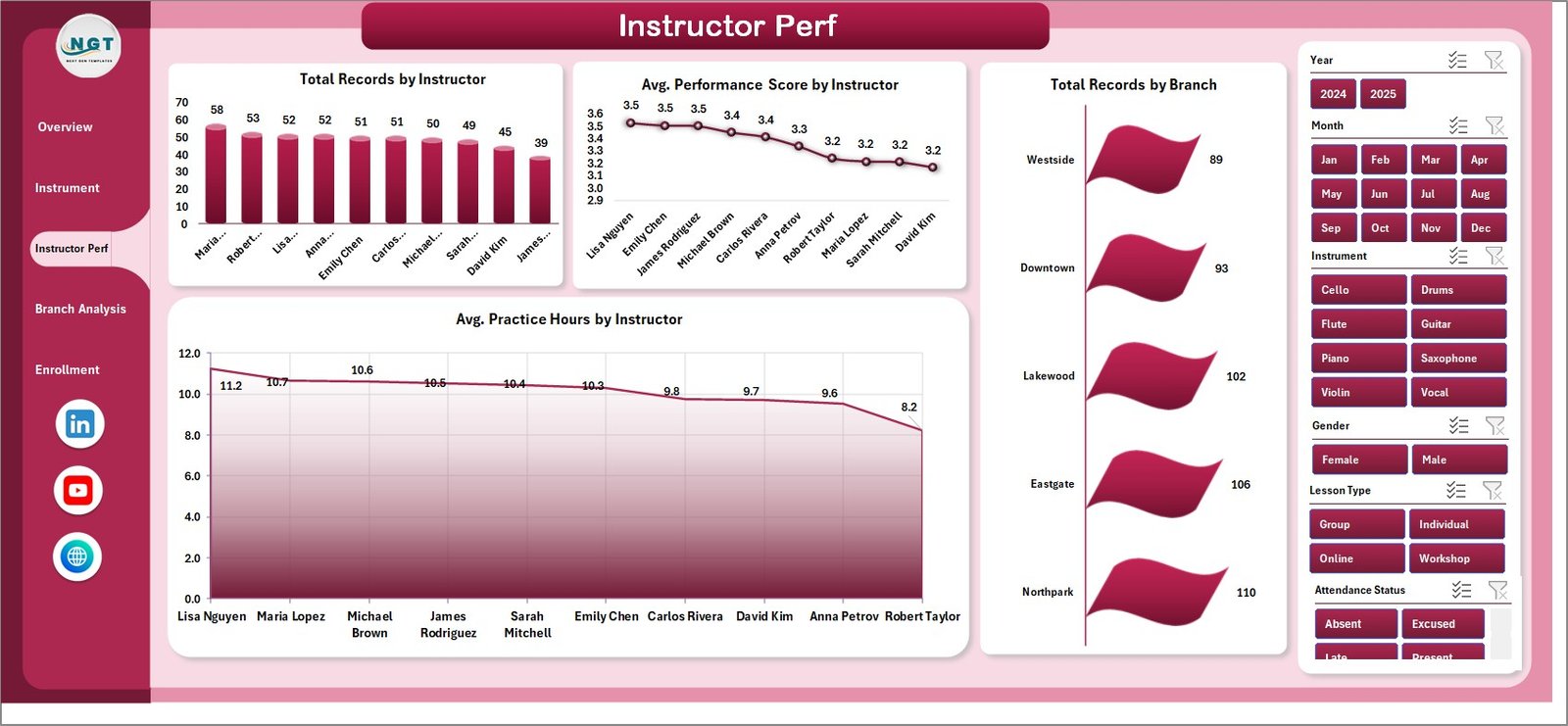
Instructor Performance
4. Branch Analysis
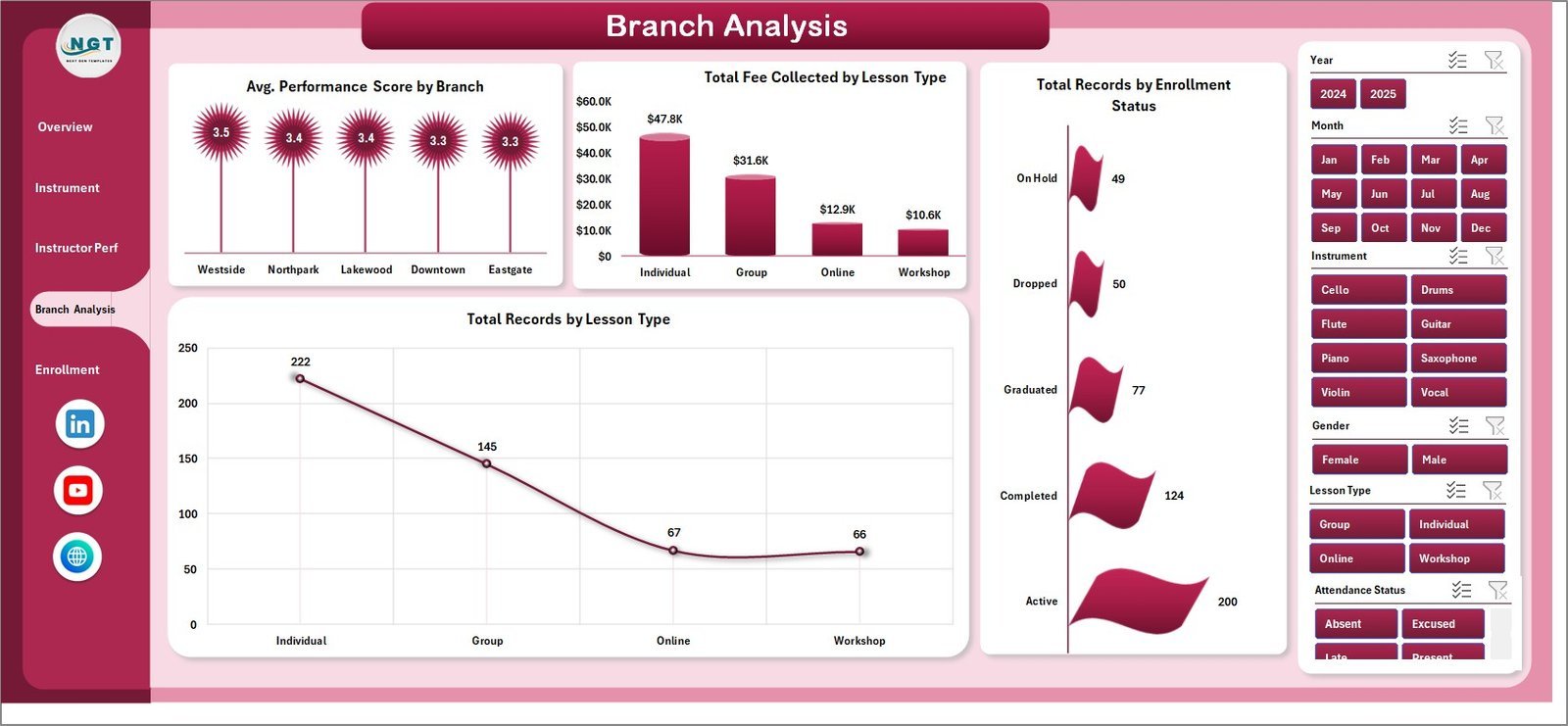
Built for multi-location music academies, this page exposes branch-level performance, lesson-type revenue mix, and active-student counts so directors can compare branches on equal footing.
Charts included:
- Avg. Performance Score by Branch — Compares student outcomes across branches to flag locations needing curriculum support.
- Total Fee Collected by Lesson Type — Splits revenue across Private, Group, and Online lessons.
- Total Records by Enrollment Status — Active, Inactive, Trial, and Dropped buckets to track funnel health.
- Total Records by Lesson Type — Volume mix between private, group, and online lessons.
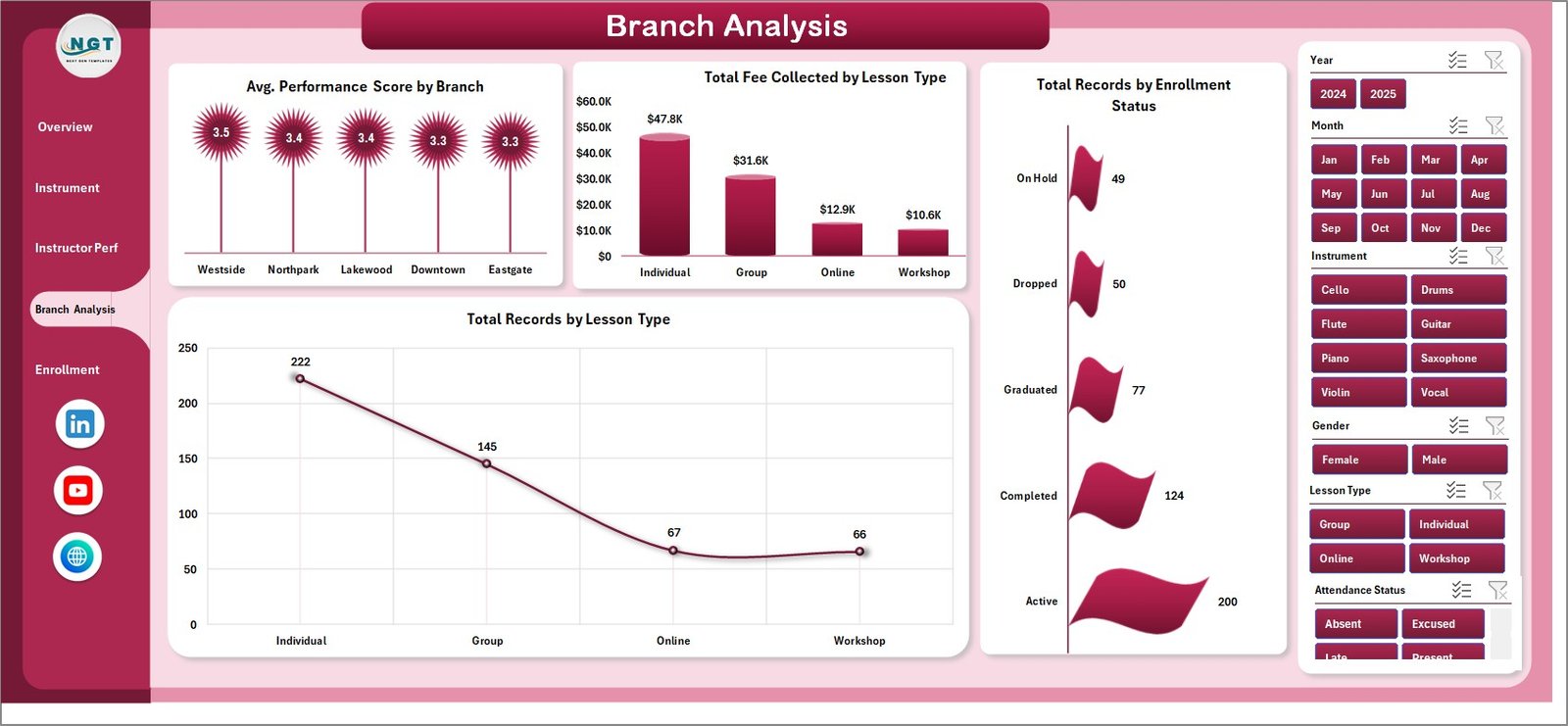
Branch Analysis
5. Enrollment Trends
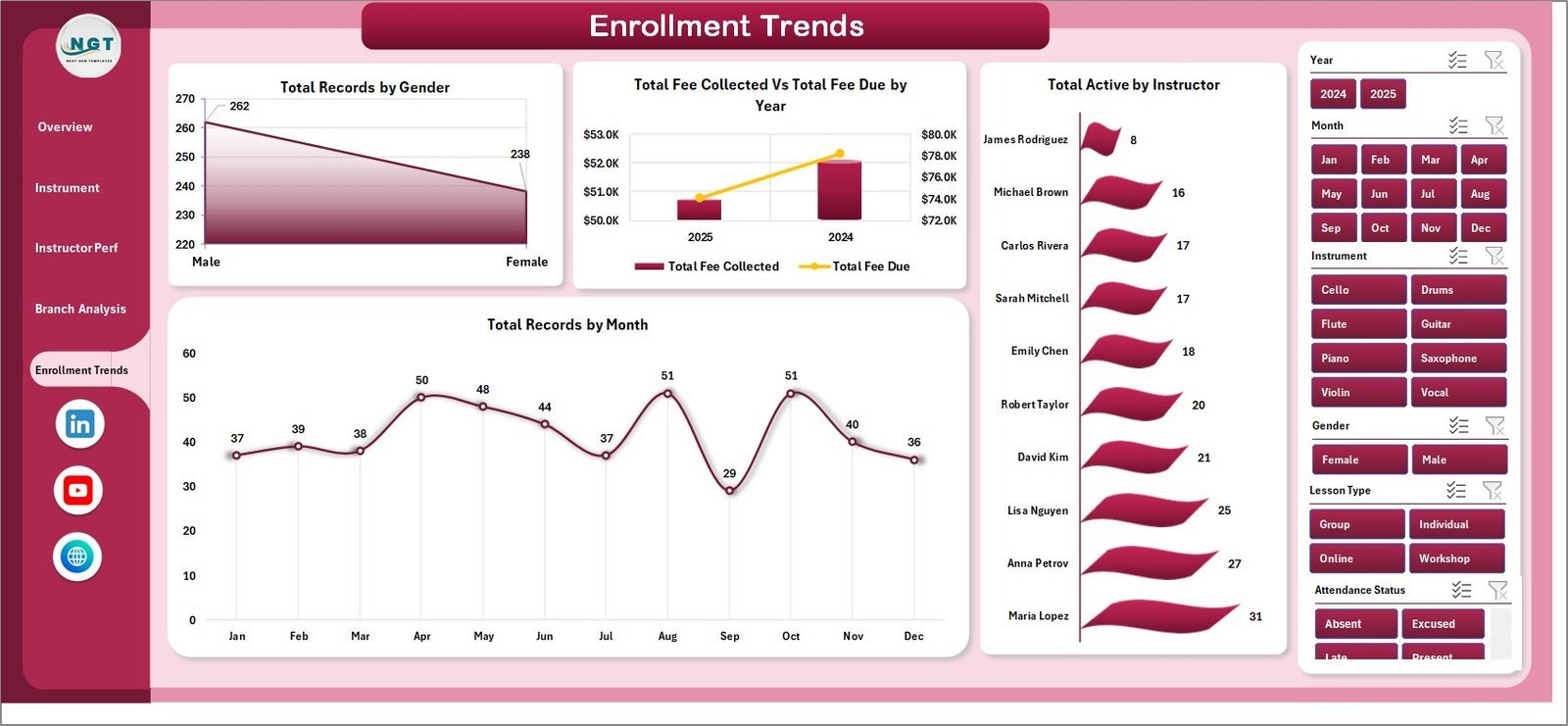
Focuses on the enrollment side — gender mix, year-over-year fee performance, instructor-level active students, and monthly enrollment trend. Designed for owners and marketing leads planning hiring and outreach.
Charts included:
- Total Records by Gender — Splits enrollment by gender so you can refine marketing targeting.
- Total Fee Collected Vs Total Fee Due by Year — Year-over-year fee health view across the academy.
- Total Active by Instructor — Shows how many active students each instructor is currently coaching.
- Total Records by Month — Trends enrollment month-over-month to forecast capacity and plan campaigns.
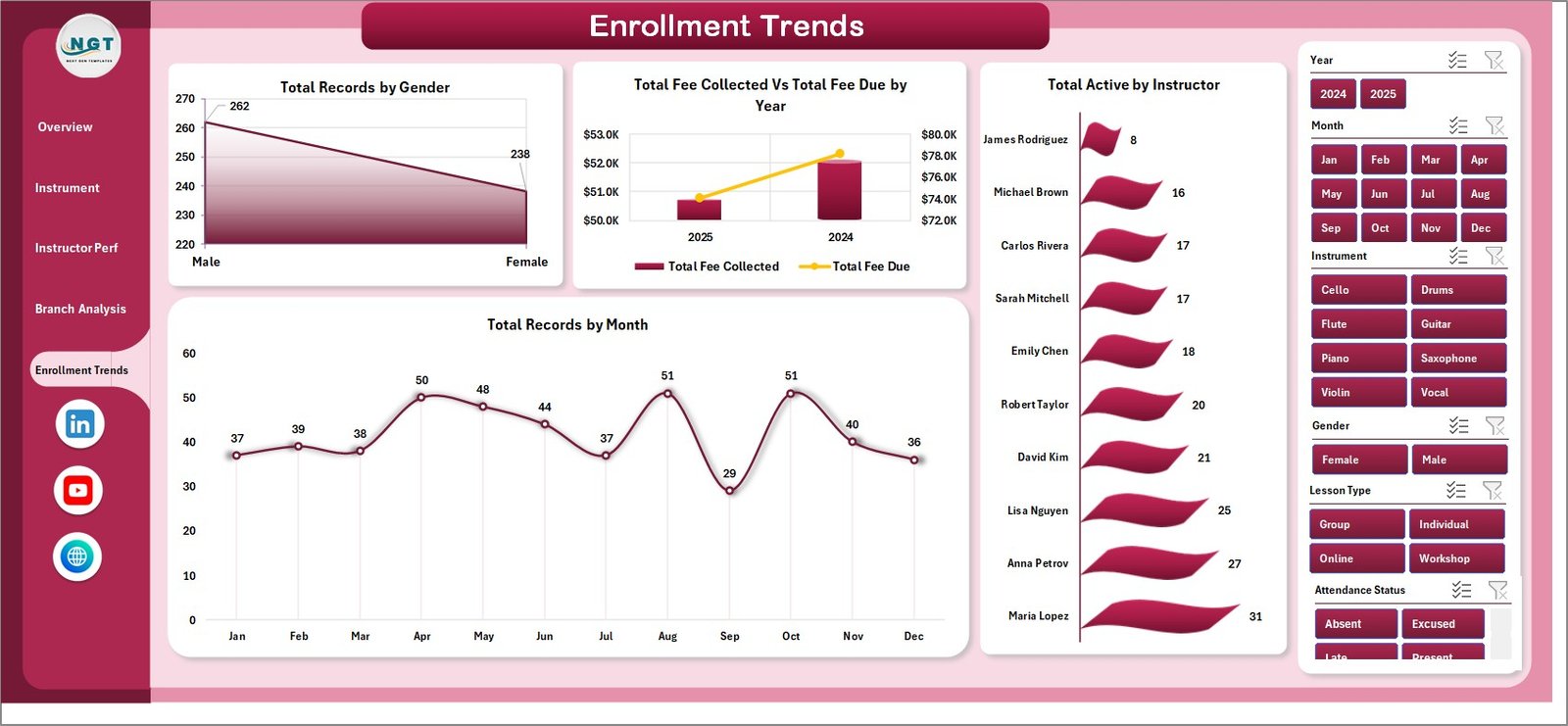
Enrollment Trends
6. Data Sheet
This is where you enter your student records. Each row is one enrollment record with fields for Date, Student Name, Gender, Branch, Instrument, Course Level, Lesson Type, Instructor, Enrollment Status, Practice Hours, Performance Score, Fee Due, and Fee Collected. Replace the sample data with your own in the same format and every chart updates.

Data Sheet tab
7. Support Sheet
A hidden sheet containing all the pivot tables that power the dashboard. After updating the Data sheet, go to the Data tab in the Excel Ribbon and click Refresh All — every pivot and chart recalculates automatically. Keep this sheet hidden in daily use.

Support sheet tab
🆚 Music School Dashboard Excel vs. Google Sheets vs. Paid Music-School SaaS
| Feature | Music School Dashboard (Excel) | Google Sheets Alternatives | MyMusicStaff / Fons / Music Teacher’s Helper |
|---|---|---|---|
| Cost | $17.99 one-time | Mostly free, limited features | $19–$59 / month + per-teacher fees |
| Setup time | Under 10 minutes | 30–60 minutes | 3–7 days onboarding |
| Works offline | ✅ Yes — local Excel file | ❌ No, needs internet | ❌ No, cloud-only |
| Fee collected vs. fee due tracking | ✅ Built-in by branch, course level, year | Manual formulas | Yes, but vendor-locked |
| Performance score analytics | ✅ By instrument, instructor, branch | Must build manually | Limited or add-on |
| Data ownership | ✅ 100% yours, local file | Stored in your Drive | Vendor-owned cloud database |
| Customizable | ✅ Edit any pivot, chart, or KPI | Yes | Limited to vendor options |
| 3-year cost (10 instructors) | $17.99 | $0 | $684–$2,124 |
For music academies and private studios that want full analytics control without paying $19–$59 every month, the Music School Dashboard in Excel sits in the sweet spot.
👥 Who This Template Is For — and Who It’s Not For
✅ This template is built for:
- Music school owners managing 5–50 instructors and 50–500 active students across 1–5 branches
- Independent music instructors who want a professional dashboard to share with parents or studio partners
- Music academy directors tracking multi-instrument, multi-branch revenue and instructor performance
- Conservatories and performing arts schools running monthly business reviews
- Private music studios migrating from notebook or basic-spreadsheet tracking to real analytics
❌ This template is NOT for:
- Music schools needing integrated lesson-scheduling with calendar sync, automated reminders, and student-portal logins
- Teams that require a mobile app for instructors to mark attendance in real time
- Businesses needing automatic Stripe / payment-gateway billing (this is a reporting template, not a billing engine)
⚙️ How to Use the Music School Dashboard
- Open the Excel file in Microsoft Excel 2016 or later — enable editing if prompted.
- Go to the Data sheet and replace the sample rows with your own student enrollment records, keeping the column order intact.
- Go to the Data tab in the Excel Ribbon and click Refresh All — every pivot table and chart rebuilds automatically.
- Use the slicers at the top of each dashboard page to filter by instrument, instructor, branch, course level, or year.
- Export screenshots or the whole workbook as PDF for monthly reviews with your team, partners, or franchise board.
💼 Real-World Use Cases
Anika runs a 14-instructor music academy in Pune teaching guitar, piano, violin, and drums. She uses the Music School Dashboard in Excel to review monthly fee collection by instrument, identify her highest-rated instructors for retention bonuses, and present quarterly numbers to her co-founder — without paying $39 per month for MyMusicStaff.
James is an independent piano teacher in the US with 25 active students across two suburbs. He uses the dashboard to track monthly fee inflow, monitor his average performance score, and prove progression to parents asking for more lessons — replacing a $19/month Fons subscription with a one-time $17.99 file.
Priya directs operations at a 4-branch performing arts academy. She filters the Music School Dashboard by branch, compares average practice hours and performance scores across locations, and surfaces fee-due gaps to her finance lead — all inside one Excel file, no cloud login required.
👤 About the Author
Built by PK — Microsoft Certified Professional with 15+ years of Excel, Google Sheets, and Power BI experience. Founder of NextGenTemplates, reaching 300K+ subscribers across YouTube channels (@PK-AnExcelExpert, @NextGenTemplates, @NeoTechNavigators). Every template is hand-built and tested before release.
❓ Frequently Asked Questions
What does the Music School Dashboard in Excel track?
The Music School Dashboard tracks 5 core KPIs (Total Fee Collected, Total Records, Avg. Performance Score, Total Active, Avg. Practice Hours) and 20 pre-built charts across 5 pages — Overview, Instrument Analysis, Instructor Performance, Branch Analysis, and Enrollment Trends. All metrics recalculate automatically when you update the Data sheet and click Refresh All.
How does this compare to MyMusicStaff or Fons?
MyMusicStaff and Fons charge $19–$59 per month plus per-teacher fees and lock your data in their cloud. The Music School Dashboard in Excel is a one-time $17.99 purchase, works fully offline, and gives you 100% data ownership. You trade automated scheduling and parent portals for ownership, flexibility, and massive cost savings over 3+ years.
How long does setup take?
Setup takes under 10 minutes for most music academies. Open the Music School Dashboard file, replace the sample student records in the Data sheet with your own data following the same column format, click Refresh All on the Data ribbon tab, and every chart and KPI on the 5 dashboard pages updates automatically.
Can I add my own instruments, instructors, or branches?
Yes. The Music School Dashboard uses pivot tables sourced directly from the Data sheet, so any new instrument, instructor name, branch, or course level you enter is picked up automatically after clicking Refresh All. No formula edits or chart rebuilds needed — perfect for academies adding new programs or expanding to new locations.
Do I need macros or VBA enabled?
No. The Music School Dashboard in Excel is a pivot-table-driven workbook with no macros or VBA. It runs safely in any corporate or personal Excel environment where macros are blocked, and it’s fully compatible with Excel 2016, 2019, 2021, Microsoft 365, and Excel for Mac.
Can multiple branches or instructors edit the same file?
Yes, if you save the Music School Dashboard file to OneDrive or SharePoint and open it in Excel for the web or Microsoft 365 desktop with co-authoring enabled. For local-only use, one person updates the Data sheet at a time and then shares the refreshed file with the rest of the team.
Is the Music School Dashboard a one-time purchase?
Yes — the Music School Dashboard in Excel is a one-time $17.99 purchase with instant download. There is no subscription, no per-student fee, and no renewal charge. You can use the template on unlimited devices within your business and keep using it as long as you have Microsoft Excel installed.
🔗 Explore Related Templates
- Tutoring Business Dashboard in Excel — adjacent education vertical with the same pivot-driven architecture.
- Driving School Dashboard in Excel — same school-management pattern for driving academies.
- Language Schools Dashboard in Excel — multi-instructor multi-branch sibling for language academies.
- Browse the full Excel Dashboard Templates category for more pivot-driven business dashboards.
📖 Click here to read the Detailed Blog Post
🎥 Visit our YouTube channel for step-by-step video tutorials
👉 YouTube.com/@NextGenTemplates
Watch the step-by-step video tutorial:
Compatibility and Requirements
- Works in Microsoft Excel desktop (Excel 2016 or later, or Microsoft 365).
- The dashboard uses pivot tables and slicers, and you refresh them with Refresh All on the Data tab. Microsoft explains slicers in Use slicers to filter data.
More Questions About This Template
Is there a Power BI or Google Sheets version of the Music School Dashboard?
Yes. See the Music School Dashboard in Power BI and the Music School Dashboard in Google Sheets.
Which fields does the Data sheet use?
Each row is one enrollment record with Date, Student Name, Gender, Branch, Instrument, Course Level, Lesson Type, Instructor, Enrollment Status, Practice Hours, Performance Score, Fee Due and Fee Collected.
Which filters can I use on the dashboard pages?
The slicers at the top of the pages filter by Instrument, Instructor, Branch, Course Level and Year. Lesson type is also available as a filter.
Related Music and School Templates
- Music School Dashboard in Power BI: the same music school reporting in Power BI
- Music School Dashboard in Google Sheets: the Google Sheets edition
- Music and Performing Arts Dashboard in Excel: a dashboard for performing arts organizations
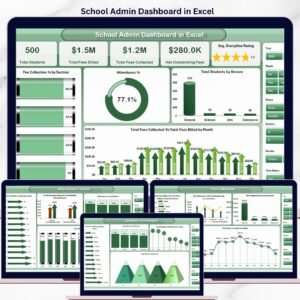
- School Admin Dashboard in Excel: a school administration view in Excel
Browse all Excel dashboards.














Reviews
There are no reviews yet.