


Running a successful language school today requires more than good teachers and engaging courses. You must constantly track student enrollment, academic performance, teacher productivity, operational efficiency, and financial health. When this data remains scattered across registers and spreadsheets, decision-making becomes slow and reactive.
That is exactly why the Language Schools KPI Dashboard in Excel becomes a powerful, practical, and cost-effective management solution.
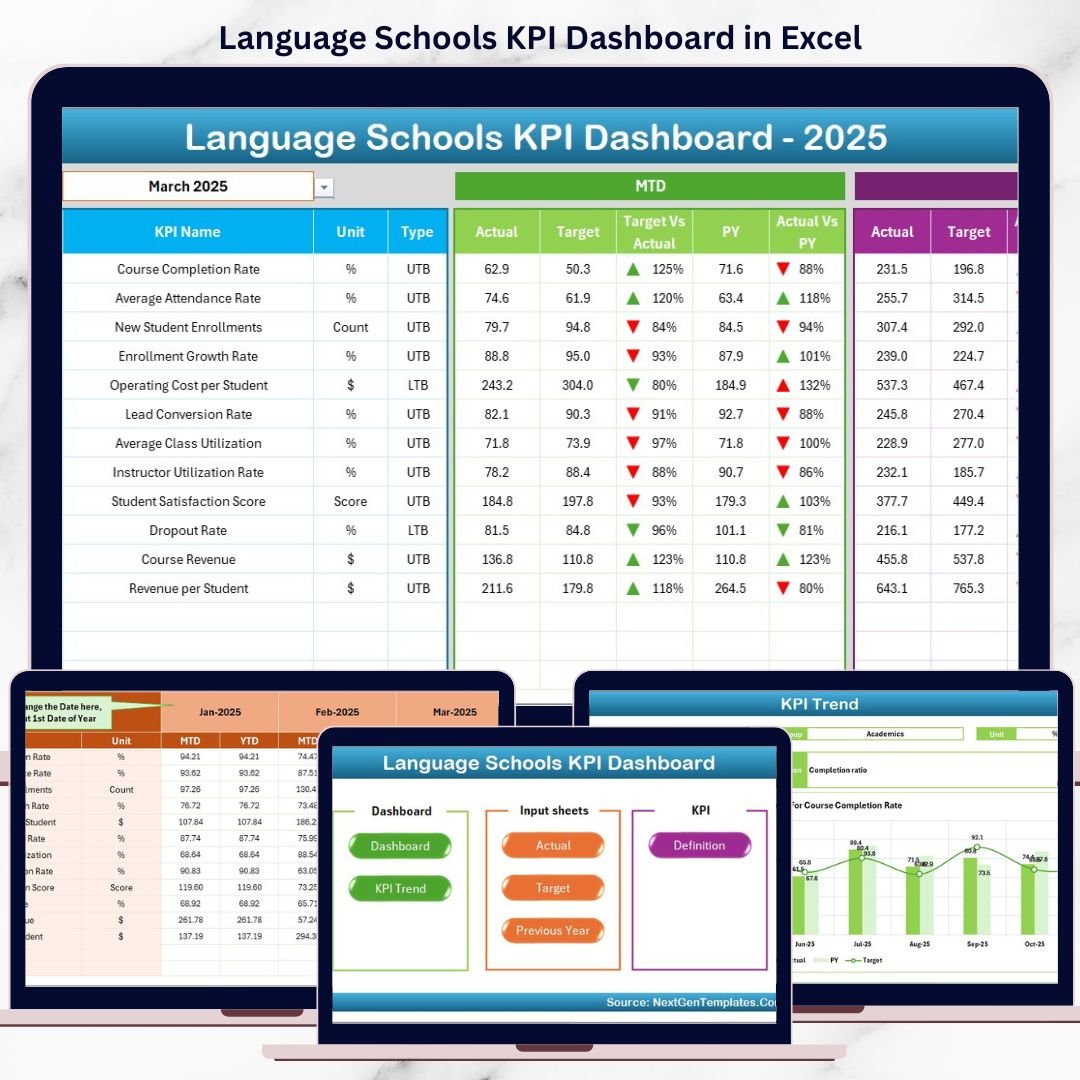
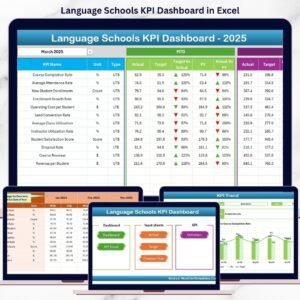
This ready-to-use Excel dashboard converts raw academic and business data into clear KPI cards, trend charts, and automated comparisons. Instead of guessing, school owners and administrators gain instant visibility into MTD and YTD performance, helping them take timely and confident actions.
Whether you manage a small language institute or a multi-branch language academy, this dashboard gives you clarity, control, and growth direction—inside Microsoft Excel.
🚀 Key Features of Language Schools KPI Dashboard in Excel
📊 Centralized KPI Tracking – All academic & business KPIs in one place
📅 Month Selector – Change month and update the entire dashboard instantly
📈 MTD & YTD Analysis – Track short-term and long-term performance
🎯 Target vs Actual Comparison – Identify gaps immediately
📉 Previous Year Comparison – Measure real growth and decline
🔼🔽 Performance Arrows – Visual indicators for quick decisions
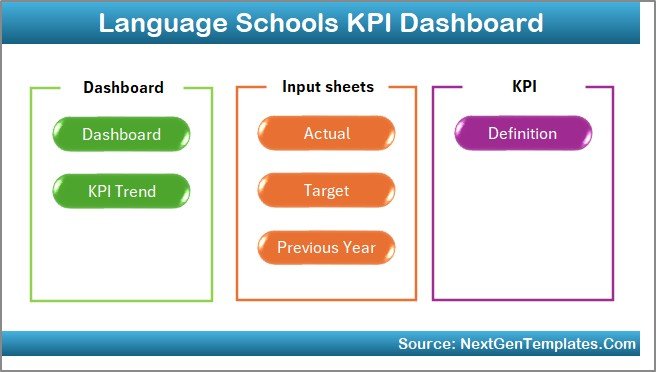
🧭 Easy Navigation – Home page with one-click navigation buttons
🧩 Fully Customizable – Add or modify KPIs easily
📦 What’s Inside the Language Schools KPI Dashboard in Excel
This dashboard includes 7 well-structured worksheets, designed for smooth performance management.
🔹 Home Sheet – Easy Navigation
Acts as an index page with 6 clickable buttons. Users jump to any worksheet instantly, improving usability even for non-technical staff.
🔹 Dashboard Sheet – Performance at a Glance
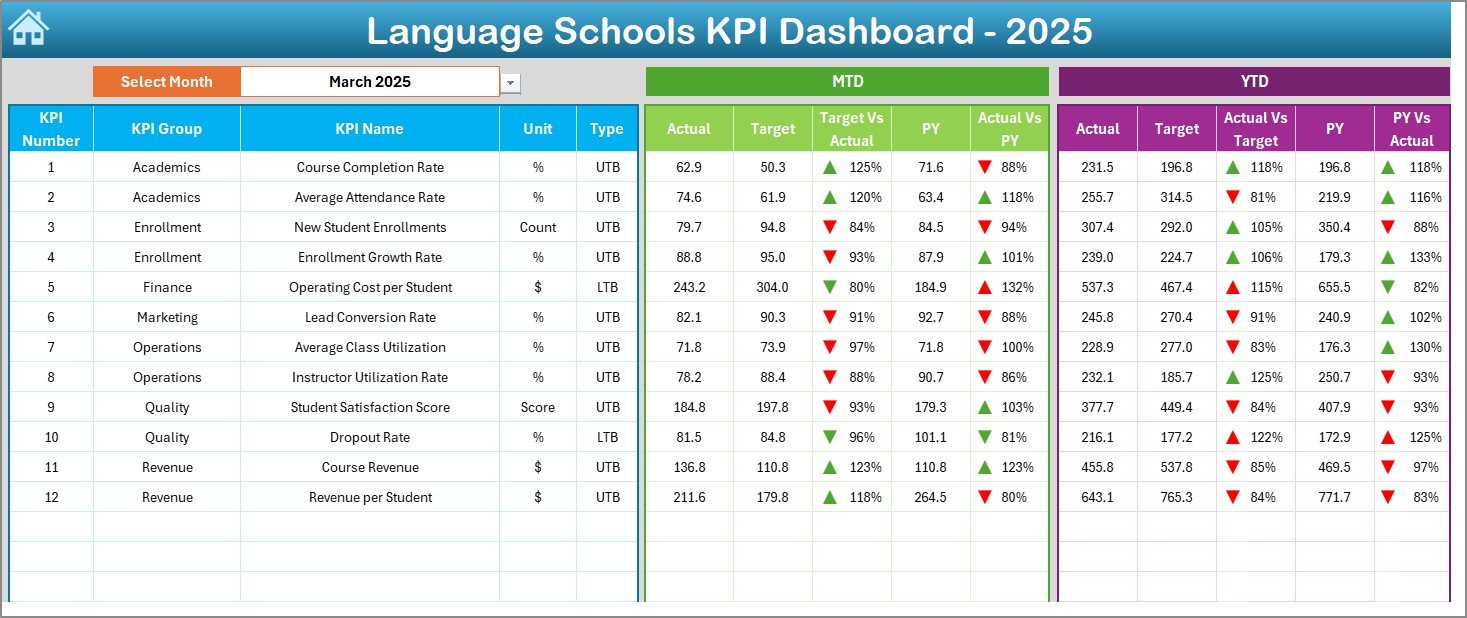
The core performance page where management reviews results.
Key highlights:
Month selection from cell D3
Automatic KPI updates
Clear comparison of:
MTD Actual vs Target
MTD Actual vs Previous Year
YTD Actual vs Target
YTD Actual vs Previous Year
Conditional formatting arrows instantly show improvement or decline.
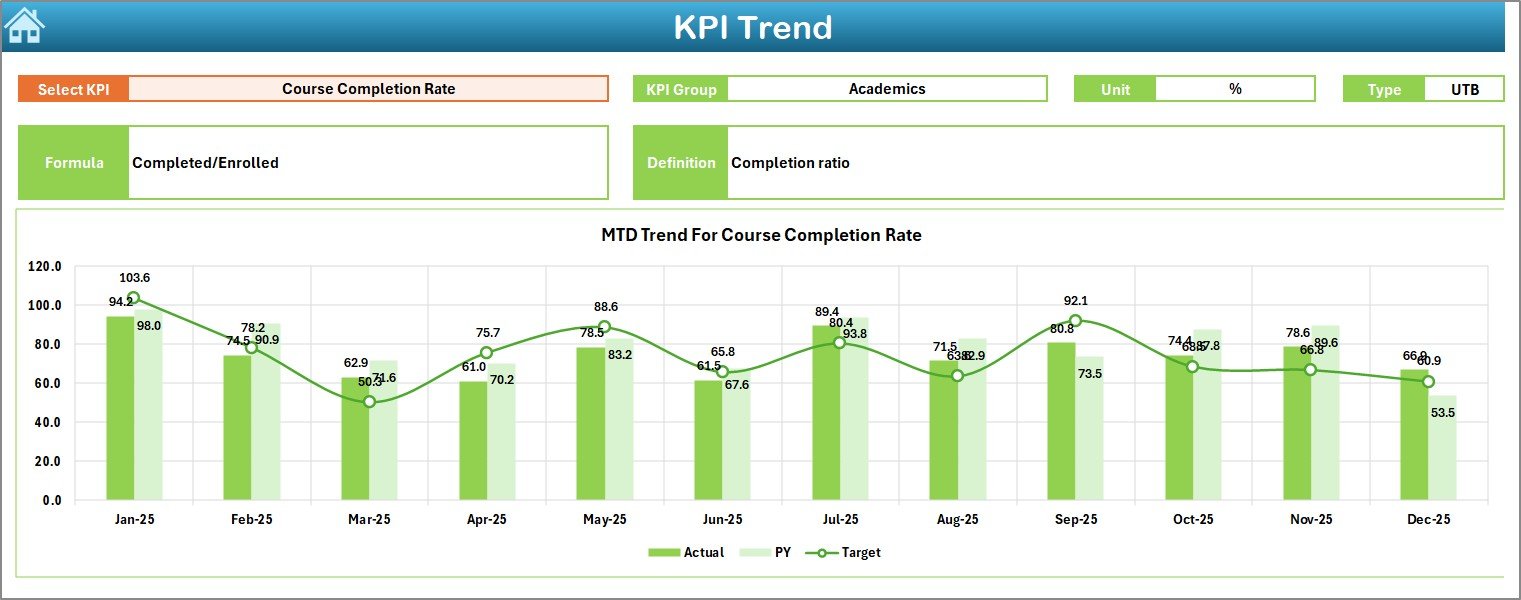
🔹 KPI Trend Sheet – Deep KPI Analysis
Analyze individual KPIs in detail:
Select KPI from a dropdown (cell C3)
View KPI Group, Unit, Type (LTB/UTB)
Understand Formula & Definition
Analyze MTD & YTD trends with Actual, Target, and PY comparison
Perfect for academic reviews and management meetings.
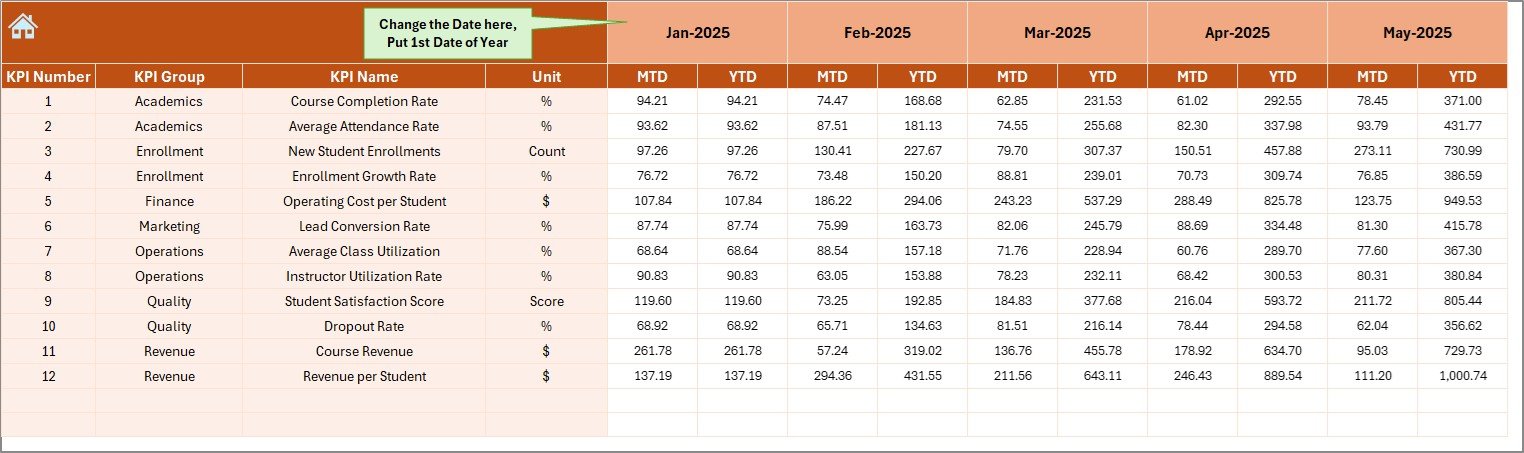
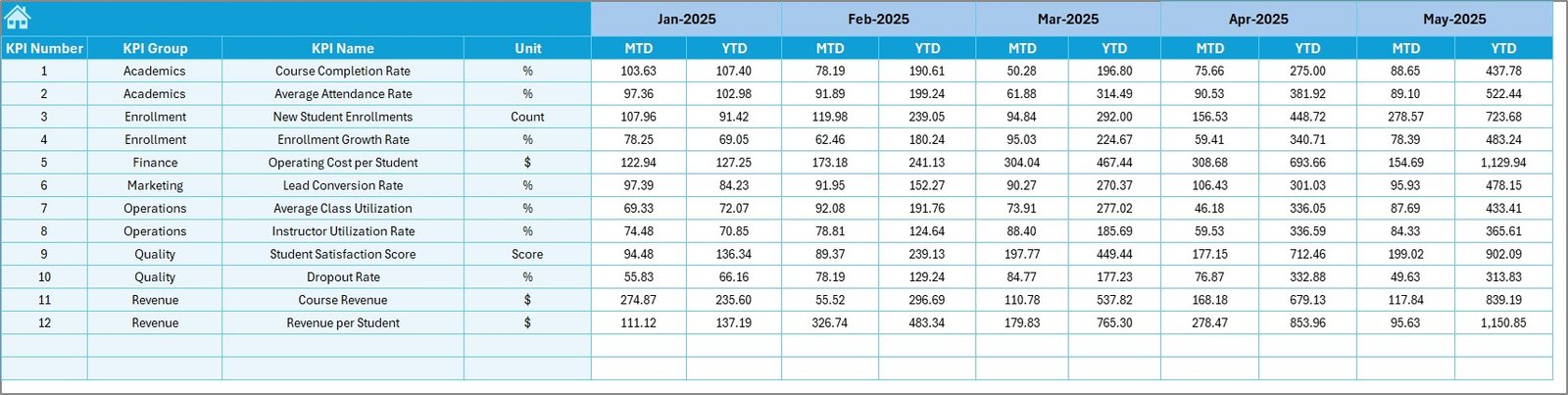
🔹 Actual Numbers Input Sheet
Main data entry sheet:
Enter MTD & YTD actual values
Select first month of the year (cell E1)
Structured and error-free data input
🔹 Target Sheet
Define monthly and yearly goals:
KPI-wise MTD & YTD targets
Supports performance benchmarking
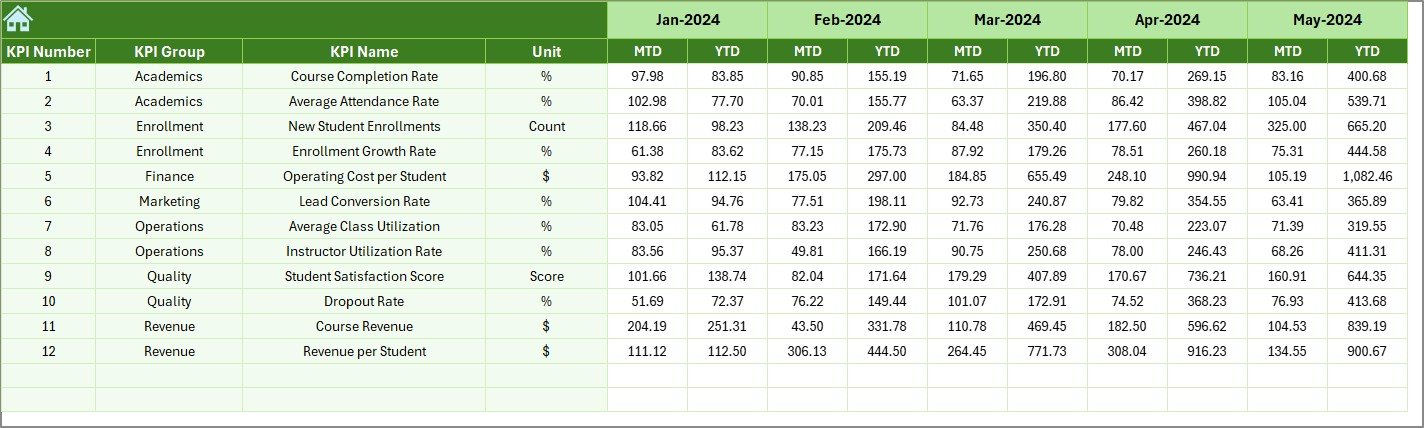
🔹 Previous Year Numbers Sheet
Stores last year’s performance:
Enables YoY comparison
Highlights real growth trends
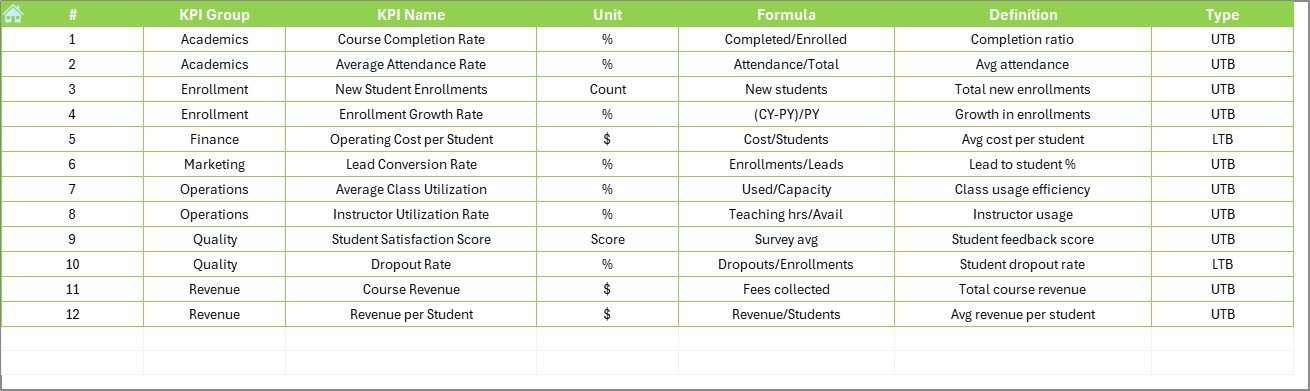
🔹 KPI Definition Sheet
Acts as a KPI dictionary:
KPI Name & Group
Unit of measurement
Formula & Definition
Ensures clarity and consistency across teams.
🧠 How to Use the Language Schools KPI Dashboard in Excel
1️⃣ Update actual KPI data monthly
2️⃣ Enter targets and previous year numbers
3️⃣ Select month from the dashboard
4️⃣ Review KPI cards and trend charts
5️⃣ Take corrective or growth-driven actions
No advanced Excel knowledge required.
👥 Who Can Benefit from This Dashboard?
🎓 Language School Owners – Track growth and profitability
📘 Academic Directors – Monitor learning outcomes
🧑🏫 Operations Managers – Improve teacher utilization
💰 Finance Teams – Control costs and margins
📣 Marketing Managers – Track enrollment and retention
### 👉 Click here to read the Detailed Blog Post
🎥 Visit our YouTube channel to learn step-by-step video tutorials
https://www.youtube.com/@PKAnExcelExpert
Watch the step-by-step video tutorial:
Compatibility and Requirements
- Works in Microsoft Excel desktop (Excel 2016 or later, or Microsoft 365).
- You pick the month from a selector on the Dashboard sheet and the KPI from a dropdown on the KPI Trend sheet. Microsoft explains dropdowns in Create a drop-down list.
Frequently Asked Questions
Which sheets are included?
Seven sheets: Home, Dashboard, KPI Trend, Actual Numbers Input, Target, Previous Year Numbers and KPI Definition.
How do I update the dashboard?
Enter your MTD and YTD actual values in the Actual Numbers Input sheet, add your goals in the Target sheet and last year’s figures in the Previous Year Numbers sheet. Then select the month on the Dashboard sheet and the KPI cards update.
Can I compare results with targets and with last year?
Yes. The Dashboard compares MTD and YTD actuals against both the target and the previous year, and arrows show whether each KPI improved or declined.
How do I look at one KPI in detail?
Open the KPI Trend sheet and choose the KPI from the dropdown. It shows the KPI group, unit, type (LTB or UTB), formula and definition, with MTD and YTD trends for actual, target and previous year.
Is there a Google Sheets or Power BI version?
Yes. See the Language Schools Dashboard in Google Sheets and the Language Schools KPI Dashboard in Power BI.
Related School Templates
- Language Schools KPI Dashboard in Power BI: the same KPI dashboard in Power BI
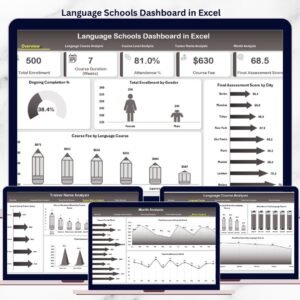
- Language Schools Dashboard in Excel: another dashboard for language schools in Excel
- Language Schools Dashboard in Google Sheets: a Google Sheets option for language schools
- Secondary Schools KPI Dashboard in Excel: a KPI dashboard for secondary schools
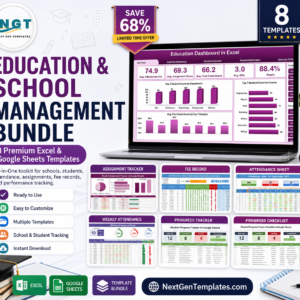
- Education & School Management Bundle: 8 education templates in one download
Browse all Excel KPI dashboards.







Reviews
There are no reviews yet.