


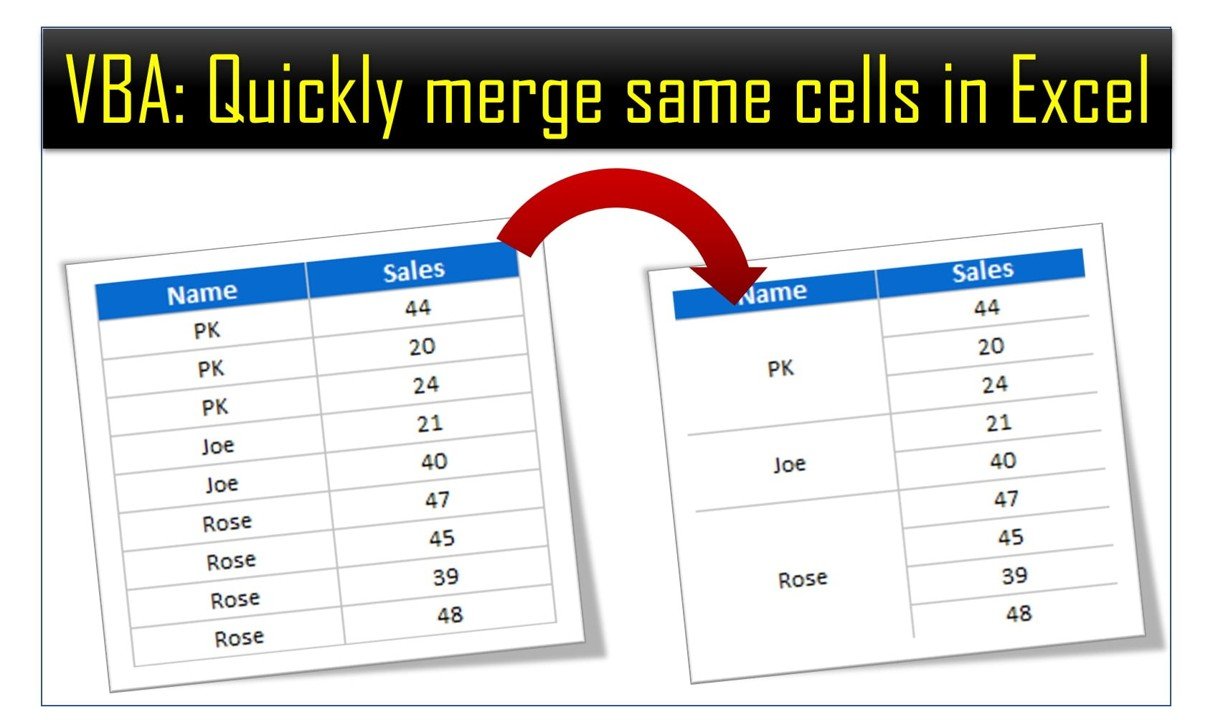
The Quickly Merge Cells with Same Value in Excel tool is a ready-made VBA automation that merges cells with identical values in a range you choose. It is built for anyone who works with inventory data, sales records or other large datasets and wants a cleaner, more organized spreadsheet. You select a range, run the code and repeated values are combined into single cells in seconds, with no manual merging.
Why Use a VBA Tool to Merge Cells with Same Value?
Merging cells by hand means finding each group of repeated values, selecting the group and clicking Merge, over and over. In a large sheet this takes a long time and leads to inconsistent results. This VBA tool automates the whole task. It finds cells that contain the same value inside your selected range and merges them, so formatting stays consistent across the worksheet and you get your time back.
Merged groups also make reports easier to read. Instead of the same category, region or product name repeated row after row, each value appears once across its group. This kind of Excel cell consolidation makes tables look tidier and helps readers scan your data faster.
Key Features
- Automated merging: Merges cells with the same value in your worksheet automatically, so your data is more organized.
- Customizable range: Select the range where you want to merge cells, from a single column up to the entire worksheet.
- Cell consolidation: Combines repetitive values into one cell for better readability and presentation.
- Simple to use: Needs minimal setup, so it works for beginners and experienced Excel users.
- Efficient data management: Cleans up large datasets quickly and makes spreadsheets easier to manage.
- Preserves data integrity: Merges only cells with identical values and keeps your data intact and accurate.
Benefits at a Glance
| Benefit | What it means for you |
|---|---|
| Saves time | Automates merging and cuts the time spent merging cells by hand. |
| Better organization | Merging identical cells makes data cleaner and more readable. |
| Flexible | Use it on specific ranges or on entire sheets. |
| No more manual merging | No more selecting and merging cells one group at a time. |
| User-friendly | Easy to use with minimal setup, even if you are not an advanced Excel user. |
What’s Inside the Tool
You get an Excel file that contains the VBA code to merge cells. It includes:
- Automated merging process: Merges all cells with identical values in the selected range.
- Custom range selection: You choose the range where the merging runs.
- Consolidated data presentation: Repeated values are merged into one cell, which improves the overall look of your data.
- Easy implementation: You can add the VBA code to your existing worksheet with minimal effort.
Who It’s For
This VBA merge cells tool helps anyone who cleans up or presents repetitive data in Excel, including:
- Data Analysts
- Sales Teams
- Project Managers
- Business Analysts
- HR Professionals
- Inventory Managers
- Accountants and Financial Analysts
How to Use It
- Download the template: Open the Excel file that contains the VBA code to merge cells.
- Select the range: Choose the range where you want to merge identical cells, such as specific columns or rows.
- Run the VBA code: Run the code with a single click and it merges the cells with matching values.
- View the results: Cells with the same value are merged automatically, which reduces clutter.
- Customize as needed: Use the tool on specific ranges or on the entire sheet.
Read the Detailed Guide
Click here to read the detailed blog post.
Visit our YouTube channel for step-by-step video tutorials: Youtube.com/@PKAnExcelExpert
Watch the Step-by-Step Video Tutorial
Frequently Asked Questions
What does this tool do?
It uses VBA to merge cells with same value in a range you select. Repeated values are combined into single cells, so your worksheet looks cleaner and is easier to read.
Can I choose which cells get merged?
Yes. You choose the range. It can be a single column, specific rows or columns, or the entire worksheet.
Will it change or damage my data?
The tool merges only cells with identical values and is designed to keep your data intact and accurate.
Do I need advanced Excel or VBA skills?
No. The tool needs minimal setup and runs with a simple click, so it suits beginners and experienced users alike.
Can I use it in my own workbook?
Yes. The VBA code can be added to your existing worksheet with minimal effort.
Where can I learn more about how it works?
Read the detailed blog post linked above or watch the step-by-step video tutorial on this page.
Clean up your data, simplify your workflow and save time with automated merging from the Quickly Merge Cells with Same Value in Excel tool.
Also check our Small Business KPI Dashboard
Last updated: October 2026
Compatibility and Requirements
- Runs in Microsoft Excel desktop on Windows with macros enabled. It does not run in Excel for the web, Google Sheets or mobile apps.
- The tool is a VBA macro, so Excel asks you to allow macros when you open the file. Microsoft explains the setting in Enable or disable macros in Microsoft 365 files.
Related Excel Templates
- Merge Queries in Power Query Excel Practice File (Free): another way to combine data in Excel, using Power Query
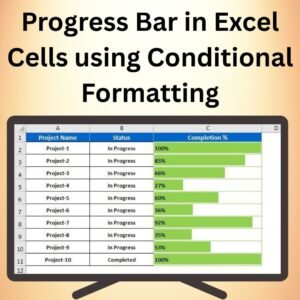
- Progress Bar in Excel Cells using Conditional Formatting: another cell-level Excel tool for cleaner sheets
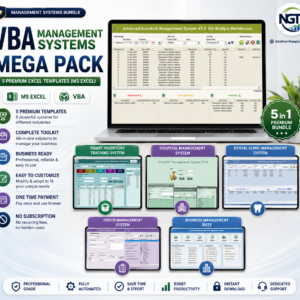
- VBA Management Systems Mega Pack: 5 Excel templates built on VBA
Browse all Excel VBA tools.




















Reviews
There are no reviews yet.