

Keeping track of client appointments is essential for maintaining smooth operations, avoiding scheduling conflicts, and ensuring timely follow-ups. The Client Appointment Calendar in Google Sheets is a ready-to-use, fully customizable tool that helps businesses organize and manage all appointments efficiently.
Designed with multiple calendar views and a centralized events database, this template is ideal for sales teams, consultants, service providers, and any organization that relies on consistent client interaction. Its interactive layout ensures quick navigation, real-time updates, and improved productivity.
🔑 Key Features of the Client Appointment Calendar
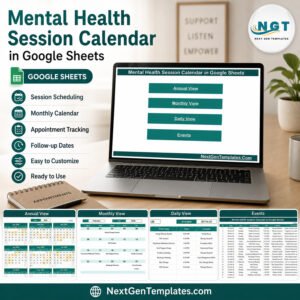
🏠 Home Sheet Tab – Quick Navigation
Four navigation buttons for instant access to:
Annual View
Monthly View
Daily View
Events Database
Acts as a central dashboard to streamline workflow.
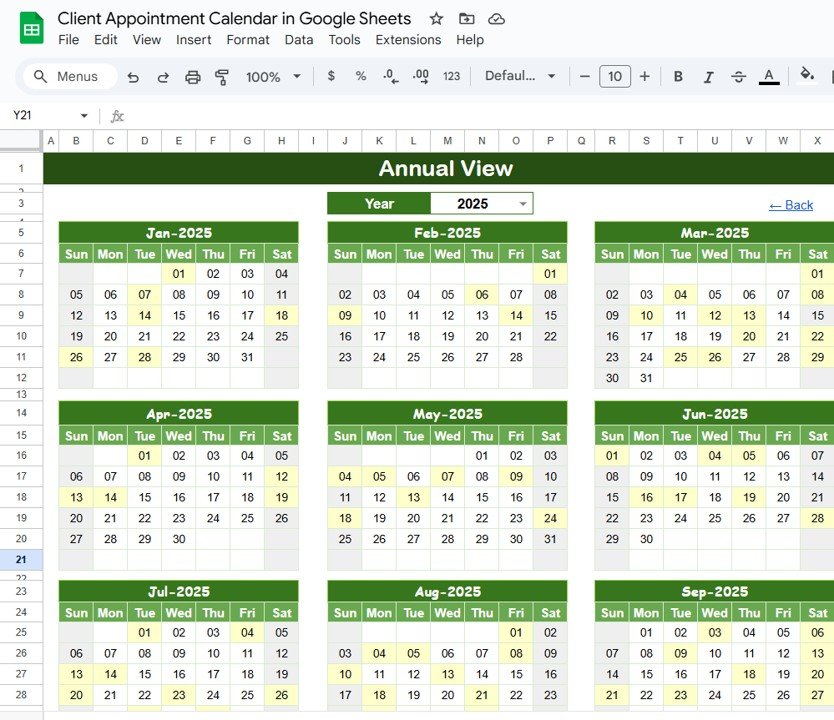
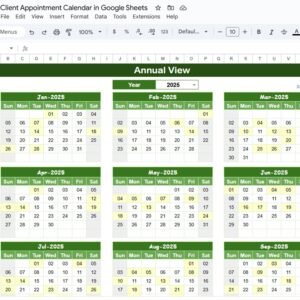
📅 Annual View Sheet Tab – Big Picture Planning
Displays 12 months of appointments at once.
Features:
Year selection for automatic calendar updates.
Option to set starting month and day of the week.
Perfect for long-term appointment scheduling and spotting yearly trends.
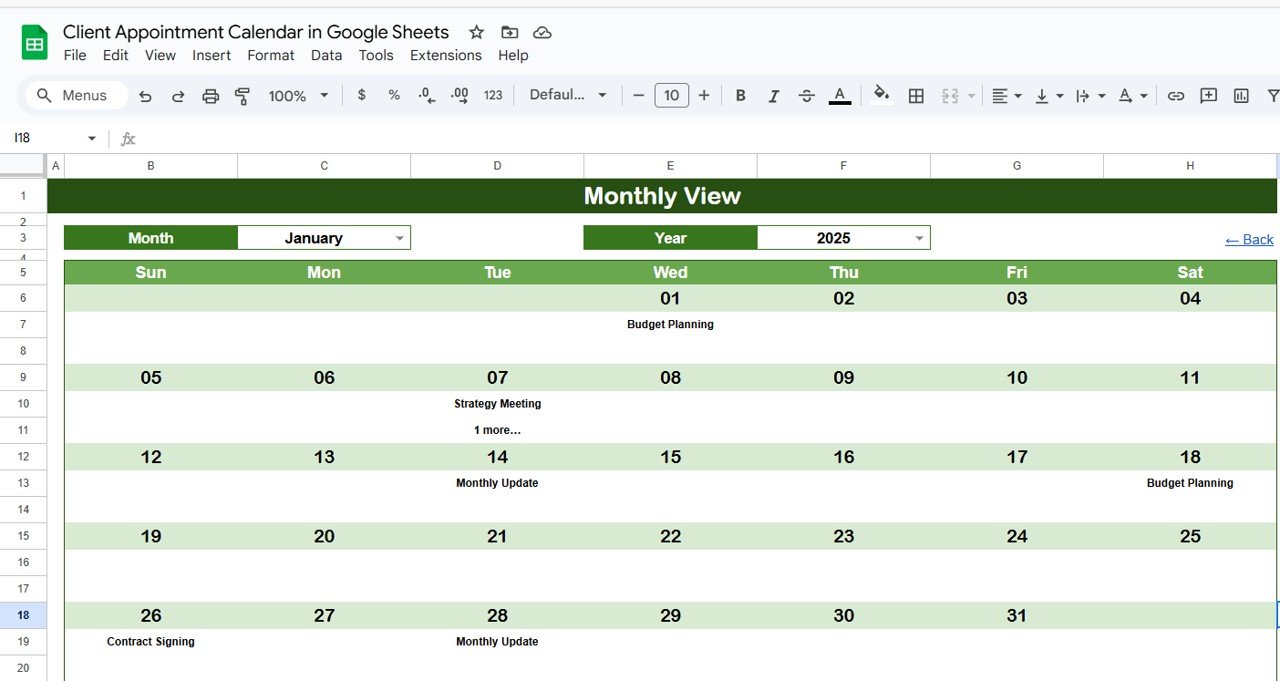
🗓 Monthly View Sheet Tab – Focused Month Planning
Select month and year to view scheduled appointments.
Each date shows one appointment; if more exist, it displays “more than 1…” for quick identification.
Helps in avoiding double-booking and managing team availability.
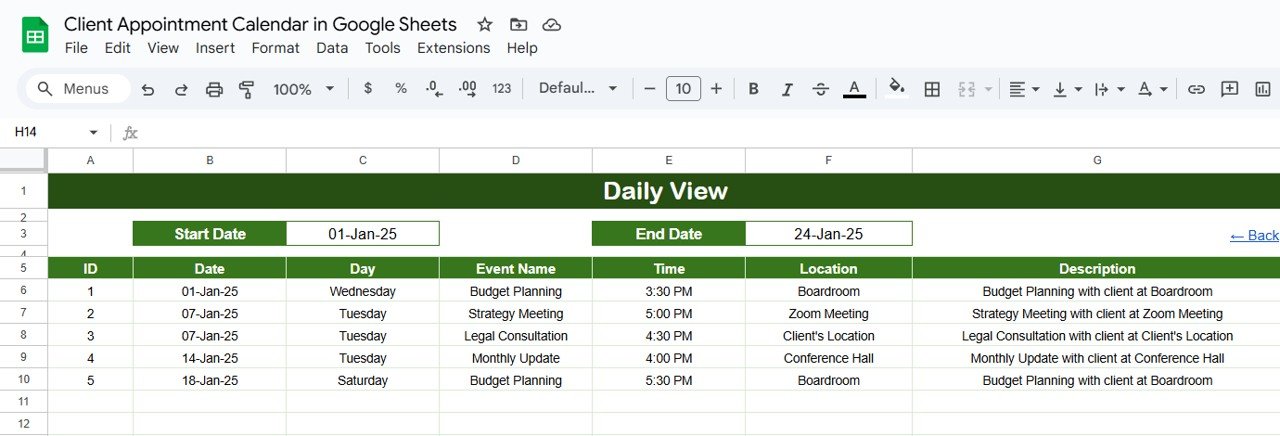
📆 Daily View Sheet Tab – Detailed Daily Tracking
Filter appointments by date range using a calendar icon.
View event details such as time, location, and description.
Ideal for daily operational planning and client coordination.
📋 Events Sheet Tab – Centralized Appointment Database
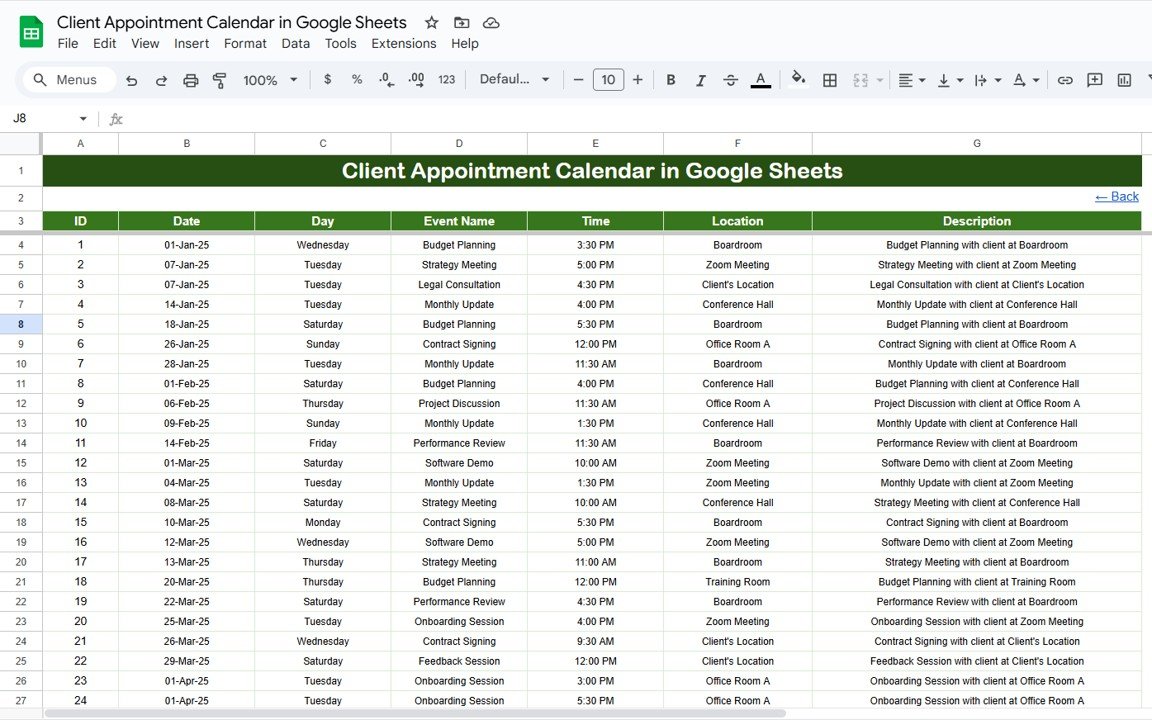
Stores all appointment details in one location.
Key fields include:
ID
Date & Day
Event Name
Time
Location
Description
Data automatically feeds into annual, monthly, and daily views for real-time updates.
📦 What’s Inside the Client Appointment Calendar?
✅ Home Sheet – Quick access navigation
✅ Annual View – Year-long scheduling overview
✅ Monthly View – Month-specific event planning
✅ Daily View – Date-range event tracking
✅ Events Sheet – Master appointment list
✅ Sample Data – Pre-filled to show functionality
✅ Fully Customizable Layout – Adapt to your industry needs
🧠 How to Use the Client Appointment Calendar
Make a Copy of the template in your Google Drive.
Enter Appointment Details in the Events Sheet.
Use the Home Tab to jump between calendar views.
Plan long-term schedules in the Annual View.
Manage monthly events and avoid conflicts in the Monthly View.
Track daily commitments with the Daily View for operational clarity.
👥 Who Can Benefit from This Calendar?
🏢 Small Businesses – Manage client meetings efficiently.
📞 Sales Teams – Track follow-ups and presentations.
🧑⚕️ Consultants & Service Providers – Organize client sessions.
📈 Project Managers – Coordinate internal and external meetings.
🌍 Remote Teams – Collaborate on schedules in real time.
🔗 Click here to read the Detailed blog post
Watch the step-by-step video Demo:
🔗 Visit our YouTube channel to learn step-by-step video tutorials
Compatibility and Requirements
- Works in Google Sheets. You need a free Google account and a web browser.
- Make a copy of the template in your Google Drive, then enter your appointments on the Events sheet. Google explains how to open and work with files in Google Sheets getting started.
Frequently Asked Questions
Which sheets are included?
The template has a Home sheet, Annual View, Monthly View, Daily View and an Events sheet. Sample data is pre-filled so you can see how each view works.
Where do I enter appointments?
Enter them on the Events sheet. Each row stores the ID, date and day, event name, time, location and description. The Annual, Monthly and Daily views update from that sheet.
What happens when a date has more than one appointment?
The Monthly View shows one appointment per date. If a date has more, it displays “more than 1…” so you can spot it and open the Daily View for the details.
Can I change the year or the starting month?
Yes. On the Annual View you select the year, and you can set the starting month and the day of the week the calendar begins on.
Is there an Excel version?
Yes. See the Client Appointment Calendar in Excel.
Related Calendar and Client Templates
- Client Appointment Calendar in Excel: the same appointment calendar in Excel
- Dynamic Holiday and Event Calendar in Google Sheets: another Google Sheets calendar for events
- Client Follow-Up Checklist in Google Sheets: track follow-ups after each appointment
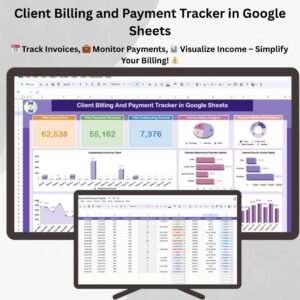
- Client Billing and Payment Tracker in Google Sheets: bill and track payments for the same clients
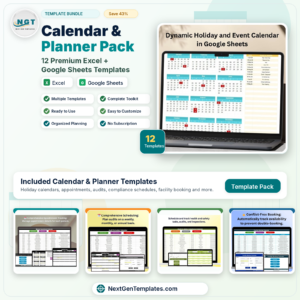
- Calendar & Planner Pack: 12 calendar and planner templates in one download
Browse all Google Sheets calendars.








Reviews
There are no reviews yet.