

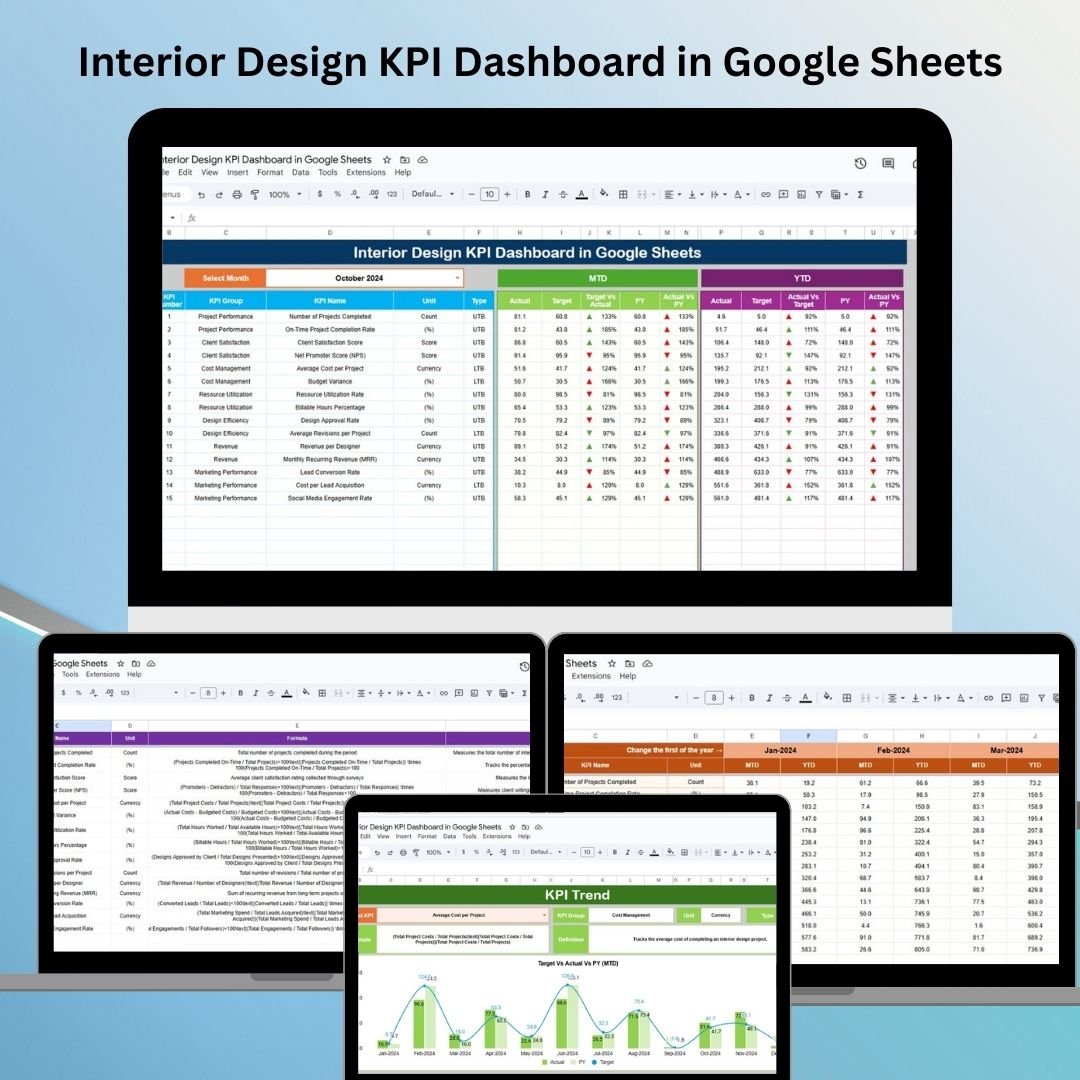

In today’s competitive interior design industry, keeping track of key performance indicators (KPIs) is essential for project success. From budget management to client feedback, a well-organized dashboard can streamline operations and ensure you’re always on top of your project’s performance. That’s where the Interior Design KPI Dashboard in Google Sheets comes in – a powerful, customizable tool designed to elevate the way you track and manage your design projects. Whether you’re a small design firm or a large studio, this template is built to meet your needs. Let’s dive in!
Key Features of the Interior Design KPI Dashboard 🛠️
The Interior Design KPI Dashboard is packed with essential features to help you stay on top of your game:
Real-Time Data Tracking: The dashboard updates automatically as soon as you enter new data, keeping you informed in real-time.
Customizable Design: Tailor the dashboard to fit your business’s specific needs. Whether you’re working on multiple projects or focusing on one, the template can be adjusted to suit your requirements.
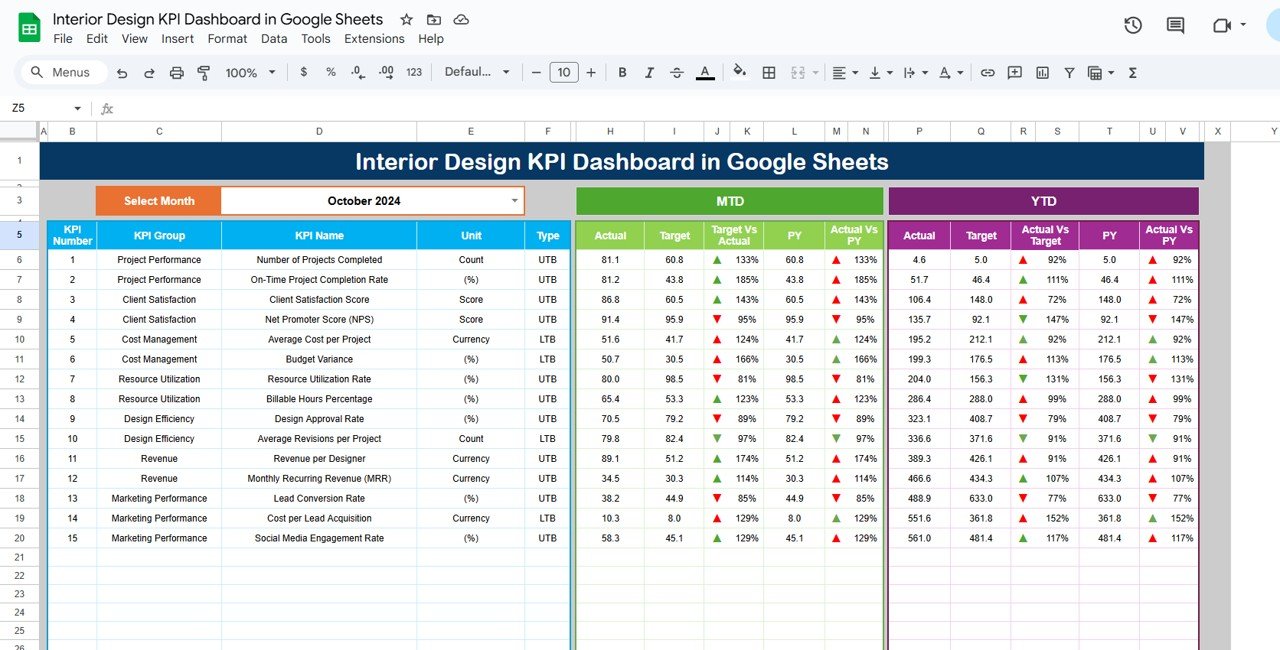
Comprehensive Overview: Track key performance metrics like budget, project completion, and client feedback. The dashboard compares your MTD (Month-to-Date), YTD (Year-to-Date), and Previous Year’s data, helping you see how your current projects are performing.
Easy-to-Use Interface: Built in Google Sheets, it’s user-friendly, allowing you to quickly update and navigate the dashboard with minimal technical expertise.
Collaboration Made Easy: Share the dashboard with your team, ensuring everyone has access to the latest data in real-time.
What’s Inside the Interior Design KPI Dashboard 📋
The dashboard includes six different worksheets, each designed for different aspects of project tracking:
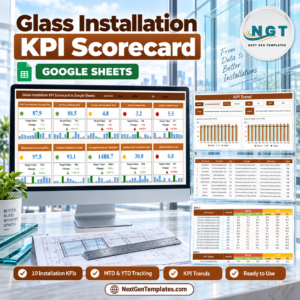
Dashboard Sheet Tab: Your all-in-one hub for tracking KPIs, from budget tracking to project completion rates. Easily select the month and see your performance metrics update instantly.
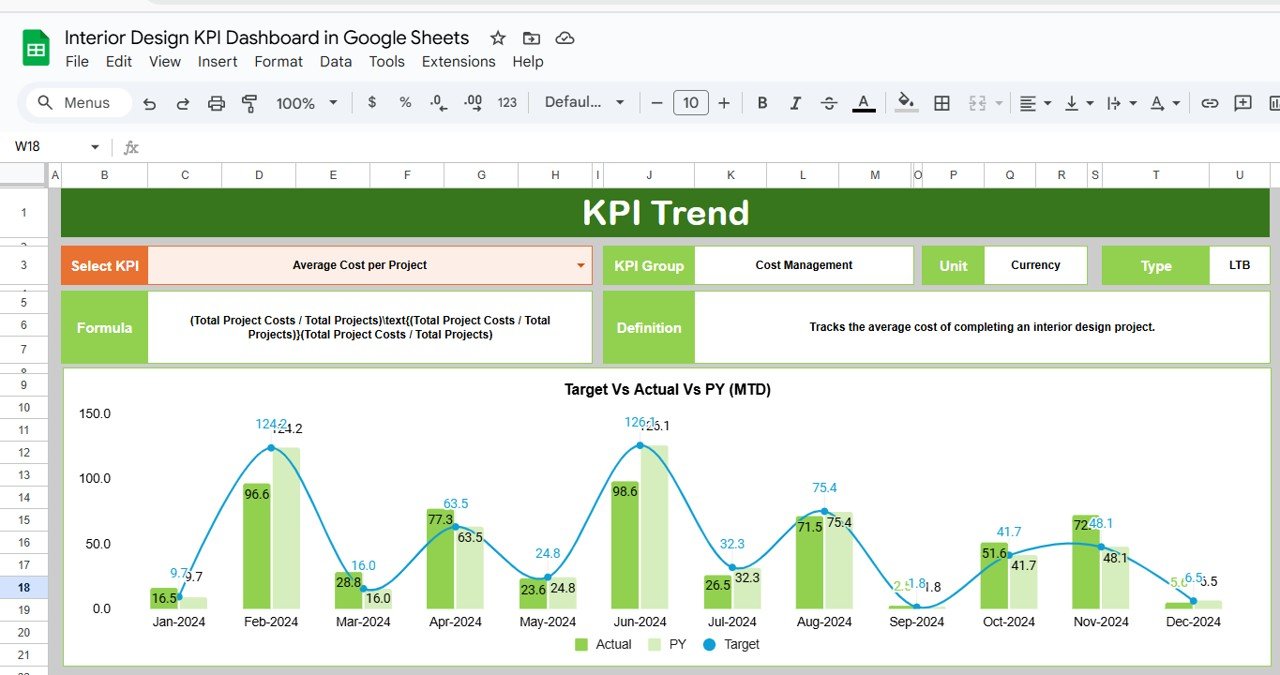
KPI Trend Sheet Tab: This sheet tracks the trends of your KPIs, showing whether your values are trending upward or downward.
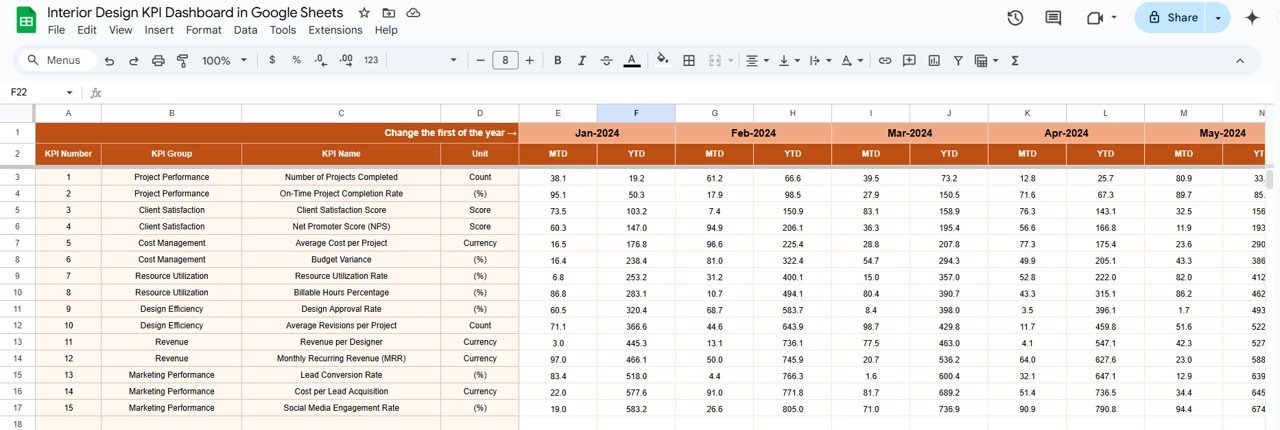
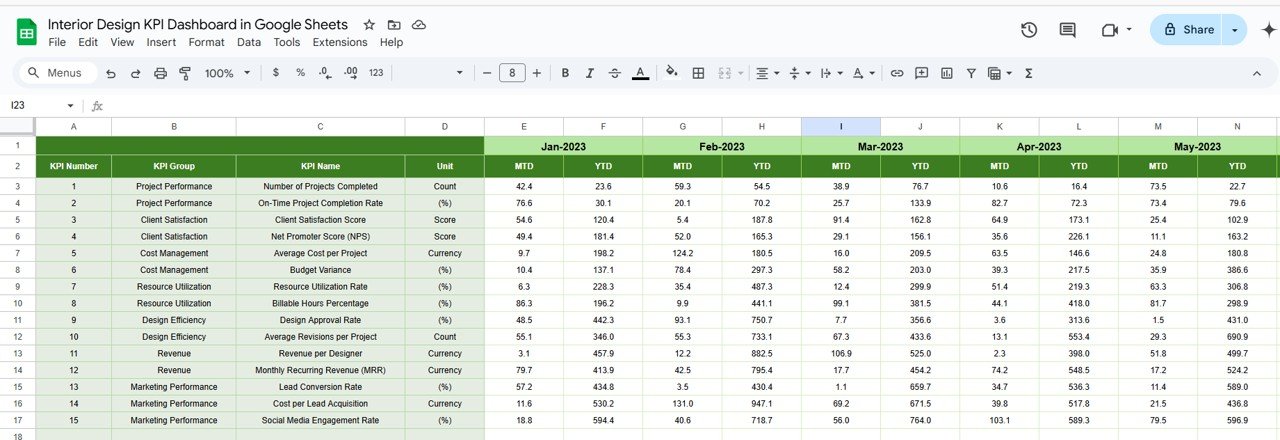
Actual Numbers Sheet Tab: Enter actual numbers for your MTD and YTD performance here. This helps compare your actual performance with your targets.
Target Sheet Tab: Input your target numbers for each KPI and track how close you are to achieving them.
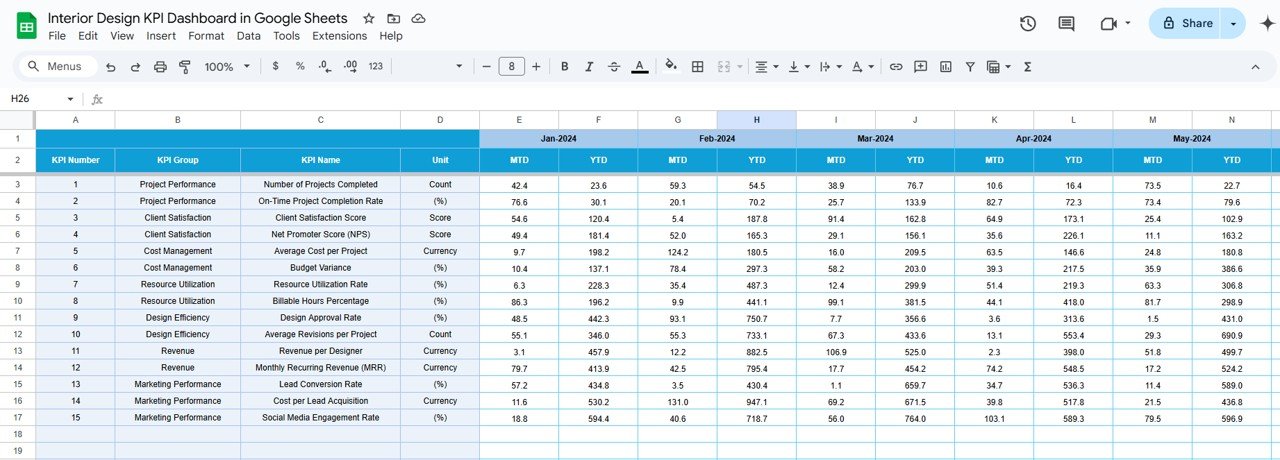
Previous Year Numbers Sheet Tab: Enter data from the previous year for a year-over-year comparison.
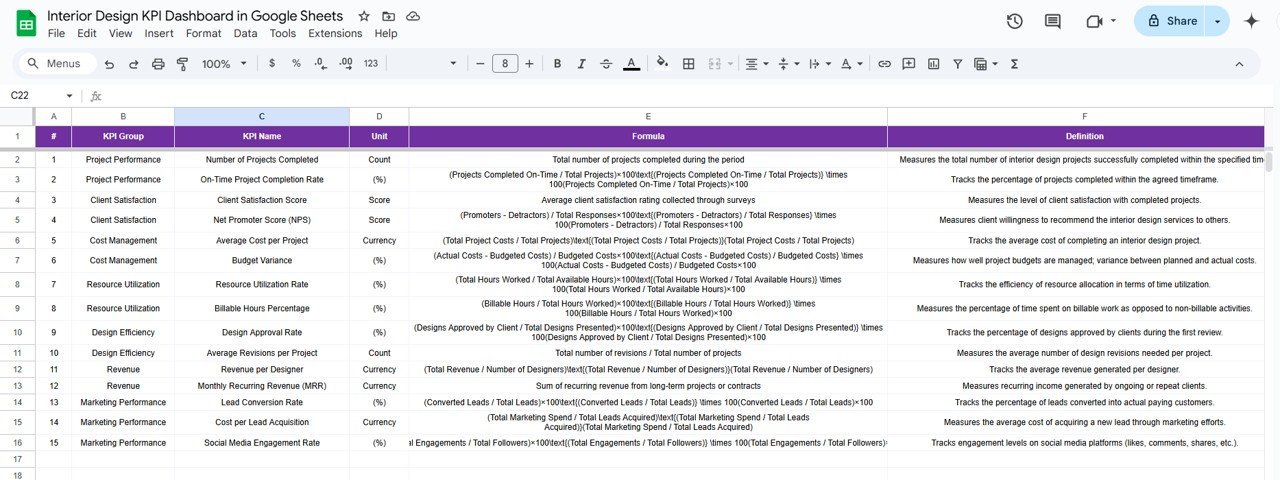
KPI Definition Sheet Tab: Understand each KPI with clear definitions, formulas, and the unit of measurement used for calculation.
How to Use the Interior Design KPI Dashboard 🖥️
Using the Interior Design KPI Dashboard is straightforward:
Open the template in Google Sheets.
Begin by entering your project data into the relevant fields for each month.
Select the month from the dropdown menu in the dashboard sheet, and watch as your performance data updates automatically.
Update the actual data monthly, and check your YTD and Previous Year data to analyze progress and trends.
Use conditional formatting to quickly assess whether KPIs are on track or need attention.
Share the dashboard with your team for seamless collaboration.
Who Can Benefit from This Interior Design KPI Dashboard 👥
This dashboard is ideal for:
Interior Design Firms: Whether you’re a solo designer or part of a large agency, this dashboard helps you track critical KPIs for better decision-making.
Project Managers: Track timelines, budgets, and resource allocation for each project, ensuring you stay on top of project deadlines and costs.
Design Consultants: Keep your clients informed with easy-to-read data and visuals, helping you build transparency and trust.
Freelancers: Manage your projects and KPIs effortlessly with an affordable, customizable tool that helps you stay organized.
Click here to read the Detailed blog post
Watch the step-by-step video Demo:
Visit our YouTube channel to learn step-by-step video tutorials
Compatibility and Requirements
- Works in Google Sheets. You need a free Google account and a web browser.
- You pick the month from a dropdown on the Dashboard sheet. Google explains dropdowns in Create an in-cell dropdown list.
Frequently Asked Questions
Which sheets are included?
Six sheets: Dashboard, KPI Trend, Actual Numbers, Target, Previous Year Numbers and KPI Definition.
How do I update the dashboard?
Enter your MTD and YTD figures in the Actual Numbers sheet and your goals in the Target sheet. Then select a month from the dropdown on the Dashboard sheet and it updates.
Can I compare this year with last year?
Yes. Enter last year’s data in the Previous Year Numbers sheet for a year-over-year comparison.
How do I know which KPIs are on track?
The dashboard uses conditional formatting, so you can see at a glance which KPIs are on track and which need attention. The KPI Trend sheet shows whether each value is moving up or down.
Is there an Excel or Power BI version?
Yes. See the Interior Design KPI Dashboard in Excel and the Interior Design KPI Dashboard in Power BI.
Related Design KPI Templates
- Interior Design KPI Dashboard in Excel: the same KPIs in Excel
- Interior Design KPI Dashboard in Power BI: the Power BI edition
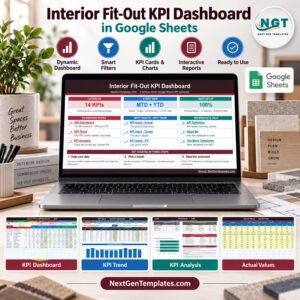
- Interior Fit-Out KPI Dashboard in Google Sheets: a Google Sheets dashboard for fit-out projects
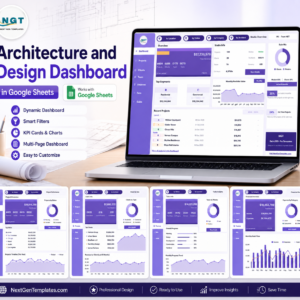
- Architecture and Design Dashboard in Google Sheets: a dashboard for architecture and design work
- Google Sheets Business Pack (Pro): 14 business templates in one download
Browse all Google Sheets KPI dashboards.




Reviews
There are no reviews yet.