

✨ Key Features of Monthly Review Monitoring Checklist in Excel
Stay on top of your projects, departments, and goals effortlessly with the Monthly Review Monitoring Checklist in Excel. This ready-to-use template turns your monthly evaluations into a clear, data-driven process that improves efficiency and accountability.
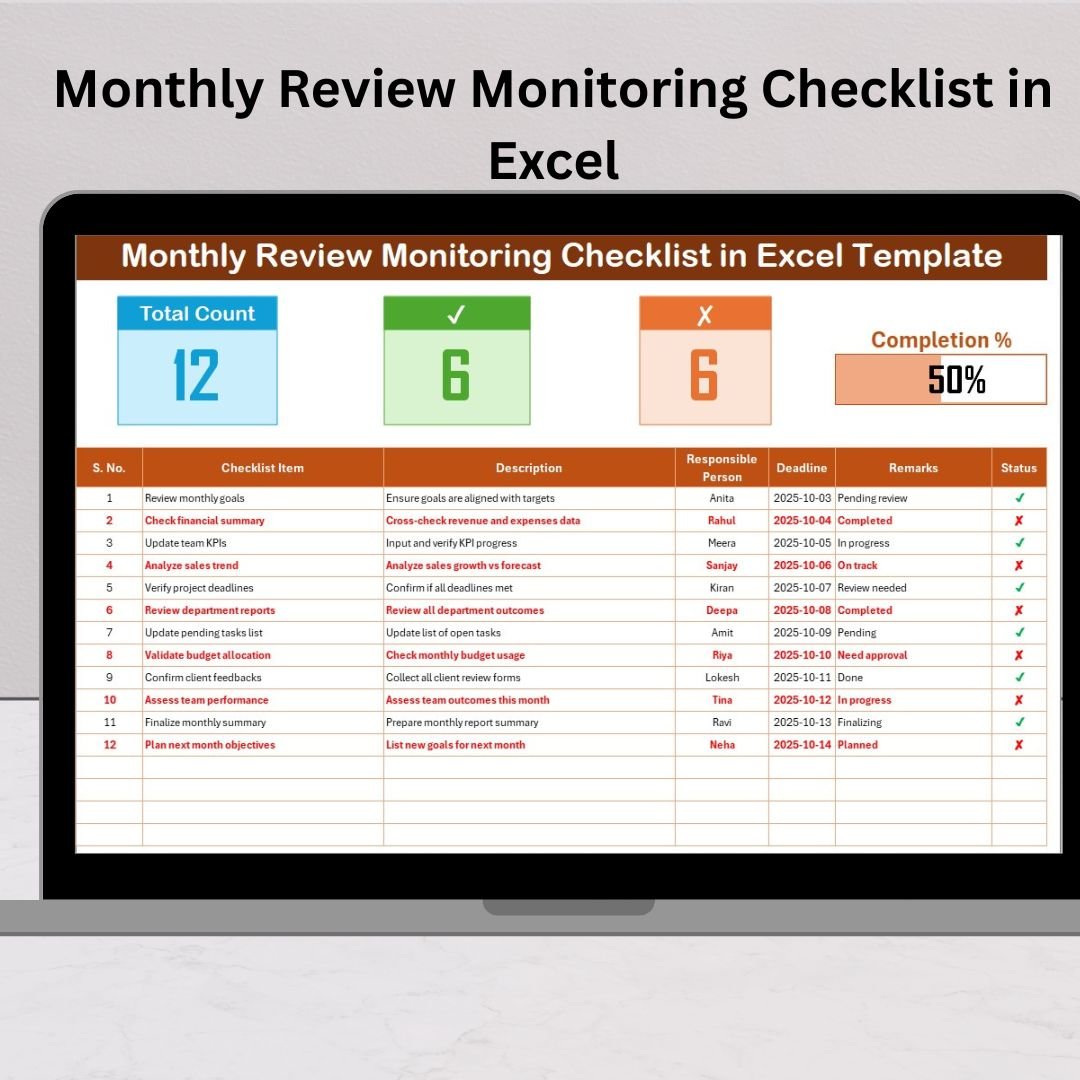
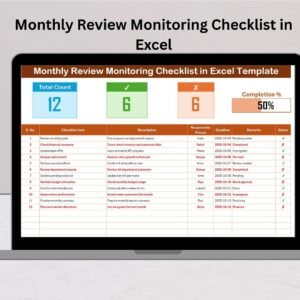
✅ Smart Progress Tracking: View your total, completed, and pending tasks instantly through dynamic progress bars and summary cards.
✅ Automated Calculations: Excel formulas auto-calculate completion rates using COUNTIF and visual indicators.
✅ Customizable Design: Add or remove checklist items, columns, or responsible persons easily.
✅ Color-Coded Insights: Green for completed tasks, red for pending — at a glance, know what needs attention.
✅ Reusable Each Month: Copy the sheet, rename it (e.g., “January 2025”), and start tracking immediately.
✅ No Complex Setup Needed: Works with any version of Microsoft Excel — no coding required.
This checklist ensures your monthly review process is clear, structured, and always on track.
📦 What’s Inside the Monthly Review Monitoring Checklist in Excel
Your download includes two professional Excel worksheets designed for complete monthly performance management:
1️⃣ Checklist Sheet Tab (Main Sheet):
This is your action center! Record tasks, assign responsibilities, and update progress directly.
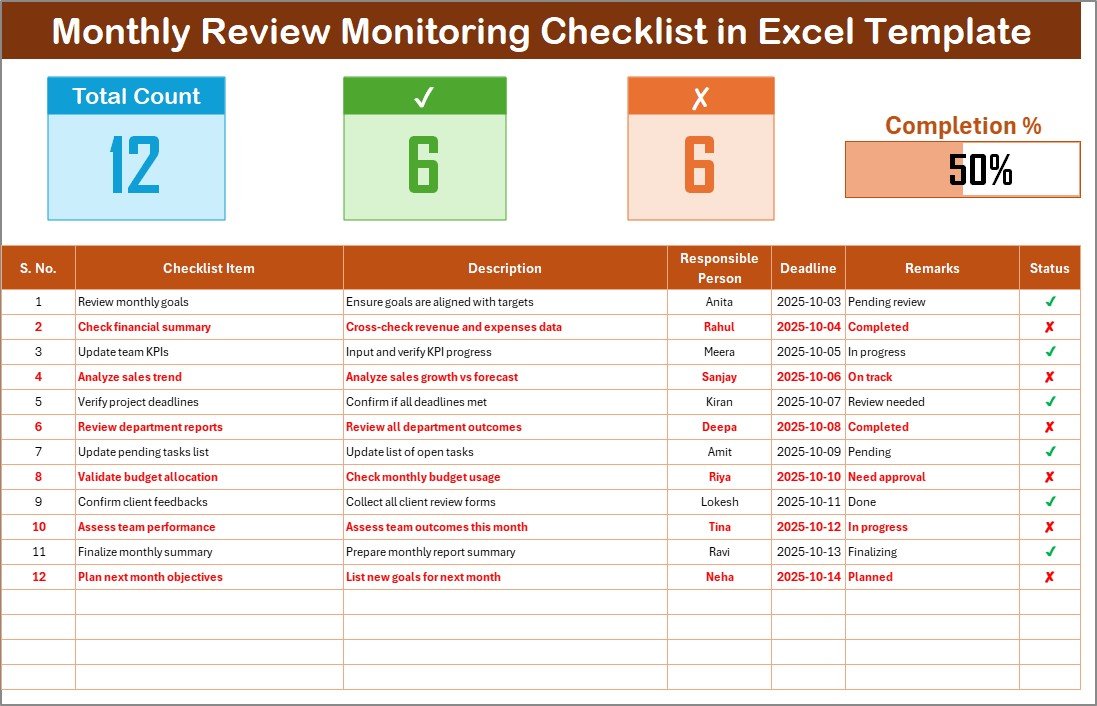
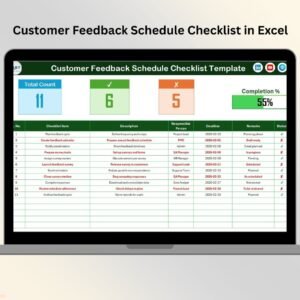
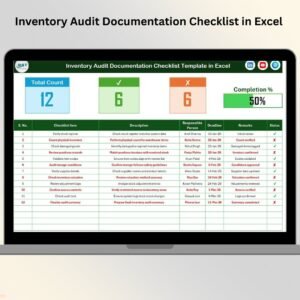
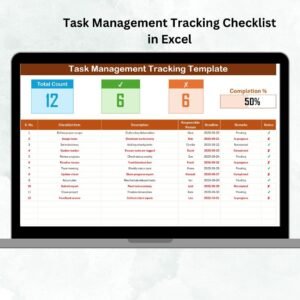
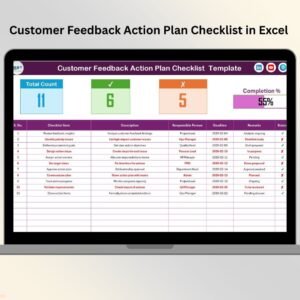
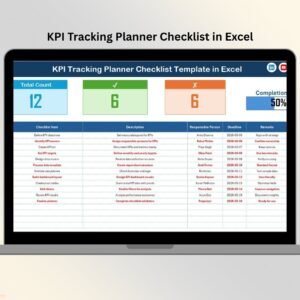
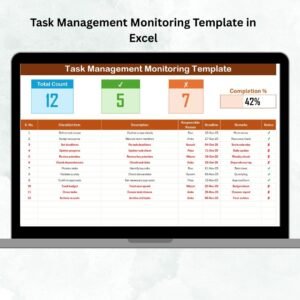
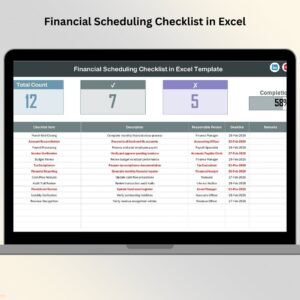
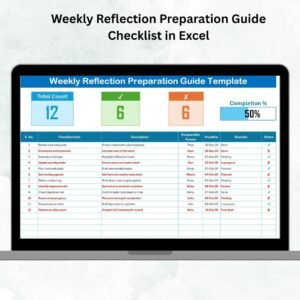
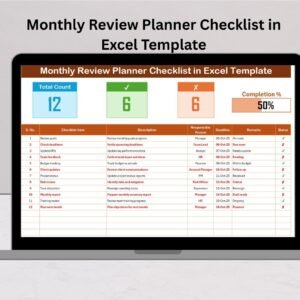
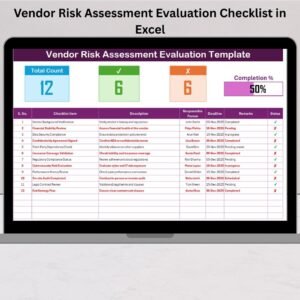
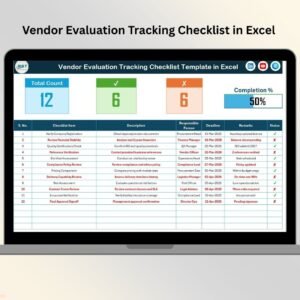
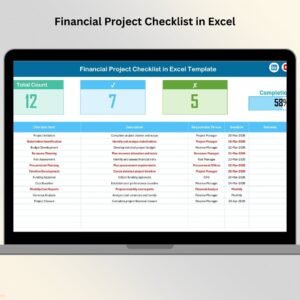
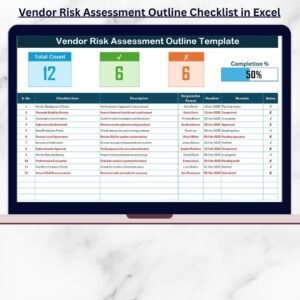
Top Section: Displays total, completed, and pending counts with a visual progress bar.
Main Table: Includes columns for Serial No., Checklist Item, Description, Responsible Person, Deadline, Remarks, and Status (✔ or ✘).
2️⃣ List Sheet Tab (Supporting Sheet):
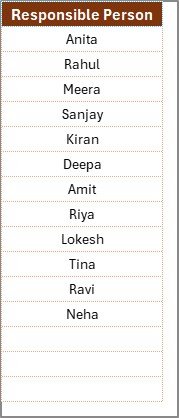
Stores unique lists of responsible persons to power dropdown menus. This keeps data uniform and prevents typing errors.
Both sheets are linked seamlessly for automation and accurate tracking.
🧭 How to Use the Monthly Review Monitoring Checklist in Excel
Getting started is quick and simple:
Step 1️⃣: Enter Checklist Items
List all your monthly activities or deliverables.
Step 2️⃣: Assign Responsibilities
Use the dropdowns to assign each task to a team member for accountability.
Step 3️⃣: Set Deadlines
Enter realistic completion dates for every task.
Step 4️⃣: Update Status Regularly
Mark ✔ for completed and ✘ for pending — the progress bar and summary update automatically.
Step 5️⃣: Review Monthly Performance
Use this visual summary in review meetings to discuss progress and identify bottlenecks.
👥 Who Can Benefit from This Monthly Review Monitoring Checklist in Excel
This template is ideal for:
🏢 Corporate Teams: Track departmental KPIs, deadlines, and monthly project goals.
👩💼 Managers & Supervisors: Monitor employee deliverables and accountability.
📊 Finance & Accounts: Ensure reconciliations, payments, and reporting are completed on time.
🏫 Educators & Administrators: Manage academic tasks, events, and staff duties.
🏠 Individuals: Organize personal goals, home projects, or self-improvement plans.
No matter your industry or role, this checklist keeps your monthly workflow organized and measurable.
💡 Why Choose This Template?
Easy setup and simple navigation.
Real-time visibility of progress and pending tasks.
Fully editable format — adapt to any business or personal context.
Visually engaging with built-in progress bar and conditional formatting.
Time-saving automation — focus on results, not manual tracking.
Turn every month into a performance success story with this professional Excel template.




Reviews
There are no reviews yet.