

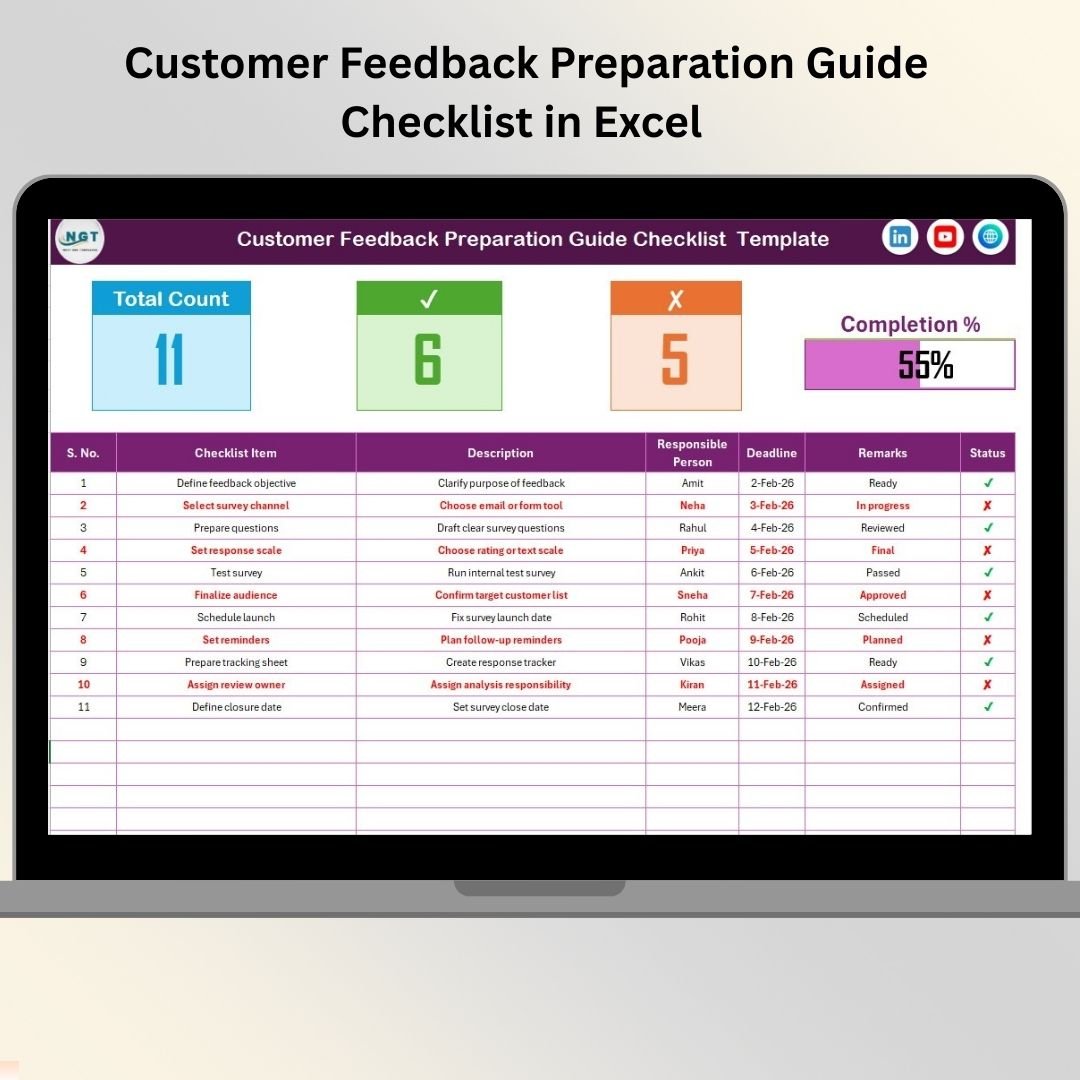
Collecting customer feedback without proper planning often leads to poor responses, unclear insights, and wasted effort. If your surveys feel rushed or your feedback initiatives lack structure, this Customer Feedback Preparation Guide Checklist in Excel is the exact solution you need.
This ready-to-use Excel checklist helps you plan, organize, and track every step of customer feedback preparation in one structured place. Instead of relying on emails, scattered notes, or memory, you get a clear checklist with responsibilities, deadlines, and progress tracking—so nothing slips through the cracks.
Designed for simplicity and effectiveness, this Excel-based checklist turns feedback preparation into a repeatable, stress-free process that delivers better-quality insights every time.
🚀 Key Features of Customer Feedback Preparation Guide Checklist in Excel
✨ Structured Feedback Planning
Plan every feedback preparation activity step by step using a clean and organized checklist format.
📊 Built-In Progress Dashboard
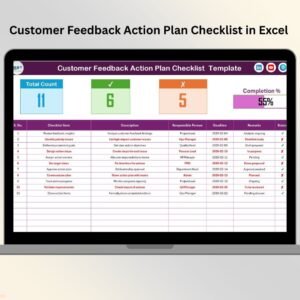
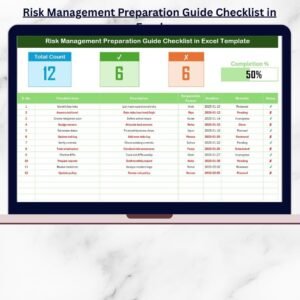
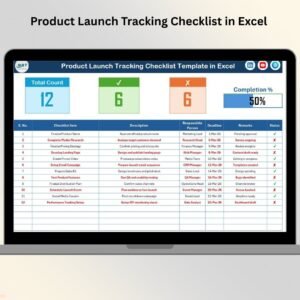
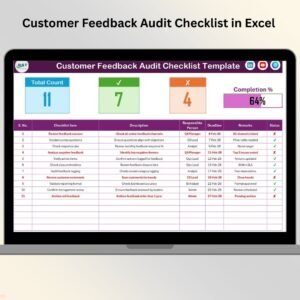
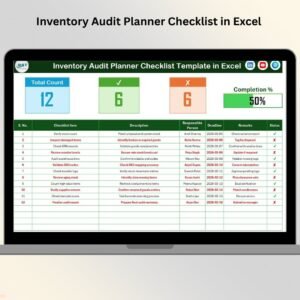
Track total tasks, completed tasks, pending items, and completion percentage with an automatic progress bar.
✔️ Simple Status Tracking
Update task status easily using ✔ (Completed) or ✘ (Pending) without complex formulas.
👥 Clear Responsibility Assignment
Assign each checklist item to a responsible person to improve accountability and ownership.
📅 Deadline Management
Monitor due dates clearly and avoid last-minute delays before launching feedback initiatives.
🧩 Excel-Based & Flexible
Fully editable and customizable inside Excel—no additional tools or technical skills required.
📦 What’s Inside the Customer Feedback Preparation Guide Checklist in Excel
This template includes two professionally designed worksheets, each with a specific purpose.
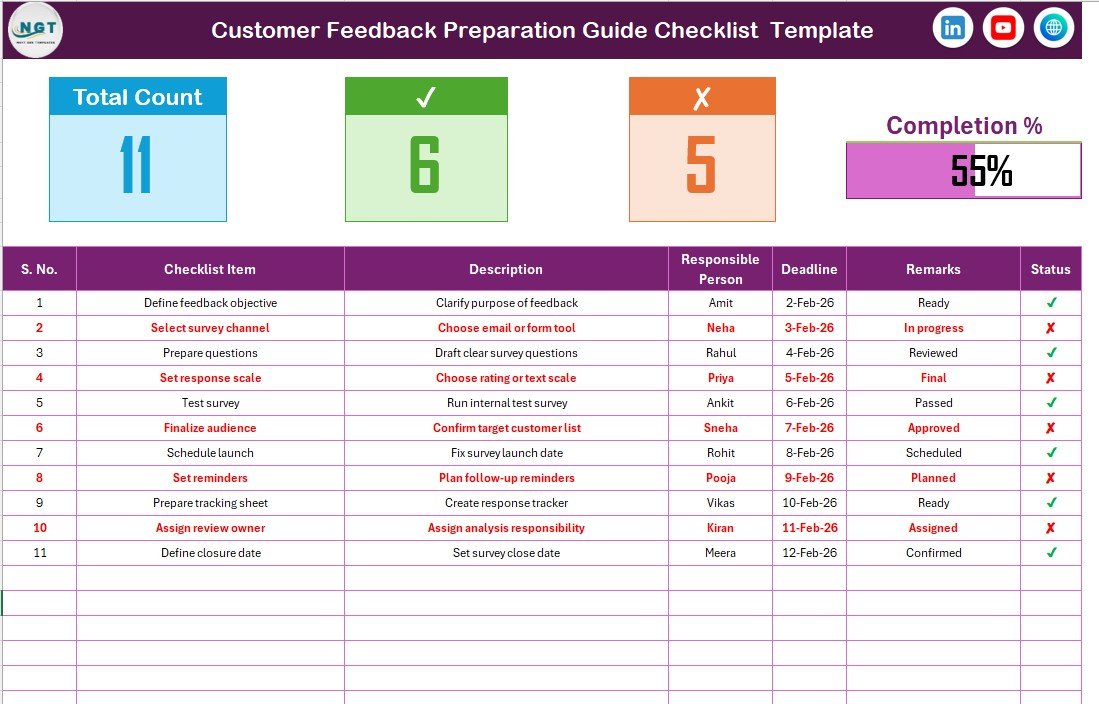
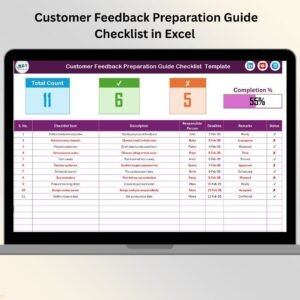
📄 Customer Feedback Preparation Guide Checklist Sheet (Main Sheet)
This is where all checklist planning happens.
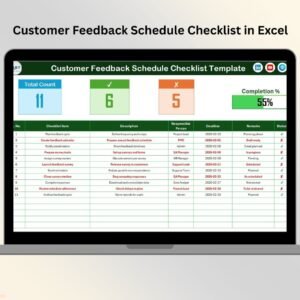
At the top, you’ll see:
Total checklist count
Completed (✔) items
Pending (✘) items
A visual progress bar showing preparation status
Below the summary, the main checklist table includes:
Serial Number
Checklist Item
Description
Responsible Person
Deadline
Remarks
Status
📋 List Sheet (Dropdown Support Sheet)
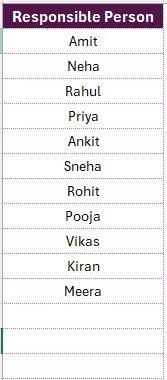
This sheet stores a unique list of responsible persons to:
Create dropdowns
Maintain consistent naming
Reduce data entry errors
Together, these sheets ensure accuracy, clarity, and ease of use.
🛠️ How to Use the Customer Feedback Preparation Guide Checklist in Excel
Using this checklist is quick and simple:
1️⃣ Open the Excel file
2️⃣ Add or customize checklist items
3️⃣ Assign responsible persons using dropdowns
4️⃣ Set deadlines for each task
5️⃣ Update task status as ✔ or ✘
6️⃣ Monitor progress through the dashboard
As you update statuses, the progress bar and counts update automatically giving you instant visibility into readiness.
🎯 Who Can Benefit from This Customer Feedback Preparation Guide Checklist
This checklist is ideal for:
✔️ Customer Experience Teams
✔️ Marketing & Research Teams
✔️ Product Managers
✔️ Quality Assurance Teams
✔️ Service & Operations Managers
✔️ Small Businesses & Enterprises
If you run surveys, feedback programs, or customer research, this template will help you prepare better and execute confidently.
💡 Why This Checklist Is a Must-Have
By using a structured preparation checklist, teams:
Stay organized and aligned
Avoid missed tasks
Improve feedback quality
Save time on planning
Launch feedback initiatives smoothly
This template transforms feedback preparation from a chaotic process into a controlled system.
## Click here to read the Detailed blog post
👉 Visit our YouTube channel to learn step-by-step video tutorials
🔗 https://www.youtube.com/@PKAnExcelExpert



Reviews
There are no reviews yet.