



Mobile apps do not succeed just because users install them. True success depends on how users engage with the app—how often they return, how long they stay, and how actively they interact with features. Unfortunately, many teams track engagement data across multiple analytics tools, exports, and reports. As a result, insights become fragmented, slow, and difficult to act upon.Mobile App Engagement KPI Dashboard in Google Sheets
That is exactly why a Mobile App Engagement KPI Dashboard in Google Sheets becomes a powerful and practical solution.
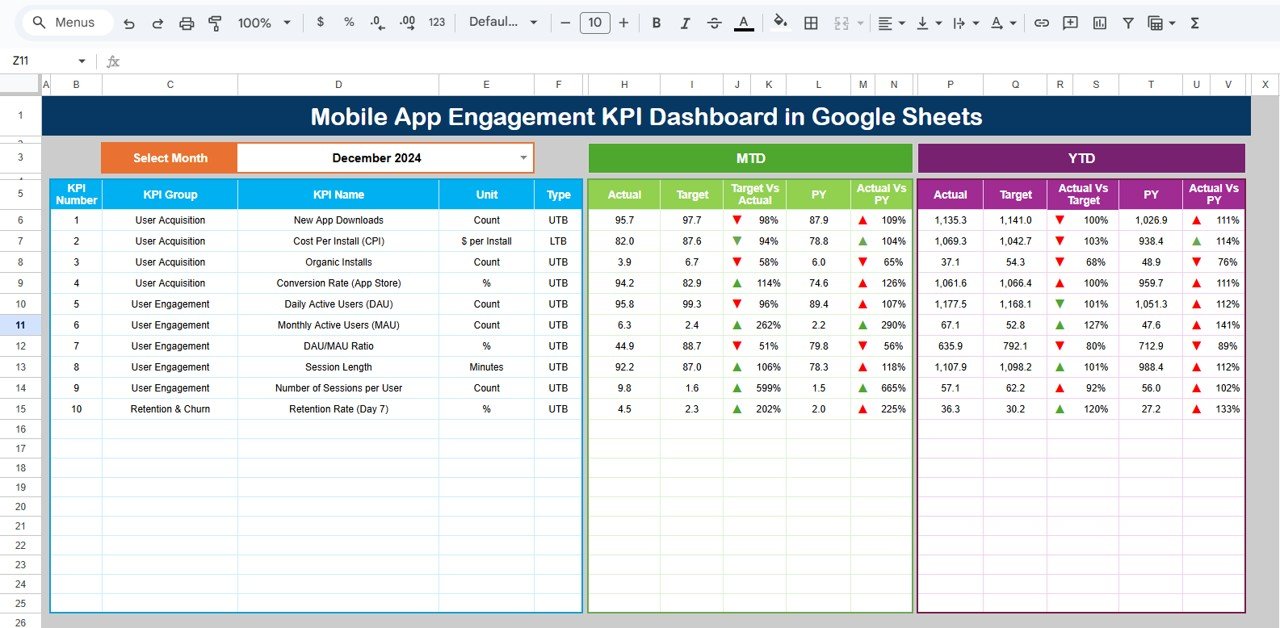
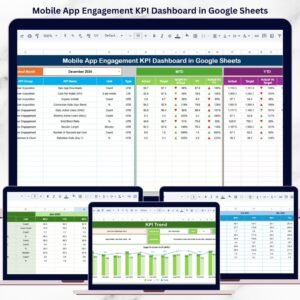
This ready-to-use dashboard centralizes all critical mobile app engagement metrics into one structured Google Sheets file. Instead of switching between platforms, teams can track performance using clear KPIs, automated calculations, and visual indicators. Most importantly, it supports Month-to-Date (MTD), Year-to-Date (YTD), Target vs Actual, and Previous Year comparisons, helping teams make confident, data-driven decisions.
Because the dashboard is built in Google Sheets, it is flexible, collaborative, and easy to maintain—without expensive BI tools or technical complexity.
🚀 Key Features of Mobile App Engagement KPI Dashboard
📊 MTD & YTD Engagement Tracking
Track short-term and long-term user engagement trends clearly.
🎯 Target vs Actual Comparison
Instantly see whether engagement KPIs are meeting expectations.
📈 Previous Year Benchmarking
Understand growth patterns and seasonal engagement behavior.
🔔 Visual Performance Indicators
Up and down arrows highlight improvement or decline instantly.
🔍 Dedicated KPI Trend Analysis
Analyze individual engagement KPIs month by month.
🤝 Real-Time Collaboration
Multiple stakeholders can update and review data simultaneously.
📦 What’s Inside the Mobile App Engagement KPI Dashboard
🧾 Dashboard Sheet Tab – Main Performance View
This is the executive overview used for reviews and reporting.
📅 Month Selector
Select the month from Cell D3
All KPIs update automatically
📊 MTD Metrics Displayed
MTD Actual
MTD Target
MTD Previous Year
Target vs Actual
Previous Year vs Actual
📈 YTD Metrics Displayed
YTD Actual
YTD Target
YTD Previous Year
Target vs Actual
Previous Year vs Actual
Conditional formatting with arrows makes performance interpretation instant.
📉 KPI Trend Sheet – Deep KPI Analysis
🔎 How It Works
Select a KPI from the dropdown in Cell C3
The sheet updates dynamically
📋 KPI Details Displayed
KPI Group
KPI Unit
KPI Type (Upper the Better / Lower the Better)
KPI Formula
KPI Definition
This sheet ensures clarity and consistency across teams.
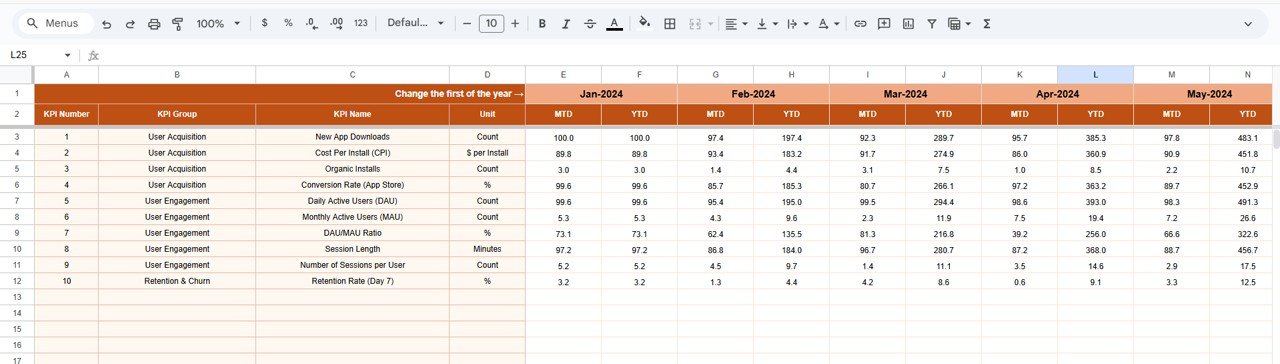
🧮 Actual Number Sheet Tab
This sheet is used for entering real engagement data.
🛠️ How to Use
Select the first month of the year in Cell E1
Enter MTD Actual and YTD Actual values
Dashboard updates automatically
This structured approach minimizes errors and saves time.
🎯 Target Sheet Tab
The Target Sheet defines expected engagement goals.
✍️ Targets Tracked
Monthly MTD Targets
Cumulative YTD Targets
Targets help align engagement strategy with business goals.
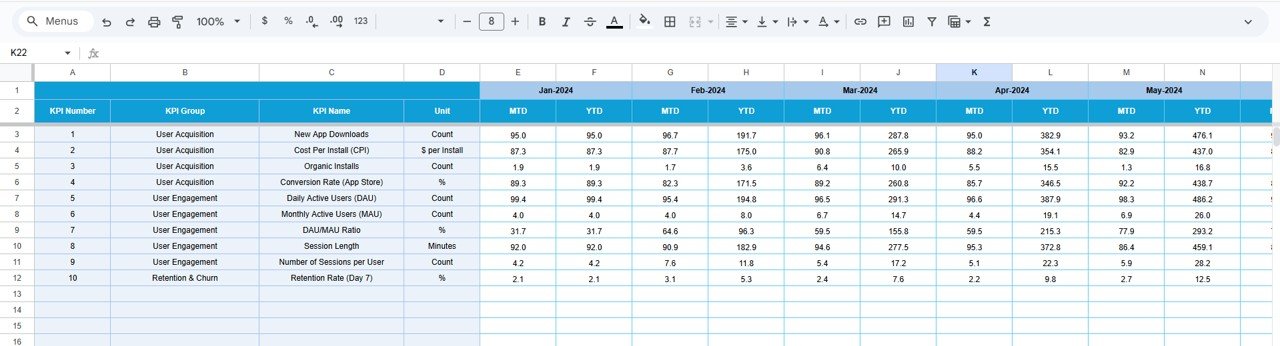
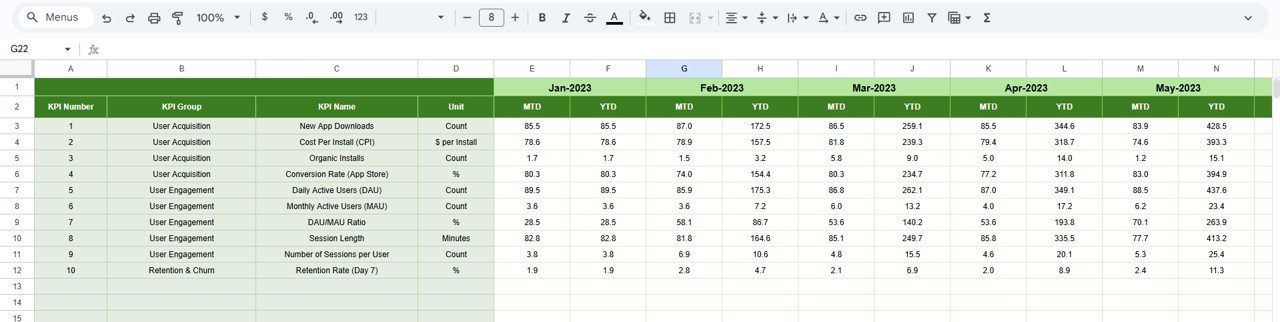
📆 Previous Year Number Sheet Tab
This sheet stores historical engagement data.
📊 Purpose
Year-over-year comparison
Engagement trend benchmarking
Performance improvement analysis
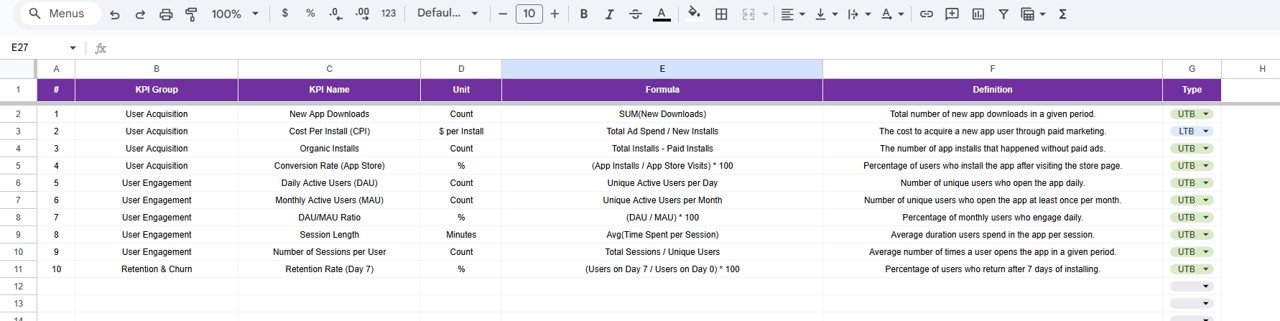
📚 KPI Definition Sheet Tab
This is the KPI control and governance sheet.
🧾 Fields Included
KPI Name
KPI Group
Unit
Formula
KPI Definition
KPI Type (UTB / LTB)
This ensures KPI transparency and audit readiness.
🎯 Who Can Benefit from This Dashboard
📱 Mobile App Product Managers
🚀 Growth & Marketing Teams
📊 Data & Analytics Teams
💼 Startup Founders & Leadership
🧠 UX & Engagement Strategists
🛠️ How to Use the Mobile App Engagement KPI Dashboard
Update engagement data regularly
Review MTD and YTD KPIs weekly
Compare Actual vs Target consistently
Analyze trends, not just single months
Use insights for product and growth planning
🔗 Click here to read the Detailed blog post
Watch the step-by-step video tutorial:
▶️ Visit our YouTube channel to learn step-by-step video tutorials
👉 https://www.youtube.com/@NeotechNavigators
Compatibility and Requirements
- Works in Google Sheets. You need a free Google account and a web browser.
- You pick a month on the Dashboard sheet and a KPI on the KPI Trend sheet from dropdown lists. Google explains dropdowns in Create an in-cell dropdown list.
More Questions About This Template
Which sheets are included?
Six sheets: Dashboard, KPI Trend, Actual Number, Target, Previous Year Number and KPI Definition.
How do I update the dashboard?
Select the first month of the year in cell E1 on the Actual Number sheet, then enter your MTD Actual and YTD Actual values. Add your goals on the Target sheet. The Dashboard sheet updates from those entries.
How do I change the month shown on the dashboard?
Select the month in cell D3 on the Dashboard sheet. All KPIs update automatically.
Can I compare this year with last year?
Yes. Store last year’s figures on the Previous Year Number sheet. The Dashboard shows Previous Year against Actual for both MTD and YTD, with arrows that mark improvement or decline.
How do I look at one KPI over time?
Select a KPI from the dropdown in cell C3 on the KPI Trend sheet. It shows the KPI group, unit, type (Upper the Better or Lower the Better), formula and definition.
Is there an Excel version?
Yes. See the Mobile App Engagement KPI Dashboard in Excel.
Related Mobile App and KPI Templates
- Mobile App Engagement KPI Dashboard in Excel: the same engagement KPIs in Excel
- Mobile App Performance KPI Dashboard in Google Sheets: performance KPIs for the same type of app, also in Google Sheets
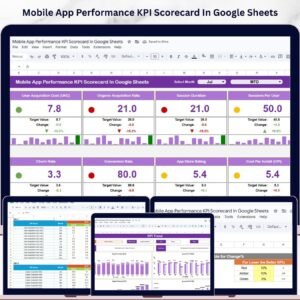
- Mobile App Performance KPI Scorecard in Google Sheets: a scorecard view of app performance
- Customer Engagement KPI Scorecard in Google Sheets: engagement tracking for customers
- Google Sheets Business Pack (Pro): 14 business templates in one download
Browse all Google Sheets KPI dashboards.




Reviews
There are no reviews yet.