


Employee recognition is one of the strongest drivers of motivation, engagement, productivity, and long-term retention. When employees feel valued and appreciated, they contribute more effectively and stay emotionally connected to the organization. However, many HR teams struggle to measure recognition programs because recognition data often remains scattered across emails, survey tools, manual trackers, or isolated spreadsheets.
That is exactly why the Employee Recognition KPI Dashboard in Google Sheets becomes an essential solution for modern HR teams.
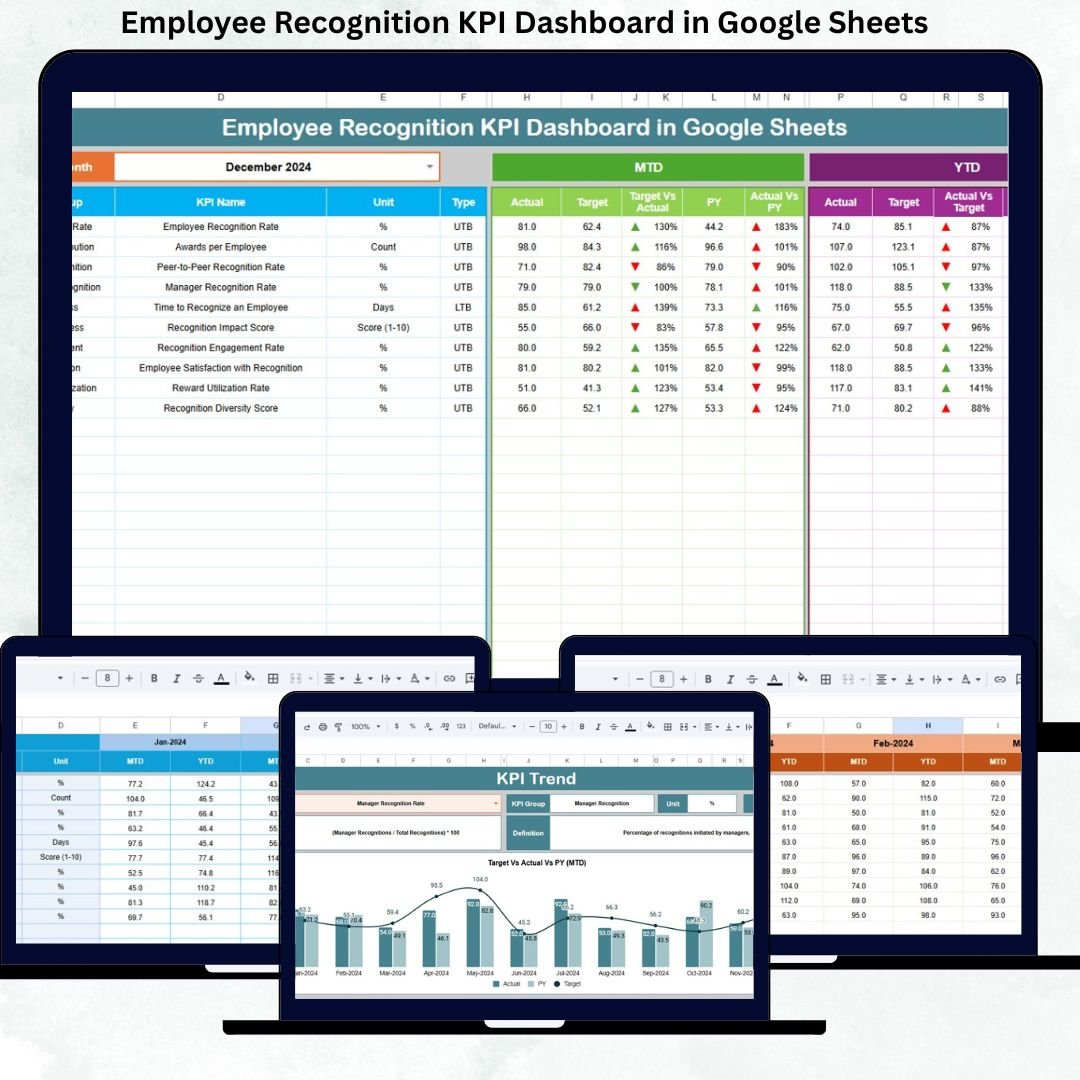
This ready-to-use dashboard converts recognition activities into structured, measurable KPIs. Instead of relying on assumptions or manual reports, HR leaders can now track recognition frequency, participation levels, target achievement, and year-over-year improvement in one centralized dashboard. As a result, recognition programs become data-driven, transparent, and strategically aligned with business goals.
Because the dashboard is built entirely in Google Sheets, it is cloud-based, easy to collaborate on, and does not require any expensive HR analytics software. You simply update the data, select a month, and the dashboard updates automatically.
⭐ Key Features of the Employee Recognition KPI Dashboard
🎯 Centralized Recognition Tracking – All recognition KPIs in one place
📅 Month-Wise Performance Monitoring – Dynamic month selection (Cell D3)
📊 MTD & YTD Analysis – Measure short-term and long-term performance
🎯 Target vs Actual Comparison – Track achievement against recognition goals
📈 Previous Year Benchmarking – Measure year-on-year improvement
🔄 Automated Calculations – No manual formulas required
☁️ 100% Google Sheets Based – Easy to use and collaborate
These features help HR teams move recognition programs from activity-based to impact-based.
📂 Dashboard Structure & Worksheets
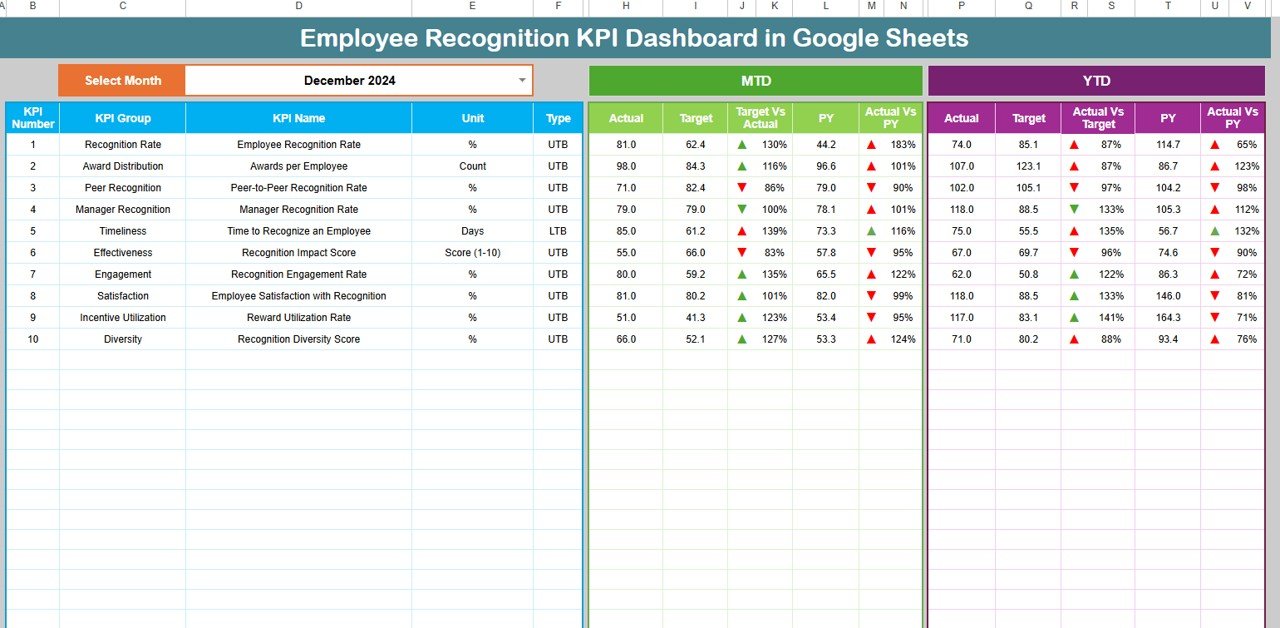
📌 Dashboard Sheet Tab (Main Page)
This is the primary view used by HR leaders and management.
🔹 Month Selector
Select the reporting month from Cell D3
Entire dashboard updates automatically
🔹 Metrics Displayed
MTD (Month-to-Date):
Actual
Target
Previous Year
Target vs Actual
Previous Year vs Actual
YTD (Year-to-Date):
Actual
Target
Previous Year
Target vs Actual
Previous Year vs Actual
🔹 Visual Indicators
🟢 Green Arrow → Positive trend
🔴 Red Arrow → Negative trend
This allows leadership to instantly understand recognition performance without reviewing raw data.
📊 KPI Trend Sheet Tab
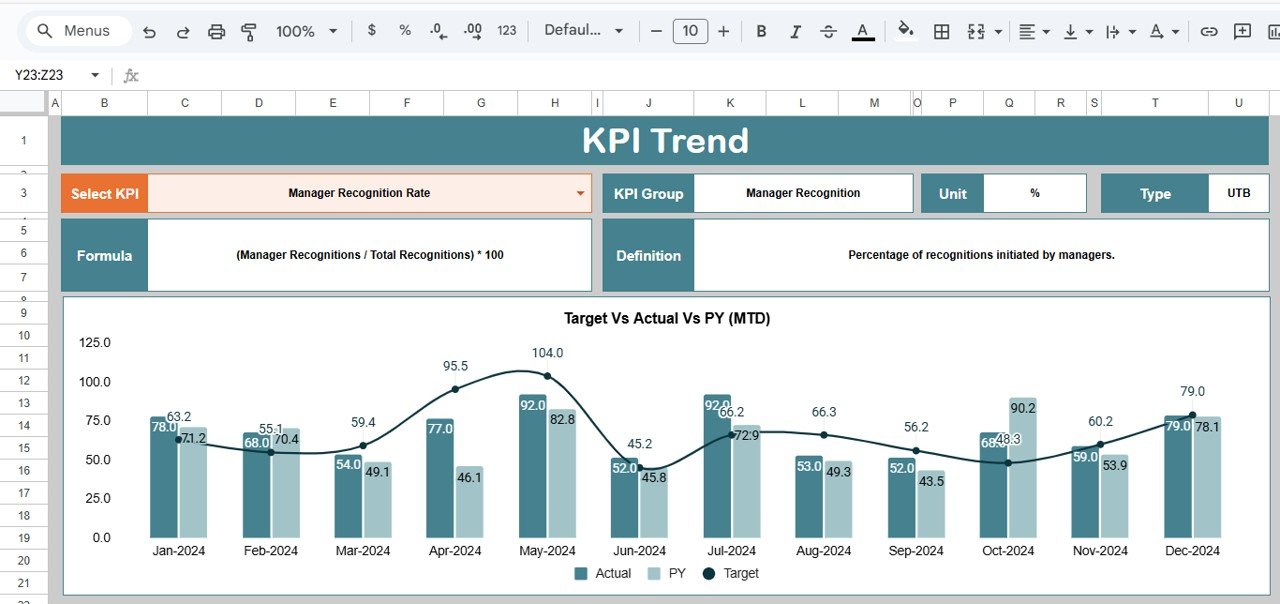
This sheet enables deep analysis of individual KPIs.
🔹 Select KPI from dropdown in Cell C3
🔹 Displays:
KPI Group
KPI Unit
KPI Type (Upper the Better / Lower the Better)
KPI Formula
KPI Definition
🔹 Includes monthly trend visualization to identify participation gaps, improvement cycles, and engagement patterns.
🧮 Actual Number Sheet Tab
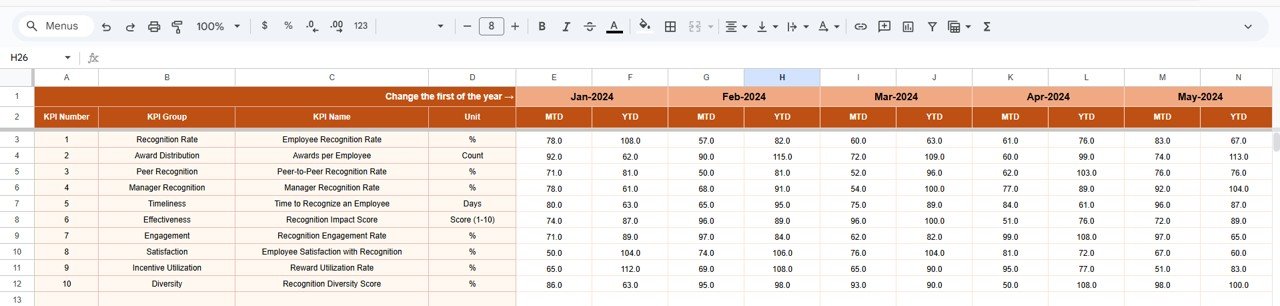
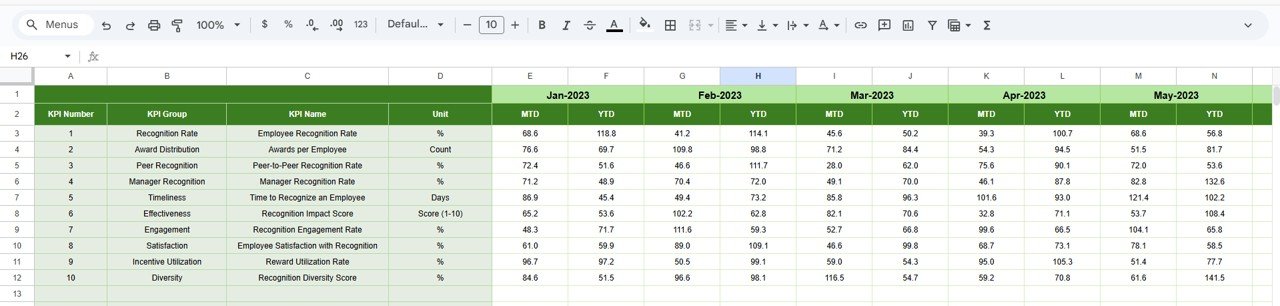
This sheet captures real recognition data.
Enter MTD and YTD actual values
Select the first month of the year in Cell E1
Monthly structure auto-aligns
This sheet acts as the main data input source.
🎯 Target Sheet Tab
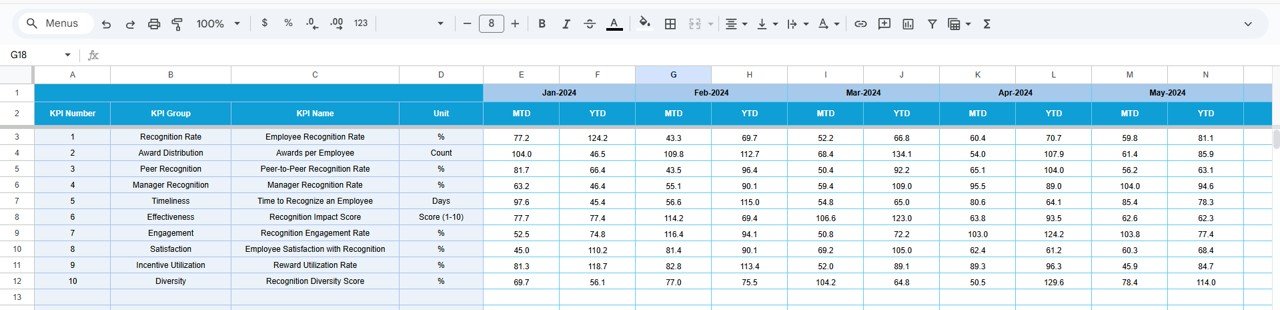
Used to define recognition goals.
Monthly recognition targets (MTD)
Annual cumulative targets (YTD)
Targets help HR teams align recognition efforts with engagement and retention strategies.
📅 Previous Year Number Sheet Tab
Stores last year’s recognition values.
Enables year-on-year comparison
Helps evaluate program effectiveness
Supports long-term trend analysis
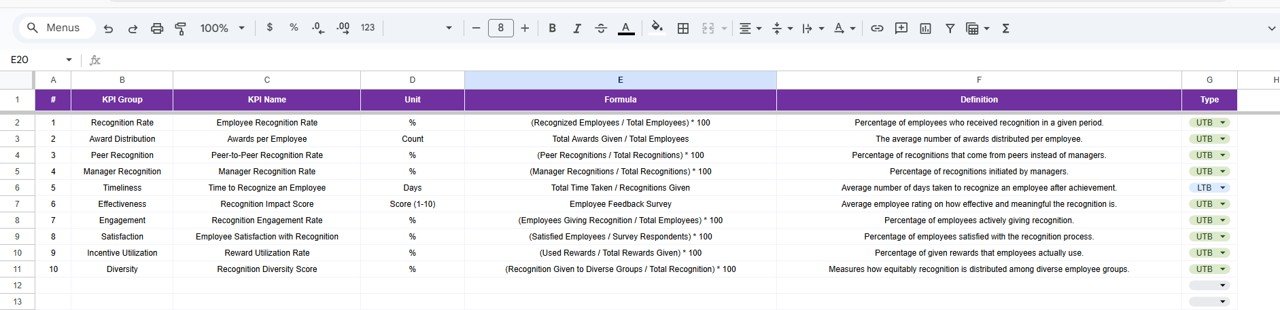
📘 KPI Definition Sheet Tab
This is the governance and reference layer.
Includes:
KPI Name
KPI Group
Unit
Formula
Definition
KPI Type (LTB / UTB)
This ensures consistency and clarity across teams.
🎯 Who Should Use This Dashboard
HR Teams
Employee Engagement Teams
People Managers
HR Analytics Teams
Leadership & Management
Click here to Read detailed blog post
Watch the step-by-step video tutorial:
📺 Visit our YouTube channel for step-by-step tutorials
👉 Youtube.com/@NeotechNavigators
Compatibility and Requirements
- Works in Google Sheets. You need a free Google account and a web browser.
- You pick the reporting month from a dropdown on the Dashboard sheet, and the KPI on the KPI Trend sheet. Google explains dropdowns in Create an in-cell dropdown list.
Frequently Asked Questions
Which sheets are included?
Six sheets: Dashboard, KPI Trend, Actual Number, Target, Previous Year Number and KPI Definition.
How do I update the dashboard?
Enter your MTD and YTD actual values in the Actual Number sheet and your recognition goals in the Target sheet. Then select a month in cell D3 of the Dashboard sheet and the dashboard updates.
Can I compare this year with last year?
Yes. Add last year’s values to the Previous Year Number sheet. The Dashboard shows Previous Year vs Actual for both MTD and YTD, with a green arrow for a positive trend and a red arrow for a negative one.
How do I see the trend for one KPI?
Open the KPI Trend sheet and pick the KPI from the dropdown in cell C3. It shows the KPI group, unit, type (Upper the Better or Lower the Better), formula, definition and a monthly trend.
Is there an Excel version?
Yes. See the Employee Recognition KPI Dashboard in Excel.
Related Employee Recognition Templates
- Employee Recognition KPI Dashboard in Excel: the same KPI dashboard in Excel
- Employee Recognition Dashboard in Google Sheets: another recognition dashboard in Google Sheets
- Employee Recognition Nomination Tracker in Google Sheets: track nominations before you report on them
- Employee Recognition Calendar in Google Sheets: plan recognition events through the year
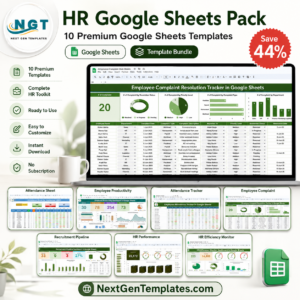
- HR Google Sheets Pack: 10 HR templates for Google Sheets in one download
Browse all Google Sheets KPI dashboards.












Reviews
There are no reviews yet.