


Managing assets is not just about listing equipment — it’s about accountability, planning, and ensuring things don’t slip through the cracks. Whether you’re overseeing IT devices, facility equipment, or operational tools, our Asset Management Schedule in Excel gives you a streamlined, visual, and no-fuss solution to organize every moving part.
Perfect for facility managers, IT teams, and operations leaders, this Excel template helps you plan inspections, assign tasks, and track progress — all with simple dropdowns, checkboxes, and an auto-updating progress bar.
📁 What’s Inside the Template?
This ready-to-use Excel template includes two smartly structured worksheets:
✅ Asset Management Schedule Checklist (Main Sheet)
This is your daily command center.

🔹 Top Section Summary:
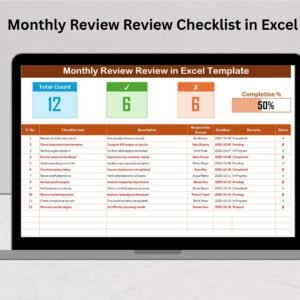
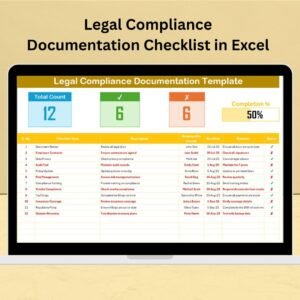
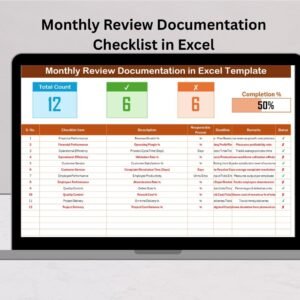
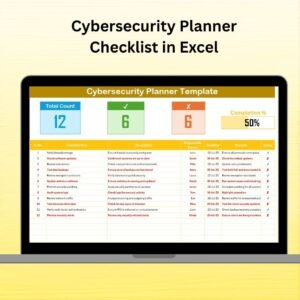
Total Count of checklist items
Checked Count (✔) – Completed tasks
Crossed Count (✘) – Missed/unverified tasks
Progress Bar – Visually shows task completion percentage
🔹 Checklist Table Columns:
📌 Serial No. – Auto-incremented for unique tracking
📝 Checklist Item – Asset name or task (e.g., “Inspect Server Room A”)
📄 Description – Quick details about the asset or action
👤 Responsible Person – Assign from a dropdown menu
📅 Deadline – Choose the due date
🗒️ Remarks – Add status notes or comments
🟢 Status – Select ✔ or ✘ to track completion
📋 List Sheet Tab – Smart Dropdowns
This sheet stores all Responsible Persons as a unique list for dropdown selection. This reduces typos, increases efficiency, and allows consistency across your schedule.
💡 Why Use Excel for Asset Management?
While software tools can be expensive or over-complicated, Excel offers the perfect balance of:
✔ Familiar interface
✔ Total customizability
✔ Offline access
✔ Formula support for automation
✔ No monthly subscription fees
It’s ideal for small to mid-sized businesses that need a reliable and cost-effective solution.
💪 Top Advantages of This Excel Template
✅ Total Asset Visibility – Know what’s happening with every asset, at all times.
✅ Boosts Accountability – Assign tasks clearly to ensure team ownership.
✅ Time-Saving Automation – Auto-progress bar and drop-downs eliminate repetitive work.
✅ Missed Deadlines? Never Again – Clearly see overdue tasks at a glance.
✅ Fully Customizable – Change anything: add columns, filters, colors, or logos.
🧠 Best Practices for Using This Asset Schedule
📅 Set Realistic Deadlines – Don’t overwhelm your team. Be practical.
🔁 Review Weekly – Ensure the checklist reflects your current assets and tasks.
🔍 Use Filters and Highlights – Make overdue or high-priority items stand out.
🛡 Protect Critical Cells – Use Excel’s sheet protection to lock formulas and layouts.
🎯 Name Clearly – “Check Server Room B Fans” beats “Check Equipment.”
👥 Who Should Use This Template?
This tool is designed for professionals across industries:
🧑💻 IT Teams managing laptops, software, licenses
🧰 Facility & Maintenance Staff tracking inspections
🏢 Office Managers handling furniture, printers, and supplies
🏫 School Admins managing classroom assets
🏥 Clinics & Nonprofits monitoring equipment usage
📦 Inventory Supervisors keeping track of logistics tools
📌 Real-Life Use Case
Example: You’re running a school’s IT department and want to track 50 tablets.
Checklist Item: “Update iPad OS – Batch 2”
Description: “Upgrade to latest version 16.2”
Responsible Person: “Anjali”
Deadline: “10/06/2025”
Status: ✔
Now you know exactly what’s done, by whom, and what’s still pending.
🧰 Bonus Tips to Take It Further
Add a Priority Column to categorize tasks as High, Medium, or Low
Use conditional formatting to turn overdue tasks red
Create pivot tables to summarize activity by department or person
Export the checklist as PDF for reports or audits
Track asset purchase date and warranty info by adding two columns
❓ Frequently Asked Questions (FAQs)
Q1: Can I use this template in Google Sheets?
Yes! Upload it to Google Sheets — drop-downs and formulas will mostly work. Just check formatting after import.
Q2: Is this only for IT assets?
Not at all. It’s perfect for equipment, furniture, licenses, machinery, or any physical/digital asset.
Q3: How do I protect my template from unwanted edits?
Go to the Review tab and select Protect Sheet. You can choose which parts to lock.
Q4: Can I add depreciation tracking?
Yes! Add a new column for purchase date and apply Excel formulas to calculate depreciation.
Q5: Is this beginner-friendly?
Absolutely. No coding or advanced Excel knowledge required.
🔗 Click here to read the Detailed blog post
Visit our YouTube channel to learn step-by-step video tutorials







Reviews
There are no reviews yet.