

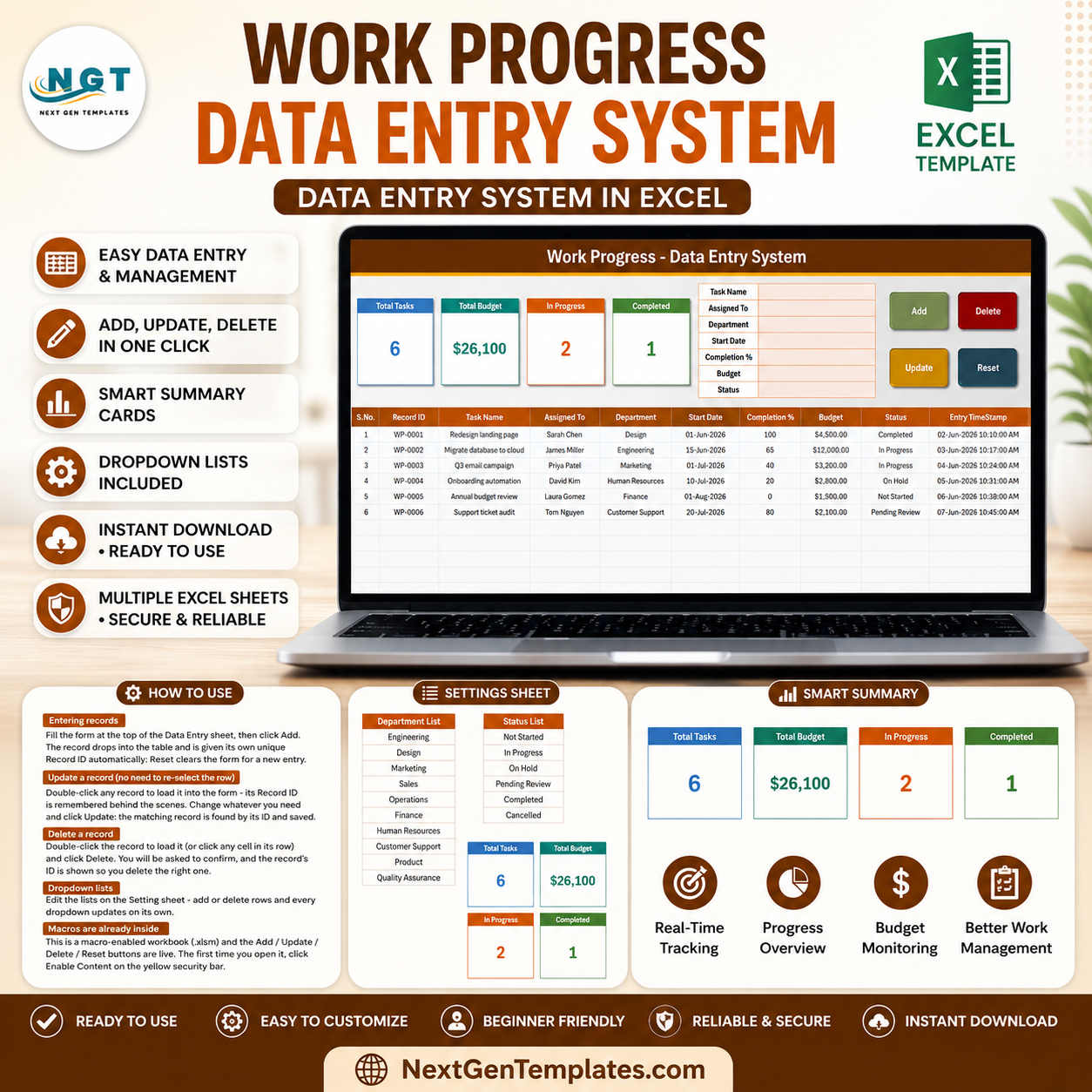
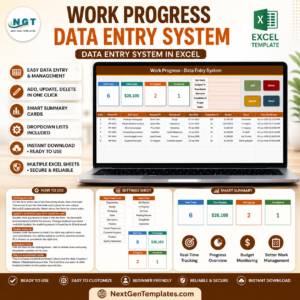
The Work Progress Data Entry System in Excel turns task updates into a 7-field form, four VBA buttons, four live summary cards and a 10-column register. It ships with 6 clearly labelled demo tasks showing a $26,100 total budget, 2 items in progress and 1 completed item, so you can test the workflow before replacing the sample rows. Pay $6.99 once (regular $11.99): there is no subscription, no per-user licence and no account to create. The workbook stays on your computer, remains editable, and includes an Instructions sheet for first-time users.
Key Features of the Work Progress Data Entry System in Excel
- Seven-field task form – enter Task Name, Assigned To, Department, Start Date, Completion %, Budget and Status without scrolling across a table.
- Four working VBA controls – Add writes a new task, Update saves edits, Delete removes the selected record after confirmation, and Reset clears the form.
- Automatic Record IDs and timestamps – each row receives a WP-0001 style identifier and an Entry TimeStamp.
- Update by ID – double-click a row to load it into the form, edit it and click Update; the macro remembers the record ID behind the scenes.
- Four live cards – Total Tasks, Total Budget, In Progress and Completed update from the register.
- Ten-column task register – S.No., Record ID, Task Name, Assigned To, Department, Start Date, Completion %, Budget, Status and Entry TimeStamp.
- Editable dropdown lists – departments and statuses live on the Setting sheet and feed both the form and table.
- Built-in guidance – the Instructions sheet explains entry, editing, deletion, summary cards, dropdowns and enabling macros.
- Offline desktop workflow – the data remains in a macro-enabled Excel file you control.
What’s Inside the Work Progress Data Entry System in Excel
The workbook contains four sheets. The first three are shown below; the fourth is a catalogue link page.
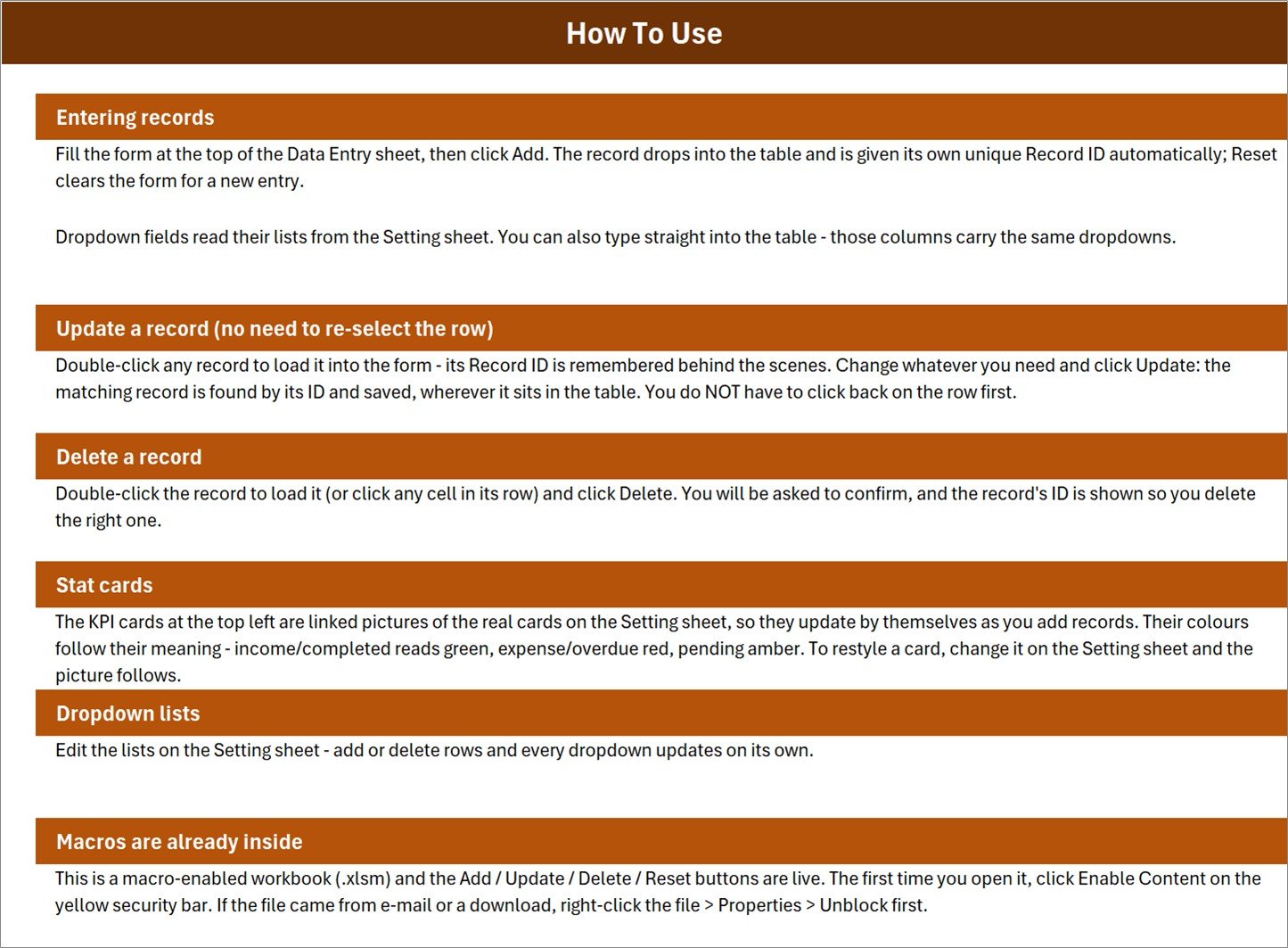
Data Entry – task form, summary cards and register
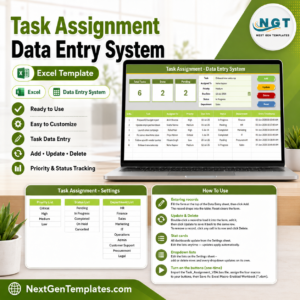
This is the working sheet. The form sits beside Add, Delete, Update and Reset controls, while the register holds the full task history below. The six visible rows – including landing-page, cloud-migration, campaign, onboarding, budget-review and support-audit examples – are sample data, not real business records.
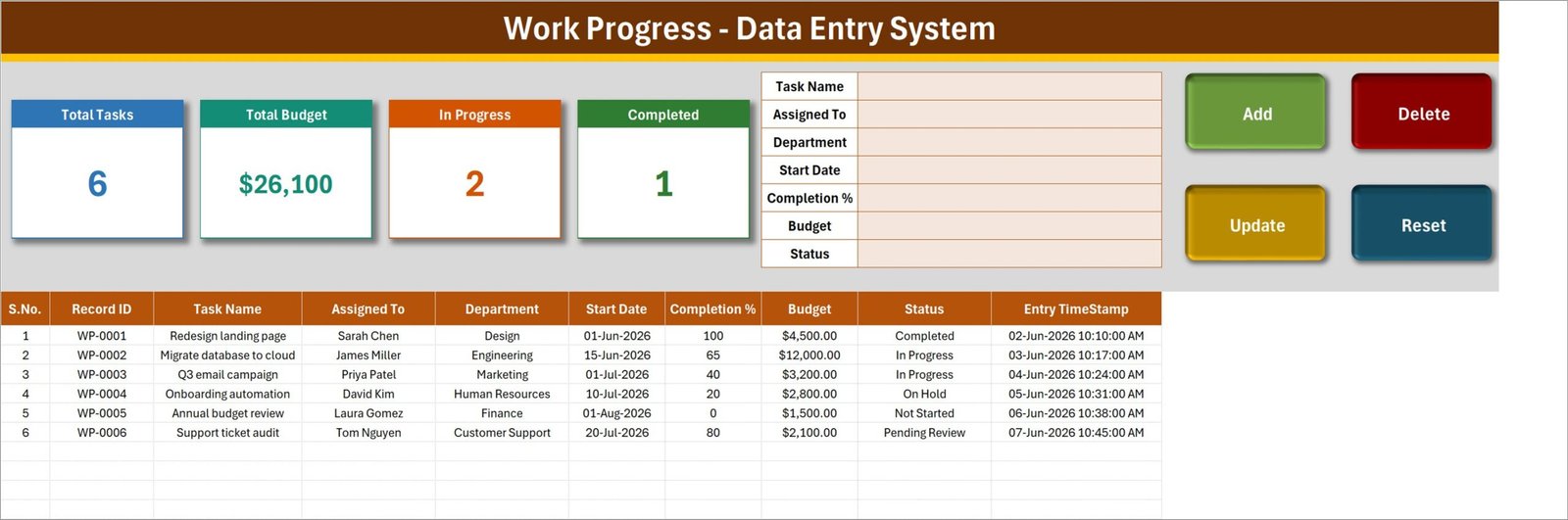
Setting – departments, statuses and card calculations
The Setting sheet carries 10 department choices and 6 status choices, including Not Started, In Progress, On Hold, Pending Review, Completed and Cancelled. Edit these lists to fit your organisation. The source cards also live here, so the linked cards on the Data Entry sheet update with the register.
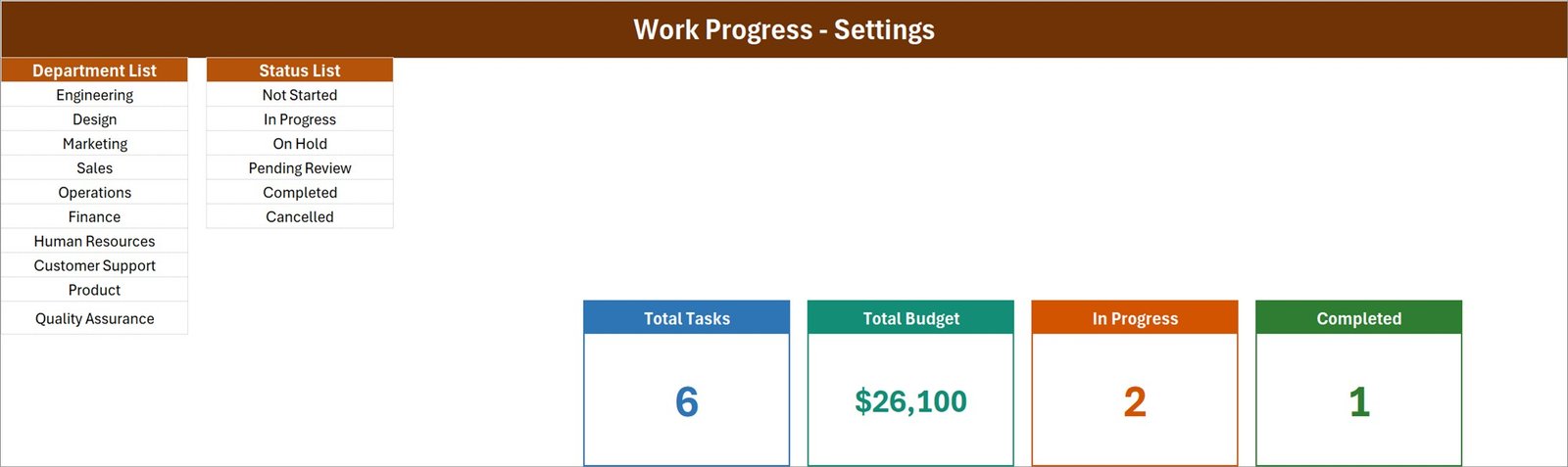
Instructions – practical workbook guidance
The Instructions sheet gives six short sections on entering, updating and deleting records, using stat cards, changing dropdown lists and enabling the included macros. It also explains the Windows Unblock step for downloaded files.
Get More Templates
A simple closing sheet links to the NextGenTemplates catalogue and tutorial resources.
Work Progress Data Entry System in Excel vs. Google Sheets vs. Paid Project-Management SaaS – Where This Fits
| This Excel system | Google Sheets task log | Paid project-management SaaS | |
|---|---|---|---|
| Cost | $6.99 once | Often included with an existing account, but you build it | Recurring subscription |
| Platform | Desktop Excel (.xlsm) | Browser and mobile | Browser and mobile apps |
| Setup | Edit two lists and replace demo rows | Build forms, validation and automation | Configure a workspace and users |
| Multi-user live editing | No – use one editor at a time | Yes | Yes |
| Works offline | Yes | Limited | Usually cloud-first |
| Custom fields | Yes – edit the workbook | Yes | Depends on plan |
| Share with a link | No – share the file | Yes | Yes |
| Year-1 cost at 5 users | $6.99 total | Account cost plus build time | Five user subscriptions |
| Add/update/delete controls | Included VBA buttons | Requires Apps Script or a form | Included |
Who This Template Is For – and Who It’s Not For
Use it if you are a small team lead, freelancer, department coordinator or operations administrator who wants a tidy offline register of task ownership, start date, completion, budget and status. It fits a single person maintaining the master file and sharing periodic extracts or screenshots.
Do not use it as a substitute for a collaborative project platform when several people must edit simultaneously, receive notifications, manage dependencies, attach files or view a mobile app. It does not calculate schedules, critical paths, forecasts, earned value or budget variance. It records what you enter. For portfolio charts, consider the Project Management Office Dashboard in Excel; for browser-based collaboration, see the App Development Project Management Web App.
How to Use the Work Progress Data Entry System in Excel
- Unzip and open the .xlsm file in desktop Excel. Click Enable Content. If Windows blocks the file, right-click it, choose Properties and tick Unblock.
- Edit the lists. Replace the department and status choices on the Setting sheet with your own.
- Delete or overwrite the six demo rows. They exist only to demonstrate the cards and buttons.
- Add a task. Complete the seven form fields and click Add. Excel creates the record ID and timestamp.
- Update a task. Double-click its row, change the form values and click Update.
- Review progress. Use the four cards for a quick count and budget view, then filter the register for detailed follow-up.
Real-World Use Cases
Maya, a marketing coordinator, logs campaign tasks by owner and department, updates Completion % in weekly check-ins, and filters Pending Review before approvals.
Arjun, a small consultancy owner, keeps client-delivery tasks in one offline file, records each task budget, and uses the Total Budget card when planning workloads.
Elena, an operations administrator, maintains onboarding and process-improvement actions for several departments without purchasing five software seats.
Frequently Asked Questions
Does it work in Excel for the web or Google Sheets?
No. The Add, Update, Delete and Reset controls use VBA, which requires desktop Microsoft Excel.
Do I need to enable macros?
Yes. Click Enable Content when Excel prompts you. The workbook can still display data without macros, but the buttons will not operate.
Can I change departments and statuses?
Yes. Edit the plain lists on the Setting sheet; the form and table dropdowns use those values.
Can several people edit it at the same time?
No. Treat it as a single-editor master workbook. Use Google Sheets or project-management SaaS for simultaneous editing.
Does it calculate project schedules or budget variance?
No. It records task completion and budget values and summarizes totals; it does not calculate dependencies, critical paths, forecasts or variance.
Are the six tasks real data?
No. They are fictional examples supplied to demonstrate the workflow. Delete them before entering your own records.
What is included in the download?
One ZIP containing the macro-enabled Work_Progress_System.xlsm workbook.
About the Author
Built by PK – Microsoft Certified Professional with 15+ years of Excel, Google Sheets, and Power BI experience. Founder of NextGenTemplates, reaching 300K+ subscribers across YouTube channels. Every template is hand-built and tested before release.
Explore Related Templates
- Project Management Pro Bundle – nine Excel and Google Sheets templates.
- PMO Dashboard in Excel – portfolio-level charts and reporting.
- PMO Dashboard in Google Sheets – browser-based analysis.
- Employee Document Data Entry System in Excel – another structured VBA register.
Browse more Excel VBA Tools and Excel Trackers.
See the full Work Progress Data Entry System walkthrough, then download the workbook for $6.99 and start with your own departments, statuses and tasks.
Last updated: 18 August 2026.











Reviews
There are no reviews yet.