

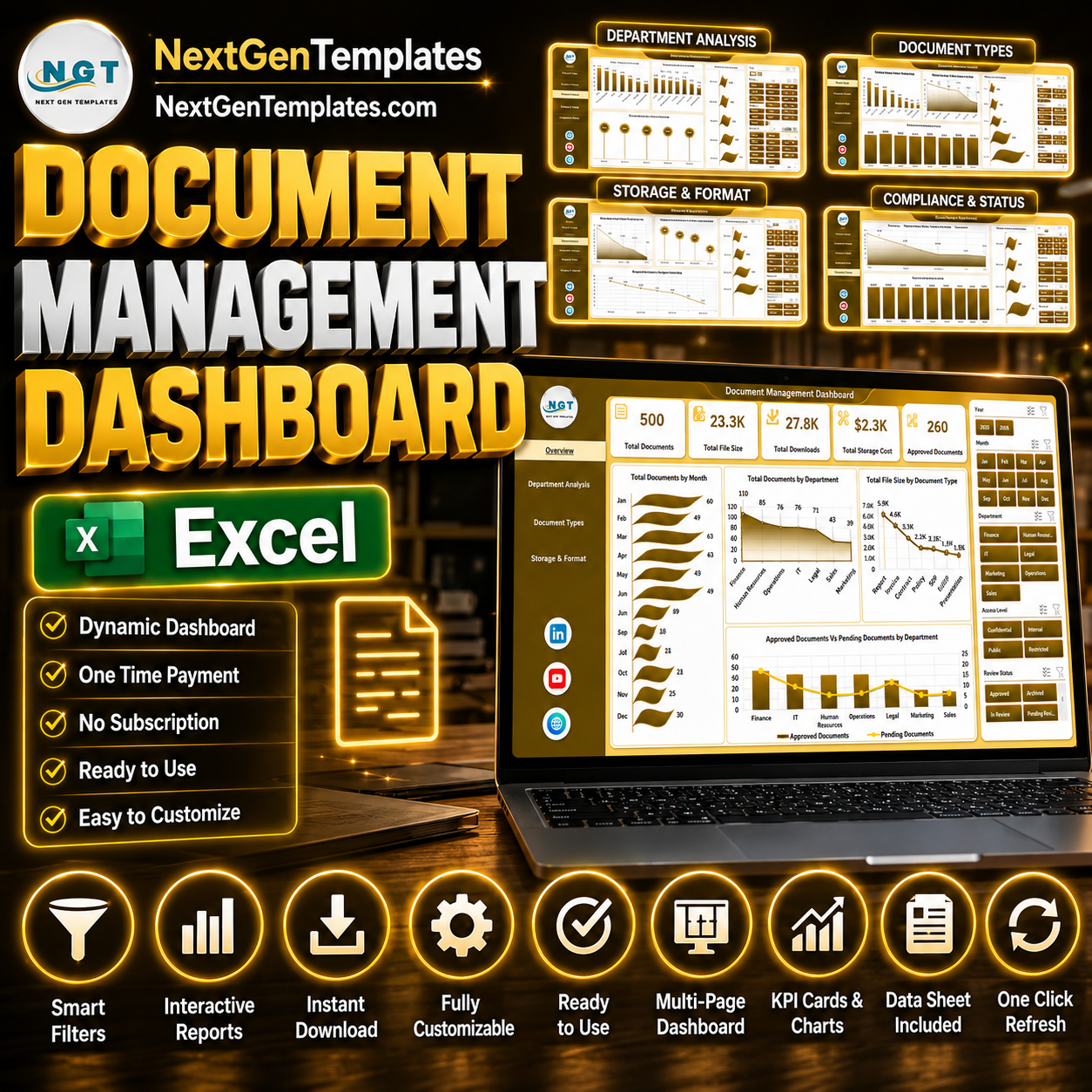




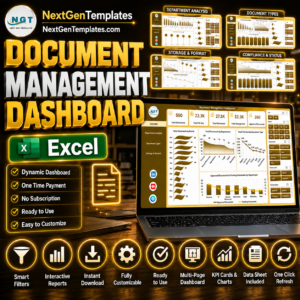
Document Management Dashboard in Excel gives admin, IT, compliance, operations, and records teams a ready Excel reporting system for monitoring documents, file size, downloads, storage cost, approvals, compliance, access level, review status, and storage location. Many teams still track document libraries in scattered exports, and even a small process with 1,000+ files can become difficult to review without clean charts and slicers. This template gives you 5 dashboard analysis pages plus Data and Support sheets, with pivot-driven visuals that refresh after you update the data. Instant download, one-time payment, editable Excel file, and no monthly software subscription.
Key Features of Document Management Dashboard in Excel
- 5 interactive dashboard pages covering Overview, Department Analysis, Document Types, Storage & Format, and Compliance & Status.
- 5 executive KPI cards for Total Documents, Total File Size, Total Downloads, Total Storage Cost, and Approved Documents.
- Document trend analysis by month, department, document type, access level, file format, and storage location.
- Approval and compliance tracking with department-level approval views and access-level compliance charts.
- Storage cost visibility by department and storage location to help review where file storage is growing.
- Data sheet included so users can replace the sample rows with their own document register in the same format.
- Support sheet with pivot tables powers the dashboard dynamically and can be hidden after setup.
- Slicers and refresh workflow make it easy to filter, update, and refresh the dashboard from Excel’s Data tab.
What’s Inside the Document Management Dashboard in Excel
1. Overview Page
The Overview page is the high-level control panel for the full document register. KPI cards show Total Documents, Total File Size, Total Downloads, Total Storage Cost, and Approved Documents so managers can review scale, usage, cost, and approval status quickly.
Total Documents by Month: This chart shows how document volume changes over time. It helps teams identify months with heavy upload activity, process spikes, or archival cleanup needs.
Total Documents by Department: This chart compares document ownership across departments. It is useful for understanding which teams create or manage the largest share of files.
Total File Size by Document Type: This visual shows which document types consume the most storage. It helps teams spot file categories that may need compression, retention review, or cleanup.
Approved Documents vs. Pending Documents by Department: This chart compares approval progress by department. It makes bottlenecks visible when some teams have a higher pending-document load.
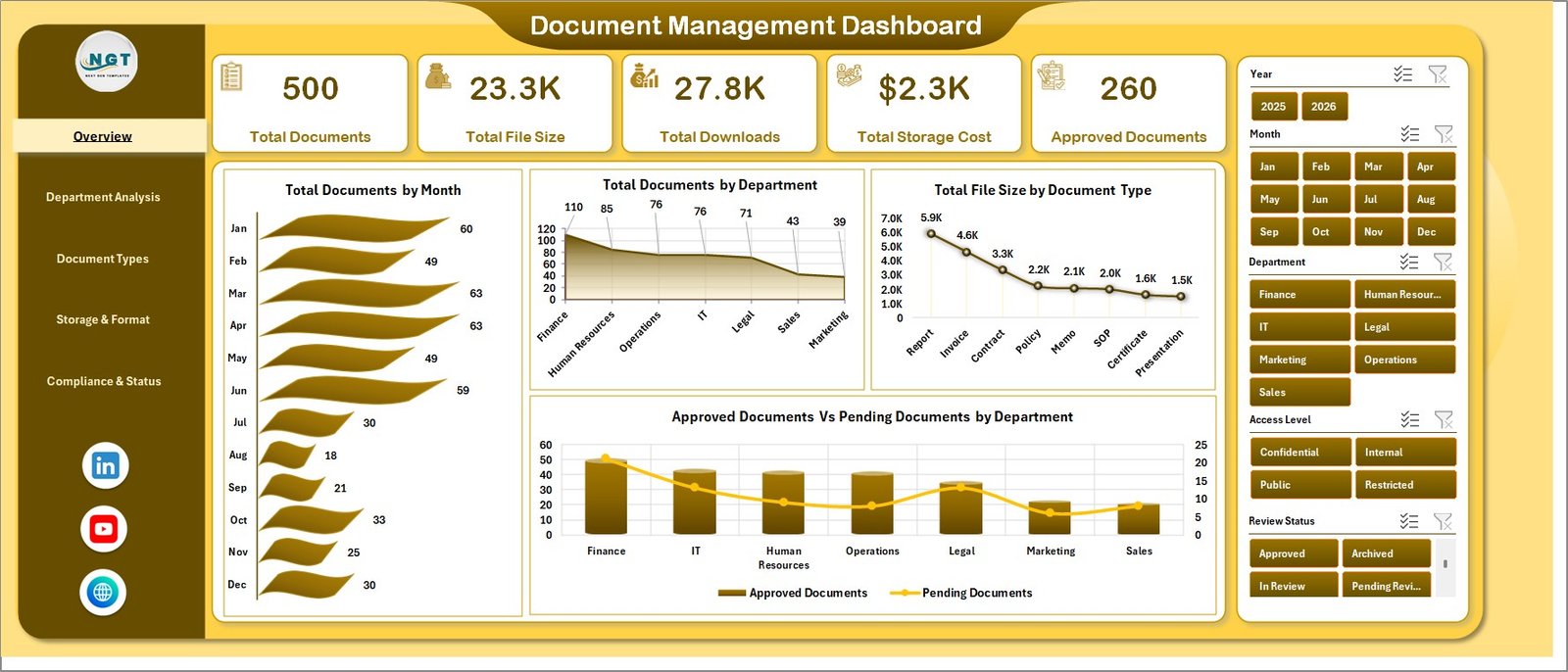
Document Management Dashboard in Excel
2. Department Analysis
The Department Analysis sheet helps managers compare document activity, cost, approval rate, and processing time across departments. It includes Total Storage Cost by Department, Approval % by Department, Total Documents by Document Type, and Avg. Processing Hours by Department.
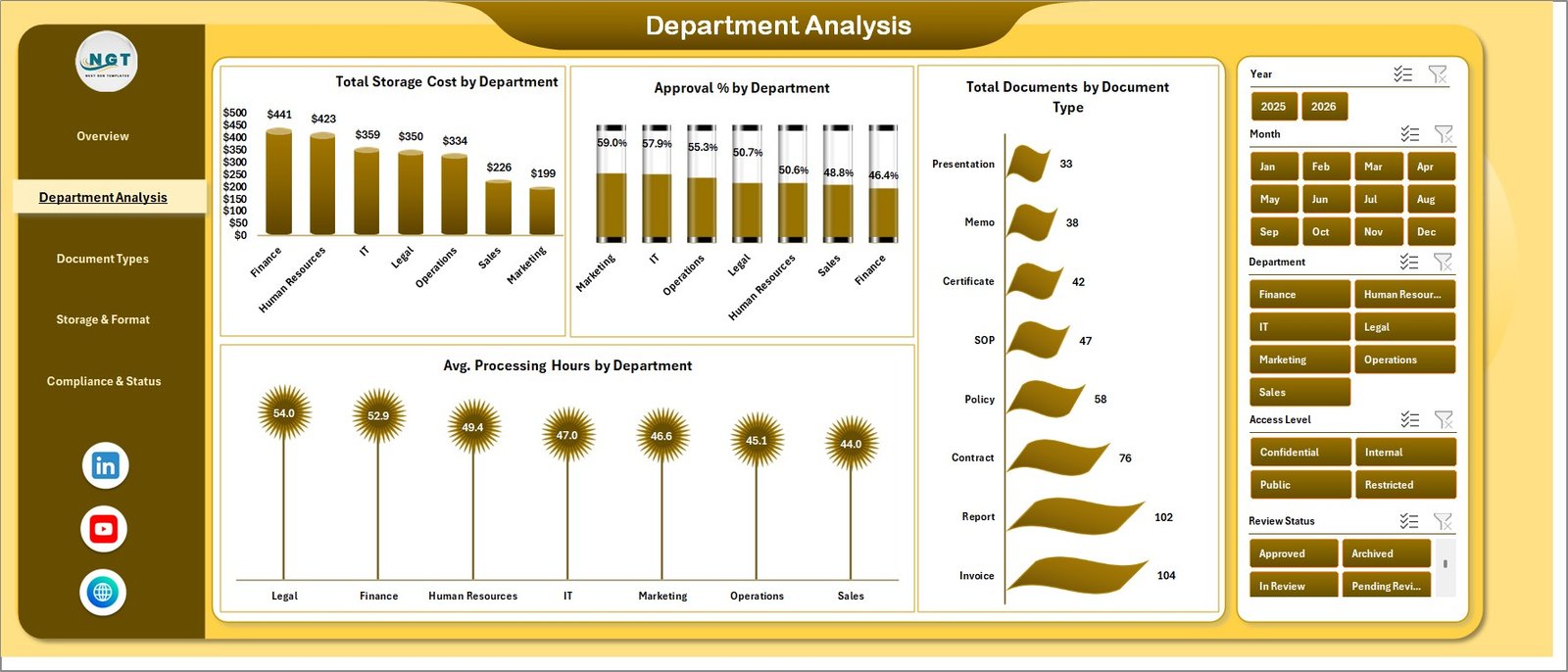
Department Analysis
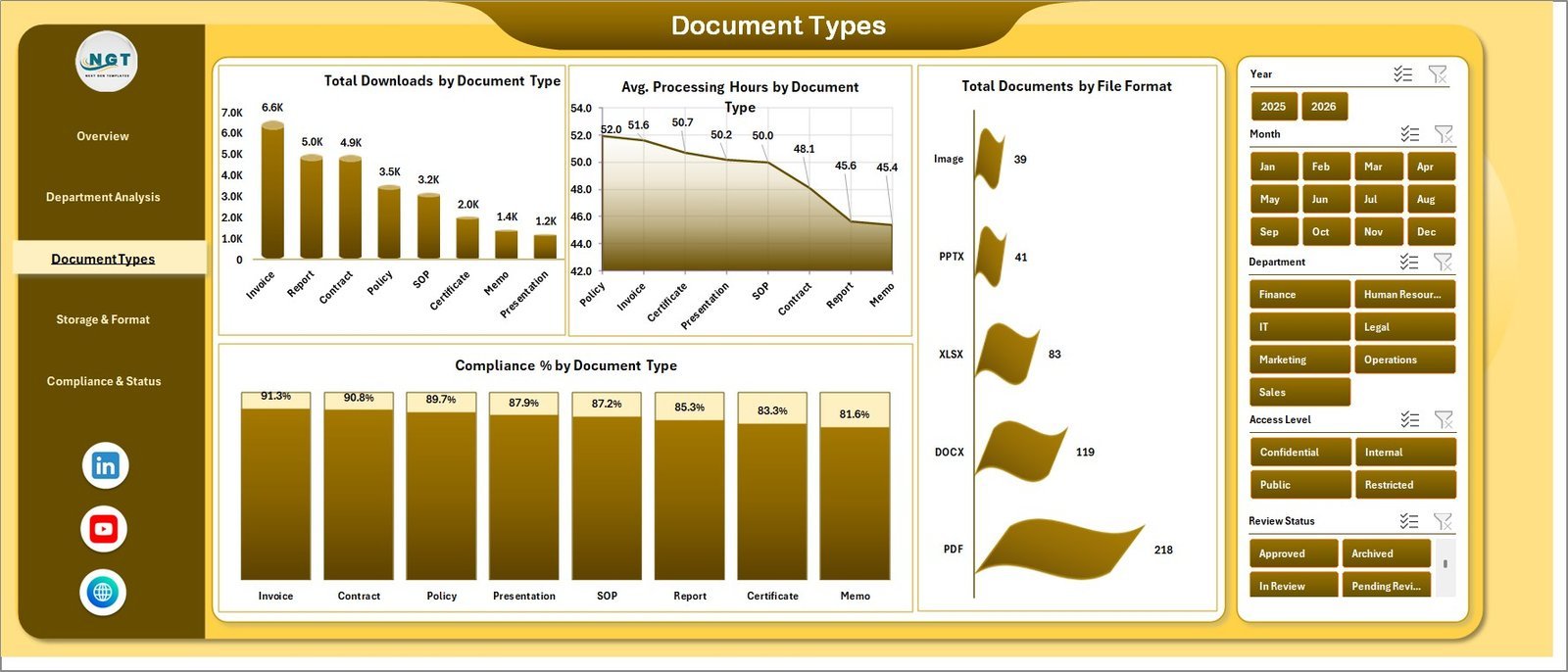
3. Document Types
The Document Types sheet focuses on how different file categories perform. It shows Total Downloads by Document Type, Avg. Processing Hours by Document Type, Total Documents by File Format, and Compliance % by Document Type.
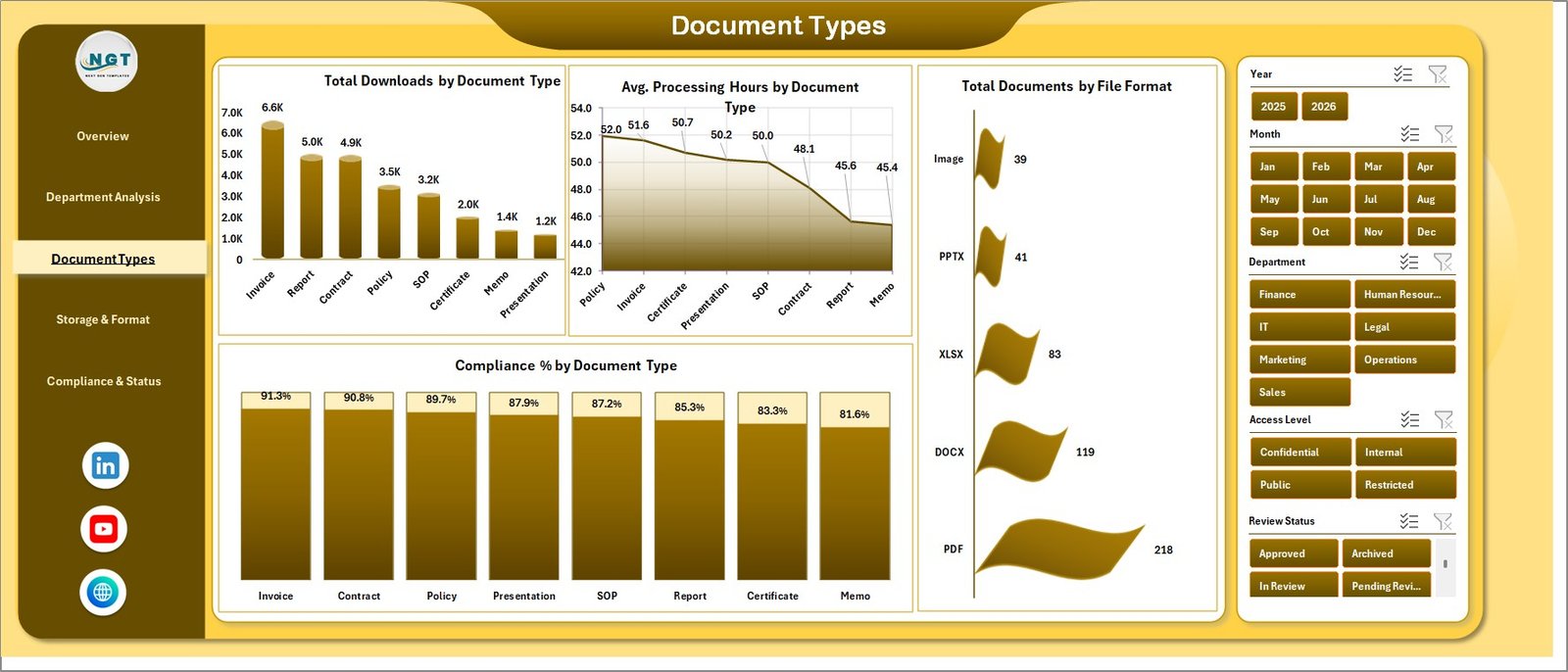
Document Types
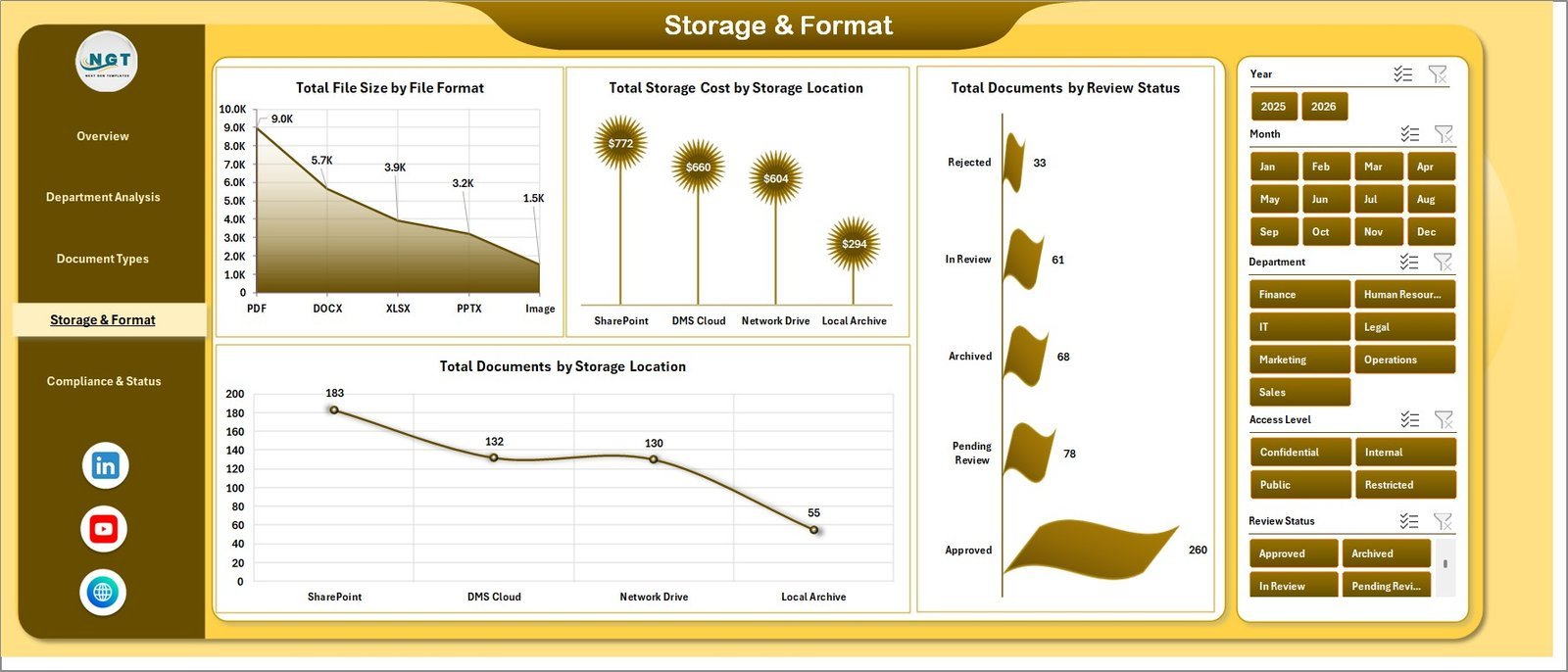
4. Storage & Format
The Storage & Format sheet helps teams review file size, storage cost, review status, and storage locations. It includes Total File Size by File Format, Total Storage Cost by Storage Location, Total Documents by Review Status, and Total Documents by Storage Location.
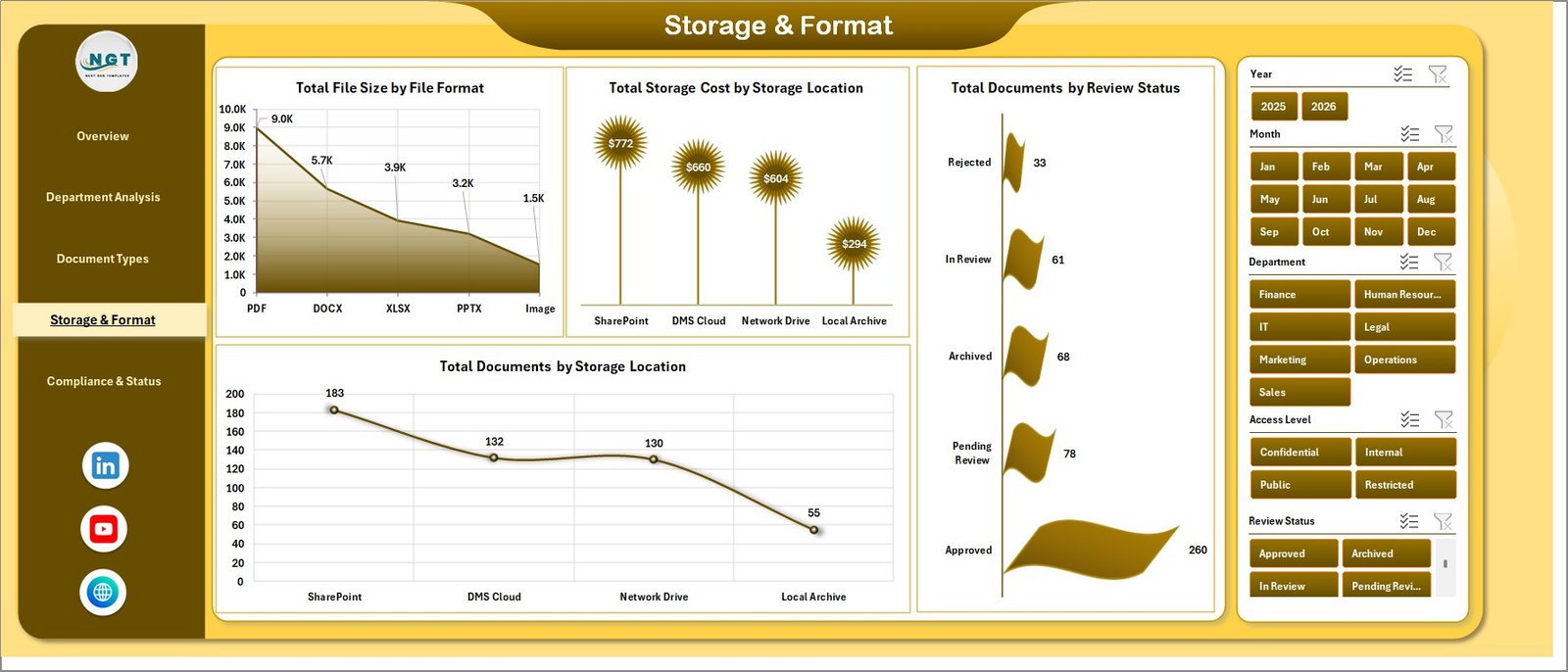
Storage & Format
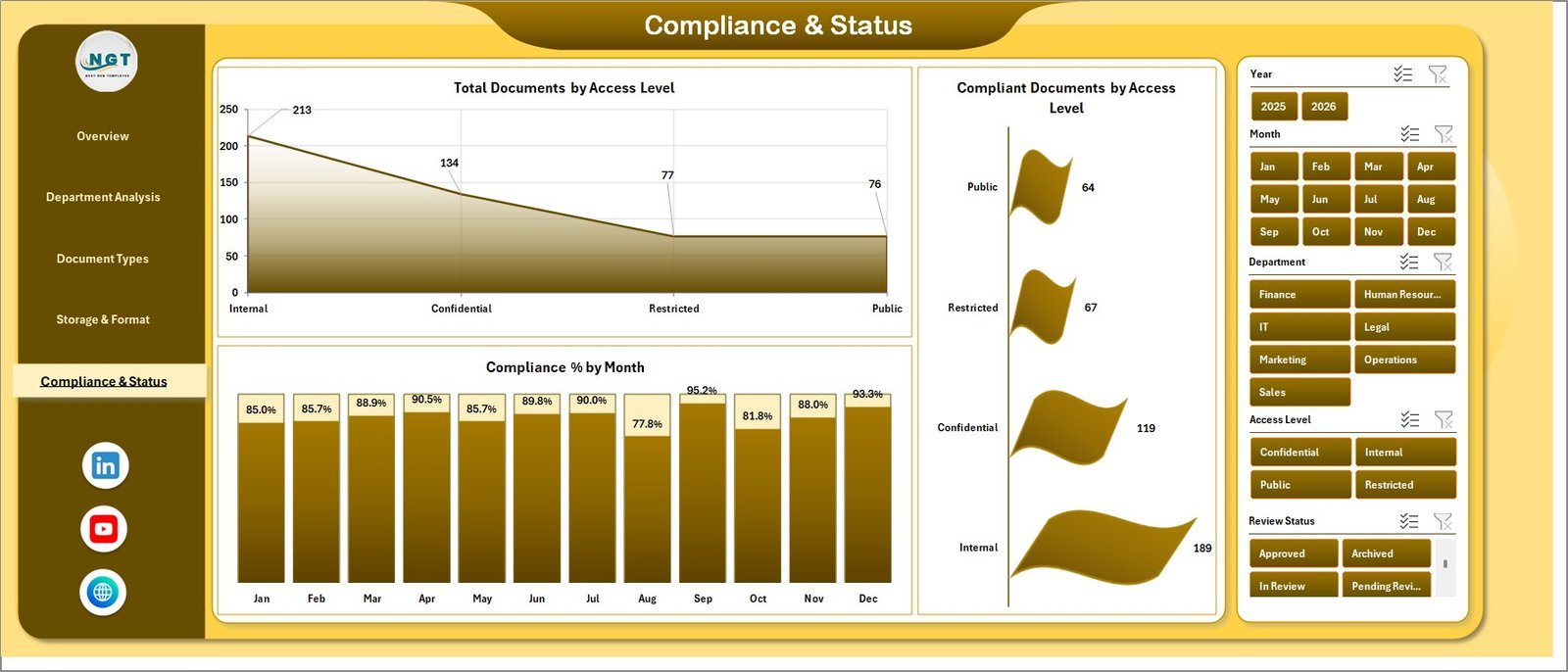
5. Compliance & Status
The Compliance & Status sheet helps teams review access control and compliance movement. It includes Total Documents by Access Level, Compliant Documents by Access Level, and Compliance % by Month.
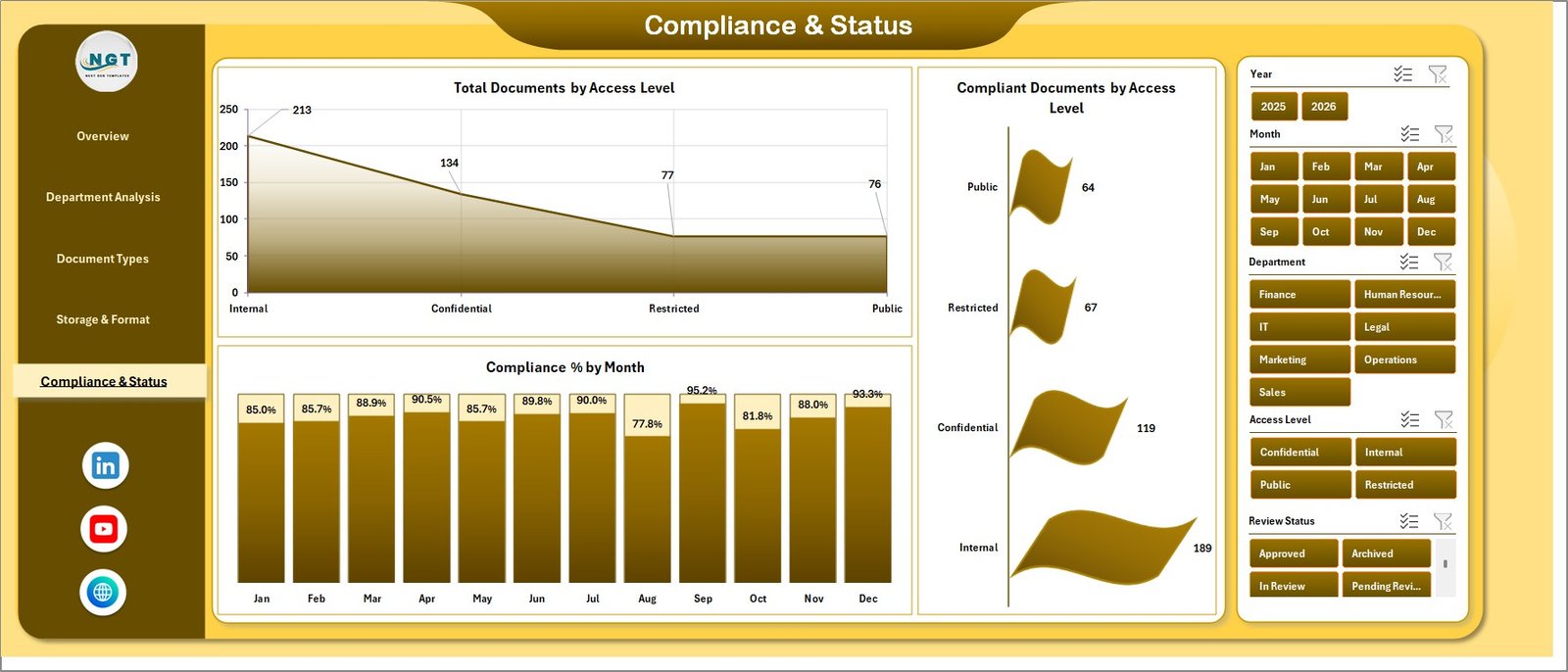
Compliance & Status
6. Data Sheet Tab
The Data sheet is where you enter or paste your own document data in the same column format as the sample file. After updating the records, refresh the workbook so the dashboard cards, charts, and slicers update.

Data Sheet tab
7. Support Sheet
The Support sheet contains the pivot tables used to create the dashboard dynamically. After changing the Data sheet, go to the Excel Data tab and click Refresh All; you can keep this sheet hidden during normal use.

Support sheet tab
Document Management Dashboard in Excel vs. Google Sheets vs. Paid Document Management SaaS – Where This Fits
| Feature | This Excel Dashboard | Google Sheets Alternative | Paid Document Management SaaS |
|---|---|---|---|
| Cost | $17.99 one-time | Free or template-based | Monthly or annual subscription |
| Platform | Microsoft Excel | Browser-based spreadsheet | Vendor cloud platform |
| Setup time | Paste data and refresh | Import data and adjust sharing | Requires onboarding and configuration |
| Customizable fields | Editable workbook and data table | Editable sheet structure | Limited by vendor settings |
| Document analytics | Built in across 5 pages | Must be configured | Usually built in on higher plans |
| Year-1 cost at 5 users | $17.99 plus Microsoft licensing you already use | Depends on Workspace plan | Often hundreds or thousands |
Who This Template Is For – and Who It’s Not For
Best for: document controllers, admin teams, compliance coordinators, IT operations teams, department managers, file storage reviewers, and Excel users who need a fast analytics layer for document registers.
Not for: teams that need live SharePoint API sync, file version control, electronic signatures, legal hold automation, enterprise DMS permissions, or regulated records management certification.
How to Use the Document Management Dashboard in Excel
- Download and unzip the file.
- Open the workbook in Microsoft Excel.
- Go to the Data sheet and replace the sample rows with your document records.
- Keep the same column structure for best results.
- Use Excel’s Data tab and click Refresh All.
- Review the Overview page first, then use the analysis pages for department, type, storage, and compliance review.
- Hide the Support sheet if you do not want end users to see the pivot tables.
Real-World Use Cases
Priya, compliance coordinator: Priya reviews pending approvals by department before her weekly governance meeting and uses the compliance-by-month trend to explain improvement.
Daniel, IT operations manager: Daniel checks storage cost by location and file size by format to identify where large files are driving cost.
Meera, admin lead: Meera uses the downloads and document-type views to understand which document categories are used most often by the business.
Frequently Asked Questions
What does this Excel dashboard track?
It tracks total documents, file size, downloads, storage cost, approvals, departments, document types, processing hours, file formats, review status, storage location, access level, and compliance.
Can I use my own data?
Yes. Replace the sample rows in the Data sheet with your own document register while keeping the same format, then refresh the dashboard.
Does this require macros?
No macro requirement is specified for this dashboard. It is built around Excel data, pivot tables, charts, slicers, and refreshable reporting.
Can I hide the Support sheet?
Yes. The Support sheet contains pivot tables that power the dashboard and can be hidden after setup.
Is this a document storage system?
No. This is an Excel analytics dashboard for document data. It does not store files, manage permissions, or replace SharePoint, Google Drive, or a paid DMS.
Is this a subscription?
No. It is a one-time downloadable Excel template purchase.
About the Author
Built by PK – Microsoft Certified Professional with 15+ years of Excel, Google Sheets, and Power BI experience. Founder of NextGenTemplates, reaching 300K+ subscribers across YouTube channels. Every template is hand-built and tested before release.
Explore Related Templates
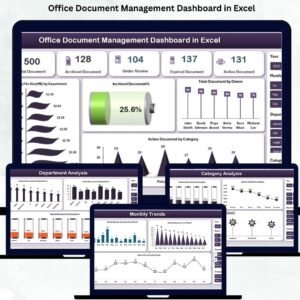
Pair this template with the Office Document Management Dashboard in Excel, Document Management KPI Dashboard in Excel, and Digital Twin Services Dashboard in Power BI. Browse more Excel Dashboard templates and Microsoft Excel templates.
Download the Document Management Dashboard in Excel today and start reviewing document volume, file size, downloads, storage cost, approval progress, and compliance from one editable workbook.
Last updated: June 2026
Watch the step-by-step video tutorial:
Compatibility and Requirements
- Works in Microsoft Excel desktop (Excel 2016 or later, or Microsoft 365).
- Microsoft’s guide Create a PivotTable to analyze worksheet data explains the Excel feature this file is built on.













Reviews
There are no reviews yet.