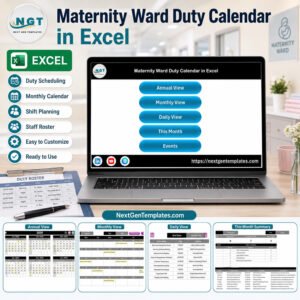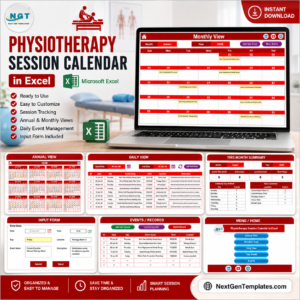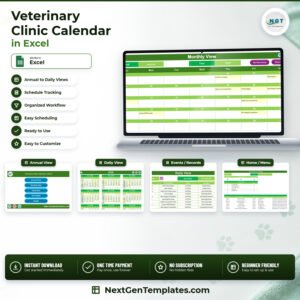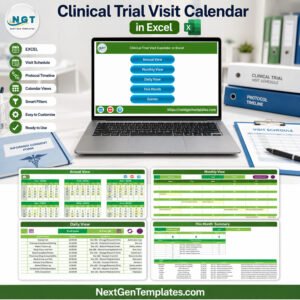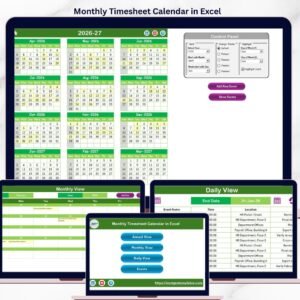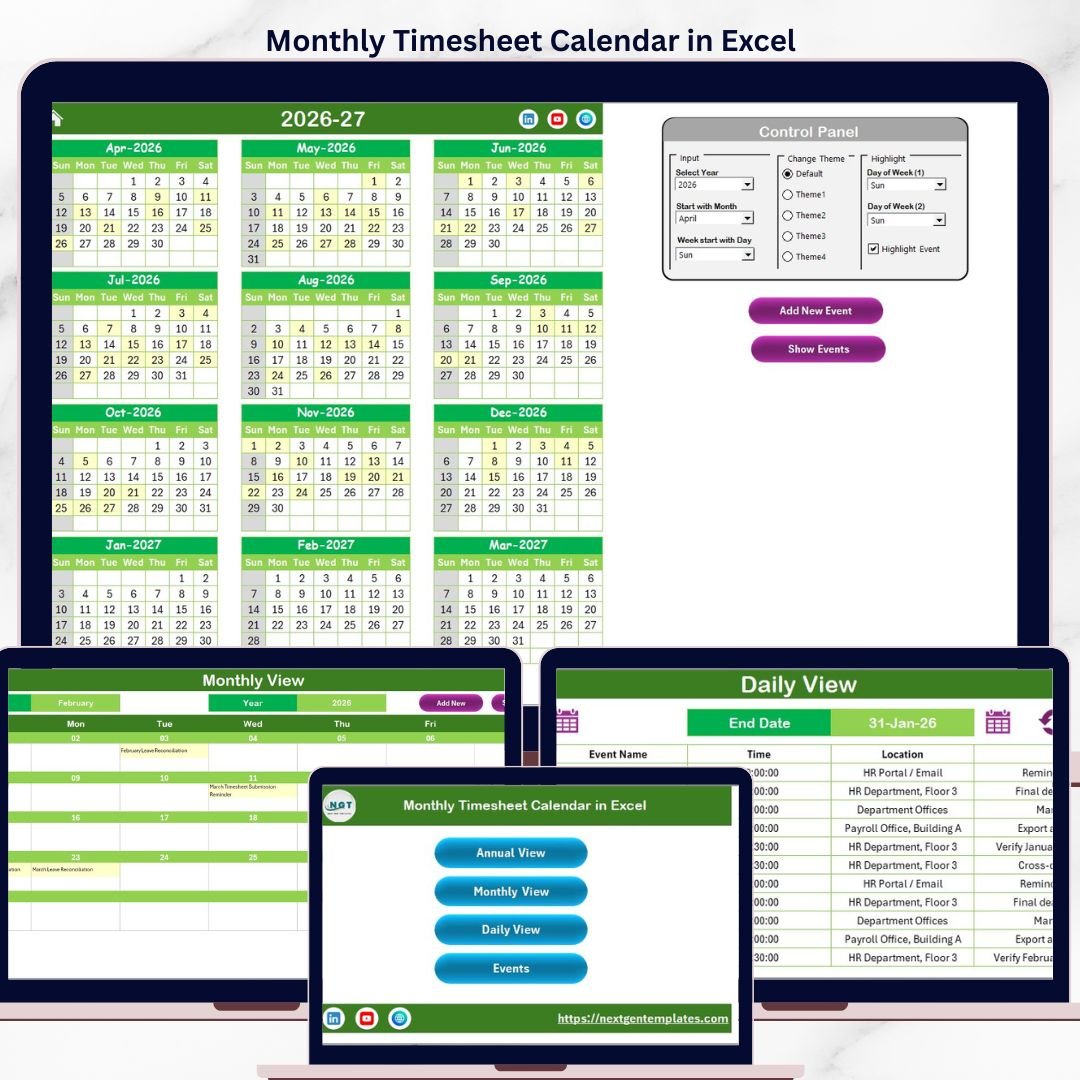
The Monthly Timesheet Calendar in Excel tracks employee hours, events, and schedules across 5 interactive worksheets with annual, monthly, and daily views plus a built-in event database. Setup takes under 5 minutes — select your year, pick a color theme, and start logging events immediately.
🌍 Join 8,400+ teams in 40+ countries using NextGenTemplates to replace paid SaaS tools with one-time-purchase Excel, Google Sheets, Power BI, and HTML templates.
✅ Instant download · One-time payment · No subscription · No per-user fees · Lifetime access
🔑 Key Features of Monthly Timesheet Calendar in Excel
📌 5 Worksheets – Home (index with navigation buttons), Annual View, Monthly View, Daily View, and Events database — covering every angle of time tracking in a single workbook.
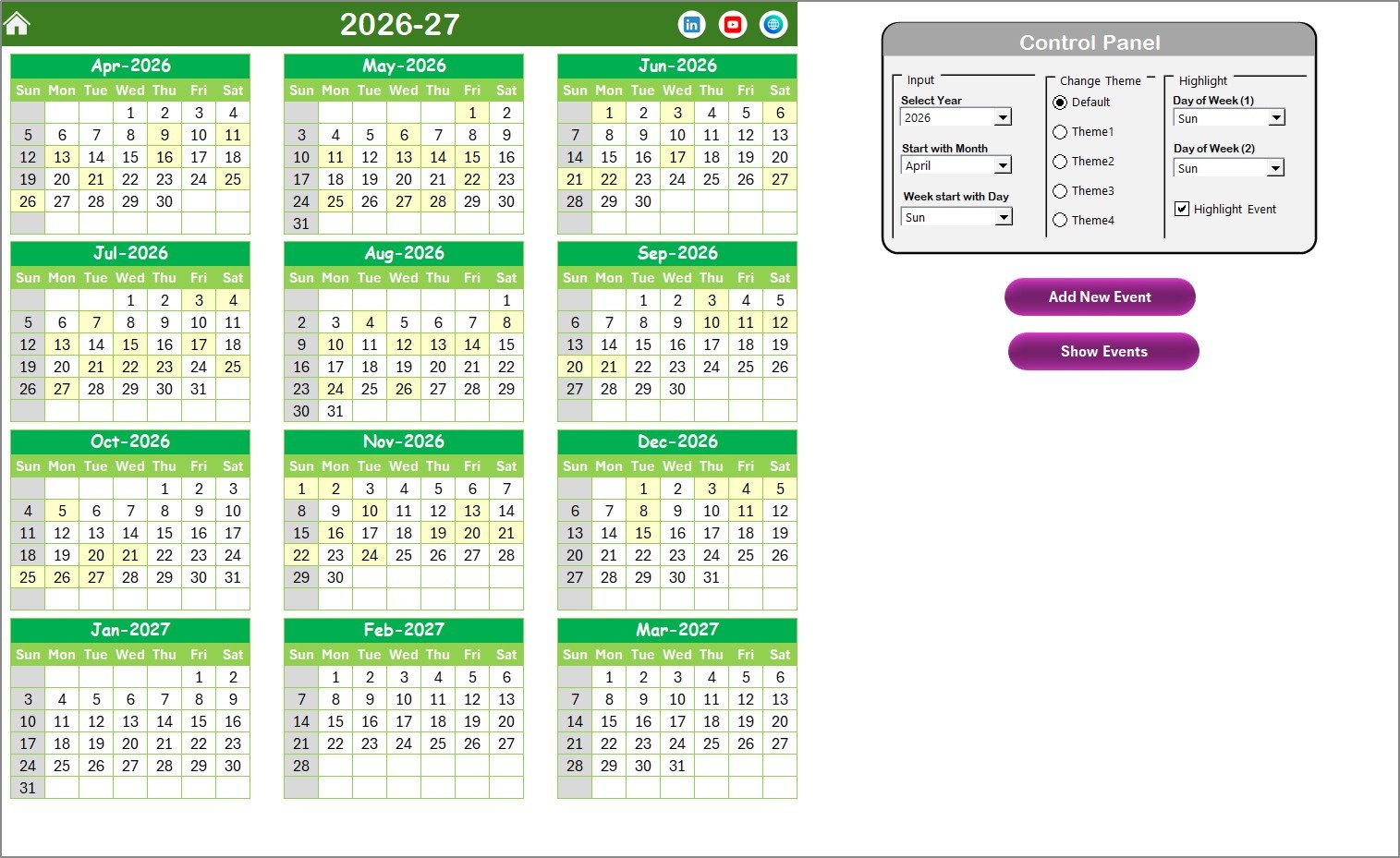
📌 5 Color Themes – Switch the entire workbook’s look instantly from the Annual View control panel. Every chart, header, and cell updates in one click — no manual formatting needed.
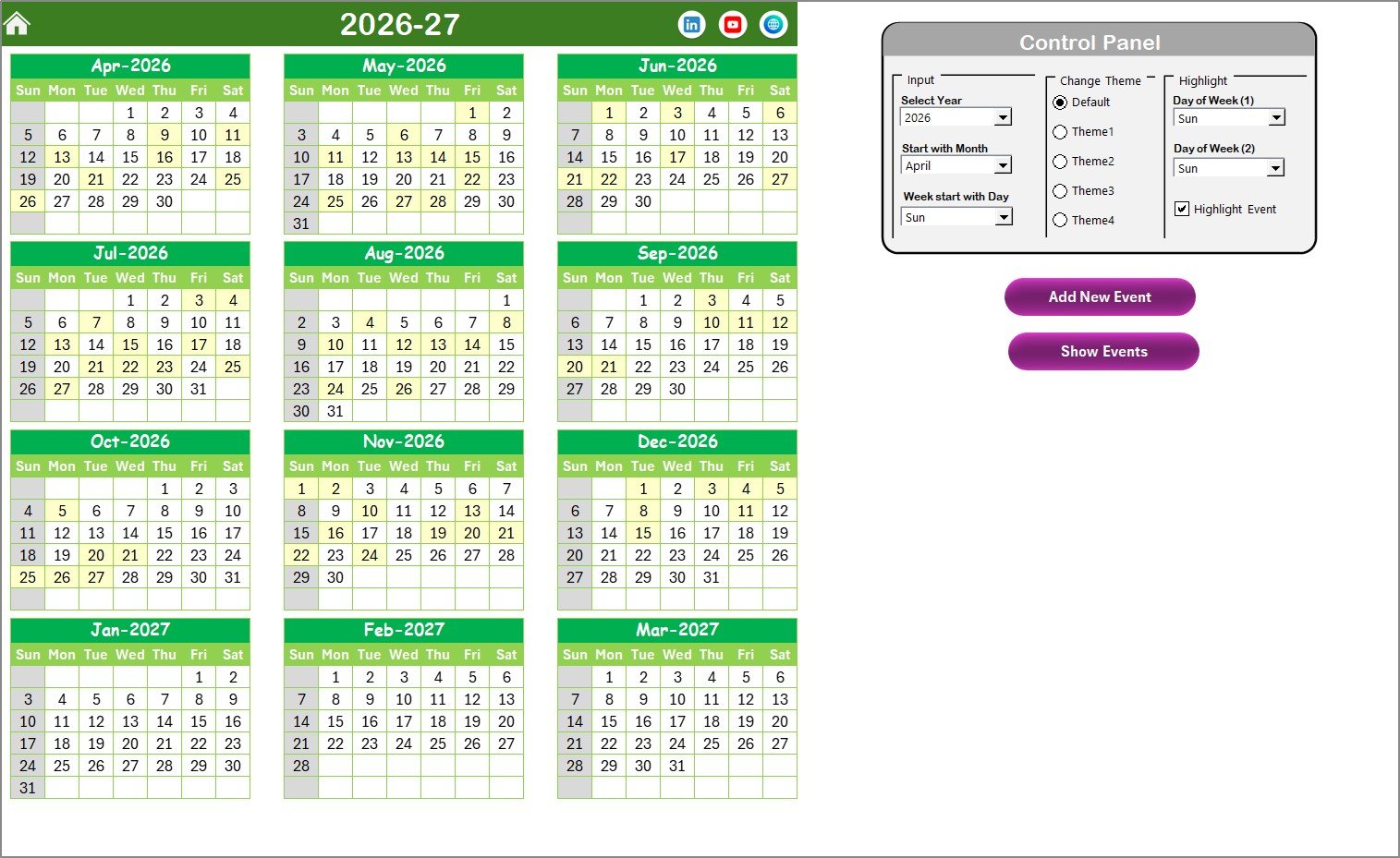
📌 Flexible Year & Week Settings – Change the calendar year, starting month, and starting day of the week from the Input group. The annual calendar regenerates automatically for any year you select.
📌 Weekend & Holiday Highlighting – Choose two days of the week to highlight in grey (e.g., Saturday and Sunday) plus a checkbox to highlight events in yellow across the Annual View sheet.
📌 Add New Event Form – A built-in VBA form lets you add events with date, event name, time, location, and description. Available from Annual View, Monthly View, and Daily View sheets.
📌 Show Event Button – Select any date on the calendar and click Show Event to instantly see all events scheduled for that day.
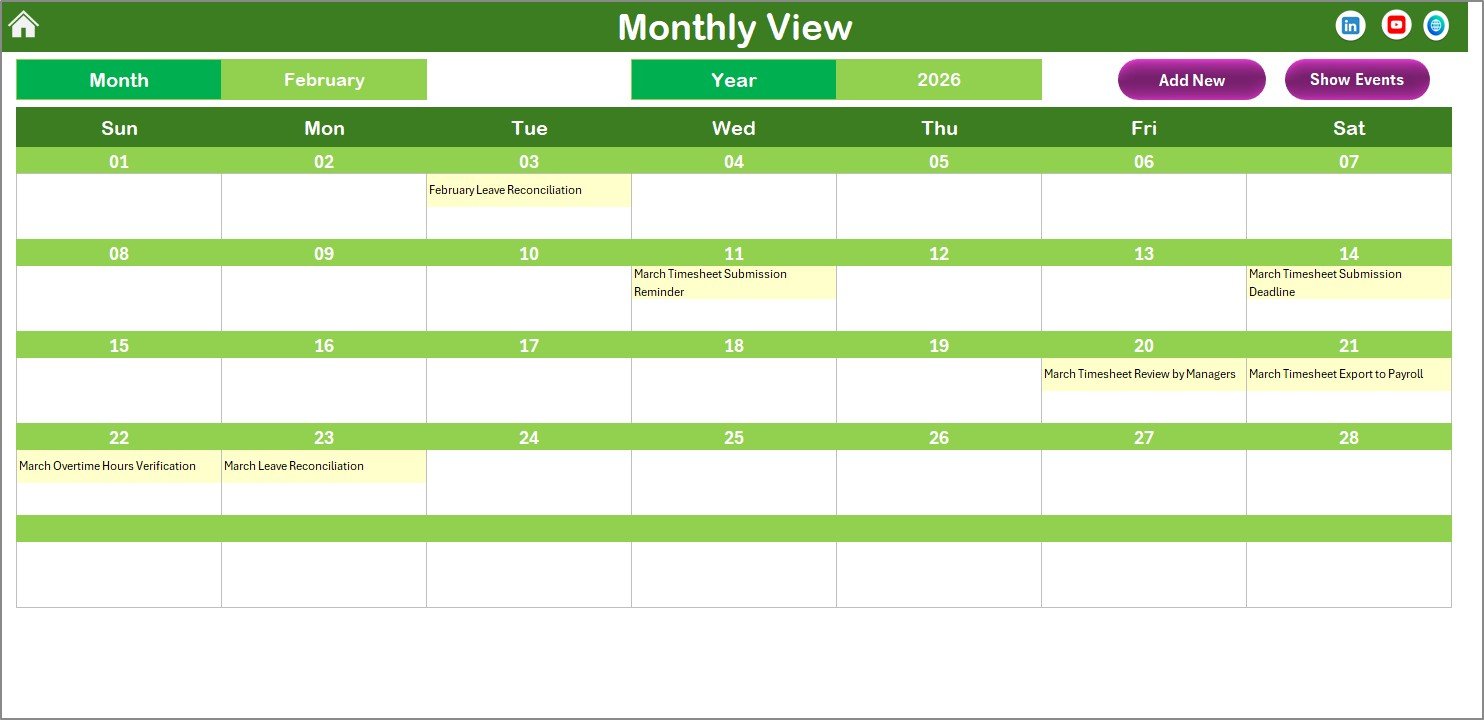
📌 Monthly View with Event Preview – See one event per date cell. If a date has more than one event, the cell shows “more than 1…” so you know to click for details.
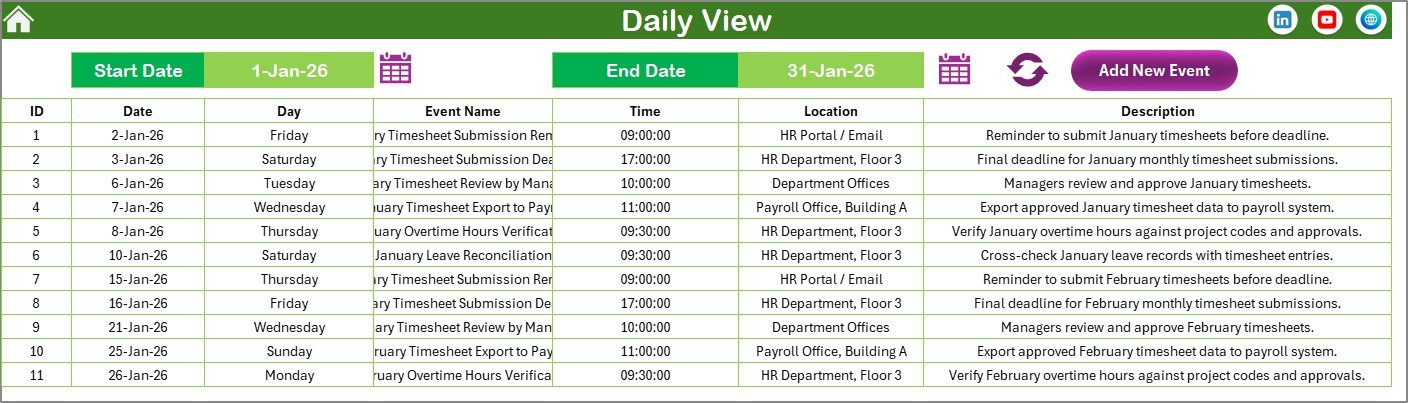
📌 Daily View with Date Range Filter – Enter a start date and end date, click Refresh, and view all events within that window — with full details including time and location.
📌 Full Event Database – The Events sheet stores every record with auto-generated ID, date, day, event name, time, location, and description. Add, update, or delete records directly.
📌 No External Dependencies – Everything runs inside Excel with VBA macros. No add-ins, no internet connection, no third-party plugins required.
This template is ideal for HR managers, project leads, freelancers, and small business owners who need a visual, event-driven Excel calendar that doubles as a timesheet and scheduling tool.
📦 What’s Inside the Monthly Timesheet Calendar in Excel
The workbook contains 5 worksheets designed to work together:
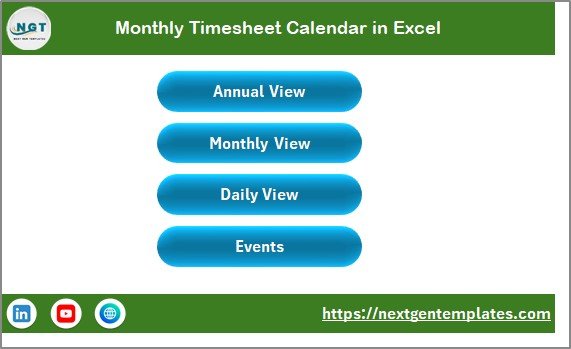
📂 Home Sheet — An index page with 4 navigation buttons: Annual View, Monthly View, Daily View, and Events. Jump to any section in one click.
 Monthly Timesheet Calendar in Excel
📂 Annual View Sheet — Displays all 12 months in a single view. Includes a control panel with 3 groups: Input (year, starting month, starting day), Change Theme (5 color options), and Highlight (select 2 weekdays to grey out + event highlight checkbox). Two action buttons: Add New Event and Show Event.
 Annual View Sheet
📂 Monthly View Sheet — A single-month calendar showing one event per date cell. Select Month and Year from the top to navigate. Dates with multiple events display “more than 1…” as a visual cue. Includes Add New Event and Show Event buttons.
 Monthly View Sheet
📂 Daily View Sheet — Lists all events within a selected date range. Set the Start Date and End Date using the calendar icon, then click Refresh to load matching records. An Add New Event button is also available here.
 Daily View Sheet
📂 Events Sheet — The database layer storing all event records with 7 fields: ID (auto-generated), Date, Day, Event Name, Time, Location, and Description. Three action buttons on top: Add New Record, Update Existing Record, and Delete Record.
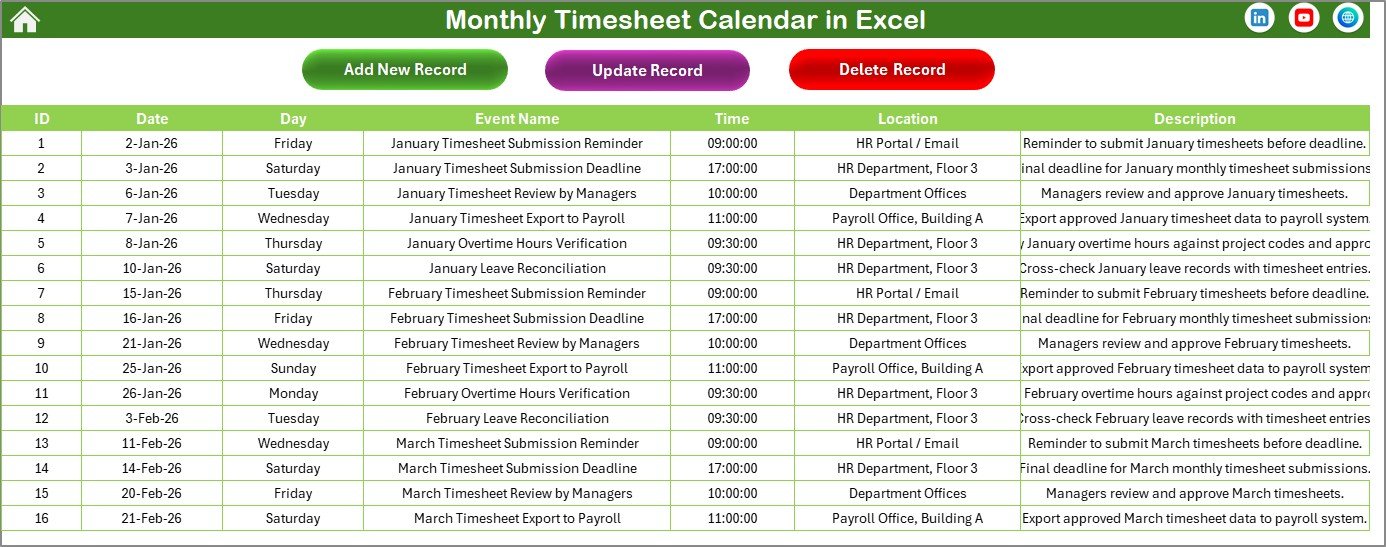 Events Sheet
Also explore the Automated Employee Timesheet Template in Excel for detailed billable-hours tracking, or the Time Tracking Dashboard in Google Sheets if you prefer a cloud-based solution.
📊 Monthly Timesheet Calendar in Excel vs. Google Calendar vs. When I Work — Where This Fits
| Feature | Monthly Timesheet Calendar in Excel | Google Calendar | When I Work |
|---|---|---|---|
| Cost | $4.99 one-time | Free (limited) | $2.50–$8 / user / month |
| Platform | Microsoft Excel (desktop) | Browser / mobile | Browser / mobile app |
| Setup Time | Under 5 minutes | Instant | 30–60 minutes |
| Annual + Monthly + Daily Views | ✅ All 3 built-in | ✅ Yes | ✅ Yes |
| Custom Color Themes | ✅ 5 themes, 1-click switch | Limited | Brand colors only |
| Offline Access | ✅ Full offline | ❌ Needs internet | ❌ Needs internet |
| Event Database with CRUD | ✅ Add / Update / Delete | ✅ Yes | ✅ Yes |
| Weekend Highlighting | ✅ Choose any 2 days | Grey shading only | Not available |
| Year-1 Cost at 5 Users | $4.99 total | $0 | $150–$480 |
For teams that want a visual timesheet calendar with offline access and zero recurring fees, the Monthly Timesheet Calendar in Excel sits in the sweet spot between free tools with limited customization and paid SaaS platforms with per-user pricing.
👥 Who This Template Is For — and Who It’s Not For
✅ This template is built for:
- HR managers at small to mid-size companies (10–200 employees) tracking attendance and events
- Freelancers and consultants logging client meetings, deadlines, and billable activities
- Project managers who need a visual annual and monthly calendar with event details
- School administrators tracking academic events, holidays, and staff schedules
❌ This template is NOT for:
- Enterprise teams needing real-time multi-user collaboration — use Google Calendar or Microsoft Teams
- Organizations requiring GPS-based clock-in/clock-out — use a dedicated time-tracking SaaS
- Teams that need mobile app access for field workers
⚙️ How to Use the Monthly Timesheet Calendar in Excel
1️⃣ Download and open the Excel file. Enable macros when prompted — the VBA-powered forms and buttons require macros to function.
2️⃣ Go to Annual View and set your year, starting month, and starting day of the week in the Input group of the control panel.
3️⃣ Pick a color theme from the Change Theme group — all 5 sheets update instantly.
4️⃣ Highlight weekends by selecting Day of Week (1) and Day of Week (2) in the Highlight group. Check the Highlight Event checkbox to mark events in yellow.
5️⃣ Add events by selecting a date and clicking Add New Event. Fill in the event name, time, location, and description in the popup form.
6️⃣ View events by date using the Monthly View or filter by date range in the Daily View sheet.
7️⃣ Manage records in the Events sheet — add, update, or delete entries using the three action buttons.
💼 Real-World Use Cases
Priya manages HR at a 45-person logistics company in Mumbai. She uses the Monthly Timesheet Calendar in Excel to log employee leave requests, training sessions, and team meetings across the year. The Annual View gives her a quick glance at which months are event-heavy, while the Daily View helps her prepare weekly briefings for management — all without paying for an HR SaaS platform.
James is a freelance web developer in Austin. He tracks client deadlines, milestone reviews, and invoicing dates in the Monthly View. The built-in event form saves him from maintaining a separate spreadsheet, and the 5 color themes let him match his personal brand. Total cost: $4.99 versus $12/month for a project management tool.
Maria runs a private school in Manila. She uses the Events sheet as a master database for parent-teacher meetings, exam schedules, sports days, and holidays. Teachers check the Annual View printed on the staff notice board, while Maria uses the Daily View to plan the upcoming week. The offline access means it works even when the school’s internet drops.
❓ Frequently Asked Questions
What views does the Monthly Timesheet Calendar in Excel include?
The Monthly Timesheet Calendar in Excel includes 5 worksheets: a Home navigation page, Annual View showing all 12 months, Monthly View with single-month detail, Daily View with date-range filtering, and an Events database sheet with full CRUD operations.
Do I need to enable macros to use this template?
Yes, the Monthly Timesheet Calendar in Excel uses VBA macros for the Add New Event form, Show Event button, Update Record, and Delete Record functions. Enable macros when you open the file in Excel for all features to work.
Can I change the calendar year and starting month?
Yes. The Annual View control panel has an Input group where you select the year, starting month, and starting day of the week. The entire calendar regenerates automatically when you change these settings.
How many color themes are available?
The Monthly Timesheet Calendar in Excel includes 5 built-in color themes. Select any theme from the Change Theme group on the Annual View sheet, and every worksheet in the workbook updates to match the selected theme instantly.
How does this compare to When I Work or Google Calendar?
The Monthly Timesheet Calendar in Excel costs $4.99 one-time versus When I Work’s $2.50–$8 per user per month. It works fully offline in Excel, includes 5 color themes, and offers annual, monthly, and daily views — but lacks real-time collaboration and mobile access that cloud tools provide.
Can I add multiple events on the same date?
Yes. The Events sheet stores unlimited events per date. The Monthly View shows one event per cell and displays “more than 1…” when multiple events exist. Click Show Event to see all events for any selected date.
Is this template compatible with Mac?
The Monthly Timesheet Calendar in Excel works in Microsoft Excel for Mac, though some VBA form features may look slightly different than on Windows. All core functionality — calendar views, event management, and theme switching — works on both platforms.
👤 About the Author
Built by PK — Microsoft Certified Professional with 15+ years of Excel, Google Sheets, and Power BI experience. Founder of NextGenTemplates, reaching 300K+ subscribers across YouTube channels (@PK-AnExcelExpert, @NextGenTemplates, @NeoTechNavigators). Every template is hand-built and tested before release.
🔗 Explore Related Templates
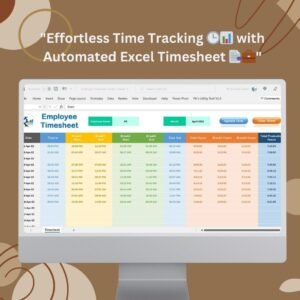
📌 Automated Employee Timesheet Template in Excel — Track billable hours with automated calculations and overtime formulas.
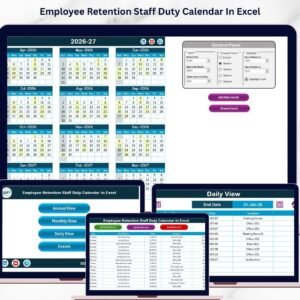
📌 Employee Retention Staff Duty Calendar in Excel — Manage staff duty rosters alongside retention metrics.
📌 Team Performance Scheduling Calendar in Excel — Schedule team activities with built-in performance tracking.
📌 Employee Timesheet for Billable Hours in Google Sheets — Cloud-based alternative for tracking billable time.
📌 Time Tracking Dashboard in Google Sheets — Visual time-tracking dashboard with charts and KPIs.
📖 Click here to read the Detailed Blog Post
🎥 Visit our YouTube channel for step-by-step video tutorials
👉 YouTube.com/@NextGenTemplates