Customer feedback is valuable only when teams act on it. However, many organizations still manage feedback through emails, sticky notes, or unstructured spreadsheets. As a result, feedback items get overlooked, responsibilities remain unclear, and improvement actions stay incomplete.
That is exactly why the Customer Feedback Outline Checklist in Excel is a must-have tool for modern businesses.
This ready-to-use Excel checklist helps you capture, track, and complete customer feedback actions in a structured, visual, and accountable way. Instead of losing feedback across tools, you manage everything in one simple Excel file—clear, organized, and measurable.
🔑 Key Features of Customer Feedback Outline Checklist in Excel
The Customer Feedback Outline Checklist in Excel is designed to simplify feedback tracking without adding complexity.
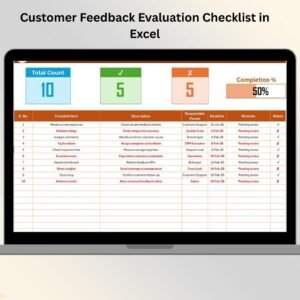
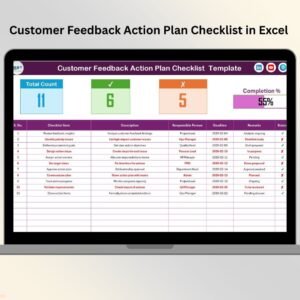
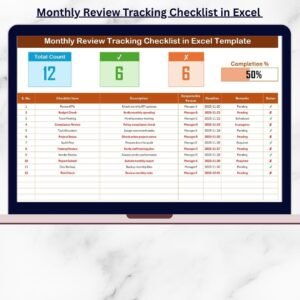
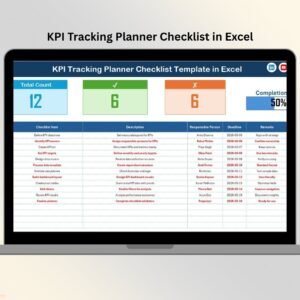
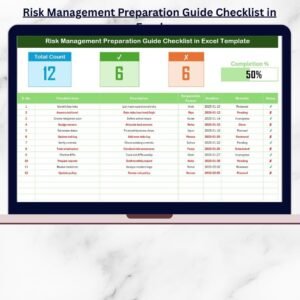
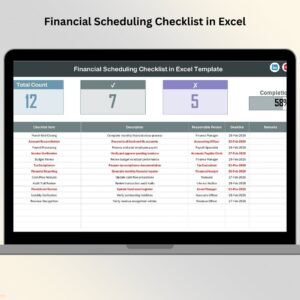
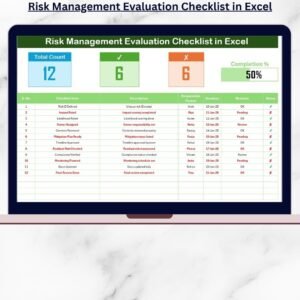
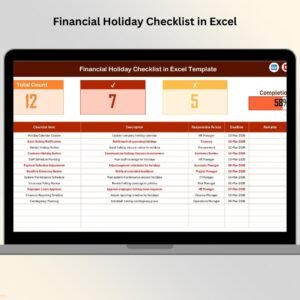
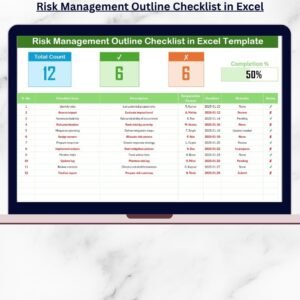
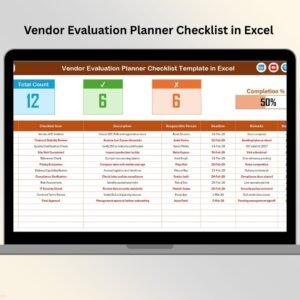
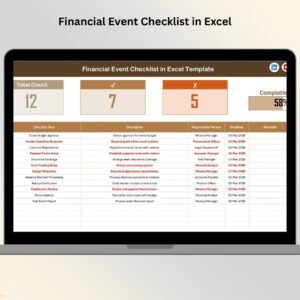
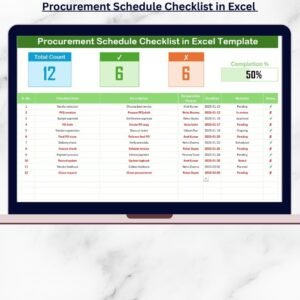
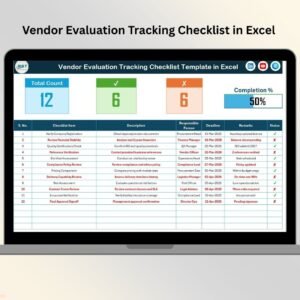
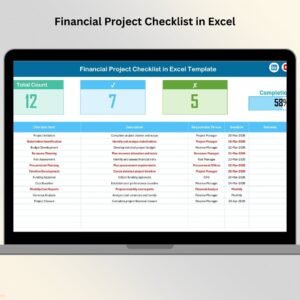
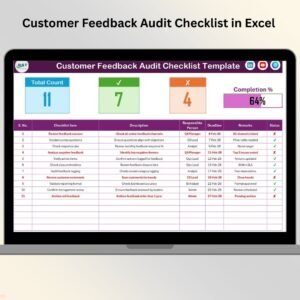
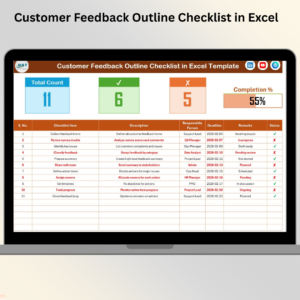
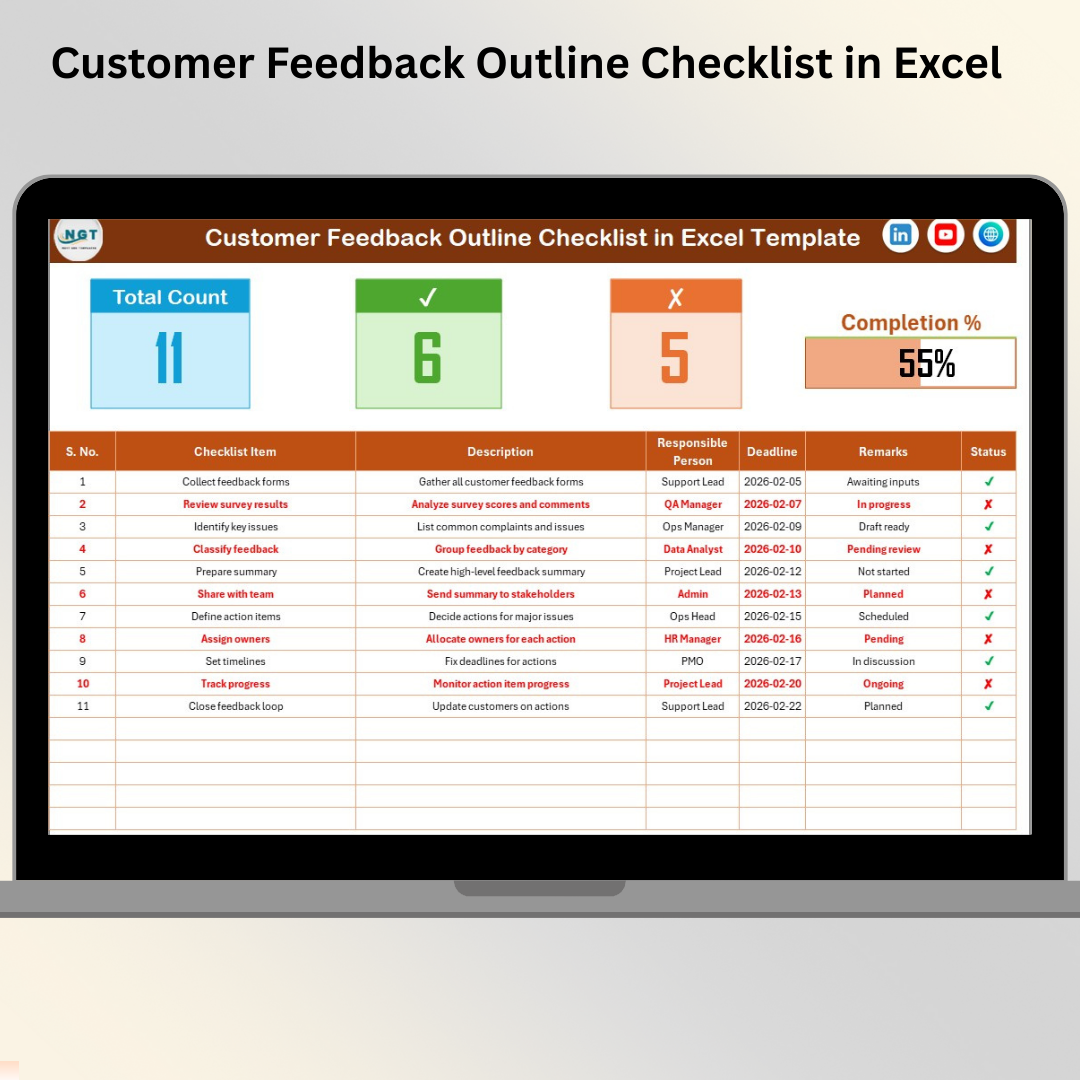
It includes a smart summary section that instantly shows total tasks, completed tasks, pending tasks, and overall progress. A dynamic progress bar visually represents completion percentage, helping teams stay motivated and focused.
The checklist table allows users to track each feedback action with clear ownership, deadlines, and remarks. Status tracking using ✔ (completed) and ✘ (pending) updates the summary automatically, eliminating manual calculations.
Additionally, built-in data validation and drop-downs ensure clean and consistent data entry, especially when assigning responsible persons.
All of this works seamlessly inside Excel—no extra software, no learning curve.
📦 What’s Inside the Customer Feedback Outline Checklist in Excel
This digital product includes two well-structured worksheets, each serving a clear purpose.
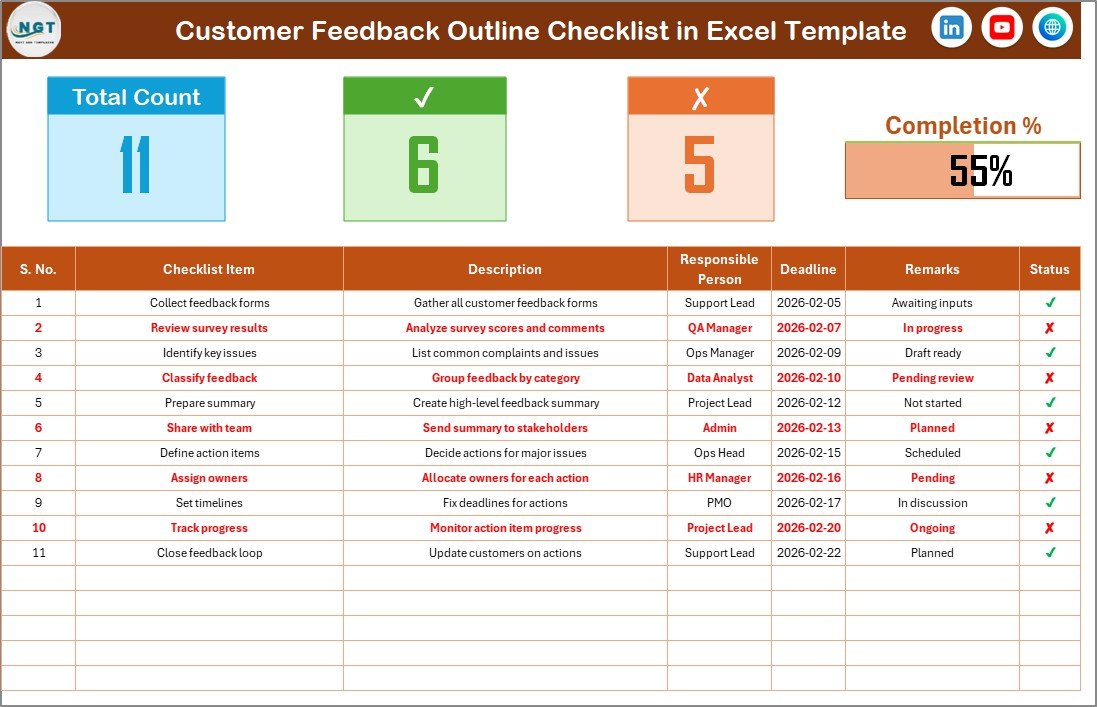
The Customer Feedback Outline Checklist Sheet is the main working area. It contains:
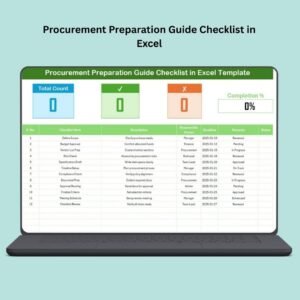
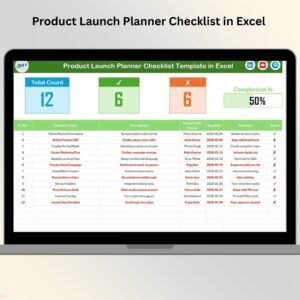
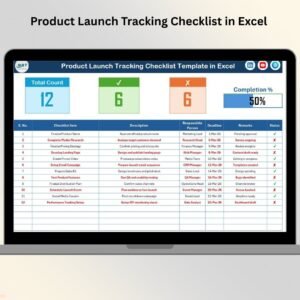
A summary section with total count, checked count, crossed count, and progress bar
A detailed checklist table for tracking feedback-related tasks
The checklist table includes columns such as:
Serial No.
Checklist Item
Description
Responsible Person
Deadline
Remarks
Status (✔ / ✘)
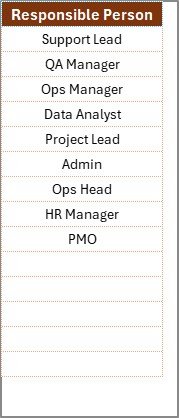
The List Sheet works in the background. It stores a clean list of responsible persons and supports drop-down selection in the main checklist. This avoids spelling errors and keeps responsibility assignment consistent.
Together, these sheets create a smooth and reliable feedback tracking system.
🚀 How to Use the Customer Feedback Outline Checklist in Excel
Using this checklist is simple and intuitive.
First, add your customer feedback-related tasks as checklist items. Write short descriptions, assign a responsible person, and set a deadline for each task.
Next, update the Status column using ✔ for completed tasks and ✘ for pending tasks. As soon as you update the status, the summary metrics and progress bar update automatically.
You can also add remarks to capture additional context or follow-up notes. By reviewing the checklist regularly, teams can quickly identify delays and take corrective actions.
No advanced Excel skills are required—basic Excel knowledge is enough.
👥 Who Can Benefit from This Customer Feedback Outline Checklist in Excel
This checklist is ideal for many teams and business roles.
Customer support teams can track complaint resolution tasks. Quality assurance teams can monitor improvement actions. Operations managers can ensure accountability. Product teams can manage feedback-driven enhancements.
Small and medium businesses benefit greatly because this solution is simple, affordable, and effective.
If your goal is to close feedback loops faster and improve customer satisfaction, this checklist is built for you.
📌 Why This Excel Checklist Is a Smart Choice
The Customer Feedback Outline Checklist in Excel helps you convert feedback into action. It improves accountability, ensures follow-ups happen on time, and keeps everyone aligned.
Because it runs in Excel, there are no subscription costs, no complex setup, and no dependency on external tools. It is a practical solution designed for real-world feedback management.
📖 Click here to read the Detailed blog post
🎥 Visit our YouTube channel to learn step-by-step video tutorials
👉 https://youtube.com/@PKAnExcelExpert
Watch the step-by-step video tutorial: