



Transform the way you manage procurement tasks with our Procurement Schedule Checklist in Excel—a simple, powerful, and ready-to-use tracking tool designed to streamline your entire procurement workflow. Whether you are dealing with vendor coordination, purchase planning, documentation, or internal approvals, this checklist helps you stay organized, avoid delays, and monitor progress with complete clarity. With its clean layout, automated progress bar, and easy dropdown selections, this template ensures your procurement operations run smoothly every single day.Procurement Schedule Checklist in Excel
This digital product is built for teams that want to eliminate confusion and work with a more structured and transparent system. Instead of tracking tasks manually or searching through emails, this Excel checklist brings all procurement activities into one clear and actionable place. Anyone can use it—no advanced Excel skills required.
✨ Key Features of the Procurement Schedule Checklist in Excel
This template includes smart features that make tracking procurement activities effortless and error-free.
📌 Ready-to-Use Checklist Table
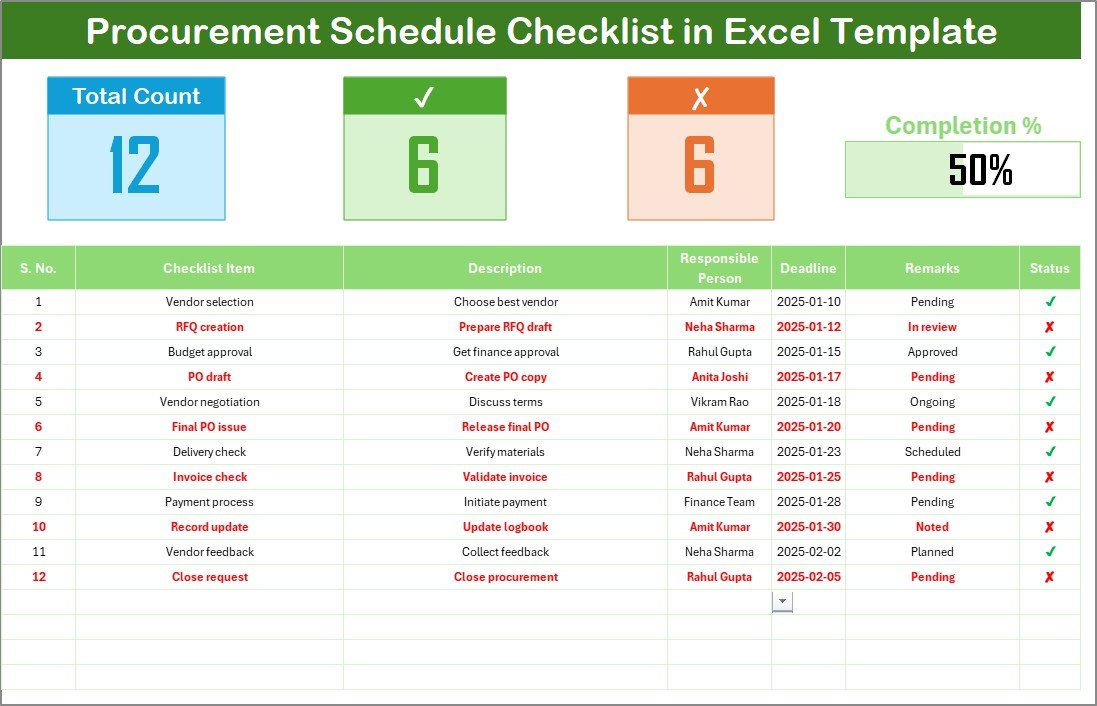
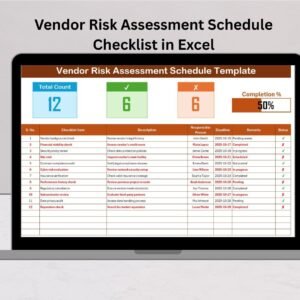
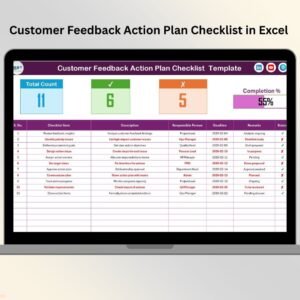
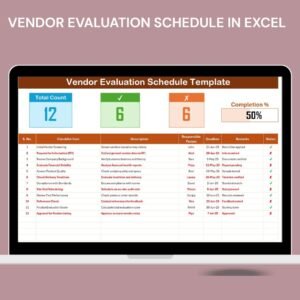
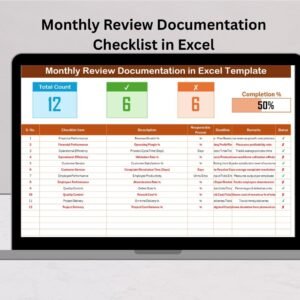
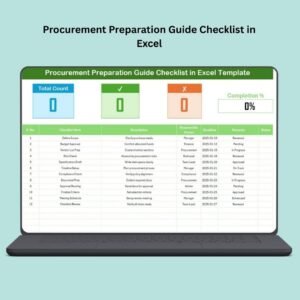
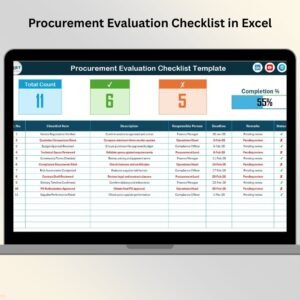
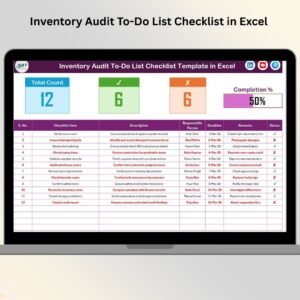
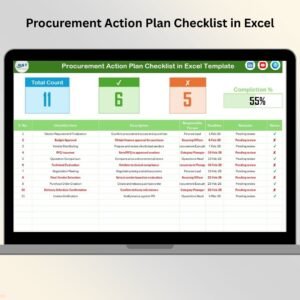
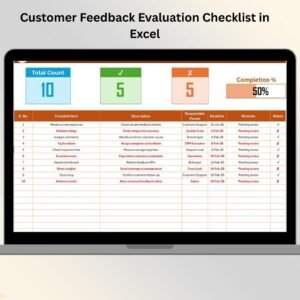
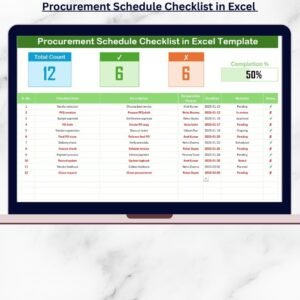
A pre-designed table captures Serial No., Checklist Items, Description, Responsible Person, Deadline, Remarks, and Status. Just enter your tasks and update them easily.
📊 Automated Progress Tracking
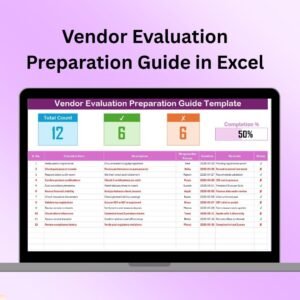
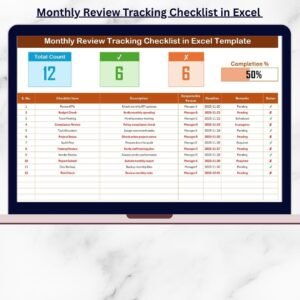
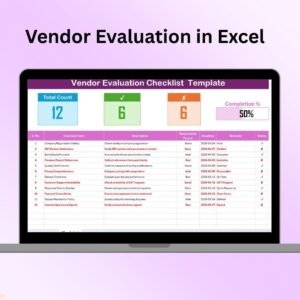
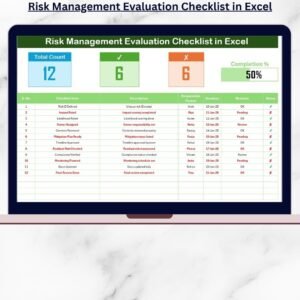
A clean, dynamic progress bar updates automatically based on completed (✔) and pending (✘) tasks—giving you instant visibility of your procurement status.
👥 Drop-Down List for Responsible Persons
No spelling errors or inconsistent names. The template uses a “List Sheet” to maintain a unique list of responsible persons, making selection quick and standardized.
📈 Summary Cards for Quick Insights
Get real-time updates on Total Tasks, Completed Tasks, Pending Tasks, and overall Progress %, all displayed clearly at the top of the sheet.
📝 Easy Status Update System
Mark tasks with ✔ for completed and ✘ for pending. No formulas to change—just update and watch your dashboard refresh instantly.
📂 What’s Inside the Procurement Schedule Checklist in Excel
Inside this digital product, you get a well-structured, user-friendly Excel file with everything built for you:
🔹 Main Checklist Sheet
This is the heart of the template, where you see:
Summary cards
Progress bar
Complete checklist table
Status updates using check or cross
🔹 List Sheet
Contains a clean, editable list of responsible persons so you can maintain neat dropdowns in the main checklist.Procurement Schedule Checklist in Excel
🔹 Built-in Validations
To prevent errors and maintain clean, standardized data.
🔹 Professional Formatting
Clear colors, filters, borders, and table formatting to ensure smooth usability.
🛠 How to Use the Procurement Schedule Checklist in Excel
Using this template is extremely simple—follow these steps:
1️⃣ Enter Your Procurement Tasks
Add all items that need tracking: approvals, vendor communications, orders, documentation, etc.
2️⃣ Assign a Responsible Person
Choose from the drop-down list for error-free entry.
3️⃣ Select a Deadline
Set realistic due dates for each task to keep the process aligned.
4️⃣ Update Status
Use ✔ when the task is done and ✘ when pending.
5️⃣ Monitor Progress
The summary and progress bar update automatically—no manual calculations needed.
6️⃣ Use Filters
Quickly search tasks based on responsible person, due date, or status.
👤 Who Can Benefit from This Procurement Schedule Checklist in Excel
This professionally designed template iseProcurement Schedule Checklist in Excel:
✔ Procurement Teams
Track purchase orders, vendor follow-ups, and documentation.
✔ Supply Chain Managers
Monitor procurement timelines across multiple projects.
✔ Project Management Teams
Track material procurement steps for large projects.
✔ Admin & Operations Teams
Manage internal purchases with full visibility.
✔ Startups & Small Businesses
Stay organized without investing in expensive procurement software.
✔ Consultants & Freelancers
Use the checklist to track client procurement requirements.
This template gives structure, accountability, and complete transparency—making procurement smoother for everyone involved.
### Click here to read the Detailed blog post
Watch the step-by-step video tutorial:












Reviews
There are no reviews yet.