



Managing conference calls across departments, clients, and global teams can be overwhelming. Without a structured system, companies face overlapping calls, missed follow-ups, and poor accountability. The Conference Call Schedule Tracker in Excel solves this by transforming a simple spreadsheet into a powerful scheduling tool enhanced with VBA automation.
With built-in login forms, dashboards, and automated data entry, this tracker centralizes all your call schedules in one place. Whether you’re a small team or a large enterprise, this Excel-based tool ensures conference calls are organized, visible, and secure.
✨ Key Features of the Conference Call Schedule Tracker

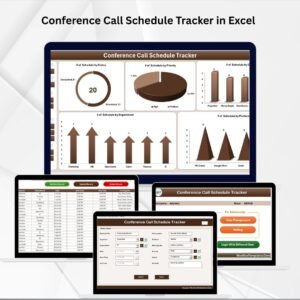
🔐 Login Form – Secure entry with User ID & Password (default Admin1/abcd), preventing unauthorized access.
🏠 Main Form – A central hub for navigation across schedules, dashboards, and user management.
📊 Dashboard Sheet – Five slicers and five charts showing schedules by status, priority, organizer, department, and platform.
📝 Data Entry Form – Add, update, or delete records with user-friendly forms. Entries update the dashboard instantly.
⚙️ Manage List Sheet – Customize dropdowns for organizers, departments, or platforms to standardize data entry.
📈 Support Sheet – Pivot tables powering dashboards, fully automated in the background.
👥 User Management – Add, delete, or update users and passwords for multiple team members.
🔧 Settings Sheet – Store configurations and adjust tool behavior to fit your workflow.
👨👩👧👦 Multi-User Login – Different users access the system with unique credentials for accountability.
📂 What’s Inside the Tracker
Login Form – Secures access and tracks usage.
Main Form – Central navigation for all features.
Dashboard – Visual insights into call scheduling patterns.
Data Entry – Add, update, or delete schedules quickly.
Manage List – Customize dropdown values.
Support Sheet – Pivot-based engine for automation.
User Management – Control access with unique credentials.
Settings – Customize tool behavior without affecting data.
🛠 How to Use the Conference Call Schedule Tracker
Login with assigned credentials.
Navigate via Main Form to dashboards, data entry, or settings.
Add New Records using the form for date, time, department, organizer, and platform.
Update/Delete Records to keep schedules accurate.
Review Dashboards to track scheduling distribution.
Customize Dropdowns in Manage List for standardization.
Control Access through User Management.
Adjust Settings to suit organizational workflows.
👥 Who Can Benefit from This Tracker
🏢 Corporate Teams – Organize cross-department calls.
🌍 Global Businesses – Manage time-zone sensitive meetings.
📞 Call Centers – Track schedules by organizer & department.
👨💼 Project Managers – Avoid overlaps & missed calls.
🏫 Training & Education Firms – Schedule sessions & follow-ups.
🧑🤝🧑 SMBs & Startups – Get structured scheduling without costly software.
🌟 Advantages
✅ Centralized Scheduling – All call details in one file.
✅ Real-Time Updates – Dashboards refresh automatically.
✅ Time-Saving – Automated forms reduce manual errors.
✅ Customizable – Dropdowns, users, and settings adapt to your needs.
✅ Secure Access – Multi-user login with password protection.
✅ Scalable – Works for individuals, teams, and enterprises.
✅ Cost-Effective – Avoids costly scheduling software.
🚀 Opportunities for Improvement
🔄 Calendar Integration – Sync with Outlook or Teams.
📧 Email Reminders – VBA-based alerts for upcoming calls.
📱 Mobile Access – A simplified version for smartphones.
📊 Advanced KPIs – Track call durations & organizer performance.
📌 Click here to read the Detailed blog post
Visit our YouTube channel to learn step-by-step video tutorials
Watch the step-by-step video tutorial:
Compatibility and Requirements
- Works in Microsoft Excel desktop on Windows with macros enabled. It does not run in Excel for the web, Google Sheets or mobile. Microsoft explains how in Enable or disable macros in Microsoft 365 files.
- The Dashboard sheet uses slicers and charts, and the Support sheet holds the pivot tables behind them.
- Sign in on the Login Form with a User ID and password. The default login is Admin1 / abcd.
Frequently Asked Questions
What does the Dashboard show?
The Dashboard sheet has five slicers and five charts. They show schedules by status, priority, organizer, department and platform.
Can several people use the tracker?
Yes. The User Management form lets you add, update or delete users and passwords, so each person signs in with their own credentials.
How do I add or change a call?
Use the Data Entry Form to add, update or delete a record with the date, time, department, organizer and platform. The dashboard updates with the new entry.
Can I change the dropdown values?
Yes. The Manage List sheet lets you edit the lists for organizers, departments and platforms so everyone enters data the same way.
Is there a Google Sheets version?
Yes. See the Conference Call Schedule Tracker in Google Sheets.
Related Scheduling Templates
- Conference Call Schedule Tracker in Google Sheets: the same tracker for Google Sheets
- Email Reminder Scheduler in Excel: schedule reminders for upcoming events
- Conference Setup Checklist in Excel: a checklist for preparing a conference
- Call Center Operations KPI Dashboard in Excel: a KPI view for call teams
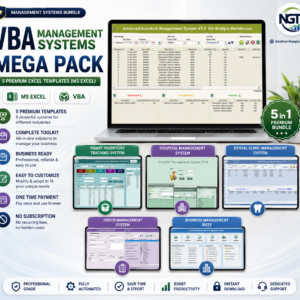
- VBA Management Systems Mega Pack: 5 Excel templates with VBA in one download
Browse all Excel trackers and VBA tools.












Reviews
There are no reviews yet.