

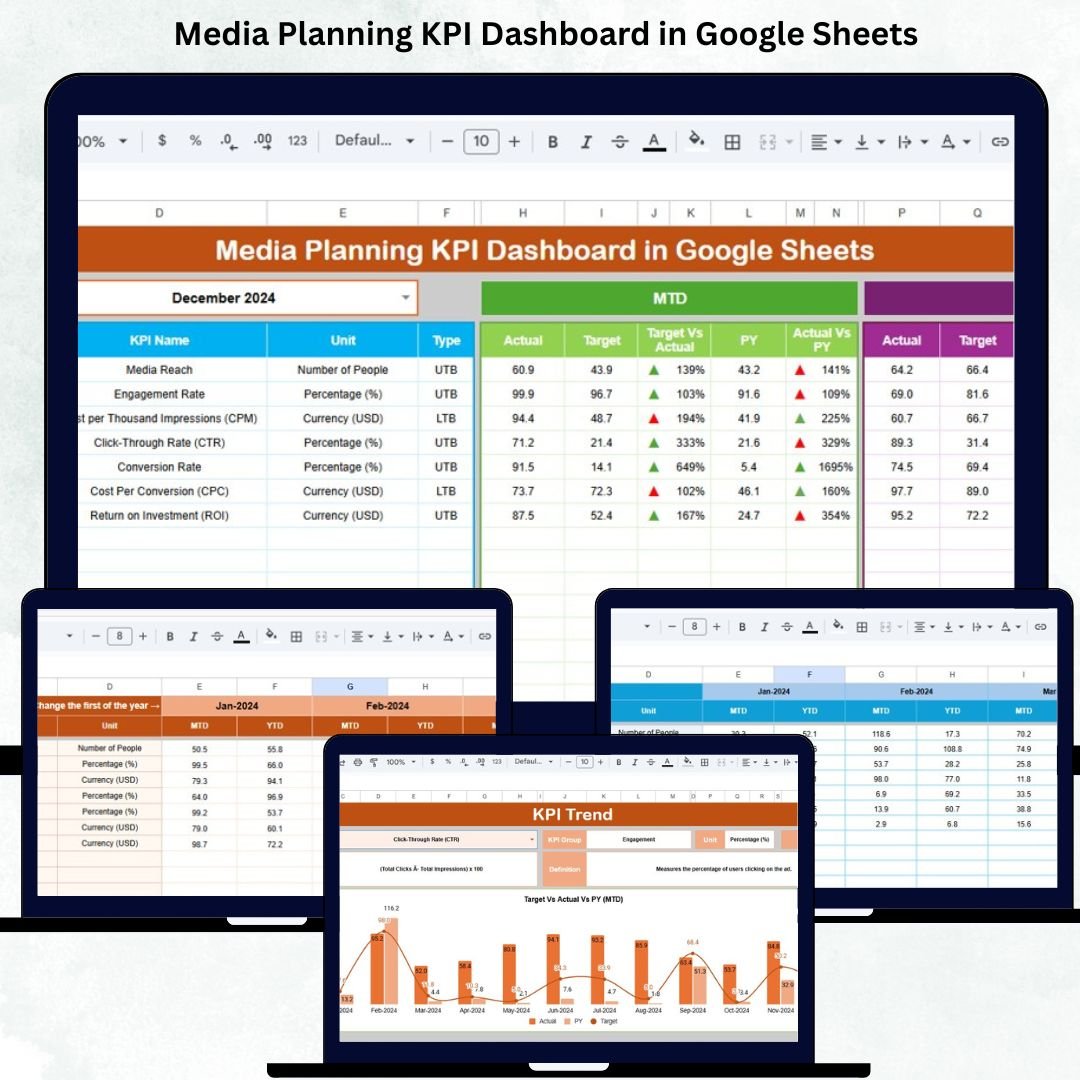
Monitoring media performance is no longer optional—it’s essential. Whether you’re running ads on Google, Meta, YouTube, LinkedIn, or multiple platforms at once, you need clear visibility into spend, performance, conversions, and budget impact. The Media Planning KPI Dashboard in Google Sheets gives marketers, agencies, and advertisers a complete, real-time view of campaign effectiveness in one clean, automated, and cloud-based platform.Media Planning KPI Dashboard in Google Sheets
Instead of downloading endless reports or manually calculating each KPI, this dashboard shows you everything instantly—impressions, reach, clicks, conversions, CPM, CPC, CPA, spend utilization, and ROI. You can see what’s working, what isn’t, and where to optimize without ever leaving Google Sheets.
✨ Key Features of the Media Planning KPI Dashboard in Google Sheets
📊 1. Fully Automated Dashboard
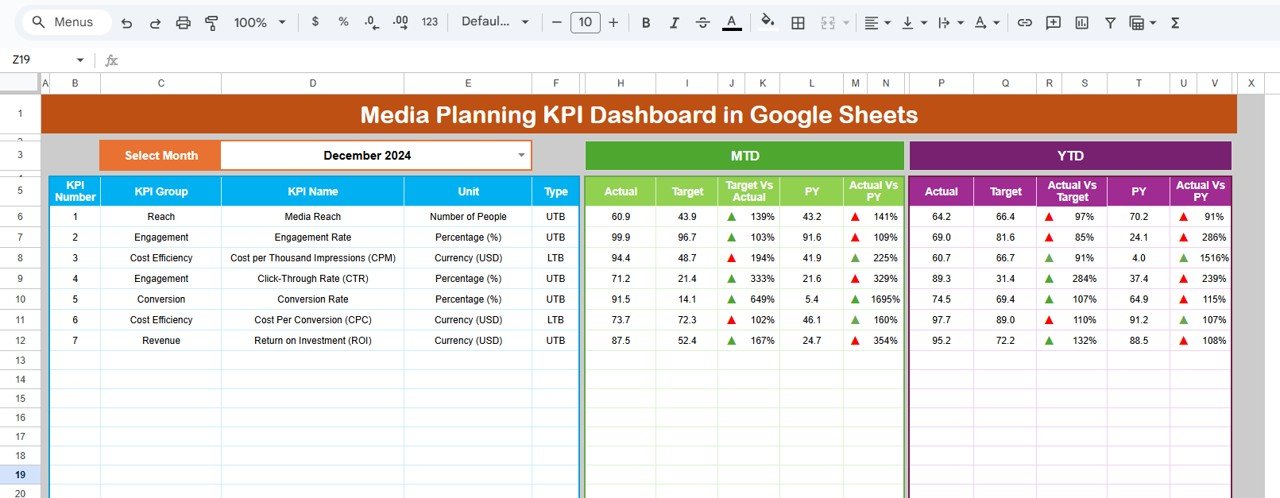
The main Dashboard Sheet gives a complete summary of all media performance metrics. Select any month in cell D3, and the entire dashboard updates instantly. You can instantly see:
MTD Actual, Target, Previous Year
MTD Target vs Actual
MTD Previous Year vs Actual
YTD Actual, Target, Previous Year
YTD comparisons with up/down arrows
Green arrows show improvement, red arrows highlight decline—perfect for quick decision-making.
📆 2. Monthly & Yearly KPI Tracking
Compare real-time results with planned targets and last year’s performance. This helps you identify whether your campaigns are improving, stagnating, or declining.
📈 3. KPI Trend Analysis
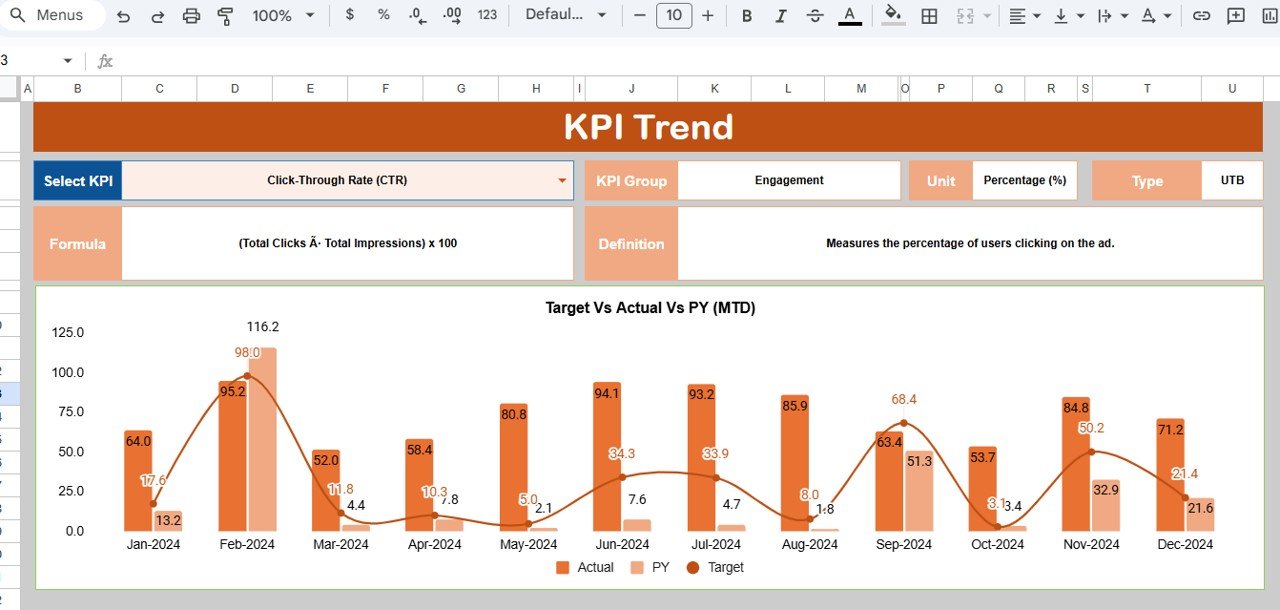
The KPI Trend sheet allows users to analyze one KPI at a time. Select any KPI from the dropdown, and the sheet shows:
KPI Group
Unit of Measurement
KPI Type (UTB/LTB)
KPI Formula
KPI Definition
Monthly trend chart
This makes deep-dive analysis easy and fast.
🧮 4. Actual Performance Entry Sheet
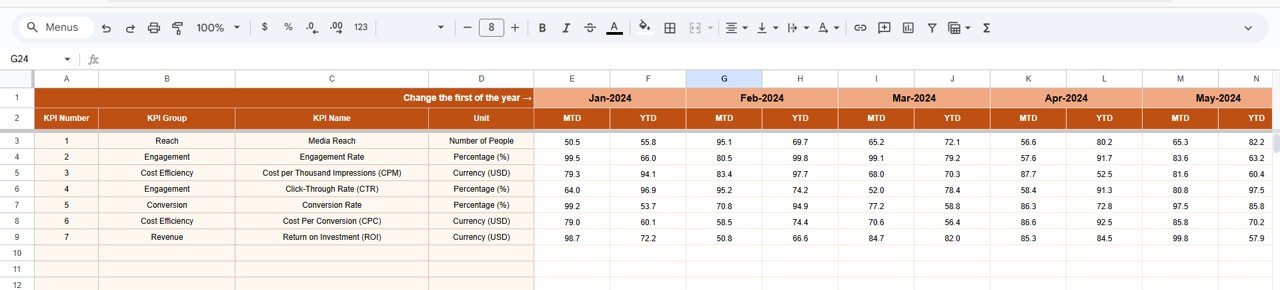
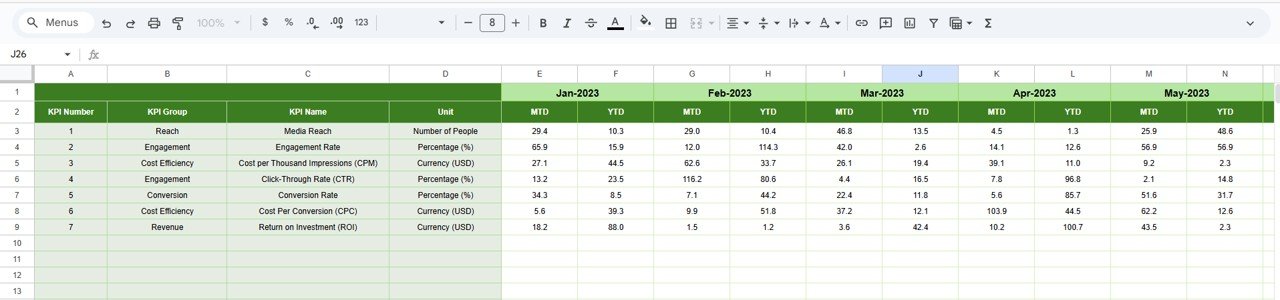
The Actual Number Sheet stores monthly actual values for all KPIs. Update MTD and YTD numbers, and the dashboard refreshes automatically. Set your starting month in E1 for proper yearly alignment.
🎯 5. Target Planning Sheet
Set monthly and yearly goals for impressions, reach, conversions, CPC, CPM, ROAS, and more. This sheet ensures your media strategy remains aligned with business objectives.
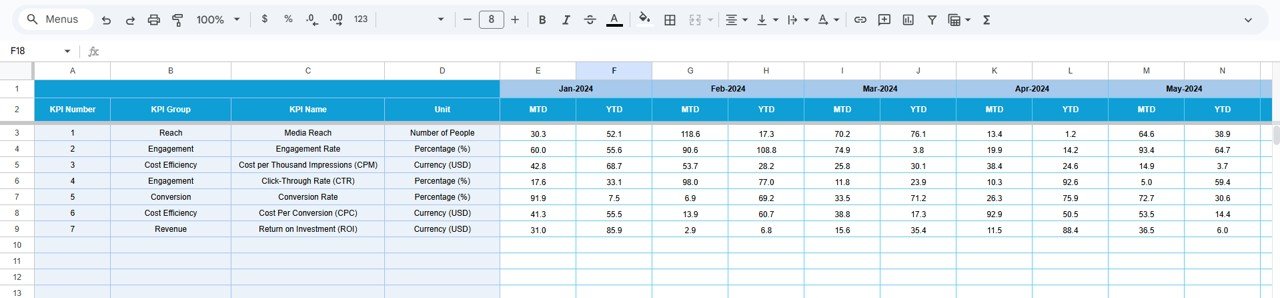
📅 6. Previous Year Comparison Sheet
Track previous year’s performance to quickly evaluate year-over-year growth. This helps teams set achievable targets and understand long-term trends.
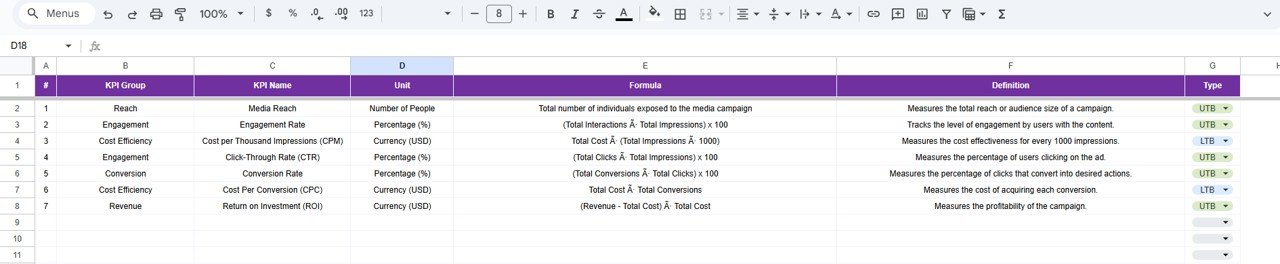
📘 7. KPI Definition Sheet
This sheet includes full definitions of all KPIs. Whether you’re training new team members or aligning reporting across departments, this sheet ensures consistency and accuracy.
📦 What’s Inside the Media Planning KPI Dashboard in Google Sheets
📊 Dashboard Sheet – Main Control Center
This sheet displays every important KPI with conditional formatting, indicators, and automatic updates.
📈 KPI Trend Sheet – Deep KPI Insights
Perfect for analyzing engagement patterns, cost fluctuations, conversion behavior, and efficiency metrics.
🧮 Actual Numbers Sheet
Input real performance numbers here. Dashboard and trends pull data automatically.
🎯 Target Sheet
Set budget goals, impression goals, conversion targets, or ROAS benchmarks for each month.
📅 Previous Year Sheet
A full historical comparison for smart planning.
📘 KPI Definition Sheet
A detailed reference list for all media KPIs.
🛠️ How to Use the Media Planning KPI Dashboard in Google Sheets
1️⃣ Enter Actual Values
Update monthly numbers for all KPIs in the Actual sheet.
2️⃣ Set Monthly & Yearly Targets
Use the Target Sheet to plan expected performance.
3️⃣ Choose the Reporting Month
Select the month in D3 to refresh the dashboard automatically.
4️⃣ Analyze KPIs Visually
Use green/red arrows to quickly identify strong and weak performance.
5️⃣ Deep-Dive with Trends
Use the KPI Trend sheet to understand monthly behavior and optimize strategy.
6️⃣ Compare Year-over-Year
Review PY data to understand growth and align marketing goals.
🎯 Who Can Benefit from This Media Planning KPI Dashboard in Google Sheets
📈 Marketing Teams
Track reach, engagement, conversions, and ROI for all campaigns.
🏢 Advertising Agencies
Provide clean, professional KPI reports to clients.
🧠 Media Planners & Buyers
Monitor placements, efficiency, and budget allocation.
🎥 Content & Creative Teams
Understand how creatives impact performance.
💼 Business Owners & CMOs
Make informed decisions using clear monthly and yearly data.
Click here to read the Detailed blog post
Watch the step-by-step video Demo:
Visit our YouTube channel to learn step-by-step video tutorials — Youtube.com/@NeotechNavigators
Compatibility and Requirements
- Works in Google Sheets. You need a free Google account and a web browser.
- You pick the reporting month in cell D3 and the KPI on the KPI Trend sheet from a dropdown. Google explains dropdowns in Create an in-cell dropdown list.
Frequently Asked Questions
Which sheets are included?
Six sheets: Dashboard, KPI Trend, Actual Numbers, Target, Previous Year Number and KPI Definition.
How do I change the month shown on the dashboard?
Select the month in cell D3 on the Dashboard sheet. The MTD and YTD figures, targets, previous year values and arrows update for that month.
How do I enter my own media results?
Type the monthly MTD and YTD values for each KPI into the Actual Numbers sheet. Set your starting month in cell E1 so the year lines up correctly.
What does the KPI Trend sheet show?
Pick one KPI from the dropdown and the sheet shows its group, unit of measurement, type (UTB or LTB), formula, definition and a monthly trend chart.
Is there an Excel version?
Yes. See the Media Planning KPI Dashboard in Excel.
Related Media and Marketing Templates
- Media Planning KPI Dashboard in Excel: the same dashboard for Excel
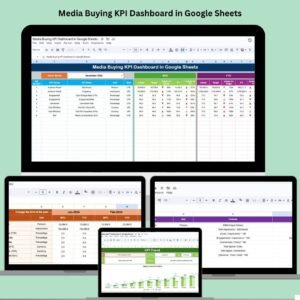
- Media Buying KPI Dashboard in Google Sheets: a media buying view in Google Sheets
- Social Media Performance Dashboard in Google Sheets: track social channel results
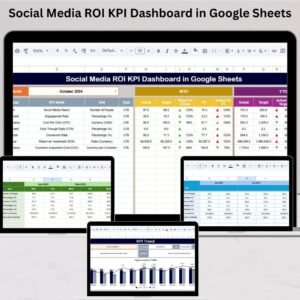
- Social Media ROI KPI Dashboard in Google Sheets: return on social spend
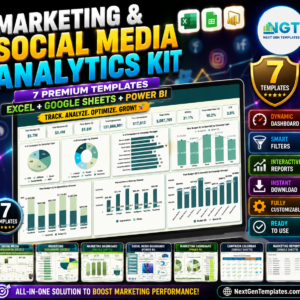
- Marketing and Social Media Analytics Kit: 7 marketing templates in one download
Browse all Google Sheets KPI dashboards.














Reviews
There are no reviews yet.