

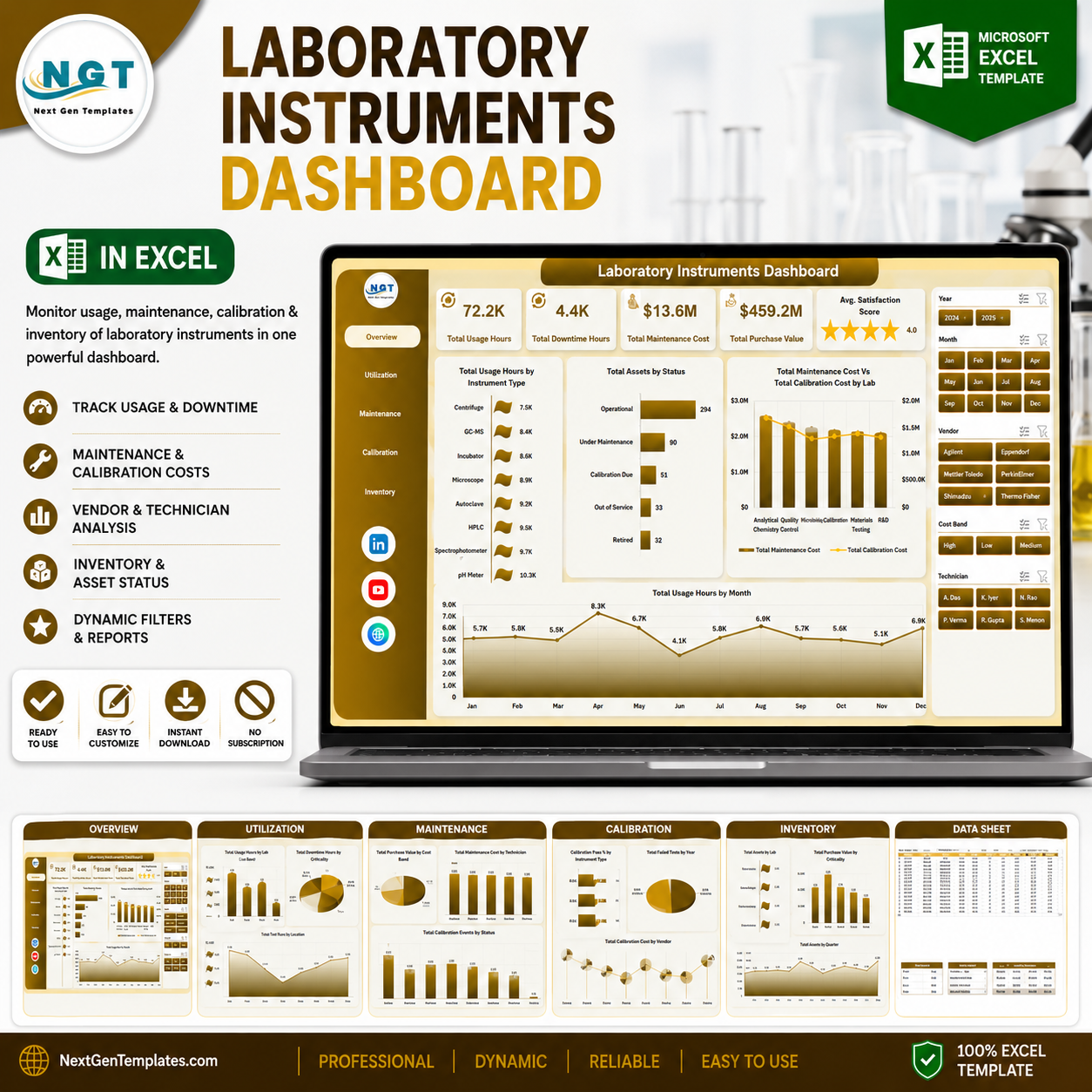


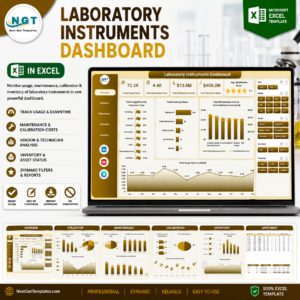
Laboratory Instruments Dashboard in Excel helps lab managers turn usage hours, downtime, maintenance cost, calibration cost, purchase value, assets, test runs, technicians, vendors, labs, and locations into a clear Excel reporting system. The workbook includes 5 analysis dashboard pages, 5 headline KPI cards, 20 focused charts, a data sheet, and a support sheet. Built by PK, a Microsoft Certified Professional with 15+ years of spreadsheet experience and 300K+ YouTube subscribers, this template gives you a one-time downloadable file you can review before publishing and customize after purchase.
Laboratory Instruments Dashboard in Excel
Key Features of Laboratory Instruments Dashboard in Excel
- 5 dashboard pages: Overview, Utilization, Maintenance, Calibration, and Inventory.
- Executive KPI cards: Total Usage Hours, Total Downtime Hours, Total Maintenance Cost, Total Purchase Value, and Avg. Satisfaction Score.
- Interactive slicers: Filter the dashboard quickly by key lab, instrument, status, location, vendor, month, and operational dimensions.
- Maintenance visibility: Review downtime, maintenance cost, calibration cost, technician workload, and cost bands.
- Calibration tracking: Monitor pass percentage, failed tests, vendor cost, and purchase value by location.
- Inventory analysis: Track assets by lab, quarter, criticality, status, and calibration cost trends.
- Editable Excel structure: Replace sample data in the data sheet, refresh pivots, and update charts without rebuilding the model.
What’s Inside the Laboratory Instruments Dashboard in Excel
1. Overview Page
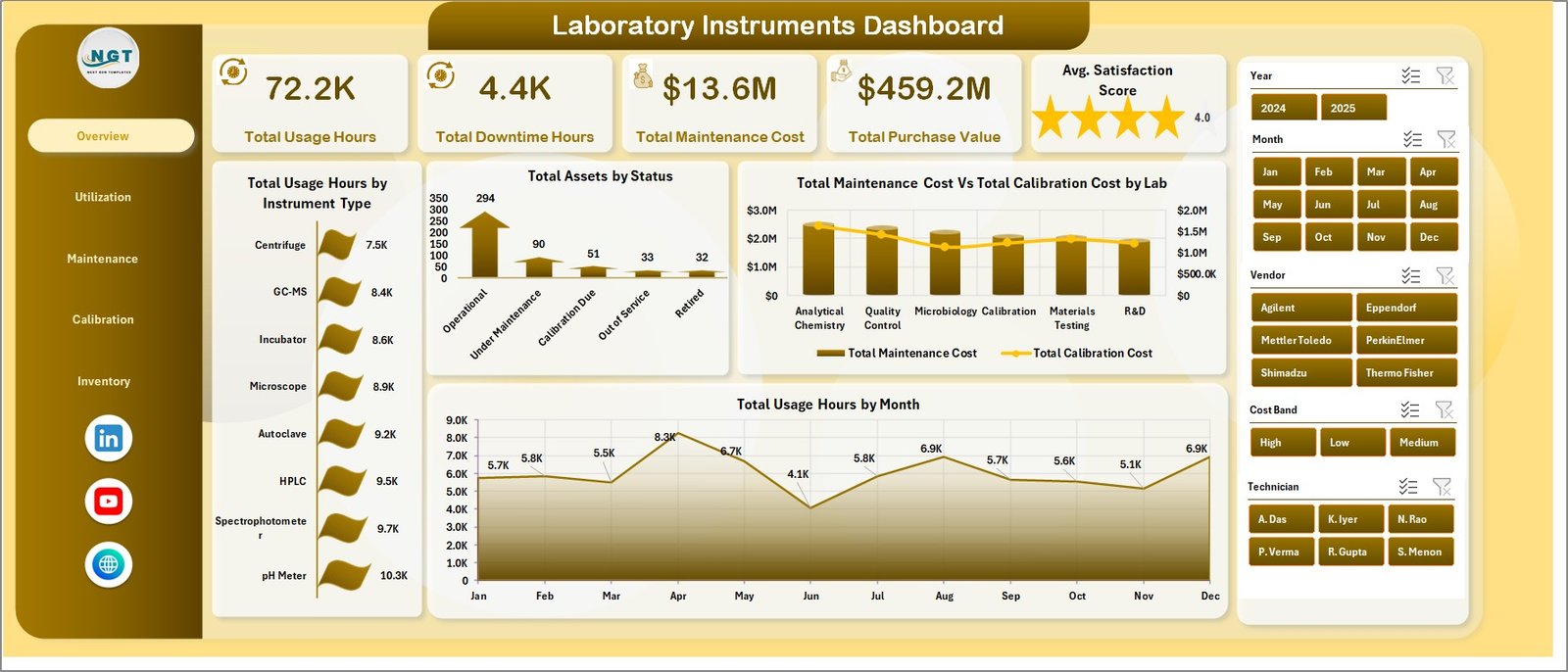
The Overview Page gives a high-level view of laboratory instrument performance. The top cards summarize total usage hours, total downtime hours, total maintenance cost, total purchase value, and average satisfaction score so leadership can understand the current position quickly.
Total Usage Hours by Instrument Type: This chart compares utilization across different equipment groups. It helps identify which instrument categories carry the highest workload and which may be underused.
Total Assets by Status: This visual shows how assets are distributed across operating, maintenance, retired, or other status groups. It helps teams see whether too many instruments are inactive or pending action.
Total Maintenance Cost Vs Total Calibration Cost by Lab: This chart compares two major cost lines by lab. It helps managers detect labs where upkeep or calibration spending needs review.
Total Usage Hours by Month: This trend shows monthly equipment usage movement. It helps teams spot seasonal demand, workload spikes, and lower-activity periods.
2. Utilization
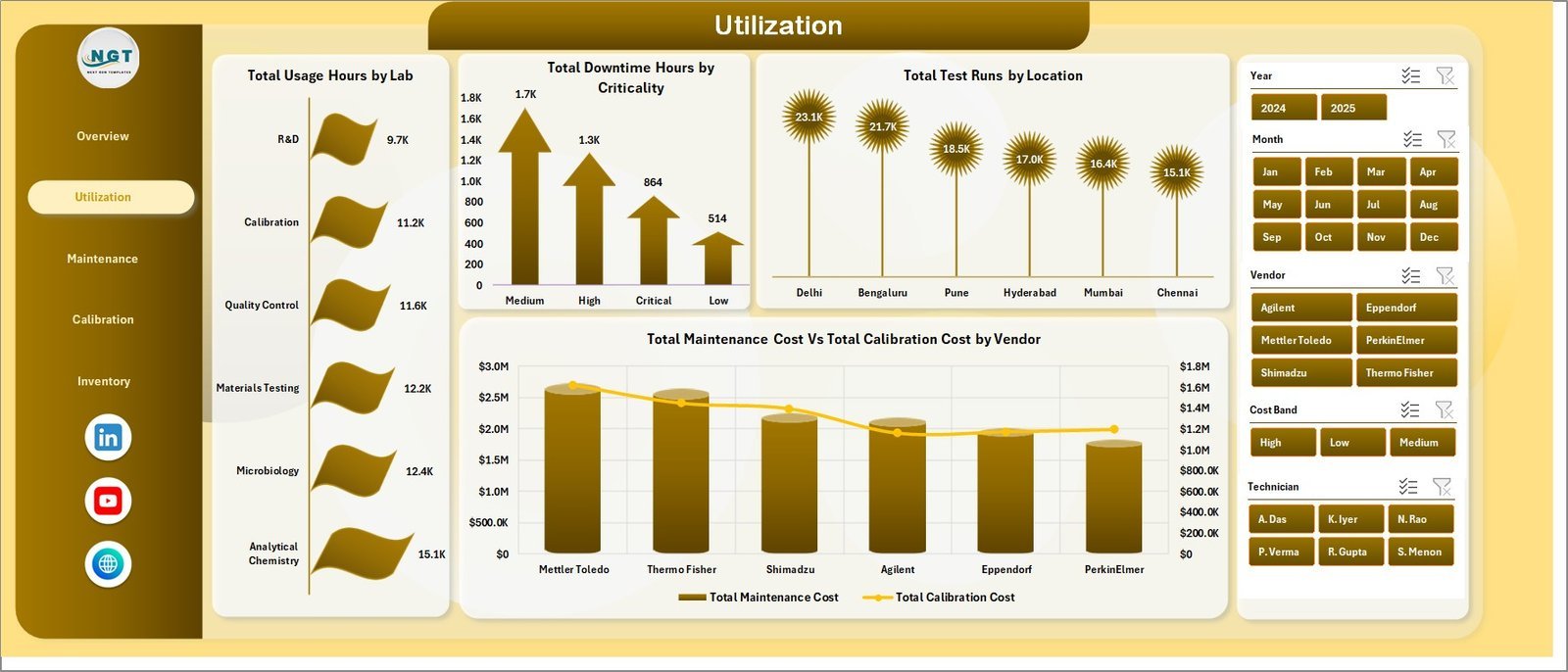
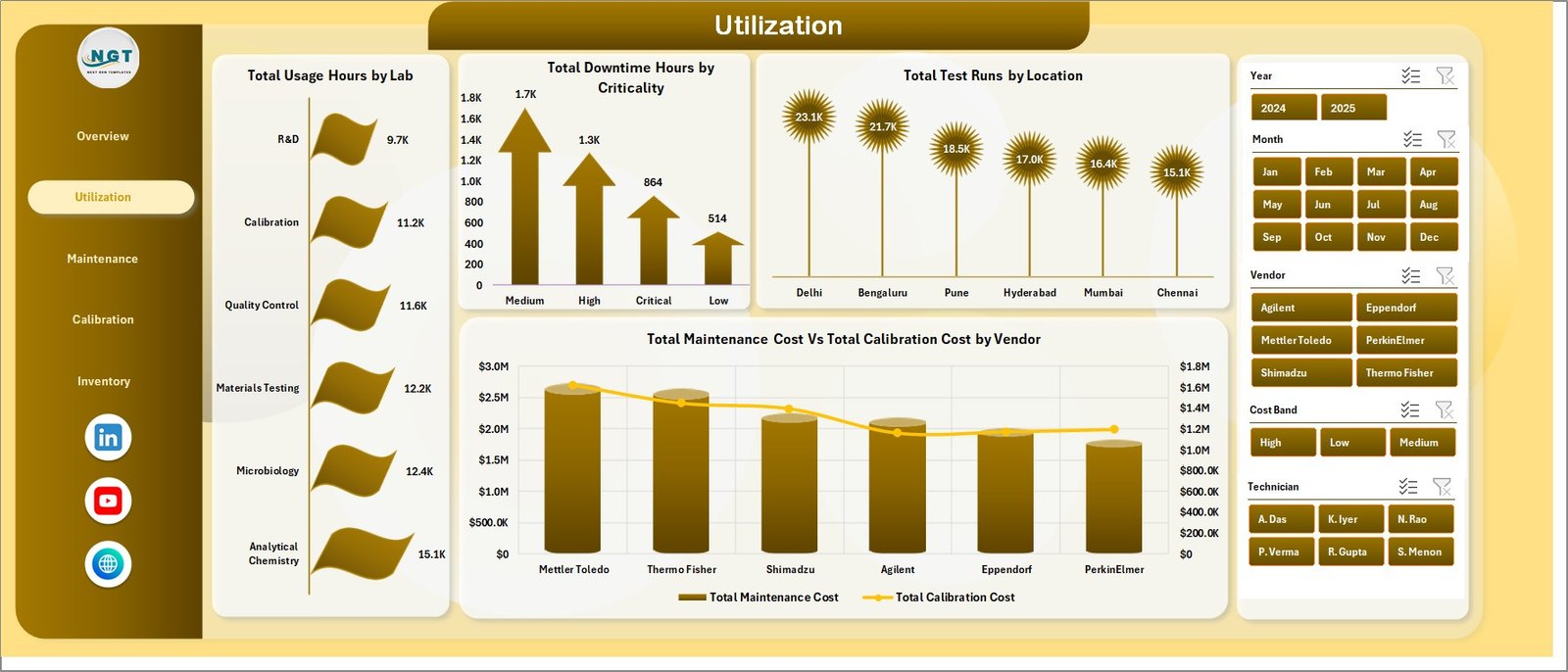
The Utilization page focuses on how instruments are used across labs, locations, criticality levels, and vendors. It is useful for operations teams that want to match demand, downtime, and cost with equipment availability.
Total Usage Hours by Lab: This chart compares total instrument activity across labs. It helps identify high-demand labs that may need extra equipment capacity.
Total Downtime Hours by Criticality: This visual groups downtime by instrument criticality. It helps prioritize attention on high-impact equipment before service delays increase.
Total Test Runs by Location: This chart shows testing volume by location. It helps compare operational workload across sites or lab areas.
Total Maintenance Cost Vs Total Calibration Cost by Vendor: This chart compares vendor-level service and calibration spend. It helps review supplier cost patterns and contract decisions.
Utilization
3. Maintenance
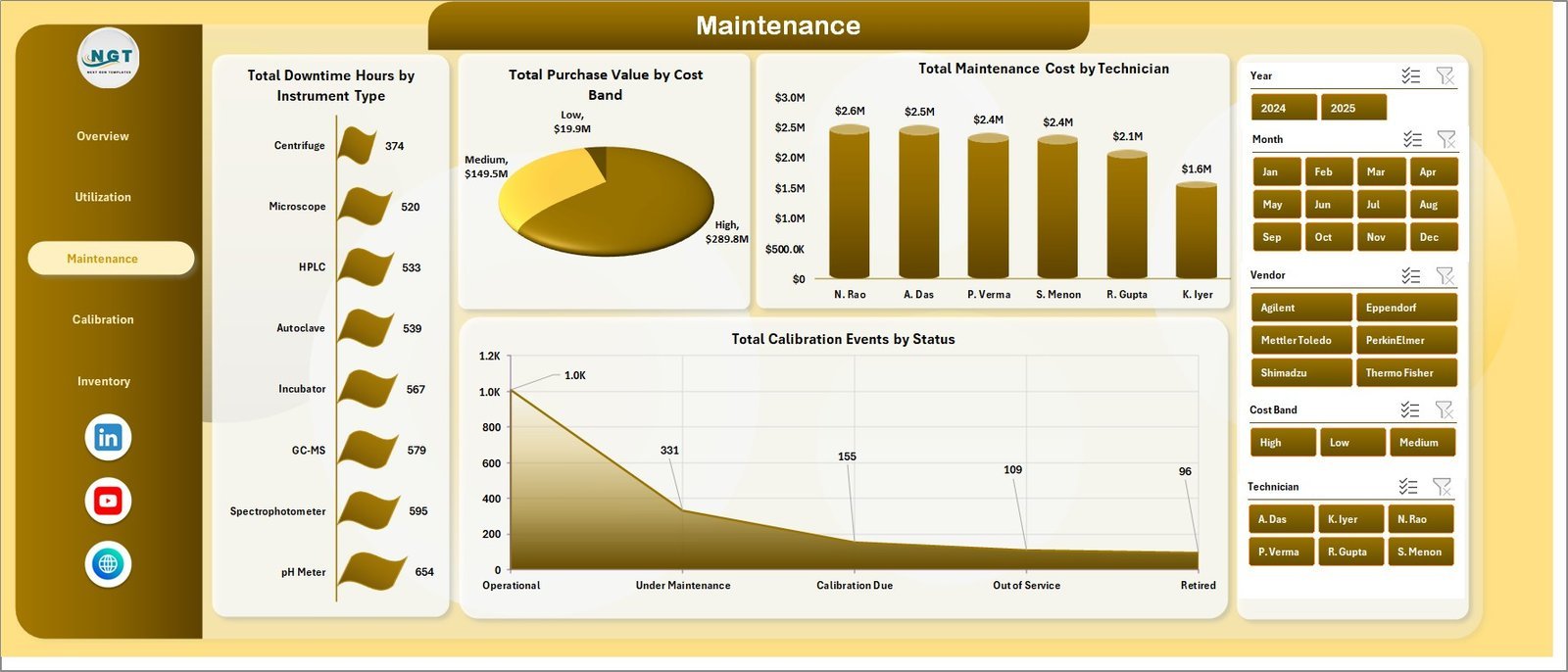
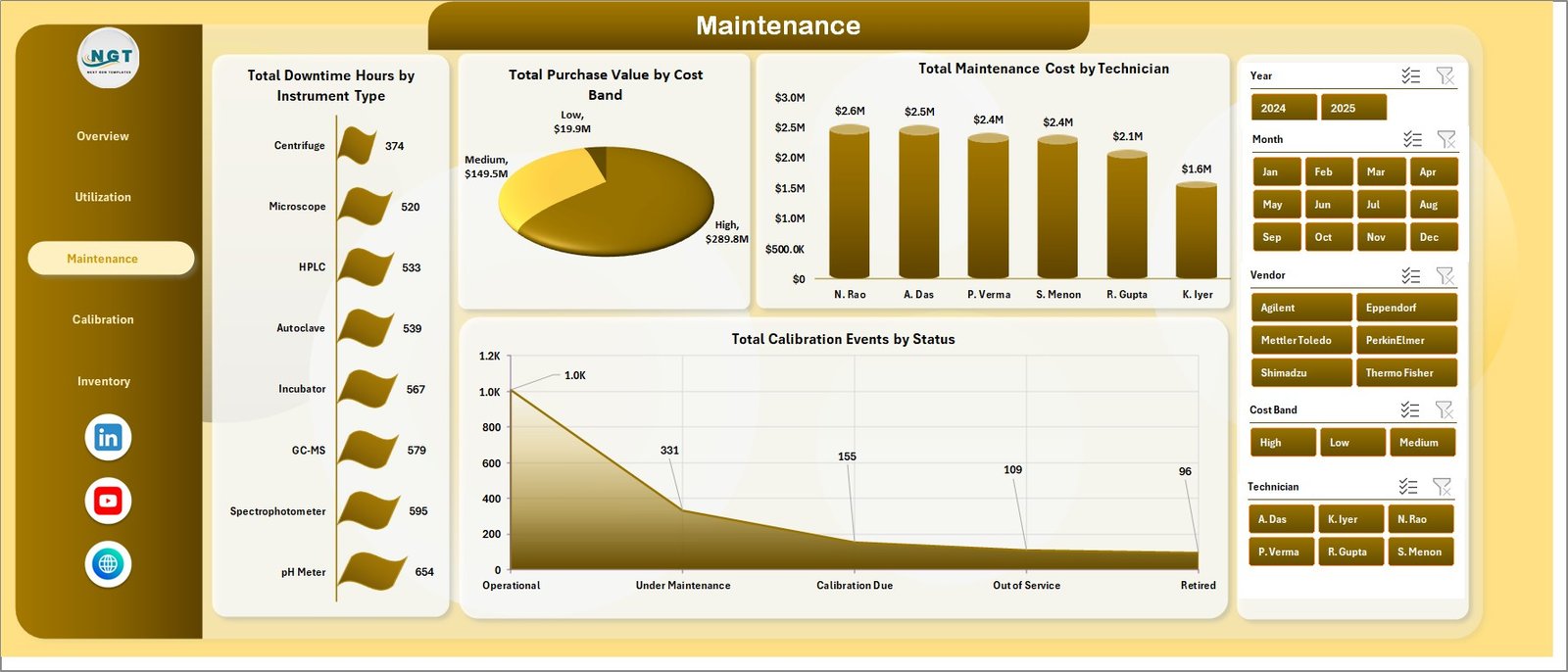
The Maintenance page explains downtime, asset value, technician cost, and calibration event status. It supports maintenance planning, cost control, and responsibility tracking.
Total Downtime Hours by Instrument Type: This chart highlights which instrument types create the most downtime. It helps maintenance teams decide where preventive action is needed first.
Total Purchase Value by Cost Band: This visual groups instruments by investment level. It helps leaders understand how much value is tied to low, medium, or high-cost equipment.
Total Maintenance Cost by Technician: This chart compares maintenance cost by assigned technician. It helps review workload, service activity, and cost concentration.
Total Calibration Events by Status: This visual shows calibration events by completion or status group. It helps teams follow up on pending, failed, or overdue calibration work.
Maintenance
4. Calibration
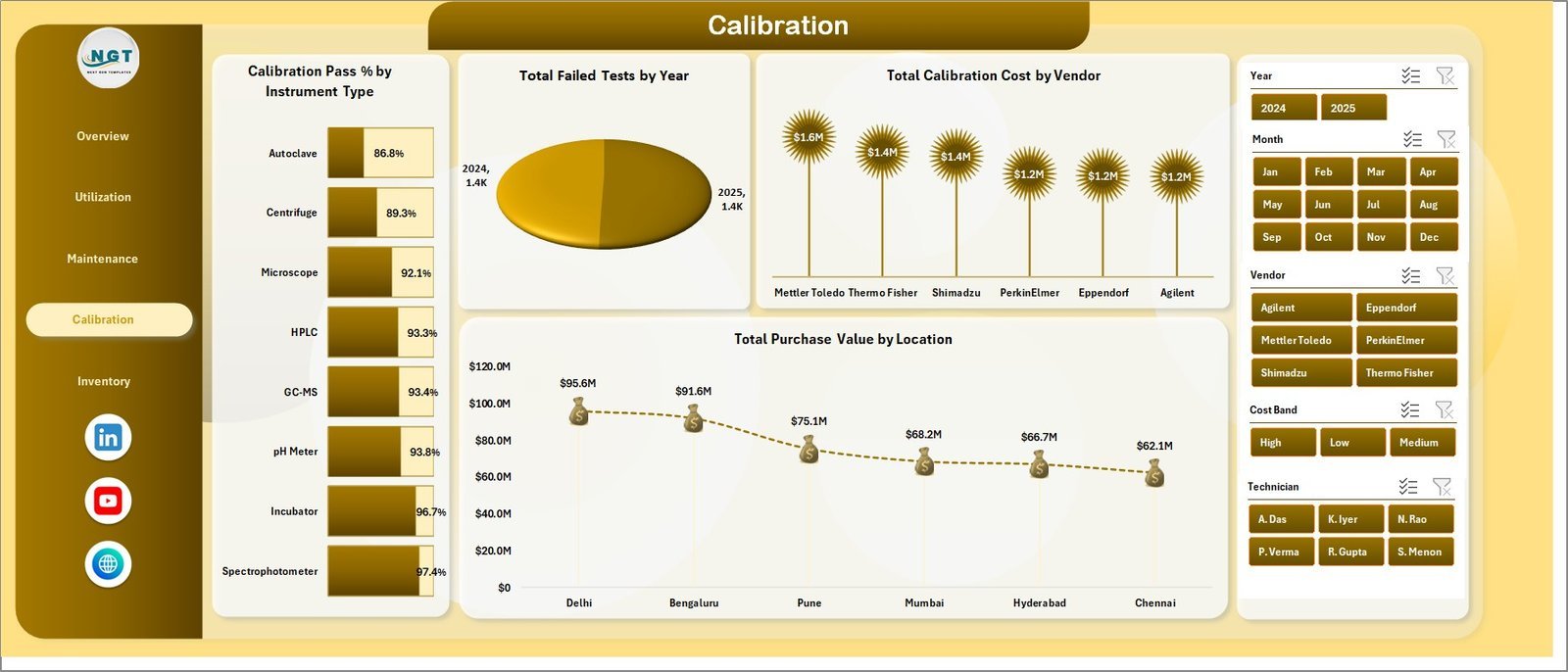
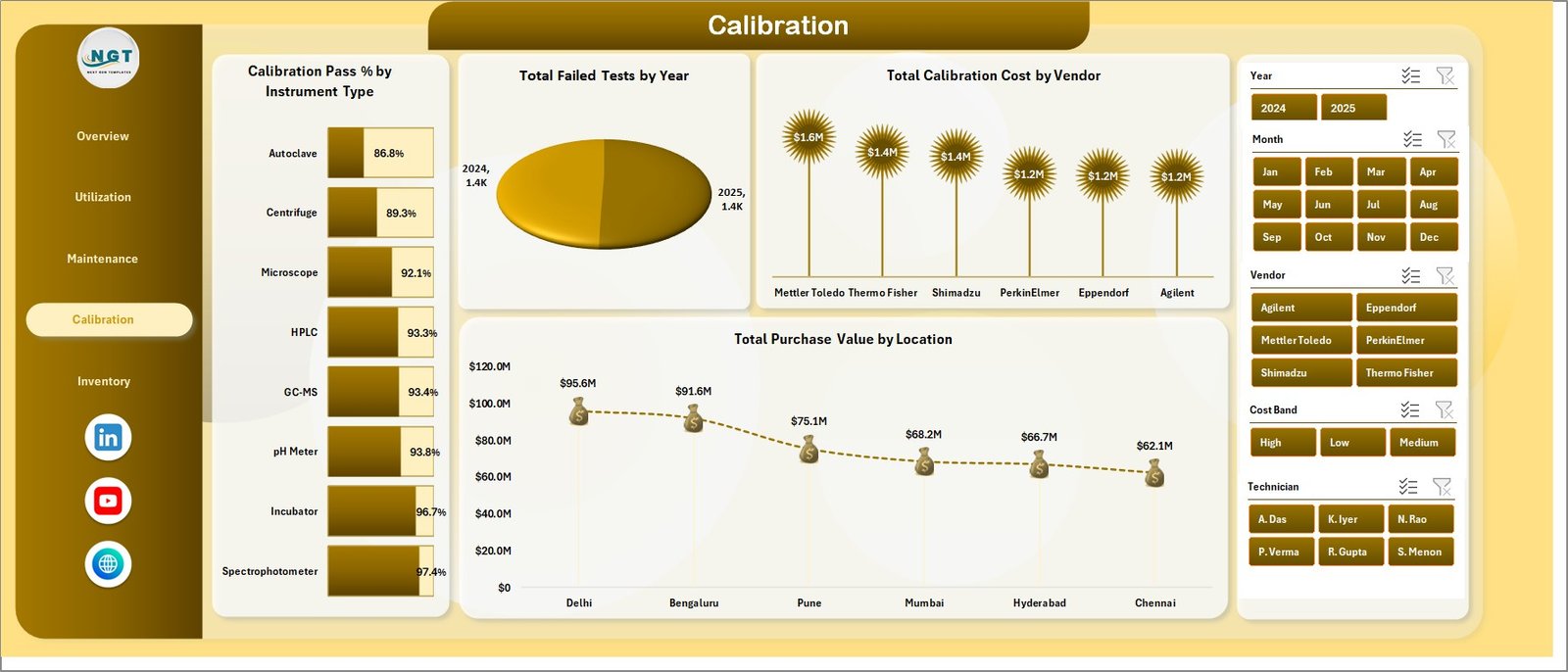
The Calibration page brings calibration quality, failed tests, vendor cost, and location value into one view. It helps quality, compliance, and lab operations teams review calibration performance faster.
Calibration Pass % by Instrument Type: This chart compares pass rate across instrument groups. It helps identify equipment categories with weaker calibration outcomes.
Total Failed Tests by Year: This chart tracks failed test counts over time. It helps quality teams identify whether failures are rising, declining, or concentrated in specific periods.
Total Calibration Cost by Vendor: This visual compares calibration spending across vendors. It supports supplier review and cost management.
Total Purchase Value by Location: This chart shows where instrument investment is located. It helps teams understand asset value exposure by site.
Calibration
5. Inventory
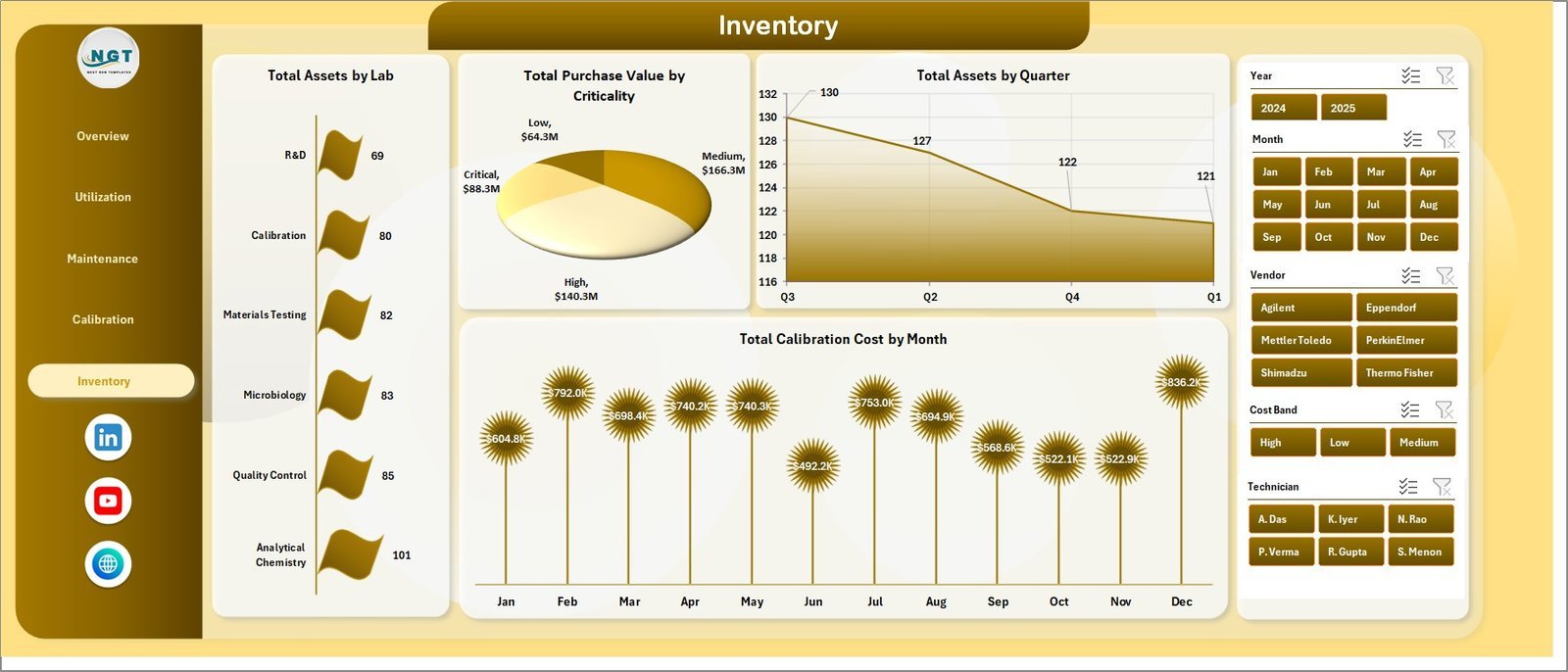
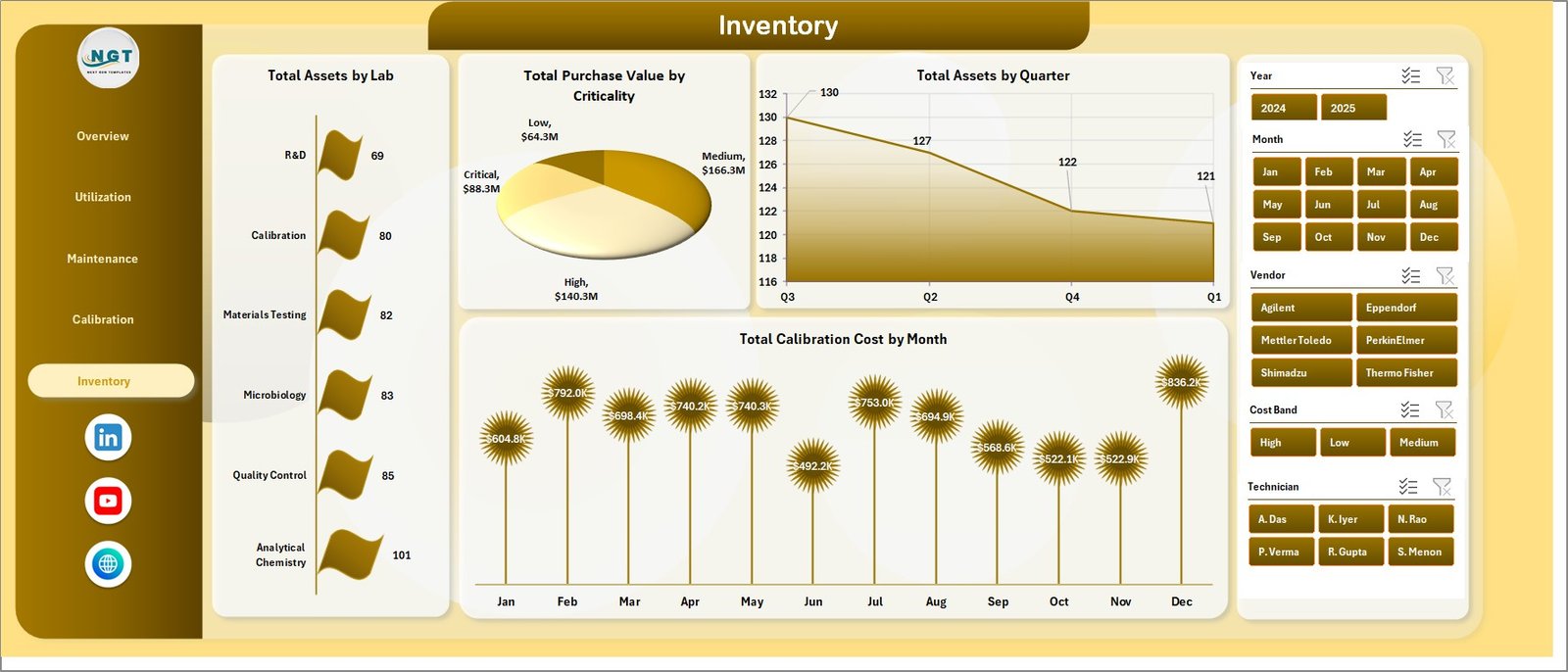
The Inventory page reviews lab assets, criticality, quarterly asset counts, and calibration cost over time. It is useful for inventory owners who need a quick view of equipment distribution and value.
Total Assets by Lab: This chart compares asset count across labs. It helps managers see which labs own the largest equipment base.
Total Purchase Value by Criticality: This visual connects asset value with operational importance. It helps teams understand whether high-value equipment is also high-criticality.
Total Assets by Quarter: This chart tracks asset counts by quarter. It helps identify equipment growth, retirements, or inventory changes over time.
Total Calibration Cost by Month: This trend shows calibration cost movement by month. It helps teams plan budgets and investigate unusual spending spikes.
Inventory
6. Data Sheet Tab
The Data sheet is where you add or replace laboratory instrument records in the same structured format. After updating the data, refresh the workbook so the pivot tables, slicers, cards, and charts reflect the latest information.

Data Sheet tab
7. Support Sheet
The Support sheet contains pivot tables used to build the dashboard dynamically. After changing data, go to the Excel Data tab and click Refresh All. You can keep this sheet hidden after setup.

Support sheet tab
Laboratory Instruments Dashboard in Excel vs. Google Sheets vs. Paid Healthcare SaaS – Where This Fits
| Feature | This Excel dashboard | Google Sheets alternative | Paid SaaS alternative |
|---|---|---|---|
| Cost | $17.99 one-time | Low cost but often needs rebuild work | Monthly or annual subscription |
| Platform | Microsoft Excel workbook | Browser-based spreadsheet | Vendor-hosted system |
| Setup time | Replace data, refresh pivots, review visuals | Recreate charts or import template logic | Implementation and onboarding project |
| Real-time team collaboration | Available through OneDrive or SharePoint workflows | Native collaboration | Depends on plan |
| Customizable fields | Fully editable workbook, pivots, charts, and source data | Editable but formula/pivot changes may be needed | Limited by vendor settings |
| Laboratory instrument analytics | Built-in usage, downtime, calibration, maintenance, and inventory pages | Must be designed or adapted | Depends on module |
| Year-1 cost at 5 users | $17.99 plus any Microsoft licensing | Usually low software cost plus build time | Often hundreds or thousands |
Who This Template Is For – and Who It’s Not For
This template is for laboratory managers, quality teams, calibration coordinators, operations heads, healthcare analysts, research labs, diagnostic centers, pharma labs, and equipment maintenance teams that need an editable Excel reporting layer. It is not a laboratory information management system, asset checkout app, regulatory filing system, medical decision system, or live IoT monitoring platform.
How to Use the Laboratory Instruments Dashboard in Excel
- Download and unzip the Excel dashboard file.
- Open the workbook in Microsoft Excel.
- Go to the Data sheet and replace the sample rows with your own laboratory instrument records.
- Keep the same column structure so slicers, pivots, and charts continue to work.
- Use Data > Refresh All to refresh every pivot table and chart.
- Review the Overview, Utilization, Maintenance, Calibration, and Inventory pages.
- Hide the Support sheet after refresh if you want a cleaner workbook.
Real-World Use Cases
Dr. Meera, laboratory director: reviews downtime, usage hours, and satisfaction score before monthly equipment planning meetings.
Arjun, maintenance lead: uses the Maintenance page to compare technician cost, downtime by instrument type, and calibration event status.
Sofia, quality analyst: uses the Calibration page to monitor pass percentage, failed tests, vendor cost, and location-level purchase value.
Frequently Asked Questions
Do I need advanced Excel skills?
No. The workbook is built so you can replace data, refresh pivots, and use slicers without rebuilding charts.
Can I use my own laboratory data?
Yes. Replace the sample records in the Data sheet with your own data using the same format.
Does the dashboard update automatically?
The dashboard updates after you refresh the workbook from the Excel Data tab. Use Refresh All after changing the Data sheet.
Can I hide the Support sheet?
Yes. The Support sheet contains pivot tables for the dashboard and can be kept hidden after setup.
Is this a SaaS subscription?
No. It is a one-time downloadable Excel dashboard template.
Can I customize the charts and fields?
Yes. You can edit the workbook, charts, pivots, labels, source columns, and formatting as needed.
About the Author
Built by PK – Microsoft Certified Professional with 15+ years of Excel, Google Sheets, and Power BI experience. Founder of NextGenTemplates, reaching 300K+ subscribers across YouTube channels. Every template is hand-built and tested before release.
Explore Related Templates
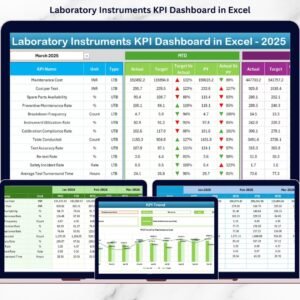
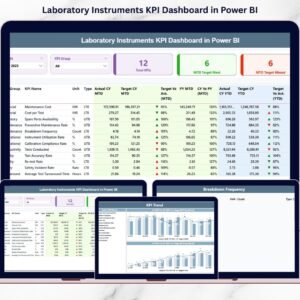
You may also like Laboratory Instruments KPI Dashboard in Excel, Laboratory Instruments KPI Dashboard in Power BI, and IVF Centers Dashboard in Excel. Browse more MS Excel templates and Excel dashboard templates.
Download the Laboratory Instruments Dashboard in Excel today and turn instrument usage, downtime, maintenance, calibration, and inventory data into a ready reporting workbook.
Watch the step-by-step video tutorial:











Reviews
There are no reviews yet.