

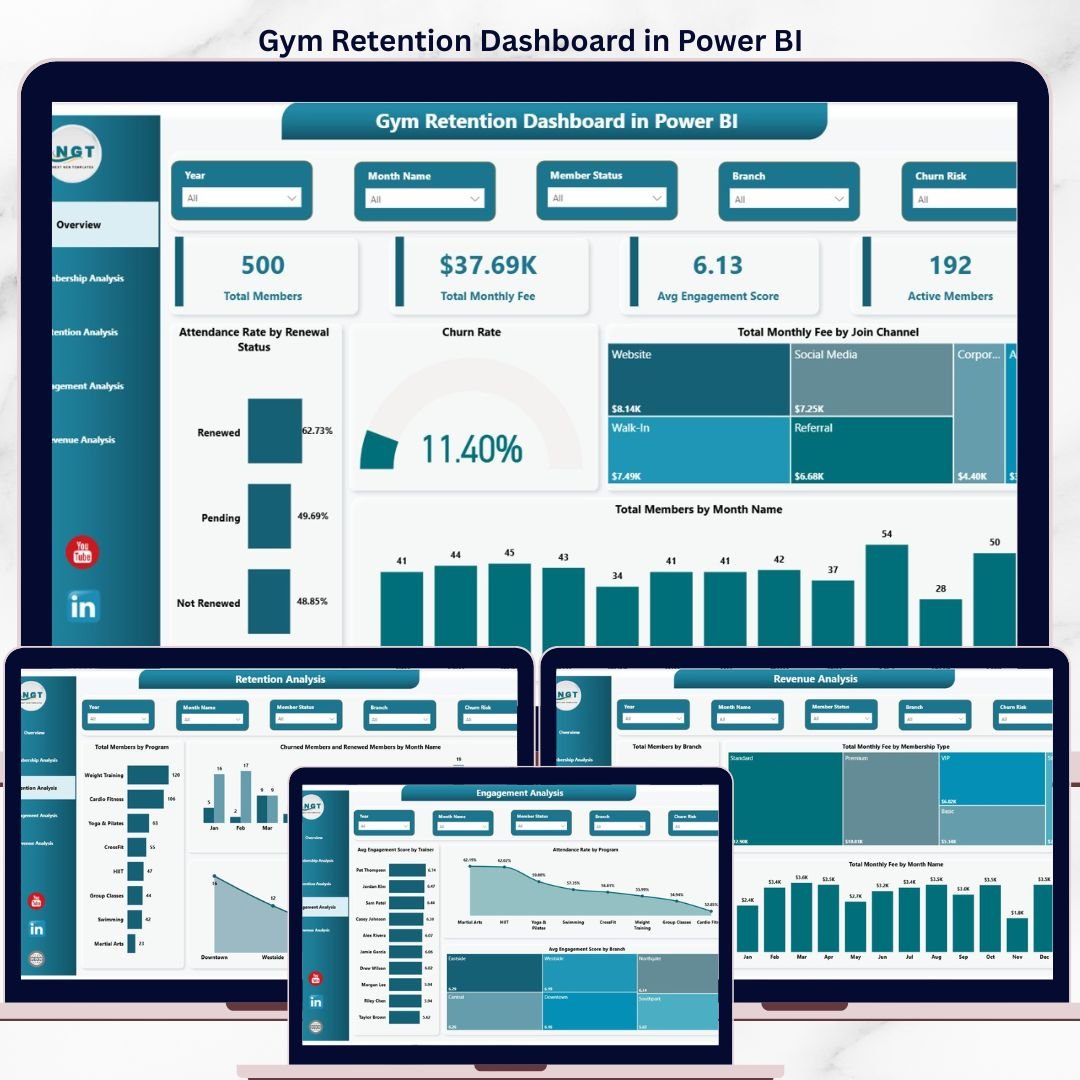
The Gym Retention Dashboard in Power BI tracks 4 headline KPIs across 5 interactive report pages, with 13 pre-built visuals and slicer-driven filters covering Membership Type, Branch, Renewal Status, and Join Channel. Setup takes under 10 minutes — point Power BI Desktop at your member data, refresh the model, and every visual updates automatically.
🌍 Join 8,400+ teams in 40+ countries using Nextgen Templates to replace paid SaaS tools with one-time-purchase Excel, Google Sheets, Power BI, and HTML templates.
✅ Instant download · One-time payment · No subscription · No per-user fees · Lifetime access
Whether you operate a single-location gym, a 4-branch fitness chain, or a boutique studio network, this dashboard converts raw member data into clear answers about which membership types churn fastest, which trainers drive the highest engagement, and which branches generate the most predictable monthly revenue — all inside Power BI Desktop with zero DAX writing required.
🔑 Key Features of Gym Retention Dashboard in Power BI
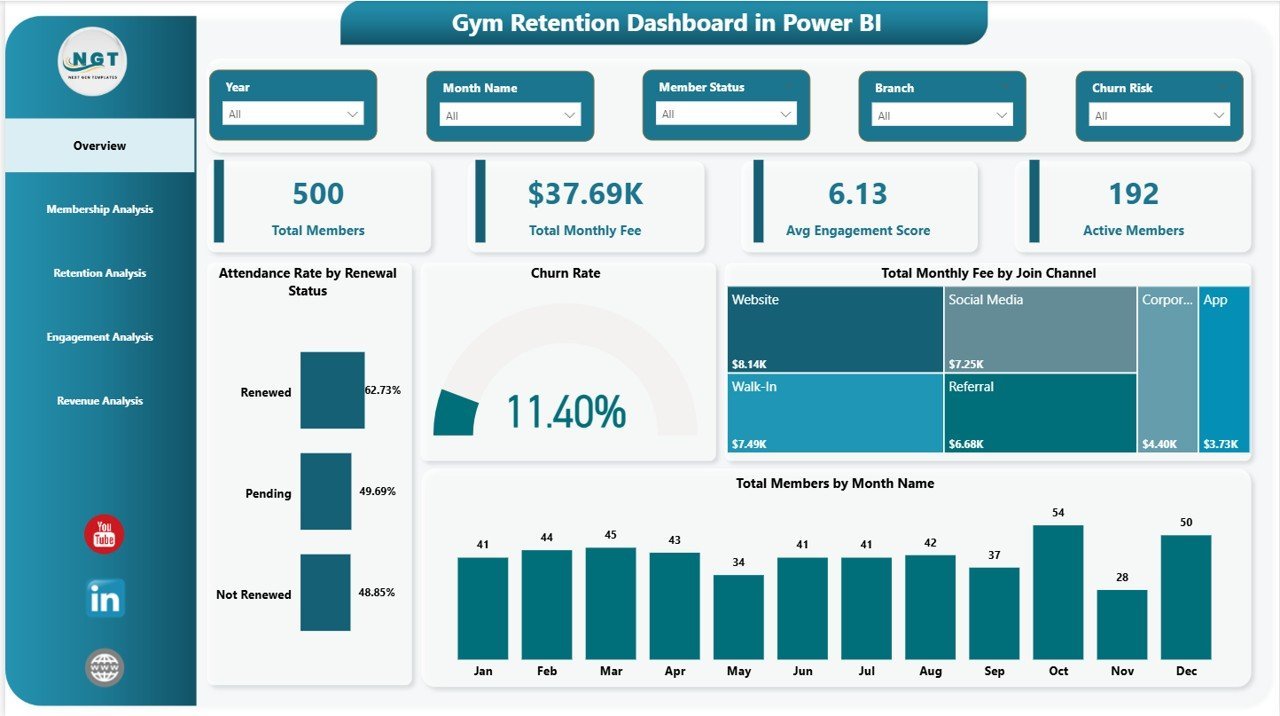
📊 4 KPI cards on the Overview page — Total Members, Total Monthly Fee, Avg Engagement Score, and Active Members surface gym health in under 30 seconds. Every card recalculates instantly when any slicer is clicked.
📈 13 Power BI visuals across 5 dedicated report pages — Overview, Membership Analysis, Retention Analysis, Engagement Analysis, and Revenue Analysis. Each page answers a different question gym managers ask weekly.
🎛 Multi-slicer filtering on every page — Filter by Membership Type, Branch, Renewal Status, Program, and Join Channel. Slicers cross-filter all visuals on a page in real time.
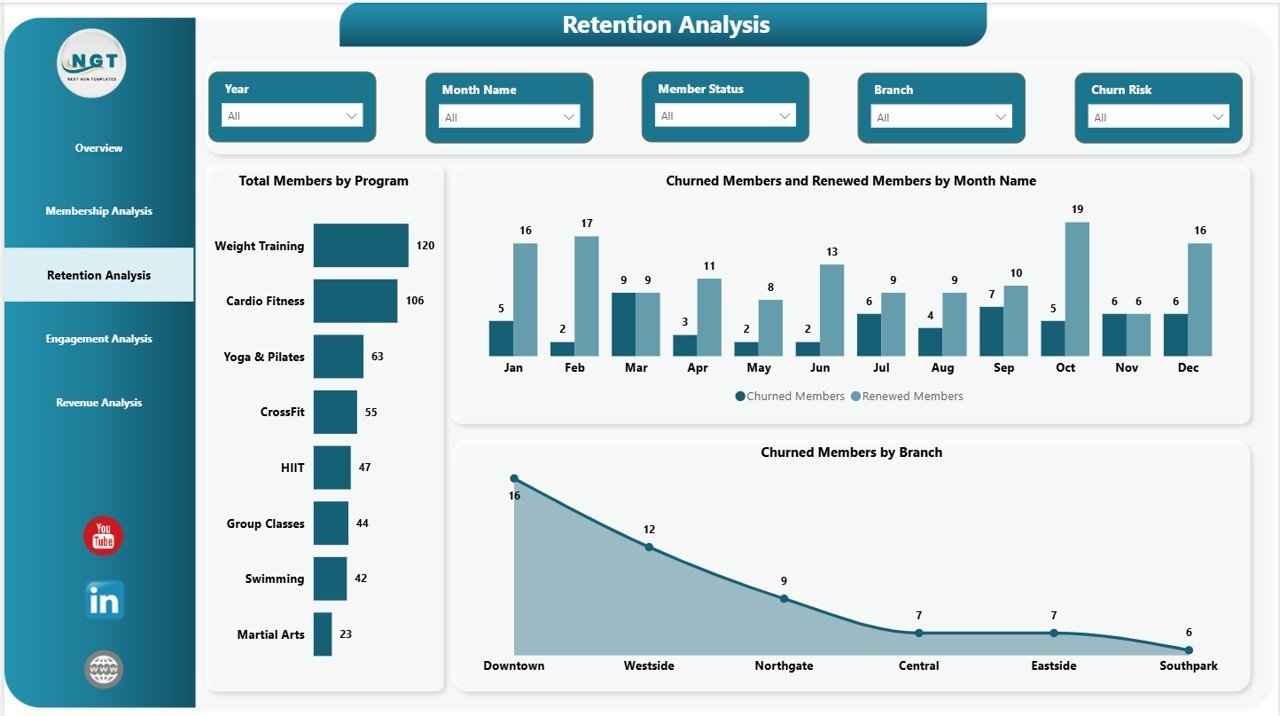
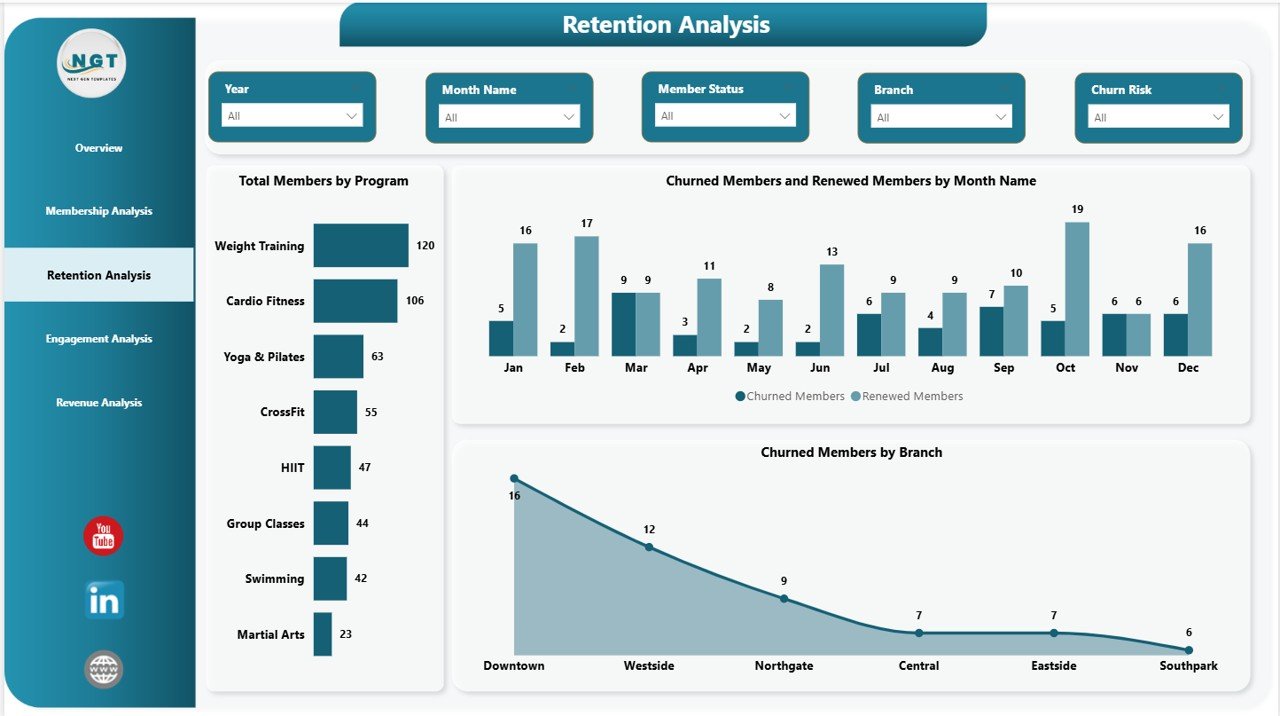
🔁 Renewal Status segmentation built in — The Retention Analysis page splits Churned Members vs. Renewed Members by Month Name and Branch, so retention managers can spot location-level leaks before quarter close.
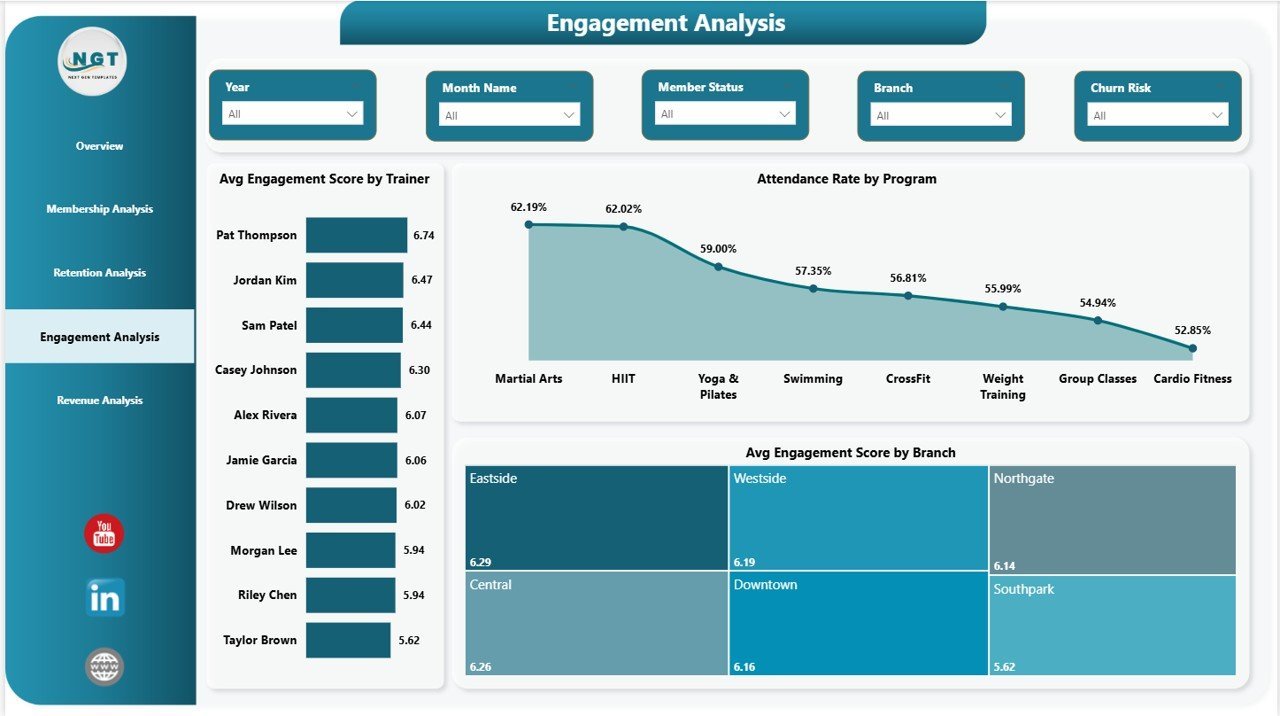
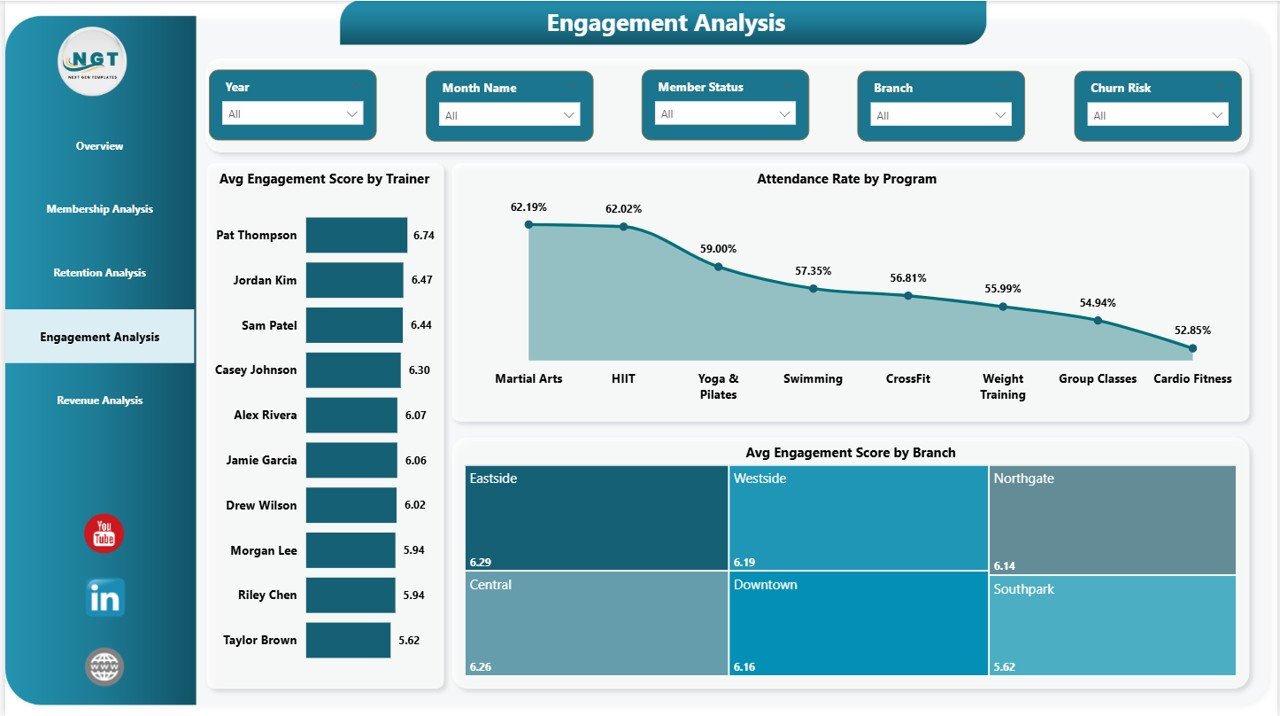
🧑🏫 Trainer and Branch engagement scoring — Avg Engagement Score by Trainer and by Branch on the Engagement Analysis page links staff performance directly to member outcomes — a metric most gym SaaS tools either lack or hide behind premium tiers.
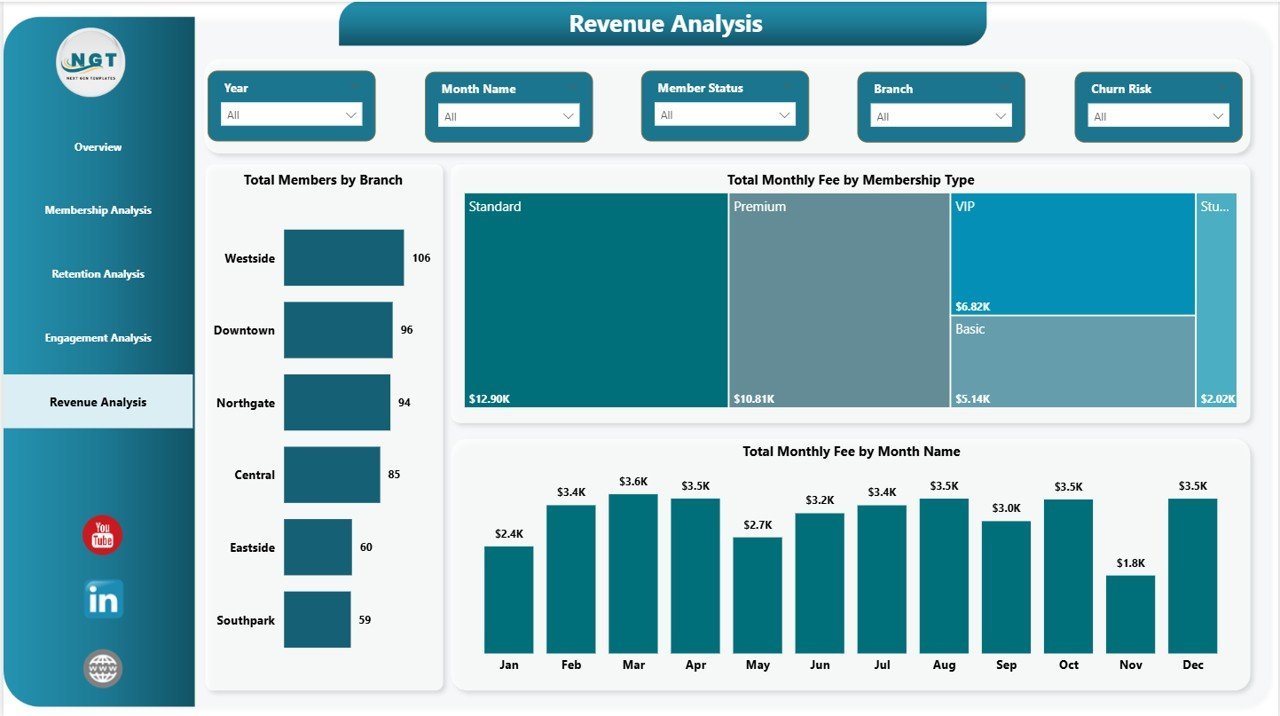
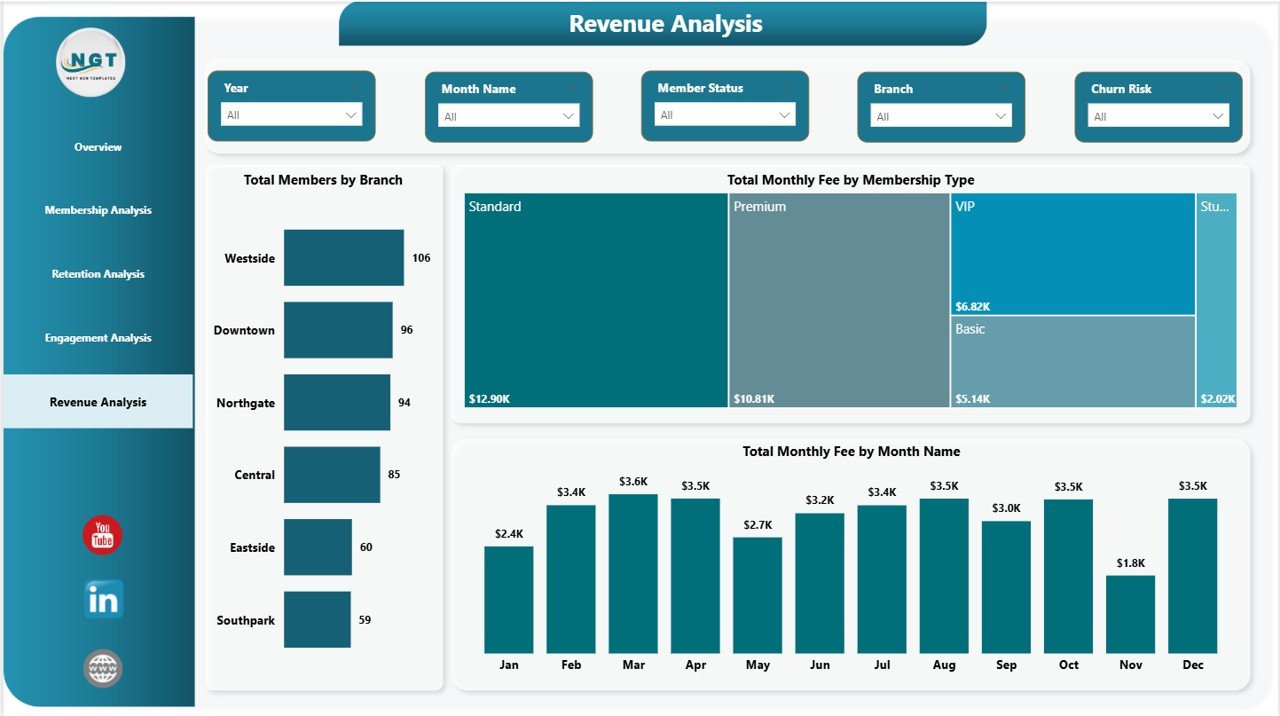
💰 Monthly Fee analysis by Membership Type, Branch, and Month — The Revenue Analysis page shows where recurring monthly fee revenue concentrates and how it trends over time, useful for pricing reviews and capacity planning.
📥 Excel-friendly data source — Replace the sample dataset with your own member export from your booking platform (Mindbody, ClubReady, Glofox, GymMaster), refresh the Power BI model, and the dashboard rebuilds automatically.
📦 What’s Inside the Gym Retention Dashboard in Power BI
📊 Page 1 — Overview
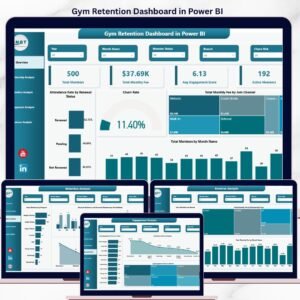
4 KPI cards (Total Members, Total Monthly Fee, Avg Engagement Score, Active Members) anchor the top. Four visuals surface key signals: Attendance Rate by Renewal Status, Churn Rate, Total Monthly Fee by Join Channel, and Total Members by Month Name. Slicers along the top filter every visual at once.
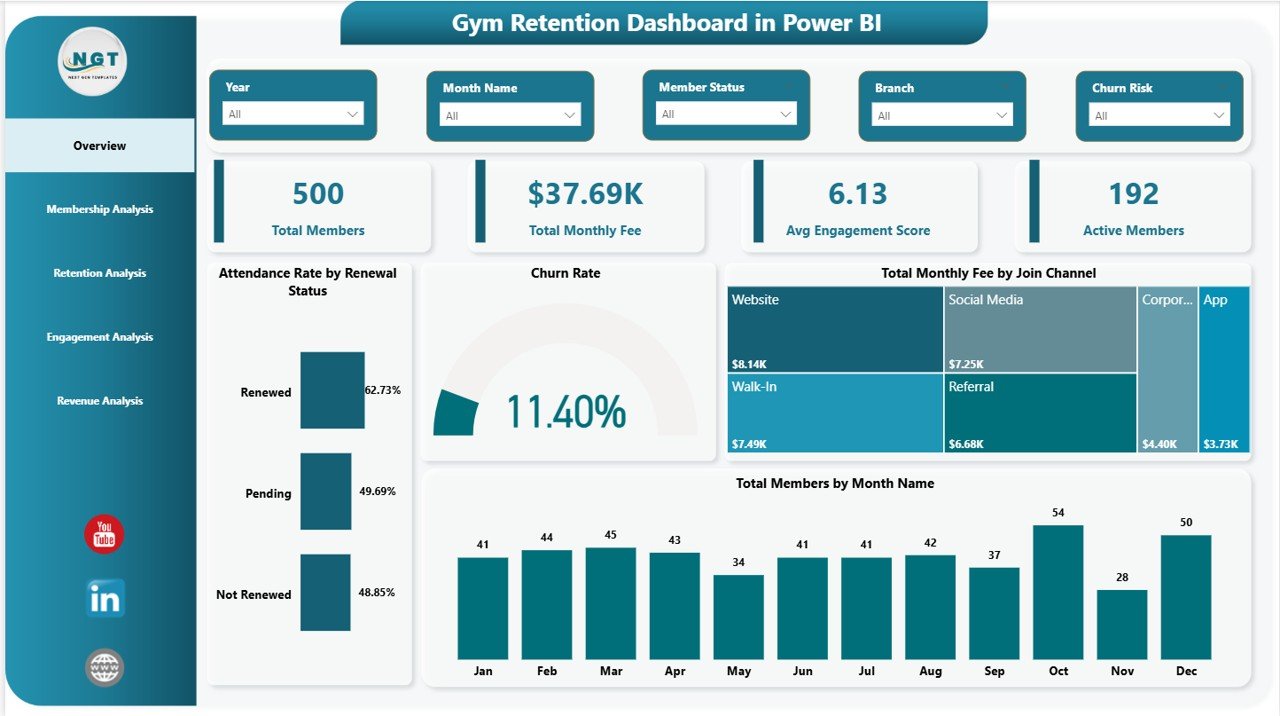
Gym Retention Dashboard in Power BI
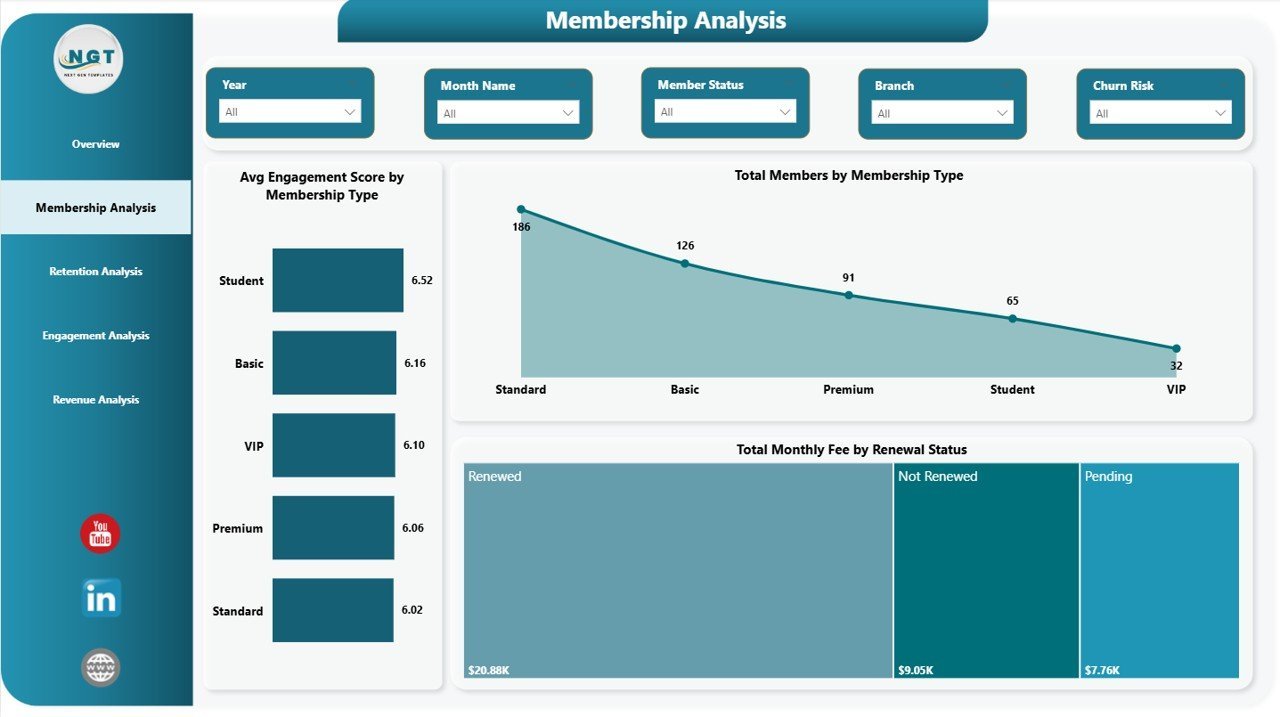
📊 Page 2 — Membership Analysis
Three tier-focused visuals: Avg Engagement Score by Membership Type, Total Members by Membership Type, and Total Monthly Fee by Renewal Status. Use this page when you need to know which membership tier delivers both engagement and recurring revenue.
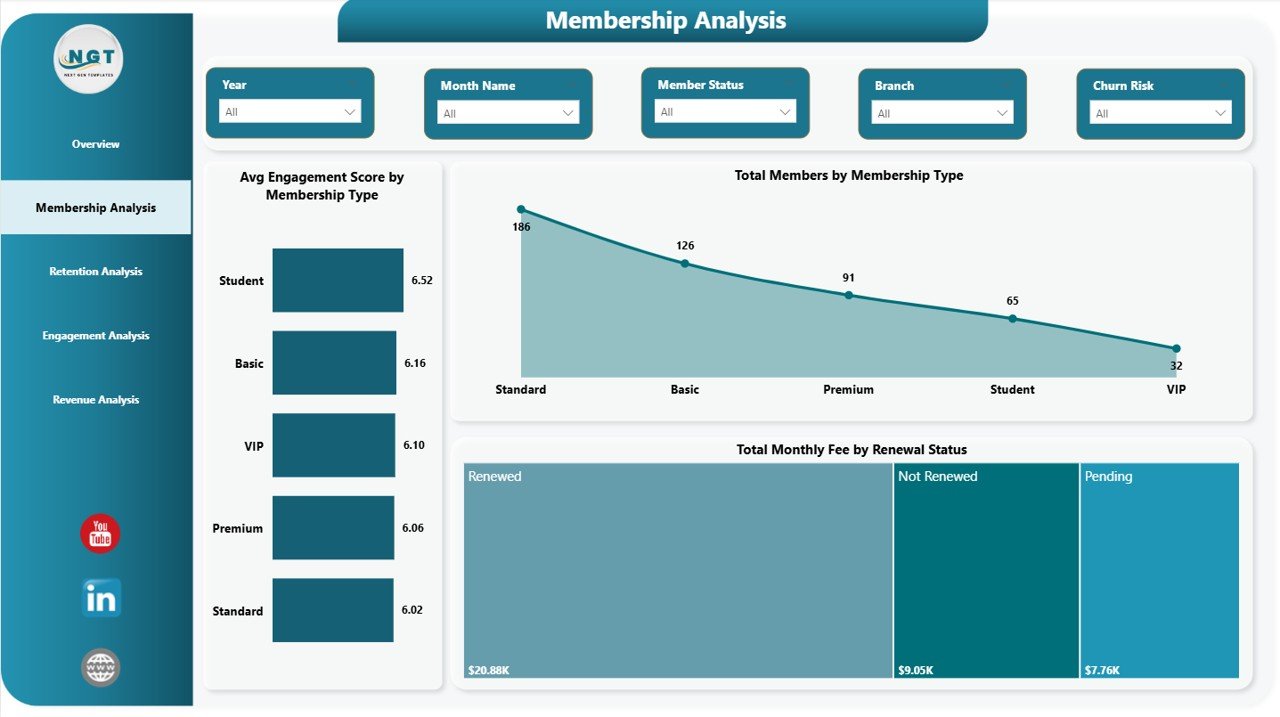
Membership Analysis
📊 Page 3 — Retention Analysis
Three retention visuals: Total Members by Program, Churned Members and Renewed Members by Month Name, and Churned Members by Branch. The branch-level churn breakdown helps multi-location operators identify which sites are leaking members fastest.
Retention Analysis
📊 Page 4 — Engagement Analysis
Three engagement visuals: Avg Engagement Score by Trainer, Attendance Rate by Program, and Avg Engagement Score by Branch. Pinpoints which trainers and programs drive the highest member engagement — a leading indicator of renewal.
Engagement Analysis
📊 Page 5 — Revenue Analysis
Three revenue visuals: Total Members by Branch, Total Monthly Fee by Membership Type, and Total Monthly Fee by Month Name. Tracks where monthly recurring revenue originates and how it trends, branch by branch and tier by tier.
Revenue Analysis
📊 Gym Retention Dashboard in Power BI vs. Tableau / Qlik vs. Mindbody / GymMaster — Where This Fits
| Feature | Gym Retention Dashboard in Power BI | Tableau / Qlik Sense | Mindbody / GymMaster (SaaS) |
|---|---|---|---|
| Cost | $17.99 one-time ✅ | $15–$70 / user / month | $129–$349 / month |
| Platform | Power BI Desktop (free) | Tableau / Qlik Sense | Cloud SaaS |
| Setup Time | Under 10 minutes ✅ | 4–8 hours per dashboard | 1–2 weeks onboarding |
| Renewal Status Segmentation | ✅ Built in | Custom build required | Premium tier only |
| Trainer Engagement Scoring | ✅ Avg score per trainer | Custom DAX / formulas | Premium add-on |
| Multi-Branch Comparison | ✅ Branch slicer + per-branch visuals | ✅ Available | ✅ Available |
| Customizable Visuals | ✅ Fully editable | ✅ Fully editable | ⚠️ Locked templates |
| No Per-User Fees | ✅ Unlimited Power BI Desktop users | ❌ Per-seat pricing | ❌ Per-location pricing |
| Year-1 Cost (5 users) | $17.99 ✅ | $900–$4,200 | $1,548–$4,188 |
For gym operators who want renewal-status segmentation, trainer engagement scoring, and branch-level revenue visibility without paying $1,500+ per year for Mindbody, the Gym Retention Dashboard in Power BI sits in the sweet spot.
👥 Who This Template Is For — and Who It’s Not For
✅ This template is built for:
- Gym owners and fitness chain operators (1–10 branches) who already use Power BI Desktop for analytics
- Retention managers needing visibility into churned vs. renewed members by month, branch, and program
- Boutique fitness operators tracking 100–10,000 member records and exporting from Mindbody, ClubReady, or GymMaster
- Fitness business analysts presenting monthly retention and revenue reports to franchise leadership
❌ This template is NOT for:
- Enterprise gym chains needing live API integrations and real-time member-facing portals
- Users without Power BI Desktop installed — works only on Windows (Power BI Desktop is Windows-only)
- Studios needing built-in payment processing, class booking, or member self-service check-in
- Teams that prefer a spreadsheet-only workflow — for that, see the Excel or Google Sheets versions
⚙️ How to Use the Gym Retention Dashboard in Power BI
- Download the .pbix file and open it in Power BI Desktop (free from Microsoft, Windows only)
- In the Home ribbon, click Transform Data and update the source path to your member dataset (Excel, CSV, or database)
- Ensure your dataset includes columns for Member ID, Membership Type, Branch, Renewal Status, Join Channel, Program, Trainer, Engagement Score, Attendance Rate, and Monthly Fee
- Click Refresh — every visual on all 5 pages updates automatically
- Use slicers at the top of each page to filter by Membership Type, Branch, Renewal Status, or Join Channel
- Publish to the Power BI Service if you want to share interactive reports across your team
💼 Real-World Use Cases
Marcus runs a 4-location fitness chain in Manchester. Each Monday he refreshes the Gym Retention Dashboard in Power BI against his ClubReady CSV export. The Retention Analysis page surfaces which branches lost the most members the previous week, while Avg Engagement Score by Branch on the Engagement page tells him whether the issue is staff-driven or program-driven. He used to spend 4 hours building these views in Excel — now it takes 12 minutes from refresh to decision.
Priya manages member experience at a 6-studio boutique fitness brand. She uses the Engagement Analysis page to identify trainers scoring above 4.0 in average engagement, then pairs her highest-churn-risk members (flagged on the Retention page) with those trainers. Member renewals improved 14% in her first quarter using the dashboard, replacing a $189/month Glofox analytics add-on.
David is operations lead for a 3-location CrossFit network. He uses Total Monthly Fee by Membership Type on the Revenue Analysis page to model price increases on premium tiers without losing low-engagement members. The branch slicer lets him pressure-test pricing changes per location before rolling out network-wide. The dashboard replaced a $139/month Mindbody Insights subscription.
❓ Frequently Asked Questions
What KPIs does the Gym Retention Dashboard in Power BI track?
The Gym Retention Dashboard in Power BI tracks 4 headline KPIs — Total Members, Total Monthly Fee, Avg Engagement Score, and Active Members — plus 13 visual-level metrics including Attendance Rate by Renewal Status, Churn Rate, Total Monthly Fee by Join Channel, Avg Engagement Score by Trainer, and Churned Members by Branch.
Do I need a Power BI Pro license to use this dashboard?
No. The Gym Retention Dashboard in Power BI runs entirely in Power BI Desktop, which is free from Microsoft. A Power BI Pro license is only needed if you want to publish and share the report through the Power BI Service. The .pbix file works offline on any Windows machine.
Can I add more branches, membership types, or trainers?
Yes. The Gym Retention Dashboard in Power BI reads from a single dataset. Add new branches, membership types, programs, or trainers to your data source, refresh the Power BI model, and every slicer, visual, and KPI card updates automatically — no DAX edits needed.
How does this compare to Mindbody Insights or GymMaster?
Mindbody and GymMaster cost $129–$349 per month. The Gym Retention Dashboard in Power BI is $17.99 once. It does not replace booking and payment processing, but if you already use a booking platform, this dashboard gives you deeper retention, engagement, and revenue analytics than those tools’ built-in reports.
How long does setup take?
Under 10 minutes. Open the .pbix file in Power BI Desktop, point the data source to your member export, click Refresh, and all 5 dashboard pages rebuild automatically. No DAX writing or model editing required for standard use.
Does this work on Mac?
Power BI Desktop is Windows-only — the Gym Retention Dashboard in Power BI runs only on Windows. Mac users can either use a Windows VM or switch to the Gym Retention Dashboard in Google Sheets or Gym Retention Dashboard in Excel versions, which work on Mac.
Is the data model fully editable?
Yes. Every visual, slicer, KPI card, and DAX measure in the Gym Retention Dashboard in Power BI is editable. You can rename columns, add custom measures, change colors, swap visual types, or remove pages entirely. Lifetime access means you own the .pbix file outright.
👤 About the Author
Built by PK — Microsoft Certified Professional with 15+ years of Excel, Google Sheets, and Power BI experience. Founder of NextGenTemplates, reaching 300K+ subscribers across YouTube channels (@PK-AnExcelExpert, @NextGenTemplates, @NeoTechNavigators). Every template is hand-built and tested before release.
🔗 Explore Related Templates
Also available as: Gym Retention Dashboard in Excel | Gym Retention Dashboard in Google Sheets
Related picks from our Power BI Dashboard Templates collection:
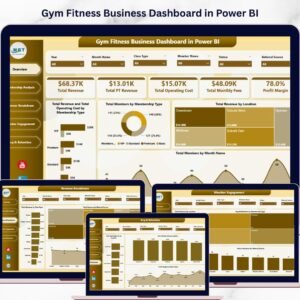
- 💪 Gym Fitness Business Dashboard in Power BI — broader gym operations covering revenue, scheduling, and member demographics.
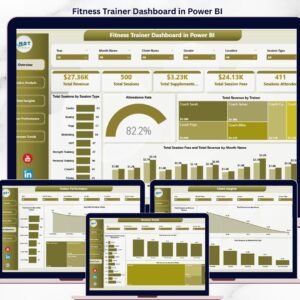
- 🧑🏫 Fitness Trainer Dashboard in Power BI — trainer-focused performance analytics for fitness studios.
- 🧘 Yoga & Wellness Studio Dashboard in Excel — retention and revenue analytics for yoga and wellness studios.
Browse all Power BI Dashboard Templates or explore Excel Dashboard Templates on Nextgen Templates.
📖 Click here to read the Detailed Blog Post
🎥 Visit our YouTube channel for step-by-step video tutorials
👉 YouTube.com/@NextGenTemplates
📅 Last updated: May 2026
Watch the step-by-step video tutorial:
YouTube



















Reviews
There are no reviews yet.