
Managing financial responsibilities should never feel chaotic — yet many businesses still struggle with missed deadlines, unclear ownership, and scattered tracking systems. When financial schedules are managed through emails, notes, or multiple spreadsheets, errors become inevitable.
That’s where the Financial Scheduling Checklist in Excel becomes a game-changing solution.
This ready-to-use Excel template is designed to bring structure, clarity, and accountability into financial operations. Instead of reacting to deadlines at the last minute, organizations can proactively plan, monitor, and complete financial activities using a centralized checklist system.
Whether you manage monthly reporting, vendor payments, audits, compliance activities, or budgeting tasks, this template transforms complex financial workflows into a simple, organized process — without requiring advanced software or technical skills.
Built using Excel’s powerful yet familiar environment, this checklist allows teams to track responsibilities, monitor progress visually, and ensure every financial activity is completed on time.
🚀 Key Feature of Financial Scheduling Checklist in Excel
✅ Centralized financial task tracking in one Excel file
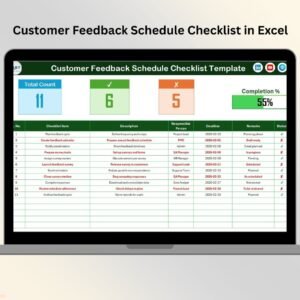
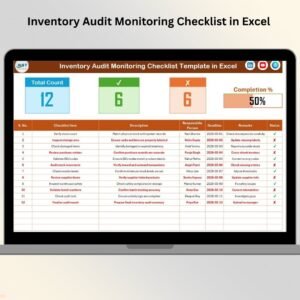
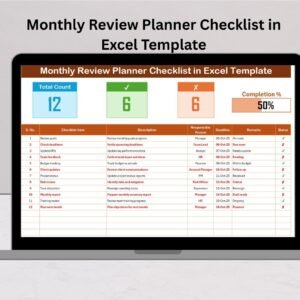
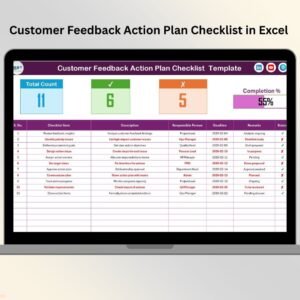
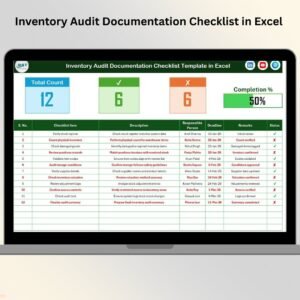
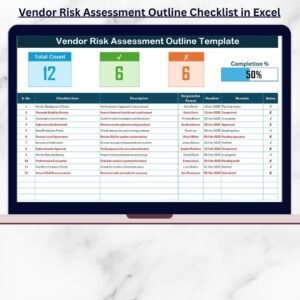
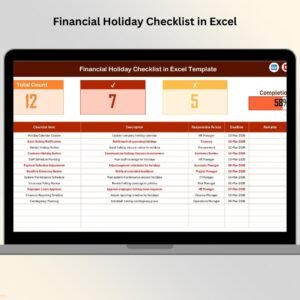
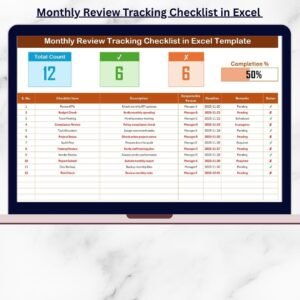
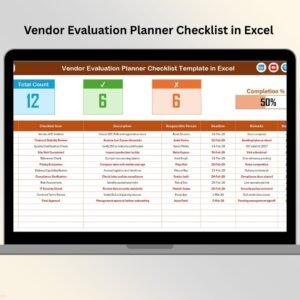
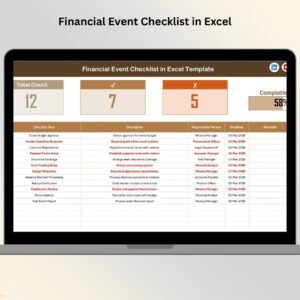
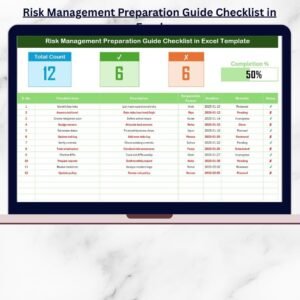
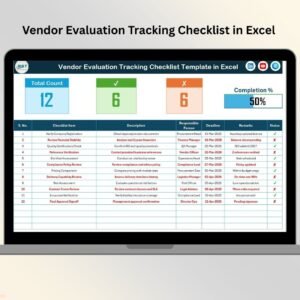
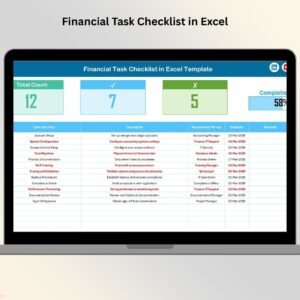
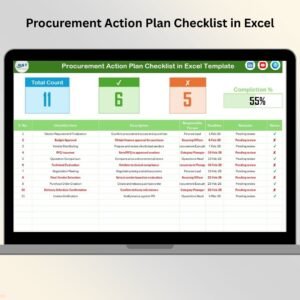
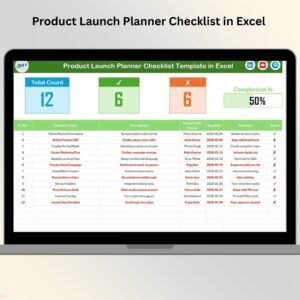
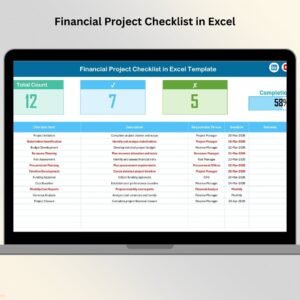
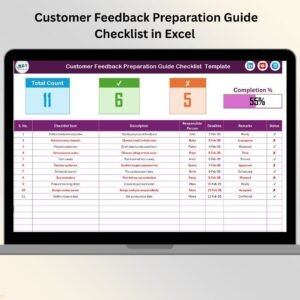
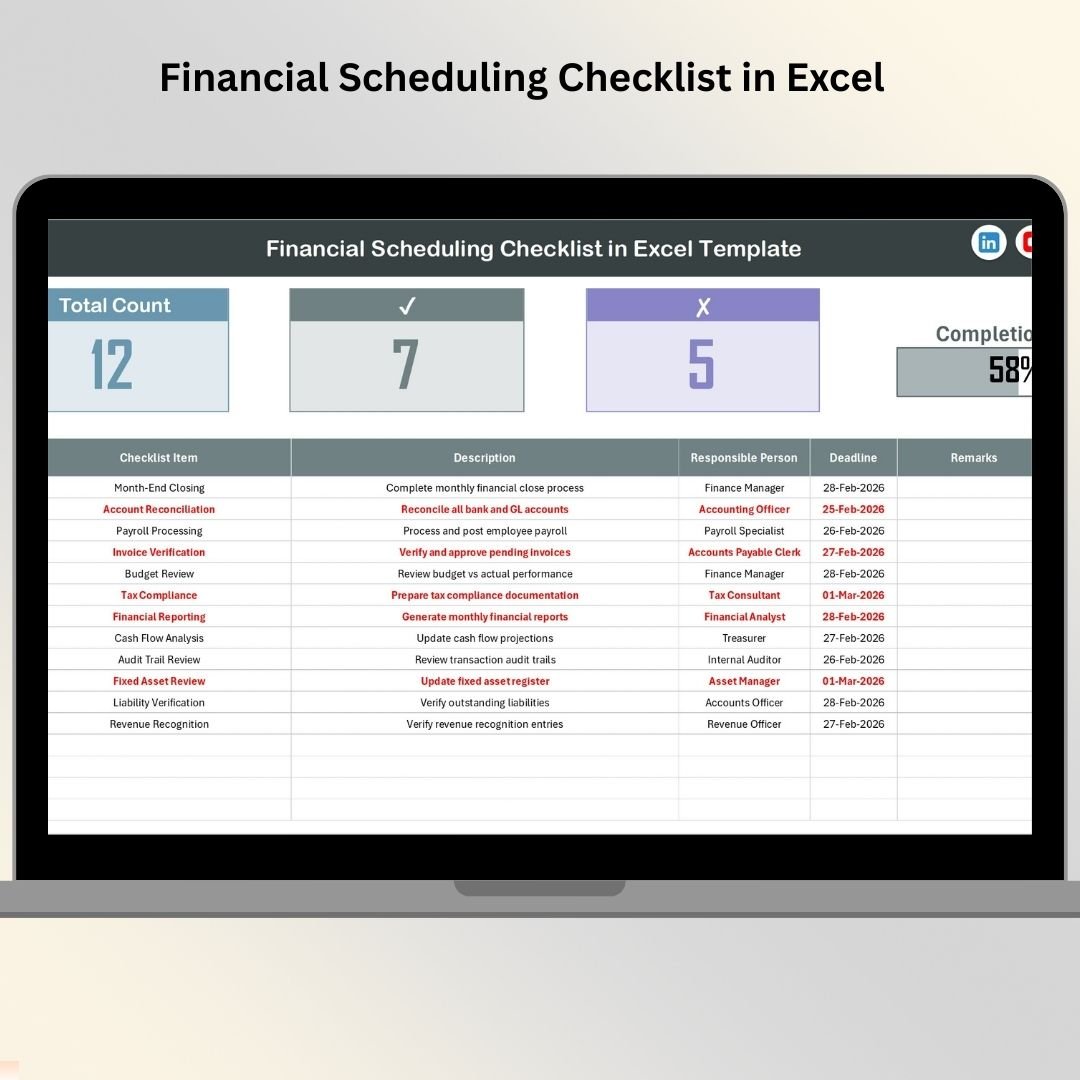
✅ Visual progress dashboard showing completion status instantly
✅ Automated progress bar for real-time monitoring
✅ Structured checklist table with clear task ownership
✅ Dropdown selection to avoid manual data entry errors
✅ Easy status tracking using ✔ and ✘ indicators
✅ Ready-to-use format — no setup required
✅ Fully customizable for any financial workflow
✅ Beginner-friendly design with zero learning curve
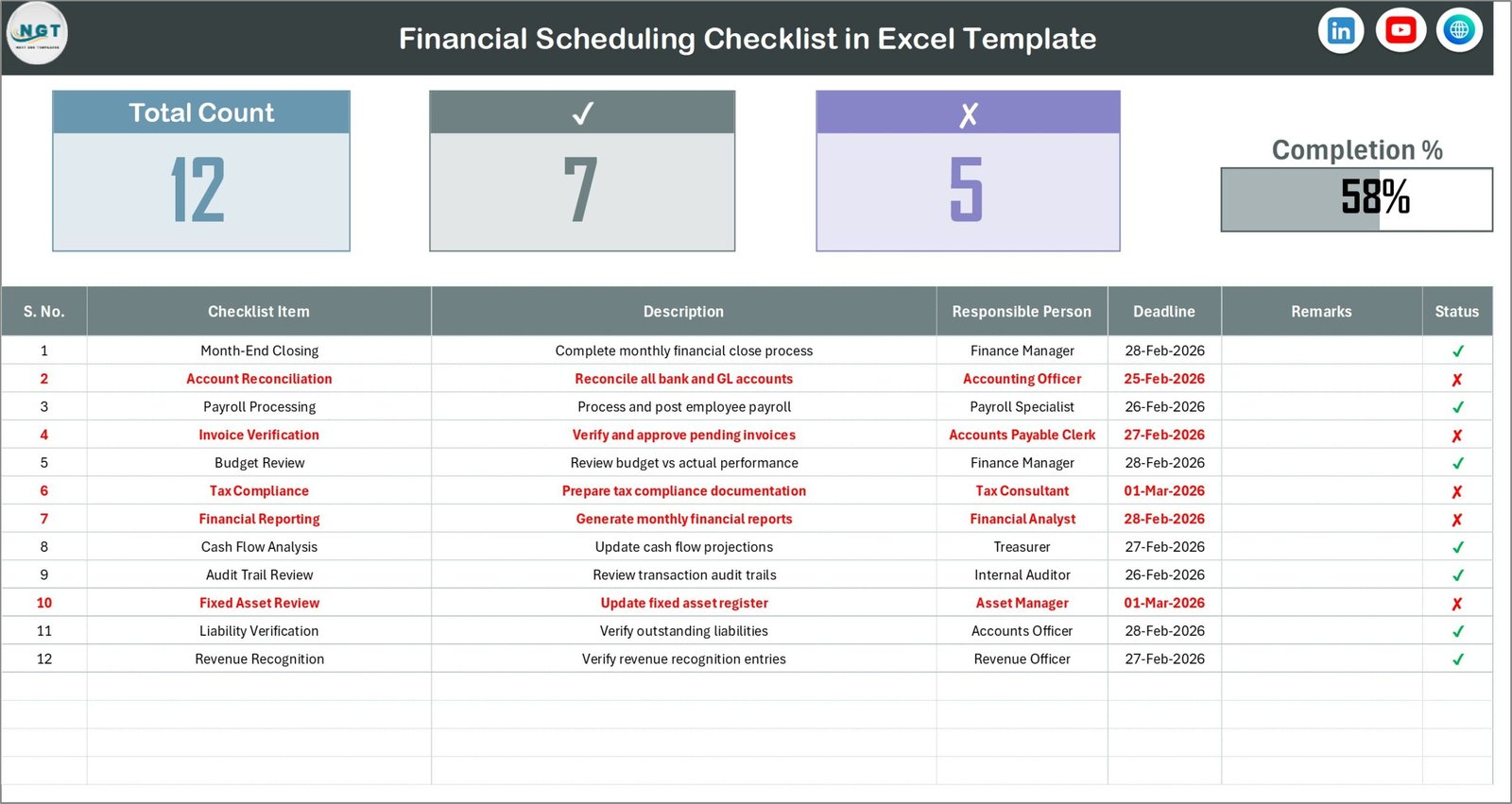
📦 What’s Inside the Financial Scheduling Checklist in Excel
The template includes two intelligently designed worksheets that work together seamlessly.
1️⃣ Financial Scheduling Checklist Sheet (Main Workspace)
This is the primary working dashboard where all checklist activities are managed.
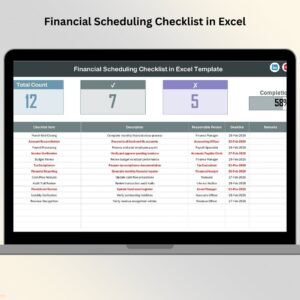
Top Summary Section Includes:
Total checklist items count
Completed tasks count
Pending tasks count
Dynamic progress bar visualization
Checklist Table Columns:
Serial Number
Checklist Item
Description
Responsible Person
Deadline
Remarks
Status (✔ Completed / ✘ Pending)
This structured layout allows easy filtering, tracking, and reporting.
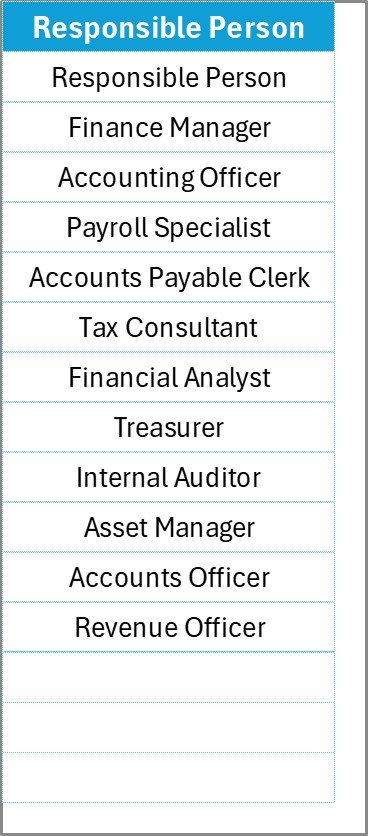
2️⃣ List Sheet (Support Sheet)
This sheet stores a unique list of responsible persons used for dropdown selections.
Benefits include:
Standardized names
Reduced typing errors
Faster task assignment
Improved data accuracy
⚙️ How to Use the Financial Scheduling Checklist in Excel
Getting started takes only a few minutes:
Open the Excel template.
Add team members in the List sheet.
Enter financial tasks into the checklist table.
Assign deadlines and responsible persons.
Update remarks when required.
Mark ✔ when tasks are completed.
Monitor overall progress using the dashboard summary.
As statuses are updated, the progress bar automatically reflects completion levels — giving managers instant visibility.
👥 Who Can Benefit from This Financial Scheduling Checklist in Excel
This template is ideal for professionals and organizations that handle recurring financial activities:
Finance Managers
Accountants & Bookkeepers
Small Business Owners
Corporate Finance Teams
Auditors & Consultants
Startups & SMEs
Nonprofit Organizations
Operations & Compliance Teams
Anyone looking to improve financial organization, accountability, and deadline management will benefit from this structured system.
By centralizing financial workflows, this checklist reduces follow-ups, improves transparency, and enhances team productivity. Instead of chasing updates, managers gain real-time visibility into task progress.
If your organization wants fewer missed deadlines, better financial coordination, and improved compliance tracking, this Excel checklist delivers a simple yet powerful solution.
Click here to read the Detailed blog post
Watch the step-by-step video tutorial:
Visit our YouTube channel to learn step-by-step video tutorials
👉 https://Youtube.com/@PKAnExcelExpert
Compatibility and Requirements
- Works in Microsoft Excel desktop (Excel 2016 or later, or Microsoft 365).
- The Responsible Person column uses a dropdown fed by the List sheet. Microsoft explains dropdowns in Create a drop-down list.
Frequently Asked Questions
Which worksheets does the template have?
Two worksheets: the Financial Scheduling Checklist sheet, where you manage tasks, and the List sheet, which stores the names of responsible persons.
How do I assign a task to someone?
Add the person’s name to the List sheet first. Then pick the name from the dropdown in the Responsible Person column of the checklist table.
How is progress shown?
The top of the checklist sheet shows the total, completed and pending task counts and a progress bar. Mark a task with a tick (✔) when it is done or a cross (✘) while it is pending, and the summary follows your updates.
What columns does the checklist table have?
Serial Number, Checklist Item, Description, Responsible Person, Deadline, Remarks and Status.
Is there a calendar version for financial deadlines?
Yes. See the Financial Scheduling Calendar in Excel.
Related Finance Checklists and Calendars
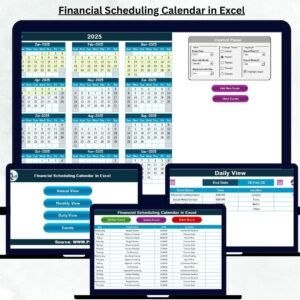
- Financial Scheduling Calendar in Excel: the same schedule in a calendar view
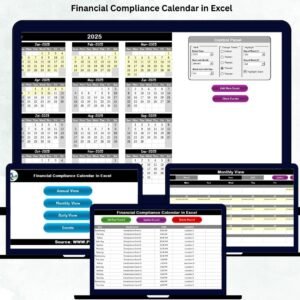
- Financial Compliance Calendar in Excel: track compliance dates
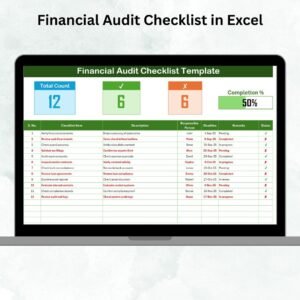
- Financial Audit Preparation Checklist in Excel: tasks to finish before an audit
- Annual Financial Review Checklist Template in Excel: a yearly review list
- Invoice Payment Checklist in Excel: follow invoices through to payment
Browse all Excel checklists.