



Internet access is a basic yet critical requirement for modern workplaces. Employees need reliable and secure internet access to collaborate, communicate, research, and complete daily tasks efficiently. However, when organizations manage internet access requests through emails, verbal approvals, or scattered spreadsheets, visibility and control quickly disappear. As a result, approval delays, security risks, and audit challenges increase.Employee Internet Access Request Tracker in Google Sheets
That is exactly why the Employee Internet Access Request Tracker in Google Sheets becomes an essential administrative and IT solution.Employee Internet Access Request Tracker in Google Sheets
This ready-to-use tracker helps HR, IT, admin, and compliance teams manage all employee internet access requests in one centralized, structured, and secure Google Sheets file. Instead of chasing emails or searching through files, teams can instantly view request status, access type, department details, and approval history—all in one place.
Because the tracker is built in Google Sheets, it is cloud-based, collaborative, and extremely easy to use without any technical complexity.

🔑 Key Features of the Employee Internet Access Request Tracker
📋 Centralized Request Management
Store all internet access requests in a single, structured tracker.
🔍 Clear Approval Visibility
Track Approved, Pending, and Rejected requests at a glance.
🏢 Department & Role Analysis
Understand which departments and job titles require more access.
🔐 Access Level Monitoring
Analyze access levels to improve IT governance and security.
⚡ Auto-Updating Charts
All visuals update automatically when data changes.
📦 What’s Inside the Employee Internet Access Request Tracker
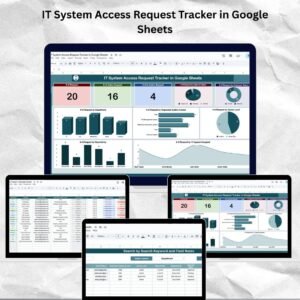
This tracker is designed with a central Tracker Sheet Tab, supported by automated charts and a powerful search function.
🗂 Tracker Sheet Tab – Central Request Log
This is the heart of the tracker where all internet access requests are recorded.
Typical fields include:
Request ID
Employee Name / Employee ID
Department
Job Title
Internet Access Type
Access Level
Request Date
Approval Status
Approved By
Remarks
Once you enter or update data, all charts refresh automatically. This ensures real-time accuracy and complete transparency.
📊 Dashboard Charts for Instant Insights
The tracker includes five insightful charts that convert raw data into clear visuals.
✅ Approval Status Distribution
Shows how many requests are Approved, Pending, or Rejected—helping teams reduce approval delays.
🌐 Requests by Internet Access Type
Analyzes demand for Full Access, Limited Access, Temporary Access, or Application-Specific Access.
🏢 Requests by Department
Identifies departments with higher access demand, supporting better policy decisions.
👔 Requests by Job Title
Highlights role-based access needs and supports onboarding planning.
🔐 Requests by Access Level
Tracks Basic, Standard, Advanced, and Admin access levels to strengthen security controls.
🔎 Search by Keyword and Field Name
One of the most powerful features of this tracker is its Smart Search Function.
You can search requests by:
Employee Name
Department
Job Title
Internet Access Type
Access Level
Approval Status
Simply enter a keyword and select the field name—the tracker instantly filters matching records. This feature is extremely useful during audits, compliance checks, access reviews, and management reporting.
👥 Who Can Benefit from This Tracker
IT Support & Infrastructure Teams
HR Departments
Admin & Facilities Teams
Compliance & Audit Teams
Information Security Teams
Growing Organizations & Enterprises
📈 Best Practices for Using the Tracker
Log every internet access request
Use standardized access types and levels
Review pending approvals weekly
Restrict edit access to authorized users
Maintain historical records for audits
Back up the tracker regularly
### Click here to read the Detailed blog post
Watch the step-by-step video tutorial:
Visit our YouTube channel to learn step-by-step video tutorials
👉 https://youtube.com/@NeotechNavigators
Compatibility and Requirements
- Works in Google Sheets with a free Google account and a web browser.
- The five charts refresh when you add or edit requests. Google’s guide shows how to add and edit a chart.
Frequently Asked Questions
What does each request record hold?
Request ID, employee name or ID, department, job title, internet access type, access level, request date, approval status, approved by and remarks.
Which charts are included?
Five: approval status distribution, requests by internet access type, by department, by job title and by access level.
How do I find a request quickly?
Use the search section. Enter a keyword and pick a field, such as employee name, department or approval status, and the matching records appear.
Which access levels can I track?
The examples in the tracker are Basic, Standard, Advanced and Admin, and the Requests by Access Level chart counts them.
Can I use it for audits?
Yes. Every request and its approval status stays in the tracker sheet, so you can review the history during access reviews and audits.
Related Access Request Templates
- IT System Access Request Tracker in Google Sheets: track system and software access
- Office Network Access Request Tracker in Google Sheets: track network access requests
- IT System Access Request Tracker in Excel: the IT access tracker in Excel
- Employee ID & Access Request Management System: manage ID cards and access requests
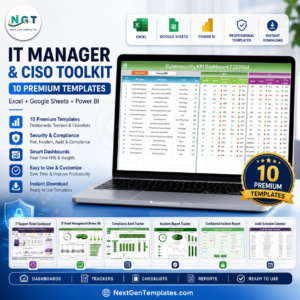
- IT Manager & CISO Toolkit: 10 IT templates in one bundle
Browse all Google Sheets trackers or the Google Sheets templates.





















Reviews
There are no reviews yet.