




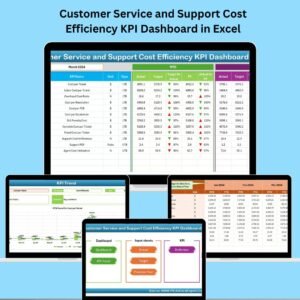
In today’s fast-paced business environment, managing customer service operations efficiently without overspending is critical. That’s why we created the Customer Service and Support Cost Efficiency KPI Dashboard in Excel — a powerful, ready-to-use solution that tracks essential cost-performance metrics, boosts team accountability, and helps you make data-driven decisions — all in one place! 💡📊
Built with user-friendliness in mind, this Excel dashboard offers stunning visuals, effortless data updates, and strategic insights — without the need for expensive BI tools or coding knowledge.
✅ Key Features of Customer Service and Support Cost Efficiency KPI Dashboard
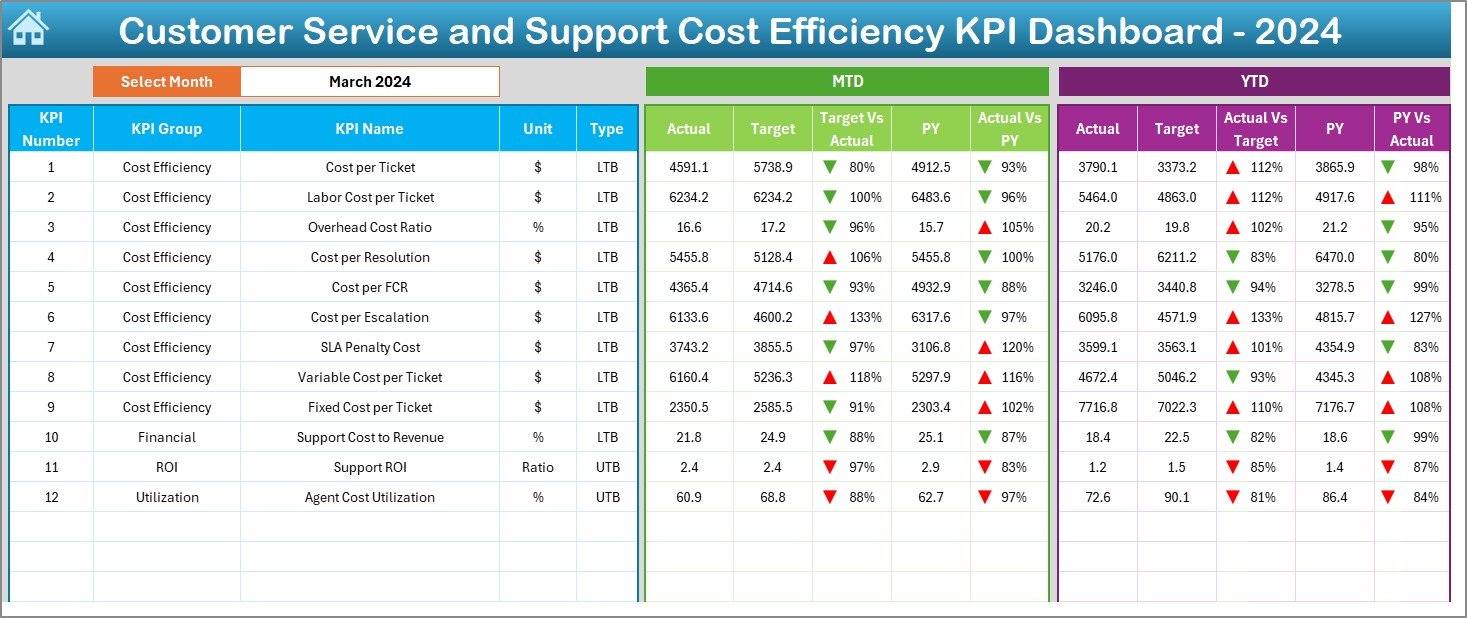
🔹 Month Selector Dropdown: View MTD and YTD metrics by simply selecting the desired month.
🔹 Dynamic KPI Tracking: Monitor 12+ cost-efficiency KPIs with instant visual insights.
🔹 Conditional Formatting: Built-in arrows and color cues show under- or over-performance.
🔹 PivotTable Compatibility: Designed with Excel PivotTables and Charts for seamless flexibility.
🔹 Automated Trend Charts: Track KPI performance over time with MTD/YTD graphs.
🔹 Side-by-Side Comparisons: Compare Actual vs Target and Actual vs Previous Year in one view.
🔹 Zero Extra Cost: No add-ons or licenses needed — all within Excel! 💯
📦 What’s Inside the Customer Service KPI Dashboard
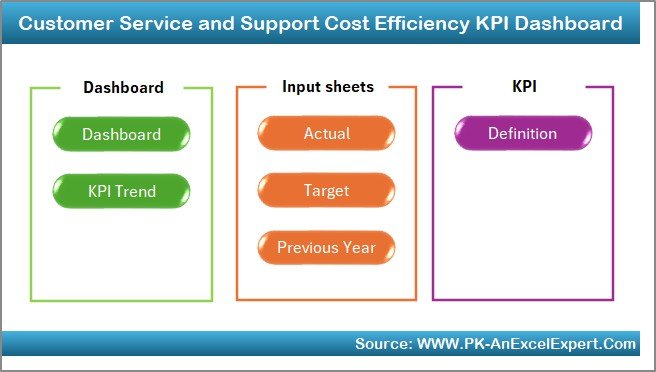
This Excel template is neatly structured into 7 powerful worksheets:
Home Sheet: A clickable index page with navigation buttons to each sheet.
Dashboard Sheet: Your command center — track all KPIs with trends, comparisons, and visual cues.
KPI Trend Sheet: Select any KPI to analyze monthly progress via charts and summaries.
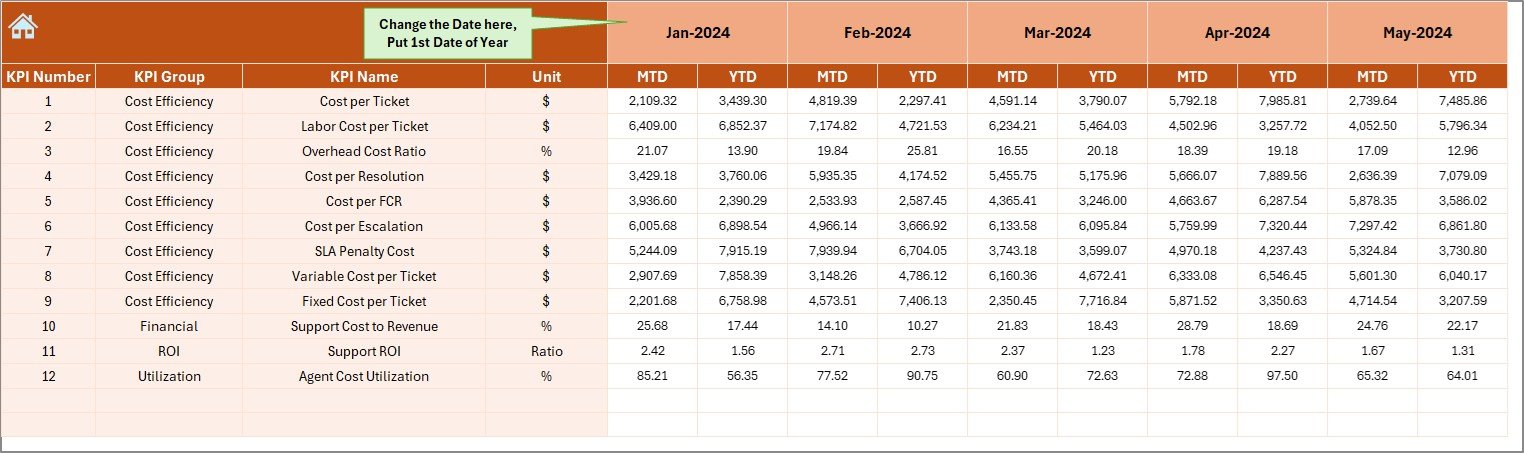
Actual Numbers Input Sheet: Log your monthly MTD and YTD performance with ease.
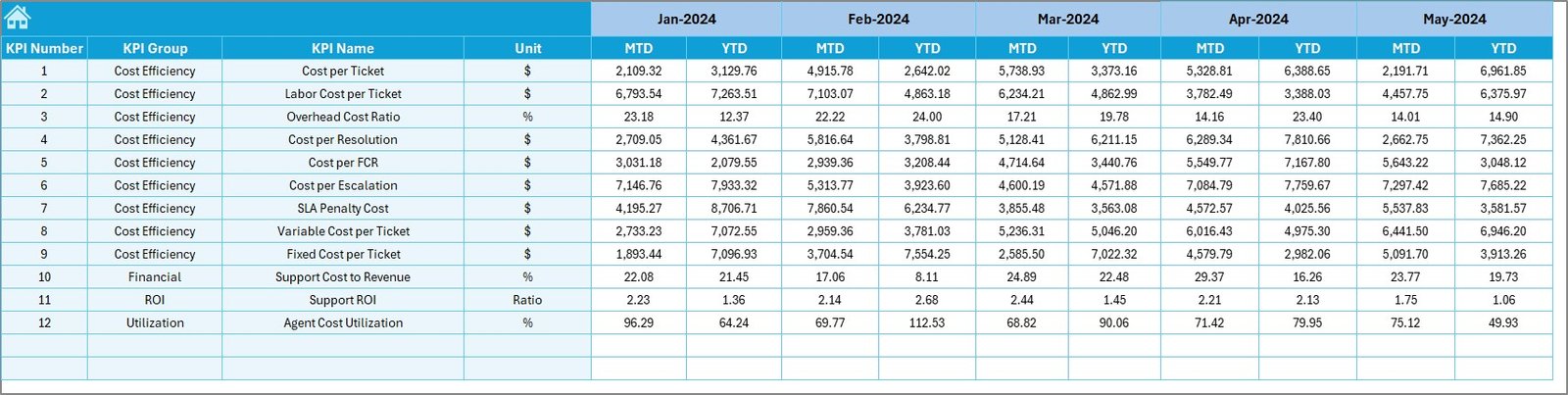
Target Sheet: Set monthly MTD and YTD goals to compare actual outcomes.
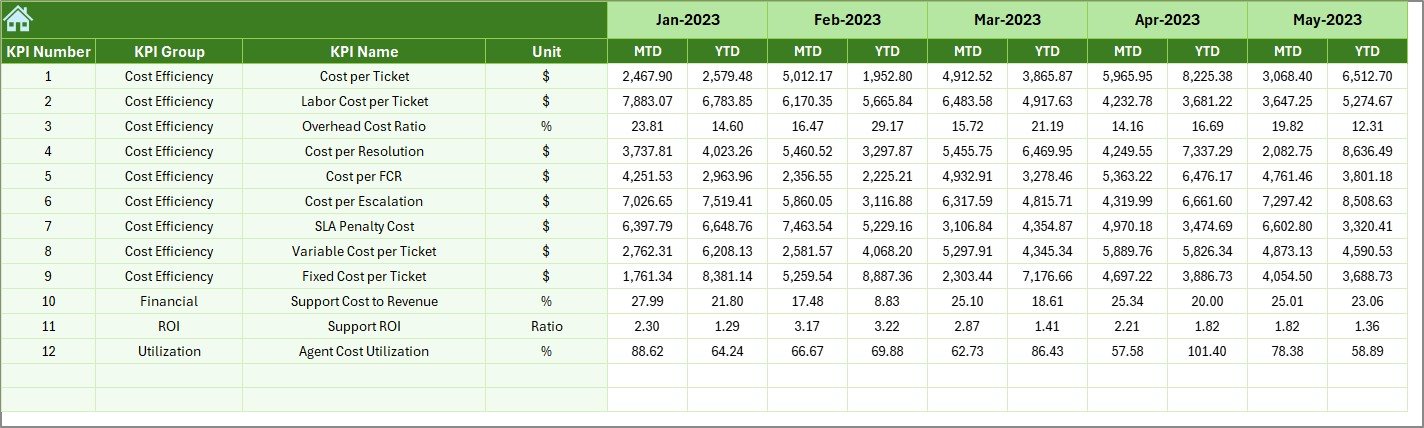
Previous Year Sheet: Input last year’s data to analyze YoY trends.
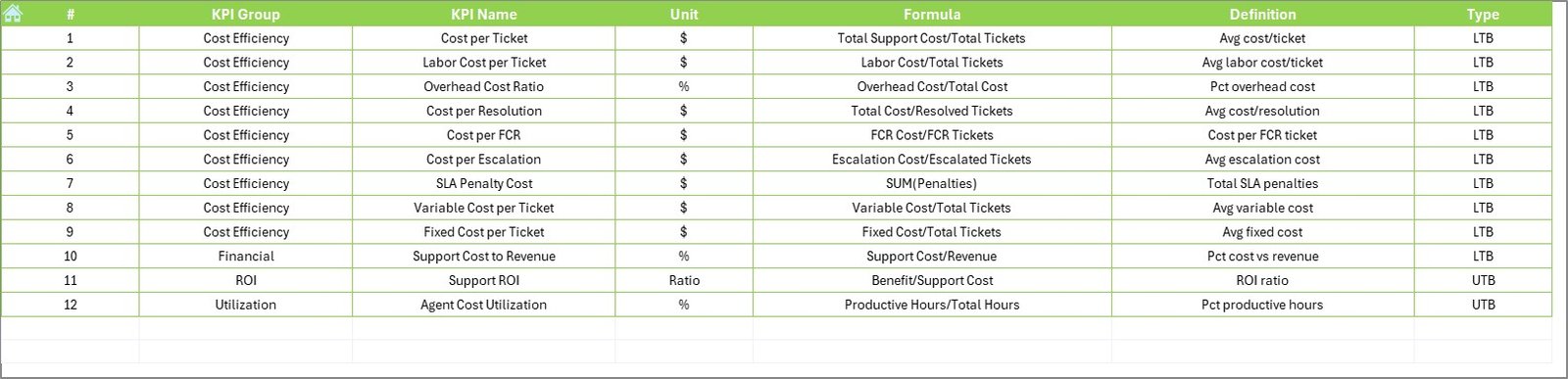
KPI Definition Sheet: Define your KPIs, units, formulas, and whether they are LTB or UTB.
🛠️ How to Use the Customer Service KPI Dashboard
Input Monthly Data in the “Actual Numbers” sheet.
Define KPI Targets in the “Target” sheet for the full year.
Enter Previous Year Data to enable comparisons.
Select a Month from the dropdown in the Dashboard to auto-refresh charts.
Review Trends in the KPI Trend sheet to guide decision-making.
Update Regularly to maintain a real-time view of performance and costs.
No macros, no coding. Just Excel. Just results! 💼
👥 Who Can Benefit from This Dashboard
💼 Customer Support Managers – Monitor KPIs to drive efficiency.
📈 Operations Leaders – Optimize support cost vs output.
💰 Finance Teams – Gain better forecasting and cost transparency.
🧑💼 Executives – Get high-level insights for strategy decisions.
🧑💻 Support Agents – Use for self-review and performance tracking (optional).
📊 SMEs & Startups – An affordable, scalable solution for KPI monitoring.
Whether you’re running a helpdesk, call center, or omnichannel support, this dashboard gives you the clarity and control you need.
🔗 Click here to read the Detailed blog post
🔗 Visit our YouTube channel to learn step-by-step video tutorials
Watch the step-by-step video tutorial:
Compatibility and Requirements
- Works in Microsoft Excel desktop (Excel 2016 or later, or Microsoft 365).
- Microsoft’s guide Create a PivotTable to analyze worksheet data explains the Excel feature this file is built on.
Frequently Asked Questions
Which sheets are in the file?
There are seven sheets: Home, Dashboard, KPI Trend, Actual Numbers Input, Target, Previous Year and KPI Definition.
How do I switch between months?
Pick a month from the dropdown on the Dashboard sheet. The MTD and YTD figures and charts update for that month.
What comparisons does the dashboard show?
It compares Actual vs Target and Actual vs Previous Year side by side, with arrows and color cues for under or over performance.
What do LTB and UTB mean?
On the KPI Definition sheet you mark each KPI as LTB (lower the better) or UTB (upper the better), so the dashboard reads results the right way.
Related Customer Service KPI Templates
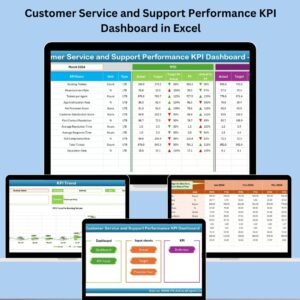
- Customer Service and Support Performance KPI Dashboard in Excel: track support performance KPIs in Excel
- Customer Service and Support Risk Management KPI Dashboard in Excel: monitor support risk KPIs in Excel
- Customer Support SLA KPI Dashboard in Excel: follow support SLA KPIs in Excel
- Customer Service KPI Dashboard in Power BI: a customer service KPI dashboard in Power BI
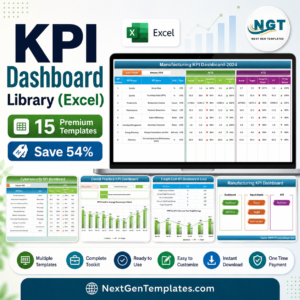
- KPI Dashboard Library (Excel): 15 Excel KPI dashboards in one bundle
Browse all Excel KPI dashboards.



Reviews
There are no reviews yet.