


Keeping track of client appointments is essential for maintaining smooth operations, avoiding scheduling conflicts, and ensuring timely follow-ups. The Client Appointment Calendar in Google Sheets is a ready-to-use, fully customizable tool that helps businesses organize and manage all appointments efficiently.
Designed with multiple calendar views and a centralized events database, this template is ideal for sales teams, consultants, service providers, and any organization that relies on consistent client interaction. Its interactive layout ensures quick navigation, real-time updates, and improved productivity.
🔑 Key Features of the Client Appointment Calendar
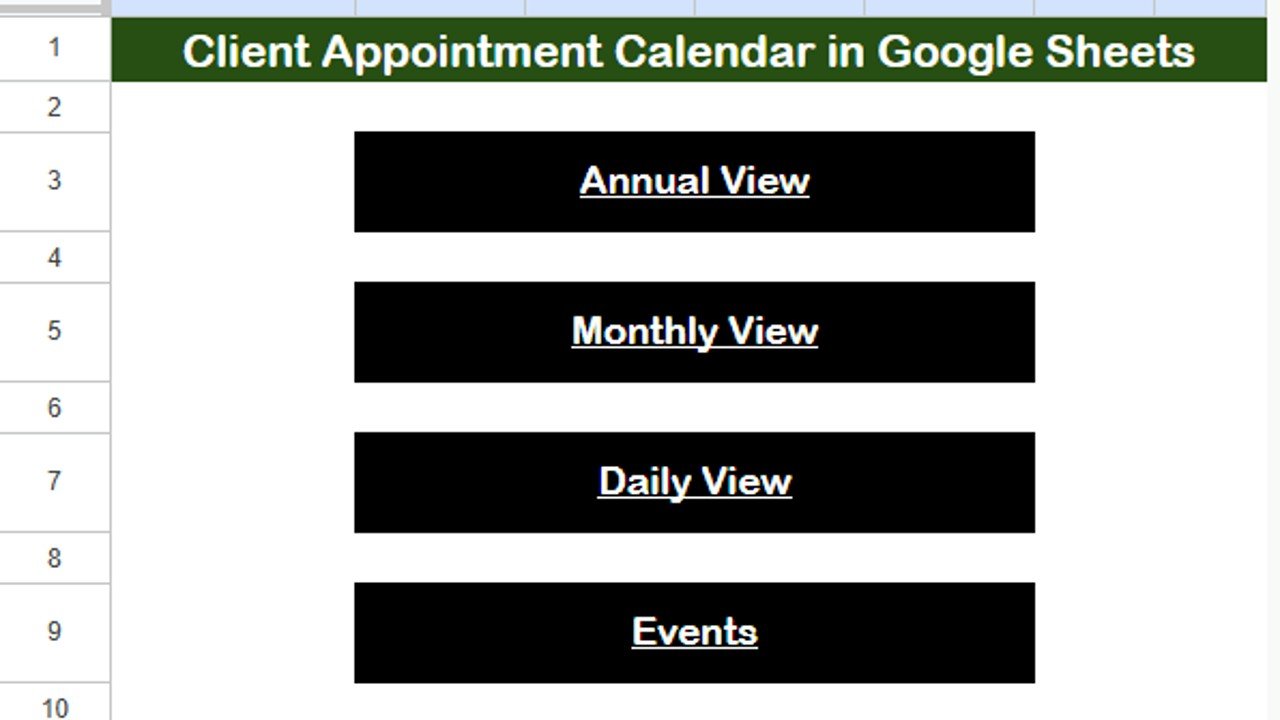
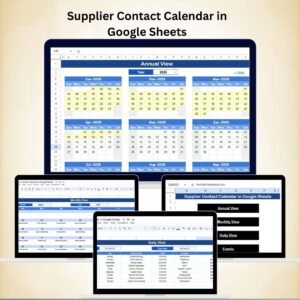
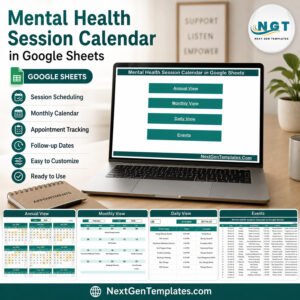
🏠 Home Sheet Tab – Quick Navigation
Four navigation buttons for instant access to:
Annual View
Monthly View
Daily View
Events Database
Acts as a central dashboard to streamline workflow.
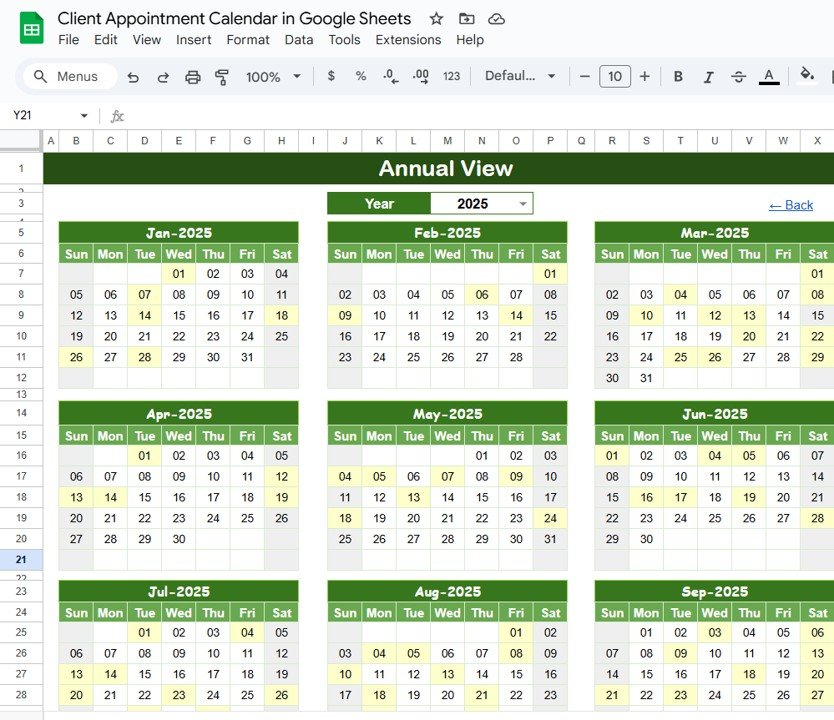
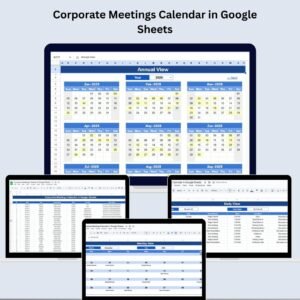
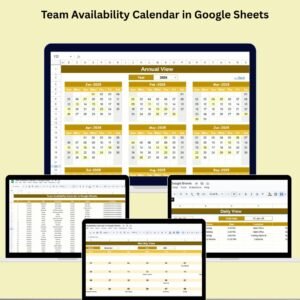
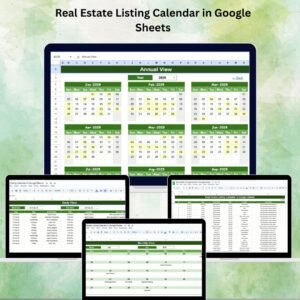
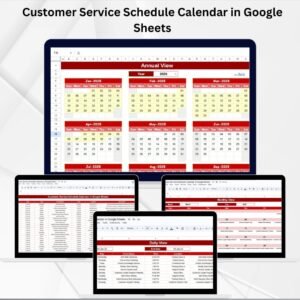
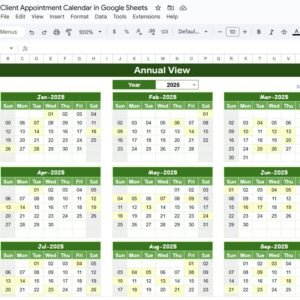
📅 Annual View Sheet Tab – Big Picture Planning
Displays 12 months of appointments at once.
Features:
Year selection for automatic calendar updates.
Option to set starting month and day of the week.
Perfect for long-term appointment scheduling and spotting yearly trends.
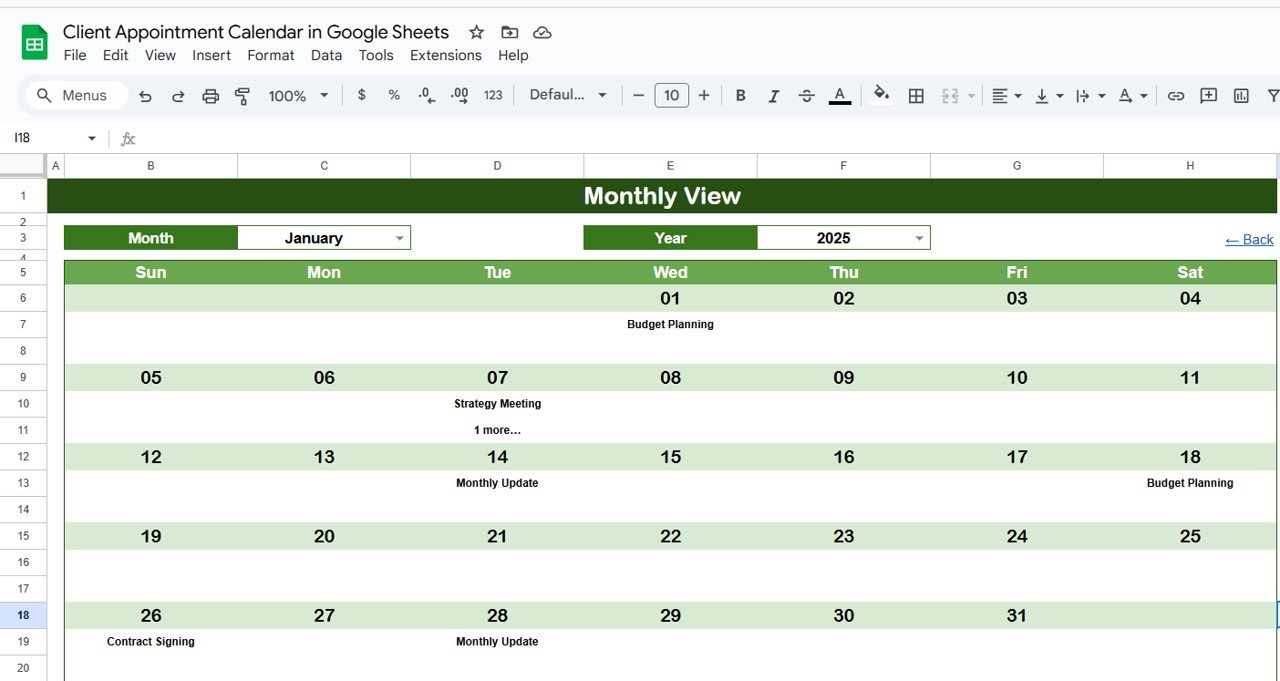
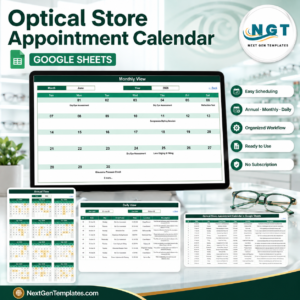
🗓 Monthly View Sheet Tab – Focused Month Planning
Select month and year to view scheduled appointments.
Each date shows one appointment; if more exist, it displays “more than 1…” for quick identification.
Helps in avoiding double-booking and managing team availability.
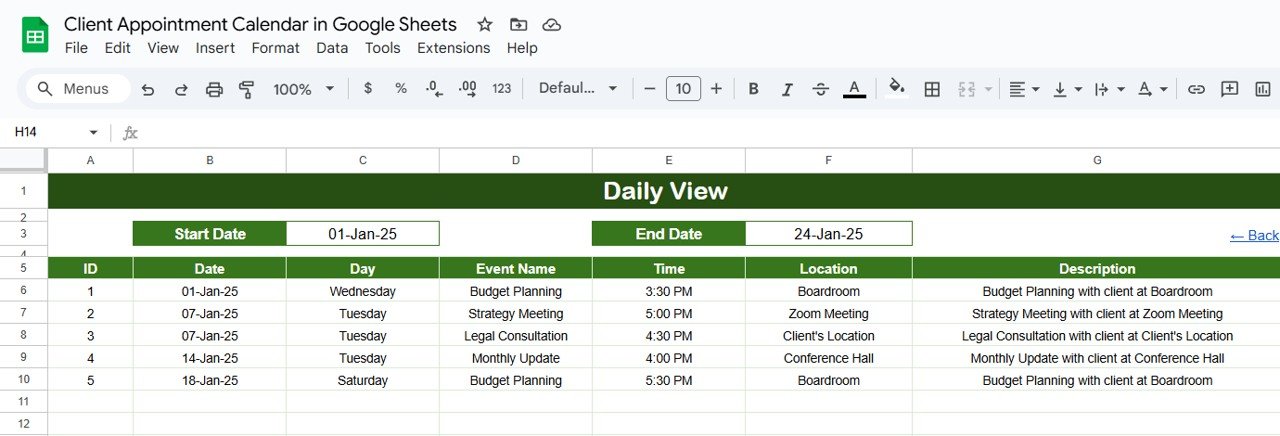
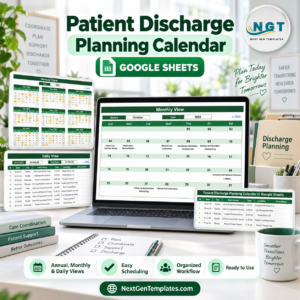
📆 Daily View Sheet Tab – Detailed Daily Tracking
Filter appointments by date range using a calendar icon.
View event details such as time, location, and description.
Ideal for daily operational planning and client coordination.
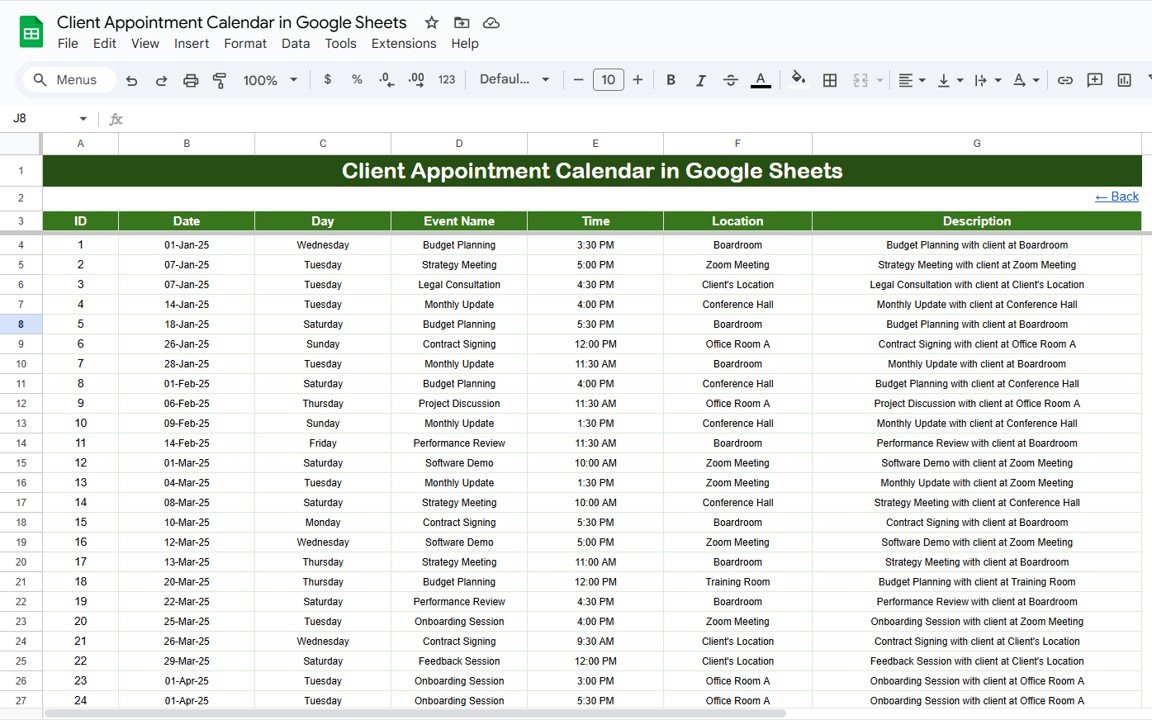
📋 Events Sheet Tab – Centralized Appointment Database
Stores all appointment details in one location.
Key fields include:
ID
Date & Day
Event Name
Time
Location
Description
Data automatically feeds into annual, monthly, and daily views for real-time updates.
📦 What’s Inside the Client Appointment Calendar?
✅ Home Sheet – Quick access navigation
✅ Annual View – Year-long scheduling overview
✅ Monthly View – Month-specific event planning
✅ Daily View – Date-range event tracking
✅ Events Sheet – Master appointment list
✅ Sample Data – Pre-filled to show functionality
✅ Fully Customizable Layout – Adapt to your industry needs
🧠 How to Use the Client Appointment Calendar
Make a Copy of the template in your Google Drive.
Enter Appointment Details in the Events Sheet.
Use the Home Tab to jump between calendar views.
Plan long-term schedules in the Annual View.
Manage monthly events and avoid conflicts in the Monthly View.
Track daily commitments with the Daily View for operational clarity.
👥 Who Can Benefit from This Calendar?
🏢 Small Businesses – Manage client meetings efficiently.
📞 Sales Teams – Track follow-ups and presentations.
🧑⚕️ Consultants & Service Providers – Organize client sessions.
📈 Project Managers – Coordinate internal and external meetings.
🌍 Remote Teams – Collaborate on schedules in real time.







Reviews
There are no reviews yet.