

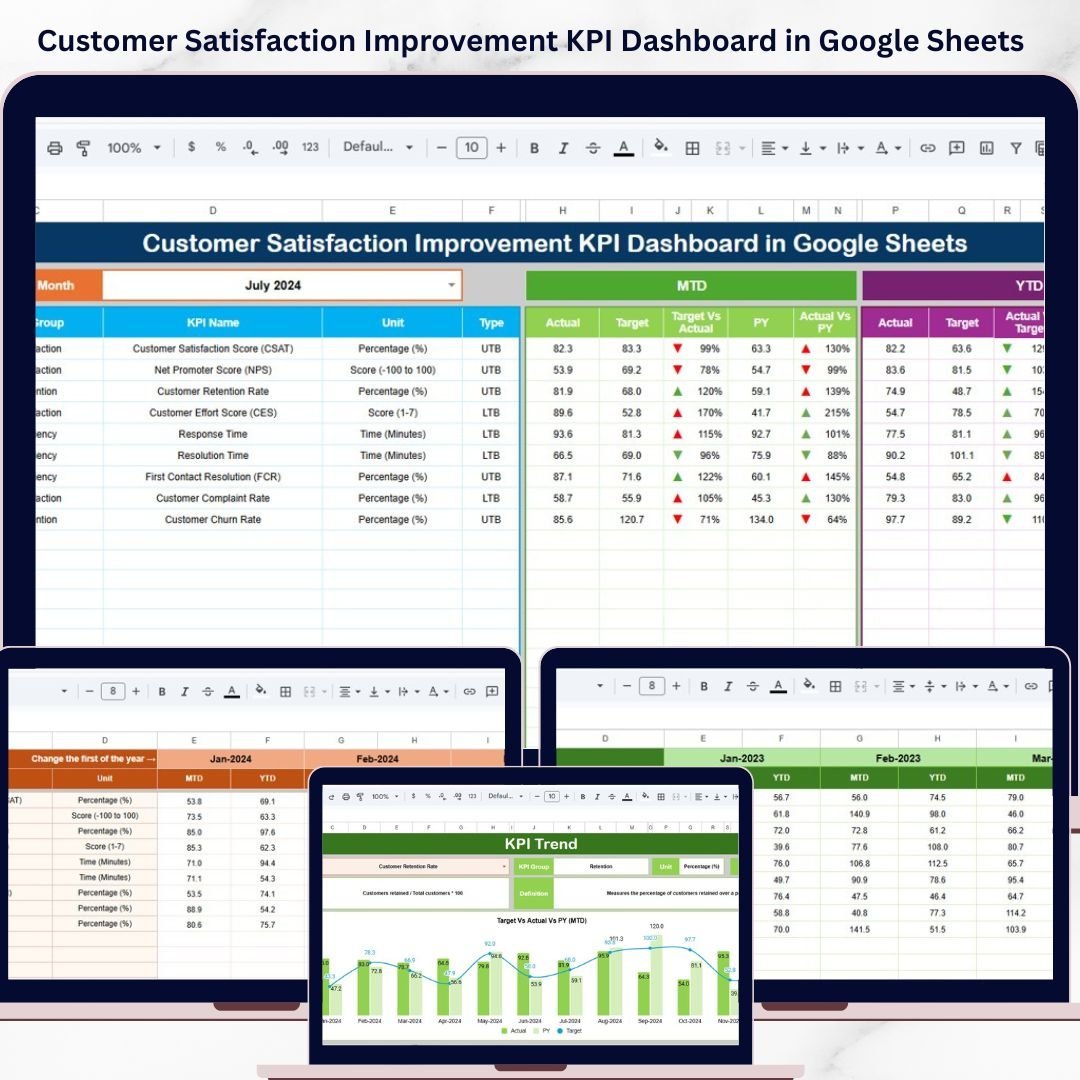
Key Features of Customer Satisfaction Improvement KPI Dashboard in Google Sheets
Unlock the power of data-driven decision-making with our Customer Satisfaction Improvement KPI Dashboard in Google Sheets. This ready-to-use digital template is meticulously designed to monitor, analyze, and improve your customer satisfaction metrics effortlessly. The dashboard includes six comprehensive worksheets, each tailored to provide actionable insights and streamline your KPI tracking process.
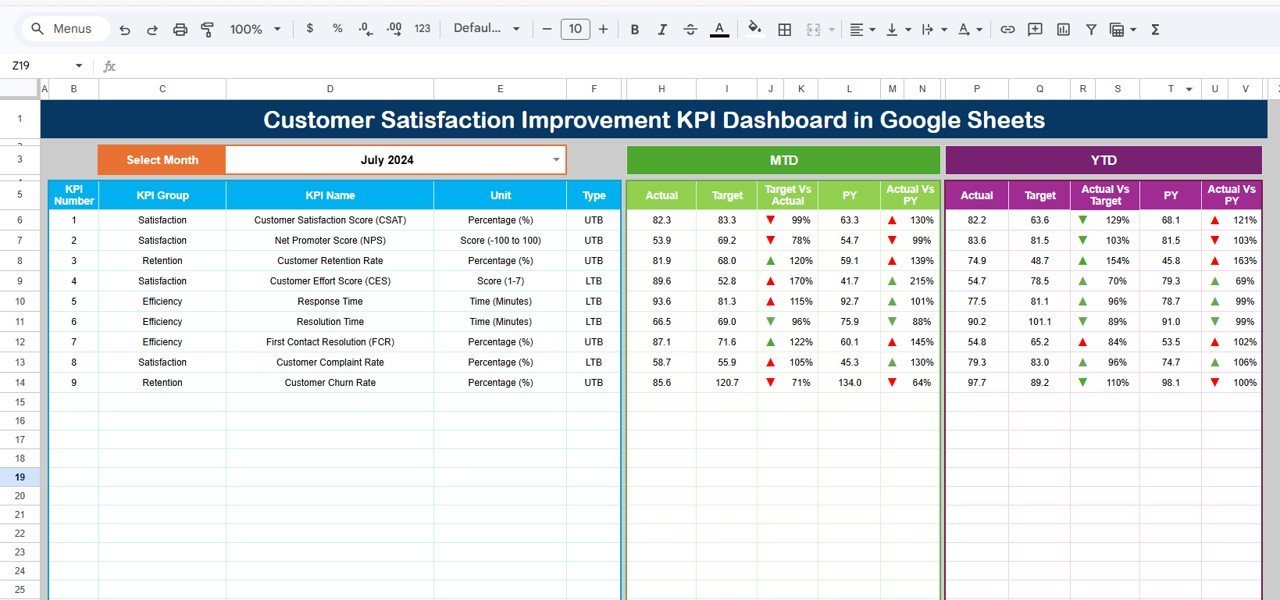
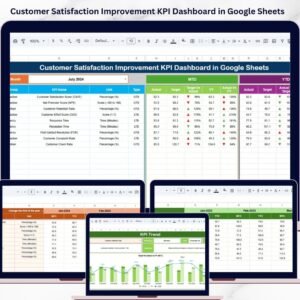
📊 Dynamic Dashboard Sheet: The main sheet offers a user-friendly interface where you can select the month via a drop-down (range D3), instantly updating all KPIs for the selected period. It displays MTD (Month-to-Date) Actual, Target, Previous Year data alongside Target vs Actual and PY vs Actual comparisons with intuitive conditional formatting and up/down arrows for quick trend visualization. Additionally, it showcases YTD (Year-to-Date) figures with similar comparative insights.
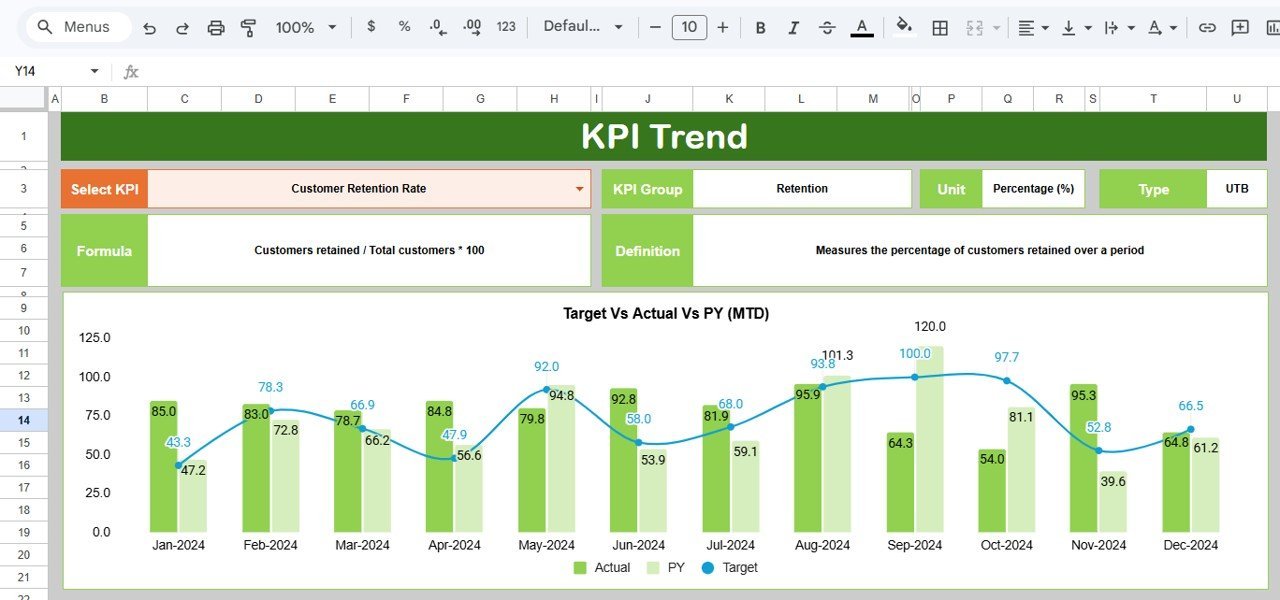
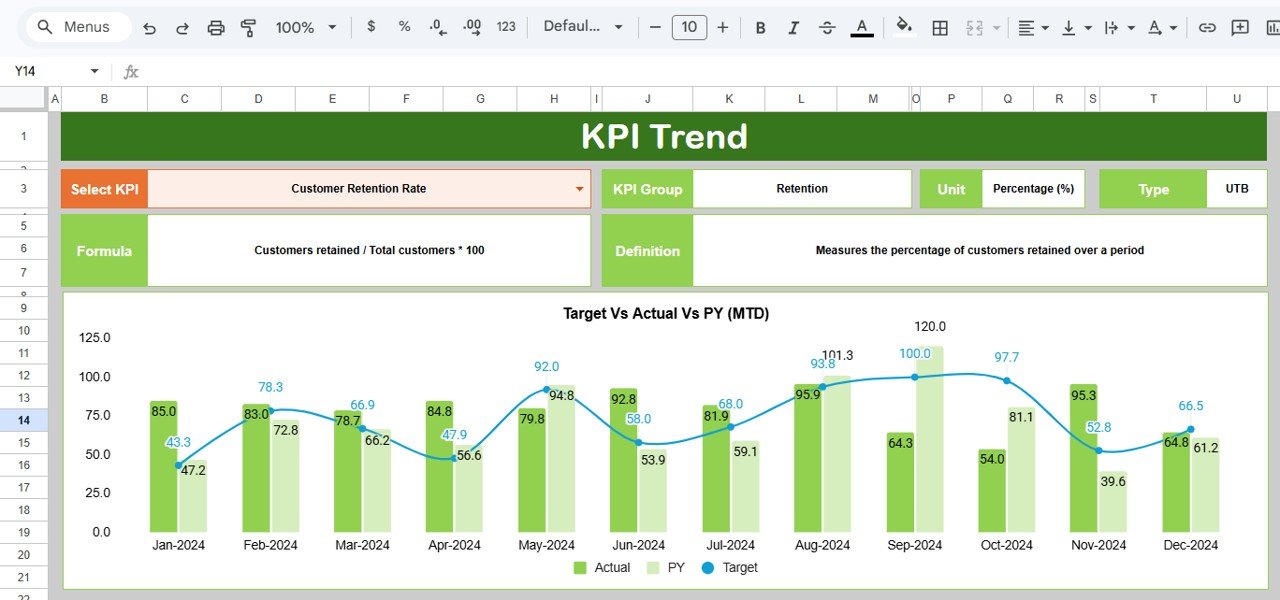
📈 KPI Trend Sheet: This sheet allows you to select any KPI from a drop-down (range C3) to view detailed information, including KPI Group, Unit, Type (whether a lower or upper value is better), Formula, and Definition. It features MTD and YTD trend charts for Actual, Target, and Previous Year values, making it easy to spot patterns and performance over time.
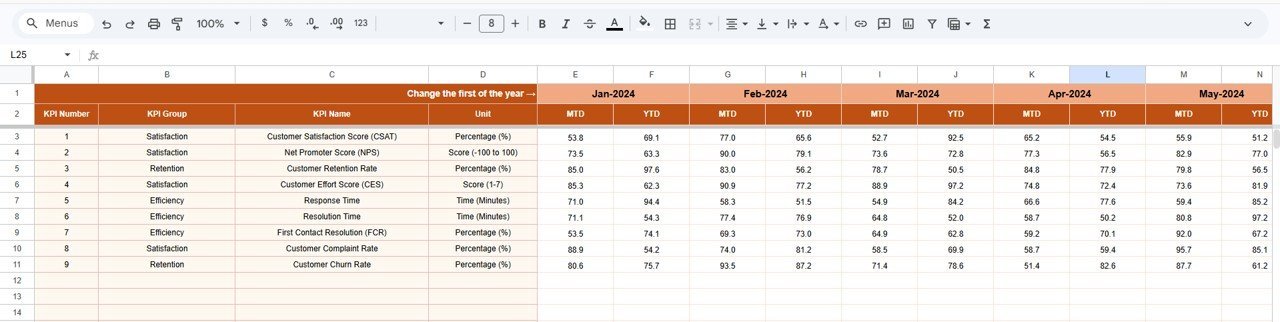
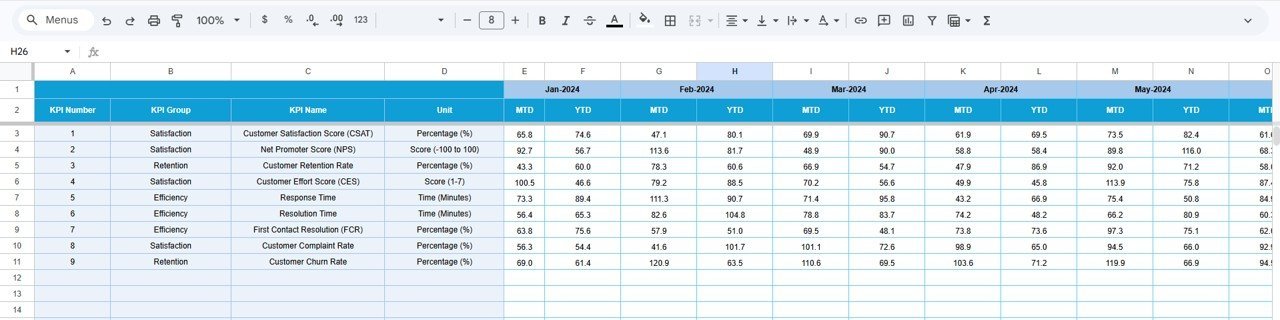
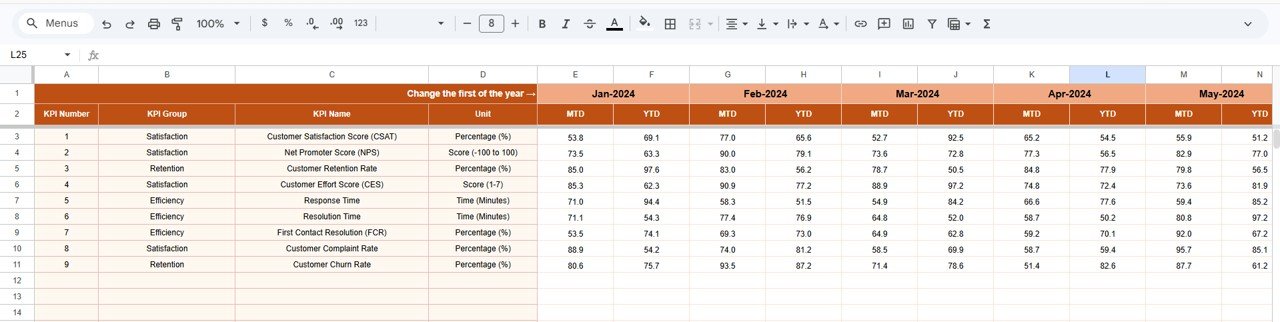
📝 Actual Numbers Input Sheet: Input your actual performance data here, both YTD and MTD, for the selected month. Easily change months by updating the first month of the year in range E1 to keep your data current.
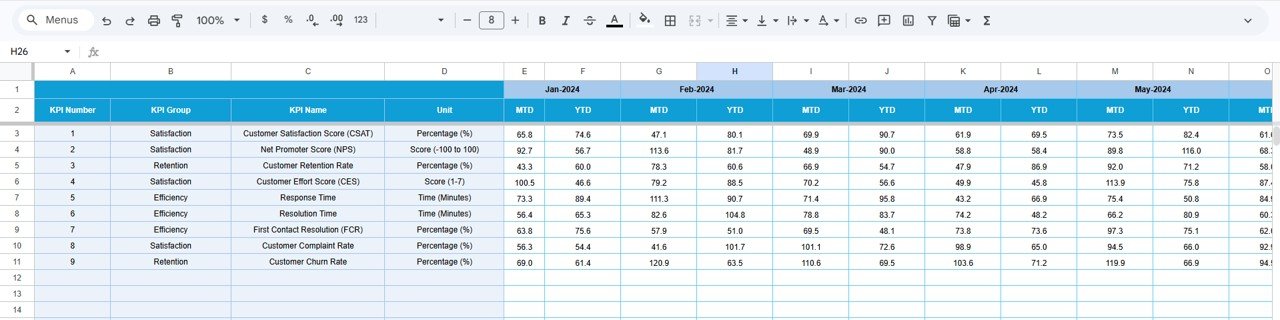
🎯 Target Number Input Sheet: Enter your monthly and year-to-date target values for each KPI here to set benchmarks for your team and organization.
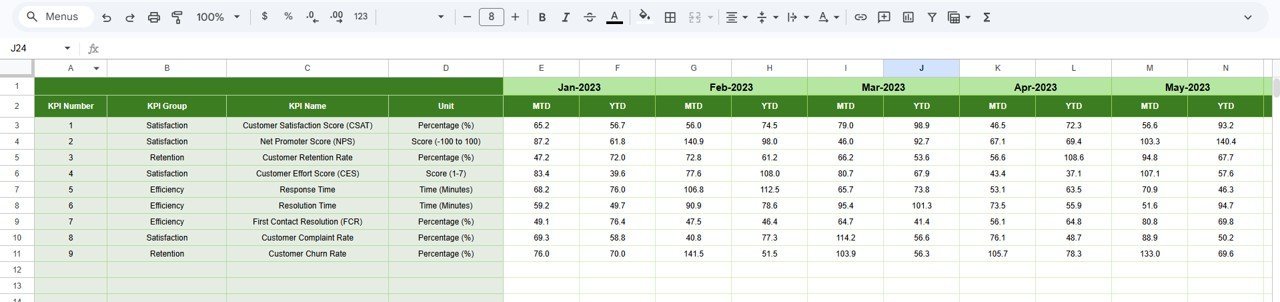
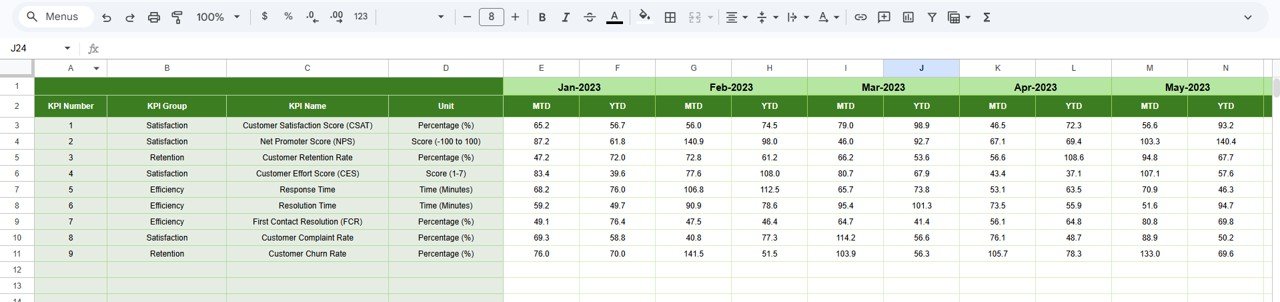
📅 Previous Year Numbers Sheet: Maintain historical context by inputting last year’s data, enabling meaningful year-over-year comparisons.
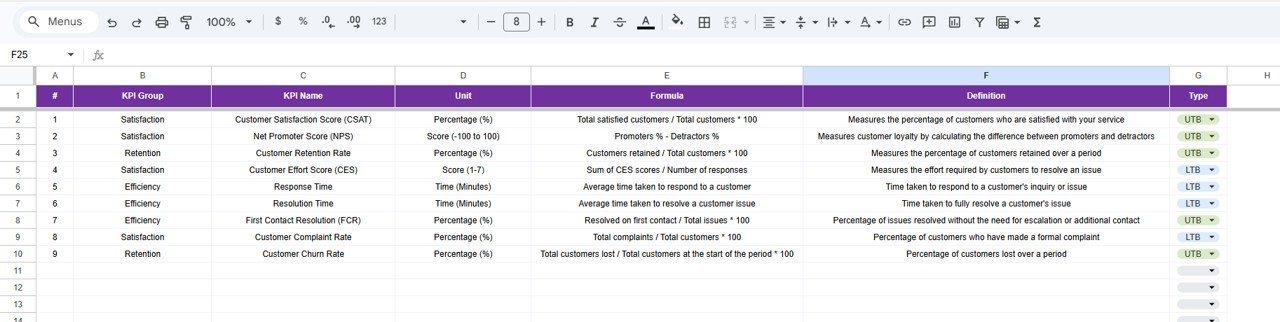
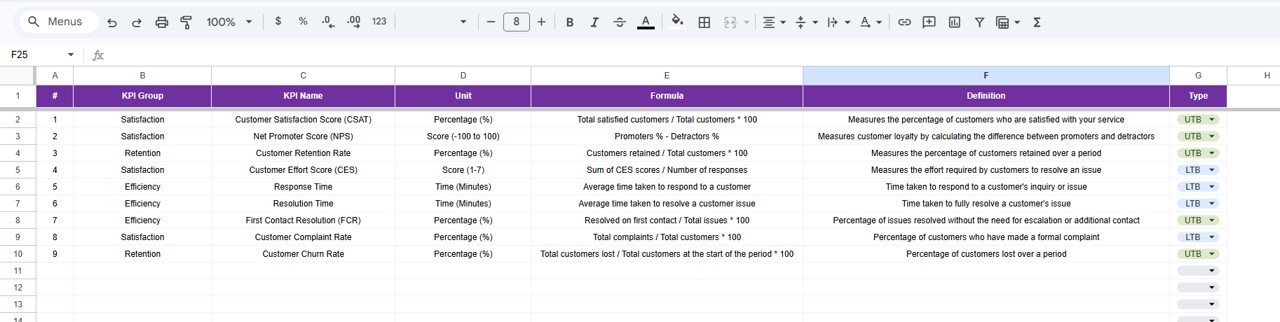
📚 KPI Definition Sheet: Define each KPI’s name, group, unit, formula, and description. Specify whether the KPI is ‘Lower The Better (LTB)’ or ‘Upper The Better (UTB)’ to tailor conditional formatting and trend interpretations.
This dashboard is fully customizable and designed with conditional formatting, charts, and drop-down menus to give you an intuitive and interactive experience.
What’s Inside the Customer Satisfaction Improvement KPI Dashboard in Google Sheets
- 📊 Dashboard Sheet: Central overview with MTD and YTD KPI comparisons and trend indicators.
- 📈 KPI Trend Sheet: Detailed analysis of individual KPIs with trend charts.
- 📝 Actual Numbers Input: Easy data entry for current period performance.
- 🎯 Target Number Input: Set clear targets for KPIs to measure success.
- 📅 Previous Year Numbers: Historical data to benchmark progress.
- 📚 KPI Definition: Comprehensive KPI descriptions and settings.
- ⚙️ Interactive Drop-down Menus: Quickly select months and KPIs for dynamic reporting.
- 📈 Conditional Formatting & Arrows: Instantly visualize performance trends.
How to Use the Customer Satisfaction Improvement KPI Dashboard in Google Sheets
- 🔄 Step 1: Open the Google Sheets template and set the first month of your fiscal year in the Actual Numbers Input sheet (range E1).
- 📝 Step 2: Enter your actual customer satisfaction data monthly in the Actual Numbers Input sheet.
- 🎯 Step 3: Define your monthly and YTD target numbers in the Target Number Input sheet.
- 📅 Step 4: Fill in last year’s numbers in the Previous Year Numbers sheet for effective year-over-year comparisons.
- 📚 Step 5: Update or customize KPI definitions including formulas and types in the KPI Definition sheet.
- 📊 Step 6: Use the Dashboard sheet to view a consolidated summary of all KPIs, with easy month selection and visual trend indicators.
- 📈 Step 7: Dive deeper into individual KPI trends in the KPI Trend sheet, using dropdowns to analyze performance over time.
- ⚙️ Step 8: Regularly update actuals and targets to maintain an up-to-date performance overview.
Who Can Benefit from This Customer Satisfaction Improvement KPI Dashboard in Google Sheets
- 👔 Customer Experience Managers: Track satisfaction KPIs to enhance service quality and customer loyalty.
- 📊 Business Analysts: Analyze customer satisfaction trends and generate actionable insights.
- 🏢 Small & Medium Business Owners: Monitor customer satisfaction KPIs without the need for expensive software.
- 👨💼 Marketing Teams: Measure campaign impact on customer happiness and retention.
- 📈 Operations Managers: Identify operational bottlenecks affecting customer satisfaction.
- 🧑💻 Consultants & Freelancers: Offer clients valuable KPI dashboards for customer satisfaction improvement.
- 🎯 Project Managers: Keep track of customer-related KPIs for service delivery projects.
- 👩💻 Anyone Interested in Customer Satisfaction Metrics: Gain a clear understanding of performance with minimal effort.
Click here to read the Detailed blog post.
Visit our YouTube channel to learn step-by-step video tutorials.
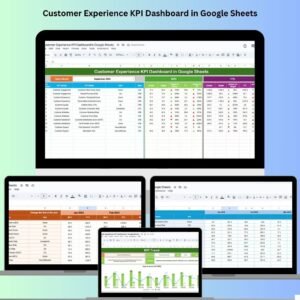
Customer Satisfaction Improvement KPI Dashboard in Google Sheets
KPI Trend Sheet
Actual Numbers Input sheet
Target Number Input sheet
Previous Year Number Input sheet
Compatibility and Requirements
- Works in Google Sheets with a free Google account and a web browser. Nothing to install.
- The month selector (D3) and KPI selector (C3) are in-cell dropdowns. Google explains these in Create an in-cell dropdown list.
Frequently Asked Questions
Which sheets are in the Customer Satisfaction Improvement KPI Dashboard?
Six: Dashboard, KPI Trend, Actual Numbers Input, Target Number Input, Previous Year Numbers and KPI Definition.
How do I change the month on the dashboard?
Pick a month in the dropdown in cell D3 of the Dashboard sheet. MTD and YTD actual, target and previous year figures update for that month.
How do I set the first month of my year?
Enter it in cell E1 of the Actual Numbers Input sheet.
What do LTB and UTB mean?
They are the KPI types set on the KPI Definition sheet: Lower The Better or Upper The Better. The type controls how the arrows and trend colors read each KPI.
Is there an Excel version?
Yes. The Customer Satisfaction Improvement KPI Dashboard in Excel covers the same KPIs in Excel.
Related Customer Satisfaction Templates
- Customer Satisfaction Improvement KPI Dashboard in Excel: the Excel edition.
- Customer Satisfaction Dashboard in Google Sheets: charts for survey and satisfaction data.
- Customer Experience KPI Dashboard in Google Sheets: KPIs across the customer journey.
- Customer Satisfaction Survey Tracker in Google Sheets: log survey responses.
- Customer Service KPI Dashboard in Google Sheets: KPIs for support teams.
Browse all Google Sheets KPI dashboards or the Google Sheets sales and marketing templates.






Reviews
There are no reviews yet.