

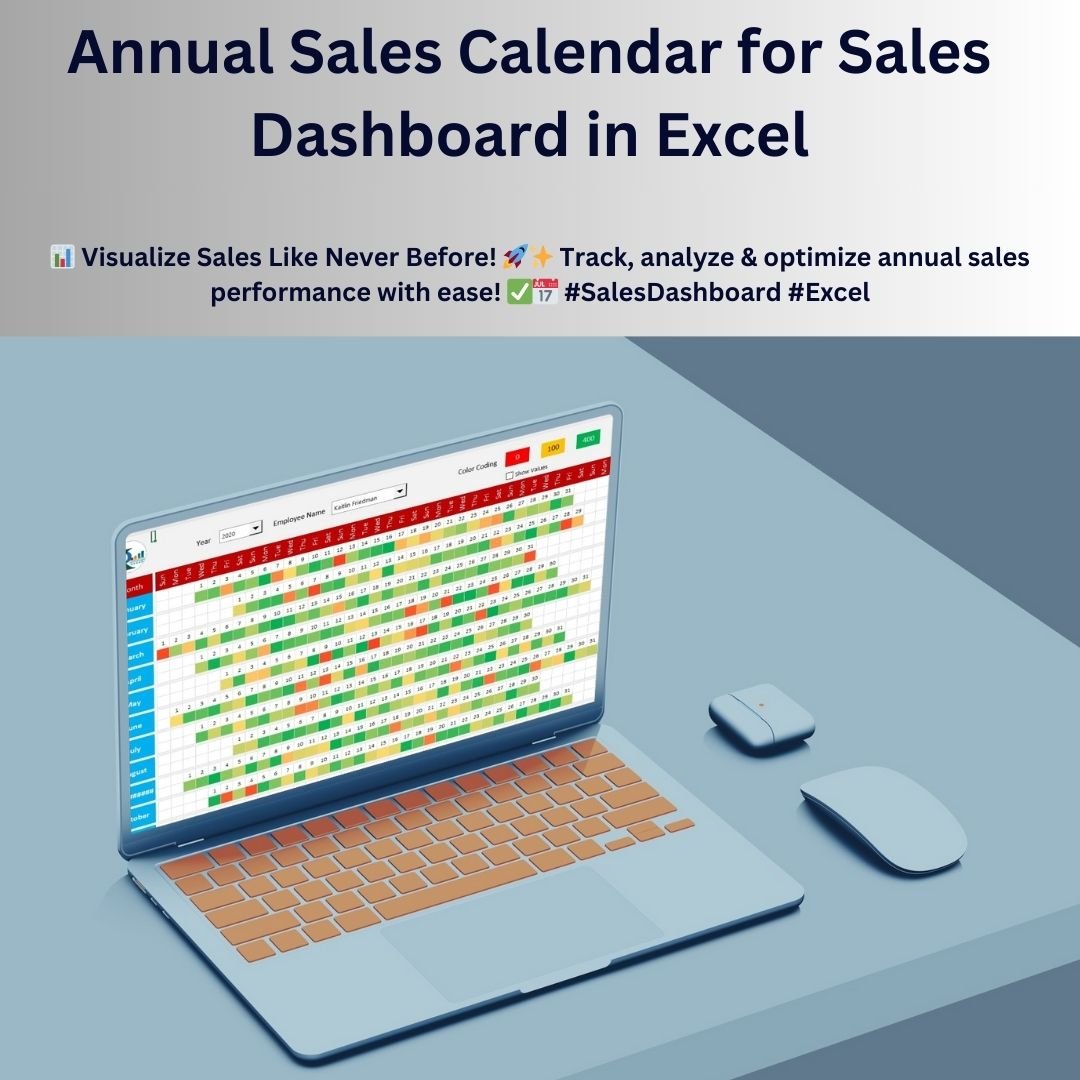

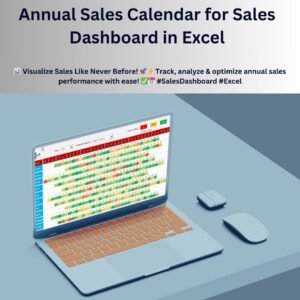
The Annual Sales Calendar for Sales Dashboard in Excel is a ready-made template that turns daily sales records into a color-coded yearly calendar. It is built for sales managers, team leaders and business owners who want to see employee performance, sales trends and revenue distribution across the year in one structured dashboard. You select a year and an employee, and the calendar highlights strong, moderate and weak sales days at a glance.
Key Features of the Annual Sales Calendar for Sales Dashboard
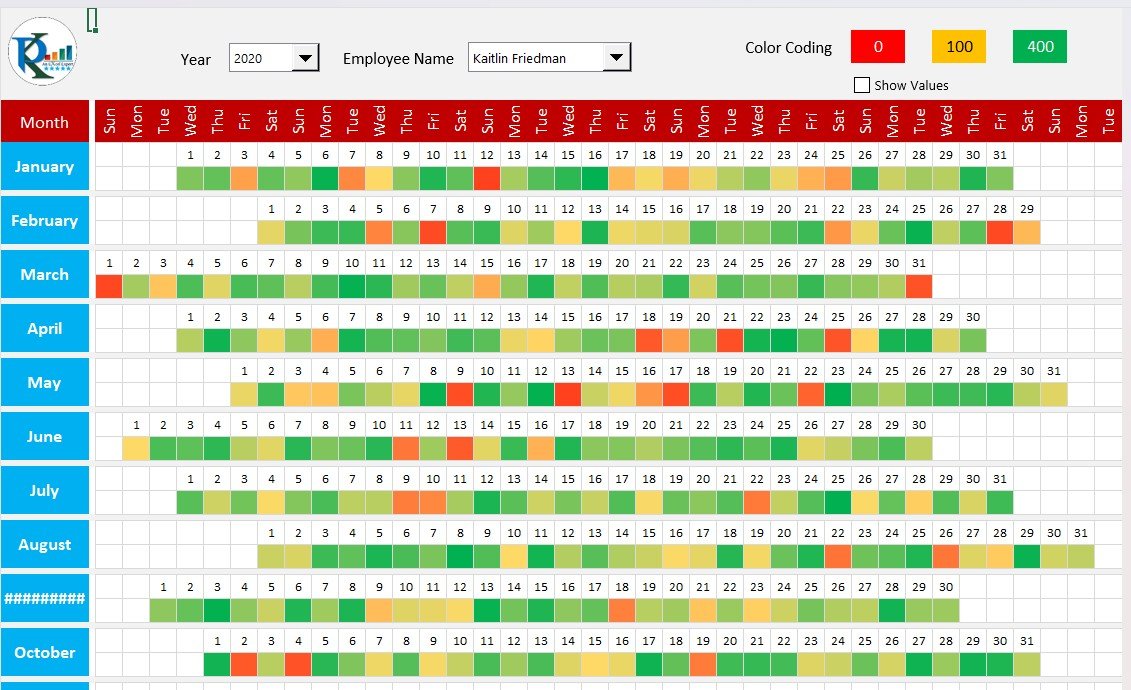
- Interactive sales calendar: The calendar view shows sales data for the selected year and employee. Every day is color-coded by sales performance with conditional formatting, so trends, high-performing periods and areas that need attention are easy to spot.
- Traffic-light conditional formatting: High sales figures are highlighted in green, moderate performance in yellow and low performance in red.
- Yearly and employee-level analysis: Filter sales data by year and by employee to review performance at both the team level and the individual level. Managers can track overall team results and find top performers or areas needing improvement.
- Automated calculations and formatting: Sales figures, performance metrics and calendar colors update automatically as new data is added to the Data Sheet.
- Easy-to-use interface: User-friendly dropdowns and selection options give quick access to the right data and remove the need for complex manual data handling.
- Efficient data filtering: View sales records for specific employees, compare their performance across different months and analyze historical trends to support forecasting of future sales performance and data-driven business decisions.
- Versatile customization: The template is fully customizable, so you can adapt it to your own sales tracking needs, whether you run retail, e-commerce, services or B2B operations.
What’s Inside the Template
| Sheet | What it does |
|---|---|
| Dashboard / Calendar | Interactive annual calendar with year and employee dropdowns, color-coded daily sales using conditional formatting. |
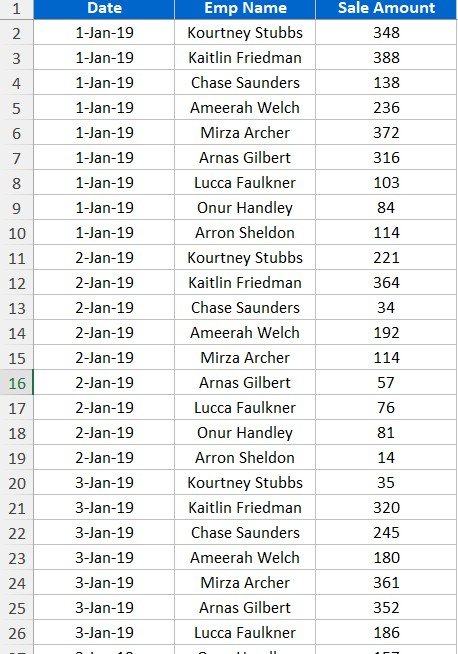
| Data Sheet | A comprehensive data table that organizes dates, employee names and sales figures in an easy-to-use format for accurate, clear and efficient sales tracking. |
| Support Sheet | Unique lists of employees, years and other key details that keep data consistent, power the dropdowns and make the dashboard easy to customize and navigate. |
How This Excel Sales Calendar Benefits Your Business
- Quickly identify sales trends across the whole year.
- Monitor employee sales performance with data that refreshes as you add records.
- Improve sales strategies with detailed, day-by-day analytics.
- Support revenue growth by identifying peak selling periods.
- Streamline performance tracking and help your team stay productive with one clear view.
Who It’s For
- Sales managers who review individual and team performance through the year.
- Business owners who want a simple sales dashboard in Excel without building one from scratch.
- Sales teams in retail, e-commerce, services and B2B who need to see their busiest and slowest days.
- Analysts who prefer a visual calendar over long tables of numbers.
How to Use It
- Open the template in Excel and go to the Data Sheet.
- Enter or paste your sales records: date, employee name and sales amount.
- Check the Support Sheet so the employee and year lists match your data.
- Go to the dashboard and pick a year and an employee from the dropdowns.
- Read the color-coded calendar: green for high sales, yellow for moderate, red for low.
- Compare months and employees to spot trends and plan your next sales actions.
Click here to read the detailed blog post
Watch the step-by-step video tutorial:
Frequently Asked Questions
What does the Annual Sales Calendar for Sales Dashboard in Excel show?
It shows daily sales for a selected year and employee in a calendar layout, with each day color-coded by performance so you can see high, moderate and low sales days instantly.
How does the color coding work?
The template uses conditional formatting: high sales figures are highlighted in green, moderate performance in yellow and low performance in red.
Do I need to update the calendar manually?
No. Sales figures, performance metrics and calendar colors update automatically as you add new data to the Data Sheet.
Can I track multiple employees and years?
Yes. The Support Sheet holds unique lists of employees and years, and the dropdowns on the dashboard let you filter by year and by employee.
Can I customize the template for my business?
Yes. The template is fully customizable and suits sales tracking for retail, e-commerce, services or B2B operations.
Is there a tutorial?
Yes. A detailed blog post and a step-by-step video tutorial are linked above on this page.
Also check our Inventory Management Form in Excel
Last updated: October 2026
Compatibility and Requirements
- Works in Microsoft Excel desktop (Excel 2016 or later, or Microsoft 365).
- You pick the year and the employee from dropdowns on the dashboard. Microsoft explains how they work in Create a drop-down list.
Related Sales and Calendar Templates
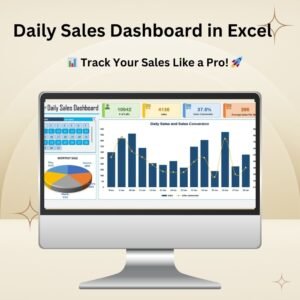
- Daily Sales Dashboard in Excel: a dashboard view of day-by-day sales
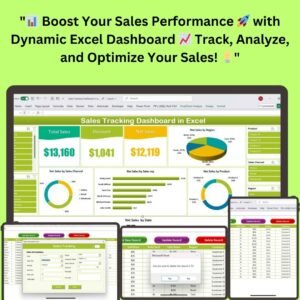
- Sales Tracking Dashboard in Excel: sales tracking with charts and KPIs
- Monthly Sales Goals Calendar in Excel: a calendar for monthly sales targets
- Monthly Sales Tracker and Report in Google Sheets: a sales tracker for Google Sheets users
- Marketing Manager Toolkit: 9 templates in one download (Excel + Google Sheets)
Browse all Excel calendar templates and Excel sales and marketing templates.











Reviews
There are no reviews yet.