

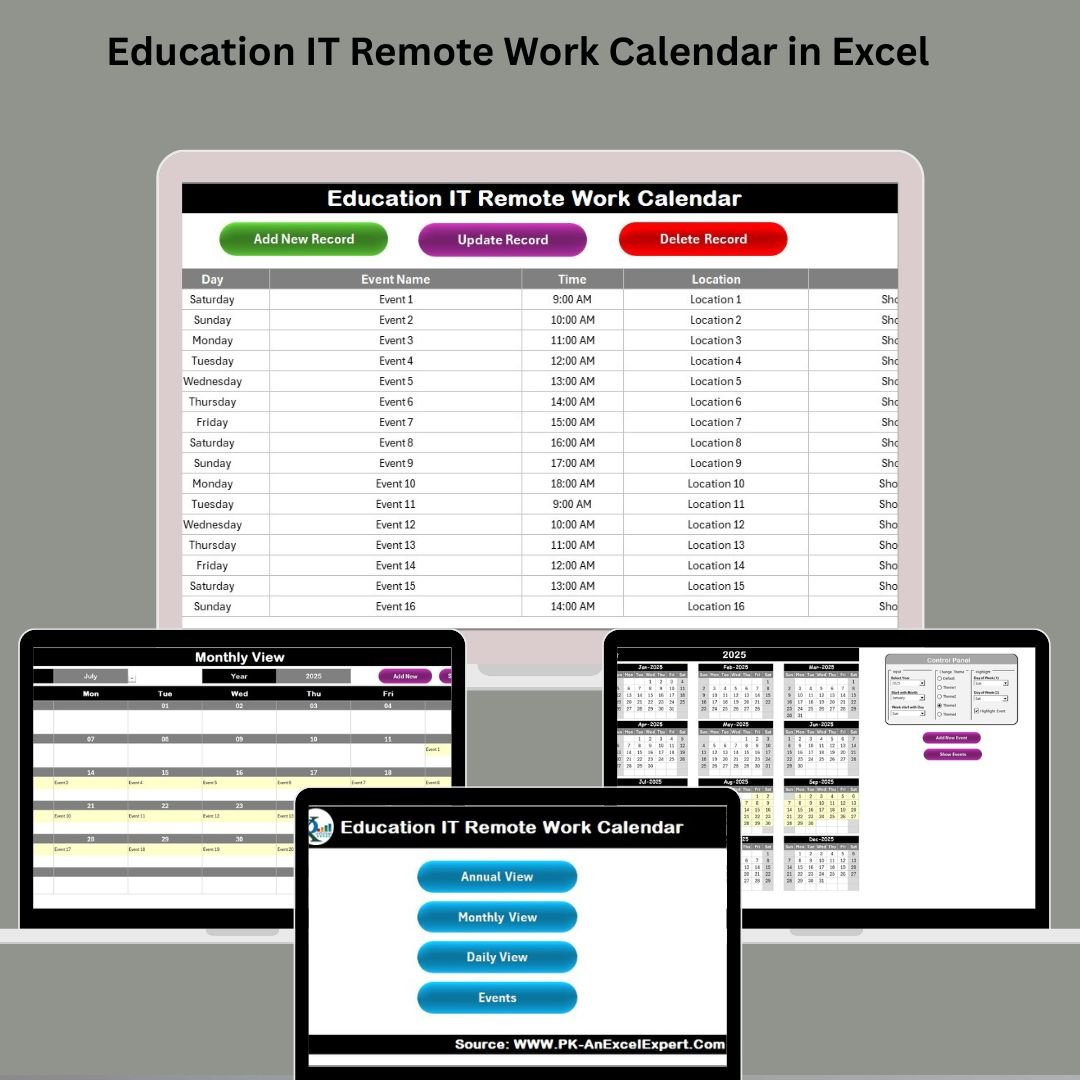
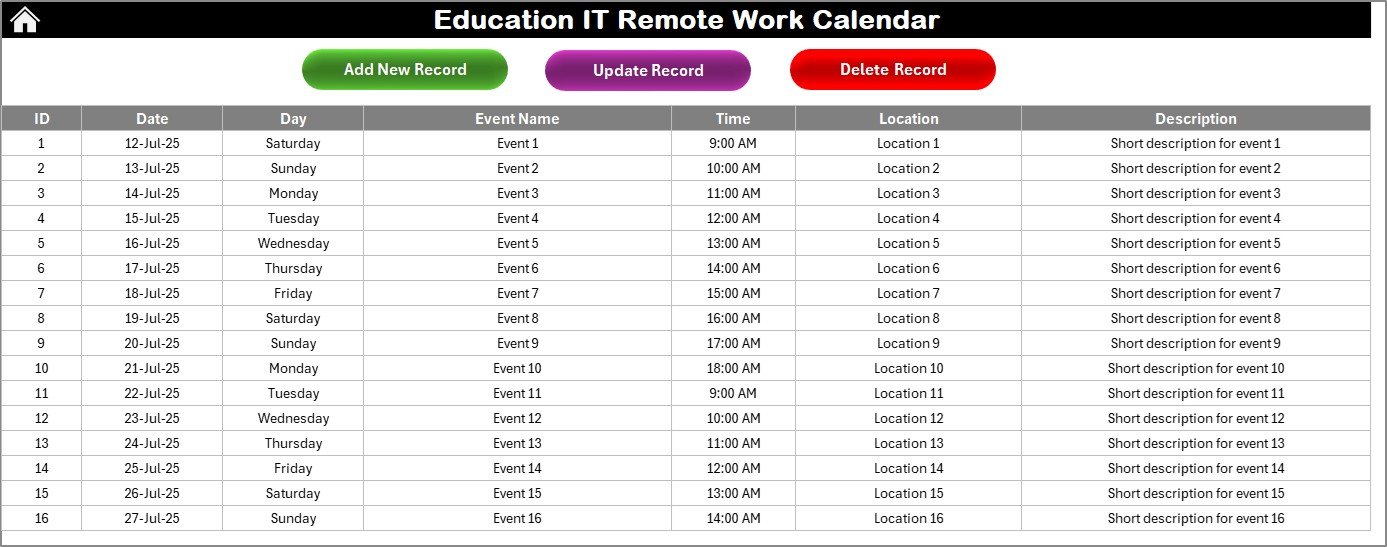

In the world of digital education, remote work has rapidly transformed how IT teams operate. With multiple meetings, project deadlines, training sessions, and virtual tasks to manage—staying organized is no longer a luxury, it’s a necessity. Introducing the Education IT Remote Work Calendar in Excel – a powerful, ready-to-use Excel-based planner tailored specifically for educational IT departments!
Whether you’re leading remote tech support, planning system upgrades, or coordinating virtual events, this calendar will help you stay ahead, save time, and boost team efficiency.
🛠️ Key Features of Education IT Remote Work Calendar
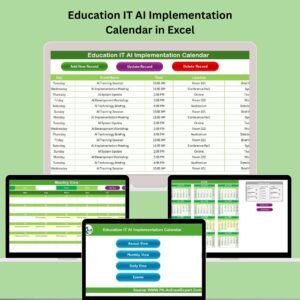
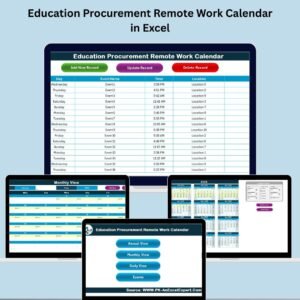
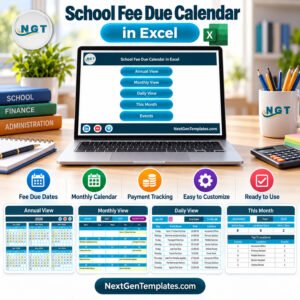
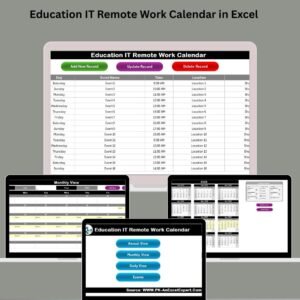
1️⃣ Home Sheet – Your Navigation Hub
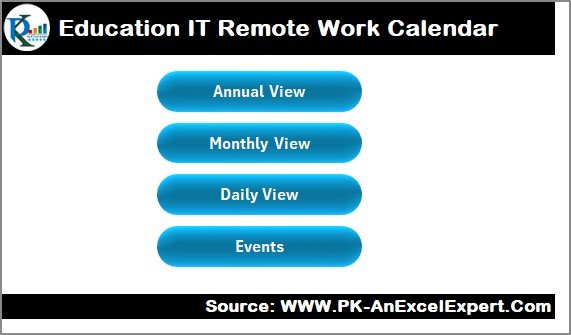
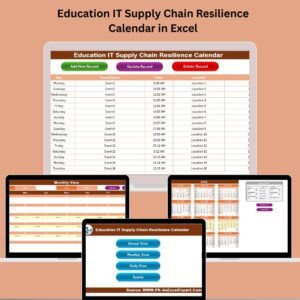
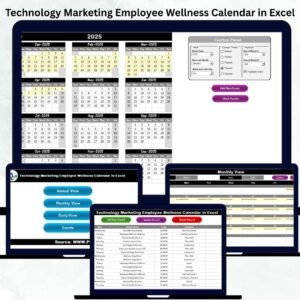
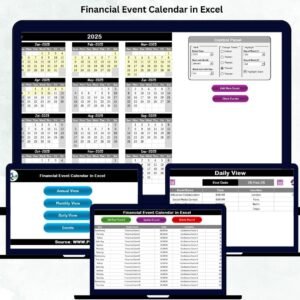
Features 4 clickable buttons to jump directly to Annual, Monthly, Daily, and Events views.
Acts as your central dashboard for smooth navigation.
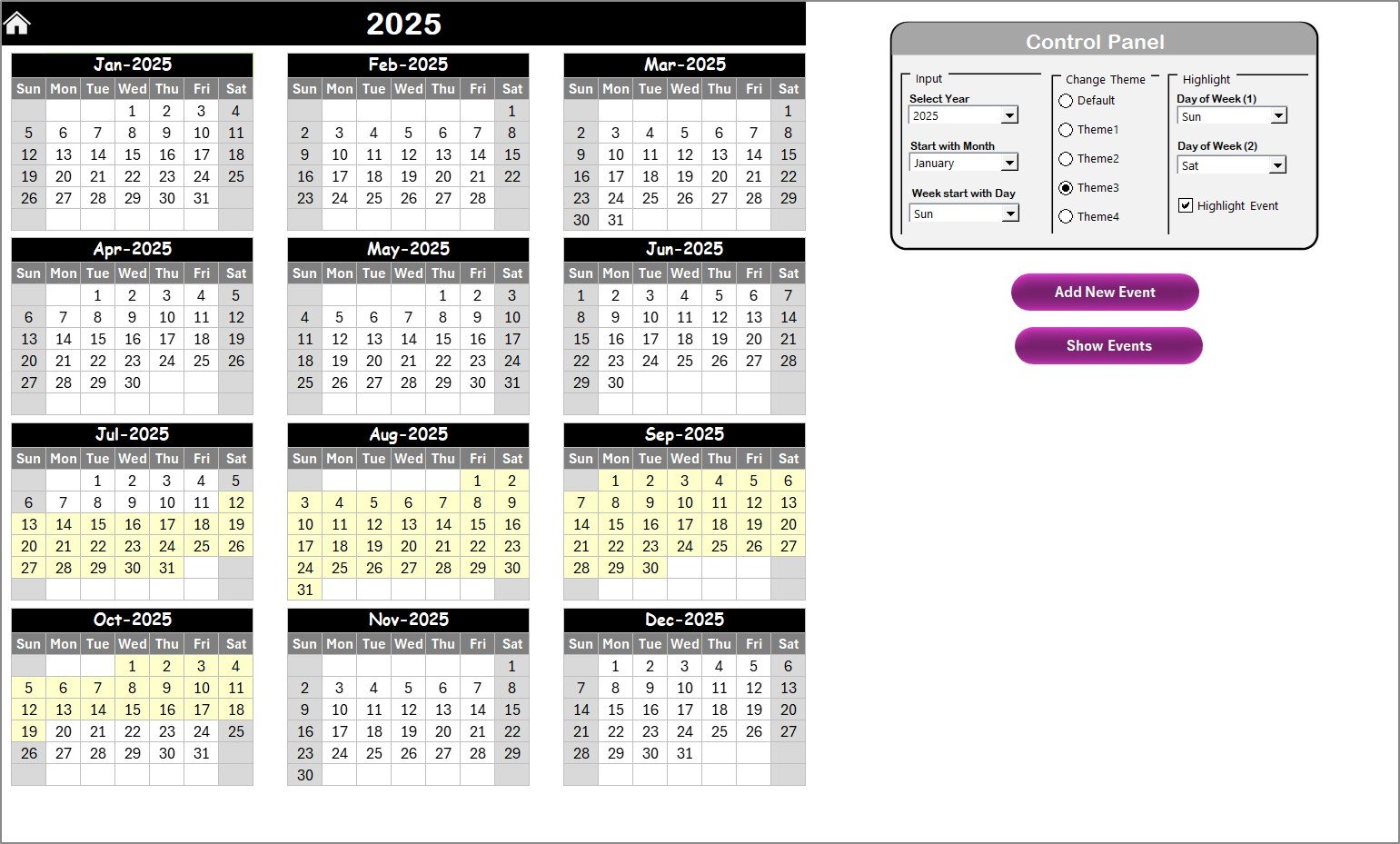
2️⃣ Annual View – Plan the Whole Year
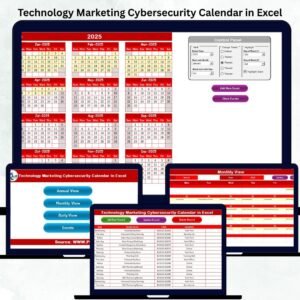
Displays all 12 months at a glance.
Comes with a Control Panel for:
Changing the year, start month, and day
Theme customization with 5 color palettes
Weekend and event highlighting options
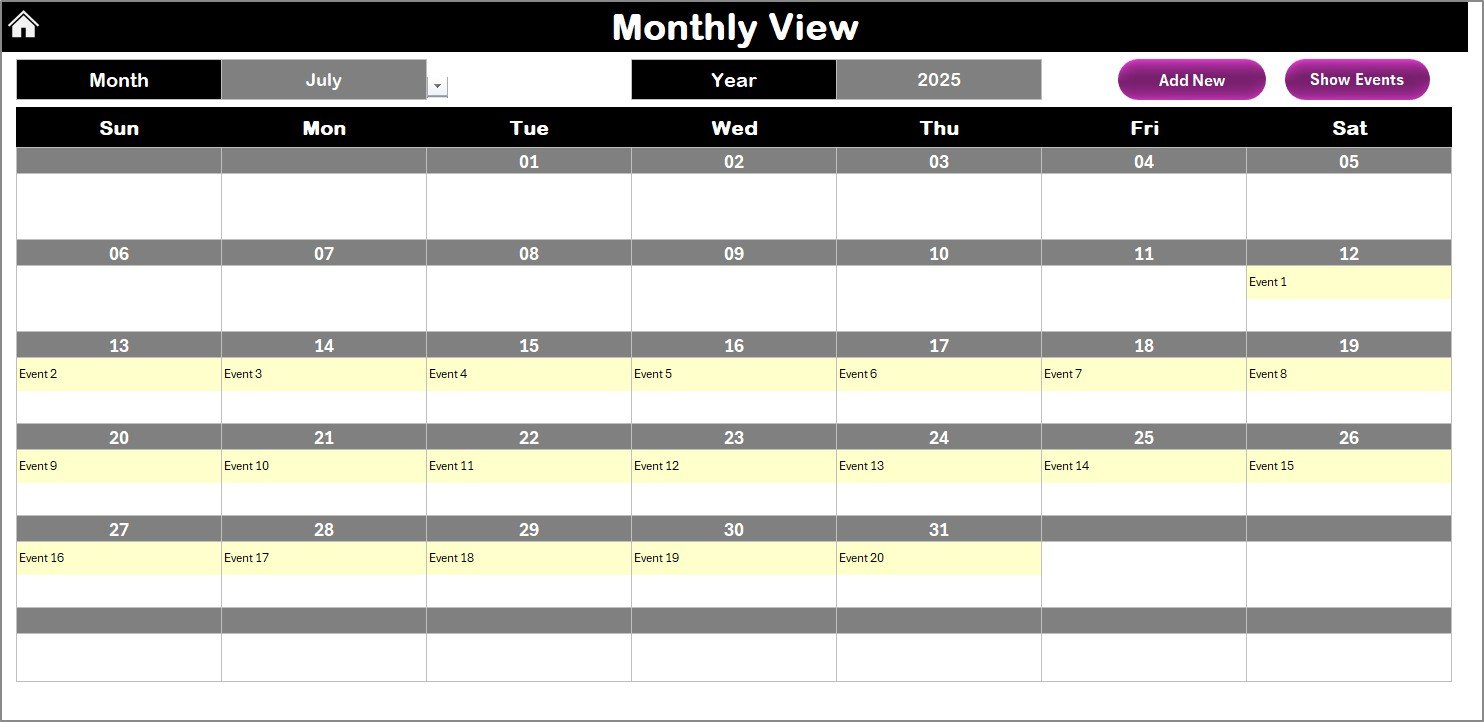
3️⃣ Monthly View – Focus on One Month at a Time
Choose any month/year and get an auto-generated calendar view.
Use buttons to Add New Events and Show Events by Date.
Ideal for mapping out short-term IT tasks and deliverables.
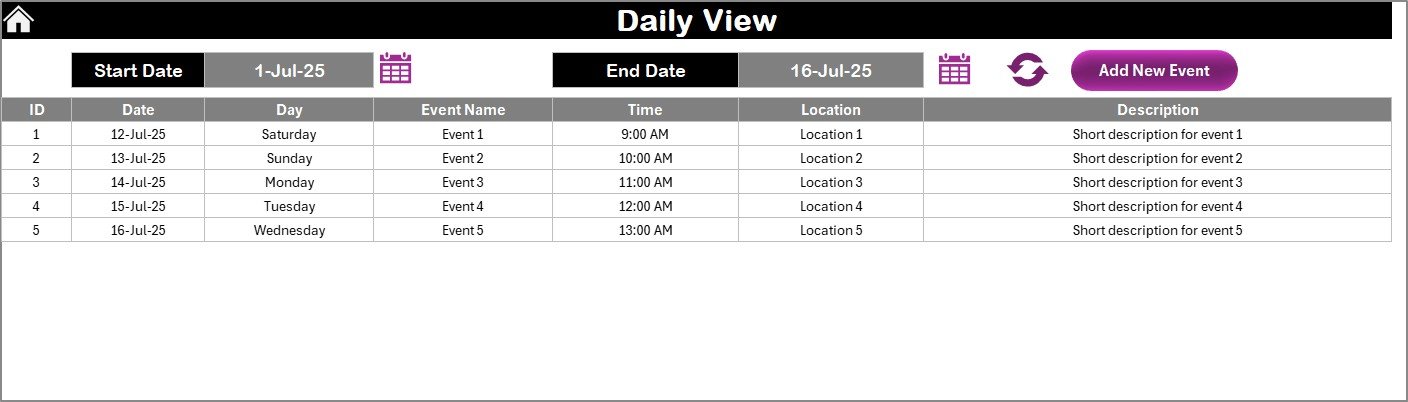
4️⃣ Daily View – Drill Down to Specific Dates
Filter and focus on events within a specific date range.
Add events directly from this sheet with a simple button click.
Best for week planning or managing intensive IT weeks.
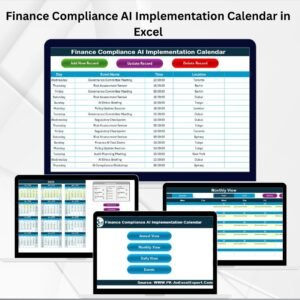
5️⃣ Events Sheet – Master Event Database
Captures all remote work tasks in one location.
Tracks:
Event ID
Date & Day
Event Name
Time & Location
Description
Features:
Add, Update, Delete event records with ease
Keeps your scheduling centralized and editable
📦 What’s Inside the Education IT Remote Work Calendar
✅ Professionally designed Excel file with 5 fully functional worksheets
✅ Built-in automation using buttons (no VBA knowledge needed)
✅ Predefined formats for event tracking and summaries
✅ Flexible fields for date, event name, description, and time
✅ Easy-to-understand interface, optimized for busy IT teams
🎯 How to Use the Calendar
🔐 Open the Excel file and go to the Home Sheet
📆 Jump to Annual/Monthly/Daily views for your planning needs
🖊 Add new events through the respective sheets
📋 Use the Events sheet to track and manage all entries
🎨 Customize the theme, weekend highlights, and view format
🔄 Regularly update your calendar for smooth collaboration
No complicated software. No learning curve. Just Excel doing what it does best—smart planning made easy!
👥 Who Can Benefit from This Product?
This calendar is perfect for:
🧑💻 Educational IT Teams – Schedule deployments, backups, support tasks, and more
🏫 School or College IT Admins – Track remote classes, LMS updates, and system outages
🗂 Department Heads – Manage meetings and cross-departmental collaborations
🎓 E-learning Coordinators – Plan training sessions and remote workshops
💼 Freelance EdTech Consultants – Keep client schedules on track from one sheet
Whether you’re managing 5 events or 500, this Excel calendar makes remote work seamless and manageable!
### 📖 Click here to read the Detailed blog post
🔗 Visit our YouTube channel to learn step-by-step video tutorials
Watch the step-by-step video tutorial:
Compatibility and Requirements
- Works in Microsoft Excel on Windows with macros enabled. The buttons for adding, updating and deleting events run on macros, so the file does not run in Excel for the web, Google Sheets or mobile apps. Microsoft explains how to turn macros on in Enable or disable macros in Microsoft 365 files.
Frequently Asked Questions
Which sheets are included?
Five worksheets: Home, Annual View, Monthly View, Daily View and Events.
What does the Events sheet store?
Each record has an Event ID, date, day, event name, time, location and description. You can add, update and delete records from this sheet.
Can I change the year and the look of the calendar?
Yes. On the Annual View sheet the Control Panel lets you change the year, start month and start day. You can also pick one of 5 color palettes and turn weekend and event highlighting on or off.
How do I see events for a certain period?
Use the Daily View sheet to filter events by a date range. On the Monthly View sheet, pick a month and year and use the Show Events by Date button.
Is there a similar remote work calendar for other teams?
Yes. See the Education HR Remote Work Calendar in Excel and the Education Operations Remote Work Calendar in Excel.
Related Remote Work Calendars and Templates
- Education HR Remote Work Calendar in Excel: the same calendar layout for school HR teams
- Education Operations Remote Work Calendar in Excel: for school operations staff
- Education Compliance Remote Work Calendar in Excel: for compliance teams in education
- Remote Work KPI Dashboard in Excel: track remote work KPIs in Excel
- Remote Work Request Form Template in MS Word and Google Docs: a free form for remote work requests
Browse all Excel calendar templates and education templates in Excel.




Reviews
There are no reviews yet.