

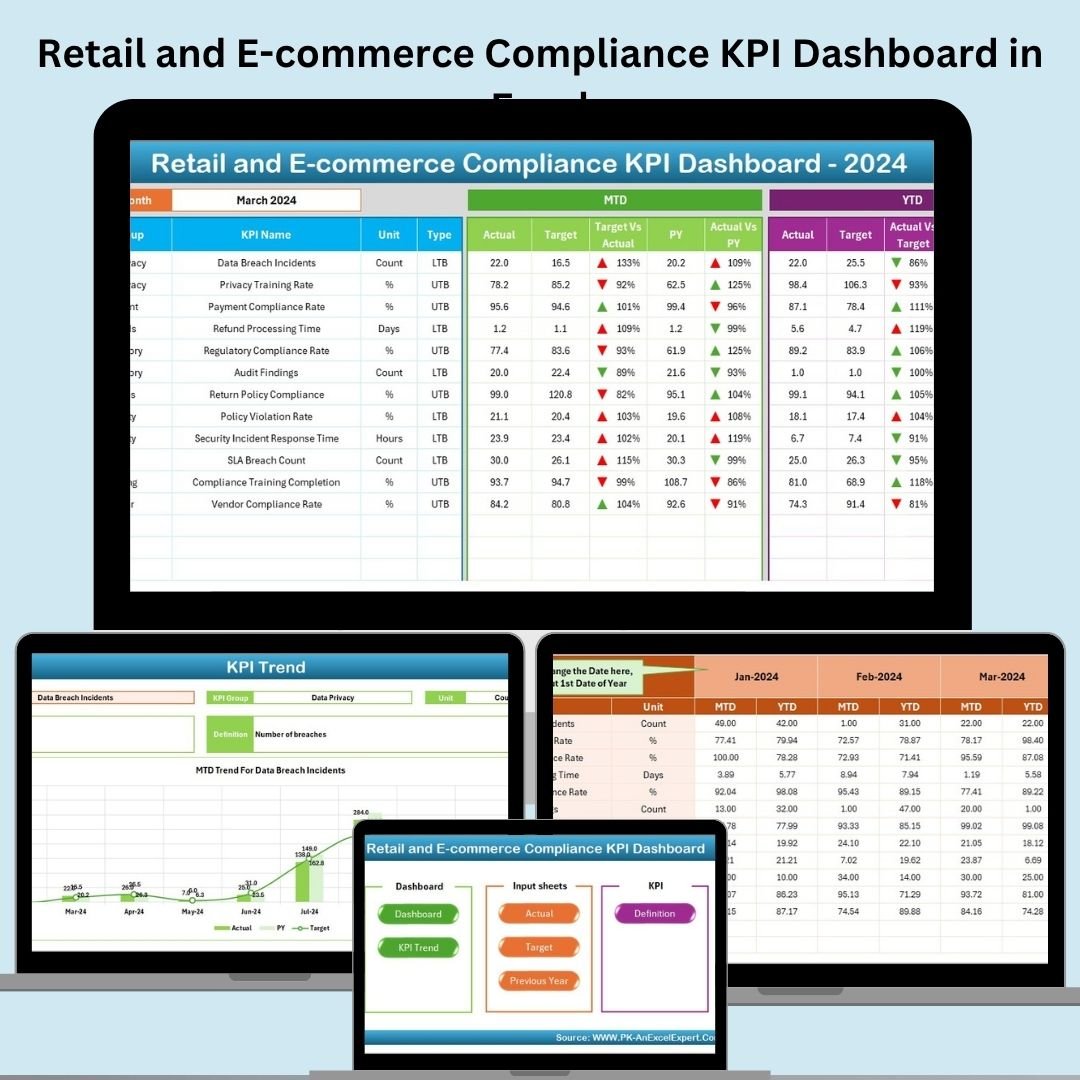

In the ever-evolving world of retail and e-commerce, compliance isn’t just about avoiding penalties—it’s about earning customer trust, protecting your brand, and ensuring smooth operations. Introducing the Retail and E-commerce Compliance KPI Dashboard in Excel, a ready-to-use, feature-rich tool designed to help you monitor, manage, and master your compliance metrics.
Built entirely in Microsoft Excel, this dashboard template simplifies how you track key performance indicators (KPIs) across your organization—whether you’re monitoring product labeling, data privacy, payment security, or age-restricted sales. It turns complex compliance metrics into actionable insights through interactive visuals, dynamic dropdowns, and automated calculations.
🧩 Key Features of the Compliance KPI Dashboard
🏠 Home Sheet Navigation
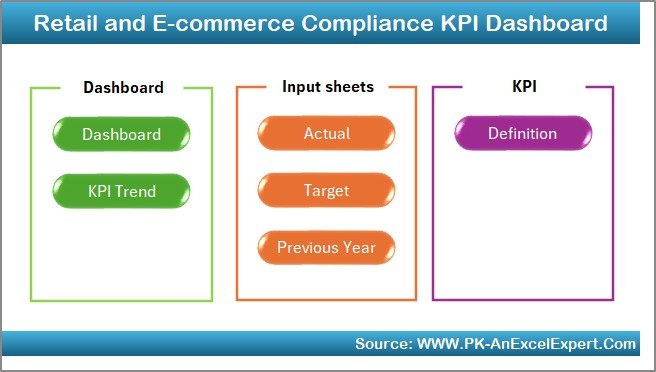
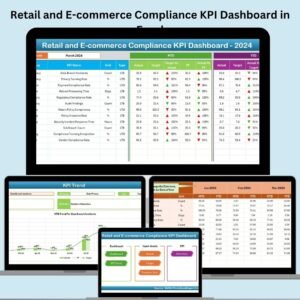
Navigate your dashboard with ease using a clean Home Sheet featuring 6 interactive buttons that link to each section: Dashboard, KPI Trend, Actuals, Targets, Previous Year, and KPI Definitions.
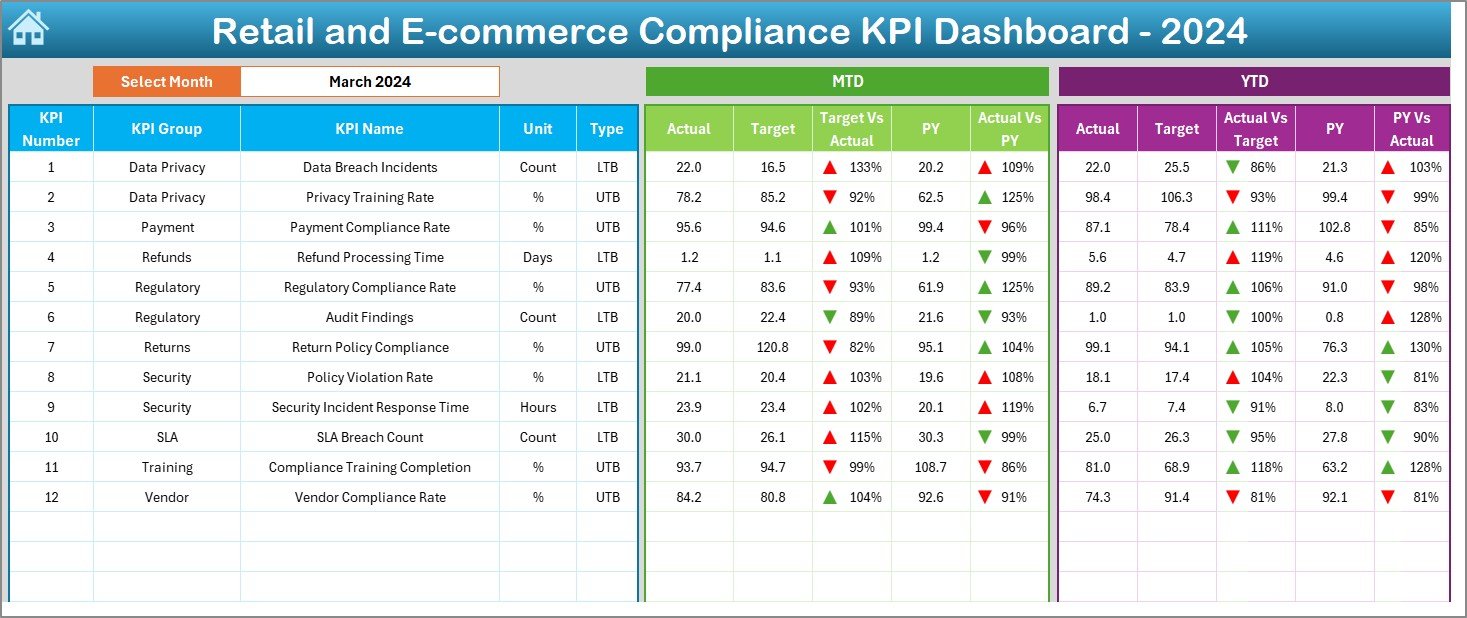
📈 Dashboard Sheet (MTD & YTD Insights)
See the big picture at a glance:
Select month from a dropdown (Cell D3)
View comparisons for MTD Actual vs Target vs PY
YTD visuals also included
Conditional formatting with up/down arrows for instant performance review
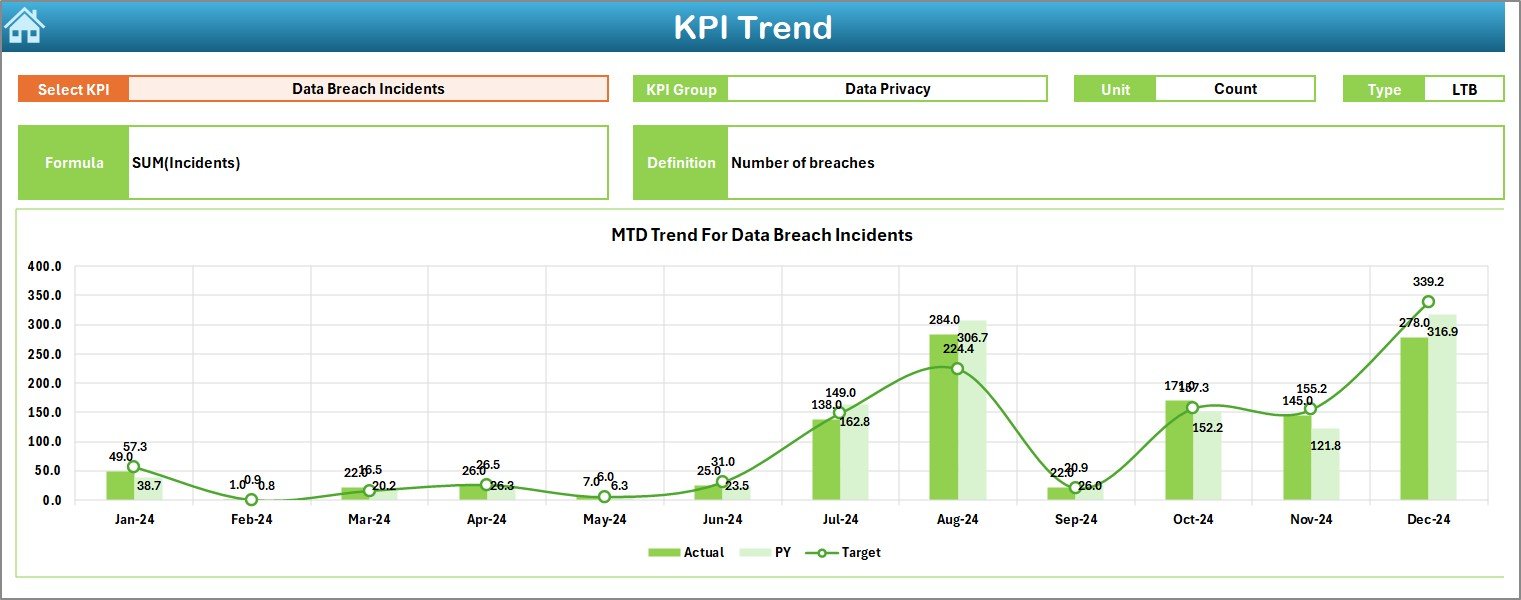
📊 KPI Trend Sheet
Dive deep into trends:
Choose any KPI from the dropdown (Cell C3)
Line charts for MTD and YTD Actuals, Targets, and Prior Year
See KPI Group, Unit, Type (LTB/UTB), Formula, and Definition
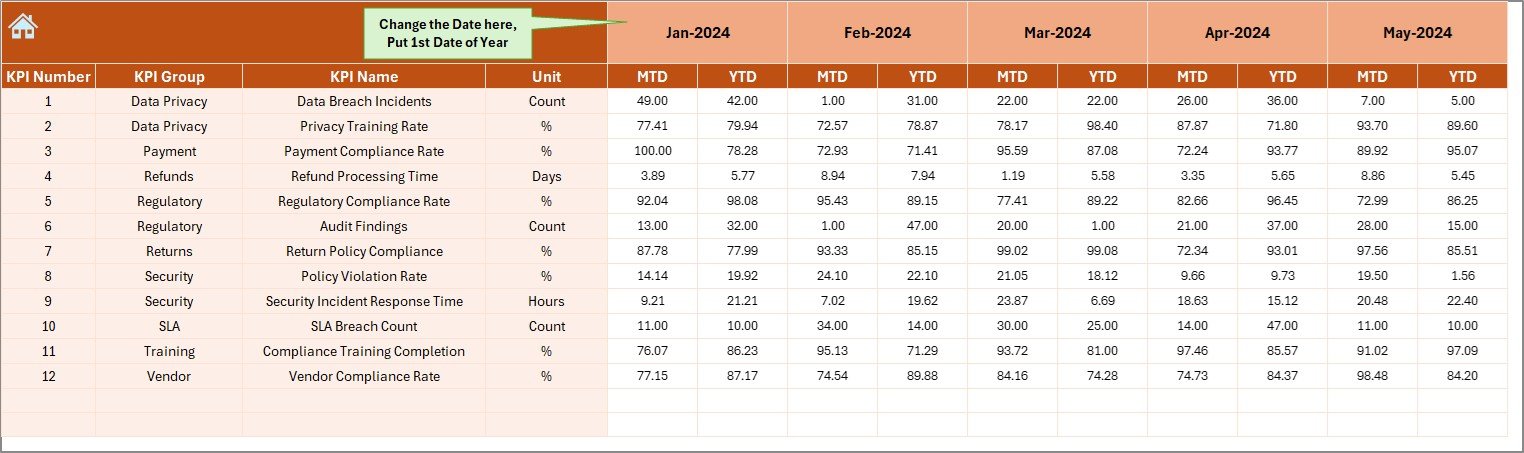
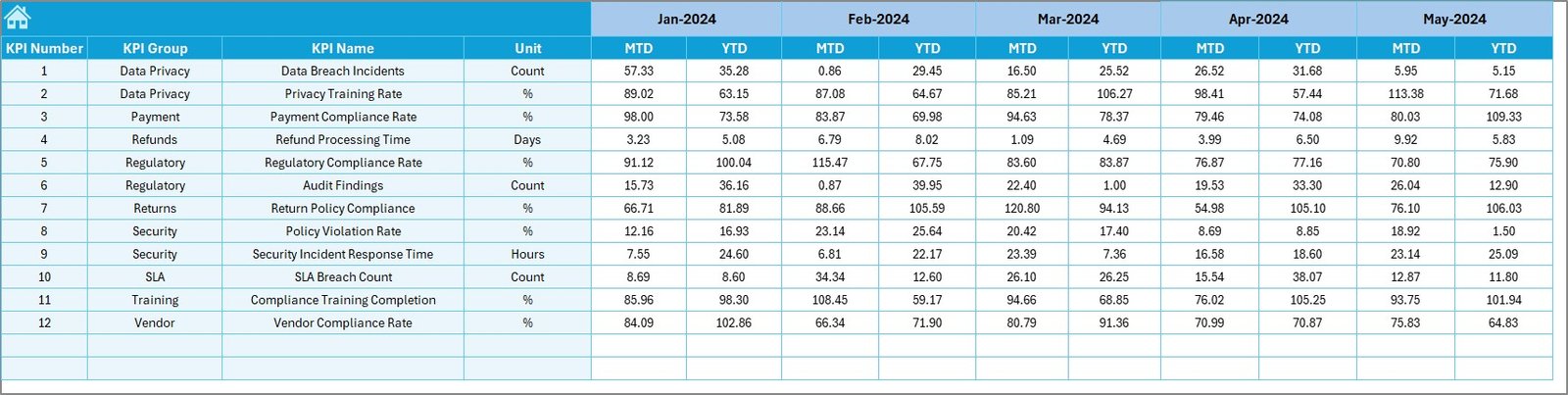
✍️ Actual Numbers Input Sheet
Input real monthly and YTD figures by KPI
Select start month (Cell E1)
Fully structured format for clean data capture
🎯 Target Numbers Sheet
Enter MTD and YTD targets by KPI and month
Benchmark your compliance efforts
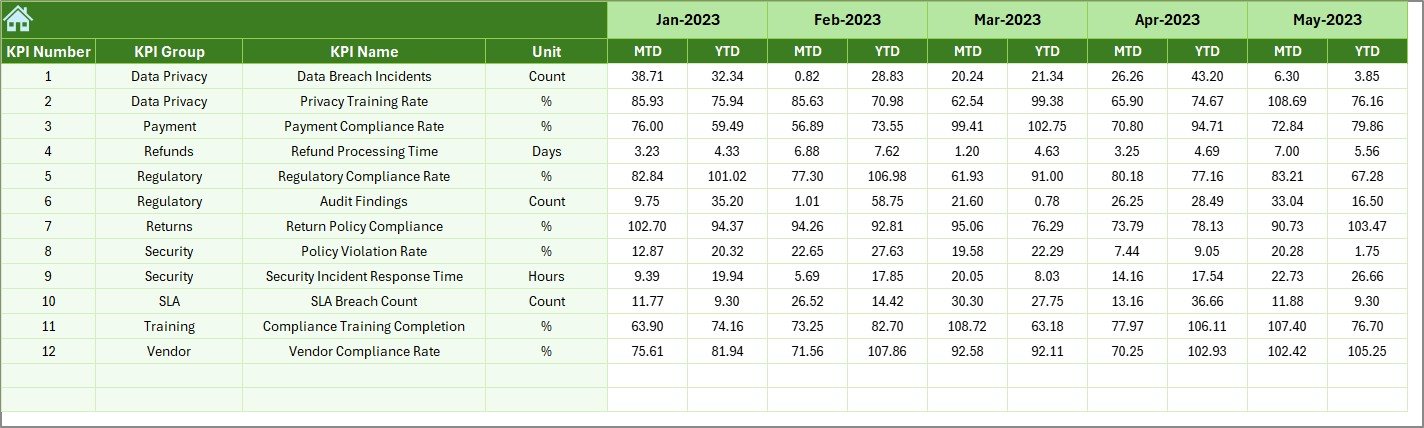
📅 Previous Year Numbers Sheet
Compare performance year-over-year for better trend analysis
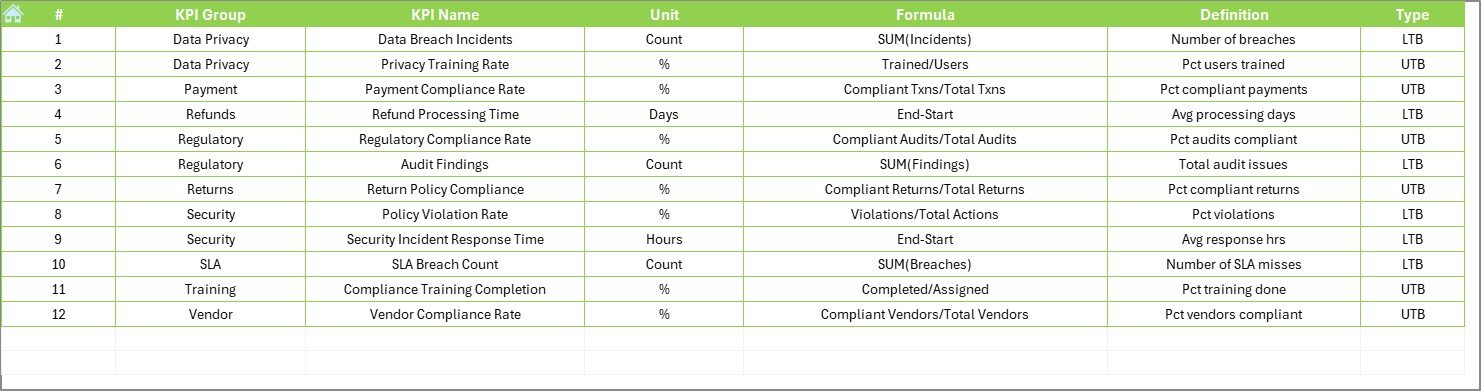
📘 KPI Definition Sheet
Maintain a structured list of KPI Name, Group, Unit, Formula, Type (LTB/UTB)
Centralized for consistent reporting across the workbook
📦 What’s Inside the Dashboard?
The template includes:
7 professionally designed Excel sheets
Interactive dashboards & charts
Pre-set conditional formatting
Formulas using INDEX/MATCH and VLOOKUP
KPI dropdowns & month selectors
Structured KPI metadata
YTD & MTD breakdowns
Everything you need—in one Excel file.
⚙️ How to Use the Dashboard
✅ Step 1: Open the Home Sheet and click the buttons to navigate
✅ Step 2: Use the KPI Definition tab to review or add KPIs
✅ Step 3: Enter Actuals, Targets, and PY data in their respective sheets
✅ Step 4: Select month in Dashboard sheet (Cell D3) to auto-refresh charts
✅ Step 5: Use KPI Trend to analyze performance over time
✅ Step 6: Review and update data monthly to ensure accurate reporting
🎯 Who Can Benefit from This Dashboard?
🛒 Retail Chains – Monitor in-store and online policy compliance
📦 E-commerce Brands – Track payment compliance, labeling, and data protection
🧾 Audit Teams – Validate adherence to internal and external standards
🧑⚖️ Compliance Officers – Stay ahead of regulatory audits and reviews
📊 Business Analysts – Analyze trends and recommend data-driven improvements
If you’re in retail or e-commerce, this dashboard is your compliance command center.
🔗 Click here to read the Detailed blog post
🔗 Visit our YouTube channel to learn step-by-step video tutorials
Watch the step-by-step video tutorial:
Compatibility and Requirements
- Works in Microsoft Excel desktop (Excel 2016 or later, or Microsoft 365).
- The Dashboard and KPI Trend sheets use dropdowns for the month and the KPI. Microsoft explains them in Create a drop-down list.
Frequently Asked Questions
Which sheets are included?
Seven sheets: Home, Dashboard, KPI Trend, Actual Numbers, Target, Previous Year Number and KPI Definition.
How do I update the dashboard?
Enter your MTD and YTD figures in the Actual Numbers sheet and your goals in the Target sheet. Then select a month in cell D3 of the Dashboard sheet and the charts refresh.
Can I compare this year with last year?
Yes. Add last year’s figures to the Previous Year Number sheet. The Dashboard shows MTD and YTD actuals against targets and the previous year.
How do I see the trend for one KPI?
Open the KPI Trend sheet and pick a KPI from the dropdown in cell C3. It shows line charts for MTD and YTD, plus the KPI group, unit, type (LTB or UTB), formula and definition.
Can I add my own KPIs?
Yes. The KPI Definition sheet holds each KPI name, group, unit, formula and type, so you can review or add KPIs there.
Is there a similar dashboard for other retail topics?
Yes. See the Retail and E-commerce Customer Engagement KPI Dashboard in Excel and the Retail and E-commerce Cybersecurity KPI Dashboard in Excel.
Related Retail and Compliance Templates
- Retail and E-commerce Operations KPI Dashboard in Excel: the same layout for operations KPIs
- Retail and E-commerce Cybersecurity KPI Dashboard in Excel: KPIs for data and system security
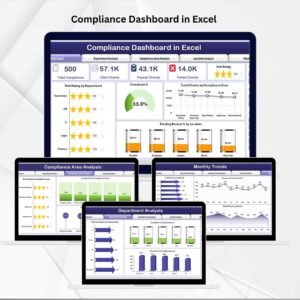
- Compliance Dashboard in Excel: a general compliance dashboard
- Retail Compliance Calendar in Excel: plan compliance dates through the year
- Compliance Audit Tracker in Excel: log audit findings and follow-ups
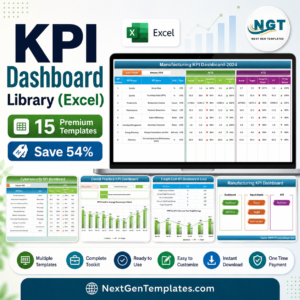
Browse all Excel KPI dashboards.






Reviews
There are no reviews yet.