

Key Features of Weekly Reflection Audit Checklist in Excel
Staying consistent with personal and professional growth requires reflection—not just goal setting. That’s where the Weekly Reflection Audit Checklist in Excel comes in. This powerful yet simple template is designed to help you track weekly progress, reflect on challenges, and stay accountable.
Here’s what makes it stand out:
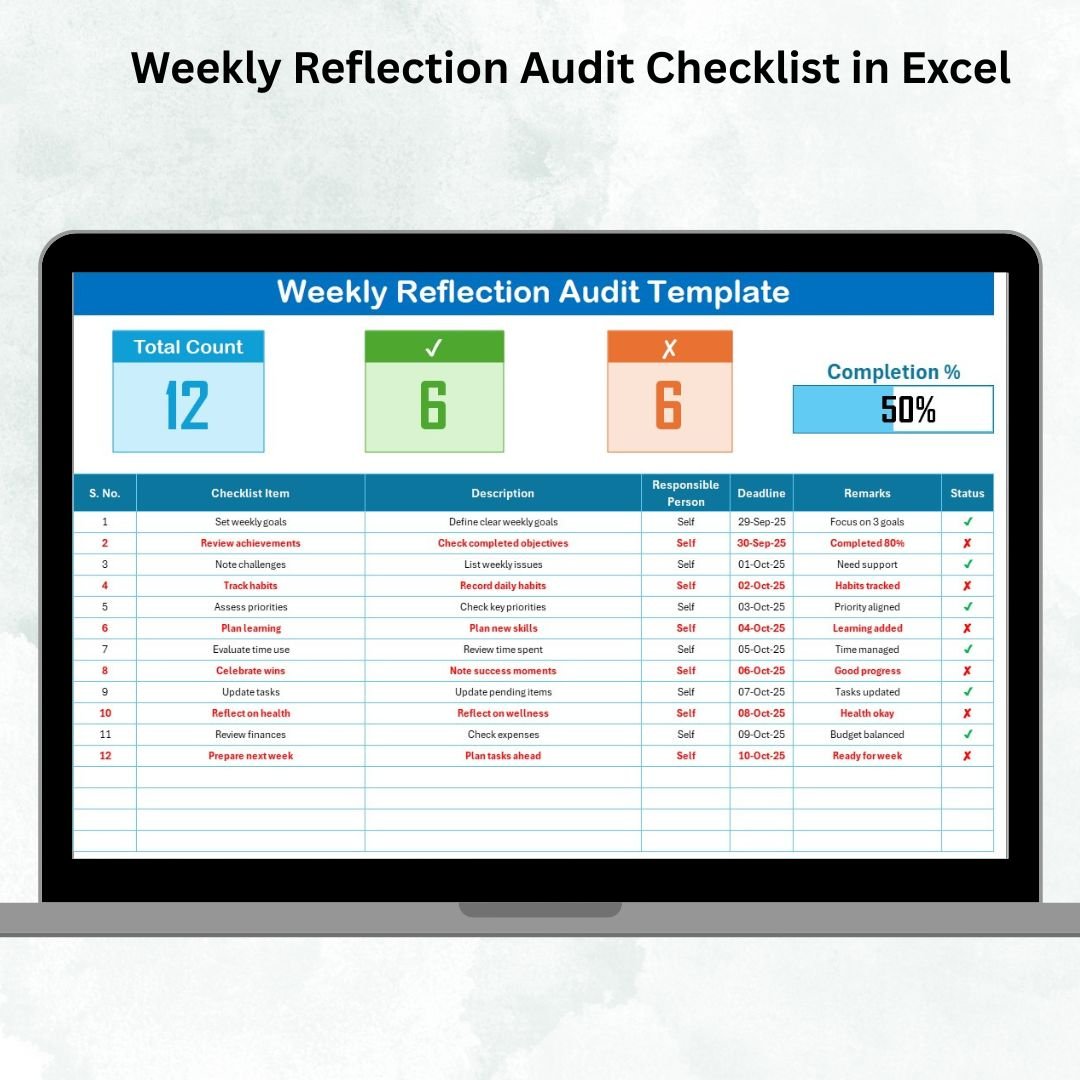
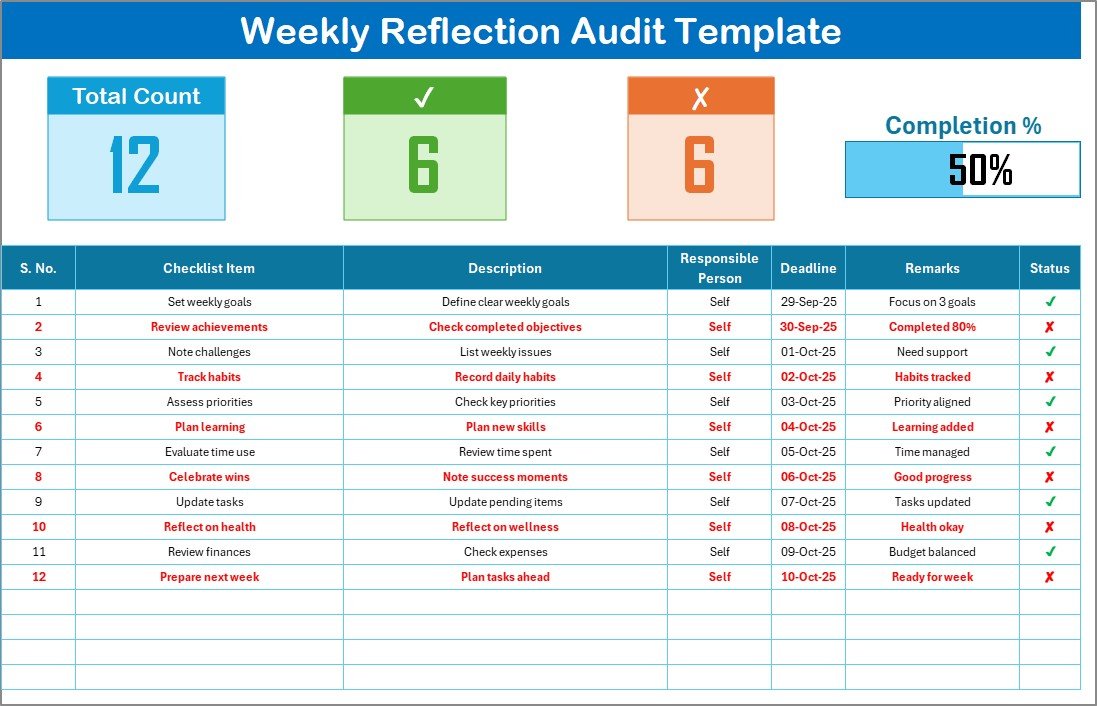
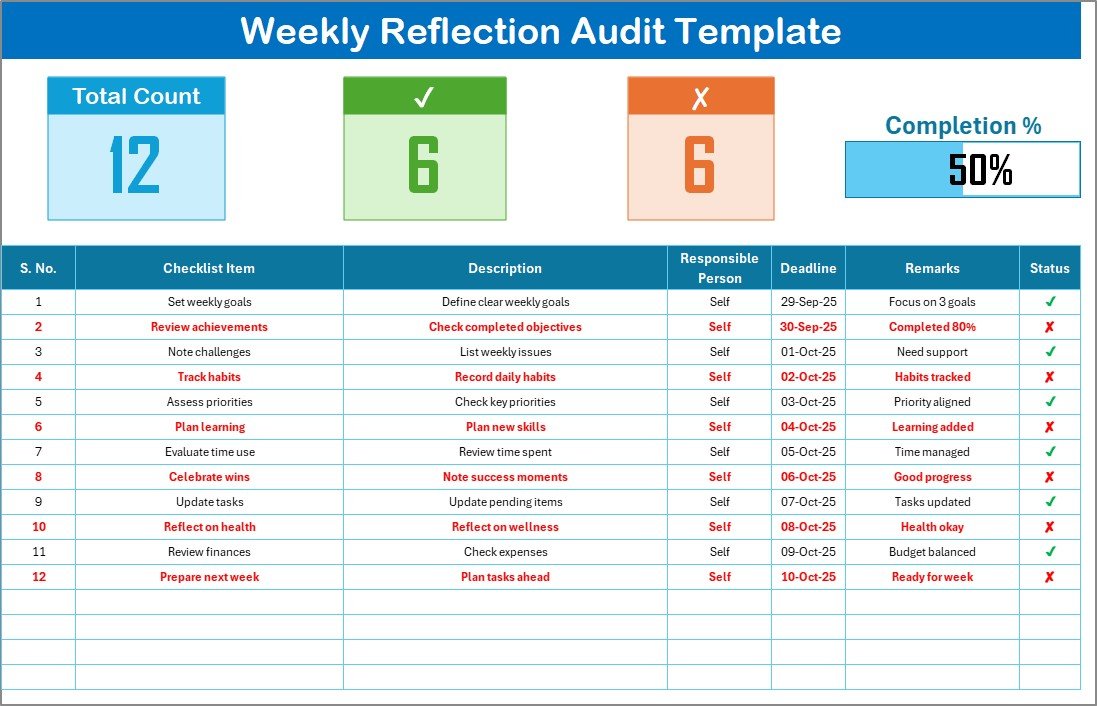
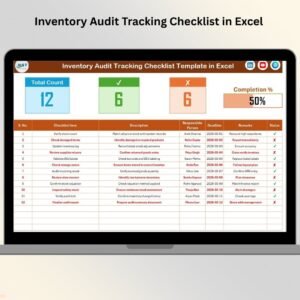
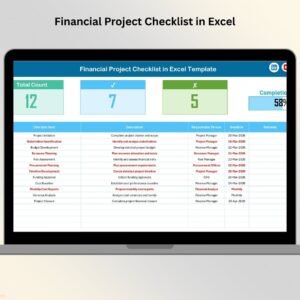
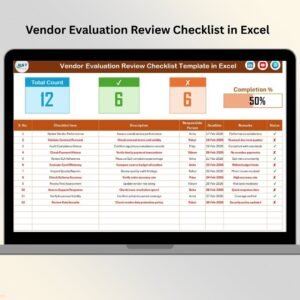
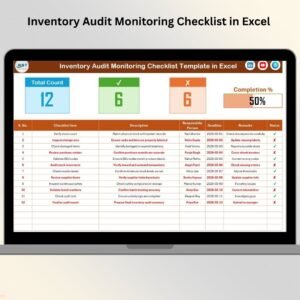
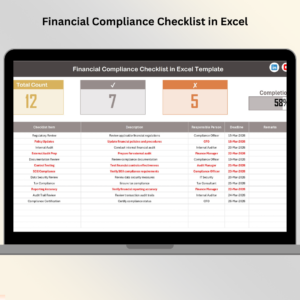
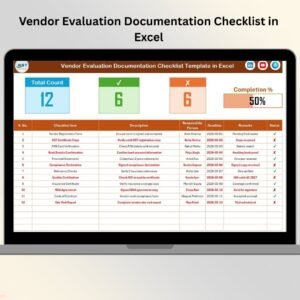
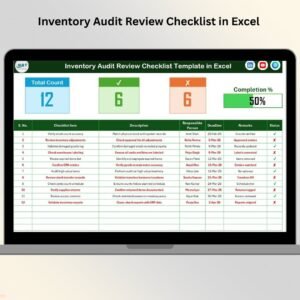
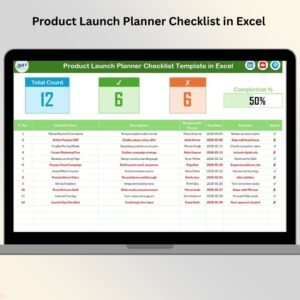
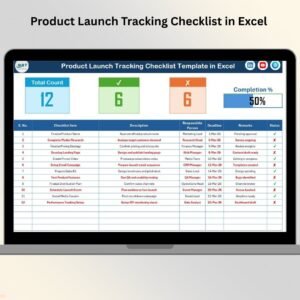
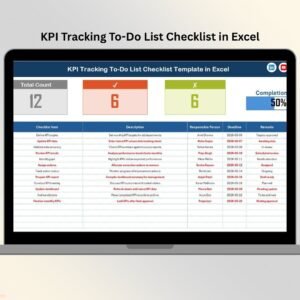
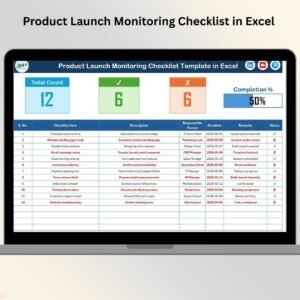
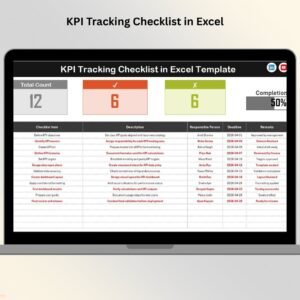
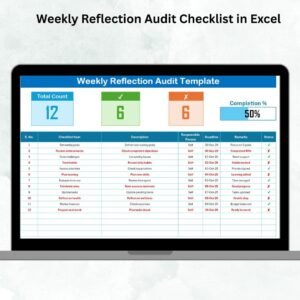
📊 Interactive Dashboard – Get instant insights with total items, completed tasks, pending tasks, and a dynamic progress bar.
✅ Ready-to-Use Checklist Table – Capture all weekly reflection tasks in a structured format with columns for serial no., item, description, responsible person, deadline, remarks, and status.
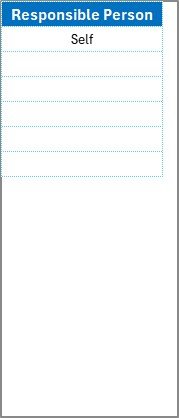
👥 Dropdown-Enabled Assignments – Assign responsibilities easily with the built-in dropdown list for responsible persons.
🎯 Progress Tracking – Watch your achievements update in real time as you mark tasks done or pending.
🖥 Excel-Based Flexibility – No need for extra software—this template works seamlessly in Microsoft Excel and can be customized as you like.
📦 What’s Inside the Weekly Reflection Audit Checklist in Excel
When you download this template, you’re not just getting a plain checklist—you’re getting a productivity framework that makes weekly reviews engaging and measurable.
Inside the file, you’ll find:
Main Sheet Tab – The core space where you enter tasks, update progress, and track weekly reflections.
List Sheet Tab – A smart helper sheet that stores a unique list of responsible persons for dropdown assignments.
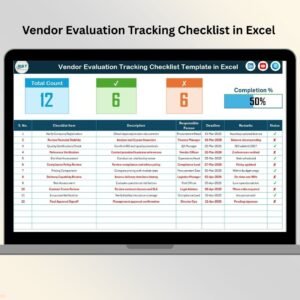
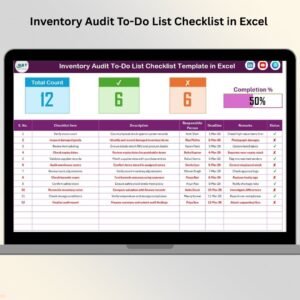
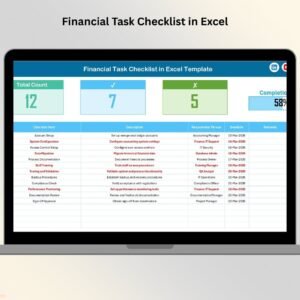
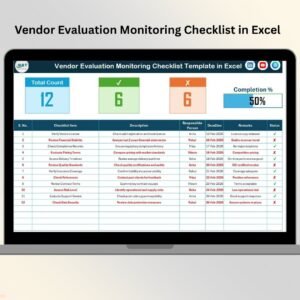
Top Section with Cards – At a glance, see your Total Count, Completed Count, Pending Count, and a visual progress bar.
Checklist Table – A detailed table to capture weekly goals, reflections, and outcomes—kept short and actionable.
🛠 How to Use the Weekly Reflection Audit Checklist in Excel
Using this template is simple, even if you’re not an Excel expert.
Open the Template – Download and launch the ready-to-use file.
Fill in Weekly Tasks – Add completed goals, pending actions, personal achievements, or team deliverables.
Assign Responsible Persons – Use the dropdowns to allocate tasks to individuals.
Update Task Status – Mark ✔ for completed and ✘ for pending.
Review Progress – Let the cards and progress bar give you a clear snapshot of your week.
With just these steps, you’ll turn weekly reflection from a boring task into a powerful growth habit.
👥 Who Can Benefit from This Weekly Reflection Audit Checklist in Excel
This template is designed for anyone who values progress and accountability:
🎓 Students – Track assignments, study goals, and weekly learning.
💼 Professionals – Review work tasks, deadlines, and productivity.
👨💼 Managers – Monitor team performance and align responsibilities.
🧑💻 Freelancers – Balance client work, deadlines, and personal milestones.
🏋️ Individuals – Reflect on fitness goals, habits, or personal projects.
Whether you’re working solo or managing a team, this checklist ensures you stay focused and organized every week.
🌟 Why You Need This Template
✅ Better Organization – Keep goals and reflections structured.
✅ Increased Accountability – Assign clear responsibilities.
✅ Boosted Productivity – Identify areas of improvement quickly.
✅ Stress-Free Planning – Break down goals into manageable chunks.
✅ Continuous Growth – Learn from wins and failures each week.
By combining simplicity with effectiveness, this checklist helps you achieve more without overcomplicating the process.
📌 Final Thought
The Weekly Reflection Audit Checklist in Excel isn’t just a file—it’s your weekly growth partner. With built-in features like dropdowns, progress bars, and an easy-to-use checklist table, you’ll finally have a structured way to reflect, improve, and achieve consistency.
Stop leaving progress to chance—start reflecting with purpose. Download the template today and take control of your growth, one week at a time.
Click here to read the Detailed blog post
Watch the step-by-step video tutorial:
Visit our YouTube channel to learn step-by-step video tutorials.
Compatibility and Requirements
- Works in Microsoft Excel desktop (Excel 2016 or later, or Microsoft 365).
- The Responsible Person column is a drop-down list fed by the List sheet. Microsoft’s guide to creating a drop-down list explains how these lists work.
Frequently Asked Questions
What do the cards at the top show?
Total Count, Completed Count and Pending Count, plus a progress bar that shows how much of the week’s checklist is done.
How do I mark an item done?
Set its status to ✔ for completed or ✘ for pending. The cards and progress bar update as you go.
How do I add people to the Responsible Person list?
Type their names on the List sheet. The drop-down in the checklist table reads from that list.
Can a team use it, or is it only for personal reflection?
Both. Use it alone for your own weekly review, or assign items to team members with the Responsible Person column and track deadlines and remarks for each one.
Is there a Google Sheets version?
Yes, the Weekly Reflection Audit Checklist in Google Sheets works in the browser.
Related Weekly Reflection Templates
- Weekly Reflection Audit Checklist in Google Sheets: the Google Sheets edition.
- Weekly Reflection Review Checklist in Excel: review the week before you plan the next one.
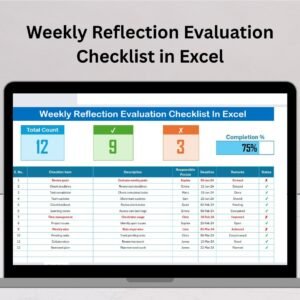
- Weekly Reflection Evaluation Checklist in Excel: evaluate how the week went.
- Weekly Planner with Goals Tracker in Google Sheets: plan the week and its goals.
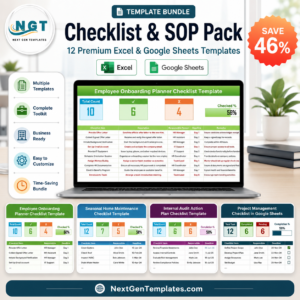
- Checklist & SOP Pack: 12 checklist templates in Excel and Google Sheets.
Browse all Excel checklist templates or the Excel planners.


Reviews
There are no reviews yet.