
Are inventory audits becoming stressful, disorganized, or time-consuming for your team? Missed verification steps, unclear responsibilities, and delayed audit completion can lead to stock inaccuracies and financial losses. In today’s fast-moving business environment, companies cannot afford inefficient audit processes.
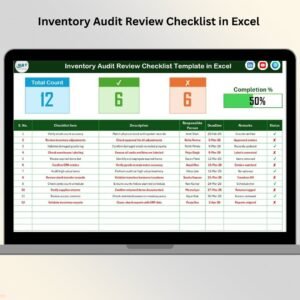
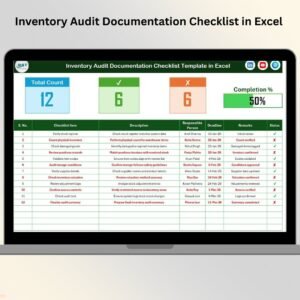
The Inventory Audit Tracking Checklist in Excel is a smart, ready-to-use solution designed to help businesses organize, track, and monitor inventory audit activities using a structured checklist system. Instead of managing audits through emails, notes, or scattered spreadsheets, this Excel template centralizes every audit task into one easy-to-manage workspace.
Whether you operate a warehouse, retail store, manufacturing facility, or distribution center, this checklist helps ensure every audit step is completed accurately and on time.
Built in a familiar Excel environment, the template requires no complex software or technical expertise. Teams can start managing audits immediately while improving accountability, transparency, and operational efficiency.
🚀 Key Features of Inventory Audit Tracking Checklist in Excel
✅ Centralized inventory audit checklist system
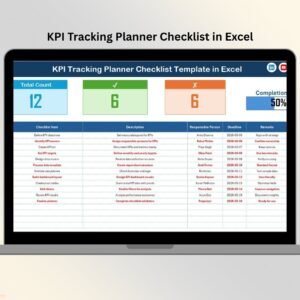
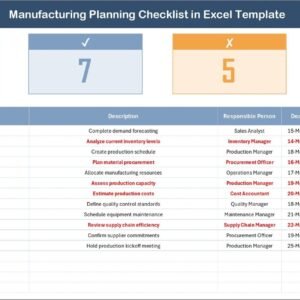
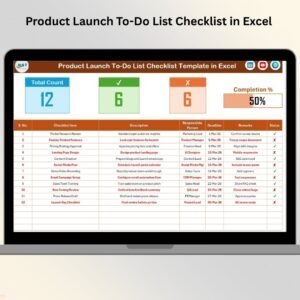
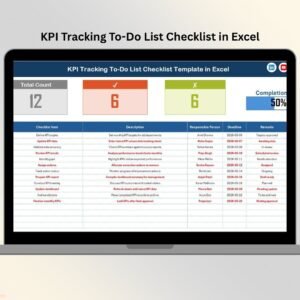
📊 Audit summary dashboard with progress tracking
✔ Simple status update using Completed / Not Completed selection
📅 Deadline tracking for each audit activity
👤 Responsible person assignment using dropdown lists
📈 Automatic progress bar visualization
🧾 Structured checklist table for organized workflow
⚡ Easy customization for different audit processes
With visual progress indicators and structured task tracking, managers instantly understand audit status without reviewing lengthy reports.
📦 What’s Inside the Inventory Audit Tracking Checklist in Excel
This ready-to-use template includes two structured worksheets designed for efficient audit management:
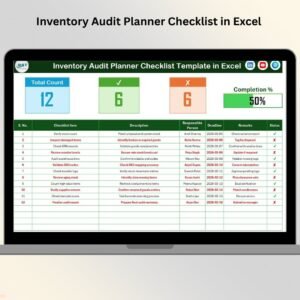
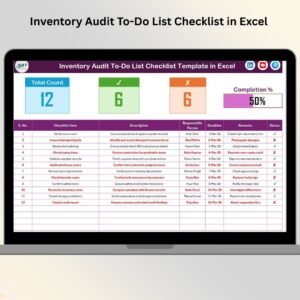
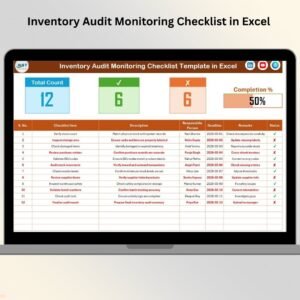
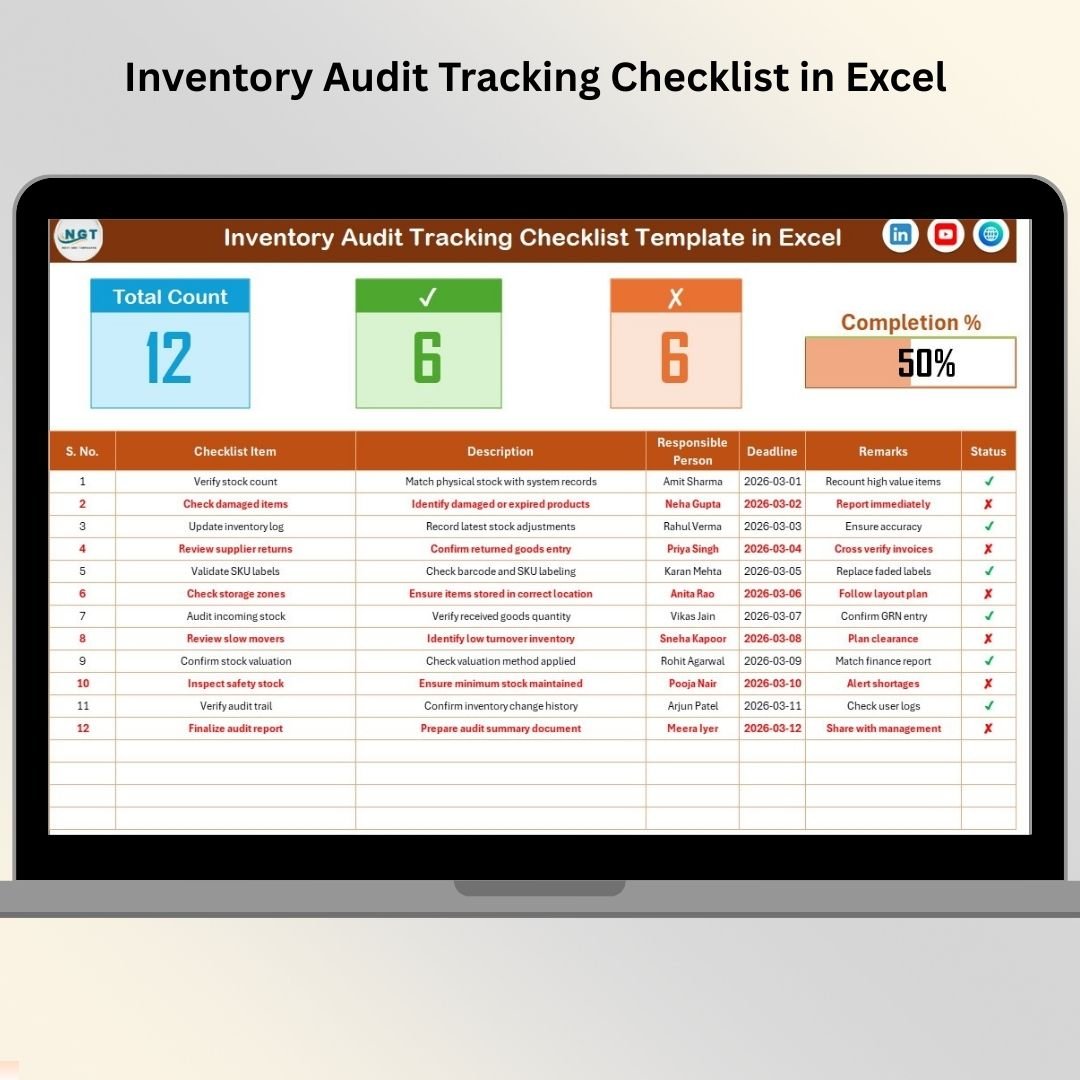
📋 Inventory Audit Tracking Checklist Sheet — Main Working Area
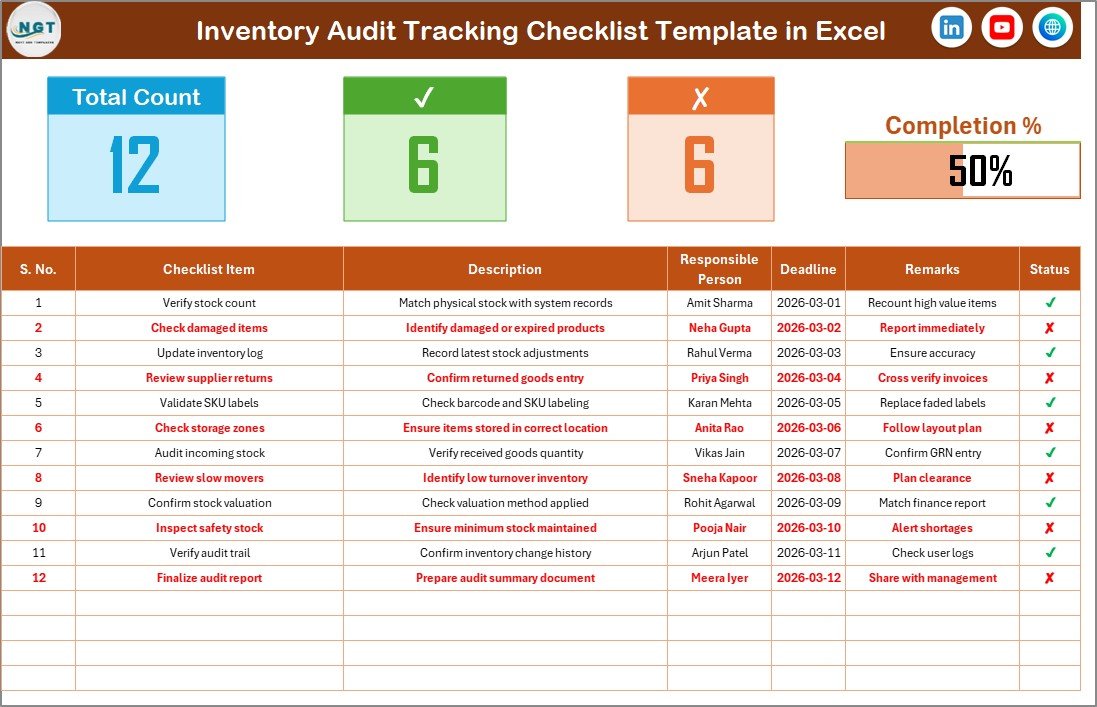
This sheet acts as the operational control center.
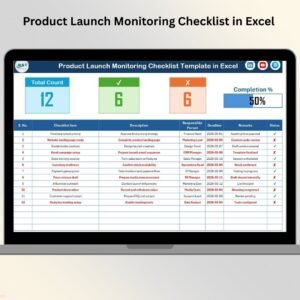
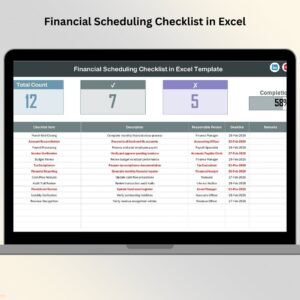
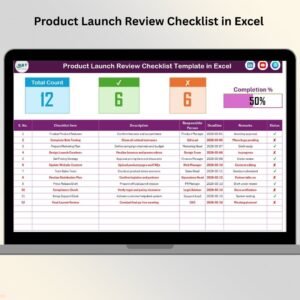
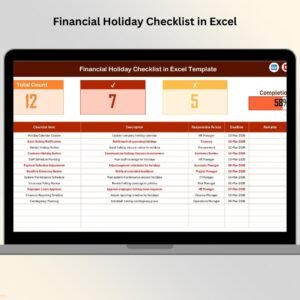
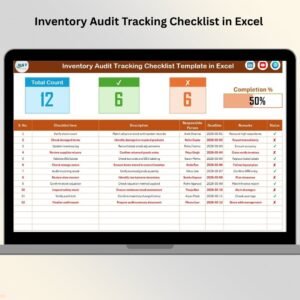
Top Summary Section includes:
Total checklist items
Completed task count
Pending task count
Visual progress bar showing completion percentage
Checklist Table Columns:
Serial Number
Checklist Item
Description
Responsible Person
Deadline
Remarks
Status (✔ / ✘)
Users simply update task status to automatically reflect audit progress.
🧾 List Sheet — Dropdown Management
This sheet stores a standardized list of responsible persons.
It helps:
Create dropdown selections
Maintain consistent naming
Prevent data entry errors
Together, these sheets ensure organized and reliable audit tracking.
🛠️ How to Use the Inventory Audit Tracking Checklist in Excel
Getting started is simple and requires only basic Excel knowledge:
1️⃣ Define all inventory audit tasks
2️⃣ Assign responsible persons using dropdown menus
3️⃣ Set deadlines for each activity
4️⃣ Update task status as ✔ Completed or ✘ Pending
5️⃣ Monitor progress using the summary dashboard
6️⃣ Add remarks to document audit findings
The progress bar updates automatically, allowing managers to track completion instantly.
👥 Who Can Benefit from This Inventory Audit Tracking Checklist in Excel
This checklist is ideal for professionals responsible for inventory accuracy:
🏭 Warehouse Managers overseeing stock verification
📦 Inventory Controllers managing reconciliation processes
🛒 Retail Store Managers tracking physical audits
⚙️ Manufacturing Supervisors monitoring materials inventory
📊 Audit Teams ensuring compliance and documentation
🚚 Supply Chain Managers improving operational control
Because of its simplicity, both small businesses and large organizations can implement it easily.
A structured audit process improves accountability, reduces errors, and ensures deadlines are met consistently. Instead of reacting to inventory discrepancies after they occur, teams proactively manage audits using a standardized workflow.
The Inventory Audit Tracking Checklist in Excel helps organizations conduct audits confidently, maintain accurate records, and improve operational reliability — all within a simple Excel file.
### Click here to read the Detailed blog post
Visit our YouTube channel to learn step-by-step video tutorials
👉 https://youtube.com/@PKAnExcelExpert