

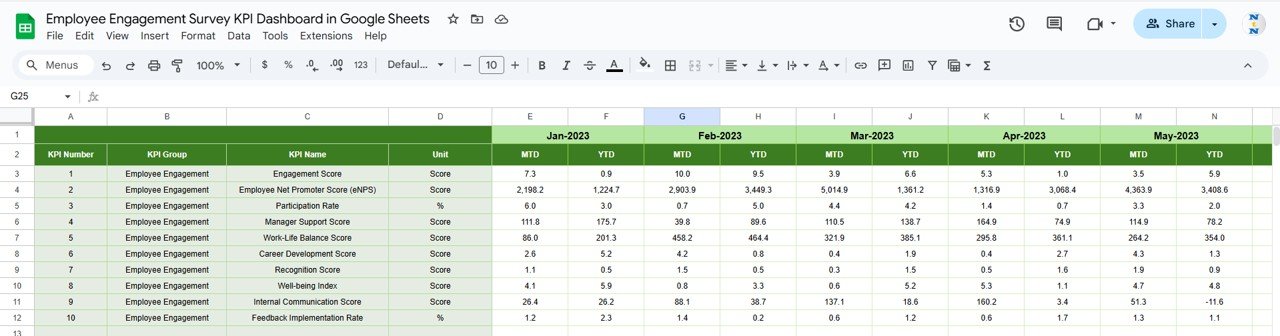

Performance appraisals shape employee growth, organizational productivity, and long-term talent success. However, many organizations still rely on manual spreadsheets, disconnected HR systems, and subjective judgments during appraisal cycles. As a result, performance reviews often feel inconsistent, time-consuming, and unclear for both managers and employees.
That is exactly why the Performance Appraisal KPI Dashboard in Google Sheets becomes a game-changing solution.
This ready-to-use dashboard transforms traditional appraisal data into structured KPIs, clear comparisons, and actionable insights. Instead of reviewing scattered appraisal forms, HR teams and managers can track performance metrics centrally, compare targets versus actual results, and analyze performance trends with confidence.
Because the dashboard runs entirely in Google Sheets, it remains flexible, cloud-based, collaborative, and cost-effective. You do not need complex HR software, BI tools, or technical expertise. You simply update performance data, select the month, and the dashboard refreshes automatically.
## 🚀 Key Features of the Performance Appraisal KPI Dashboard
📊 MTD & YTD Performance Tracking
Monitor Month-to-Date and Year-to-Date appraisal performance effortlessly.
🎯 Target vs Actual Comparison
Evaluate employee performance objectively against predefined benchmarks.
📅 Previous Year Benchmarking
Measure progress by comparing current appraisal results with historical data.
📈 KPI-Wise Trend Analysis
Identify consistent improvement, decline, or stagnation in performance KPIs.
🤝 Real-Time Collaboration
HR teams and managers work together in one shared dashboard.
## 📦 What’s Inside the Performance Appraisal KPI Dashboard
📌 Dashboard Sheet Tab (Main Page)
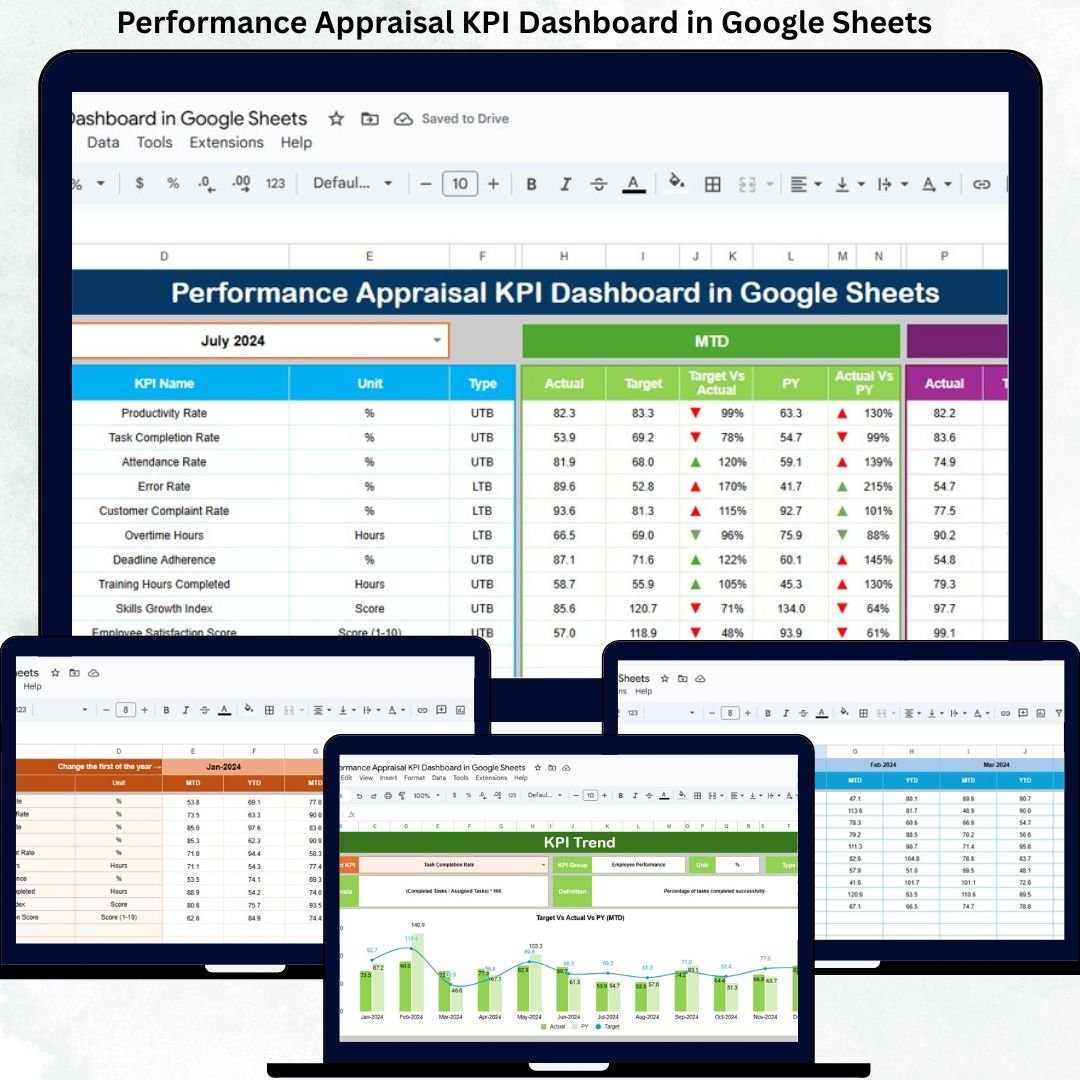
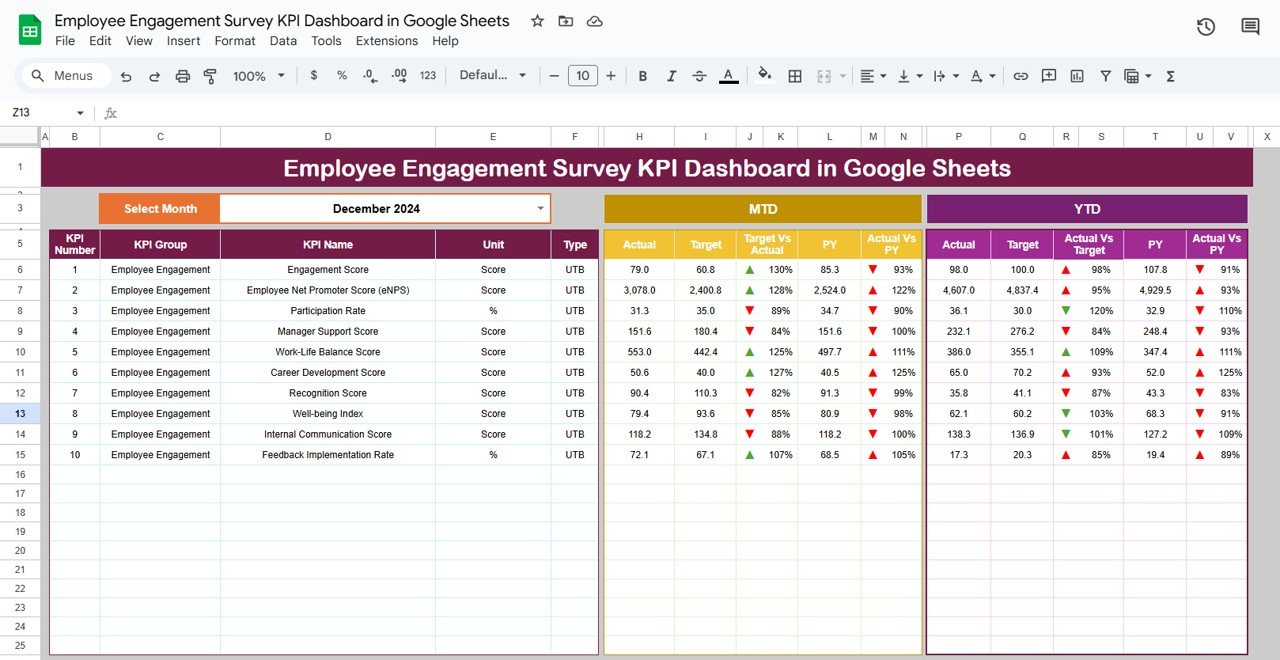
This is the executive summary of the appraisal system. You select the reporting month from cell D3, and the entire dashboard updates instantly.
The dashboard displays:
MTD Metrics
Actual
Target
Previous Year
Target vs Actual
PY vs Actual
YTD Metrics
Actual
Target
Previous Year
Target vs Actual
PY vs Actual
Conditional formatting with up and down arrows highlights performance movement clearly, helping managers understand results at a glance.
## 📊 KPI Trend Sheet Tab
This sheet allows deep analysis of individual appraisal KPIs.
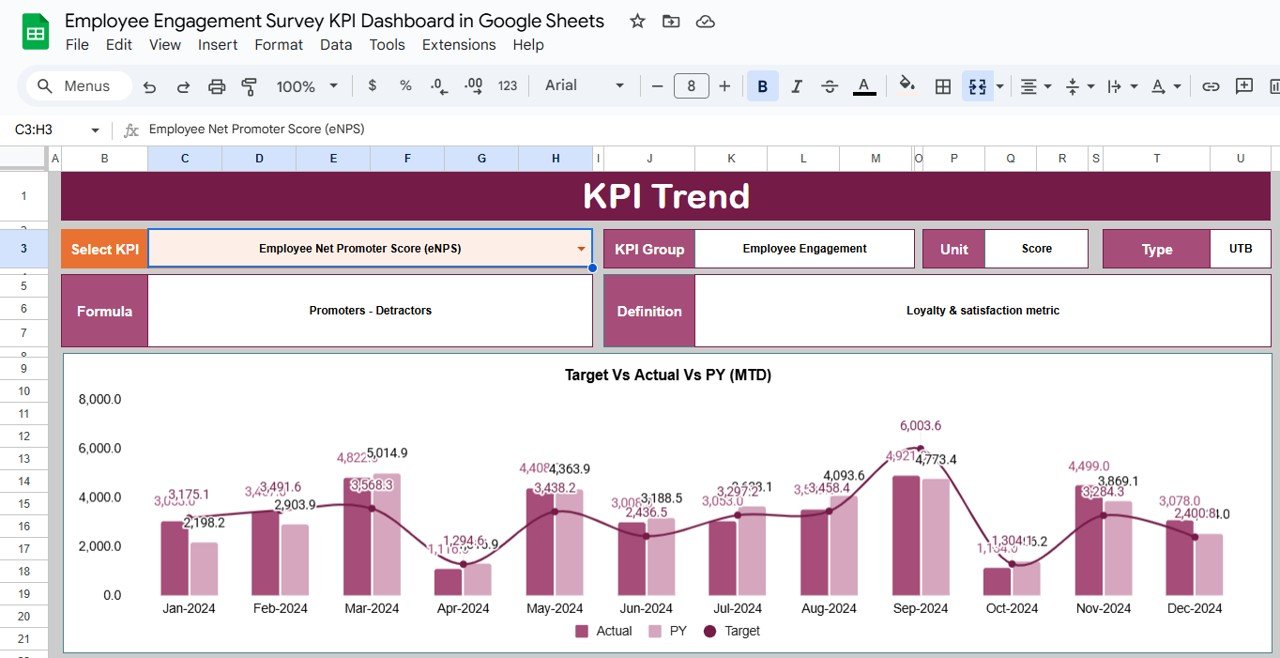
You select a KPI from the dropdown in cell C3, and the dashboard displays:
KPI Group
KPI Unit
KPI Type (Upper the Better / Lower the Better)
KPI Formula
KPI Definition
Month-wise trend visuals help managers identify patterns, improvement areas, and performance risks early.
## 🧾 Actual Number Sheet Tab
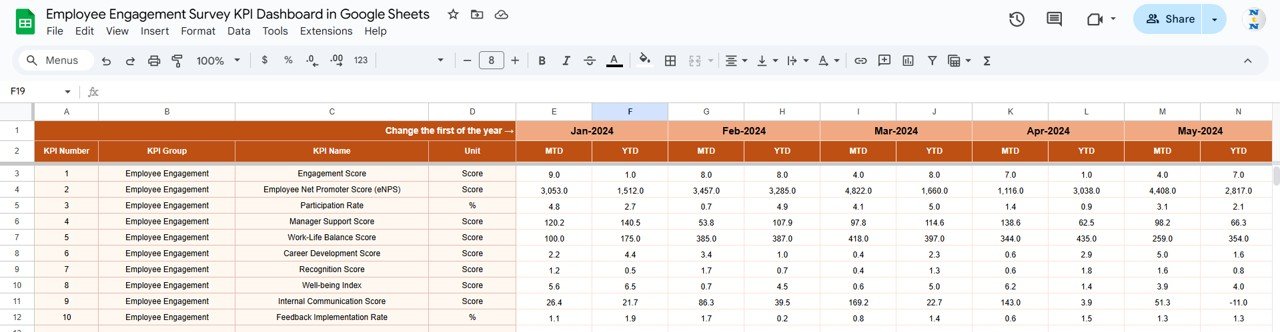
This sheet captures real appraisal performance values.
You:
Enter MTD and YTD actual values for each KPI
Define the first month of the year in cell E1
All calculations and visuals update automatically, eliminating manual errors.
## 🎯 Target Sheet Tab
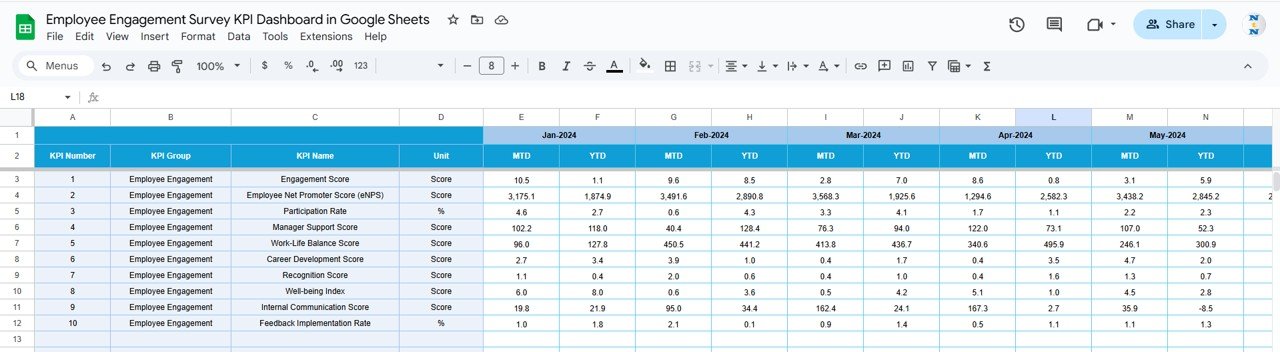
This sheet stores expected performance benchmarks.
It helps organizations:
Define clear appraisal goals
Standardize expectations across teams
Compare planned vs actual outcomes objectively
## 📅 Previous Year Number Sheet Tab
This sheet stores last year’s appraisal values and enables:
Year-over-Year comparison
Long-term performance trend analysis
Evaluation of appraisal framework effectiveness
## 📚 KPI Definition Sheet Tab
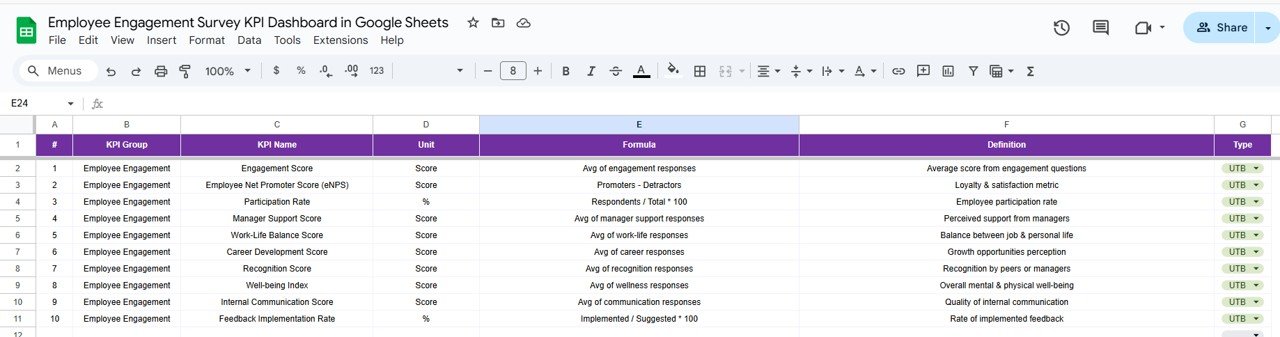
This reference sheet ensures governance and clarity. It includes:
KPI Name
KPI Group
Unit
Formula
KPI Definition
KPI Type (UTB / LTB)
This prevents misinterpretation and ensures fair evaluations across departments.
## 🎯 Who Can Benefit from This Dashboard
HR Teams – Standardize appraisal analysis
Managers & Team Leads – Make objective evaluation decisions
Leadership Teams – Support promotions, rewards, and training plans
Growing Organizations – Scale performance management easily
### Click here to read the Detailed blog post
Watch the step-by-step video tutorial:
Visit our YouTube channel to learn step-by-step video tutorials — Youtube.com/@NeotechNavigators
Compatibility and Requirements
- Works in Google Sheets. You need a free Google account and a web browser.
- You pick the reporting month in cell D3 of the Dashboard sheet and the KPI in cell C3 of the KPI Trend sheet from dropdowns. Google explains dropdowns in Create an in-cell dropdown list.
Frequently Asked Questions
Which sheets are included?
Six sheets: Dashboard, KPI Trend, Actual Number, Target, Previous Year Number and KPI Definition.
How do I update the dashboard?
Enter your MTD and YTD actual values in the Actual Number sheet and your benchmarks in the Target sheet. Then choose the month in cell D3 of the Dashboard sheet and everything refreshes.
Can I compare this year with last year?
Yes. Add last year’s values to the Previous Year Number sheet. The Dashboard shows previous year, target and actual side by side for both MTD and YTD, with up and down arrows to mark the movement.
How do I see the trend for one KPI?
Open the KPI Trend sheet and select a KPI in cell C3. It shows the KPI group, unit, type (Upper the Better or Lower the Better), formula and definition, plus month-wise trend visuals.
Is there an Excel or Power BI version?
Yes. See the Performance Appraisal KPI Dashboard in Excel and the Performance Appraisal KPI Dashboard in Power BI.
Related Performance and HR Templates
- Performance Appraisal KPI Dashboard in Excel: the same appraisal KPIs in Excel
- Performance Appraisal KPI Dashboard in Power BI: the Power BI edition
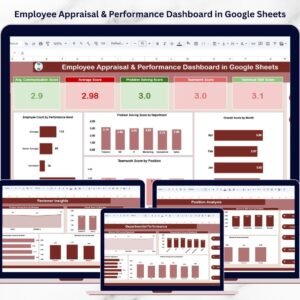
- Employee Appraisal & Performance Dashboard in Google Sheets: another appraisal dashboard for Google Sheets
- HR Performance Dashboard in Google Sheets: HR performance tracking in Google Sheets
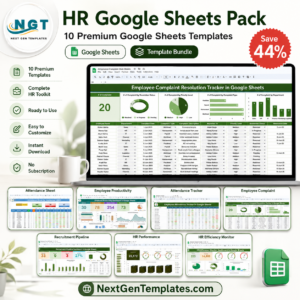
- HR Google Sheets Pack: 10 HR templates for Google Sheets in one download
Browse all Google Sheets KPI dashboards and HR and Payroll templates for Google Sheets.




Reviews
There are no reviews yet.