

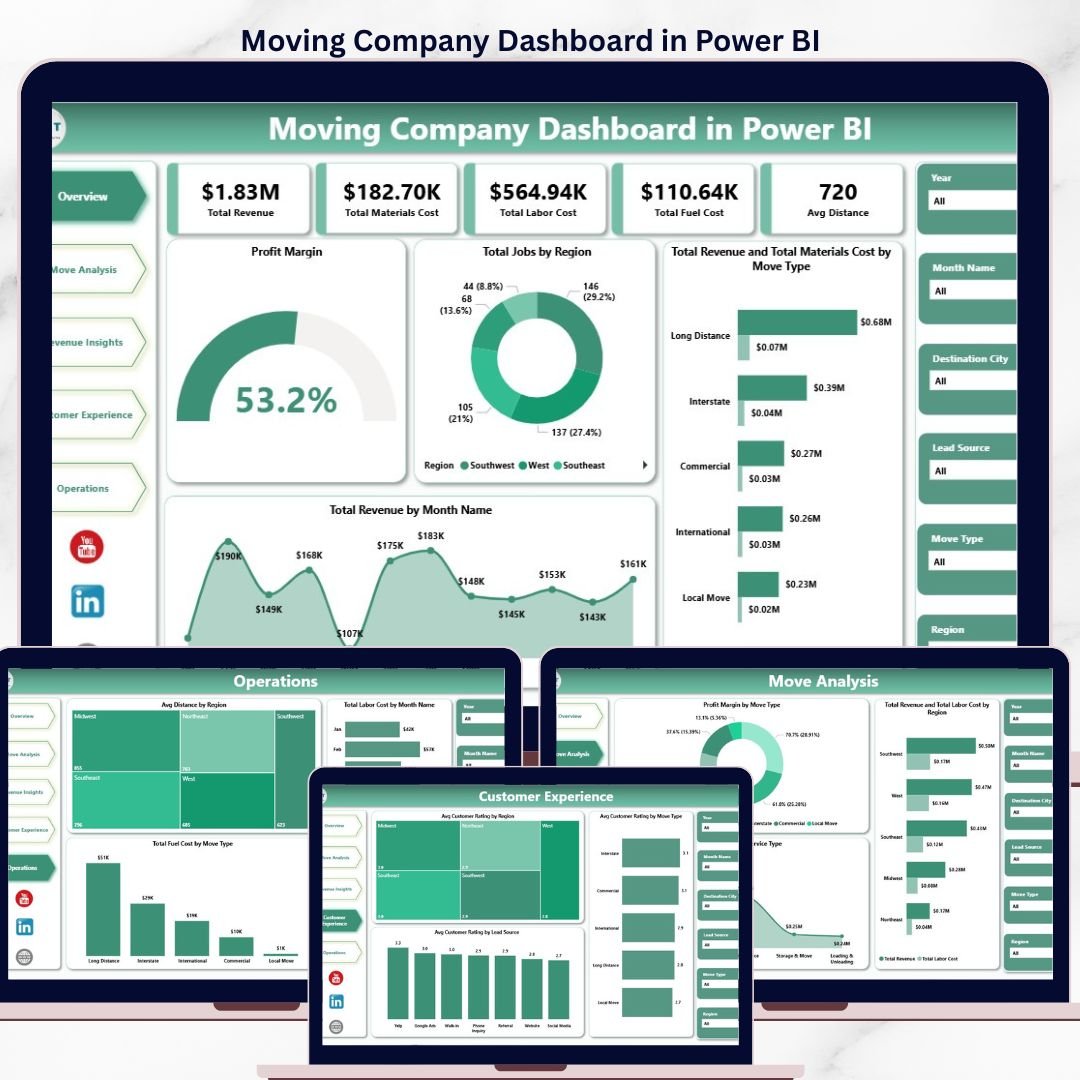

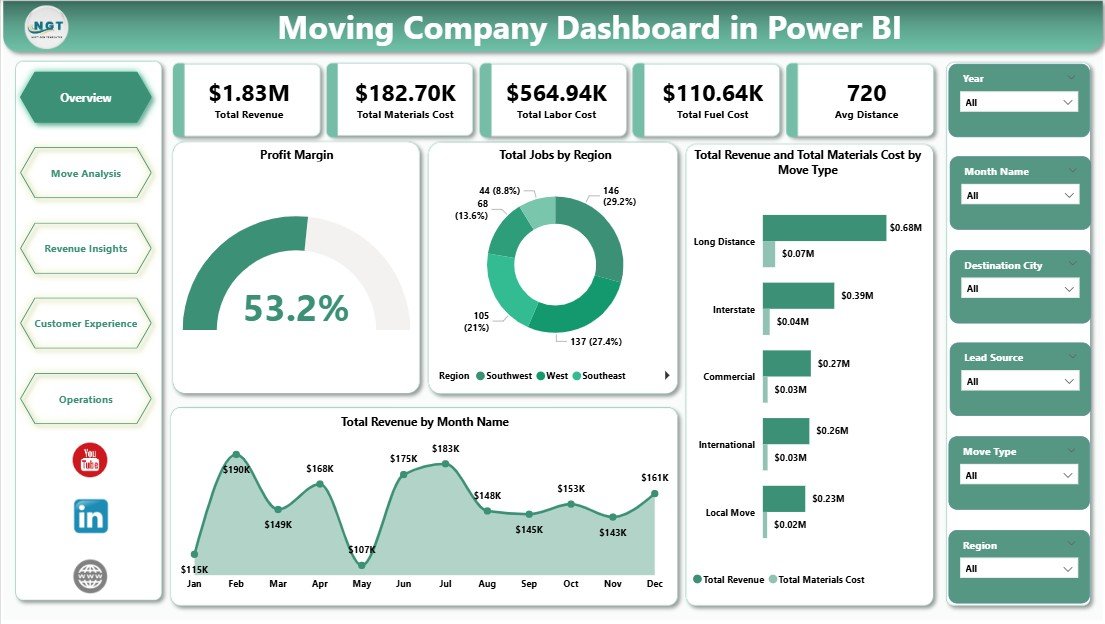
The Moving Company Dashboard in Power BI tracks 5 headline KPIs across 5 interactive pages, with 15+ pre-built visuals covering revenue, move-type profitability, customer experience, and operations. Setup takes under 10 minutes — connect the .pbix file to your job-level data source, click Refresh, and every card, chart, and slicer on the Overview page rebuilds automatically through the Power BI data model.
🌍 Join 8,400+ teams in 40+ countries using NextGenTemplates to replace paid SaaS tools with one-time-purchase Excel, Google Sheets, Power BI, and HTML templates.
✅ Instant download · One-time payment · No subscription · No per-user fees · Lifetime access
Moving Company Dashboard in Power BI
🔑 Key Features of the Moving Company Dashboard in Power BI
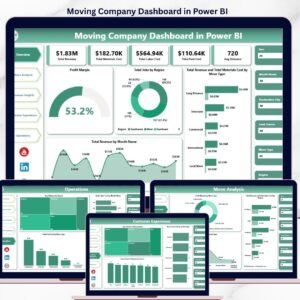
🔹 Five-KPI Overview Page – The top of the Overview page displays 5 card-style KPIs: Total Revenue, Total Materials Cost, Total Labor Cost, Total Fuel Cost, and Avg Distance. Multiple slicers filter the entire report by region, move type, service type, or month in one click, and every visual cross-filters on selection.
🔹 Profit Margin Card – A dedicated Profit Margin visual on the Overview page strips out materials, labor, and fuel costs from revenue so owners see true bottom-line percentage at a glance — not just top-line revenue that hides loss-making service lines.
🔹 Total Jobs by Region – Ranks every region by job volume so franchise owners and regional managers instantly see which territories are pulling weight and which need sales support. Updates automatically when new records flow into the data source.
🔹 Revenue vs. Materials Cost by Move Type – A dual-series view exposing which move types (Local, Long Distance, Commercial, International) are actually profitable after box, tape, and padding costs are stripped out. The fastest path to cutting a loss-making service line.
🔹 Total Revenue by Month Name – 12-month seasonality view so operators can spot summer-peak months, plan crew hiring 60 days ahead, and benchmark year-over-year growth without rebuilding the chart every quarter.
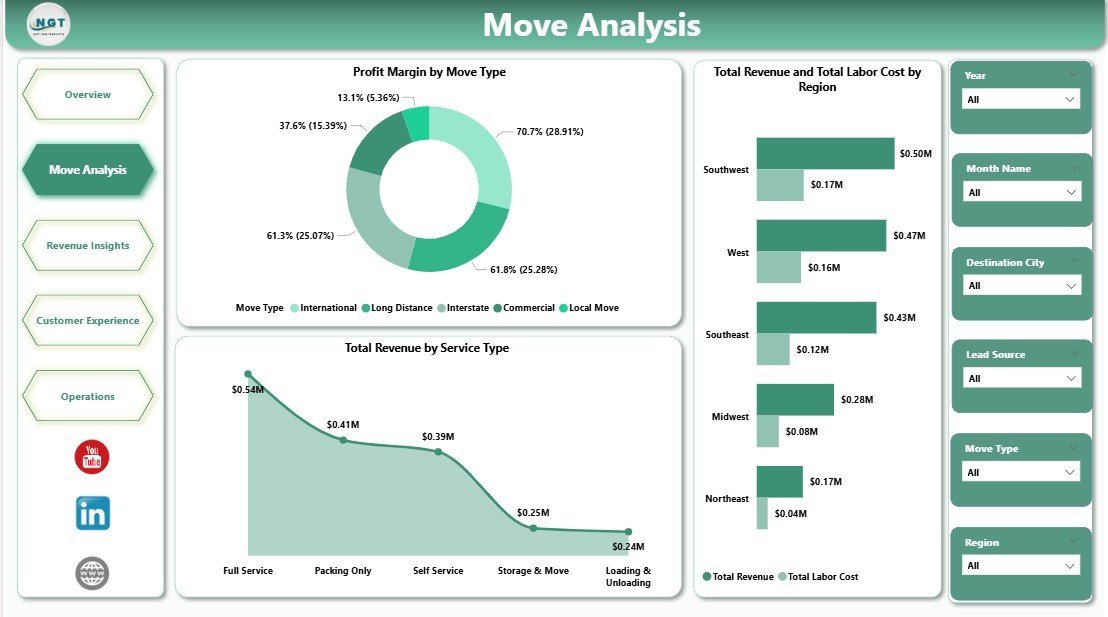
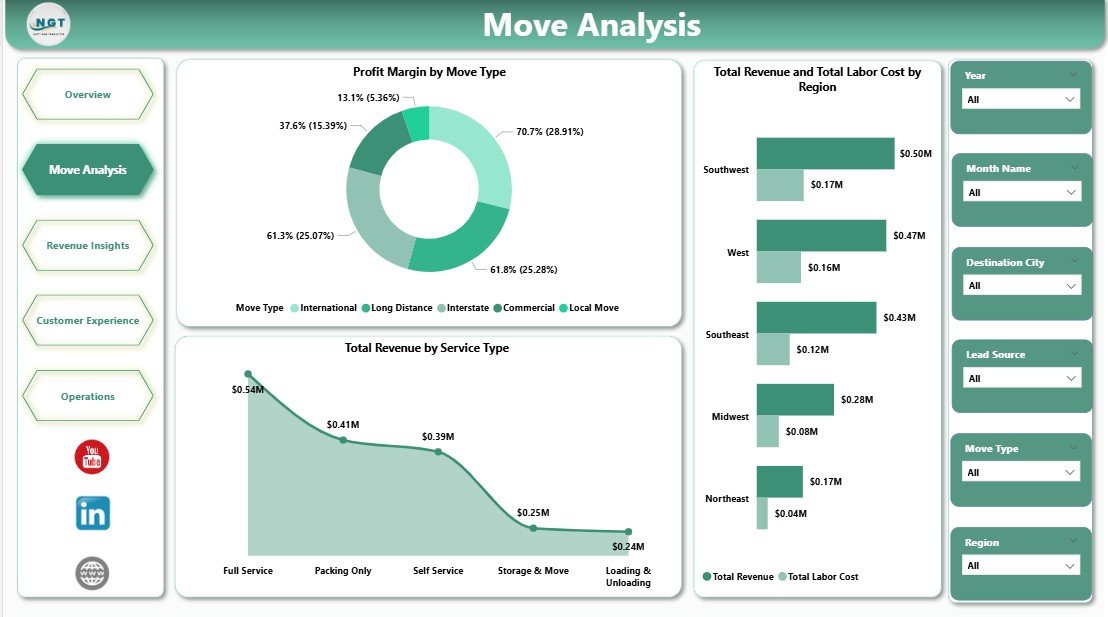
🔹 Move Analysis Page – Three visuals: Profit Margin by Move Type, Total Revenue and Total Labor Cost by Region, and Total Revenue by Service Type. This is where ops managers diagnose which service types carry the best margin and why labor cost in one region is eating profit.
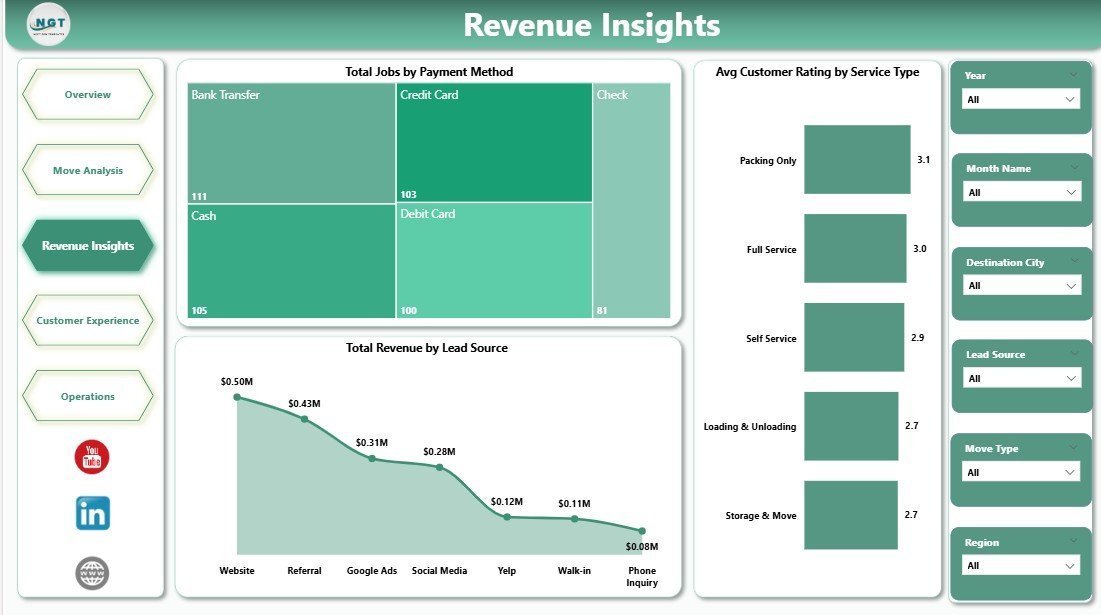
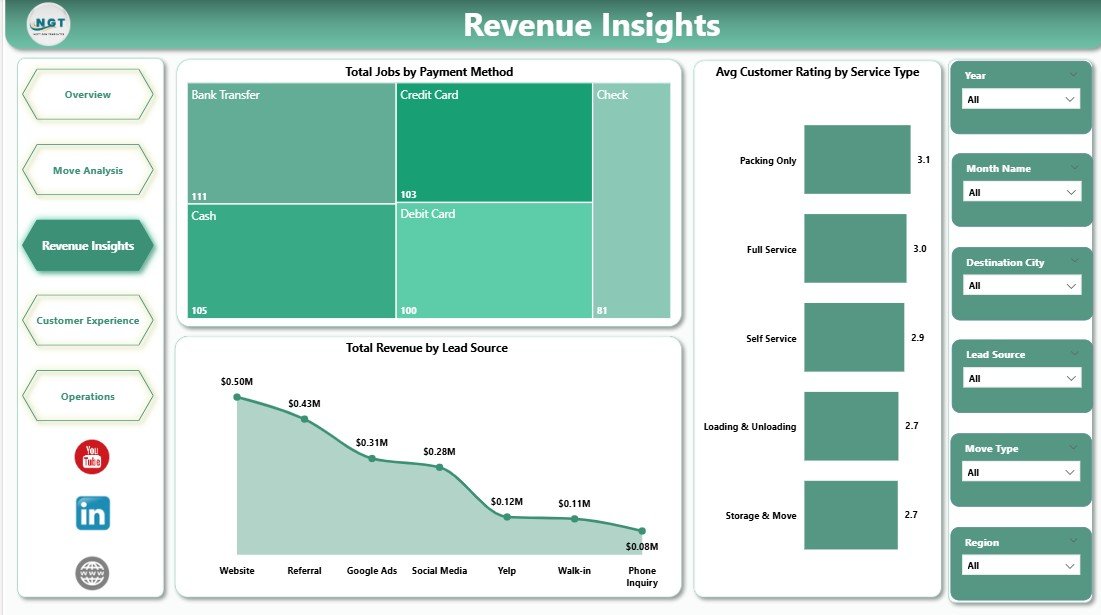
🔹 Revenue Insights Page – Three visuals covering Total Jobs by Payment Method, Avg Customer Rating by Service Type, and Total Revenue by Lead Source. Exposes which lead channels (Google Ads, referrals, Thumbtack, website) are actually converting to profitable bookings.
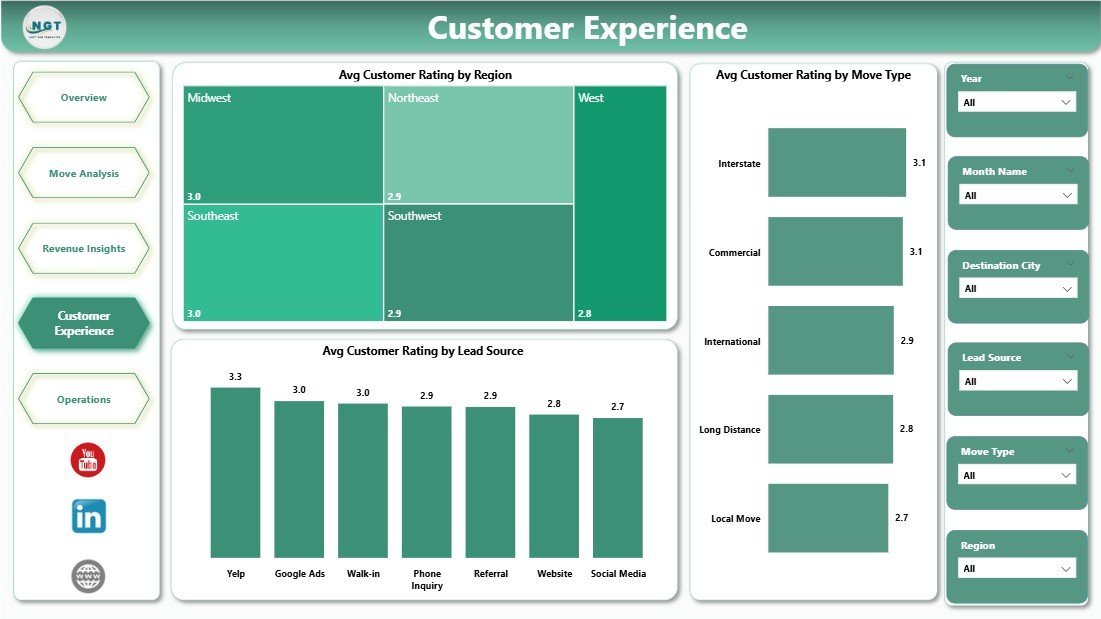
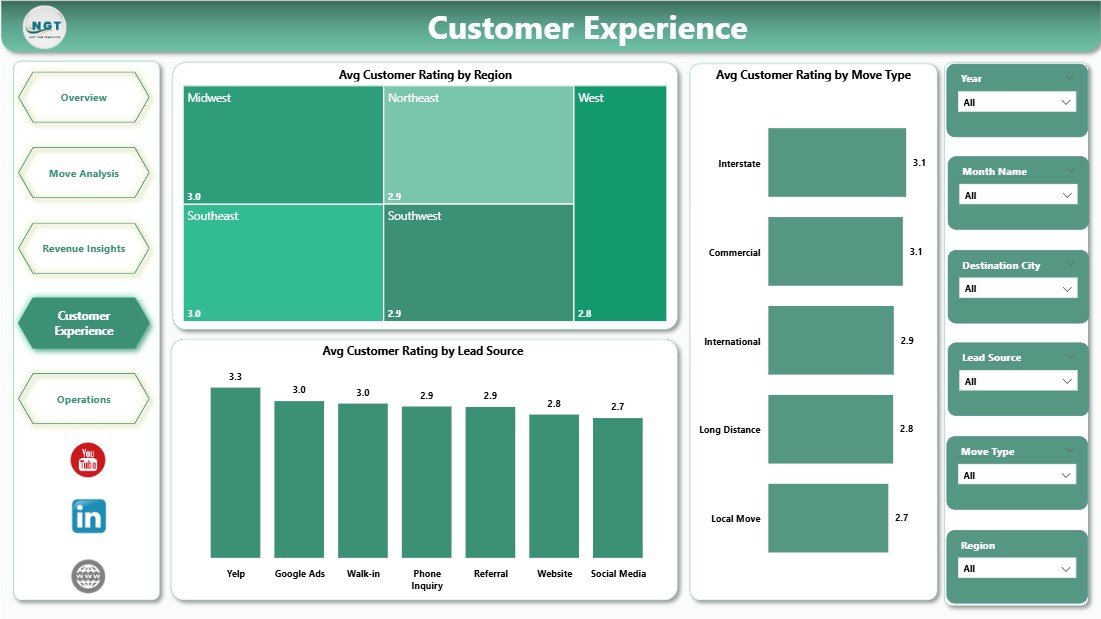
🔹 Customer Experience Page – Three visuals on Avg Customer Rating by Region, Move Type, and Lead Source. The rating-by-lead-source view is especially valuable for filtering out low-intent lead channels that consistently produce 3-star reviews.
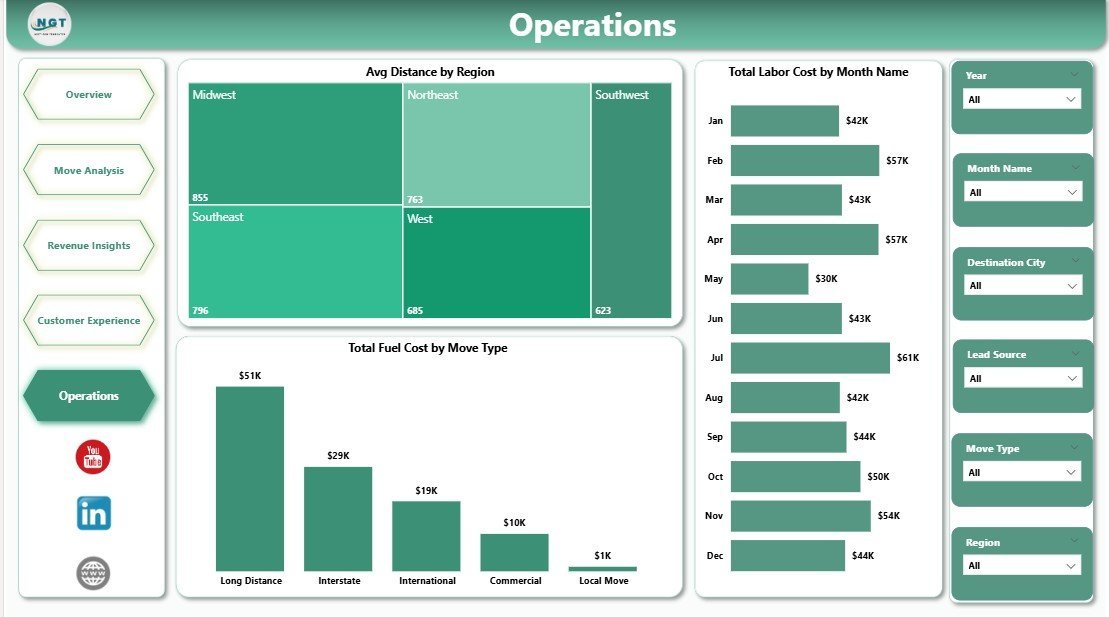
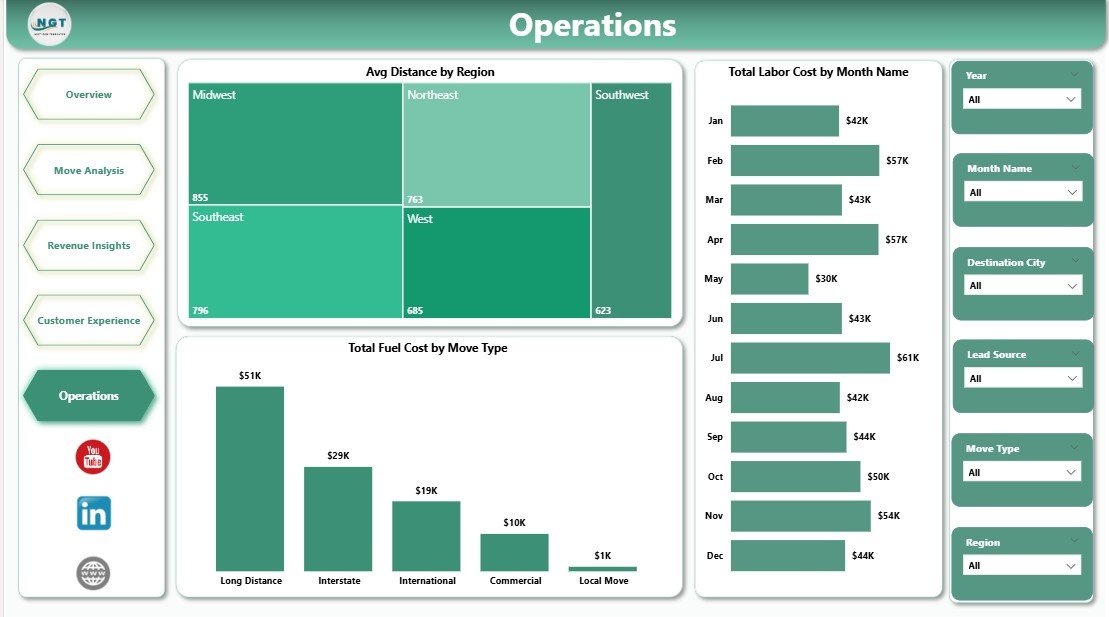
🔹 Operations Page – Three visuals covering Avg Distance by Region, Total Labor Cost by Month Name, and Total Fuel Cost by Move Type. Used by dispatchers and operations leads for weekly crew-scheduling and cost-control reviews.
🔹 Power BI Desktop Native – Built as a .pbix file that opens in free Power BI Desktop from Microsoft. Publish to the Power BI Service for cloud sharing with your team, or keep it entirely offline on your machine. No Python, no R, no external add-ins.
📦 What’s Inside the Moving Company Dashboard in Power BI
The .pbix file includes 5 report pages, each engineered for a specific part of the moving-company reporting workflow. Below is a page-by-page breakdown.
1. Overview Page — The main dashboard view. At the top, 5 KPI cards display Total Revenue, Total Materials Cost, Total Labor Cost, Total Fuel Cost, and Avg Distance. Multiple slicers filter the entire page by region, move type, service type, or month. Four charts cover the high-level analytical questions: Profit Margin, Total Jobs by Region, Total Revenue and Total Materials Cost by Move Type, and Total Revenue by Month Name.
Move Analysis
2. Move Analysis Page — Three visuals focused on service-level profitability: Profit Margin by Move Type, Total Revenue and Total Labor Cost by Region, and Total Revenue by Service Type. Use this page to diagnose labor cost overruns and identify which service types carry the best revenue-per-hour.
Revenue Insights
3. Revenue Insights Page — Three visuals: Total Jobs by Payment Method, Avg Customer Rating by Service Type, and Total Revenue by Lead Source. This is the page owners and finance teams use to review lead-channel ROI and payment-collection patterns.
Customer Experience
4. Customer Experience Page — Three visuals on Avg Customer Rating by Region, Avg Customer Rating by Move Type, and Avg Customer Rating by Lead Source. Quality managers use this page to flag crew-training needs and identify lead sources producing unhappy customers.
Operations
5. Operations Page — Three visuals covering Avg Distance by Region, Total Labor Cost by Month Name, and Total Fuel Cost by Move Type. Dispatchers and operations leads use this view for weekly scheduling, fuel cost control, and regional route-efficiency review.
📊 Moving Company Dashboard in Power BI vs. Tableau / Qlik vs. SmartMoving / MoverBase SaaS — Where This Fits
| Feature | Moving Company Dashboard in Power BI | Tableau / Qlik equivalent | SmartMoving / MoverBase SaaS |
|---|---|---|---|
| Cost | $17.99 one-time | $75+ / user / month | $99–$399 / user / month |
| Platform | Power BI Desktop (free) | Tableau / Qlik license required | Web + mobile SaaS |
| Setup time | Under 10 minutes | 2–4 hours to rebuild visuals | 2–4 weeks onboarding |
| Customizable visuals & DAX | ✅ Fully editable | ✅ Editable | ❌ Fixed reports |
| Per-user licence fees | None for Desktop | $75+ per user / month | $99+ per user / month |
| Customer data stays on your device | ✅ Yes (Desktop) | ❌ Server-based | ❌ Vendor cloud |
| Publishes to cloud if needed | ✅ Power BI Service | ✅ Tableau Server | ✅ Built-in |
| Year-1 cost at 5 users | $17.99 | $4,500+ | $5,940 – $23,940 |
| Revenue, fuel, labor, rating in one view | ✅ Pre-built | Needs rebuild | ✅ Pre-built |
For moving-company owners who want revenue-vs-cost visibility without paying $6,000+ per year in SaaS fees, the Moving Company Dashboard in Power BI sits in the sweet spot.
👥 Who This Template Is For — and Who It’s Not For
✅ This template is built for:
- Owners of local moving companies (1–20 trucks) tracking jobs across 2–10 regions who already use Power BI
- Long-distance and commercial movers running 50–500 jobs per month
- Franchise operators benchmarking regional performance against HQ targets in Power BI Service
- Data analysts and BI leads at relocation-services firms who want a ready-made starting point
- Dispatchers and operations leads running weekly crew scheduling and cost reviews
❌ This template is NOT for:
- Enterprise carriers running 500+ trucks with integrated dispatch, fuel cards, and DOT compliance (use McLeod or TMW)
- Teams needing live GPS tracking, automated crew SMS, or customer-facing booking portals (use SmartMoving or MoverBase)
- Teams without Power BI Desktop — browse our Excel Dashboard Templates or Google Sheets Dashboards instead
⚙️ How to Use the Moving Company Dashboard in Power BI
- Download and install Power BI Desktop (free from Microsoft) if you don’t have it. Open the .pbix file included in your download.
- Go to Transform Data → Data source settings and point the model to your job-level data source. Keep every column name identical to the sample data.
- Click Refresh in the Home ribbon. Every visual on the 5 report pages recalculates from your data automatically.
- Open the Overview page. All 5 KPI cards and 4 visuals reflect your data. Use the slicers to filter by region, move type, service type, or month.
- Switch between the Move Analysis, Revenue Insights, Customer Experience, and Operations pages to diagnose specific parts of the business.
- Publish to Power BI Service (optional) if you want to share the report with your team via a browser link — no extra licences needed for Desktop authoring.
💼 Real-World Use Cases
Mike runs a 6-truck local moving company in Phoenix with 3 regional service areas. He uses the Moving Company Dashboard in Power BI each Monday to review the Total Revenue and Total Labor Cost by Region visual and spot which of his three territories is eating margin. The Avg Customer Rating by Lead Source chart helped him cut spend on a lead-gen channel that was producing 3.2-star reviews — saving roughly $2,400 per month in wasted ad spend.
Priya manages operations at a long-distance mover with 18 trucks across 5 US states. She uses the Total Fuel Cost by Move Type visual to catch fuel-cost creep on long-haul commercial moves and publishes the report to Power BI Service so her regional managers see live updates without paying for SmartMoving’s $399/month plan — saving the business around $4,700 per month in SaaS fees.
Carlos owns a commercial-relocation business in Miami with 25 crew members. He needs monthly P&L reports for his CFO but can’t justify $99/user/month for MoverBase with 6 seats. The Moving Company Dashboard in Power BI gives him Profit Margin by Move Type and Total Revenue by Lead Source views, runs on Power BI Desktop, and cost the business $17.99 once.
❓ Frequently Asked Questions
What KPIs does the Moving Company Dashboard in Power BI track?
The Moving Company Dashboard in Power BI tracks 5 headline KPIs on the Overview page: Total Revenue, Total Materials Cost, Total Labor Cost, Total Fuel Cost, and Avg Distance. It also includes 15+ visuals across 5 pages covering profit margin, move type, labor cost, fuel cost, lead source, payment method, and customer rating analytics.
How does this compare to SmartMoving or MoverBase?
SmartMoving and MoverBase typically charge $99–$399 per user per month — reaching $6,000–$24,000 per year at 5 seats. The Moving Company Dashboard in Power BI is a $17.99 one-time purchase with no per-user fees for Desktop authoring, and keeps customer contact and pricing data on your device rather than in a vendor cloud.
How long does setup take?
Setup takes under 10 minutes. Open the .pbix file in Power BI Desktop, point the data source to your job-level records in Transform Data, then click Refresh. Every card, visual, and slicer across all 5 dashboard pages updates automatically. No DAX edits required for basic use.
Do I need a paid Power BI licence to use this template?
No. The Moving Company Dashboard in Power BI works entirely on free Power BI Desktop for Windows. You only need a paid Power BI Pro or Premium licence if you want to publish the report to the Power BI Service for cloud sharing with your team.
Can I add my own regions, move types, or lead sources?
Yes. Add any new regions, move types, service types, lead sources, or truck sizes directly to your data source. After adding rows, click Refresh in Power BI Desktop and every visual on the Overview, Move Analysis, Revenue Insights, Customer Experience, and Operations pages picks up the new values automatically.
Is my customer and pricing data safe with this template?
Data stays on your device when using Power BI Desktop. The Moving Company Dashboard in Power BI doesn’t connect to any third-party cloud service, API, or external database by default. Customer contact details, crew pay rates, and move-level pricing data never leave your machine unless you choose to publish to Power BI Service.
Can I customize the DAX measures and visuals?
Yes. Every DAX measure, visual, colour, and layout in the Moving Company Dashboard in Power BI is fully editable. Open the .pbix file, click any visual, and modify the fields, filters, or formatting in the right-hand pane. You can also add your own DAX measures for custom KPIs like Net Profit Margin or Revenue per Truck.
👤 About the Author
Built by PK — Microsoft Certified Professional with 15+ years of Excel, Google Sheets, and Power BI experience. Founder of NextGenTemplates, reaching 300K+ subscribers across YouTube channels (@PK-AnExcelExpert, @NextGenTemplates, @NeoTechNavigators). Every template is hand-built and tested before release.
🔗 Explore Related Templates
🔹 Moving Company Dashboard in Excel — Same 5 KPIs and charts in a pivot-table driven Excel file. For teams that don’t use Power BI.
🔹 Warehouse Efficiency Dashboard in Power BI — Sister Power BI template focused on fulfillment rate, pick time, and shipping cost for teams running a warehouse leg of the move.
🔹 Trucking and Logistics Dashboard in HTML — Browser-based logistics scorecard for teams that want a no-install option.
🔹 Also available as: Moving Company Dashboard in Excel for pivot-table users.
💎 Save on the full logistics ops stack — Get the Logistics and Transportation Hub bundle → 8 premium Excel + Power BI operations templates for one bundle price.
Also browse all our Power BI Dashboard Templates for more industry-specific reports.
📖 Click here to read the Detailed Blog Post
🎥 Visit our YouTube channel for step-by-step video tutorials
👉 YouTube.com/@NextGenTemplates
📅 Last updated: April 2026
Watch the step-by-step video tutorial:
Compatibility and Requirements
- Works in Power BI Desktop, which is free from Microsoft. Download it from Get Power BI Desktop.
- A paid Power BI license is needed only if you publish the report to the Power BI Service.




























Reviews
There are no reviews yet.