


In today’s data-driven world, protecting customer information is not optional — it’s a legal requirement. With the EU’s GDPR Compliance Monitoring Check List in Excel in place, businesses across industries must ensure transparency, accountability, and security in how they manage personal data.
While many organizations invest in complex and expensive compliance systems, there’s a simpler, cost-effective, and flexible solution available — the GDPR Compliance Monitoring Checklist in Excel. This ready-to-use tool allows you to record requirements, assign responsibilities, set deadlines, and monitor progress — all in a structured, easy-to-manage format.
Whether you’re a small startup, a mid-sized company, or even a large enterprise looking for a supporting tool, this Excel-based checklist provides a centralized way to track GDPR compliance tasks and stay audit-ready at all times.
🔑 Key Features of GDPR Compliance Monitoring in Excel
✨ Two Pre-Built Sheets – Main Monitoring Sheet and List Sheet for responsible persons.
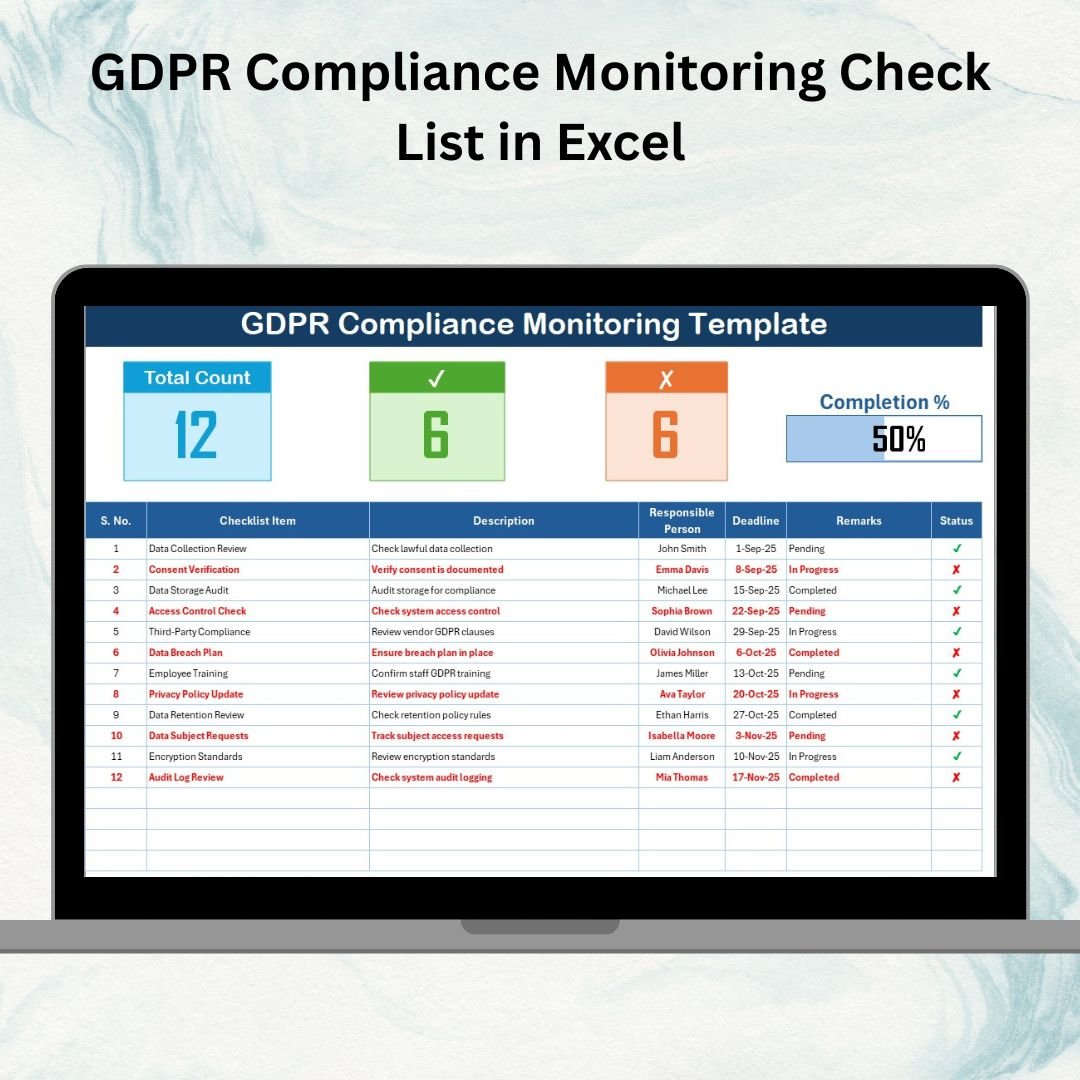
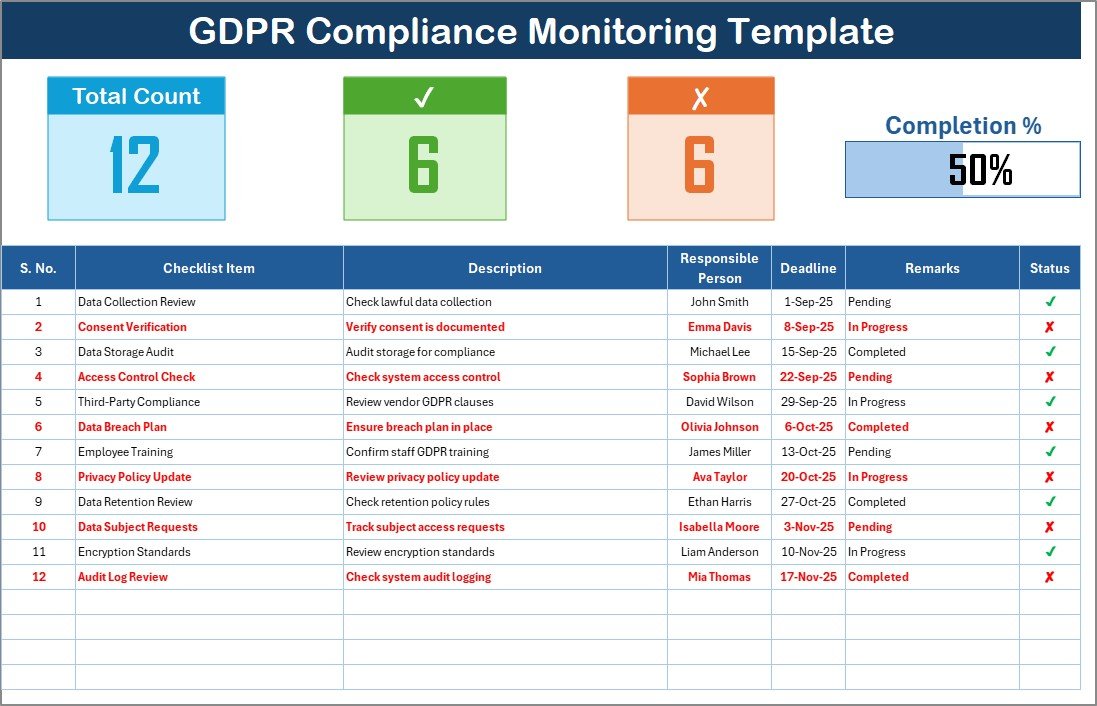
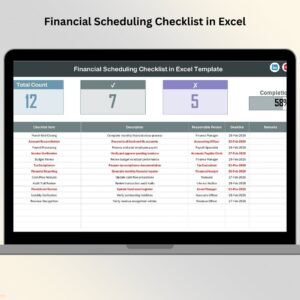
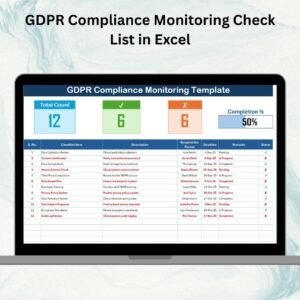
✨ Summary Section – Displays Total Count, Checked Count, Crossed Count, and a Progress Bar.
✨ Structured Checklist – Columns for Serial No., Item, Description, Responsible Person, Deadline, Remarks, and Status.
✨ Dropdown Menus – Assign tasks quickly using dropdowns for Responsible Person and Status (✔ or ✘).
✨ Conditional Formatting – Automatic green/red color coding for quick visibility of completed or pending tasks.
✨ Customizable Fields – Add, edit, or remove checklist items as regulations evolve.
✨ Progress Tracking – Instantly view completion percentages with built-in formulas.
✨ Audit-Ready Records – Maintain a structured database for quarterly or annual reviews.
📦 What’s Inside the GDPR Compliance Monitoring Template
When you download this Excel tool, you’ll find:
1️⃣ GDPR Compliance Monitoring Sheet – The main sheet where all compliance activities are tracked, including a live progress bar.
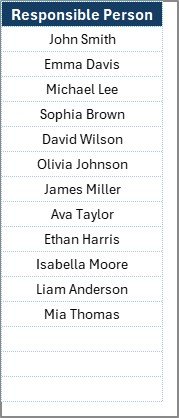
2️⃣ List Sheet – A clean list of responsible persons to keep assignments consistent via dropdown menus.
Together, these sheets provide clarity, accountability, and traceability — making GDPR compliance easier to manage and present during audits.
🛠️ How to Use the GDPR Compliance Monitoring Checklist
✔️ Step 1 – Set Up Your Checklist: Add compliance requirements in the table with deadlines and responsible persons.
✔️ Step 2 – Assign Ownership: Use dropdowns to assign tasks to team members.
✔️ Step 3 – Track Status: Mark tasks ✔ or ✘ and let the sheet update progress automatically.
✔️ Step 4 – Monitor Progress: Use the top summary bar and progress chart for instant insights.
✔️ Step 5 – Review Regularly: Update quarterly or whenever GDPR rules change.
No complex setup or coding required — it’s Excel made smarter!
👥 Who Can Benefit from This Tool
💼 HR Teams – Track employee data processing, consent management, and compliance training.
📧 Marketing Teams – Monitor opt-ins, email preferences, and privacy notice compliance.
🔐 IT Security Teams – Document data breach protocols, audits, and technical safeguards.
📊 Finance Departments – Manage third-party vendor data agreements.
⚖️ Legal Teams – Ensure GDPR reporting and compliance documentation is complete.
🏢 SMEs & Enterprises – From startups to large firms, this tool adapts to your compliance needs.
With the GDPR Compliance Monitoring Checklist in Excel, you can:
✅ Centralize all compliance activities.
✅ Assign clear responsibilities for accountability.
✅ Track progress with visual indicators.
✅ Customize tasks as GDPR evolves.
✅ Be audit-ready anytime.
Click here to read the Detailed blog post
Visit our YouTube channel to learn step-by-step video tutorials 👉 Youtube.com/@PKAnExcelExpert
Watch the step-by-step video tutorial:
Compatibility and Requirements
- Works in Microsoft Excel desktop (Excel 2016 or later, or Microsoft 365).
- Responsible Person and Status use drop-down lists. Microsoft’s guide to creating a drop-down list explains how they work.
Frequently Asked Questions
What columns are in the GDPR Compliance Monitoring Check List?
Serial No., Item, Description, Responsible Person, Deadline, Remarks and Status.
How is progress calculated?
The summary section counts total, checked and crossed items. The progress bar shows the share of items marked ✔.
How do I assign GDPR tasks to people?
Add names on the List sheet, then pick a person from the drop-down in the Responsible Person column.
Can I add items when the rules change?
Yes. Add, edit or remove checklist items at any time. The counts and progress bar update with formulas.
Related GDPR and Data Privacy Templates
- GDPR Compliance Tracking Checklist in Excel: track compliance tasks step by step.
- GDPR Compliance Review Check List in Excel: for periodic GDPR reviews.
- GDPR Compliance Checklist in Google Sheets: a GDPR checklist in Google Sheets.
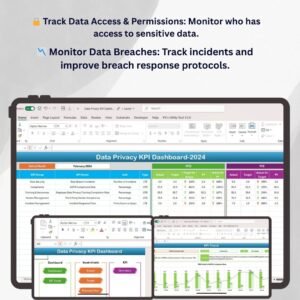
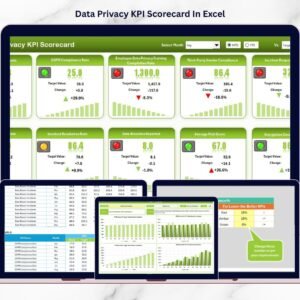
- Data Privacy KPI Dashboard in Excel: privacy KPIs against targets.
- Checklist & SOP Pack: 12 Excel and Google Sheets checklist templates.
Browse all Excel checklist templates or the Excel IT templates.



Reviews
There are no reviews yet.