


In today’s digital-first sports and entertainment landscape, fan engagement is everything. It’s not just about filling seats — it’s about building strong, long-term relationships with your audience. But without reliable performance tracking, it’s extremely difficult to understand whether your engagement strategies are truly making an impact.
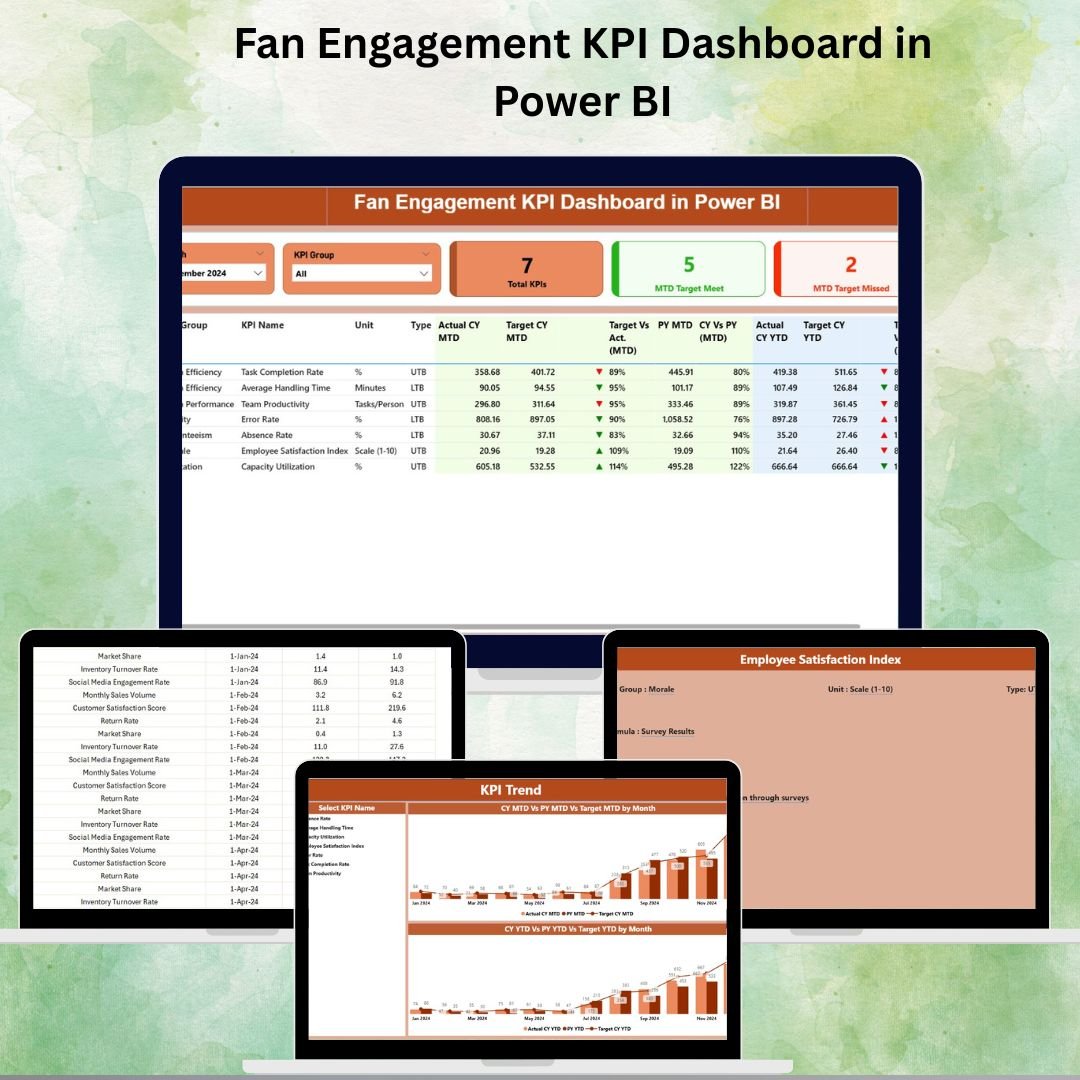
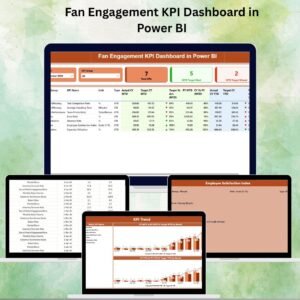
The Fan Engagement KPI Dashboard in Power BI is a powerful and ready-to-use analytics solution that gives you real-time insight into how your fans interact with your organization. It transforms simple Excel data into dynamic visual dashboards, helping you track Month-to-Date (MTD) and Year-to-Date (YTD) performance, compare current results with targets and previous year’s numbers, and quickly identify where engagement is rising — or falling.
Whether you’re monitoring digital campaigns, content interaction, event participation, membership renewals, or social media activity, this dashboard gives you the clarity you need to make better, faster decisions.
✨ Key Features of the Fan Engagement KPI Dashboard
✅ Summary Page – Real-Time Overview
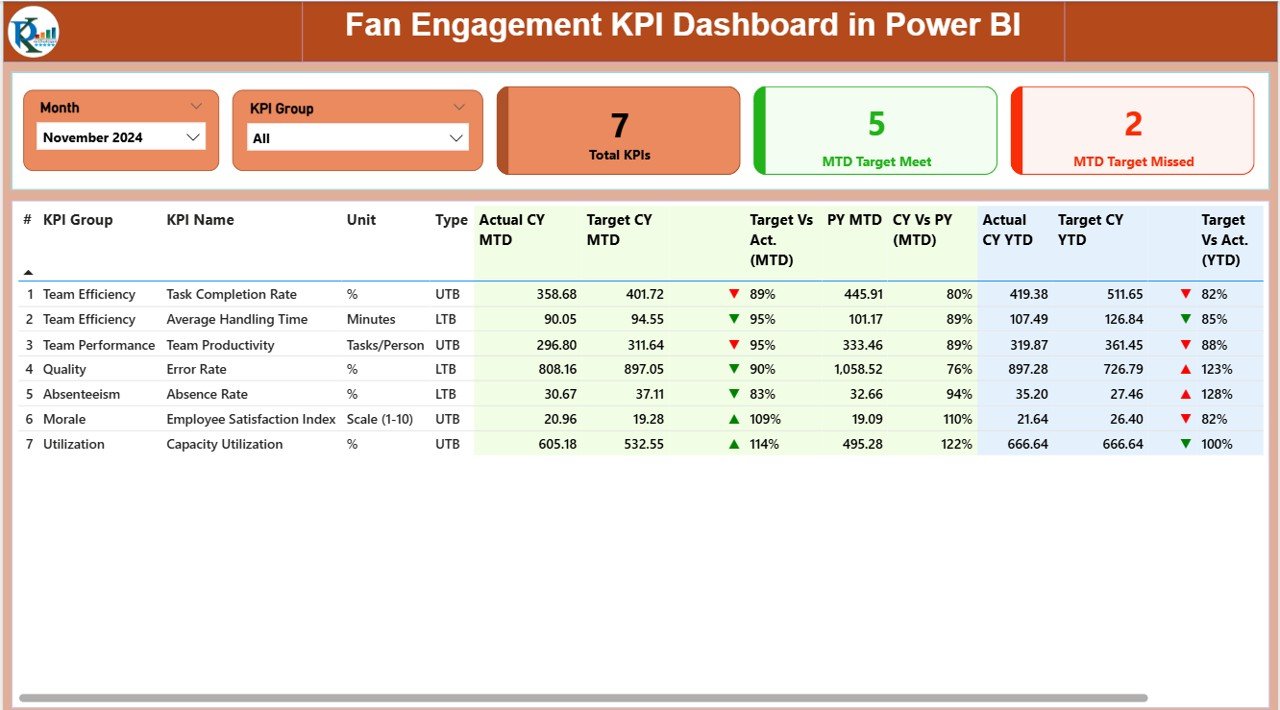
Filters for Month and KPI Group
KPI Cards that show:
• Total Fan KPIs
• MTD Target Met
• MTD Target MissedDetailed KPI table showing Actual vs Target vs Previous Year (both MTD & YTD), KPI type, status icon (▲/▼), and YoY comparisons
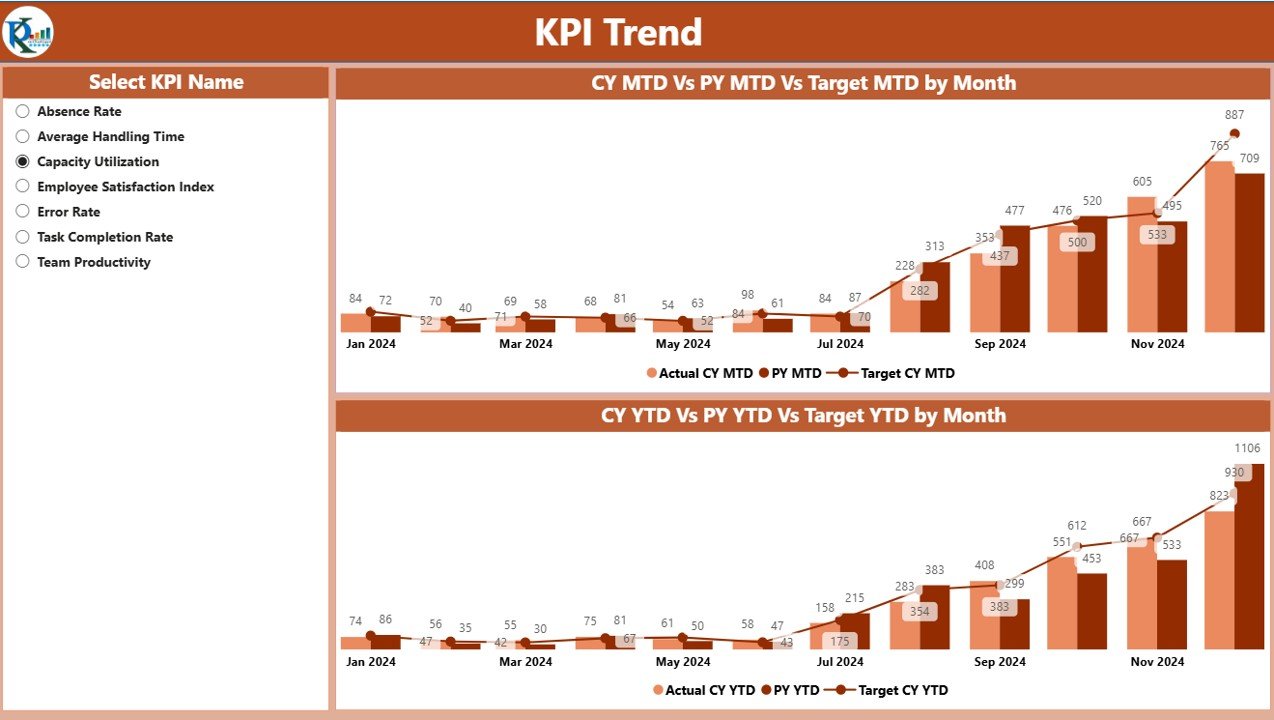
✅ KPI Trend Page – Performance Over Time
Two combo charts:
• MTD Actual vs Target vs Previous Year
• YTD Actual vs Target vs Previous YearKPI slicer for selecting specific KPIs
Perfect for spotting trends, drop-offs, and seasonal patterns
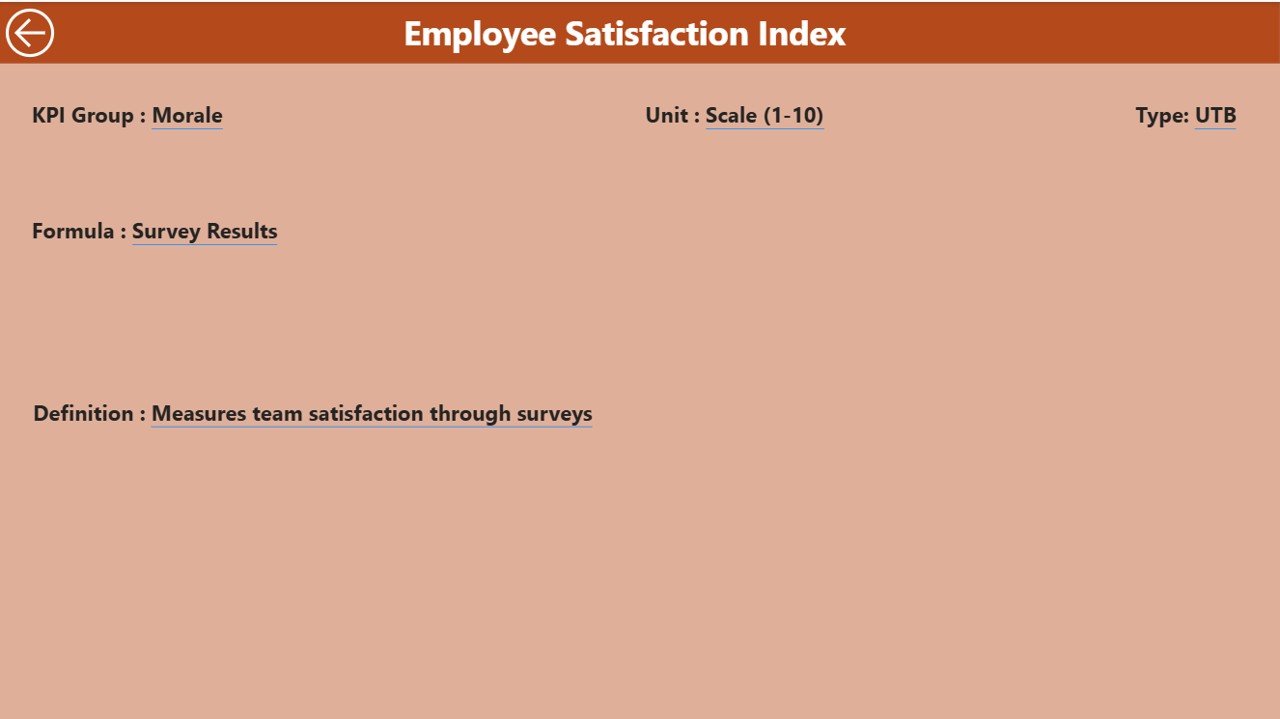
✅ KPI Definition Page – Drill-Through View
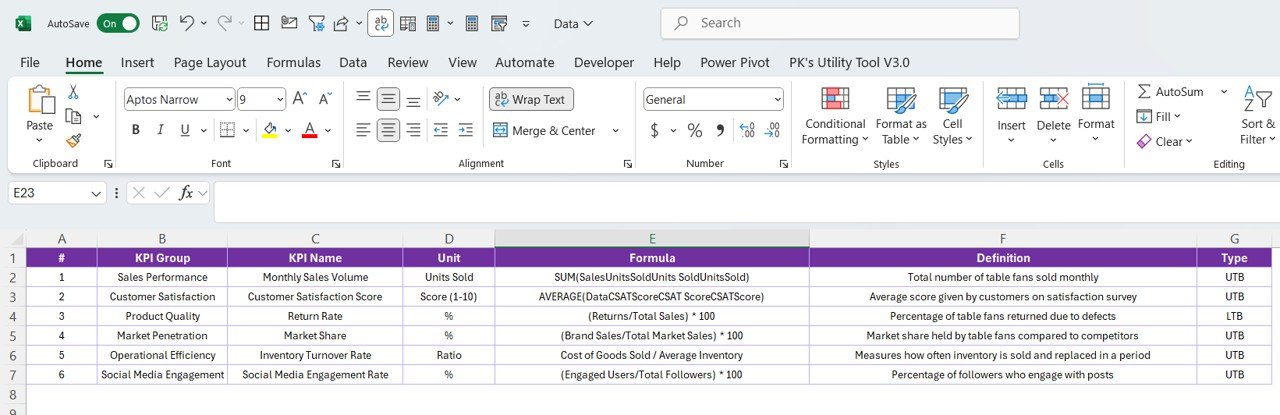
Displays KPI Formula, Definition, Group, Unit, and KPI Type
Accessible directly from the Summary Page via right-click → Drill Through
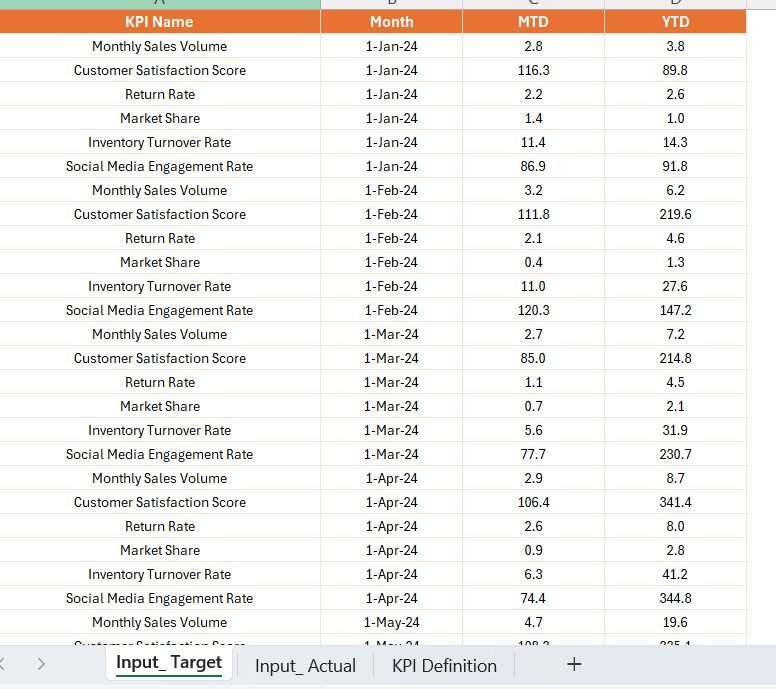
✅ Excel-Based Data Source
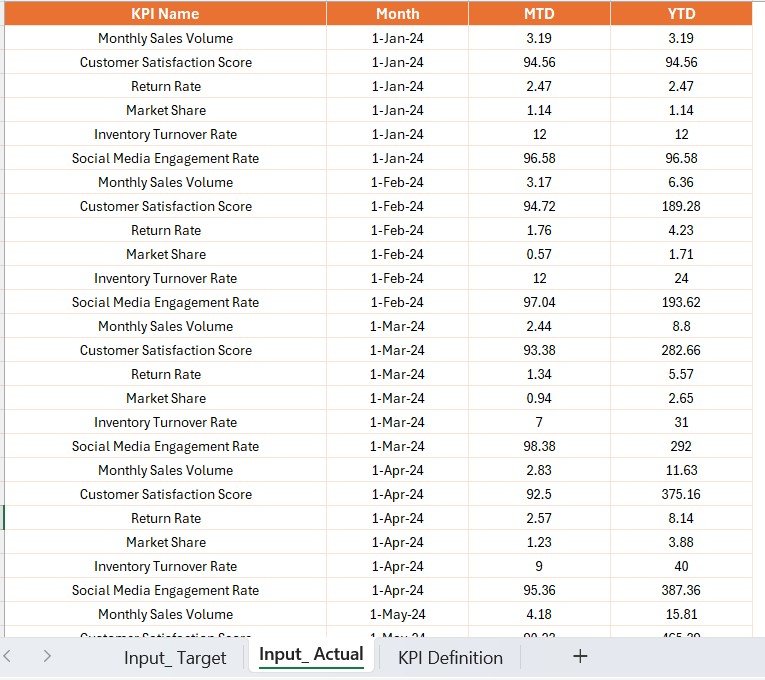
Uses three simple sheets: Input_Actual, Input_Target, and KPI_Definition
Only requires entering the first date of each month for accurate MTD/YTD calculations
No advanced BI skills required
📂 What’s Included in the Dashboard
| Page Name | Purpose |
|---|---|
| Summary | Real-time MTD & YTD performance snapshot |
| KPI Trend | KPI-specific trend analysis over 12 months |
| KPI Definition | Drill-through with KPI definitions and formulas |
🛠 How to Use the Dashboard
Step 1: Fill in the Excel sheets (Actual, Target, KPI_Definition)
Step 2: Open Power BI Desktop → Click Refresh
Step 3: Filter by Month or KPI Group in the Summary Page
Step 4: Right-click a KPI and Drill Through for definitions if needed
Step 5: Review the Trend Page to analyze where engagement is improving or declining
🎯 Who Can Benefit
🏟 Sports Clubs & Leagues – Track campaigns, attendance and digital interactions
🎤 Event Organizers – Measure fan engagement before, during and after events
📱 Marketing Teams – Assess social media and content performance instantly
🎧 Entertainment Brands – Monitor audience feedback and interactions in real time
🚀 Why You Need This Dashboard
Real-Time Visibility over MTD & YTD engagement
Improved Campaign Planning with trend insights
Target vs Actual vs Previous Year comparison
Interactive Filters & Drill-Through for deep dives
Easy Data Input via Excel (No technical setup)
Fully customizable Power BI file
📖 Click here to read the Detailed blog post
Visit our YouTube channel to learn step-by-step video
Watch the step-by-step video tutorial:
Compatibility and Requirements
- Works in Power BI Desktop, which is free to download from Microsoft. Microsoft explains the download in Get Power BI Desktop.
- Your data lives in an Excel file with three sheets: Input_Actual, Input_Target and KPI_Definition.
Frequently Asked Questions
Which pages does the dashboard have?
Three pages: Summary, KPI Trend and KPI Definition.
Where do I enter my data?
In the Excel file, on the Input_Actual, Input_Target and KPI_Definition sheets. Use the first date of each month so the MTD and YTD figures calculate correctly. Then open Power BI Desktop and click Refresh.
Can I compare results with targets and last year?
Yes. The Summary page shows Actual, Target and Previous Year side by side for both MTD and YTD, with a status icon (▲/▼) and a year-over-year comparison.
How do I see the formula behind a KPI?
Right-click a KPI on the Summary page and choose Drill Through. The KPI Definition page shows its formula, definition, group, unit and type.
Is there an Excel or Google Sheets version?
Yes. See the Fan Engagement KPI Dashboard in Excel and the Fan Engagement KPI Dashboard in Google Sheets.
Related Fan and Engagement Templates
- Fan Engagement KPI Dashboard in Excel: the same fan KPIs in Excel
- Fan Engagement KPI Dashboard in Google Sheets: the Google Sheets edition
- Fan Communities Platforms Dashboard in Power BI: fan community platforms in Power BI
- Influencer Engagement KPI Dashboard in Power BI: engagement KPIs for influencer campaigns
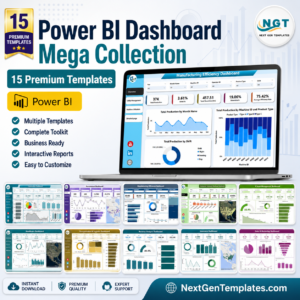
- Power BI Dashboard Mega Collection: 15 Power BI templates in one download
Browse all Power BI KPI dashboards.




Reviews
There are no reviews yet.