

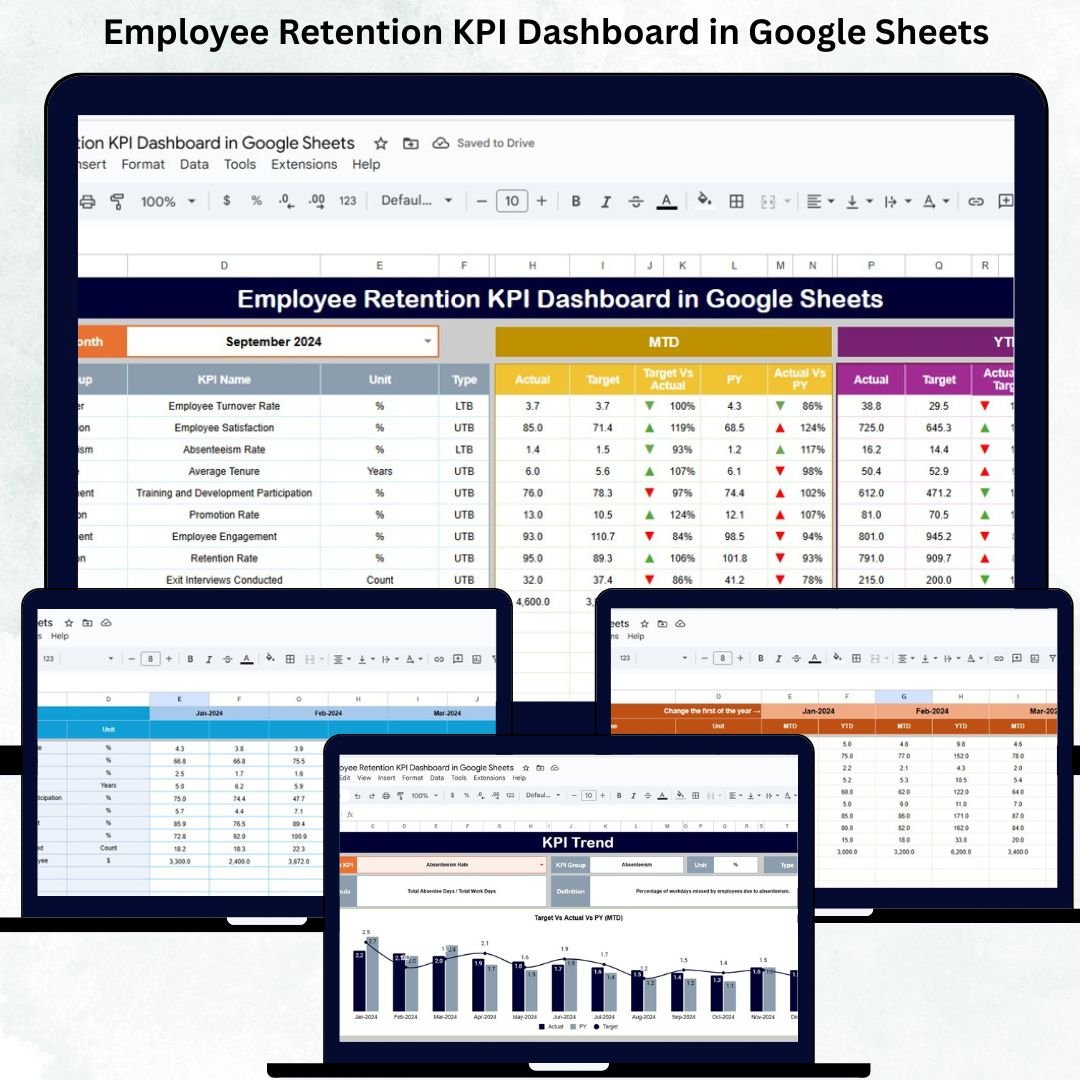

Employee retention is one of the clearest indicators of organizational stability and long-term success. When employees stay longer, hiring costs drop, productivity improves, and workplace culture becomes stronger. But as companies grow, monitoring retention manually becomes time-consuming and highly error-prone. This is where the Employee Retention KPI Dashboard in Google Sheets becomes an essential tool for HR teams and business leaders.Employee Retention KPI Dashboard in Google Sheets
This ready-to-use dashboard helps you track retention, turnover, tenure patterns, engagement levels, department-wise insights, and manager performance — all in one centralized place. With automated MTD/YTD trends, target comparisons, and previous-year analysis, this dashboard gives leaders the clarity needed to reduce attrition and improve employee satisfaction.Employee Retention KPI Dashboard in Google Sheets
✨ Key Features of the Employee Retention KPI Dashboard in Google Sheets
📊 1. All Retention KPIs in One Central Dashboard
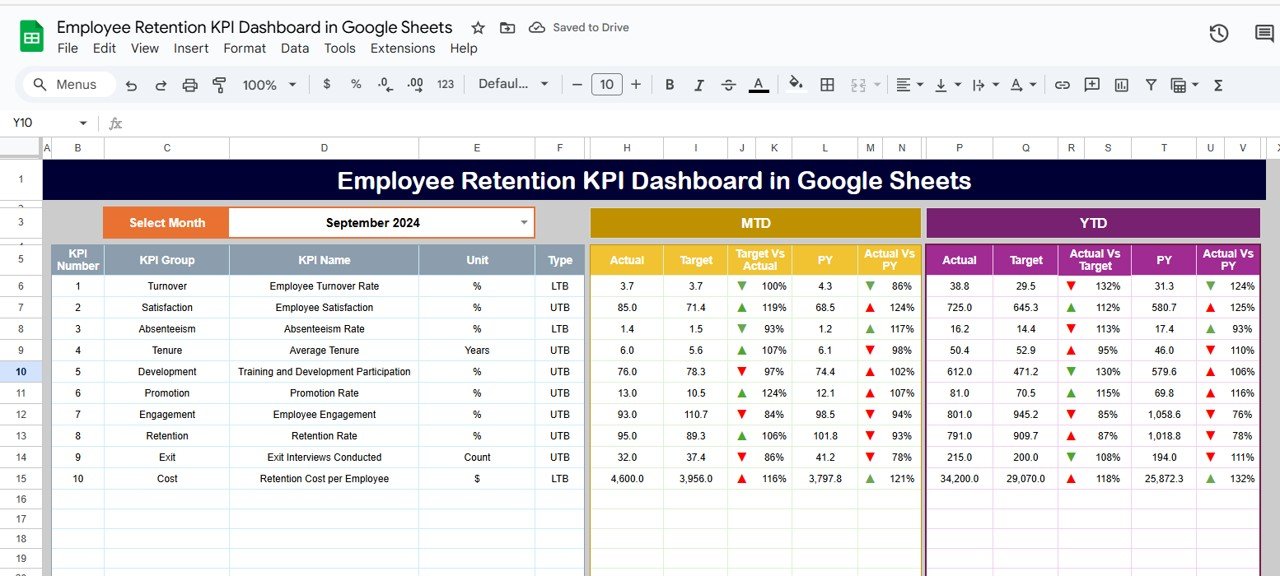
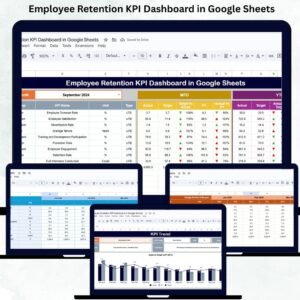
The main Dashboard Sheet Tab gives a visual and organized snapshot of employee retention performance.
Select the month in Range D3, and the dashboard updates instantly — displaying:
MTD Actual, Target, Previous Year
YTD Actual, Target, Previous Year
Target vs Actual comparisons
Previous Year vs Actual insights
Conditional arrows (↑ / ↓) for quick performance interpretation
This allows HR leaders to understand whether retention efforts are improving or declining.
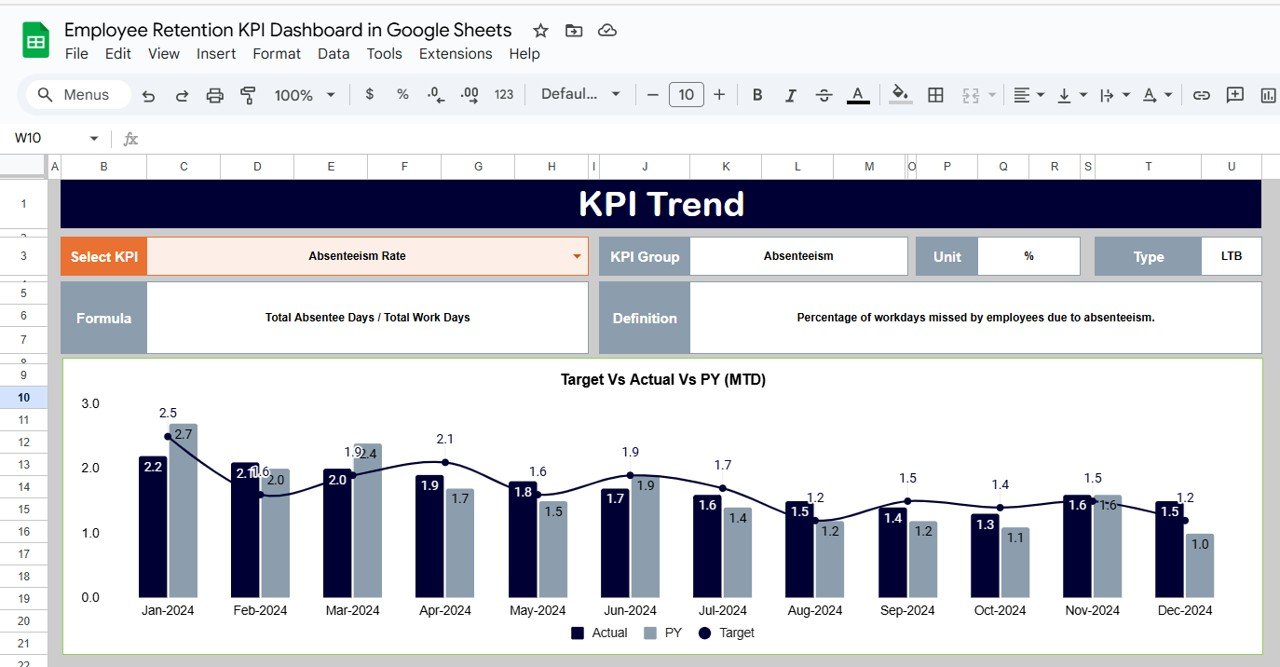
📈 2. KPI Trend Sheet for Detailed Retention Analytics
This sheet provides a deep dive into any retention-related KPI.
Choose a KPI in Range C3, and you’ll see:
KPI Group
Unit of measurement
KPI Type (Upper/Lower the Better)
KPI Formula
KPI Definition
KPI Trend Chart
This helps HR teams spot trends such as increasing turnover, declining engagement, or improved tenure stability.
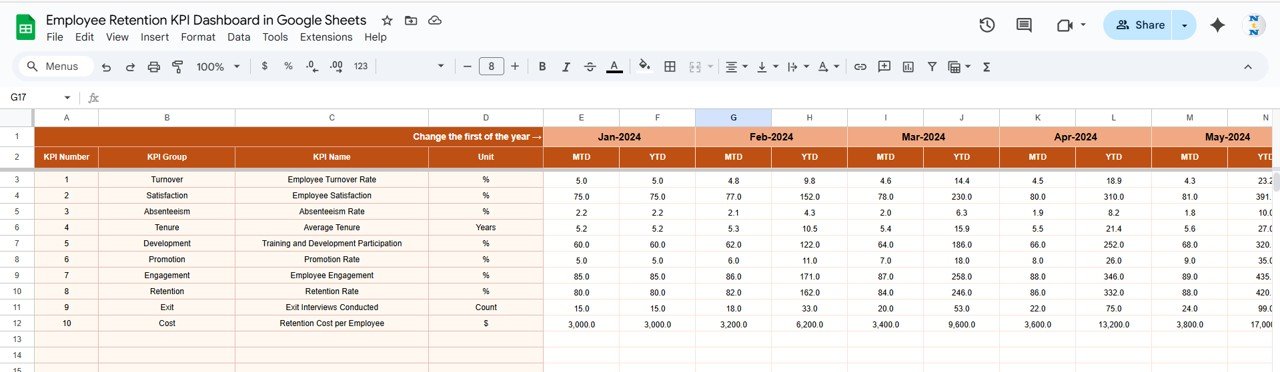
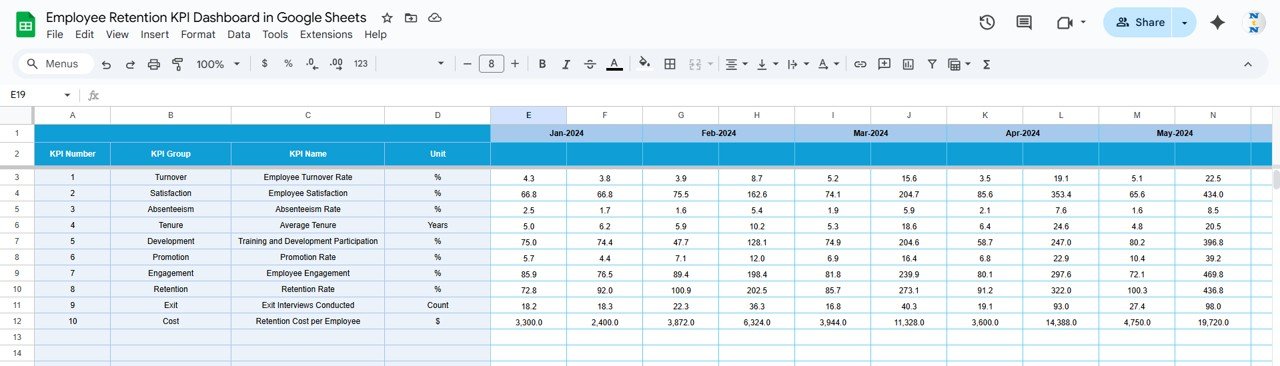
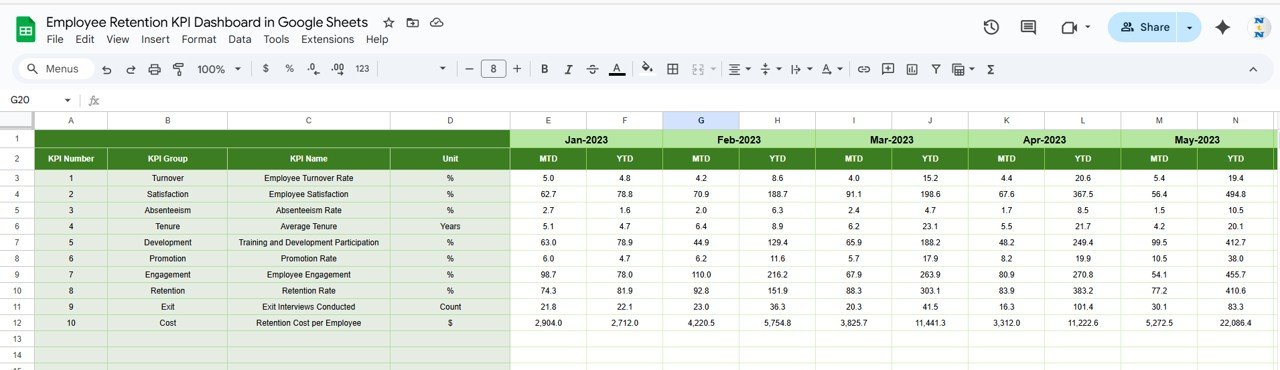
🧮 3. Actual Number Sheet – Real Retention Performance
Enter MTD and YTD actual values here.
Select the starting month in Range E1 to align calculations.
This sheet ensures that dashboards always reflect the latest workforce insights.
🎯 4. Target Sheet – Strategic Goal Setting
Enter targets for:
MTD
YTD
These benchmarks help teams measure success accurately and highlight gaps in retention strategy.
📅 5. Previous Year Sheet – Historic Comparison for Trend Analysis
Enter previous year MTD/YTD numbers to compare improvements or declines.
This highlights whether HR strategies are working long term.
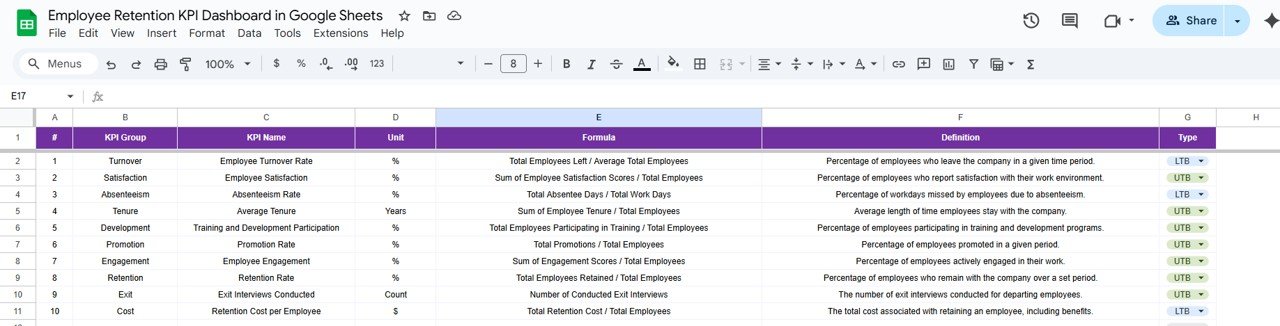
📘 6. KPI Definition Sheet – Complete KPI Encyclopedia
Includes:
KPI Name
Group
Unit
Formula
Definition
KPI Type (UTB/LTB)
This ensures consistency and clarity across HR teams and managers.
📦 What’s Inside the Employee Retention KPI Dashboard in Google Sheets
📊 Dashboard Sheet – High-Level HR Summary
Instant visibility into turnover, tenure, engagement, and retention gaps.
📈 KPI Trend Sheet – Pattern & Behavior Analysis
Understand long-term retention movement.
🧮 Actual Number Sheet – Employee Data Entry
Accurate inputs ensure meaningful dashboard insights.
🎯 Target Sheet – HR Goal Alignment
Helps drive focused retention strategies.
📅 Previous Year Sheet – Year-over-Year Evaluation
Measures real impact of HR improvements.
📘 KPI Definition Sheet – Learning Tool
Ideal for onboarding new HR analysts or team members.
🛠️ How to Use the Employee Retention KPI Dashboard in Google Sheets
1️⃣ Enter Employee Performance Data
Add real retention, turnover, engagement, and tenure values to the Actual sheet.
2️⃣ Set Targets for Each KPI
Use the Target tab to define measurable retention goals.
3️⃣ Select the Reporting Month
Choose the month in D3 to refresh dashboard results.
4️⃣ Review KPIs Against Targets & Last Year
Quickly identify problem areas or improvements.
5️⃣ Analyze KPI Trends
Use trend charts to uncover turnover spikes or engagement drops.
6️⃣ Improve Retention Strategy
Take corrective actions such as training, engagement programs, or manager coaching.
🎯 Who Can Benefit from This Dashboard?
👥 HR Managers & Talent Leaders
Track retention strategies and reduce turnover risks.
🏢 Business Owners & Directors
Gain clarity on workforce stability and long-term risks.
📊 People Analytics Teams
Perform data-driven retention analysis.
👨💼 Department Heads & Managers
Understand manager-wise turnover and engagement performance.
📁 HR Business Partners
Use insights to guide policy changes and employee programs.
Click here to read the Detailed blog post
Watch the step-by-step video Demo:
Visit our YouTube channel for tutorials — Youtube.com/@NeotechNavigators
Compatibility and Requirements
- Works in Google Sheets. You need a free Google account and a web browser.
- You pick the month from a dropdown on the Dashboard sheet and the KPI from a dropdown on the KPI Trend sheet. Google explains dropdowns in Create an in-cell dropdown list.
Frequently Asked Questions
Which sheets are included?
Six sheets: Dashboard, KPI Trend, Actual Number, Target, Previous Year and KPI Definition.
How do I update the dashboard for a new month?
Enter your MTD and YTD actual values in the Actual Number sheet and your goals in the Target sheet. Then select the month in cell D3 on the Dashboard sheet and the results refresh.
Can I compare results with last year?
Yes. Enter last year’s MTD and YTD numbers in the Previous Year sheet. The Dashboard shows them next to your actuals and targets, with up and down arrows to mark the direction.
How do I see the trend for one KPI?
Open the KPI Trend sheet and choose a KPI in cell C3. It shows the KPI group, unit, type (Upper or Lower the Better), formula, definition and a trend chart.
Is there an Excel version?
Yes. See the Employee Retention KPI Dashboard in Excel.
Related Employee Retention and HR Templates
- Employee Retention KPI Dashboard in Excel: the same dashboard in Excel
- Employee Retention Dashboard in Google Sheets: another retention dashboard for Google Sheets
- Employee Turnover Dashboard in Power BI: turnover analysis in Power BI
- Employee Productivity Dashboard in Google Sheets: productivity tracking for HR teams
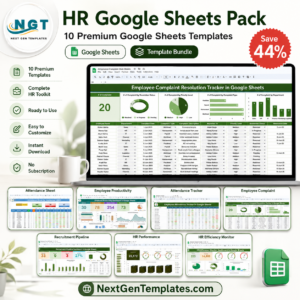
- HR Google Sheets Pack: 10 HR templates for Google Sheets in one download
Browse all Google Sheets KPI dashboards.


Reviews
There are no reviews yet.