


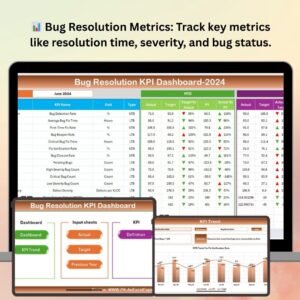
Software teams operate at high speed, and product quality depends heavily on how quickly bugs are found, fixed, retested, and closed. Without the right monitoring system, teams struggle with unresolved bugs, unclear priorities, slow turnaround time, and overloaded backlogs. The Bug Resolution KPI Dashboard in Google Sheets gives development and QA teams a simple, powerful, and real-time reporting tool to track every stage of the defect life cycle. It ensures higher quality, faster releases, and better customer satisfaction.
This ready-to-use dashboard helps teams understand the health of their bug pipeline through KPIs that measure detection speed, resolution efficiency, backlog size, aging issues, reopen rates, defect leakage, and developer performance. It updates instantly when you change the month, targets, or actual values. No technical skills or coding are required—Google Sheets handles all calculations, charts, and trend visuals automatically.
✨ Key Features of the Bug Resolution KPI Dashboard in Google Sheets
🐞 1. Real-Time Bug Analysis
Monitor how bugs move across stages—identified, assigned, fixed, retested, reopened, closed—using clear and meaningful visuals.
📅 2. MTD & YTD KPI Tracking
View Month-to-Date (MTD) and Year-to-Date (YTD) metrics including:
Actual
Target
Previous Year
Target vs Actual
Previous Year vs Actual
This helps teams compare performance instantly.
📊 3. Trend Analysis with KPI Drilldown
Select any KPI from a dropdown and analyze 12-month performance using dynamic line charts. Identify trends, behavior patterns, and bottlenecks.
🔍 4. Clean Data Entry Sheets
Actual, Target, and Previous Year sheets are structured to avoid errors. Simply enter numbers and the dashboard updates automatically.
⚡ 5. Conditional Formatting Indicators
Smart arrows highlight performance:
🟢 Green → Improvement
🔴 Red → Decline
🟡 Neutral → Stable
Managers can understand KPI behavior within seconds.
📦 What’s Inside the Bug Resolution KPI Dashboard in Google Sheets
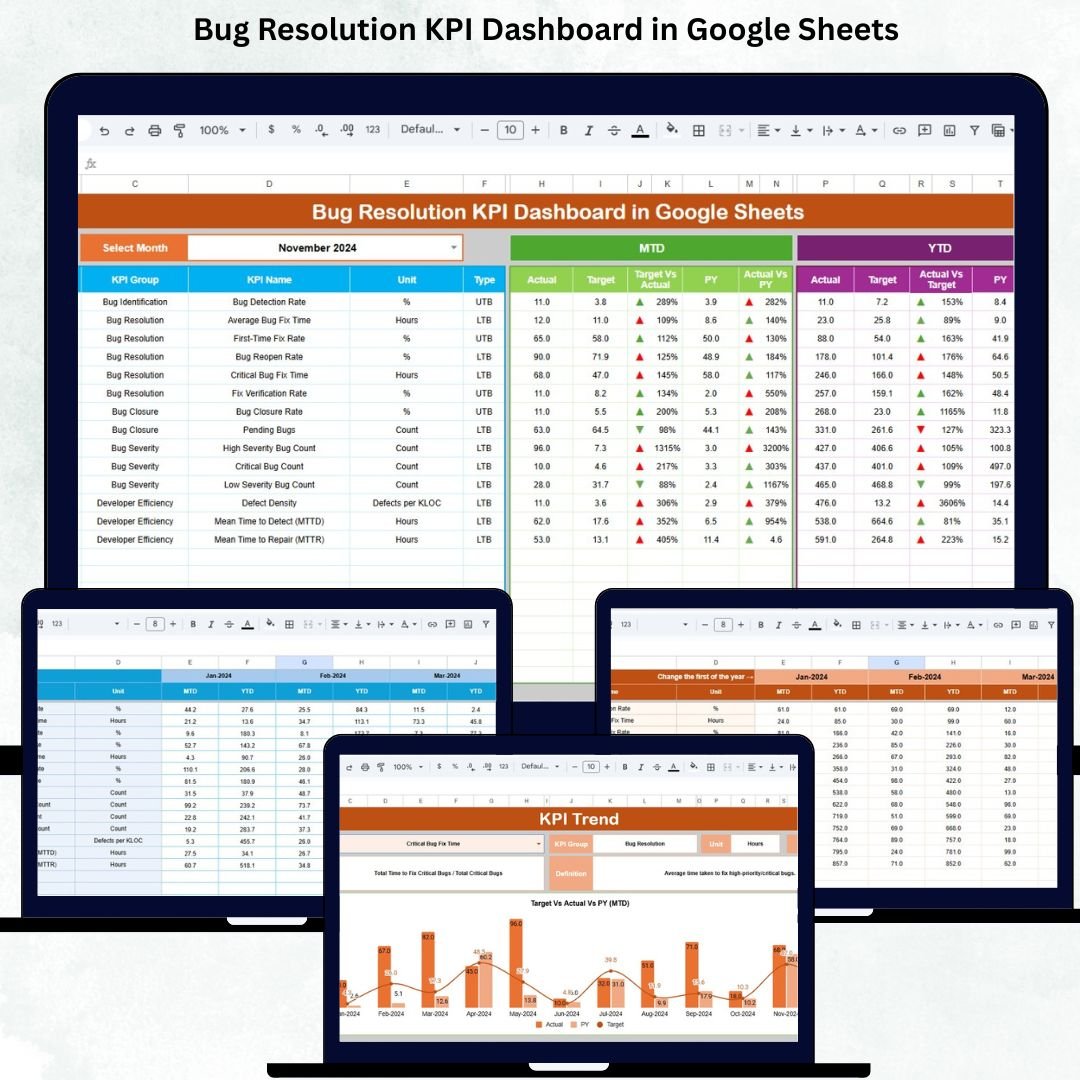
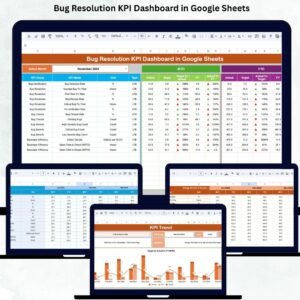
📌 Dashboard Sheet (Main Page)
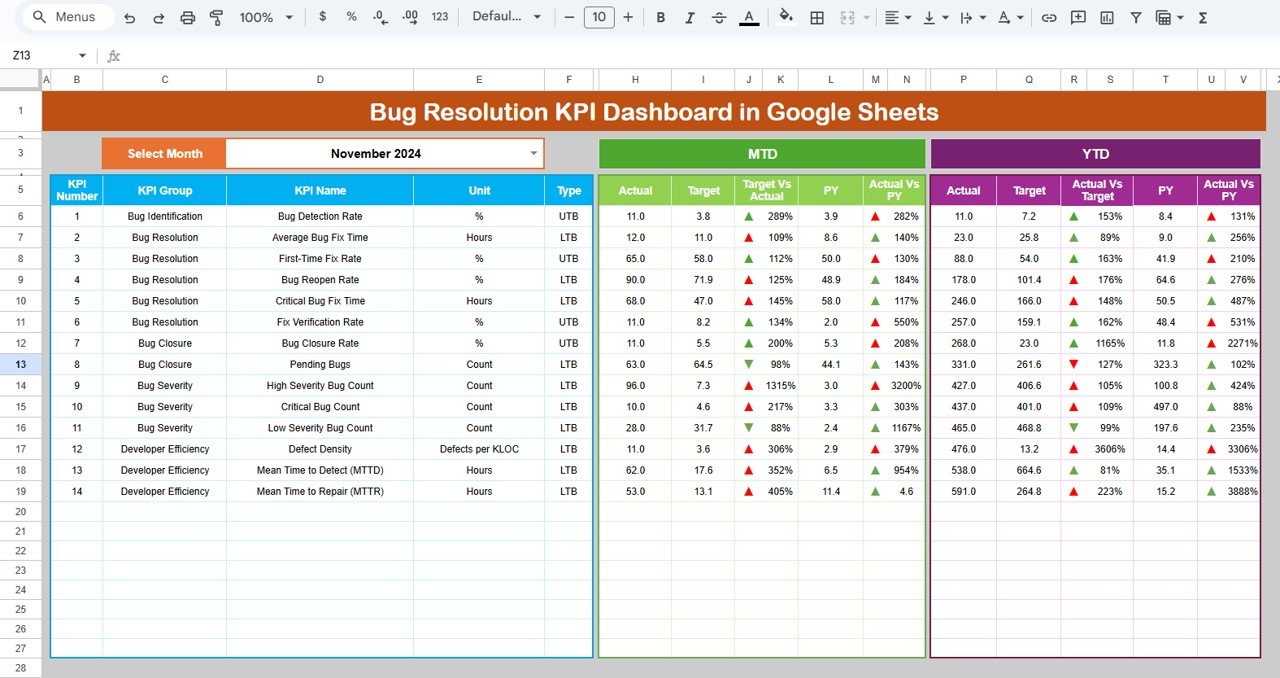
This is the central command center. When you change the month in cell D3, the whole dashboard recalculates instantly. It shows:
MTD Actual vs Target vs Previous Year
YTD Actual vs Target vs Previous Year
Performance arrows
All key bug-resolution KPIs
Perfect for sprint reviews, weekly standups, and leadership presentations.
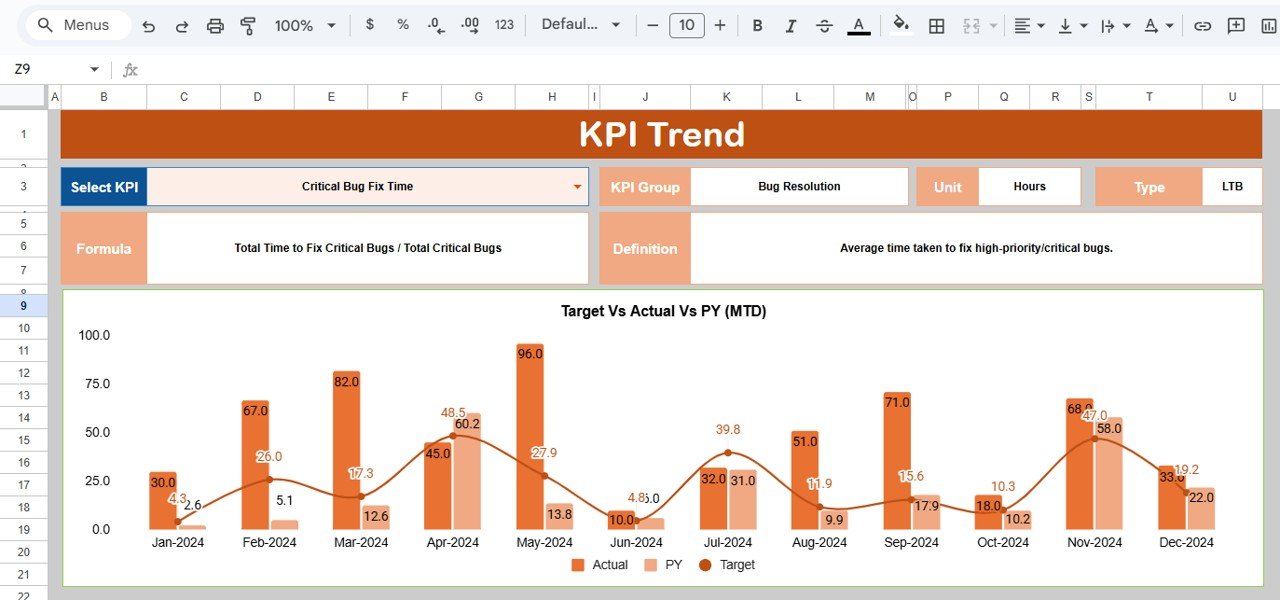
📈 KPI Trend Sheet
Choose any KPI using a dropdown filter and display:
KPI Group
Unit
KPI Type (UTB or LTB)
Formula
Definition
12-Month Trend Chart
This is extremely useful for identifying delays, seasonal bug patterns, and long-term improvement.
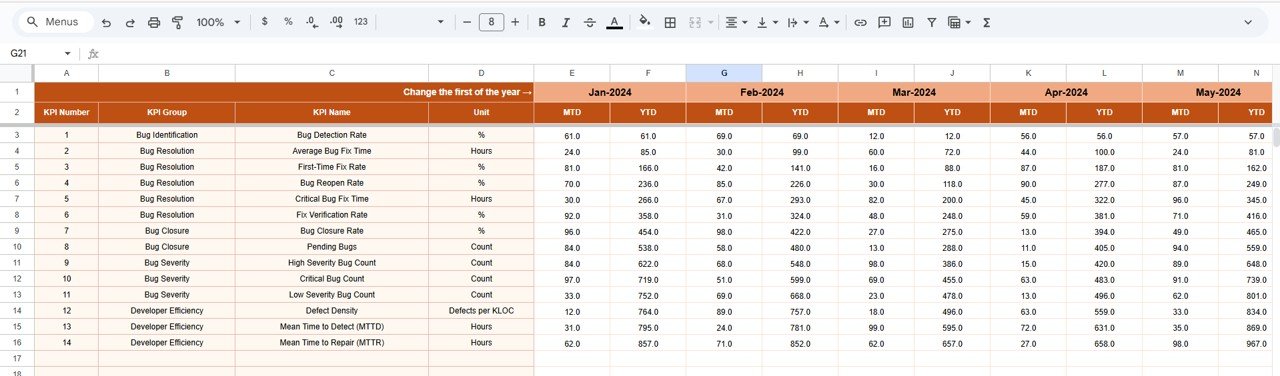
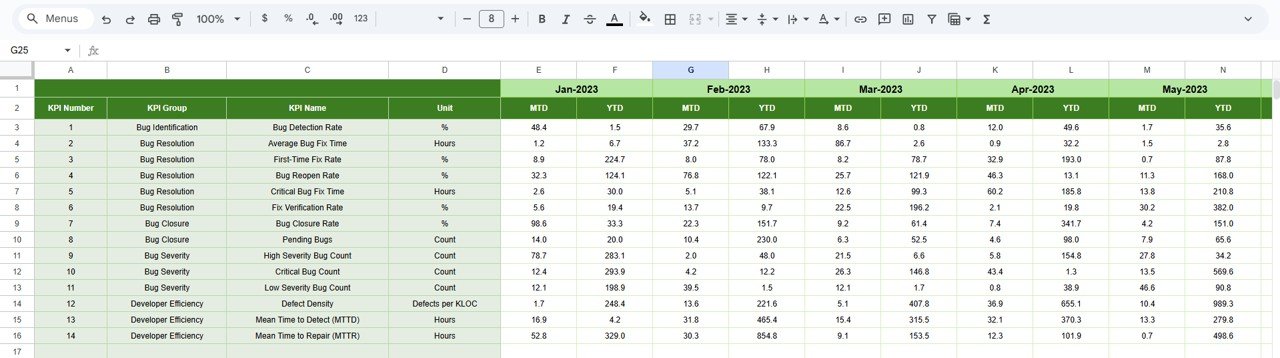
📝 Actual Number Sheet
Enter MTD and YTD performance numbers.
Choose the first month of the year in cell E1, and the sheet auto-aligns your data.
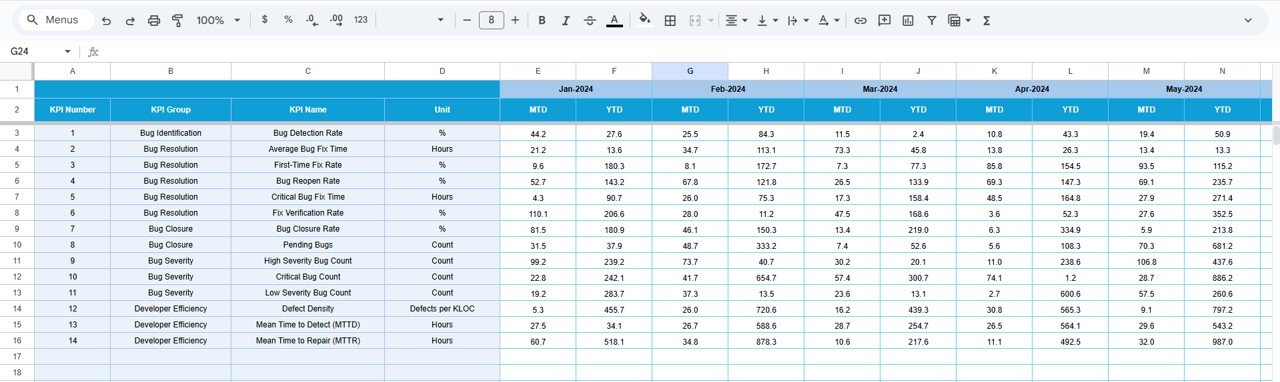
🎯 Target Number Sheet
Set monthly and annual targets for:
Bug count reduction
Resolution speed
Defect leakage
Reopen rate
Developer productivity
Targets allow teams to measure progress against expectations.
📂 Previous Year Data Sheet
Stores all last-year performance numbers.
This sheet enables meaningful YOY comparisons and long-term improvement tracking.
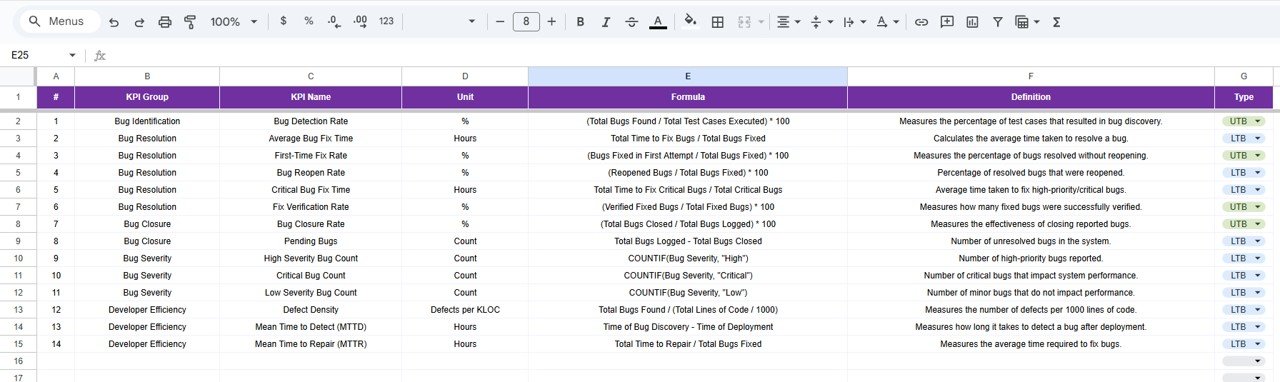
📚 KPI Definition Sheet
This sheet ensures clarity and standardization. It includes:
KPI Name
KPI Group
Formula
Unit
Definition
KPI Type (Lower the Better or Upper the Better)
Great for onboarding new developers and QA team members.
🎯 Who Can Benefit from the Bug Resolution KPI Dashboard in Google Sheets
🧑💻 Development Teams
Track resolution cycles and improve code quality.
🧪 QA & Testing Teams
Understand defect patterns and reduce leakage.
📋 Project Managers
Monitor progress, risks, and delays.
🚀 Product Owners
Ensure customer-impacting bugs are resolved faster.
📈 Leadership Teams
Get complete visibility into software quality trends.
Click here to read the Detailed blog post
Watch the step-by-step video tutorial:
Visit our YouTube channel for tutorials — Youtube.com/@NeotechNavigators
Compatibility and Requirements
- Works in Google Sheets with a free Google account and a web browser.
- The KPI Trend sheet uses a dropdown to pick a KPI. Google’s guide shows how to create an in-cell dropdown list.
Frequently Asked Questions
Which sheets are in the Bug Resolution KPI Dashboard?
Six: Dashboard, KPI Trend, Actual Number, Target Number, Previous Year Data and KPI Definition.
How do I change the month on the dashboard?
Change the month in cell D3 of the Dashboard sheet. The MTD and YTD values, targets and arrows recalculate for that month.
Can my year start in a month other than January?
Yes. Choose the first month of the year in cell E1 of the Actual Number sheet and the sheet aligns your data.
What do the colored arrows mean?
Green shows improvement, red shows decline and yellow shows a stable KPI.
Can I add my own bug resolution KPIs?
Yes. Add the KPI name, group, formula, unit, definition and type on the KPI Definition sheet, then enter its numbers on the data sheets.
Related Bug Resolution and IT Templates
- Bug Resolution KPI Dashboard in Excel: the same KPIs in Excel
- Bug Resolution KPI Dashboard in Power BI: the same topic in Power BI
- IT System Access Request Tracker in Google Sheets: log IT access requests
- IT Manager & CISO Toolkit: 10 IT templates in one bundle
Browse all Google Sheets KPI dashboards or the Google Sheets templates.





















Reviews
There are no reviews yet.