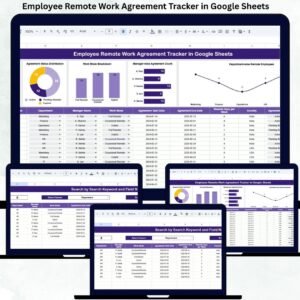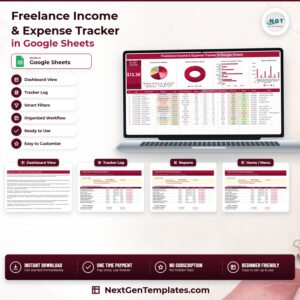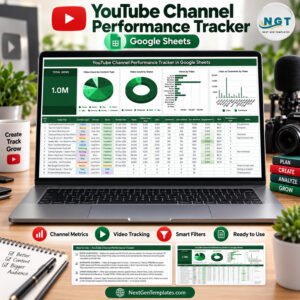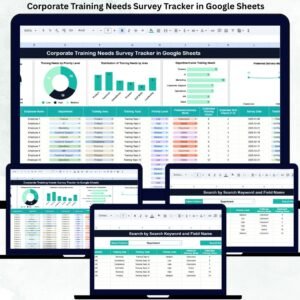
Workplace diversity and inclusion are no longer optional—they are essential for organizational success. Companies that understand their workforce better create stronger teams, higher employee engagement, and a healthier work culture. But when HR teams manage diversity survey data manually through spreadsheets or emails, important insights get lost. Reporting becomes slow, errors increase, and decision-making gets delayed. The Employee Diversity Survey Tracker in Google Sheets solves this problem with a clean, structured, and automated tool designed for modern DEI (Diversity, Equity & Inclusion) needs.Employee Diversity Survey Tracker in Google Sheets
This ready-to-use tracker consolidates all employee survey responses into a single system. Whether you’re analyzing gender representation, ethnic diversity, disability inclusion, education-level distribution, or workplace satisfaction scores, this tracker presents everything in clear visuals and searchable tables. Since it runs in Google Sheets, it updates instantly, works online, and enables collaboration across HR teams, DEI officers, and leadership groups.
✨ Key Features of the Employee Diversity Survey Tracker in Google Sheets
📋 1. Central Tracker Sheet for All Survey Responses
The tracker sheet is the heart of the system. HR teams simply enter employee information and survey responses:
Employee Name
Gender
Ethnicity
Disability Status
Department
Education Level
Survey Score
Additional Notes
The moment data is entered, all visuals refresh automatically—ensuring fast and accurate reporting.
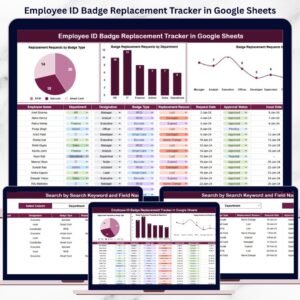
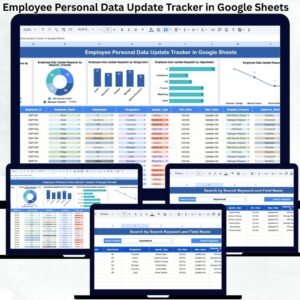
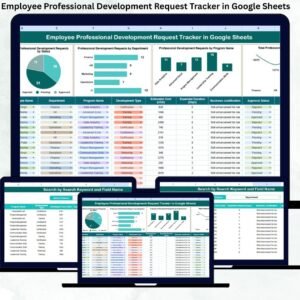
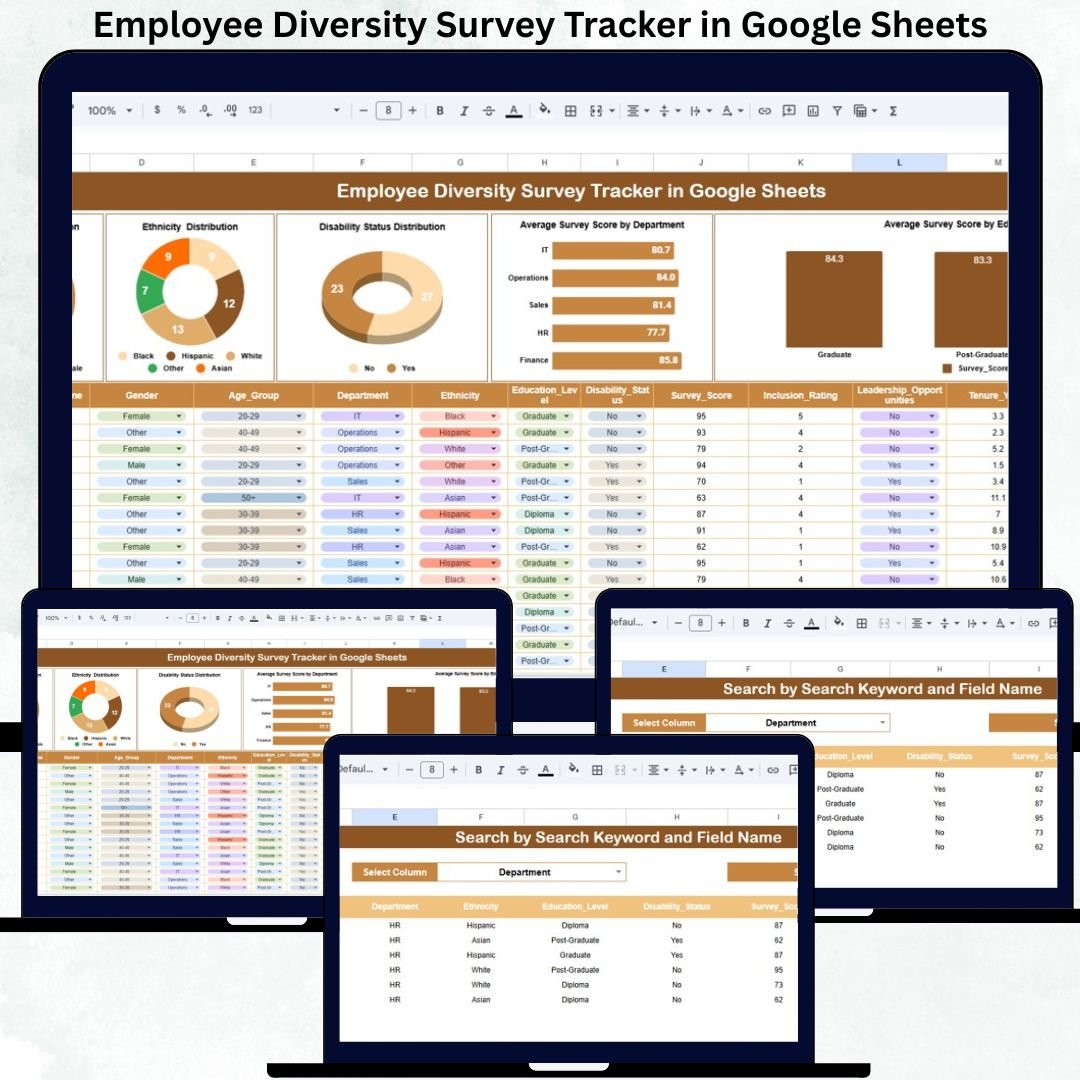
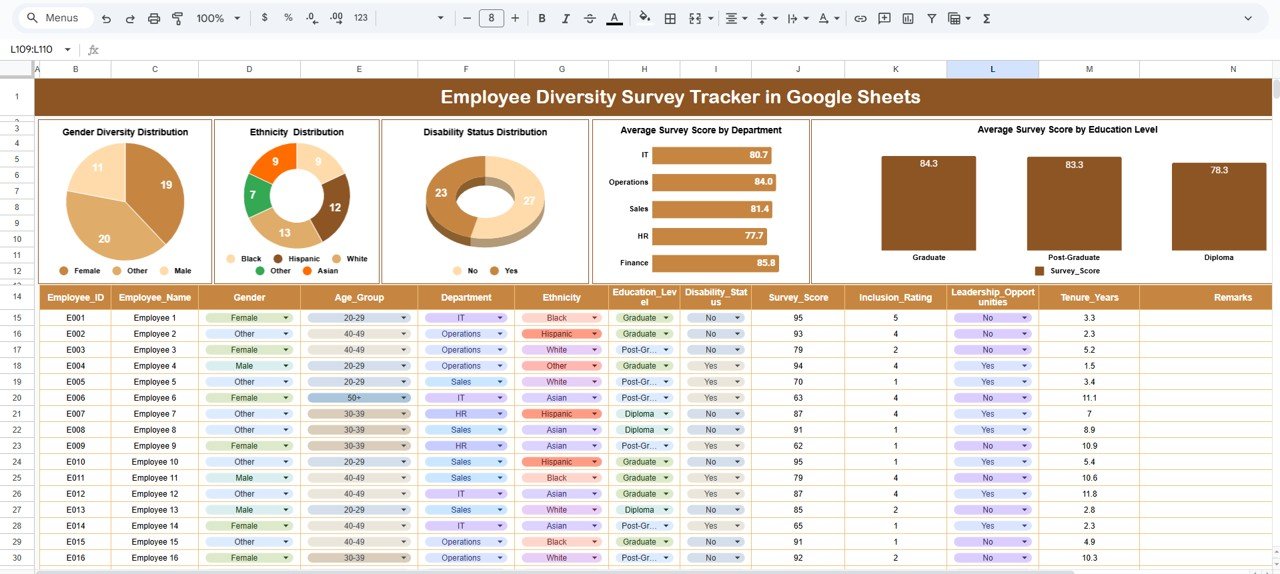
📊 2. Auto-Refreshing Diversity Insight Charts
The dashboard includes multiple visuals that help organizations understand representation instantly:
Gender Diversity Distribution
Ethnicity Distribution
Disability Status Representation
Average Survey Score by Department
Average Survey Score by Education Level
These charts provide real-time clarity into workforce composition, inclusion levels, and satisfaction patterns.
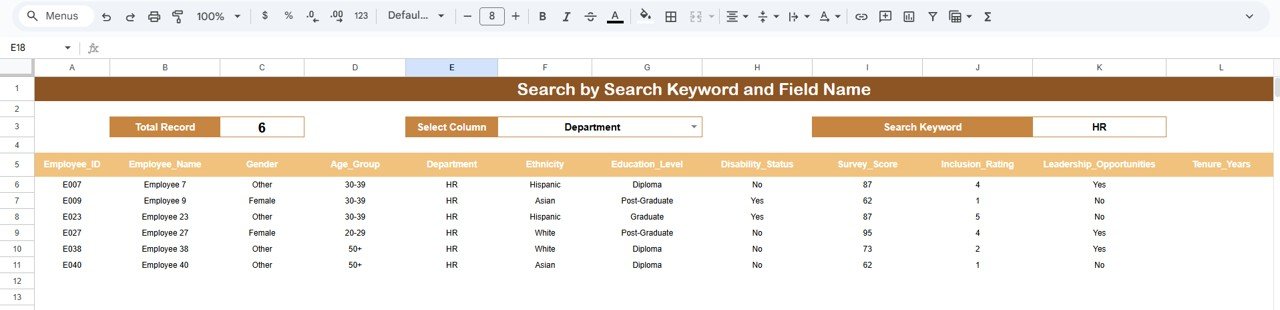
🔍 3. Smart Search Panel for Fast Filtering
No more scrolling through hundreds of rows. Users can enter a keyword, choose a field (Department, Gender, Issue Type, etc.), and instantly view matching results. This feature simplifies audits, reviews, and HR presentations.
📦 What’s Inside the Employee Diversity Survey Tracker in Google Sheets
🗂️ Tracker Sheet Tab
A simple, organized data entry sheet where all survey responses are stored. Even beginners can use it without training due to its clean layout.
📊 Diversity Charts Dashboard
All real-time visuals that show workforce representation and inclusion trends. These visuals update automatically and make DEI reporting professional and impactful.
🔎 Search & Filter Panel
Designed for fast lookups and targeted analysis. HR teams can find employees, groups, and patterns instantly.
🛠️ How to Use the Employee Diversity Survey Tracker in Google Sheets
1️⃣ Enter Survey Responses Regularly
Add new entries as soon as surveys are collected.
2️⃣ Review Diversity Charts Frequently
Use visuals to understand representation, inclusion, and areas needing attention.
3️⃣ Use Search for Quick Analysis
Find department-specific or demographic-specific results in seconds.
4️⃣ Share the Tracker With Department Heads
Encourage leaders to view their team’s inclusion scores and act on insights.
5️⃣ Maintain Category Consistency
Keep gender, ethnicity, and education categories standardized for accurate reporting.
6️⃣ Protect Sensitive Data
Use Google Sheets permissions to control access and protect employee privacy.
🎯 Who Can Benefit from This Employee Diversity Survey Tracker
🏢 HR & People Teams
Track representation and inclusion metrics easily.
🤝 DEI Officers & Committees
Get clear insights needed for equity initiatives.
📊 Leadership & Management Teams
Understand workforce diversity at a glance.
🎓 Learning & Development Teams
Analyze scores and plan targeted training programs.
🔍 Internal Audit & Compliance Teams
Use structured data and visuals for documentation.
Click here to read the Detailed blog post
Watch the step-by-step video tutorial: