


Customer renewals are the backbone of every successful SaaS business. While acquiring new customers is important, long-term growth depends on how effectively you retain, renew, and expand existing subscriptions. Unfortunately, many SaaS teams still track renewals through scattered spreadsheets, CRM exports, and manual reports. This lack of structure hides churn risks, delays renewals, and causes revenue leakage.SaaS Renewal KPI Dashboard in Google Sheets
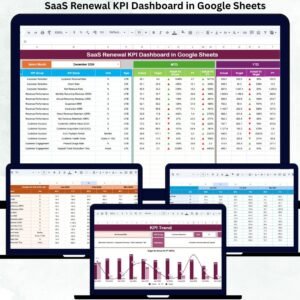
The SaaS Renewal KPI Dashboard in Google Sheets solves this problem by giving revenue teams complete visibility into renewal performance. This ready-to-use dashboard tracks renewal rates, churn signals, revenue retention, customer health, and year-over-year trends in one centralized Google Sheets file.
Because it runs in Google Sheets, it stays simple, flexible, collaborative, and easy to maintain—without depending on costly BI tools or complex systems.
✅ Key Features of the SaaS Renewal KPI Dashboard
🔹 MTD & YTD Renewal Performance Tracking
🔹 Target vs Actual Renewal Analysis
🔹 Year-over-Year (YoY) Benchmarking
🔹 KPI Trend Analysis with Visual Charts
🔹 Clearly Defined SaaS Renewal KPIs
🔹 UTB / LTB Performance Indicators
🔹 Fully Automated Calculations
🔹 100% Built in Google Sheets
This dashboard turns renewal data into clear, actionable insights for sales, customer success, and leadership teams.
📂 What’s Inside the SaaS Renewal KPI Dashboard
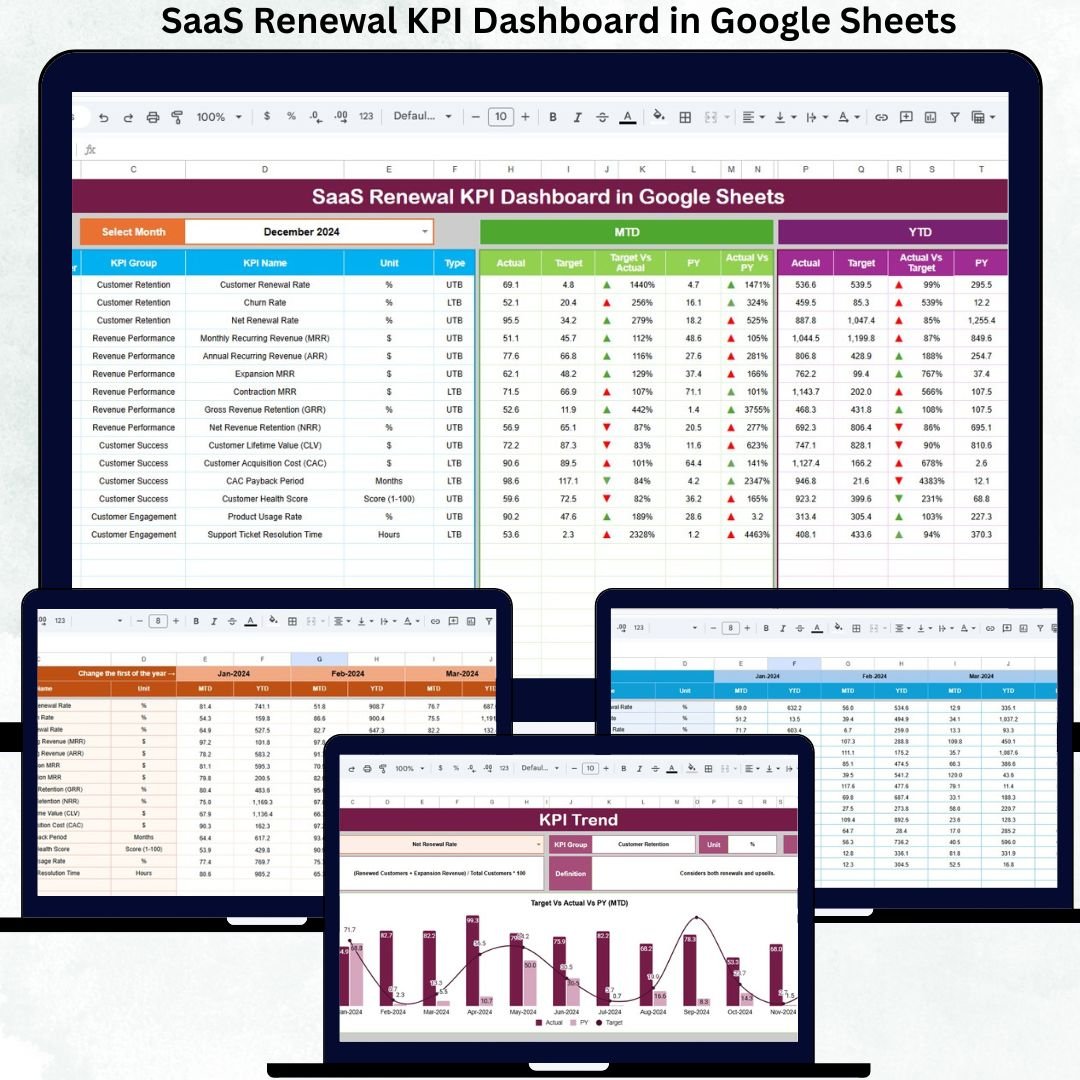
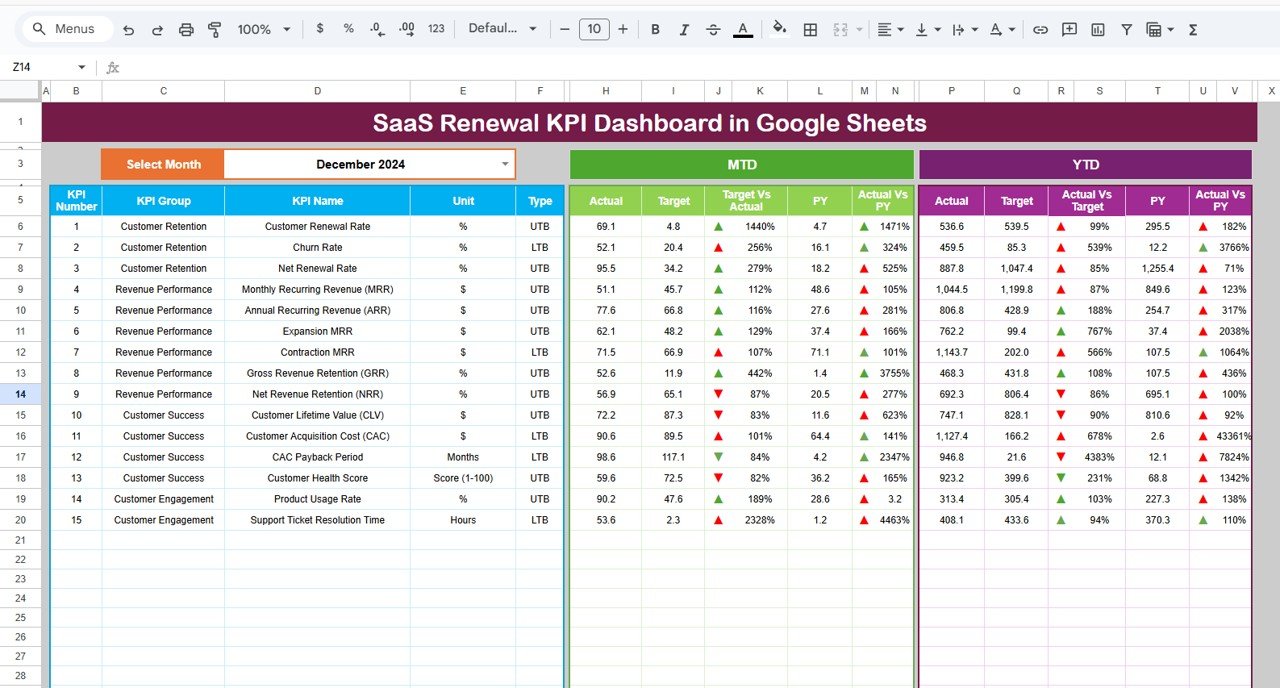
📊 Dashboard Sheet Tab – Renewal Control Center
This is the main executive dashboard.
👉 Select the Month from the dropdown in cell D3, and all KPIs update automatically.
MTD Section Shows:
• Actual
• Target
• Previous Year
• Target vs Actual
• PY vs Actual
YTD Section Shows:
• Actual
• Target
• Previous Year
• Target vs Actual
• PY vs Actual
📈 Up & Down arrows clearly indicate whether performance is improving or declining based on KPI logic (Upper the Better / Lower the Better).
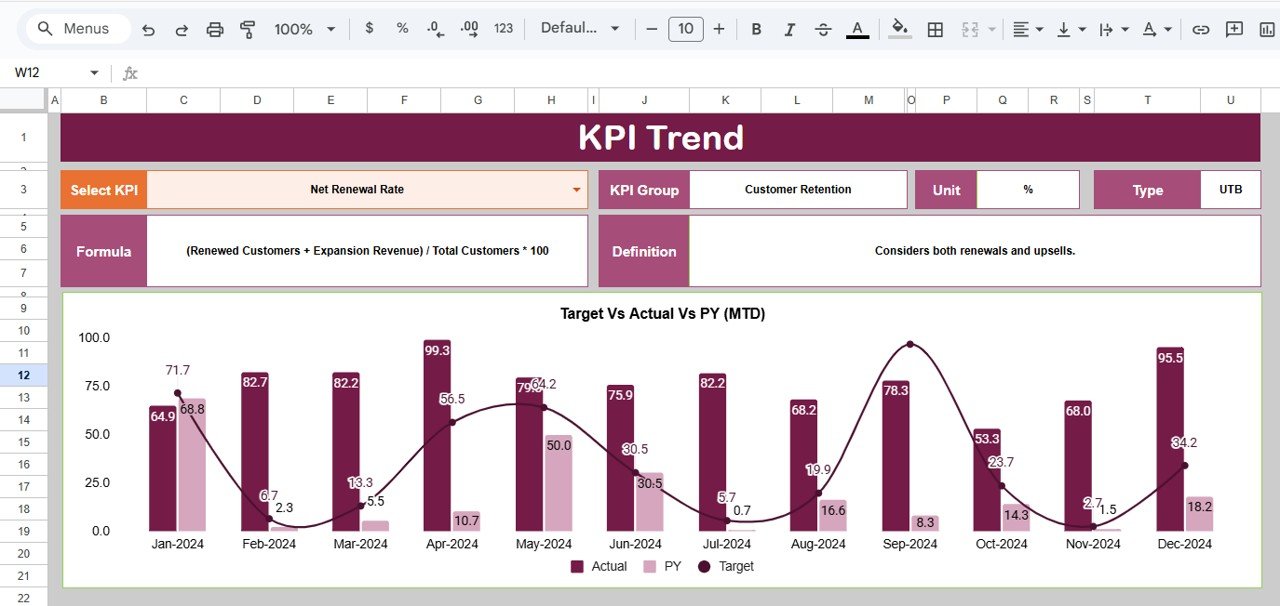
📈 KPI Trend Sheet Tab – KPI Transparency & Trends
Select any KPI from the dropdown in cell C3 to view:
• KPI Group
• KPI Unit
• KPI Type (UTB / LTB)
• KPI Formula
• KPI Definition
A dynamic month-wise trend chart shows how renewal performance is moving over time—helping teams detect churn risk early.
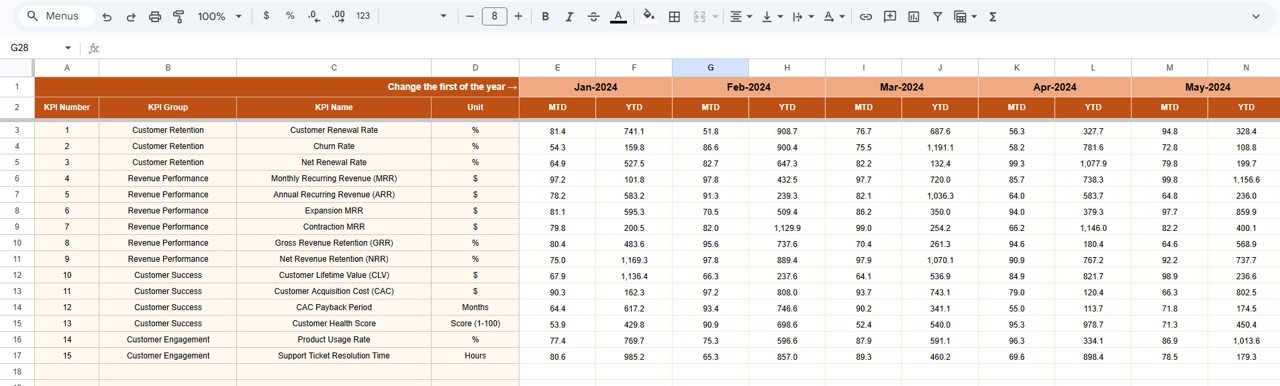
🧮 Actual Number Sheet – Data Entry Made Simple
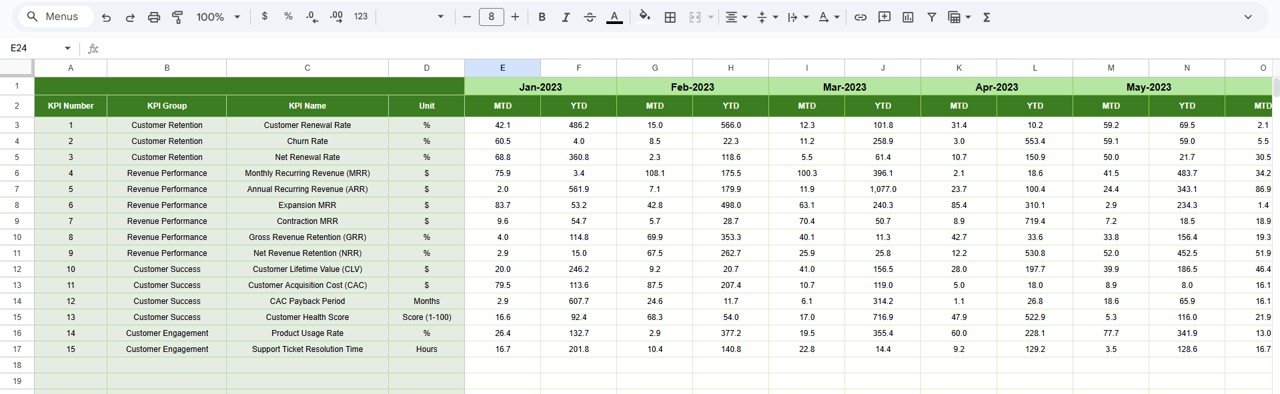
This sheet captures actual renewal performance values.
• Select the first month of the year in cell E1
• Enter MTD Actual and YTD Actual values
• YTD calculates automatically
This keeps raw data clean and error-free.
🎯 Target Sheet – Renewal Goal Management
Define your renewal goals here:
• Monthly renewal targets (MTD)
• Annual renewal targets (YTD)
All targets automatically reflect on dashboard KPIs and trend analysis.
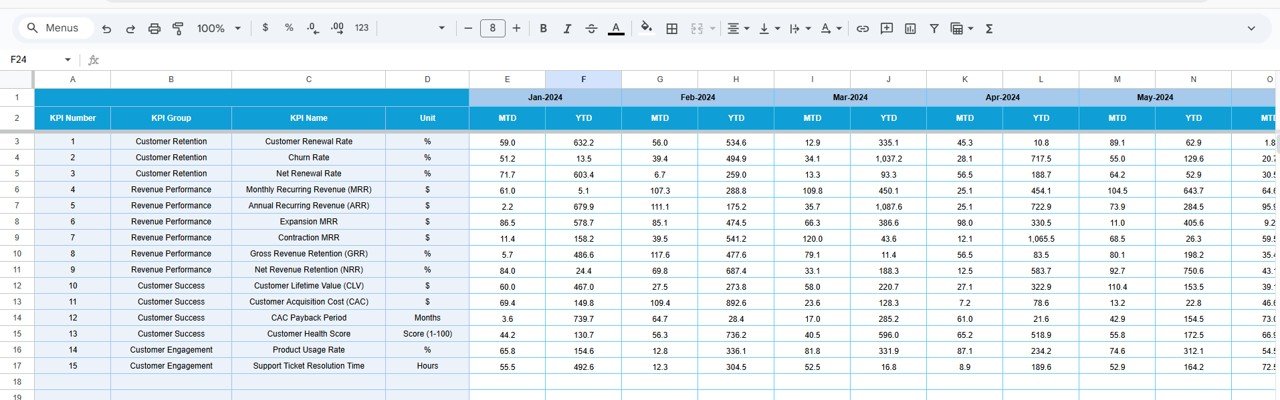
📅 Previous Year Number Sheet – YoY Comparison
This sheet stores last year’s renewal performance.
It helps teams:
✅ Compare renewal improvement
✅ Assess revenue stability
✅ Set realistic renewal goals
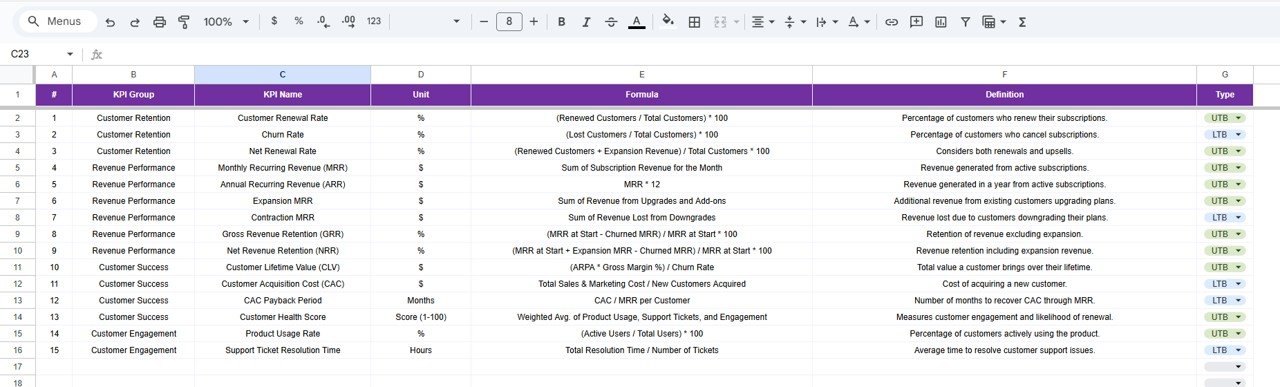
📚 KPI Definition Sheet – The Backbone
This is the most critical sheet.
It contains:
• KPI Name
• KPI Group
• Unit
• Formula
• KPI Definition
All calculations flow from this sheet, ensuring clarity, consistency, and scalability.
🎯 Who Can Benefit from This Dashboard
✅ SaaS Founders
✅ Revenue & Growth Teams
✅ Customer Success Managers
✅ Account Managers
✅ Subscription & Finance Teams
Perfect for B2B SaaS, subscription businesses, and recurring revenue models.
🔥 Why This Dashboard Is a Game-Changer
✔ Predict churn before renewal dates
✔ Improve renewal conversations
✔ Increase net revenue retention
✔ Align Sales & Customer Success
✔ Reduce revenue leakage
✔ Make renewal tracking proactive—not reactive
🧠 Best Practices for Using This Dashboard
✅ Update KPIs monthly
✅ Review at-risk renewals weekly
✅ Keep KPI definitions standardized
✅ Align targets with ARR goals
✅ Use trends—not instincts—for decisions
✅ Conclusion
The SaaS Renewal KPI Dashboard in Google Sheets gives SaaS teams full control over subscription renewals. By combining KPI definitions, targets, actual performance, trends, and YoY benchmarks into one file, it turns renewal tracking into a strategic growth system.
When used consistently, this dashboard protects revenue, improves retention, and boosts customer lifetime value.
### 📖 Click here to read the Detailed Blog Post’
Watch the step-by-step video tutorial:
🎥 Visit our YouTube channel to learn step-by-step video tutorials
👉 https://youtube.com/@NeotechNavigators
Compatibility and Requirements
- Works in Google Sheets. You need a free Google account and a web browser.
- You pick the month from a dropdown on the Dashboard sheet and the KPI from a dropdown on the KPI Trend sheet. Google explains dropdowns in Create an in-cell dropdown list.
Frequently Asked Questions
Which sheets are included?
Six sheets: Dashboard, KPI Trend, Actual Number, Target, Previous Year Number and KPI Definition.
How do I update the dashboard?
Enter your MTD and YTD actual renewal values in the Actual Number sheet, and your monthly and annual goals in the Target sheet. Then select a month in cell D3 of the Dashboard sheet and the KPIs update.
Can I compare this year with last year?
Yes. Add last year’s results to the Previous Year Number sheet. The Dashboard then shows PY vs Actual next to Target vs Actual, for both MTD and YTD.
How do I see the trend for one KPI?
Open the KPI Trend sheet and pick a KPI from the dropdown in cell C3. It shows the KPI group, unit, type (UTB or LTB), formula and definition, plus a month-wise trend chart.
Is there an Excel or Power BI version?
Yes. See the SaaS Renewal KPI Dashboard in Excel and the SaaS Renewal KPI Dashboard in Power BI.
Related SaaS Templates
- SaaS Renewal KPI Dashboard in Excel: the same renewal KPIs in Excel
- SaaS Renewal KPI Dashboard in Power BI: the Power BI edition
- SaaS Customer Success Dashboard in Google Sheets: customer success tracking in Sheets
- SaaS Business KPI Dashboard in Google Sheets: wider SaaS business KPIs
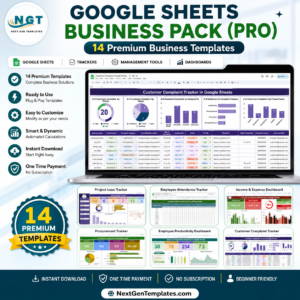
- Google Sheets Business Pack (Pro): 14 business templates in one download
Browse all Google Sheets KPI dashboards.

Reviews
There are no reviews yet.