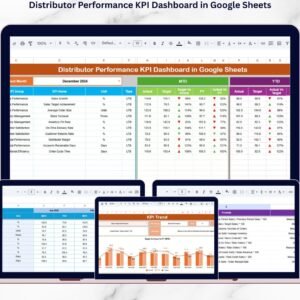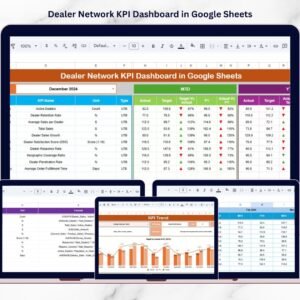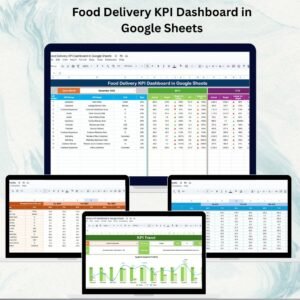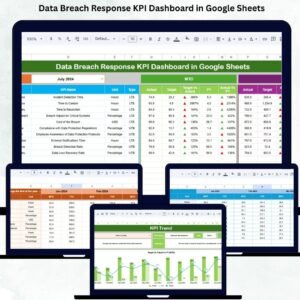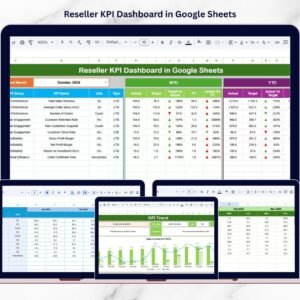

Managing reseller performance is not just about tracking sales — it’s about understanding profitability, growth trends, efficiency, and accountability. Yet many businesses still rely on scattered spreadsheets, manual calculations, and disconnected reports. This often leads to delayed decisions, unclear performance visibility, and missed revenue opportunities.
That’s why we created the Reseller KPI Dashboard in Google Sheets — a powerful, ready-to-use, cloud-based performance management system designed to give you total control over your reseller network.
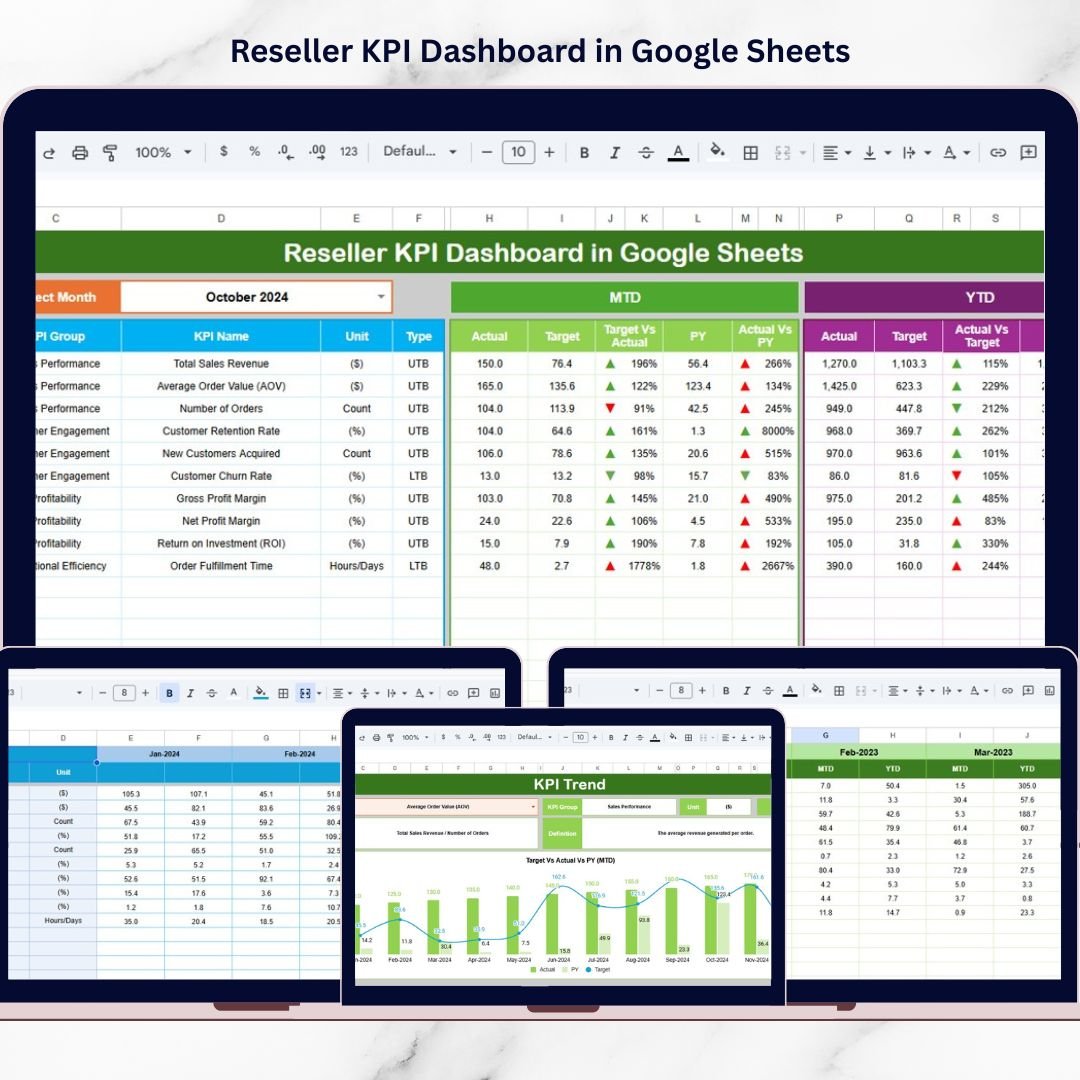
This dashboard transforms complex reseller data into structured, visual, and easy-to-understand insights. Instead of jumping between multiple files, managers can monitor all critical KPIs in one interactive dashboard. With dynamic month selection, automated calculations, MTD and YTD comparisons, and clear performance indicators, decision-making becomes faster and smarter.
Because it is built in Google Sheets, your team can collaborate in real time — without version control issues or expensive software.
If you want clarity, control, and growth in your reseller network, this dashboard is built for you.
🚀 Key Feature of Reseller KPI Dashboard in Google Sheets
✅ Interactive Dashboard with dynamic Month selector (Cell D3)
✅ Automatic MTD & YTD performance calculations
✅ Target vs Actual comparison with visual indicators
✅ Previous Year benchmarking analysis
✅ Conditional formatting with up/down arrows
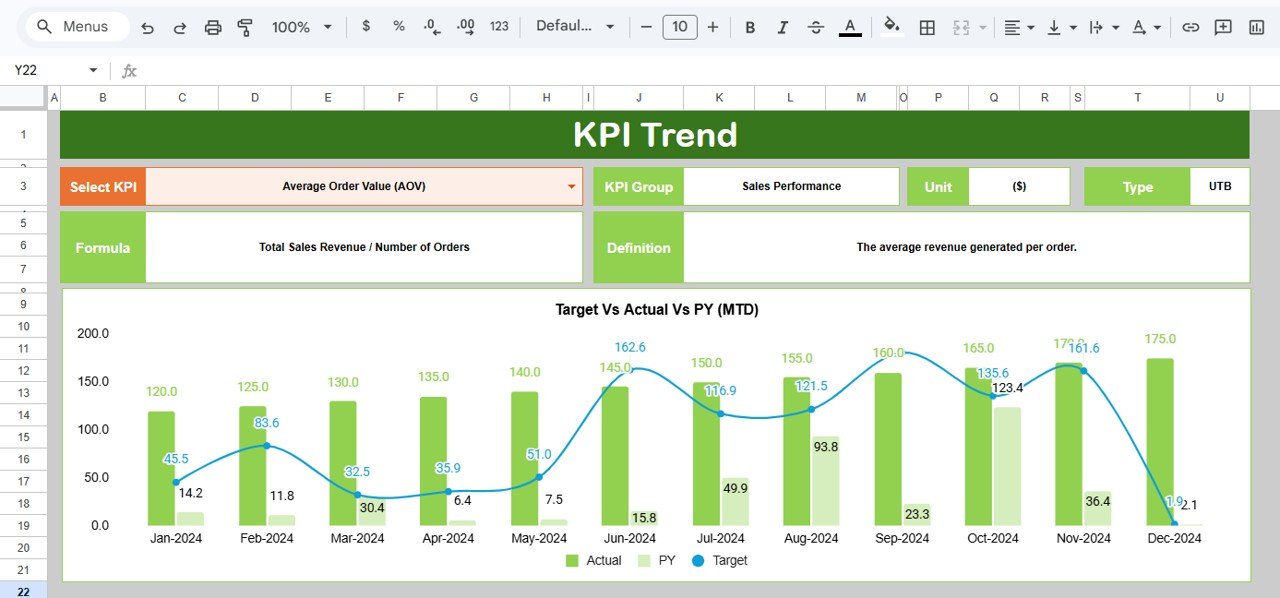
✅ KPI Trend analysis with monthly charts
✅ Structured data entry sheets for accuracy
✅ Fully cloud-based collaboration
✅ Clear KPI definitions with UTB / LTB classification
This dashboard is not just a report — it’s a performance command center.
📦 What’s Inside the Reseller KPI Dashboard in Google Sheets
This product includes 6 structured worksheets, each designed for complete reseller performance tracking:
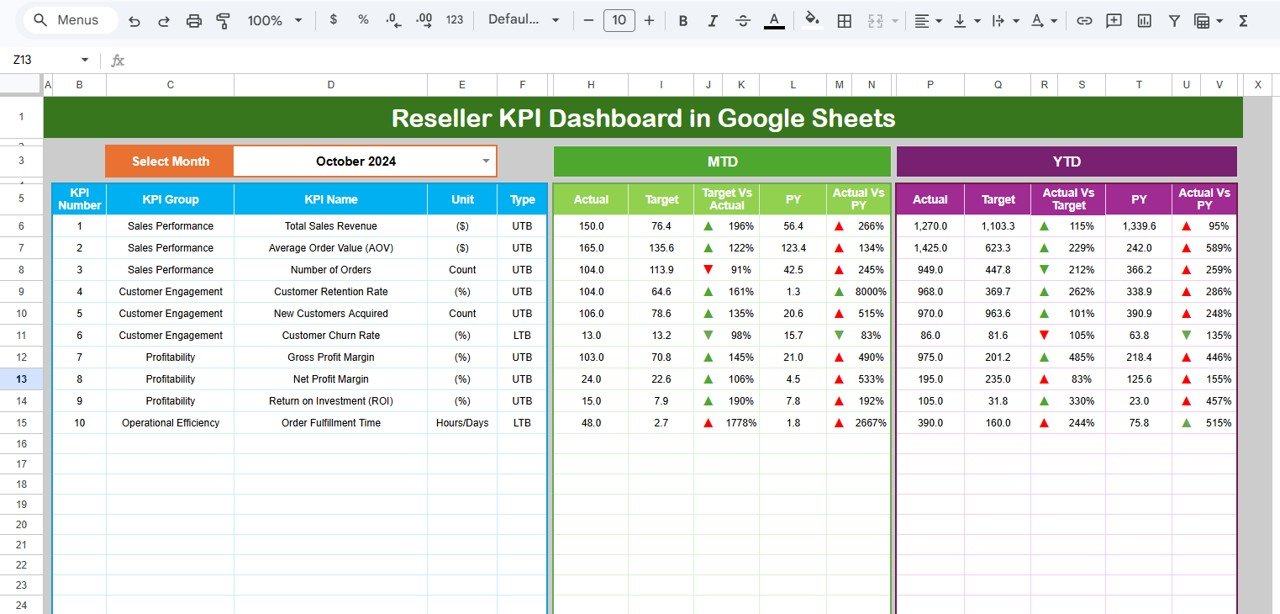
1️⃣ Dashboard Sheet (Main Control Panel)
Month dropdown in Cell D3
MTD Section (Actual, Target, Previous Year)
YTD Section (Actual, Target, Previous Year)
Target vs Actual comparison
PY vs Actual comparison
Conditional formatting indicators
2️⃣ KPI Trend Sheet
KPI dropdown selector (Cell C3)
KPI Group, Unit, Type (UTB/LTB)
Formula and definition visibility
Monthly trend chart
YTD performance movement
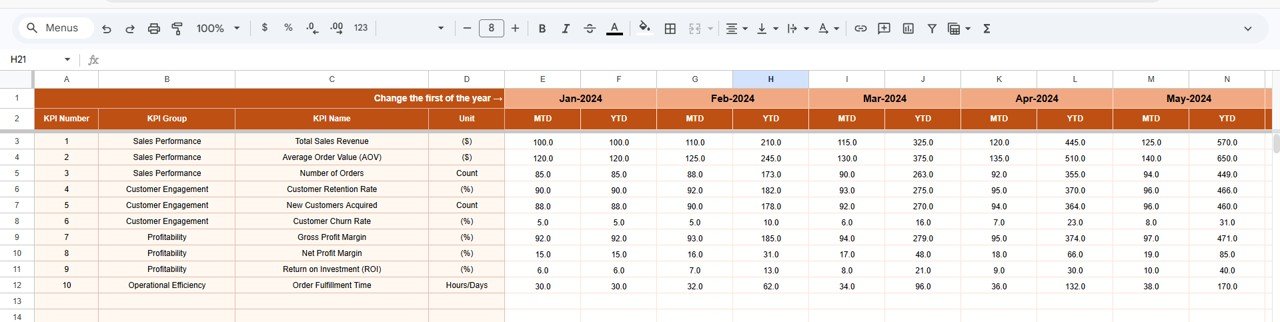
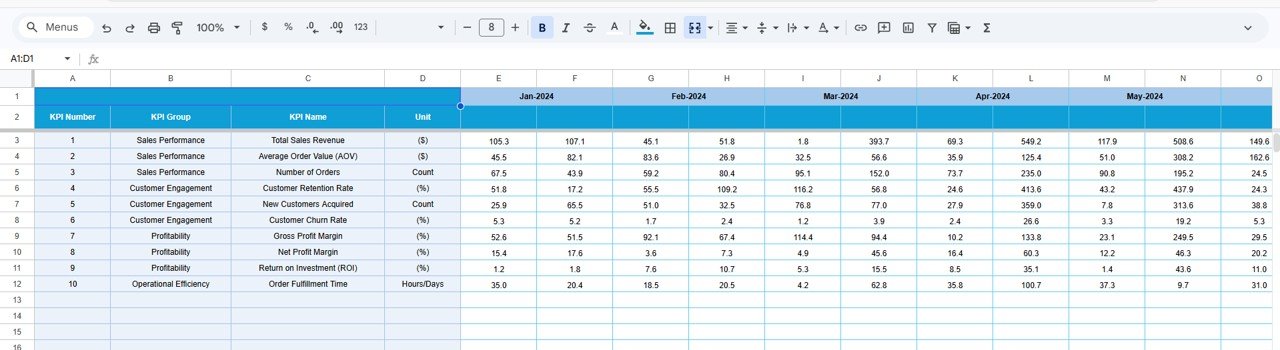
3️⃣ Actual Number Sheet
Structured data entry
Month control in Cell E1
Automatic dashboard integration
4️⃣ Target Sheet
Monthly MTD targets
YTD cumulative targets
Automatic comparison updates
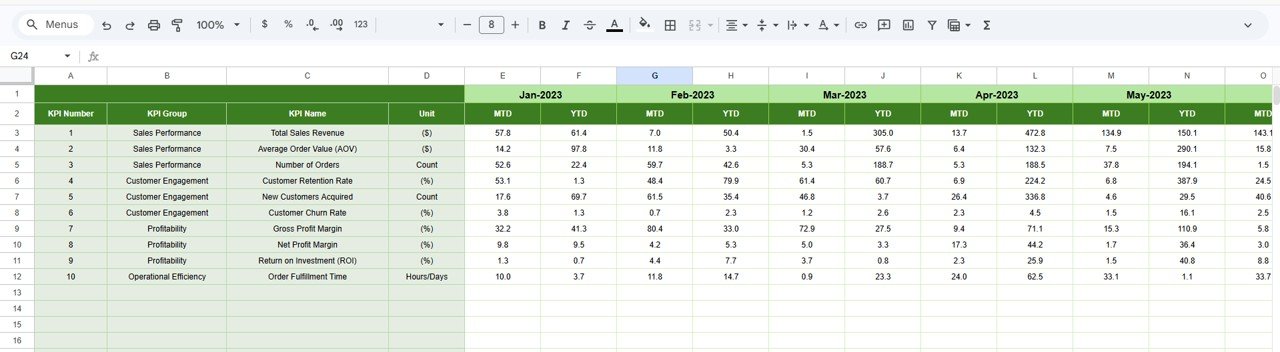
5️⃣ Previous Year Sheet
Historical MTD and YTD inputs
Growth benchmarking analysis
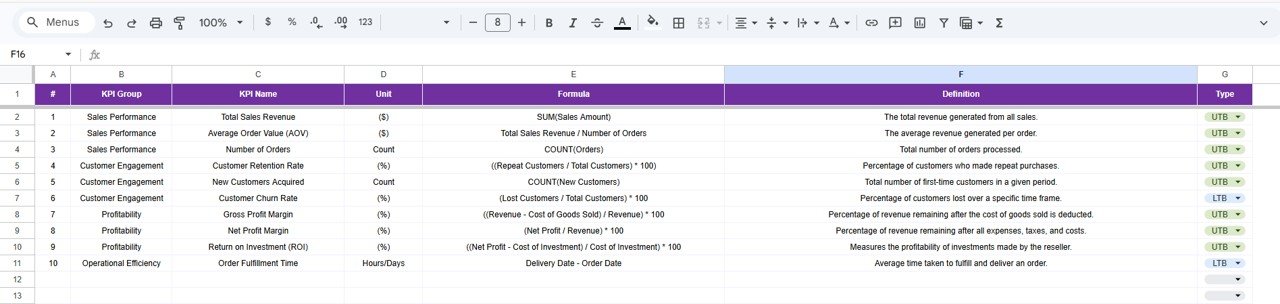
6️⃣ KPI Definition Sheet
KPI Name
KPI Group
Unit
Formula
KPI Definition
KPI Type (UTB / LTB)
Everything is structured, organized, and automated.
⚙️ How to Use the Reseller KPI Dashboard in Google Sheets
Using this dashboard is simple and efficient:
Enter current month actual data in the Actual Sheet.
Update targets in the Target Sheet.
Input previous year numbers for benchmarking.
Select the desired month from Cell D3.
Instantly analyze MTD and YTD performance.
Use KPI Trend Sheet for deeper KPI movement insights.
Within minutes, you gain a complete performance overview.
👥 Who Can Benefit from This Reseller KPI Dashboard in Google Sheets
This dashboard is perfect for:
Distribution companies
Wholesale businesses
FMCG companies
Channel sales managers
Business owners
Sales directors
Finance teams
Operations managers
Any organization managing reseller or channel partners can use this system to improve profitability and accountability.
By centralizing actuals, targets, and historical comparisons, this dashboard eliminates confusion and improves transparency. Managers identify underperforming resellers instantly, adjust strategies quickly, and align teams with clear goals.
The result? Better control, smarter decisions, and sustainable revenue growth.
### Click here to read the Detailed blog post
Watch the step-by-step video tutorial:
### Visit our YouTube channel to learn step-by-step video tutorials
👉 https://www.youtube.com/@NeotechNavigators
Compatibility and Requirements
- Works in Google Sheets. You need a free Google account and a web browser.
- You pick the month from a dropdown in cell D3 of the Dashboard sheet, and the KPI from a dropdown in cell C3 of the KPI Trend sheet. Google explains dropdowns in Create an in-cell dropdown list.
Frequently Asked Questions
Which sheets are included?
Six sheets: Dashboard, KPI Trend, Actual Number, Target, Previous Year and KPI Definition.
How do I update the dashboard?
Enter your current month figures in the Actual Number sheet and your goals in the Target sheet. Then select the month in cell D3 of the Dashboard sheet and the MTD and YTD sections update.
Can I compare results with last year?
Yes. Add last year’s MTD and YTD figures to the Previous Year sheet. The Dashboard then shows them next to your actuals and targets.
How do I see the trend for one KPI?
Open the KPI Trend sheet and choose the KPI in cell C3. It shows the KPI group, unit, type (UTB or LTB), formula, definition and a monthly trend chart.
Is there an Excel or Power BI version?
Yes. See the Reseller KPI Dashboard in Excel and the Reseller KPI Dashboard in Power BI.
Related Sales KPI Templates
- Reseller KPI Dashboard in Excel: the same reseller KPIs in Excel
- Reseller KPI Dashboard in Power BI: the Power BI edition
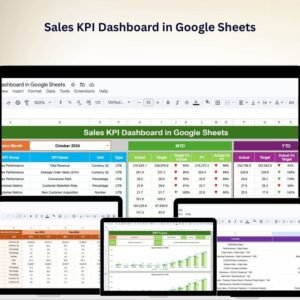
- Sales KPI Dashboard in Google Sheets: a wider view of sales KPIs
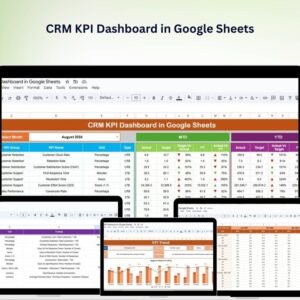
- CRM KPI Dashboard in Google Sheets: customer and pipeline metrics
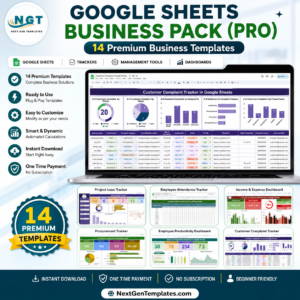
- Google Sheets Business Pack (Pro): 14 business templates in one download
Browse all Google Sheets KPI dashboards.