

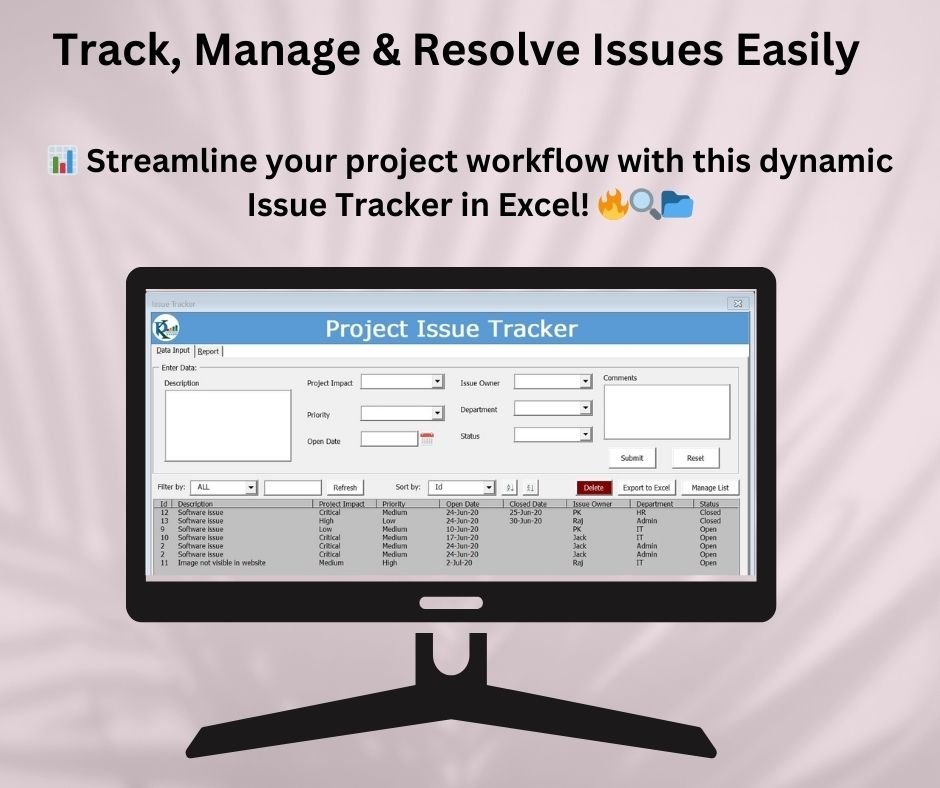

The Project Management Issue Tracker Form is an Excel-based VBA tool for logging, updating and resolving project issues from one structured form. It suits project managers and team members handling a single project or several. You get a clean project issue log plus a report tab with dynamic charts that show where issues stand and who owns them.
Key Features of the Project Management Issue Tracker Form
- Form-based issue entry: Add new issues through a user-friendly form instead of typing into raw cells.
- Quick updates: Double-click any record in the list box to load its details, edit them and save.
- Single or bulk delete: Select one or multiple records and remove them in one click.
- Filter and search: Use the Filter By dropdown to find issues by priority, department, issue owner or other attributes.
- Flexible sorting: Sort records in ascending or descending order by fields such as ID, Priority or Status.
- Export to Excel: Save issue records to an external Excel workbook for sharing and reporting.
- Issue tracking dashboard: A report tab with dynamic charts by project impact, priority, owner, department and status.
- Date filter: Pick a start and end date with the calendar picker to focus reports on a given time period.
What’s Inside: Tabs and Functions
Data Input Tab: Manage Issues Efficiently
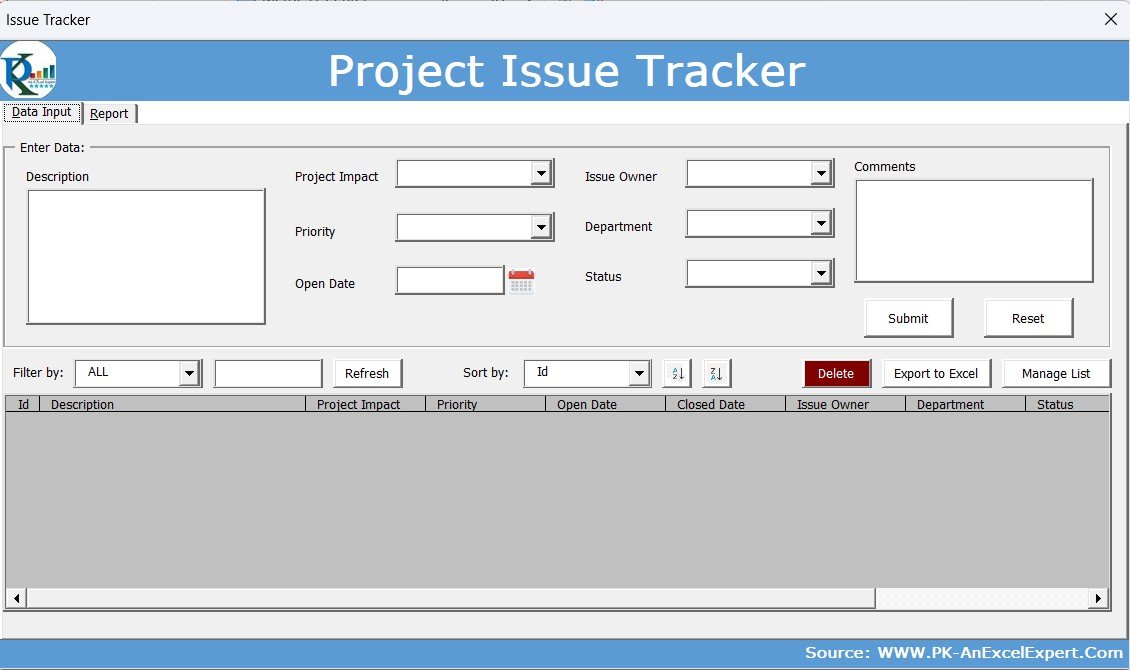
This tab is the core of the VBA issue tracker. Project managers and team members use it to log, update or delete issues through a structured form.
- Add New Issues: Fill in the form fields (description, project impact, priority, owner, department, open date and status), then click Submit to save the record.
- Update Existing Issues: Double-click any record in the list box to auto-fill its details. Change the information and click Submit to update it.
- Delete Issues: Select one or multiple records from the list and click Delete to remove them permanently.
- Filter by Specific Criteria: Use the Filter By dropdown to find issues by priority, department, issue owner or other attributes. Enter your search terms and click Refresh to see the matching results.
- Sort Issues: Use the Sort By dropdown to sort records in ascending or descending order on fields like ID, Priority or Status.
- Export Data to Excel: Click Export to Excel to save issue records in an external Excel workbook for sharing and reporting.
Report Tab: Gain Insight with Dynamic Charts
The Report Tab works as an issue tracking dashboard. Its visual analytics show issue trends and impact over a chosen time period.
| Report | What It Shows |
|---|---|
| Total Issues | The total number of logged issues |
| Issues by Project Impact | High-impact concerns affecting project deliverables |
| Issues by Priority | Issues grouped as Low, Medium or High Priority, for better risk management |
| Issues by Issue Owner | Which team members are handling critical project challenges |
| Issues by Department | How issues are spread across departments, so you can improve workflows |
| Issues by Status | Open, In Progress and Closed issues, for tracking and resolution |
Date Filter: Choose a Start Date and End Date with the calendar picker, then click Refresh to update the reports.
Why Use This Excel Issue Tracker?
- Centralized issue tracking: Log, update and manage issues from a single interface.
- Sorting and filtering: Find specific records quickly with the Filter By and Sort By controls.
- Interactive reports and charts: See how issues break down so you can improve project efficiency.
- Excel-based and export-ready: Your data stays in Excel, and you can export records for external reporting.
- User-friendly interface: Simple navigation and clear controls for every user.
Who It’s For
- Project managers who need a structured project issue log
- Team members who log and update issues day to day
- Department leads who review issues by owner, department or priority
- Teams managing one project or several projects in Excel
How to Use the Project Management Issue Tracker Form
- Open the workbook in Excel and enable macros so the VBA form can run.
- On the Data Input tab, fill in the issue details and click Submit.
- Double-click a record in the list box to edit it, or select records and click Delete.
- Use Filter By and Sort By to narrow the list, then click Refresh.
- Go to the Report tab, set a start and end date, and click Refresh to update the charts.
- Click Export to Excel whenever you need to share the records.
Click here to read the detailed blog post Project Management Issue Tracker
Watch the step-by-step video tutorial: Project Management Issue Tracker
Frequently Asked Questions
What is the Project Management Issue Tracker Form?
It is an Excel-based VBA tool for logging, updating, deleting, filtering and sorting project issues through a form. It also includes a report tab with dynamic charts.
What details can I record for each issue?
Each issue includes a description, project impact, priority, owner, department, open date and status.
Can I edit or delete issues after saving them?
Yes. Double-click a record in the list box to load it, make your changes and click Submit. To delete, select one or more records and click Delete.
What reports does the issue tracking dashboard provide?
The Report tab shows total issues and charts by project impact, priority, issue owner, department and status. A date filter lets you focus on a specific period.
Can I share issue data with people who don’t use the form?
Yes. The Export to Excel button saves issue records to an external Excel workbook for sharing and reporting.
Does it work for multiple projects?
Yes. The tool is designed for managing either a single project or multiple projects.
Also check our Inventory Management Form in Excel
Last updated: October 2026
Compatibility and Requirements
- Microsoft Excel desktop on Windows (Excel 2016 or later, or Microsoft 365).
- Macros must be enabled, because the forms and buttons run on VBA. Microsoft shows how in Enable or disable macros in Microsoft 365 files.
- It does not run in Excel for the web, Google Sheets or the Excel mobile apps.
Related Project Tracking Templates
- Project Issue Tracker in Google Sheets: the same idea in Google Sheets.
- Project Management Issue Tracker in Google Sheets
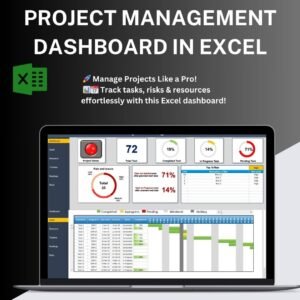
- Project Management Dashboard in Excel: track project status and budget on a dashboard.
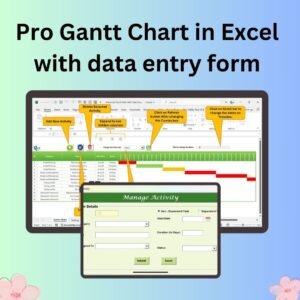
- Pro Gantt Chart in Excel with data entry form: plan tasks with a form-based Gantt chart.
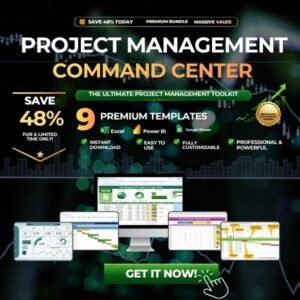
- Project Management Pro Bundle: 9 project templates for Excel and Google Sheets.
Browse all Excel project management templates or the Excel VBA tools.











Reviews
There are no reviews yet.