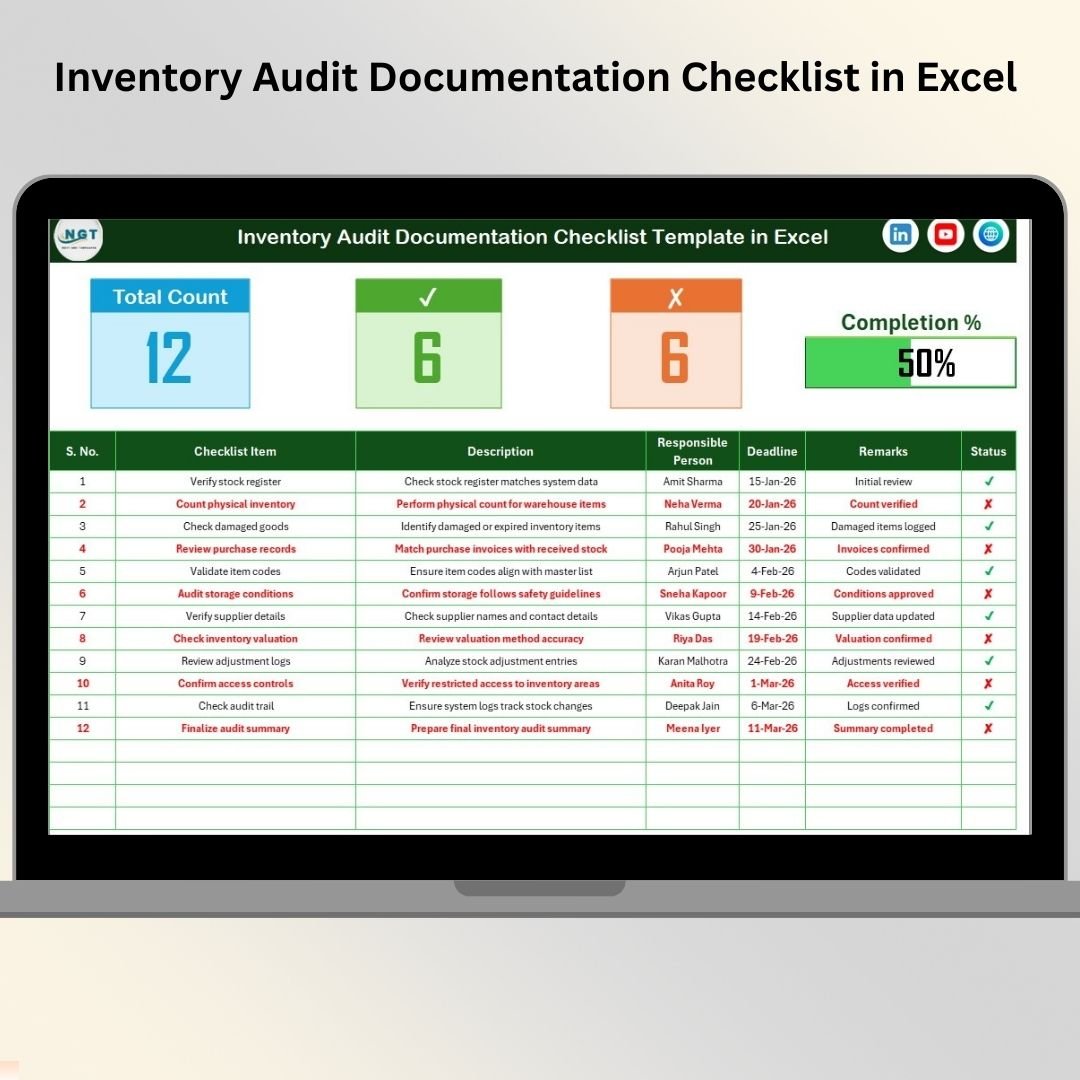

Inventory audits are essential for maintaining financial accuracy, operational control, and compliance readiness. However, many organizations still struggle with unorganized documents, manual tracking, and scattered audit records. These challenges often lead to missed deadlines, documentation gaps, and stressful audit processes.
That’s exactly why we developed the Inventory Audit Documentation Checklist in Excel — a smart, ready-to-use template designed to simplify audit preparation, organize documentation, and track audit progress in real time.
This professionally designed Excel checklist transforms complex audit activities into a structured and easy-to-manage workflow. Instead of relying on emails, notes, or multiple files, teams can manage the entire audit process from one centralized system.
Whether you are preparing for internal audits, external audits, or compliance reviews, this template helps your organization stay organized, accountable, and audit-ready at all times.
✅ Key Feature of Inventory Audit Documentation Checklist in Excel
📋 Structured inventory audit checklist system
📊 Automated audit progress tracking dashboard
✔ Status-based completion monitoring (✔ / ✘)
📅 Deadline tracking for each audit task
👤 Responsible person assignment with dropdowns
📈 Visual progress bar for instant audit status visibility
🧾 Centralized documentation tracking
⚡ Easy customization based on business needs
With automatic updates and visual indicators, managers instantly understand audit readiness without manual calculations.
📦 What’s Inside the Inventory Audit Documentation Checklist in Excel
This ready-to-use template includes two structured worksheets that work together seamlessly:
📝 Inventory Audit Documentation Checklist Sheet (Main Sheet)
The main working sheet where all audit activities are tracked.
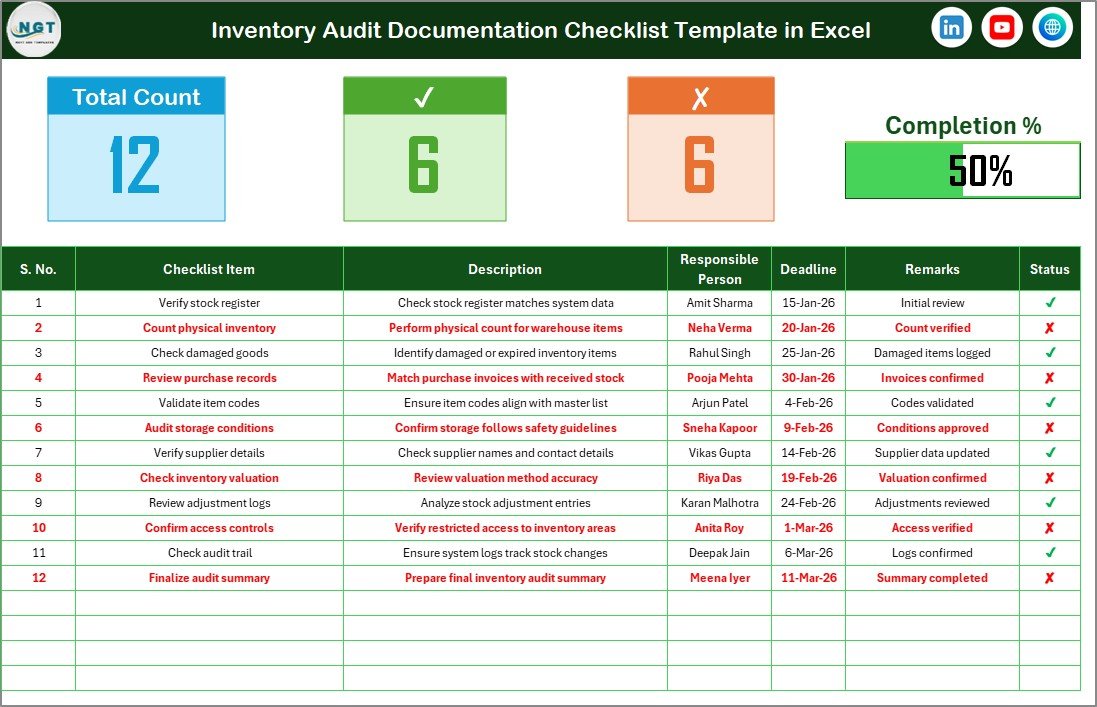
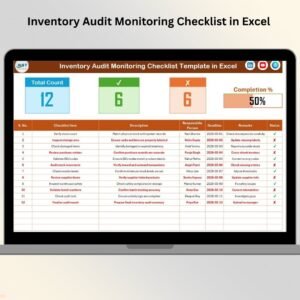
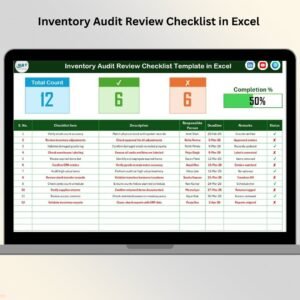
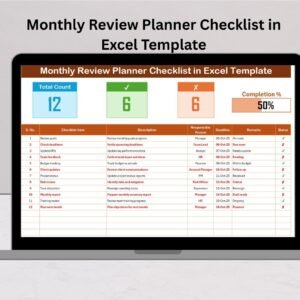
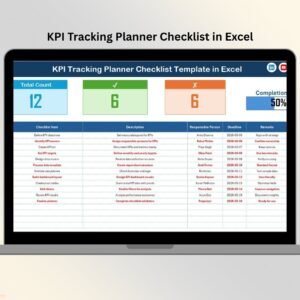
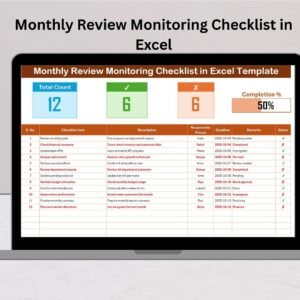
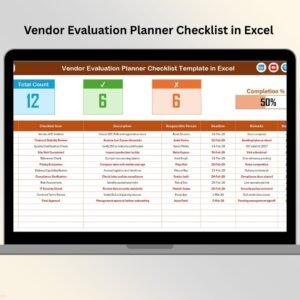
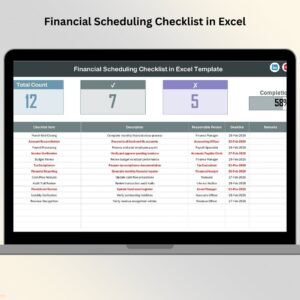
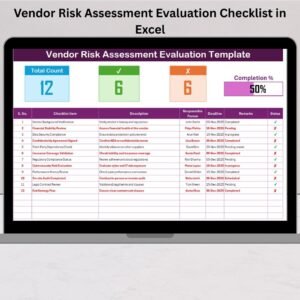
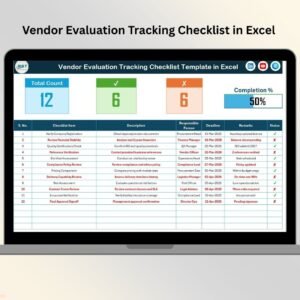
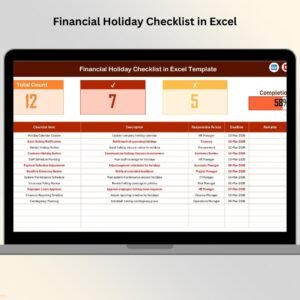
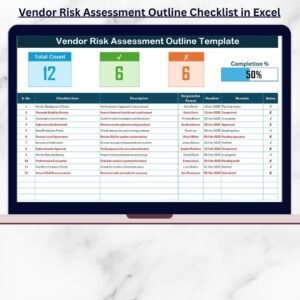
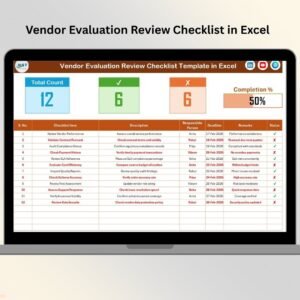
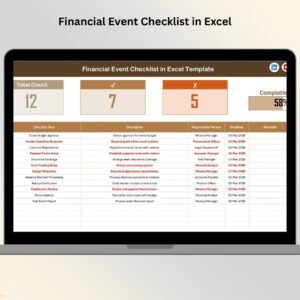
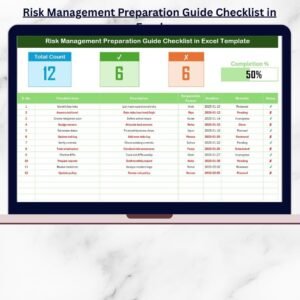
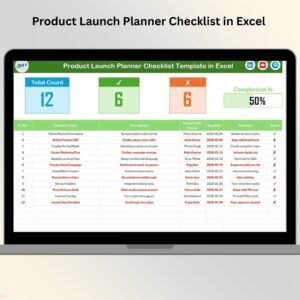
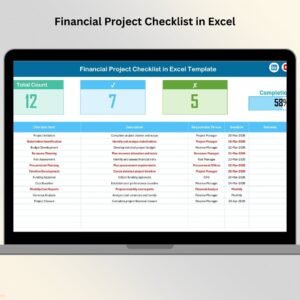
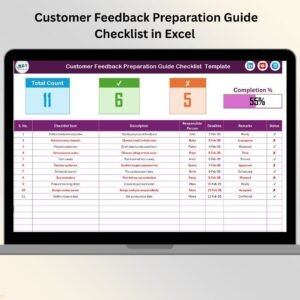
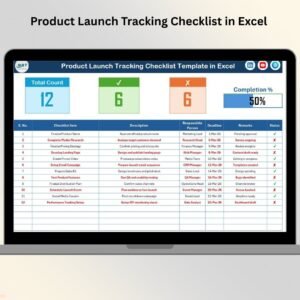
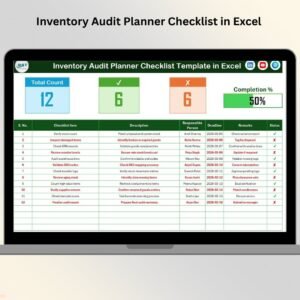
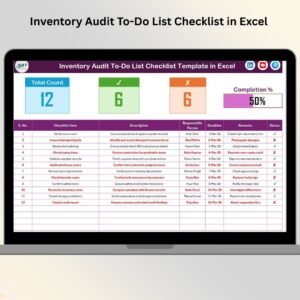
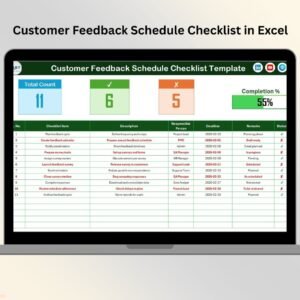
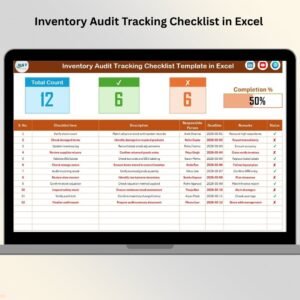
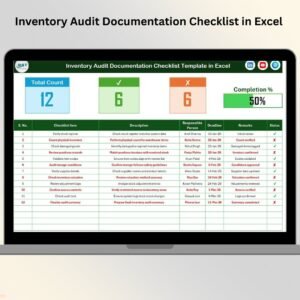
Top Summary Dashboard Includes:
✅ Total checklist items
✅ Completed tasks count
✅ Pending tasks count
✅ Dynamic progress bar showing completion %
Checklist Table Columns:
-
Serial Number
-
Checklist Item
-
Description
-
Responsible Person
-
Deadline
-
Remarks
-
Status Indicator
As users update task status, progress metrics refresh automatically, giving real-time visibility.
📚 List Sheet – Dropdown Management
This supporting sheet maintains a standardized list of responsible persons.
Benefits:
✔ Prevents spelling errors
✔ Standardizes team member names
✔ Improves reporting accuracy
✔ Simplifies responsibility assignment
Together, both sheets create a clean and controlled audit management system.
⚙️ How to Use the Inventory Audit Documentation Checklist in Excel
Getting started is quick and simple:
1️⃣ Define audit documentation requirements.
2️⃣ Enter checklist tasks into the main sheet.
3️⃣ Add responsible persons in the List sheet.
4️⃣ Assign ownership using dropdown selections.
5️⃣ Set deadlines for each task.
6️⃣ Update task status regularly (✔ or ✘).
The progress dashboard updates automatically, helping teams monitor audit completion effortlessly.
No advanced Excel knowledge is required — the template is beginner-friendly and ready to use immediately.
👥 Who Can Benefit from This Inventory Audit Documentation Checklist
This template is ideal for professionals across departments:
✅ Inventory Managers
✅ Warehouse Supervisors
✅ Internal Auditors
✅ Finance & Accounting Teams
✅ Compliance Officers
✅ Operations Managers
✅ Small Business Owners
Any organization managing inventory audits can use this checklist to improve coordination and reduce audit risks.
By implementing this checklist, organizations can:
✔ Organize audit documentation efficiently
✔ Improve accountability across teams
✔ Monitor audit readiness in real time
✔ Reduce documentation errors
✔ Complete audits faster and with confidence
Unlike complex audit software, this Excel solution remains flexible, affordable, and easy to customize according to business requirements.
### Click hare to read the Detailed blog post
Discover the full implementation guide, best practices, and audit workflow explanation in our detailed article.
Visit our YouTube channel to learn step-by-step video tutorials
👉 YouTube Channel – @PKAnExcelExpert