Helpdesk Efficiency KPI Dashboard in Power BI

Power BI - instant download

Original price was: $17.99.Current price is: $11.99.
Details, requirements and demo below
Sale!

Helpdesk Efficiency KPI Dashboard in Power BI

Original price was: $17.99.Current price is: $11.99.

Boost your helpdesk performance with the Helpdesk Efficiency KPI Dashboard in Power BI — a complete solution to track support KPIs instantly.

  • 📊 Real-time KPI tracking

  • 🎯 Target vs Actual icons

  • 📈 MTD & YTD trend charts

  • 📘 Detailed KPI definition page

  • ⚡ Excel-based auto-refresh

Perfect for IT helpdesk, customer support & service teams.

- +

💡 Buy any 2 templates and save 20% automatically at checkout.

Pricing country
Prices follow your selected country; checkout uses your billing country.
Excel Pivot Tables & Dashboards: Basic to Advanced courseLaunch offer
🎓 NEXTGENTEMPLATES ACADEMY
Like this dashboard? Learn to build your own.
Excel Pivot Tables & Dashboards: Basic to Advanced

From your first Pivot Table to the Data Model, DAX, Power Query and a one-page KPI dashboard. 11h 51m of video by PK, with practice files, quizzes and a capstone.

Managing a helpdesk becomes challenging when ticket volume rises, response times slow down, and support teams get overloaded. Without proper visibility, managers face delays, escalations increase, customers get frustrated, and overall service quality drops. The Helpdesk Efficiency KPI Dashboard in Power BI solves these challenges by offering a clean, interactive, and real-time view of all helpdesk KPIs 📊⚡.

This dashboard brings all service-related data into one simple, visual, and easy-to-understand platform. Support managers can track performance daily, compare results with targets, review previous year trends, and make faster decisions. The dashboard updates automatically using Excel data, making it a powerful reporting tool for any support team.

Whether you manage IT support, customer service, field support, or internal helpdesk operations, this dashboard helps your team work smarter—not harder.


🔥 Key Features of the Helpdesk Efficiency KPI Dashboard in Power BI

  • 📊 Summary Page – Full view of MTD & YTD helpdesk performance

  • 📈 Trend Page – MTD and YTD trend charts with target comparison

  • 📘 Drill-Through KPI Definition Page – Complete KPI logic & formulas

  • 🔄 Excel Data Input – Easy monthly updates

  • 🎯 Target vs Actual Indicators – Automated green/red status icons

  • 📅 Month & KPI Group Slicers – Analyze performance quickly

  • 📥 Structured KPI Table – In-depth view of every metric

  • ⚡ Automatic Dashboard Refresh – Updated visuals with a single click


📂 Dashboard Structure Explained

1️⃣ Summary Page – High-Level Helpdesk Performance
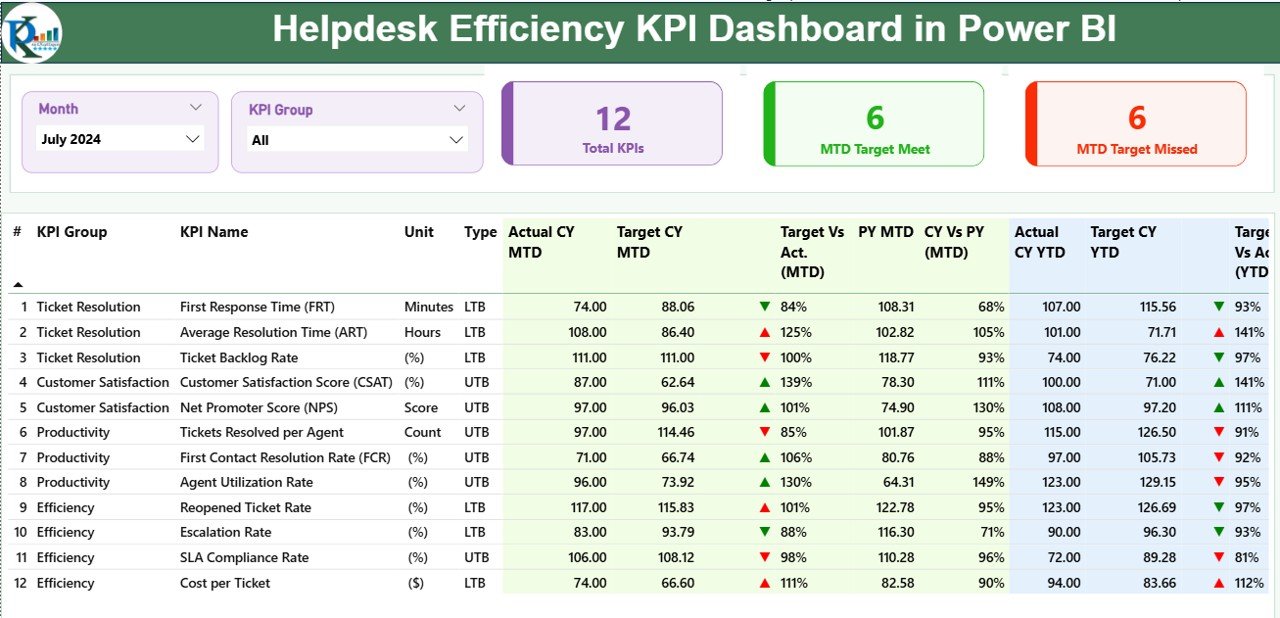
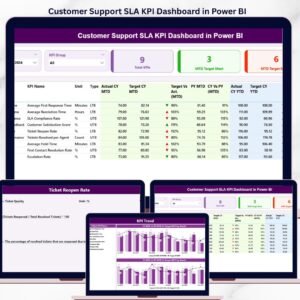
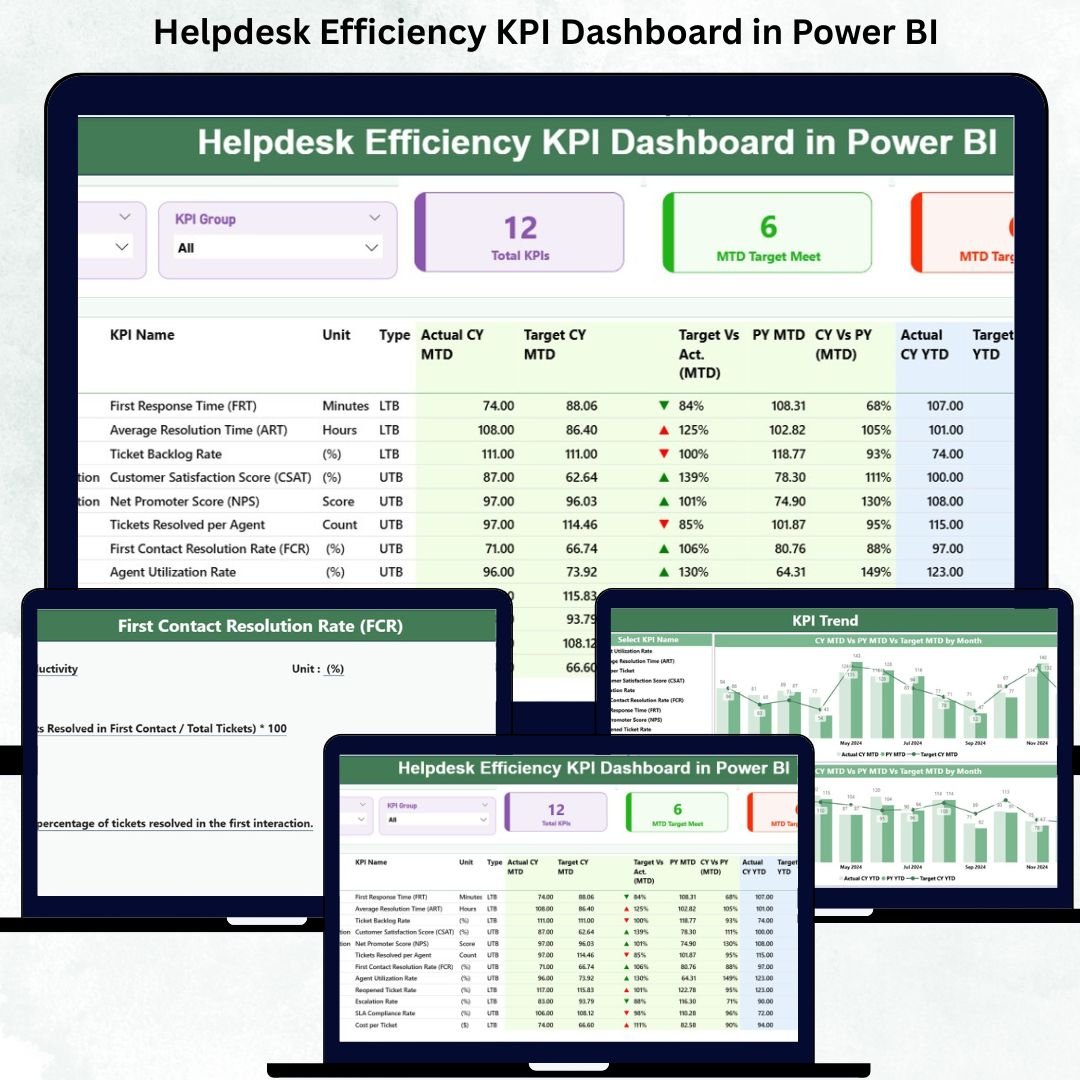
Helpdesk Efficiency KPI Dashboard

This is the central page of the dashboard. Managers use it daily to understand helpdesk performance at a glance.

✔️ Top Filters

  • Month Slicer

  • KPI Group Slicer

These slicers update the entire dashboard instantly, making analysis smooth and flexible.

✔️ KPI Cards

  • Total KPIs Count

  • MTD Target Met Count

  • MTD Target Missed Count

These cards provide a quick health check of the helpdesk.

✔️ Detailed KPI Table

The powerful KPI table includes:

  • KPI Number

  • KPI Group

  • KPI Name

  • Unit (%, hours, count, etc.)

  • KPI Type (LTB/UTB)

  • Actual CY MTD

  • Target CY MTD

  • MTD Icon (▲/▼)

  • Target vs Actual (MTD)

  • PY MTD

  • CY vs PY (MTD)

  • Actual CY YTD

  • Target CY YTD

  • YTD Icon

  • Target vs Actual (YTD)

  • PY YTD

  • CY vs PY (YTD)

This table gives complete visibility for every helpdesk KPI in one place.


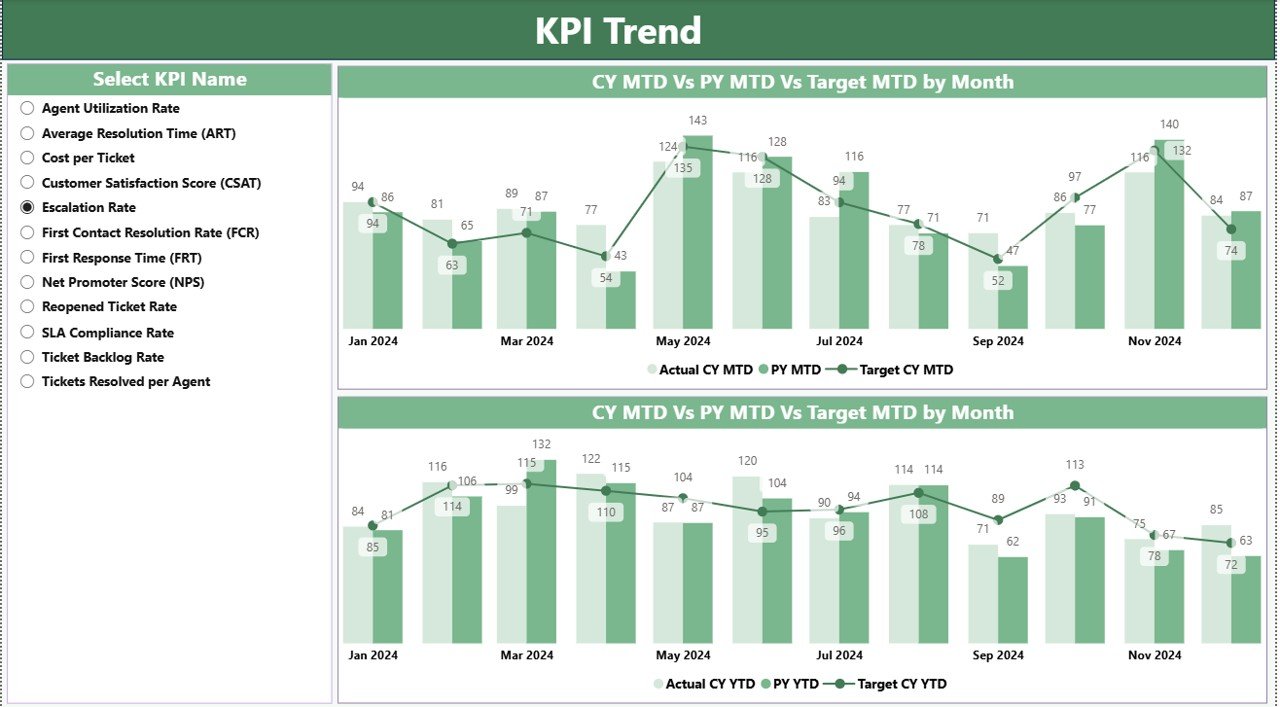
2️⃣ KPI Trend Page – Track Improvements Over Time

This page helps managers and team leaders understand:

  • Seasonal changes

  • Performance improvements

  • Bottlenecks

  • Long-term trends

It includes:

  • 📈 MTD Combo Chart – Actual vs Target vs Previous Year

  • 📉 YTD Combo Chart – Cumulative performance trends

  • 🎛️ KPI Name Slicer – Choose any KPI to display its trends

This page makes trend analysis simple and insightful.


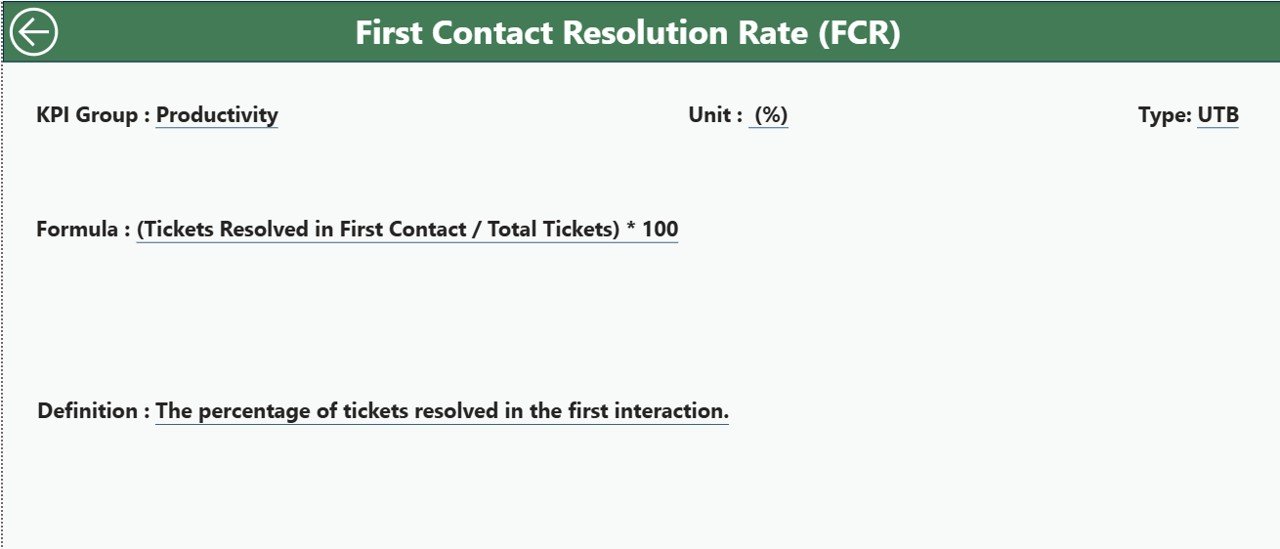
3️⃣ KPI Definition Page – Understand Every Metric

This drill-through page displays:

  • KPI Number

  • KPI Group

  • KPI Name

  • Unit

  • Formula

  • Definition

  • Type (LTB/UTB)

It ensures clarity, transparency, and consistency in reporting. A Back button takes you back to the Summary Page quickly.


🧾 Excel Data Input Structure

The dashboard reads data from three Excel sheets:

✔ 1. Input_Actual

  • KPI Name

  • Month

  • MTD Actual

  • YTD Actual

✔ 2. Input_Target

  • KPI Name

  • Month

  • MTD Target

  • YTD Target

✔ 3. KPI Definition

  • KPI Number

  • KPI Group

  • KPI Name

  • Unit

  • Formula

  • Definition

  • Type (LTB/UTB)

Updating these sheets keeps your entire dashboard accurate.


⭐ Advantages of the Helpdesk Efficiency KPI Dashboard

  • 📊 Real-time KPI visibility

  • 🎯 Automatic Target vs Actual comparison

  • 📉 Trend analysis for better planning

  • 📞 Improved SLA compliance

  • 🕒 Time-saving automated reporting

  • 📁 Simple Excel integration

  • ⚡ Accurate decision-making

  • 🧩 Supports unlimited KPIs

This dashboard helps teams reduce delays, improve response rates, and boost customer satisfaction.


✔ Best Practices for Maximum Value

  • Update Excel sheets every month

  • Keep KPI names consistent

  • Set correct KPI types (LTB/UTB)

  • Use both MTD and YTD views

  • Analyze trend charts before making decisions

  • Share dashboard views with your entire team

  • Set realistic monthly & yearly targets


🔚 Conclusion

The Helpdesk Efficiency KPI Dashboard in Power BI helps support teams improve performance with clarity and confidence. It provides real-time insights, simplifies monthly reporting, automates comparisons, and helps managers make smarter decisions. With its Summary Page, Trend Page, and KPI Definition Page, this dashboard becomes a complete performance monitoring tool for any helpdesk.

🔗 Click here to read the Detailed blog post

Visit our YouTube channel to learn step-by-step video tutorials
Youtube.com/@PKAnExcelExpert

Watch the step-by-step video tutorial:

Compatibility and Requirements

  • Works in Power BI Desktop, which is free. Microsoft explains the download in Get Power BI Desktop.
  • The dashboard reads its data from three Excel sheets: Input_Actual, Input_Target and KPI Definition.

Frequently Asked Questions

Which pages does the dashboard have?

Three pages: Summary, KPI Trend and KPI Definition. The KPI Definition page opens by drill-through and has a Back button to return to the Summary page.

Where does the data come from?

From three Excel sheets. Input_Actual holds the KPI name, month, MTD actual and YTD actual. Input_Target holds the KPI name, month, MTD target and YTD target. The KPI Definition sheet holds the KPI number, group, name, unit, formula, definition and type.

How do I see whether a KPI met its target?

The KPI table on the Summary page shows green and red icons and a Target vs Actual column for both MTD and YTD. The cards at the top count the KPIs, the targets met and the targets missed.

Can I compare results with the previous year?

Yes. The KPI table has PY MTD, PY YTD and CY vs PY columns. The Trend page charts show actual, target and previous year together.

Is there an Excel or Google Sheets version?

Yes. See the Helpdesk Efficiency KPI Dashboard in Excel and the Helpdesk Efficiency KPI Dashboard in Google Sheets.

Related Helpdesk Templates

Browse all Power BI KPI dashboards.

Frequently asked questions

What do I need to open it?
Power BI Desktop, which is free from Microsoft (Windows). No Power BI Pro licence is needed to open, edit or refresh the file.
Does it work on Mac?
Power BI Desktop runs on Windows only. On a Mac you can use a Windows virtual machine, or publish the report to the Power BI Service and view it in a browser.
What is in the download?
The .pbix report and the Excel data file that feeds it (newer products also include a PDF user manual).
How do I use my own data?
Paste your data over the sample rows in the Excel file (keep the column headers), then click Home > Refresh in Power BI Desktop. To use a different file, use Transform data to point the source to it.
Do I need Power BI Pro?
Only if you want to publish the report to the Power BI Service and share it online with colleagues. Opening and editing on your PC is free.
Can I edit the visuals?
Yes - every page, visual, measure and colour is editable in Power BI Desktop.
Is it a one-time payment or a subscription?
One-time payment. No subscription, no per-user fees and nothing to renew - the file is yours to keep.
How do I get the file after payment?
Instantly. The download link appears on screen after checkout, is emailed to you, and stays under My Account > Downloads on our website. If the email does not arrive within a few minutes, check your spam or promotions folder.
Is a user manual included?
Most of our newer products include a PDF user manual in the download. If yours does not have one, message us with your order number and we will send it.
Do I get free updates?
Bug fixes are always free - if something does not work as described, we fix it and send you the corrected file. New versions with new features are not included in the price, unless this product's description says otherwise.
Can you customise it for me?
Yes. Small changes to this template (your columns, categories, logo, colours, minor layout) cost the template price plus $40-80 (Rs 3,000-6,000 + GST), quoted once you send your list. A fully custom build is usually $100-200 (Rs 8,000-18,000 + GST) with two revision rounds. Email your requirements to [email protected] or message us on WhatsApp.
Can I use it for my business or my clients?
Yes, for your own personal or internal business use, for as long as you like. Reselling or redistributing the template is not allowed.
What is your refund policy?
Because these are digital downloads, they are non-refundable once delivered - except when the product does not match its description (report it within 48 hours of purchase) or there is a technical problem our team cannot fix within 72 hours. Email [email protected] with your order number.
How do I get help?
Email [email protected] (Mon-Fri, 10 AM-7 PM IST) or message us on WhatsApp +91 80770 90260 (chat only, no calls). Please include your order number.

Still have a question? Click Need help? at the bottom-left to ask our assistant, or message us on WhatsApp.

Application

Power BI

Template Type

KPI Dashboard

Price

Paid

Business Or Department

Customer Service

Reviews

There are no reviews yet.

Only logged in customers who have purchased this product may leave a review.

You may also like…

Helpdesk Efficiency KPI Dashboard in Power BIHelpdesk Efficiency KPI Dashboard in Power BI
Original price was: $17.99.Current price is: $11.99.
- +
Scroll to Top