

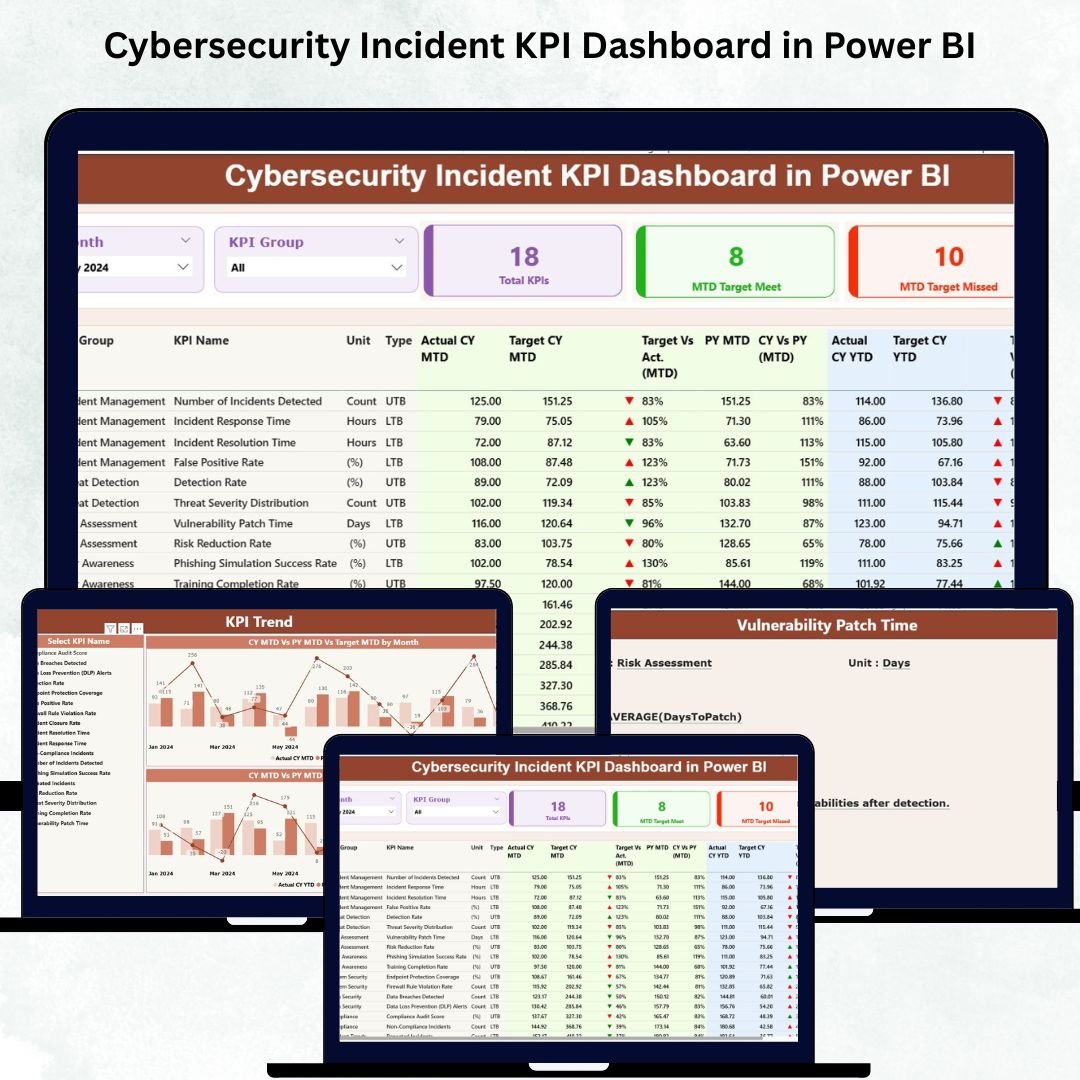

A fast-changing cyber environment requires organizations to monitor performance with precision. Security incidents continue to grow, and teams must detect threats quickly, respond efficiently, and maintain compliance. Without a centralized view, cybersecurity leaders rely on scattered reports, making decision-making slow and unclear.
The Cybersecurity Incident KPI Dashboard in Power BI solves this challenge. It converts your Excel-based security data into clean, interactive, and real-time visuals that highlight the health of your security operations. Whether you manage SOC teams, monitor vulnerabilities, or track incident response KPIs, this dashboard offers everything you need in one place.
This ready-to-use Power BI dashboard helps IT leaders, cybersecurity analysts, SOC managers, auditors, and CISOs gain complete visibility across Month-to-Date (MTD) and Year-to-Date (YTD) performance.
⭐ Key Features of the Cybersecurity Incident KPI Dashboard in Power BI
1️⃣ Summary Page – Your Main Security Health View
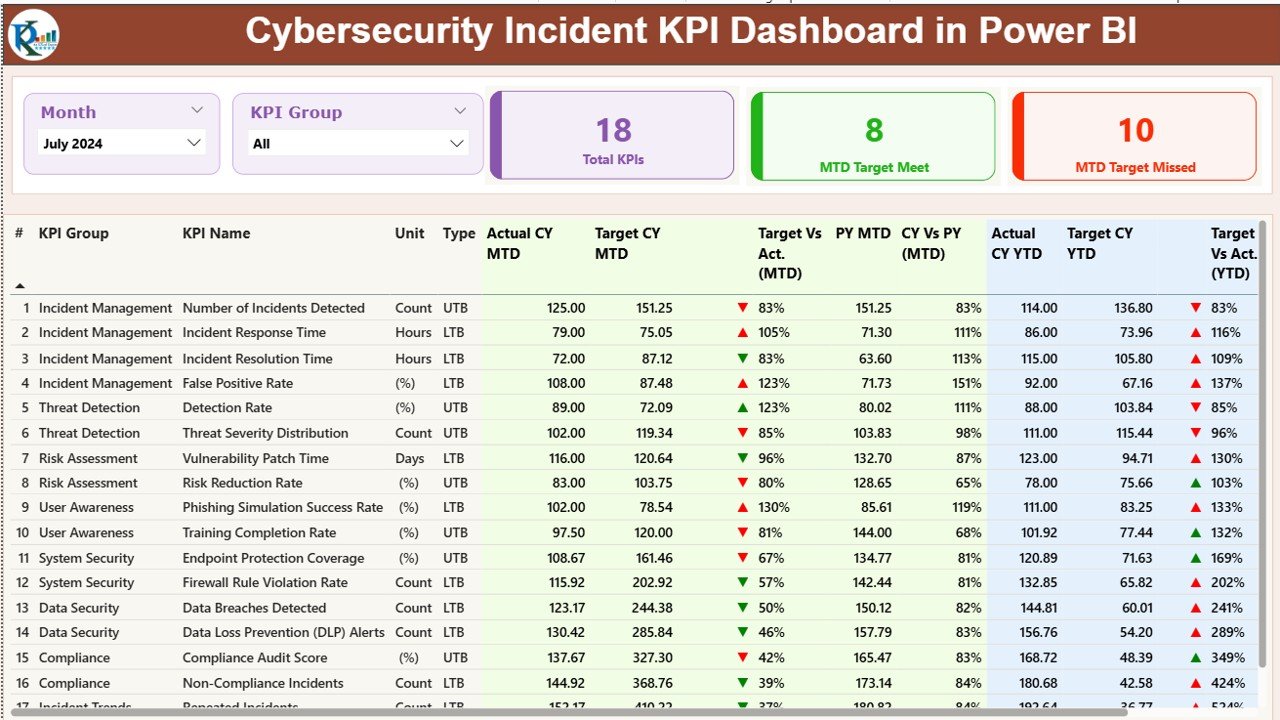
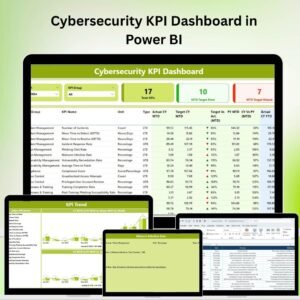
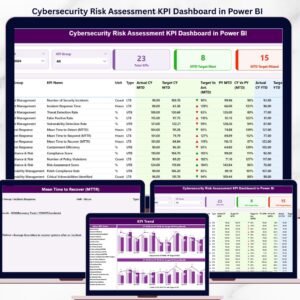
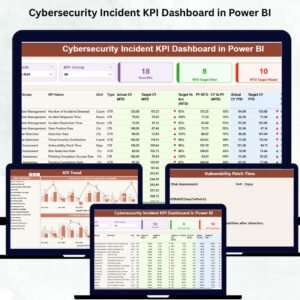
The Summary Page works as the central command center of the dashboard. A Month slicer and KPI Group slicer allow full control and filtering flexibility.
You will find three KPI cards at the top:
Total KPI Count
MTD Target Met
MTD Target Missed
Below these, a detailed KPI table displays:
KPI Number
KPI Group
KPI Name
Unit
Type (UTB / LTB)
Actual CY MTD Vs Target CY MTD
MTD Icons (▲ good performance / ▼ poor performance)
Previous Year MTD Comparison
Actual CY YTD Vs Target CY YTD
YTD Icons
Previous Year YTD Comparison
Every KPI is highlighted visually so managers instantly understand where attention is needed.
2️⃣ KPI Trend Page – Visualizing Performance Over Time
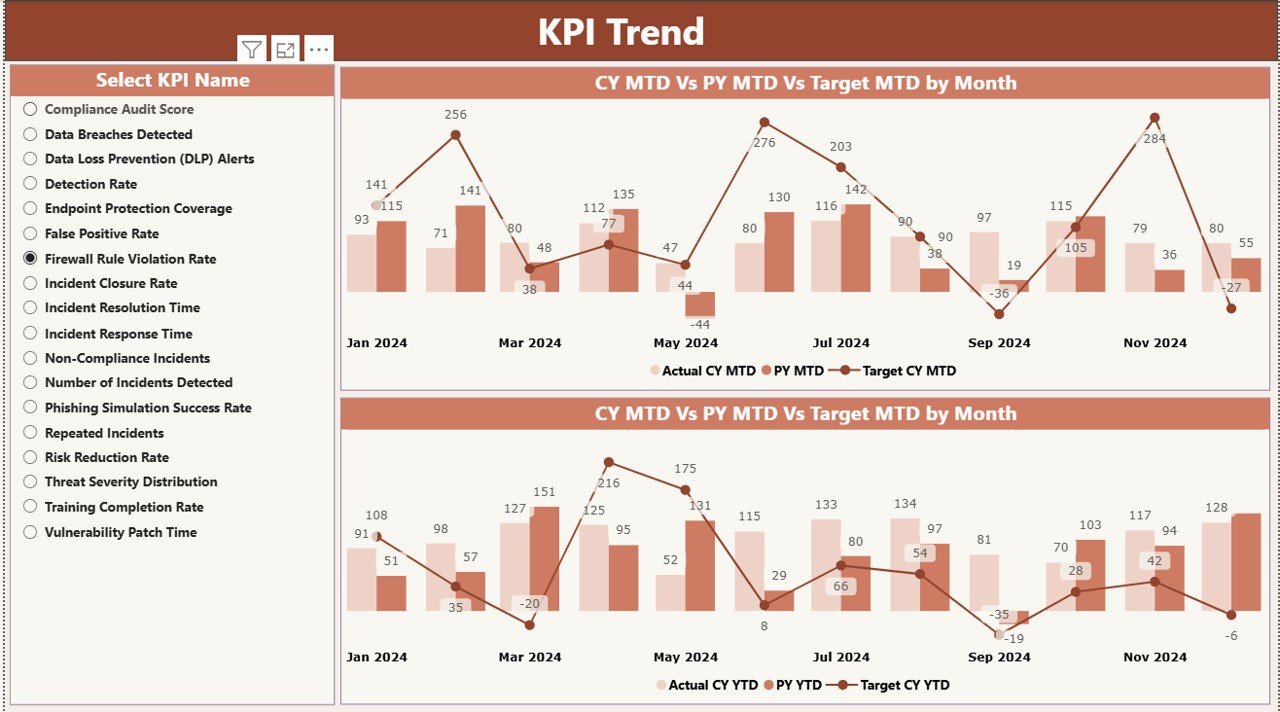
This page includes a KPI Name slicer and two Combo Charts:
Chart 1: Current Year vs Previous Year vs Target (MTD)
Chart 2: Current Year vs Previous Year vs Target (YTD)
These charts help identify:
✔ Threat patterns
✔ Detection speed trends
✔ Resolution improvements
✔ Seasonal threat behavior
It gives teams a clear month-by-month performance view.
3️⃣ KPI Definition Page – Understanding How KPIs Work
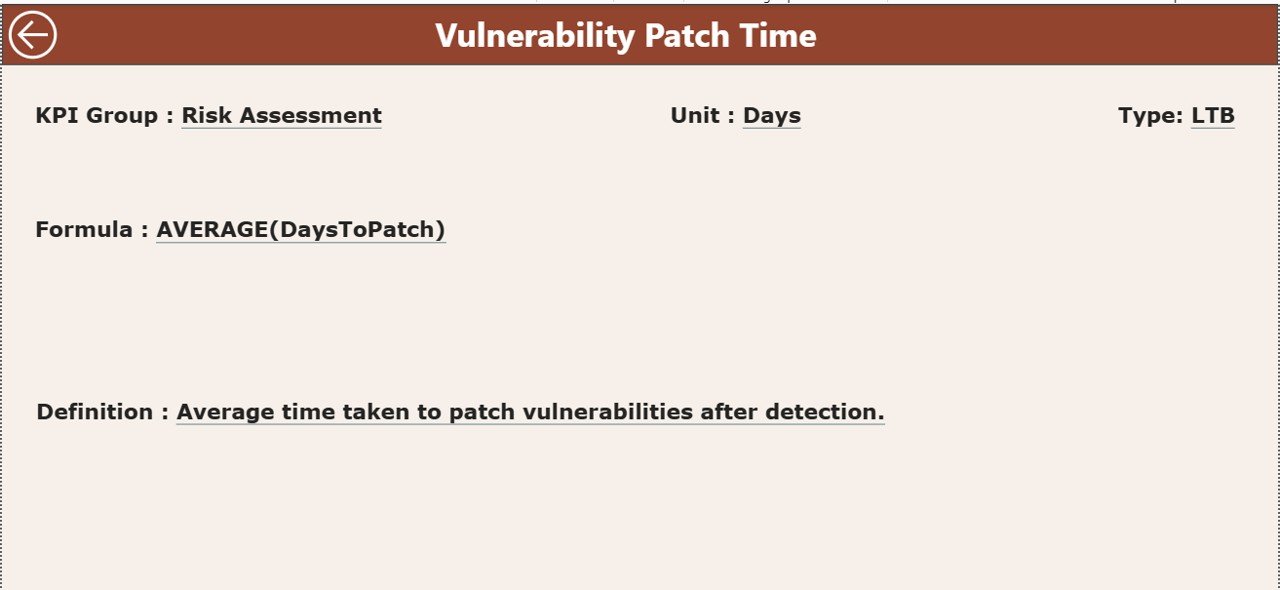
This hidden drill-through page provides full clarity for every KPI:
KPI Number
KPI Group
Unit
KPI Definition
Formula
Type (UTB or LTB)
Users simply right-click any KPI in the Summary Page to open its definition. A back button brings them back instantly.
📂 Excel-Based Input Data Structure
This dashboard runs on a clean and simple Excel file that includes three sheets:
✔ Input_Actual Sheet
KPI Name
Month (1st day of month)
Actual MTD
Actual YTD
✔ Input_Target Sheet
KPI Name
Month
Target MTD
Target YTD
✔ KPI Definition Sheet
KPI Number
KPI Group
KPI Name
Unit
Formula
Definition
Type (UTB / LTB)
Updating these sheets refreshes the entire dashboard instantly.
🔐 Why Organizations Need This Cybersecurity Dashboard
Cyber threats evolve rapidly
Manual reports slow down security decisions
KPIs must be tracked accurately for compliance
Security teams require real-time performance signals
This dashboard provides the immediate visibility that cyber leaders need to operate efficiently and safely.
⭐ Advantages of the Cybersecurity Incident KPI Dashboard
🛡 Real-time incident visibility
⚡ Faster decision-making
🔁 Clear MTD & YTD comparisons
✔ PY (Previous Year) performance visibility
📊 Trend monitoring for long-term improvement
🔍 Full KPI transparency
📈 Support for audits, compliance, and reporting
🧩 Easy Excel updates—no technical skills required
🔄 Automated Power BI refresh
📱 Mobile-friendly views
🧠 Best Practices
Update MTD & YTD data monthly
Use slicers for deep insights
Compare CY vs PY regularly
Investigate all ▼ red icons immediately
Keep KPI definitions updated
Validate data accuracy before refresh
Share reports with SOC teams & management
🎯 Who Should Use This Dashboard?
SOC Teams
Cybersecurity Analysts
IT Managers
CISOs
Risk & Compliance Teams
ISMS Auditors
Incident Response Teams
🔚 Conclusion
A Cybersecurity Incident KPI Dashboard in Power BI gives organizations a structured and powerful way to monitor incidents, track risk levels, measure response efficiency, and compare performance with targets. With its interactive pages—Summary, KPI Trends, and KPI Definitions—security leaders gain complete clarity and real-time visibility. This helps them strengthen their security posture, reduce risk, and respond faster to threats.
This dashboard is a must-have tool for any organization that wants to stay secure, compliant, and proactive in a world of evolving cyber threats.
🔗 Click here to read the Detailed blog post
Visit our YouTube channel to learn step-by-step video tutorials
Watch the step-by-step video tutorial:
Compatibility and Requirements
- Opens in Power BI Desktop, which is free to download for Windows.
- KPI numbers come from an Excel file with Input_Actual, Input_Target and KPI Definition sheets.
- Get the free app from Microsoft: Get Power BI Desktop.
Frequently Asked Questions
What pages does the Cybersecurity Incident KPI Dashboard have?
A Summary page, a KPI Trend page and a hidden KPI Definition drill-through page.
What does the Summary page show?
Total KPI count, MTD target met and MTD target missed cards, plus a KPI table with MTD and YTD actual vs target and previous year values.
How do I update the numbers?
Fill in the Input_Actual and Input_Target sheets in the Excel file, then refresh Power BI.
How do I see a KPI definition?
Right-click a KPI on the Summary page and drill through to the KPI Definition page. A back button returns you.
Is there an Excel version?
Yes. See the Cybersecurity Incident KPI Dashboard in Excel.
Related Cybersecurity Templates
- Cybersecurity Incident KPI Dashboard in Excel: the same KPIs in Excel
- Cybersecurity KPI Dashboard in Power BI: broader security KPIs
- Cybersecurity KPI Dashboard in Google Sheets: a shared online version
- Office Security Incident Dashboard in Power BI: analyze security incidents
- IT and Cybersecurity Operations Bundle: 8 IT and security templates in one bundle
Browse all Power BI KPI dashboards or the Excel IT templates.






Reviews
There are no reviews yet.