

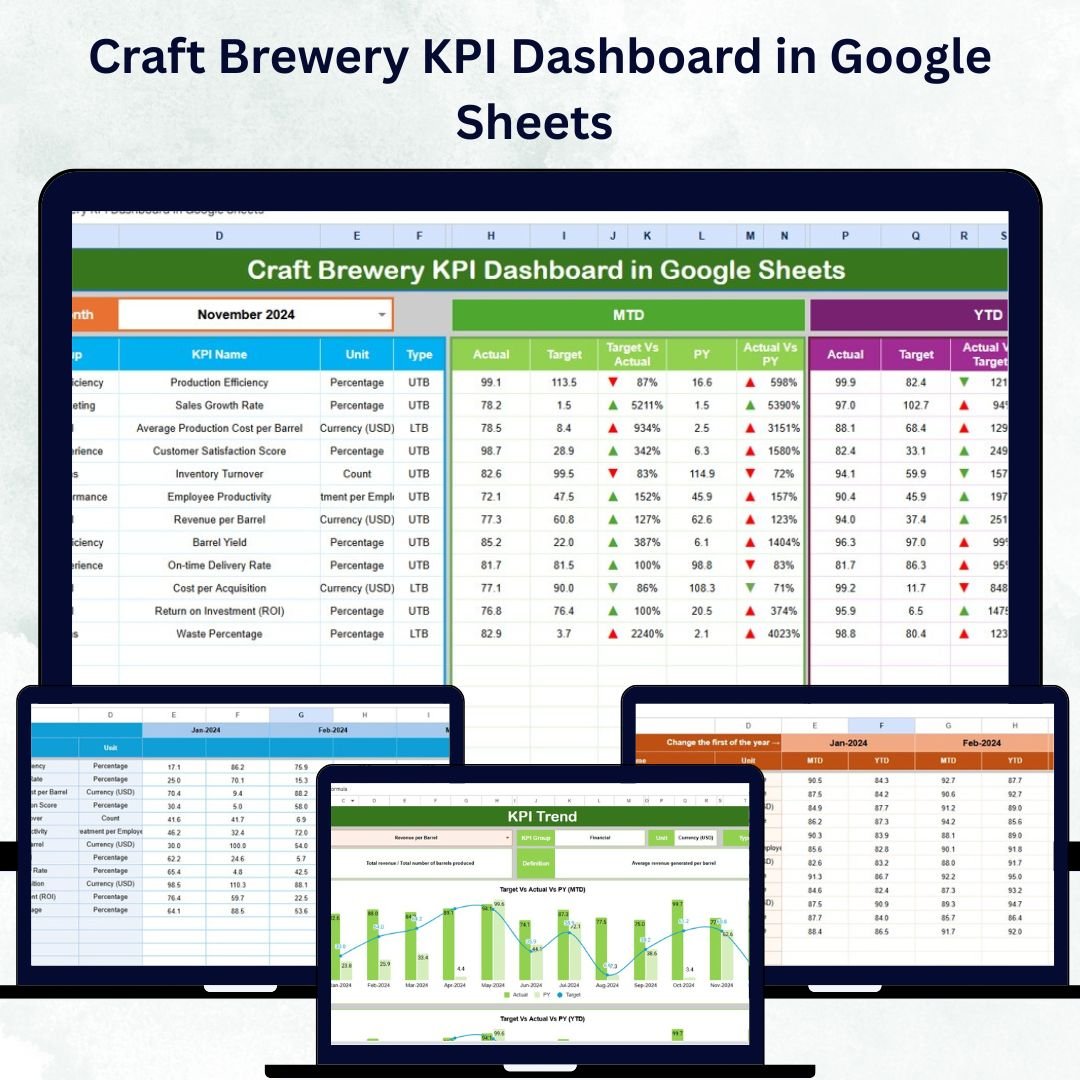

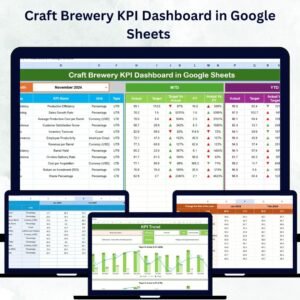
Running a successful craft brewery isn’t just about brewing great beer 🍺 — it’s about mastering your data! The Craft Brewery KPI Dashboard in Google Sheets is your all-in-one performance tracker designed to help you monitor production, sales, inventory, and efficiency with ease.
Built in Google Sheets, this ready-to-use dashboard transforms your brewery data into clear visuals and real-time insights — so you can focus less on spreadsheets and more on brewing success! 🌟
⚙️ Key Features of the Craft Brewery KPI Dashboard in Google Sheets
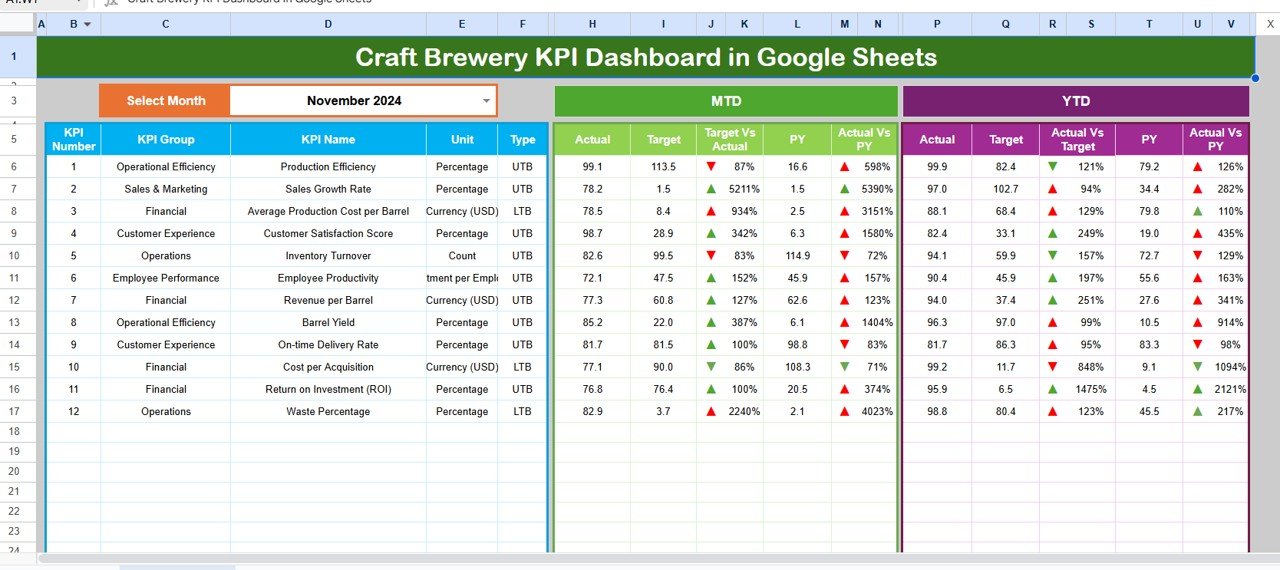
💡 Interactive Dashboard Controls: Select any month from the dropdown, and watch all charts and KPIs update instantly.
📊 MTD & YTD Tracking: View Month-to-Date and Year-to-Date performance at a glance, complete with Actual vs Target and Actual vs Previous Year comparisons.
📈 Automatic Calculations: Forget manual math — all formulas are pre-built and auto-calculated for accurate reporting.
🚦 Smart Visual Indicators: Up and down arrows 🔼🔽 and color coding instantly highlight areas of success or concern.
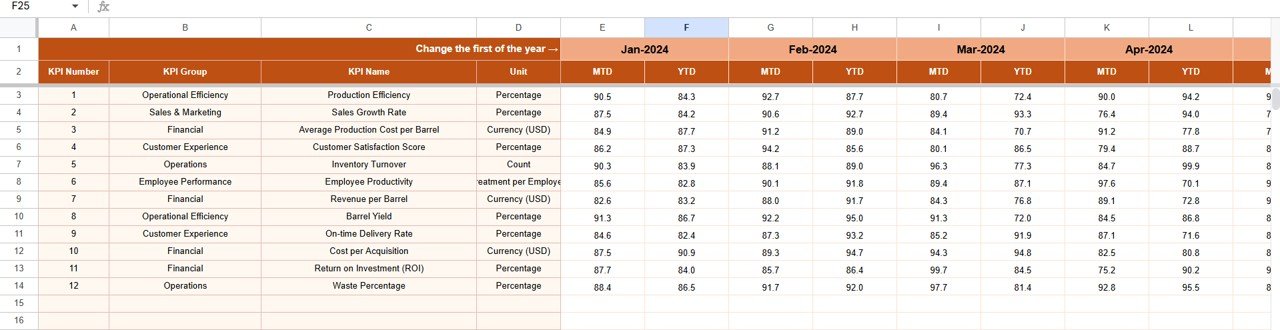
📅 Historical Insights: Compare current performance against previous year data to understand growth trends.
🌐 Cloud-Based Collaboration: Multiple team members can update data in real-time from anywhere.
🎯 Customizable Metrics: Add or remove KPIs to match your unique brewery goals.
💻 No Extra Software Needed: 100% built in Google Sheets — no coding, no add-ons!
📂 What’s Inside the Craft Brewery KPI Dashboard in Google Sheets
When you download this product, you’ll get a complete, organized system built for performance clarity:
1️⃣ Dashboard Sheet: The main control center where you can track MTD and YTD KPIs like brewing yield, batch cycle time, and sales performance.
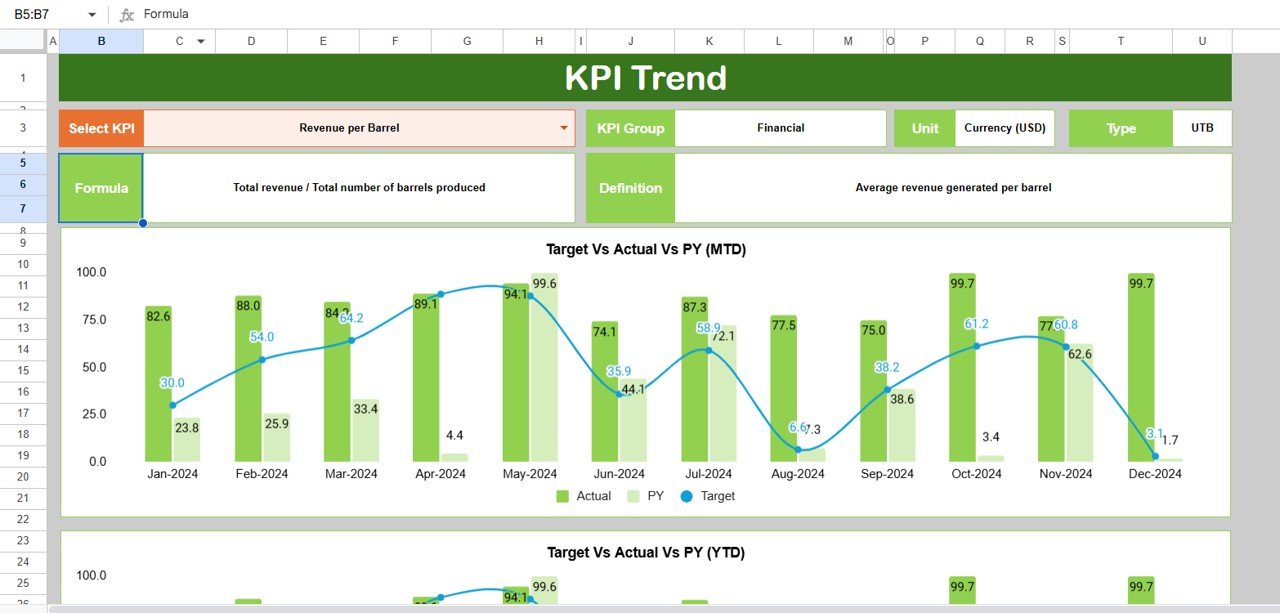
2️⃣ Trend Sheet: Choose a KPI from the dropdown and view detailed charts comparing Actual, Target, and Previous Year data.
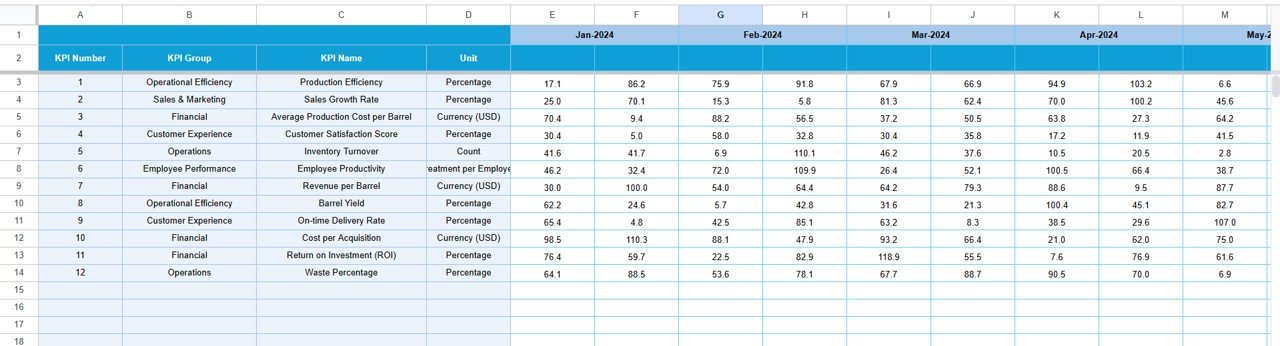
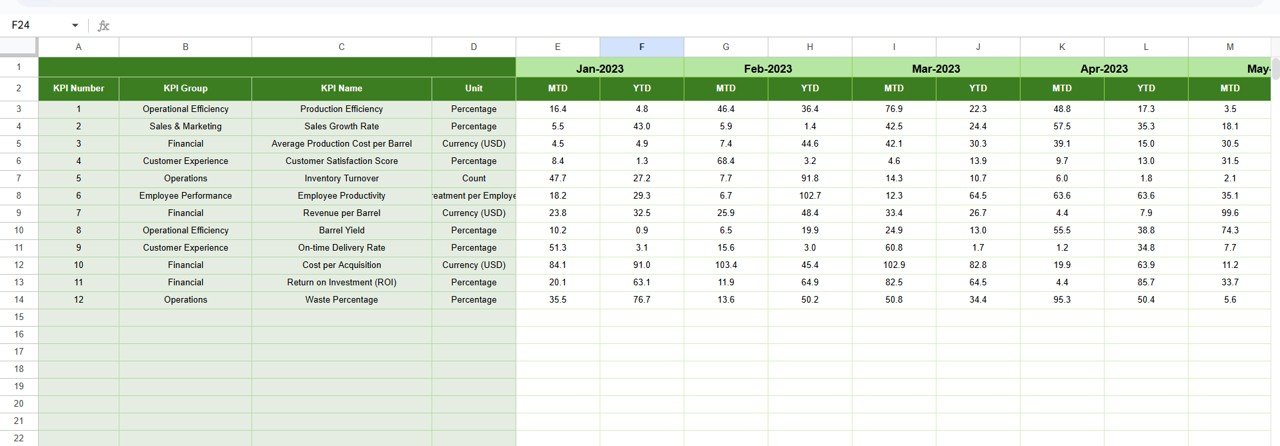
3️⃣ Actual Numbers Input Sheet: Enter your monthly data — the dashboard updates automatically!
4️⃣ Target Sheet: Define your monthly and yearly goals to measure success effectively.
5️⃣ Previous Year Sheet: Store and compare last year’s figures for growth analysis.
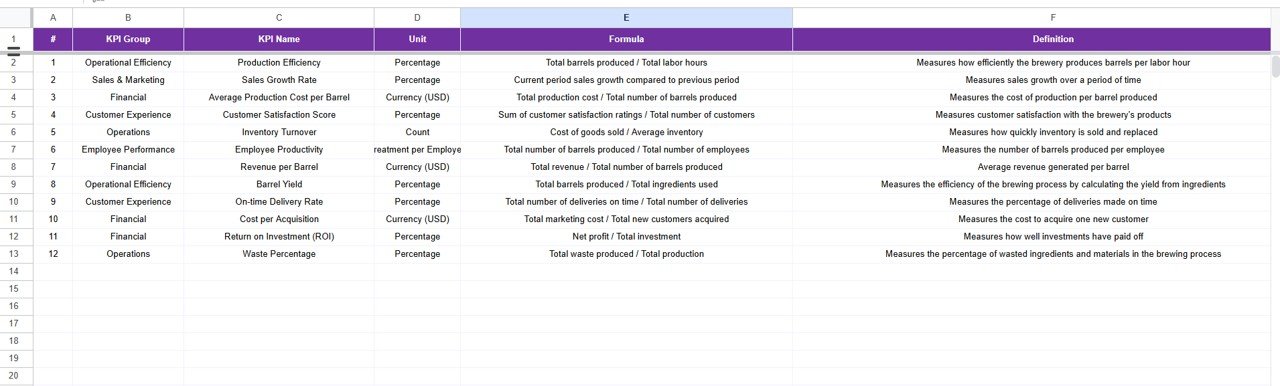
6️⃣ KPI Definition Sheet: Includes KPI name, unit, formula, type (UTB/LTB), and definition for reference clarity.
Each sheet works seamlessly together to provide real-time tracking and reporting.
🚀 How to Use the Craft Brewery KPI Dashboard in Google Sheets
Using this tool is simple and intuitive:
✅ Step 1: Open the “Actual Numbers Input” sheet and enter your monthly performance data.
✅ Step 2: Update your goals in the “Target” sheet.
✅ Step 3: Add previous year’s data for comparison.
✅ Step 4: Go to the “Dashboard” tab, pick your month, and watch the entire view update automatically!
✅ Step 5: Use the “Trend” tab to explore specific KPIs over time.
✅ Step 6: Collaborate easily with your team — everyone can edit simultaneously in Google Sheets.
That’s it! You’ll have a live, data-driven control center to manage production, sales, and efficiency all in one place. 📊
👩💼 Who Can Benefit from This Craft Brewery KPI Dashboard
🍻 Brewery Owners & Managers: Gain real-time visibility into production efficiency and costs.
📉 Operations Teams: Track batch yields, waste levels, and optimize resources.
💰 Finance & Accounting Teams: Compare sales revenue vs. cost for better budgeting.
📈 Sales & Distribution Teams: Measure performance by channel or region.
📊 Consultants & Analysts: Use customizable visuals to create performance reports for clients.
🧠 Start-Ups & Small Breweries: Build a data-driven culture without heavy investment in BI tools.
With this dashboard, every decision you make will be backed by accurate, up-to-date data.
Click here to read the Detailed blog post
Watch the step-by-step video tutorial:
Visit our YouTube channel to learn step-by-step video tutorials YouTube.com/@PKAnExcelExpert
Compatibility and Requirements
- Works in Google Sheets. You need a free Google account and a web browser.
- You pick the month from a dropdown on the Dashboard sheet. Google explains dropdowns in Create an in-cell dropdown list.
Frequently Asked Questions
Which sheets are included?
Six sheets: Dashboard, Trend, Actual Numbers Input, Target, Previous Year and KPI Definition.
How do I update the dashboard?
Enter your monthly figures in the Actual Numbers Input sheet and your goals in the Target sheet. Then pick a month on the Dashboard sheet and the KPIs and charts update.
Can I compare this year with last year?
Yes. Add last year’s figures to the Previous Year sheet. The Dashboard compares Actual vs Target and Actual vs Previous Year, for both month-to-date and year-to-date.
How do I see the trend for one KPI?
Open the Trend sheet and choose the KPI from the dropdown. It shows charts of Actual, Target and Previous Year data.
Can I add or remove KPIs?
Yes. You can add or remove KPIs to match your brewery goals. The KPI Definition sheet lists each KPI with its unit, formula, type (UTB or LTB) and definition.
Is there an Excel or Power BI version?
Yes. See the Craft Brewery KPI Dashboard in Excel and the Brewery & Winery Dashboard in Power BI.
Related Brewery and KPI Templates
- Craft Brewery KPI Dashboard in Excel: the same brewery KPIs in Excel
- Craft Brewery KPI Scorecard in Excel: a scorecard view of brewery metrics
- Brewery & Winery Dashboard in Power BI: a Power BI dashboard for breweries and wineries
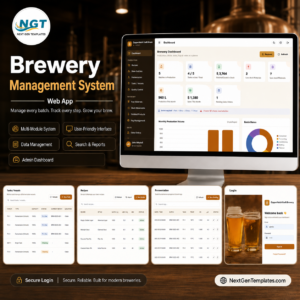
- Brewery Management System Web App: a web app for running a brewery
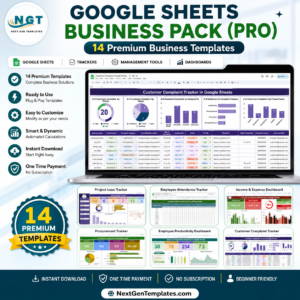
- Google Sheets Business Pack (Pro): 14 business templates in one download
Browse all Google Sheets KPI dashboards.



Reviews
There are no reviews yet.