

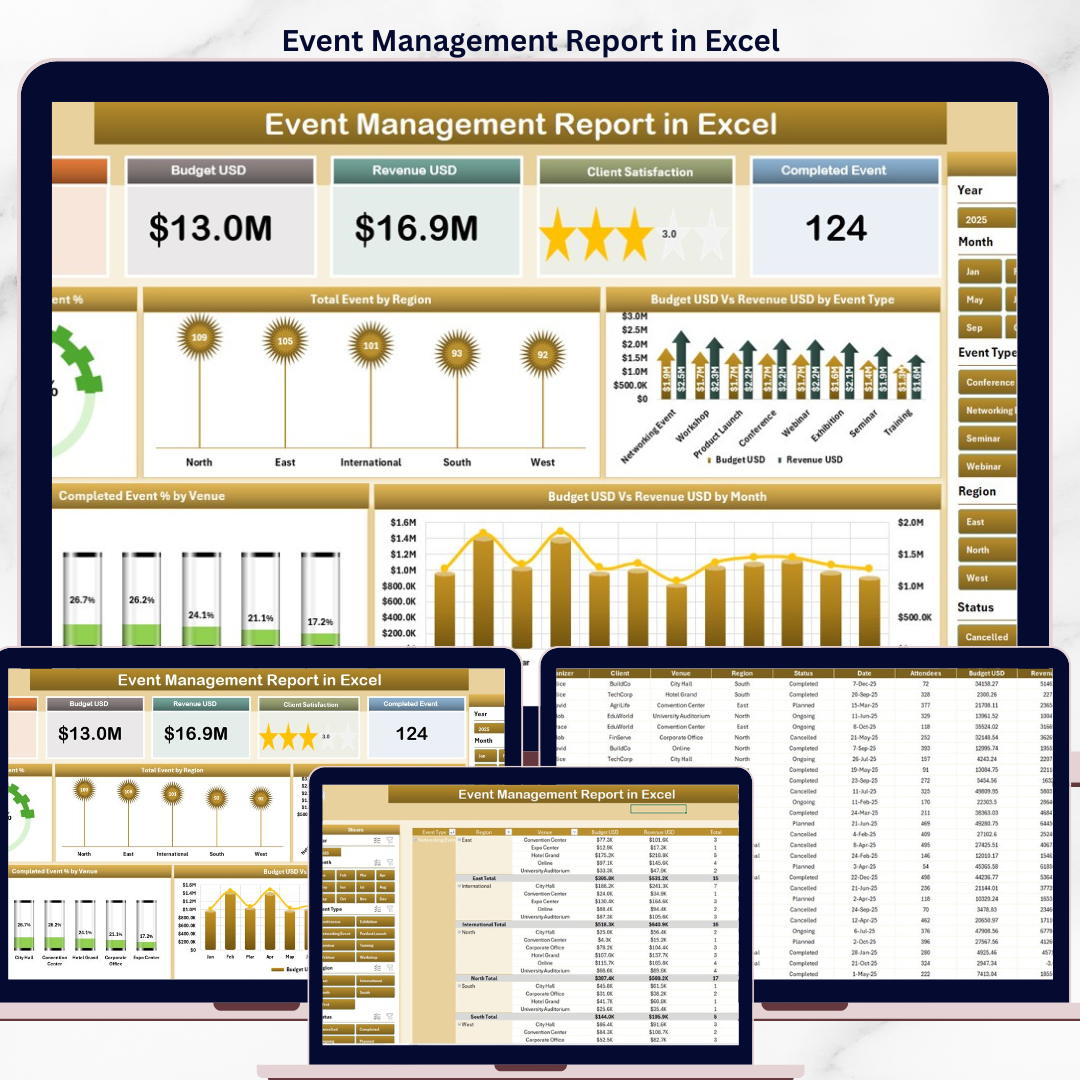
The Event Management Report in Excel tracks 5 headline KPIs across 4 worksheets, with 5 pre-built charts and slicer-driven filtering on both reporting pages. Setup takes under 10 minutes — replace the sample event log with your own data, click Data → Refresh All, and every KPI card, chart, and the information table updates automatically.
🌍 Join 8,400+ teams in 40+ countries using NextGenTemplates to replace paid SaaS tools with one-time-purchase Excel, Google Sheets, Power BI, and HTML templates.
✅ Instant download · One-time payment · No subscription · No per-user fees · Lifetime access
🔑 Key Features of Event Management Report in Excel
📊 Two-Page Reporting Structure – The workbook splits the event book of work into two purpose-built views: a visual Summary page with 5 KPI cards and 5 charts, and a Report page with a filterable information table for line-by-line review. Executives skim the Summary in 30 seconds while ops teams drill into the Report row-by-row.
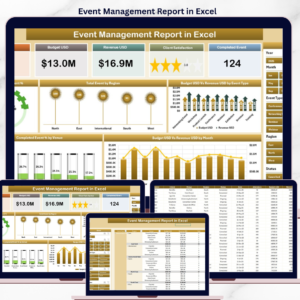
💰 5 Headline KPI Cards on the Summary Page – Five KPI cards sit at the top of the Summary sheet for at-a-glance executive review. A right-side slicer panel filters the entire Summary page by Event Type, Region, Venue, or Month with a single click, and every card recalculates instantly.
📈 5 Pre-Built Analytical Charts – The Summary visualises Completed Event %, Total Event by Region, Budget Vs Revenue by Event Type, Completed Event % by Venue, and Budget Vs Revenue by Month. Together they answer the four questions every event sponsor asks: are we hitting completion targets, where are events happening, where is the money going, and is the calendar seasonal?
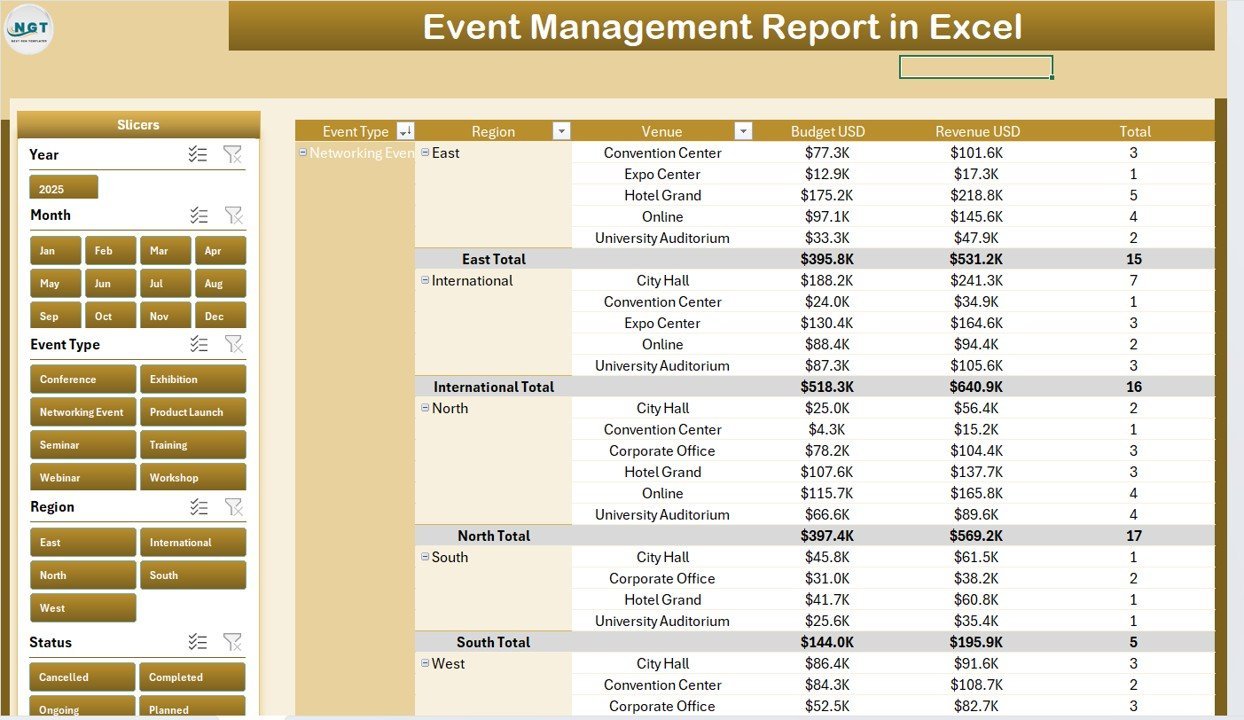
📋 Filterable Information Table on the Report Page – The Report page pairs a left-side slicer panel with a clean information table that lists every event with its key columns. Apply a slicer and the table filters to a printable subset — useful for board packs, audit trails, and per-event reviews.
💼 Budget vs Revenue Tracking in Two Views – Two of the five charts compare Budget against Revenue side-by-side — one by Event Type, one by Month. Overruns are visible without writing a single formula, and the monthly view exposes seasonality so next year’s calendar can be planned using last year’s curve.
🗂️ Editable Data and Support Sheets – A dedicated Data sheet holds the event log in the column order the workbook expects. A Support sheet contains the pivot tables that drive every chart and the information table — refresh them once and the entire report rebuilds itself.
🎛️ Slicer-Driven Filtering on Both Pages – Slicers replace dropdown lists for one-click filtering. Click a region on the Summary slicer and Total Event by Region, Completed Event % by Venue, and every KPI card update in unison. The Report page slicer drives the information table with the same instant feedback.
🔄 Replace and Refresh Workflow – Drop your event log into the Data sheet, click Data → Refresh All, and every chart, KPI, and table row across both reporting pages rebuilds. No formula edits, no chart re-pointing, no broken pivot ranges.
💻 Microsoft Excel Native .xlsx File – Built in Microsoft Excel for Windows and macOS. No macros, no add-ins, no external connections. Works offline, prints cleanly, and shares without any licensing barriers. Compatible with Excel for the web for read-only viewing.
📦 What’s Inside the Event Management Report in Excel
The download is a single .xlsx file containing 4 worksheets — Summary, Report, Data, Support — that work together as one connected report.
Sheet 1 — Summary. Opens with five KPI cards across the top and a right-aligned slicer panel. Below the cards sit five analytical visuals: Completed Event % (a single ring or gauge that tracks the share of events that closed successfully), Total Event by Region (a regional volume view), Budget Vs Revenue by Event Type (paired bars per event type to expose profitability), Completed Event % by Venue (which venues actually deliver), and Budget Vs Revenue by Month (the monthly seasonality curve). Apply any slicer and the entire Summary recalculates.
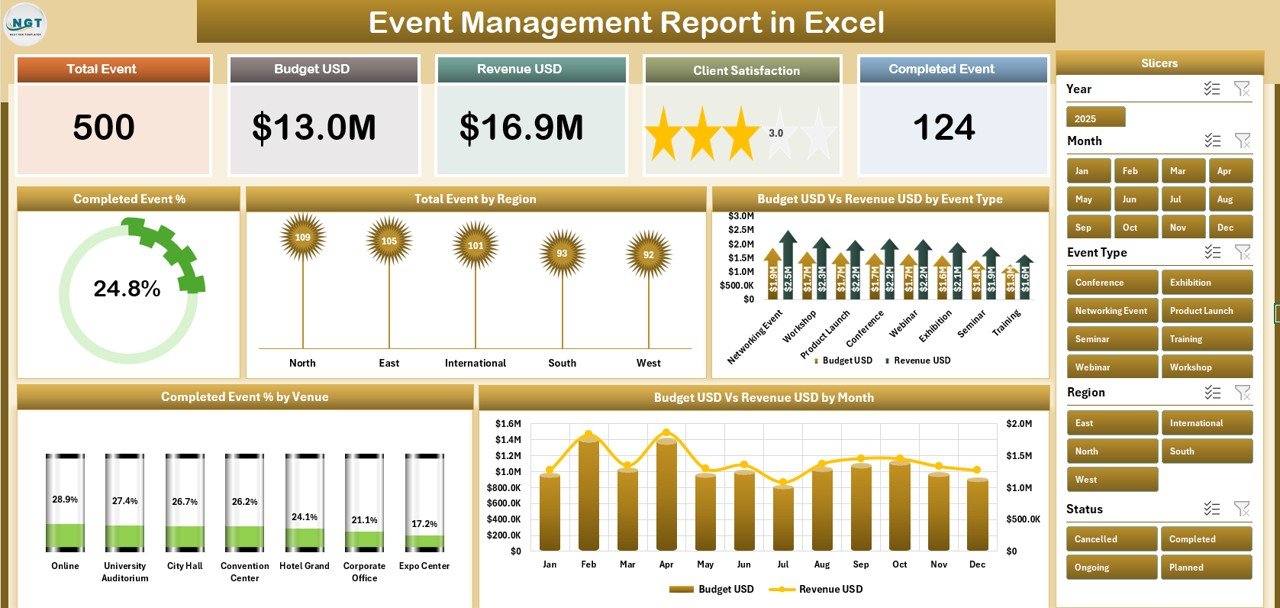
Event Management Report in Excel — Summary Page
Sheet 2 — Report. A filterable information table paired with a left-side slicer panel. The table lists every event row with its core fields — Event Name, Type, Region, Venue, Month, Status, Budget, and Revenue — and updates the moment a slicer is clicked. Use it for printable per-event reports, audit packs, vendor reviews, or as a clean export to send stakeholders who only want the numbers, not the charts.
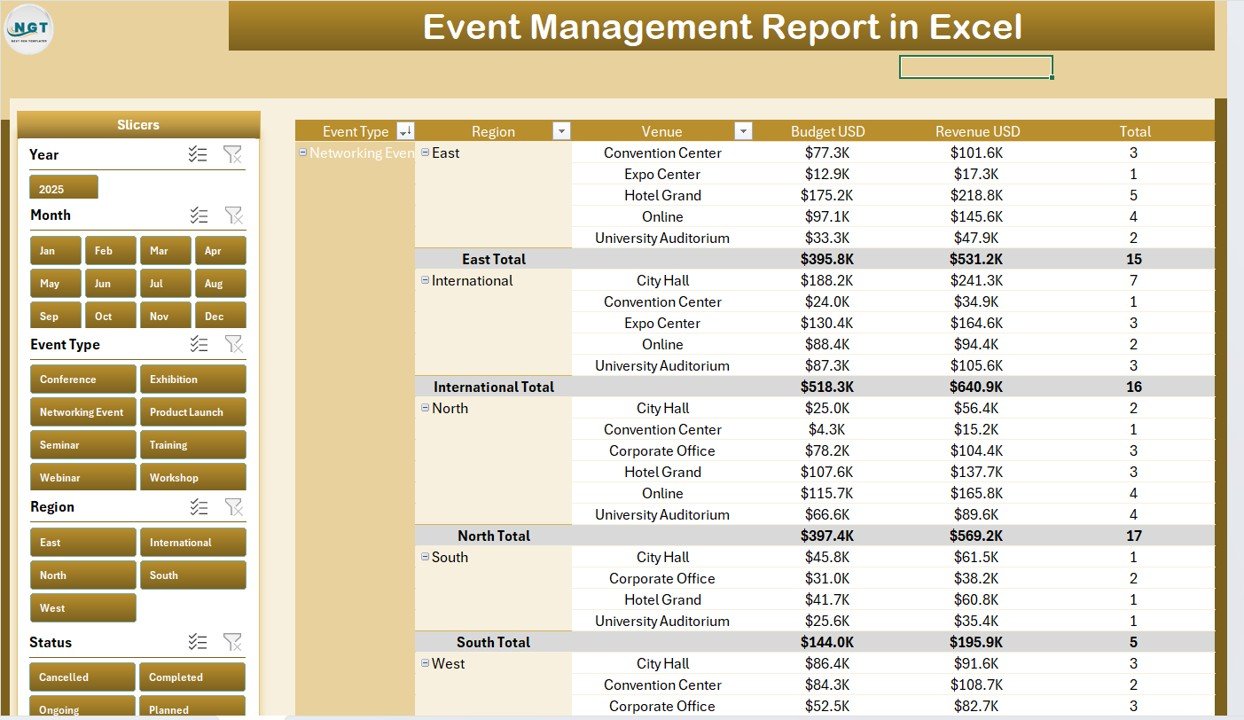
Report Page — Information Table with Slicer
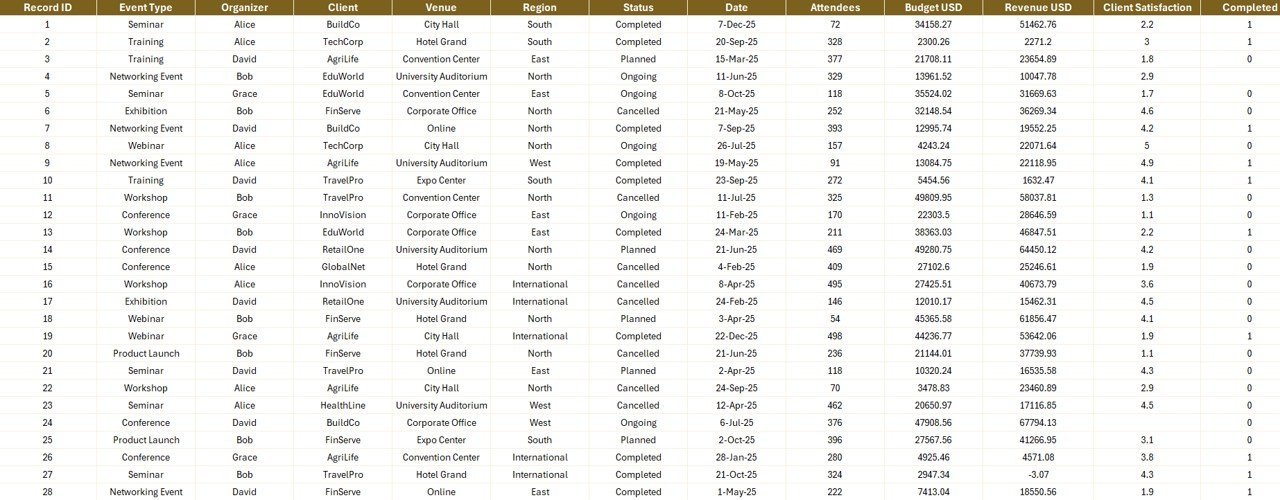
Sheet 3 — Data. The single source of truth. Drop your own event records into this sheet, keeping the column headers identical to the sample. Each row represents one event with fields for Event Name, Type, Region, Venue, Month, Status, Budget, Revenue, and any custom columns you add. The Data sheet accepts as many rows as Excel can hold.
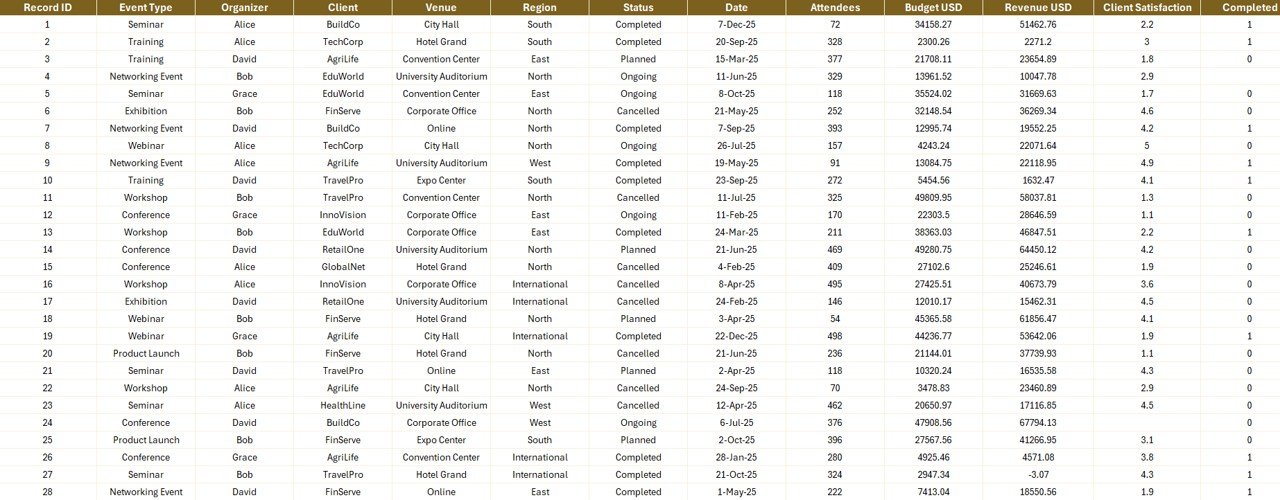
Data Sheet
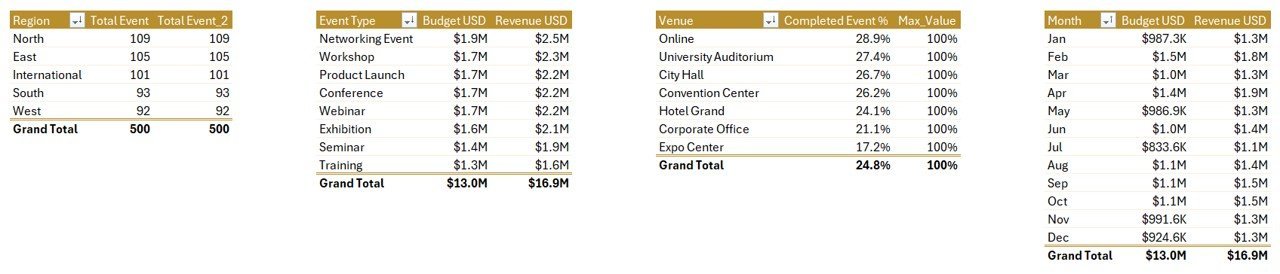
Sheet 4 — Support. Holds the pivot tables that power every chart on the Summary page and the slicer-linked information table on the Report page. Click Data → Refresh All after updating the Data sheet and every pivot recalculates, which in turn refreshes every chart and the information table. You can keep this sheet hidden in your production version.
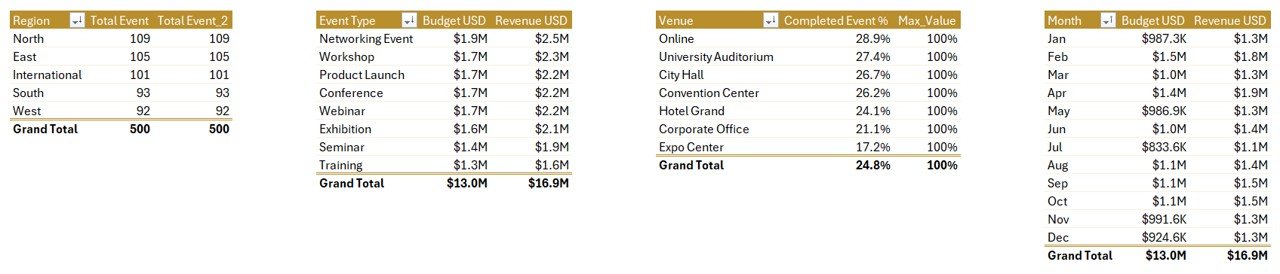
Support Sheet
📊 Event Management Report in Excel vs. Power BI Event Dashboard vs. Cvent / Bizzabo — Where This Fits
| Feature | Event Management Report in Excel | Power BI Event Dashboard | Cvent / Bizzabo / Eventbrite Pro |
|---|---|---|---|
| Cost | $7.99 one-time ✅ | $17.99 one-time | $500 – $5,000+ per year |
| Platform | Microsoft Excel (Win + Mac) ✅ | Power BI Desktop (Windows only) | Web SaaS, vendor-hosted |
| Setup time | Under 10 minutes ✅ | Under 10 minutes | 2–6 weeks onboarding |
| Slicer filtering on every page | Yes — both pages ✅ | Yes | Yes |
| Editable formulas and pivots | Fully editable ✅ | DAX (steeper learning curve) | Vendor-locked metrics |
| Works fully offline | Yes — local .xlsx ✅ | Yes — local .pbix | No — internet required |
| Mac compatibility | Yes — native ✅ | No (Windows only) | Yes (browser only) |
| Year-1 cost at 5 users | $7.99 total ✅ | $17.99 total | $2,500 – $25,000+ |
| Live attendee check-in | No | No | Yes |
For event teams that want a print-ready report without a Cvent invoice or a Power BI license, the Event Management Report in Excel sits in the sweet spot.
👥 Who This Template Is For — and Who It’s Not For
✅ This template is built for:
- Event managers running 10–200 events a year who need a clean, PDF-ready report for executives
- Corporate events teams tracking budget vs revenue per event type and per month
- Marketing and brand teams reporting completion rates and venue performance to leadership
- Agencies that need to hand clients a per-event information table with a filterable view
- Mac users locked out of Power BI Desktop who still want slicer-driven event analytics
❌ This template is NOT for:
- Teams needing live attendee check-in, badge printing, or onsite ticket scanning — use Cvent or Bizzabo
- Organizations requiring SOC 2, HIPAA, or enterprise SSO around event reporting tools
- Solo hobby event hosts running 1–2 events a year — the setup overhead isn’t worth it
- Real-time multi-user collaboration on the same file — Excel desktop is single-author at heart
⚙️ How to Use the Event Management Report in Excel
- Download the .xlsx file and open it in Microsoft Excel (Windows or macOS).
- Open the Data sheet and replace the sample event log with your own records, keeping the column headers identical.
- Click Data → Refresh All to rebuild every pivot in the Support sheet.
- Open the Summary sheet — every KPI card and chart will already reflect your data.
- Use the right-side slicer panel on the Summary page to filter by Event Type, Region, Venue, or Month.
- Switch to the Report sheet and use the left-side slicer to filter the information table for printable per-event reports.
💼 Real-World Use Cases
Priya runs corporate events at a 120-person B2B SaaS company. She uses the Event Management Report in Excel to deliver her quarterly board update — filtering the Summary page by quarter and exporting both the chart view and the Report page information table into a 3-page PDF. Before the template, she rebuilt the same report from raw exports every quarter, which used to take her two full afternoons.
David is a regional events director at a hospitality group managing 40 venues. He uses the Completed Event % by Venue chart and the Total Event by Region chart to identify which venues consistently underperform and which regions carry the program. The Report page information table goes straight to his procurement team for venue contract renewals.
Maya runs a 6-person events agency serving non-profits. Each client gets their own copy of the template with their event log dropped into the Data sheet. She prints the Summary as a one-pager and the Report as a tabular appendix — replacing her previous $180 per month subscription she only ever used for reporting.
❓ Frequently Asked Questions
What KPIs does the Event Management Report in Excel track?
The Event Management Report in Excel surfaces five KPI cards on the Summary page plus five charts: Completed Event %, Total Event by Region, Budget Vs Revenue by Event Type, Completed Event % by Venue, and Budget Vs Revenue by Month. The Report page adds a filterable information table for line-by-line review.
How does this compare to Cvent or Bizzabo?
Cvent and Bizzabo cost $500–$5,000+ per year and focus on live event operations like ticketing, check-in, and badging. The Event Management Report in Excel is a one-time $7.99 purchase focused entirely on post-event reporting — completion rates, budget vs revenue, regional and venue analysis. Use it alongside an operational tool, not in place of one.
How long does setup take?
Setup takes under 10 minutes. Open the .xlsx file in Excel, drop your event log into the Data sheet using the same column headers, and click Data → Refresh All. Every chart on the Summary page and every row of the Report page information table updates automatically.
Does the Event Management Report in Excel work on Mac?
Yes. The Event Management Report in Excel is a native .xlsx file with no macros and no add-ins, so it opens cleanly in Excel for Mac, Excel for Windows, and Excel on the web. All slicers, pivot tables, and charts behave identically across platforms.
Can I add my own KPIs and charts?
Yes. The Support sheet contains the pivot tables that drive every visual — add new pivots, new fields, or new measure columns and Excel will let you create new charts pointed at them. The Data sheet accepts as many extra columns as you need without breaking existing visuals.
How is this different from a Dashboard?
A dashboard prioritizes visual KPIs at a glance. The Event Management Report in Excel includes that Summary view but adds a dedicated Report page with a filterable information table — built for printing, archiving, and per-event review. Reports answer “what happened to each event”; dashboards answer “how is the program doing overall”.
Are there macros or external connections?
No. The Event Management Report in Excel uses only native Excel features — pivot tables, charts, slicers, and the standard Data → Refresh All command. No VBA, no Power Query, no external data connections. The file works offline forever.
👤 About the Author
Built by PK — Microsoft Certified Professional with 15+ years of Excel, Google Sheets, and Power BI experience. Founder of NextGenTemplates, reaching 300K+ subscribers across YouTube channels (@PK-AnExcelExpert, @NextGenTemplates, @NeoTechNavigators). Every template is hand-built and tested before release.
🔗 Explore Related Templates
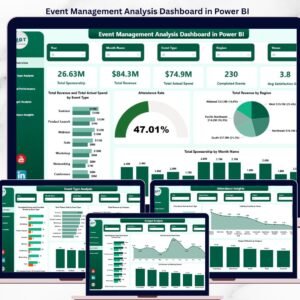
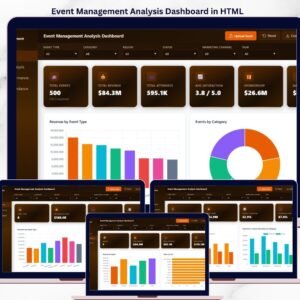
💎 Also available as: Event Management Analysis Dashboard in Excel, Event Management Analysis Dashboard in Power BI, and Event Management Analysis Dashboard in HTML — same domain, different formats.
🔹 Healthcare Services Report in Excel — same Report-style format applied to clinic and hospital operations.
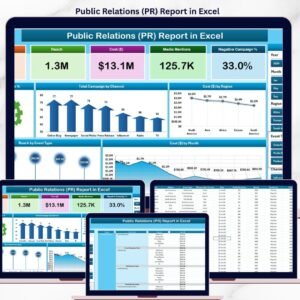
🔹 Public Relations (PR) Report in Excel — Report-format template for PR and communications teams.
🔹 Wedding Budget Dashboard in Google Sheets — event-adjacent budget tracking for weddings and private events.
🔹 Browse all Excel Report Templates or explore the broader Microsoft Excel Templates catalog.
📖 Click here to read the Detailed Blog Post
🎥 Visit our YouTube channel for step-by-step video tutorials
👉 YouTube.com/@NextGenTemplates
📅 Last updated: April 2026
Watch the step-by-step video tutorial:





Reviews
There are no reviews yet.